How to fix
“Try connecting your device again” Bluetooth error
on Windows
Resolve the "Try connecting your device again" Bluetooth error on Windows 10 and 11 effortlessly. Get expert-tested solutions for quick fixes!


What causes How to fix “Try connecting your device again” Bluetooth error in Windows?
- Faulty pairing due to distance or low battery
- Outdated or corrupt Bluetooth drivers
- Responsible services not running on the computer
- Incompatibility of the Bluetooth device with the computer
- Incorrect hardware setup
Repairs Windows system files, removes malware, and restores a clean OS state — without reinstalling.
Hi, I have recently purchased a new computer with Windows 11 pre-installed on it. Unfortunately, it has some issues. Whenever I attempt to connect any of the Bluetooth devices, such as a wireless headset or mouse, I receive the "Try connecting your device again" error, which repeats if I try connecting again.
Bluetooth is a widely used wireless technology that allows devices to communicate with each other over short distances. It is often used to connect various computer peripherals, such as mice, keyboards, or headsets, to computers without the need for cables.
However, some users have reported that they are unable to pair their Bluetooth devices because they receive the "Try connecting your device again" error, which is prevalent on both Windows 10 and Windows 11 versions. This error can be frustrating, especially if you rely on Bluetooth devices for work or entertainment.
You might encounter the "Try connecting your device again" error for several reasons. One of the most common reasons is faulty pairing. This occurs when your computer is unable to establish a connection with your Bluetooth device. It can happen if you're too far away from the device or if the device's battery is low.
Another reason for the error is faulty drivers. If your Bluetooth drivers are outdated or corrupt, you may experience problems when trying to connect your device. Additionally, if the responsible services are not running on your computer, you may not be able to establish a Bluetooth connection.
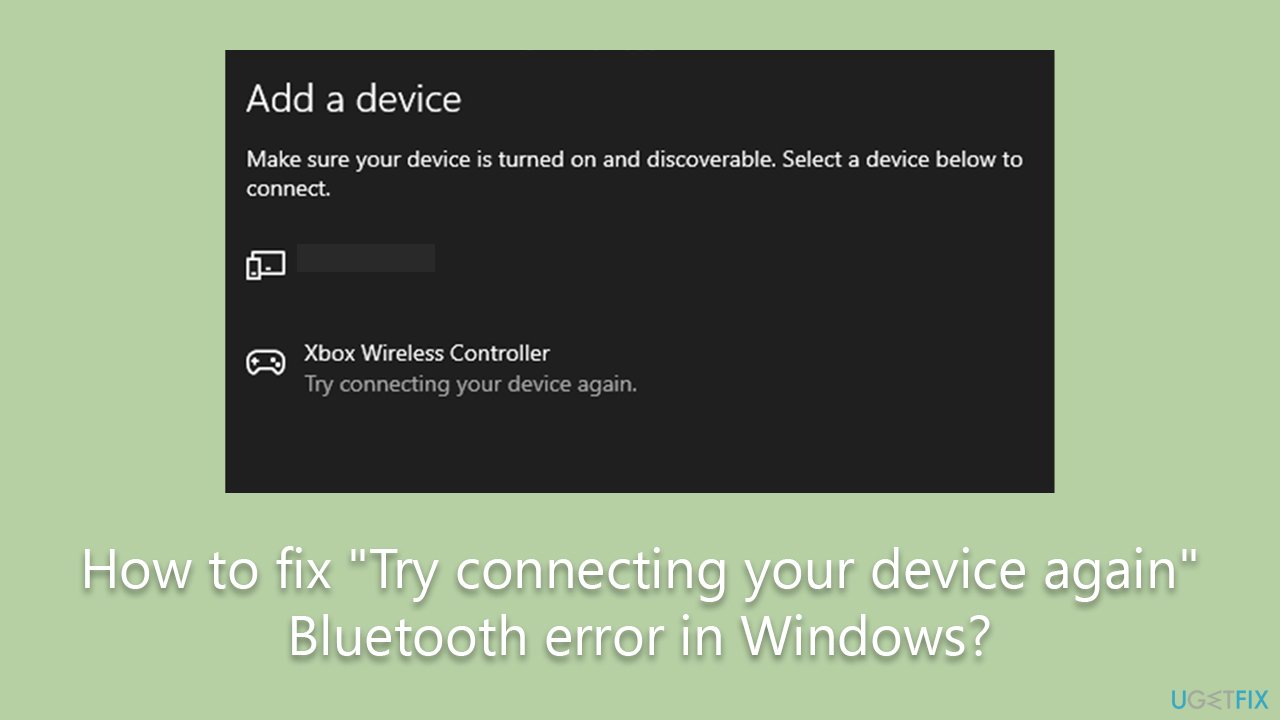
Sometimes, the "Try connecting your device again" error can occur when your Bluetooth device is incompatible with your computer. This can happen if your computer is too old or if the device requires a newer version of Bluetooth than what your computer supports. Using the correct hardware, such as a WiFi antenna, also helped people solve the issue.
If you encounter the "Try connecting your device again" error when trying to pair your Bluetooth device with your computer, there are several steps that you can take to fix the issue. Below you will find a step-by-step guide that should help you resolve the error. if you want to try an automatic fix, we recommend running a scan with [d1] PC repair.
1. Unpair your device
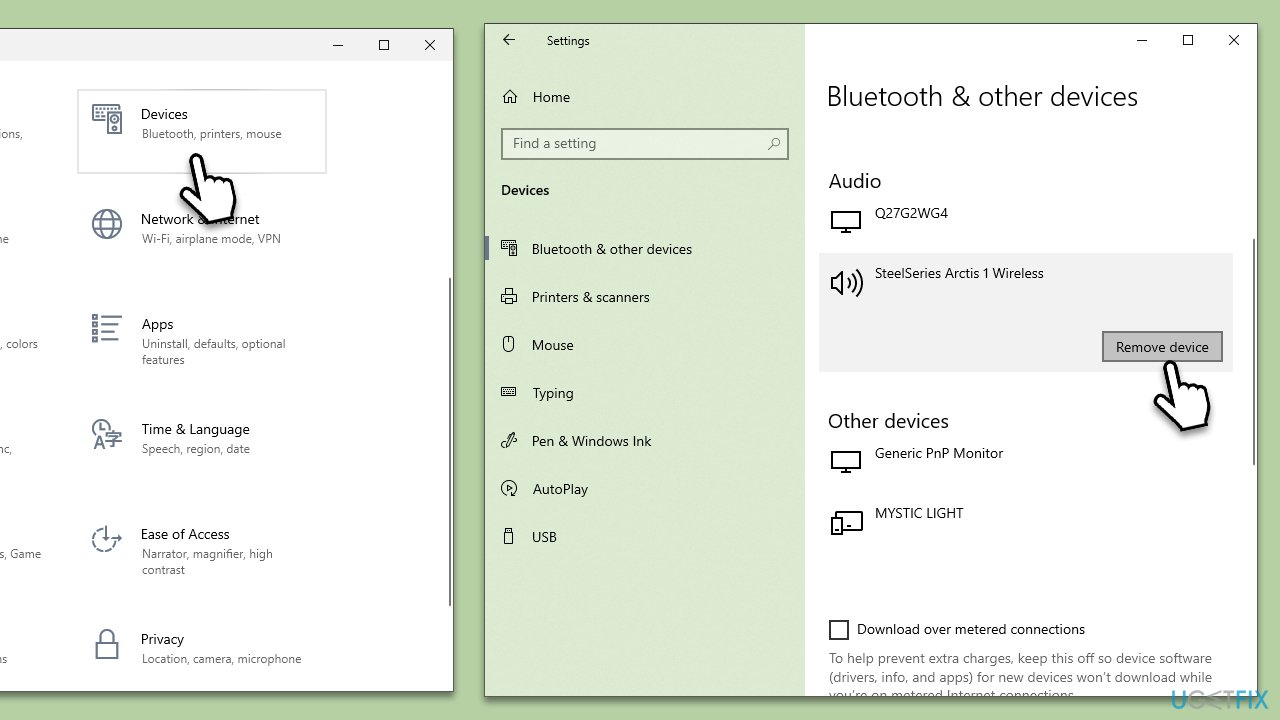
Faulty pairing issues can cause the "Try connecting your device again" error. If you haven't done so, please try to pair your device anew:
- Click on Start and select Settings.
- Go to the Devices section (Bluetooth & devices in Windows 11).
- Find the device you are having trouble with and select it and pick Remove device.
- Restart your system and pair your device again.
2. Run the troubleshooter
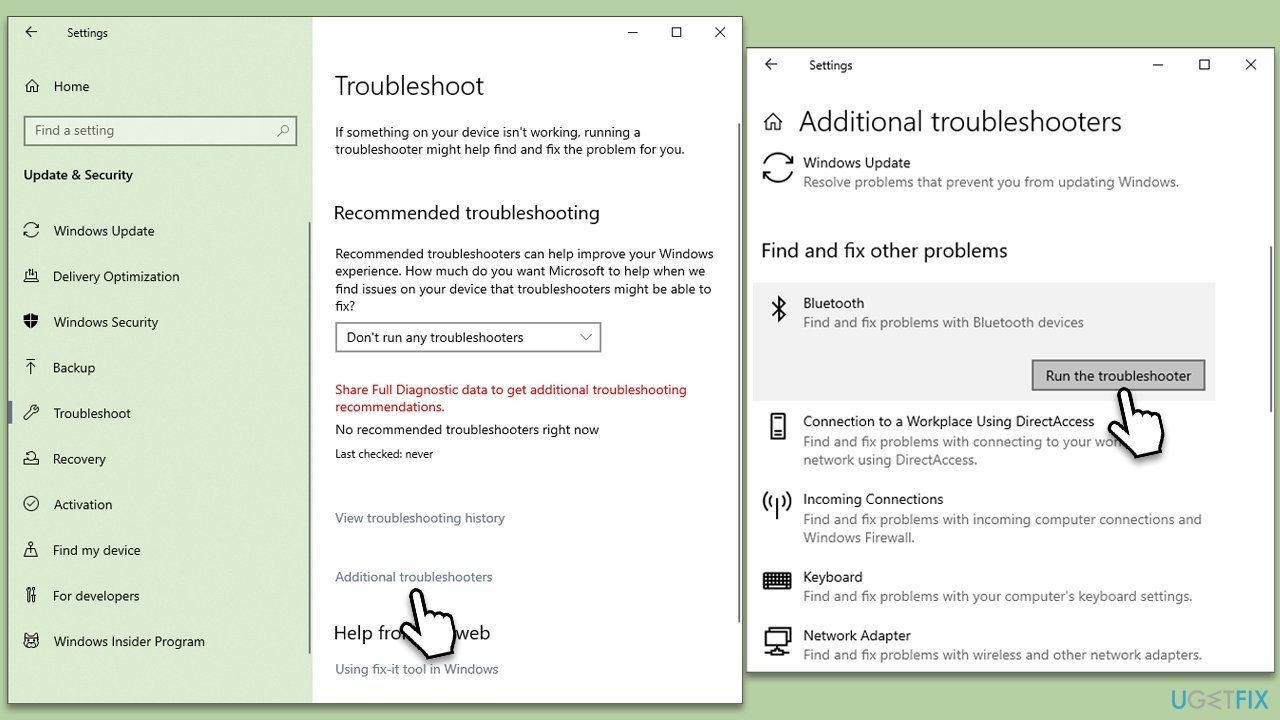
- Type troubleshoot in Windows search and press Enter.
- Select Additional troubleshooters/Other troubleshooters.
- Find the Bluetooth section and click Run the troubleshooter/Run and wait till the fixes are applied.
- Check if the issue is resolved.
3. Enable Bluetooth
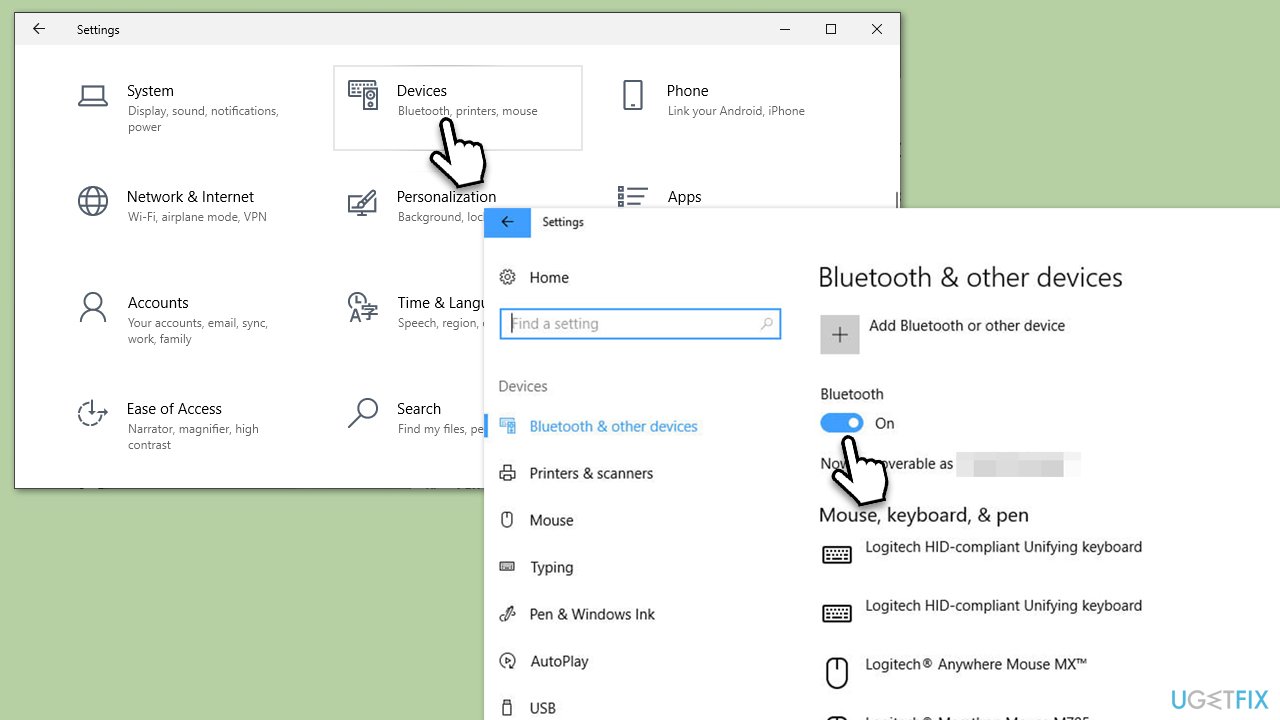
Sometimes, Bluetooth devices don't work because Bluetooth is simply not enabled, so make sure that it is:
- Right-click on Start and pick Settings.
- Pick Devices from the list (Bluetooth & devices in Windows 11).
- Find Bluetooth & other devices section on the right.
- Ensure Bluetooth is enabled by turning the switch to the On position.
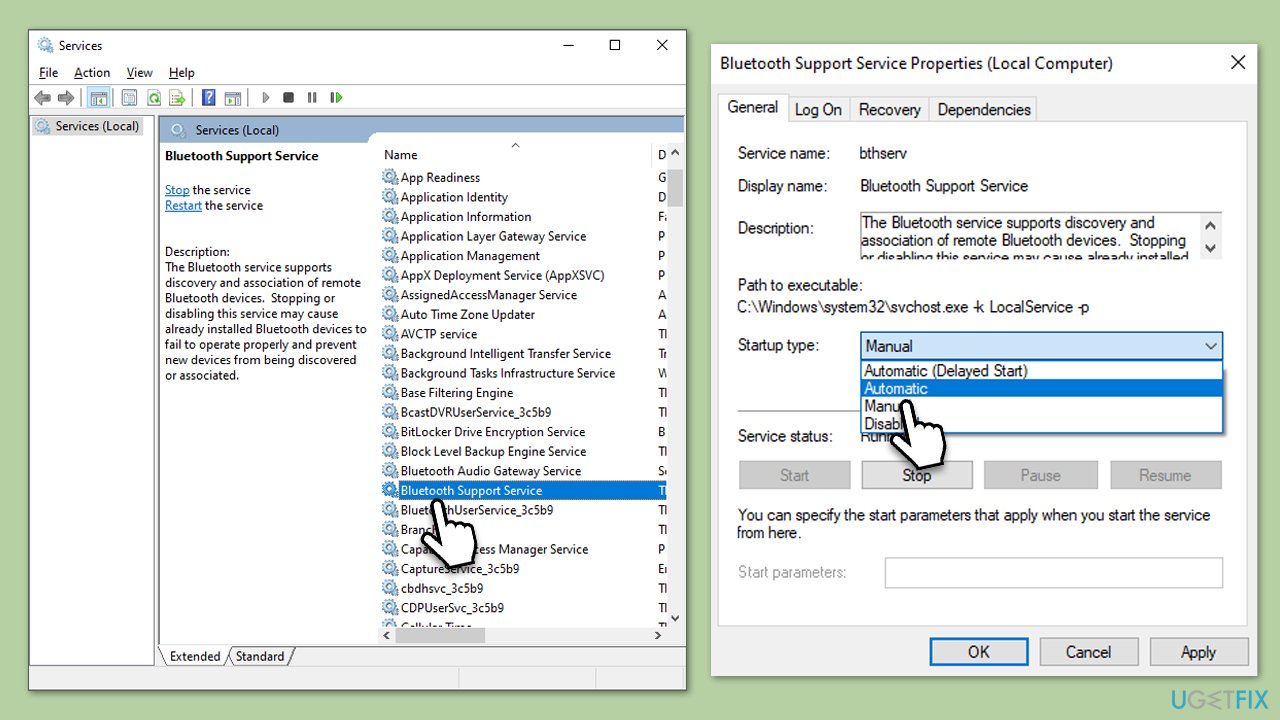
4. Enable Bluetooth Support Service
Certain services need to be running in order to ensure that Bluetooth devices work as intended. Here's how:
- Type Services in Windows search and press Enter.
- In the new window, scroll down to find Bluetooth Support Service.
- Double-click the entry to open Properties.
- Look at the Startup type section and select Automatic from the drop-down menu.
- Click Start, Apply, and OK.
5. Reinstall drivers
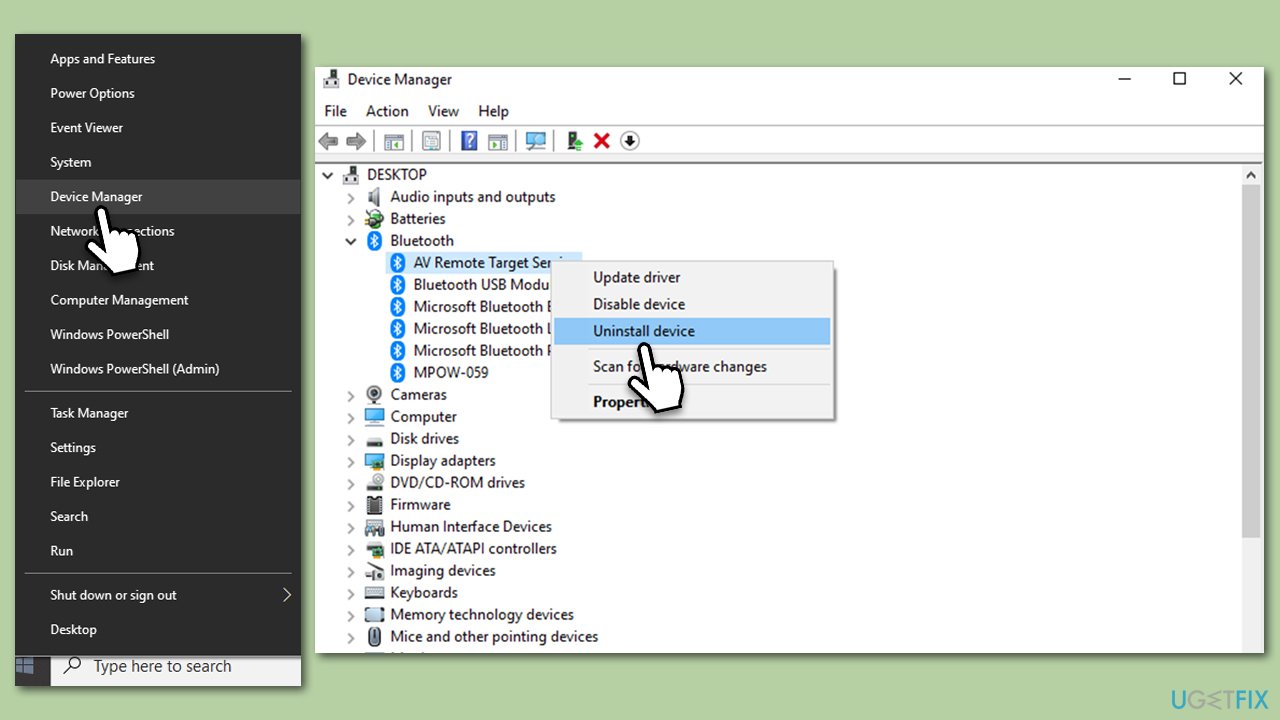
- Right-click on Start and pick Device manager.
- Expand the Bluetooth section.
- Right-click on your Bluetooth device and select Uninstall device.
- Follow the prompts to finalize the process.
- Reboot your system, and generic drivers should be installed by Windows.
To install the latest version of Bluetooth drivers, you should either go to the manufacturer's website or employ an automatic updater such as [rev id="DriverFix"].
6. Attach the provided antenna for your Intel Wireless adapter
Some Bluetooth chipsets use antennas to work, so this method should apply to some motherboards. If you just got a brand new PC, you should check the box for dedicated antenna connectors - sometimes, there might be two of them, so make sure you connect them both. According to Intel, the following wireless adapters need the antenna:
- Intel Wireless-AC 9260.
- Intel Dual Band Wireless-AC 8265.
- Intel Dual Band Wireless-AC 8265 Desktop K.
Related topics that might be useful:
Bottom line
To fix the 'Try connecting your device again' error, ensure your Bluetooth device is charged and within range, update your Bluetooth drivers, and check that necessary services are running. If the issue persists, verify the compatibility of your devices and consider using the correct hardware. If none of these solutions work, further troubleshooting may be needed.
Frequently asked questions
First, ensure that Bluetooth is enabled on your Windows 10 device and that your Bluetooth device is in pairing mode. If the error persists, try removing the device from Bluetooth settings and re-pairing it.
You can run the Bluetooth troubleshooter by going to Settings > System > Troubleshoot > Other troubleshooters and selecting 'Bluetooth'. Additionally, check for any pending Windows updates that could resolve compatibility issues.
Yes, you can reset Bluetooth settings by going to Device Manager, expanding 'Bluetooth', right-clicking on your Bluetooth adapter, and selecting 'Uninstall device'. After restarting your computer, Windows will automatically reinstall the driver.




Report an issue
What's wrong with this guide? We review every report and update or remove content.
Report received — thank you. We'll review and fix it.
You need a free account to submit a report.
Be the first to comment