
[Fix] Can't paste pictures in Paint on Windows

Prefer to fix it yourself? The manual steps follow.
- 7methods
- 1 to 15 minutes
- Easy
Applies to Windows 11 and Windows 10 22H2; the Paint app from the Microsoft Store
7 methods in this guide
Hello. When I take a screenshot and try to paste it into Paint on Windows, it does not work as it used to. How can I fix this? Any suggestions would be appreciated.
When Paint will not paste a picture, the clipboard almost always holds something Paint cannot read as an image, such as a copied file, a link or text. Copy the picture again as an image, for example with Win + Shift + S, and press Ctrl + V. If Paste is greyed out, finish the current selection first.
Paint pastes only picture data. If you copied a file in File Explorer, an image link or text, Paint shows The information on the clipboard cannot be inserted into Paint or does nothing. Copy the picture again as an image (Fix 1), for example with Win + Shift + S, then press Ctrl + V on the canvas. If Paste is greyed out, press Esc to end the selection first (Fix 2).
| Error | The information on the clipboard cannot be inserted into Paint. Or no message at all: Ctrl + V does nothing, or Paste is greyed out. |
|---|---|
| Where it appears | In Paint, the moment you press Ctrl + V, select Paste or right-click the canvas and choose Paste. |
| Main cause | The clipboard holds no usable picture: a copied file, a link, text, an empty clipboard or a broken image from another app. |
| Fastest fix | Copy the picture again as an image: Win + Shift + S for a screenshot, Copy image in a browser, or open the file in Paint and copy from there (Fix 1). |
| Also written as | paint paste image not working, how to paste into paint, paste screenshot in paint, can't paste in paint, paste greyed out in paint. |
| Affects | Paint on Windows 11 and Windows 10 22H2. The message is the same in the new and the older Paint. |
| Microsoft's status | No known bug. Microsoft's clipboard help says clipboard history supports Text, HTML and Bitmap, with a limit of 4 MB per item. |
| Where to check | Press Win + V to see what is on the clipboard right now, if clipboard history is on. |
| Time to fix | Under a minute for Fix 1 and Fix 2, about 10 minutes if Paint itself needs a repair. |
Facts checked on 15 October 2026. Steps written for Windows 11 (25H2 and 26H2) and Windows 10 22H2.
What "The information on the clipboard cannot be inserted into Paint" means
Paint can paste only a picture: pixel data that another app placed on the Windows clipboard. The message means that what is on the clipboard right now is something else. Paint does not tell you what it found, only that it cannot use it.
The clipboard can hold a file reference, a web link, text, formatted HTML or an image, often several of these at once. When you copy a picture file in File Explorer, the clipboard holds the file's location, not its pixels. A developer on Stack Overflow saw this exact message when his app put a broken image stream on the clipboard; once the app placed a valid bitmap there, Paint pasted it.
| What you see | What it tells you |
|---|---|
| The information on the clipboard cannot be inserted into Paint. | The clipboard holds data, but not a picture Paint can read. Fix 1. |
| Ctrl + V does nothing and Paste is greyed out. | A selection or shape is still active, or the clipboard is empty. Fix 2, then Fix 3. |
| The paste seems to work, but the new picture is not visible. | It landed in the top left corner, often on top of an earlier picture. Fix 2. |
| You pressed Print Screen, but nothing is pasted. | The key opened screen capture, or the snip was cancelled. Fix 4. |
| Paste fails in Word, mail and chat apps too. | The Windows clipboard itself is stuck. Fix 5. |
Press Win + Shift + S, select any part of the screen, then press Ctrl + V in Paint. If that pastes, Paint and the clipboard work, and the problem was only how the earlier picture was copied.
Why Paint cannot paste your picture
Most often the picture was copied as a file, a link or text instead of as an image. Less often a selection is still active in Paint, the screenshot never reached the clipboard, or the clipboard is stuck for all apps. Rarely, the Paint app itself is damaged.
| Cause | How often | How to tell | Fix |
|---|---|---|---|
| A file, link or text was copied instead of the picture. | Most often | You copied the file in File Explorer, or used Copy image address in a browser. | Fix 1 |
| A selection or shape is still active, or the paste is hidden. | Often | Paste is greyed out, or the second picture seems to vanish. | Fix 2 |
| The screenshot never reached the clipboard. | Often | Win + V does not show the picture at the top. | Fix 3 |
| Print Screen opens screen capture instead of copying the screen. | Sometimes | Windows 11 dims the screen and shows the snipping bar when you press it. | Fix 4 |
| The clipboard is stuck for every app. | Sometimes | Paste fails in other apps too. | Fix 5 |
| The Paint app is damaged or out of date. | Rarely | Pastes work in other apps, Paint alone fails or closes. | Fix 6, Fix 7 |
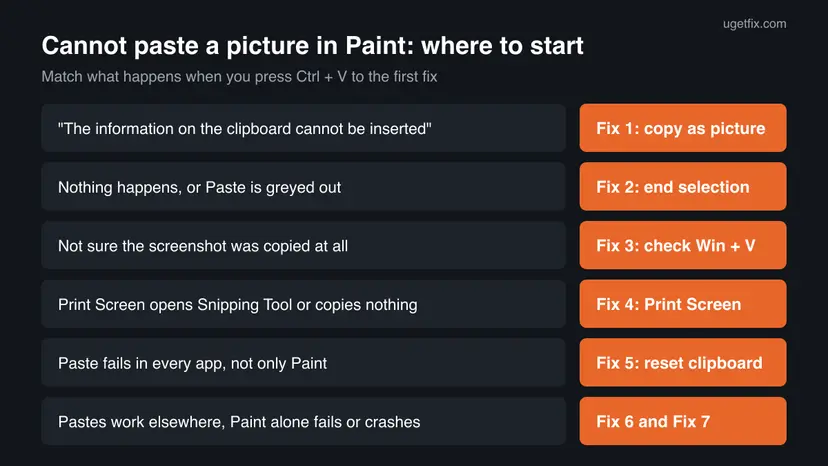
How to fix pictures that will not paste in Paint
Fixes 1 to 4 deal with how the picture was copied and take a minute each. Fix 5 is for a clipboard that fails in every app. Fixes 6 and 7 repair or reinstall Paint when only Paint fails.
| What you see or have | Start with |
|---|---|
| The information on the clipboard cannot be inserted into Paint. | Fix 1 |
| Paste is greyed out, or the pasted picture seems to vanish. | Fix 2 |
| You are not sure the screenshot was copied. | Fix 3 |
| Print Screen opens the snipping bar or copies nothing. | Fix 4 |
| Paste fails in every app, not only in Paint. | Fix 5 |
| Other apps paste fine, Paint alone fails or closes. | Fix 6, then Fix 7 |
Fix 1. Copy the picture again as an image, not as a file or link
1 minuteNo riskPaint shows The information on the clipboard cannot be inserted into Paint, or you copied a picture file or something from a web page.
Paint reads only image data from the clipboard. A file copied in File Explorer, an image link or text gives Paint nothing it can draw, so it refuses the paste.
- A screenshot: press Win + Shift + S, select the area, then switch to Paint and press Ctrl + V.
- A picture in a browser: right-click it and choose Copy image, not Copy image address or Copy image link.
- A picture file on your PC: in Paint press Ctrl + O and open the file, or right-click it in File Explorer and select Open with > Paint.
- To combine that file with another picture, press Ctrl + A and Ctrl + C in the opened file, then switch to the other Paint window and press Ctrl + V.
- A picture in Word, PDF or a chat app: right-click the picture itself and choose Copy or Copy image, not the message or the page.
Copying a file with Ctrl + C in File Explorer copies the file, not the picture inside it. That is the most common reason for the message.
It worked if: The picture appears on the canvas, in the top left corner, with a selection frame around it that you can drag.
If not: If Paste is greyed out or nothing appears, go to Fix 2.
Fix 2. Finish the current selection and paste again
1 minuteNo riskPaste is greyed out, Ctrl + V does nothing, or a second picture seems to disappear.
Paint places every paste in the top left corner of the canvas. A user on Microsoft's Q&A forum found Paste greyed out while a shape or image was still selected. Pasting a second picture on top of the first also looks as if nothing happened.
- Press Esc or click an empty part of the canvas to end any active selection, shape or text box.
- Drag any picture that sits in the top left corner out of the way.
- Press Ctrl + V, or right-click an empty part of the canvas and select Paste.
- Drag the new picture to where you want it before you paste the next one.
- If the picture is larger than the canvas, let Paint enlarge the canvas when it asks.
In the Microsoft Q&A thread, the reply that worked was exactly this order: paste, drag the picture aside, copy the next picture, paste again.
It worked if: Paste is active again, and each pasted picture appears in the top left corner and can be moved.
If not: If Paste stays greyed out with no selection, the clipboard is probably empty. Check it in Fix 3.
Fix 3. See what is on the clipboard with Win + V
2 minutesNo riskYou are not sure the screenshot was copied, or you want an earlier picture back.
Clipboard history shows the last copied items, so you see at once whether your picture is there. Microsoft says history keeps Text, HTML and Bitmap items up to 4 MB each and the last 25 entries.
- Press Win + V. If clipboard history is off, select Turn on.
- Look at the top item. If it is your picture, select it while Paint is in front, and it is pasted.
- If your picture is not there, copy it again (Fix 1) and press Win + V once more.
- To keep a picture you will paste often, select See more (the three dots) and pin it.
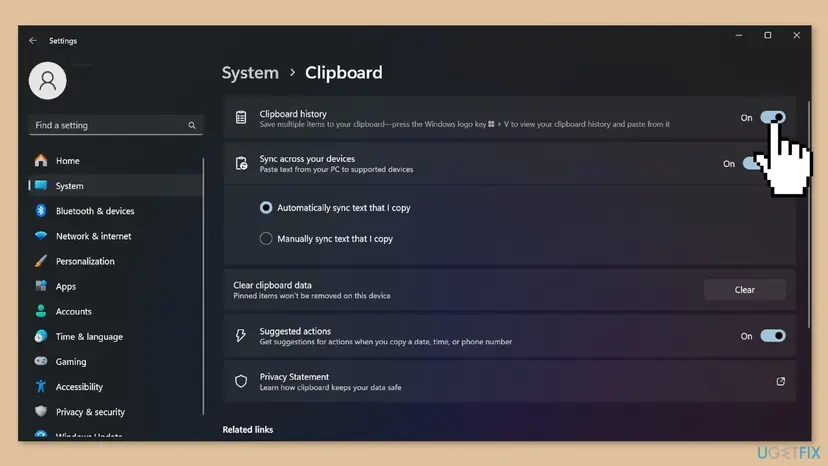
Clipboard history is not needed for a normal Ctrl + V. A picture larger than 4 MB may be missing from the Win + V list and still paste with Ctrl + V. History is also cleared at every restart, except pinned items.
It worked if: Your picture is at the top of the Win + V list and pastes when you select it.
If not: If screenshots never show up there, check the Print Screen key in Fix 4.
Fix 4. Make sure Print Screen really copies the screenshot
3 minutesNo riskYou press Print Screen and then nothing pastes, or the screen dims and a snipping bar appears.
On Windows 11 the Print Screen key can open screen capture instead of copying the whole screen. The picture reaches the clipboard only after you select an area, so cancelling the snip leaves nothing to paste.
- Press Print Screen. If a snipping bar appears, select an area or choose full screen mode, then paste in Paint.
- To copy only the active window, press Alt + Print Screen and paste.
- To make Print Screen copy the whole screen again on Windows 11, open Settings > Accessibility > Keyboard.
- Turn off Use the Print screen key to open screen capture.
- On Windows 10 the switch is in Settings > Ease of Access > Keyboard, under Print Screen shortcut.
Some laptops need Fn + Print Screen, because the key shares a button with another function. Screenshot tools from other vendors can also take over the key and save to a file instead of the clipboard. Close them and test again.
It worked if: After Print Screen or a finished snip, Win + V shows the screenshot and Ctrl + V pastes it in Paint.
If not: If no app can paste anything, reset the clipboard in Fix 5.
Fix 5. Clear the clipboard and start it fresh
5 minutesLow riskCopy and paste fails in every app, not only in Paint.
Another app can hold the clipboard open or leave damaged data on it, and then no app can paste. Clearing it and signing out starts the clipboard empty and lets Windows rebuild it.
- Open Settings > System > Clipboard and select Clear next to Clear clipboard data.
- Close clipboard manager apps, screenshot tools and remote control tools you have open.
- Restart the PC with Start > Power > Restart.
- Copy a picture with Win + Shift + S and paste it in Paint.
Working in a Remote Desktop session? The clipboard there is passed between two PCs, and users report that closing and reopening the session brings pasting back.
Clear removes everything in clipboard history except pinned items. A restart closes Paint, so save open pictures before you restart.
It worked if: Copy and paste works again in every app, Paint included.
If not: If other apps paste fine and only Paint fails, repair Paint in Fix 6.
Fix 6. Repair Paint, then reset it
5 minutesLow riskOther apps paste fine, but Paint alone refuses pictures, freezes or closes when you paste.
Paint in Windows 11 is a Microsoft Store app with its own files and settings. Repair replaces damaged app files and keeps settings; Reset also clears Paint's own settings, which helps when a bad setting breaks pasting.
- Open Installed apps. Select Start > Settings > Apps > Installed apps.
- Open the app's advanced options. Find the app in the list, select the three dots next to it and select Advanced options. Some apps do not have this option: for those, see the section about desktop programs below.
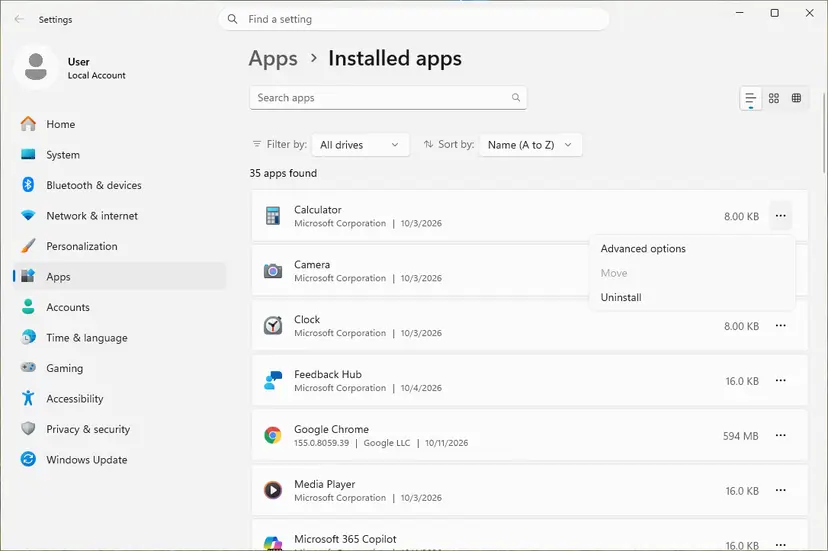
The three dots next to an app open Advanced options. Screenshot: Windows 11 26H2. - Repair first. On the page that opens, select Repair if it is there. The app's data stays. Open the app and check whether it works.

Repair keeps the app data. Reset deletes it. Screenshot: Windows 11 26H2. - Reset if Repair did not help. Select Reset. This deletes the app's data on this PC, including sign-in details and settings. Open the app and set it up again.
These steps were written for Windows 11 25H2 and 26H2. The full page with the other versions and what each result means: How to repair or reset an app in Windows
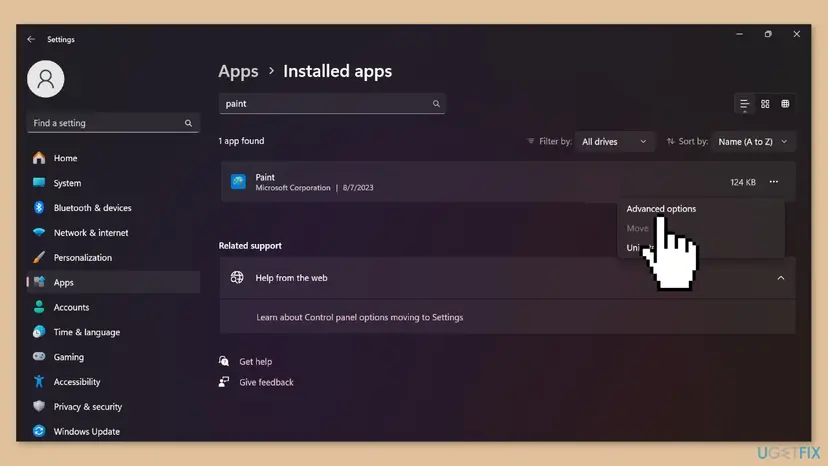
Repair and Reset do not touch your saved pictures. They are normal files in your folders. Close Paint and save open work first.
If Paint hangs when you paste and will not close, end it first: Close a frozen app (Task Manager, Force Quit)
It worked if: Paint opens with default settings, and Ctrl + V pastes a fresh screenshot.
If not: If Paint still refuses every picture, update or reinstall it in Fix 7.
Fix 7. Update or reinstall Paint
10 minutesLow riskRepair and Reset did not help, or Paint closes as soon as you paste.
Paint gets its updates from the Microsoft Store, separately from Windows. A fresh install replaces every app file and registers Paint again for your account.
- Open Microsoft Store, select Library and select Get updates. Test pasting again.
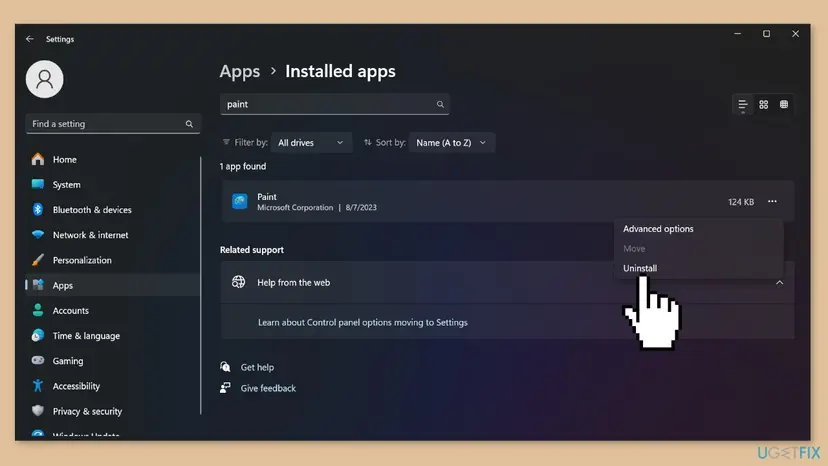
- If that does not help, open Settings > Apps > Installed apps and find Paint.
- Select the three dots, select Uninstall and confirm.
- Restart the PC, then install Paint by Microsoft Corporation from Microsoft Store.
- Open Paint and paste a fresh screenshot with Ctrl + V.
More on removing Store apps and programs: Uninstall a program or app in Windows
If Paint will not open at all, or the Store cannot install it again, follow our guide to MS Paint not working in Windows 11. It covers re-registering Paint and Microsoft's own Paint installer.
It worked if: Paint is back in Start and pastes pictures with Ctrl + V.
If not: Read "If Paint still will not paste" below.
If Paint still will not paste
Paint shows only one short message, so narrow the problem down with a few tests before you ask for help. Each test rules out one part: the source app, the clipboard or Paint.
- Test the source: copy a picture with Win + Shift + S. If that pastes but your picture does not, the app you copy from places no usable image on the clipboard. Save the picture as a file there and open it in Paint.
- Test the clipboard: paste the same picture into WordPad, Word or a mail. If it fails there too, the clipboard is the problem (Fix 5).
- Test Paint: if the picture pastes everywhere except Paint, Paint is the problem (Fix 6 and Fix 7).
- What to send to Microsoft support or the Microsoft Q&A forum: the exact message, the app you copied from, your Windows version from Settings > System > About, and the fixes you tried.
This is not a hardware fault. The only hardware part is the Print Screen key: if it does nothing in any app, test it with Win + Shift + S instead, which copies the same kind of picture.
How to keep pasting into Paint working
- Copy pictures with Win + Shift + S, Copy image or Ctrl + C inside an open picture.
- Press Esc before each new paste, and drag each pasted picture aside.
- Pin pictures you reuse in Win + V, since history is cleared at every restart.
- Let Microsoft Store update Paint.
- Do not copy picture files in File Explorer to paste their content in Paint; open them instead.
- Do not copy an image address or link when you want the picture.
- Do not keep several clipboard tools running at once.
Frequently asked questions
What does "The information on the clipboard cannot be inserted into Paint" mean?
It means the clipboard holds something Paint cannot read as a picture. Most often that is a picture file copied in File Explorer, an image link copied from a browser, or text. Paint needs the pixel data of an image. Copy the picture itself again: use Win + Shift + S for a screenshot, Copy image in a browser, or open the file in Paint and copy from there. Then press Ctrl + V. Fix 1 has the steps for each case.
How do I paste an image in Paint?
Copy the image first as a picture, for example with Win + Shift + S, Print Screen or Copy image in a browser. Then open Paint and press Ctrl + V, or right-click the canvas and select Paste. The picture appears in the top left corner with a frame around it. Drag it where you want it, then click outside it to place it. To paste a second picture, drag the first one aside before you press Ctrl + V again.
How do I paste a screenshot into Paint?
Press Win + Shift + S, select the area you need, then switch to Paint and press Ctrl + V. The Print Screen key works too, but on Windows 11 it may open screen capture first, and the picture is copied only after you finish the snip. Alt + Print Screen copies only the active window. If nothing pastes, press Win + V to see whether the screenshot is on the clipboard (Fix 3 and Fix 4).
Why is Paste greyed out in Paint?
Paste is greyed out when Paint finds nothing it can paste, or while a selection, shape or text box is still active. A user on Microsoft's Q&A forum met exactly this while a shape was selected. Press Esc or click an empty part of the canvas, then try Ctrl + V. If Paste stays greyed out, the clipboard is empty or holds no picture, so copy the picture again as described in Fix 1.
Why does my second pasted picture disappear in Paint?
It usually does not disappear. Paint places every pasted picture in the top left corner of the canvas, so a second paste lands right on top of the first one and looks like nothing happened. Drag each pasted picture to its place before you paste the next. A Microsoft Q&A reply describes this order: paste, drag the picture aside, copy the next one and paste again. Fix 2 has the steps.
Do I need clipboard history to paste in Paint?
No. Ctrl + V always pastes the last thing you copied, with or without clipboard history. History, opened with Win + V, only lets you see and pick earlier items. Microsoft says it keeps the last 25 entries, supports Text, HTML and Bitmap items up to 4 MB each, and is cleared at every restart except pinned items. It is useful to check whether a screenshot was copied at all (Fix 3).
Can I paste a picture file from File Explorer into Paint?
Not by copying the file. Ctrl + C on a file in File Explorer copies a reference to the file, and Paint then shows the clipboard message. Instead, open the file in Paint with Ctrl + O or with Open with > Paint. To place it inside another picture, select all in the opened file with Ctrl + A, copy it with Ctrl + C, switch to the other picture and press Ctrl + V.
Why can't I paste in Paint on Windows 10?
The causes and fixes are the same as on Windows 11: copy the picture as an image, end any selection, and check Win + V. Some paths differ. The Print Screen switch is in Settings > Ease of Access > Keyboard, and installed apps are in Settings > Apps > Apps & features. Windows 10 left support on 14 October 2025, so it gets fewer fixes. If you can, move to Windows 11.
None of this worked. What else can I do?
Readers write this in many languages, such as не работает, не вставляется, nie działa, geht nicht, no se pega nada or não funcionou: the picture still will not paste. Run the three tests in the section above to find whether the source app, the clipboard or Paint is at fault. Then reset the clipboard (Fix 5) or repair and reinstall Paint (Fix 6 and Fix 7). Meanwhile, save the picture as a file and open it in Paint.
Sources
- Microsoft Support: Using the clipboard (Win + V, clipboard history limits of 4 MB per item and 25 entries, Text, HTML and Bitmap formats, Clear clipboard data) (support.microsoft.com)
- Microsoft Q&A: Paste another picture into Paint (Paste greyed out while a shape or image is selected, pastes land in the top left corner) (learn.microsoft.com)
- Stack Overflow: Save screenshot of control to clipboard (the exact Paint message for an unreadable clipboard image, fixed by placing a valid bitmap) (stackoverflow.com)
Did this fix work?
One click, no account. It tells the next reader which guides are worth their time.
Questions and experiences: [Fix] Can't paste pictures in Paint on Windows
Still broken, or found a fix we did not cover? Ask here: members and our editors answer. Reading is open; writing needs a free account.
…