
0x80070299: The requested operation could not be completed due to a file system limitation

Prefer to fix it yourself? The manual steps follow.
- 6methods
- 10 minutes to a few hours
- Medium
Applies to Windows 11 and Windows 10 copying, backing up or growing very large files on an NTFS drive: backup archives, VHDX virtual disks, database files and other large files
6 methods in this guide
Hi, I can't copy a file. I keep getting an error that states "Error 0x80070299: The requested operation could not be completed due to a file system limitation." How can I resolve it?
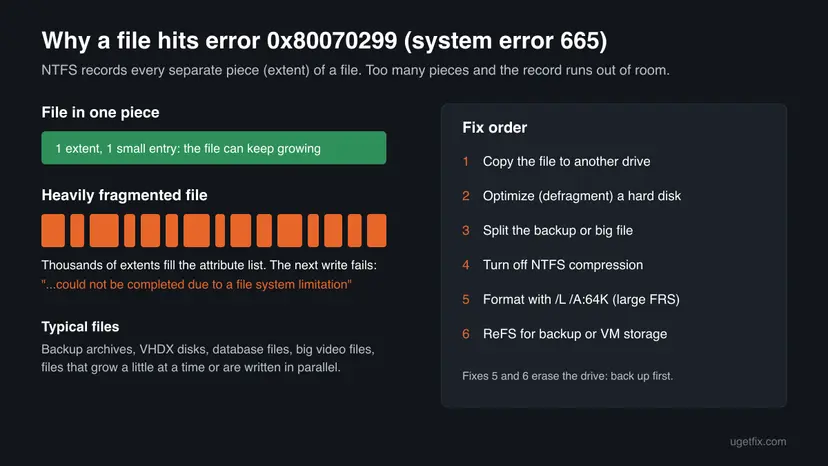
Error 0x80070299, "The requested operation could not be completed due to a file system limitation", is Windows system error 665. NTFS refuses to write more to one file because that file is split into too many pieces, or because it reached the largest size the volume allows. Copy the file to another drive first, then fix the drive it failed on.
The file on the NTFS drive is so fragmented that NTFS has no room left to record another piece of it, or it hit the size limit of the volume. Copy the file to another drive and, if needed, back again (Fix 1): the copy is written in fewer pieces. On a hard disk, optimize the drive (Fix 2). For backups that keep failing, split the archive into parts (Fix 3) or format the target with large file records (Fix 5).
| Error | Error 0x80070299: The requested operation could not be completed due to a file system limitation. Some backup apps say "Cannot write data to file due to a file system limitation". |
|---|---|
| Where it appears | File Explorer while copying or moving a large file, a backup or retention job, Hyper-V when a VHDX grows, and SQL Server logs as "operating system returned error 665". |
| Main cause | A heavily fragmented file on NTFS. Each separate piece needs an entry in the file's attribute list, and the list has a fixed limit. |
| Fastest fix | Copy the file to another drive, then use or copy back that copy (Fix 1). |
| Also written as | 0x80070299, error 0x80070299, 80070299, Windows error 665, OS error 665, "file system limitation". |
| Affects | Windows 11 and Windows 10, and Windows Server, on NTFS volumes. ReFS does not have the same attribute limit. |
| Microsoft's status | Not a bug and no update removes it. Microsoft documents it as a limit of NTFS and lists copying, defragmenting, large file records and ReFS as fixes. |
| Size limit | With the default 4 KB cluster, the largest NTFS file is 16 TB. A 64 KB cluster allows 256 TB. |
| Time to fix | 10 to 60 minutes for a copy or an optimization. A few hours to move data off and format a drive. |
Facts checked on 15 October 2026. Steps written for Windows 11 (25H2 and 26H2) and Windows 10 22H2.
What error 0x80070299 "The requested operation could not be completed due to a file system limitation" means
In File Explorer the window is titled 1 Interrupted Action. Its first line reads: An unexpected error is keeping you from copying the file. Below it is the line that matters: Error 0x80070299: The requested operation could not be completed due to a file system limitation. Backup tools and servers show the same problem as Windows error 665.
The code decodes in one step. 0x8007 marks a plain Windows error, and 0x299 is 665 in decimal. Microsoft's SQL Server support article quotes the same text for error 665 and explains it: NTFS ran out of room to describe where the pieces of one file lie on the disk. It is a limit of the file, not a lack of free space.
| What you see | Where | Same problem? |
|---|---|---|
| Error 0x80070299: The requested operation could not be completed due to a file system limitation | File Explorer copy or move | Yes |
| Windows error: (0x80070299) | Backup software, for example during retention | Yes |
| Cannot write data to file due to a file system limitation. The disk may be highly fragmented or the file is too large | Backup software | Yes, the same limit in other words |
| The operating system returned error 665 | SQL Server error log | Yes |
| Error 1450, Insufficient system resources exist to complete the requested service | SQL Server, next to 665 | Related: Microsoft lists both for fragmented sparse files |
The drive can show hundreds of gigabytes free and still give this error. The limit counts the pieces of one file, not the bytes on the drive. Deleting other files only helps when it lets Windows write the file in fewer, larger pieces.
Why the operation fails due to a file system limitation: causes in order
Most often one large file has grown in many small steps on a busy drive, so it lies in thousands of separate pieces. Microsoft explains that each piece that is not next to the previous one needs its own entry, and heavy fragmentation exhausts those entries. Less often a backup writes several streams to one drive at once, which interleaves their pieces. Rarely the file really reaches the NTFS size limit.
| Cause | How often | How to tell | Fix |
|---|---|---|---|
| One large file is heavily fragmented | Most often | A large file that grew over weeks: a backup archive, VHDX, database or log. | Fix 1, Fix 2 |
| Backup or retention keeps adding pieces to one archive | Often with backup apps | The backup worked for months, then fails during a merge or cleanup. | Fix 3 |
| Several files written to one drive at the same time | Sometimes | Striped backups or parallel exports to one volume. | Fix 3 |
| NTFS compression on the folder or drive | Sometimes | File names show in blue, or Compress this drive is ticked. | Fix 4 |
| The volume uses small file records | Sometimes, on drives formatted with defaults | The error keeps returning on the same backup or VM drive. | Fix 5, Fix 6 |
| The file reached the NTFS maximum size | Rarely | The file is near 16 TB on a drive with 4 KB clusters. | Fix 5 |
The old version of this page also suggested installing Windows updates and giving Volume Shadow Copy unlimited space. None of our sources ties error 665 to either, so both were removed. Check Disk moved to the last section: it repairs damage, it does not join the pieces of a file.
How to fix error 0x80070299 "file system limitation" in Windows
Fix 1 solves a single failing file in minutes. Fix 2 is for hard disks. Fix 3 is for backup software that keeps hitting the limit. Fix 4 removes compression. Fixes 5 and 6 rebuild the drive and need a full backup first.
| What you see or have | Start with |
|---|---|
| One large file fails to copy, move or grow. | Fix 1 |
| The drive is a spinning hard disk (HDD) and has not been optimized for a long time. | Fix 2 |
| A backup or retention job fails with 0x80070299 or error 665. | Fix 3 |
| The folder or drive is compressed. | Fix 4 |
| It keeps coming back on a backup, VM or database drive. | Fix 5 |
| You run Windows Server or keep very large VM or backup files. | Fix 6 |
Fix 1. Copy the file to another drive, then use the new copy
10 to 60 minutesLow riskOne large file fails to copy, move or grow, on an HDD or an SSD.
A fresh copy is written in large runs, so it ends up in far fewer pieces than the original. Microsoft names copying the file to another volume as a way to reduce the entries and avoid error 665, and says it often works better than defragmenting on an SSD.
- Close the program that uses the file: the backup app, the virtual machine or the database.
- Connect a second drive with more free space than the file's size, formatted as NTFS or exFAT.
- In File Explorer, copy the file to that drive with Ctrl + C and Ctrl + V.
- If the copy fails with the same error, copy from the program itself: export the virtual machine or start a new full backup on the second drive.
- Keep the new copy where it is, or delete the original and copy the new file back to the first drive.
- Open the file in its program to check it works before you delete anything else.
Copying back only helps if the first drive has large free areas. On a nearly full hard disk run Fix 2 before you copy the file back.
It worked if: The copy finishes without the Interrupted Action dialog and the program opens the new file.
If not: If the copy back fails again, the drive's free space is cut into small pieces. Run Fix 2 on a hard disk, or keep the file on the second drive.
Fix 2. Optimize (defragment) the drive if it is a hard disk
30 minutes to several hoursLow riskThe file sits on a spinning hard disk (Media type: Hard disk drive) that is busy or nearly full.
Defragmenting joins the pieces of files and free space on a hard disk, so the file needs fewer entries. Microsoft adds that on SSDs defragmentation typically does not address this problem, so use Fix 1 there.
- Close the program that writes to the file, so the file is not in use.
- Open File Explorer with Win + E and select This PC.
- Right-click the drive with the file, select Properties and open the Tools tab.
- Under Optimize and defragment drive, select Optimize.
- In Optimize Drives, check the Media type column. For Hard disk drive, select the drive and Optimize.
- Wait until Current status shows OK, then try the copy or backup again.
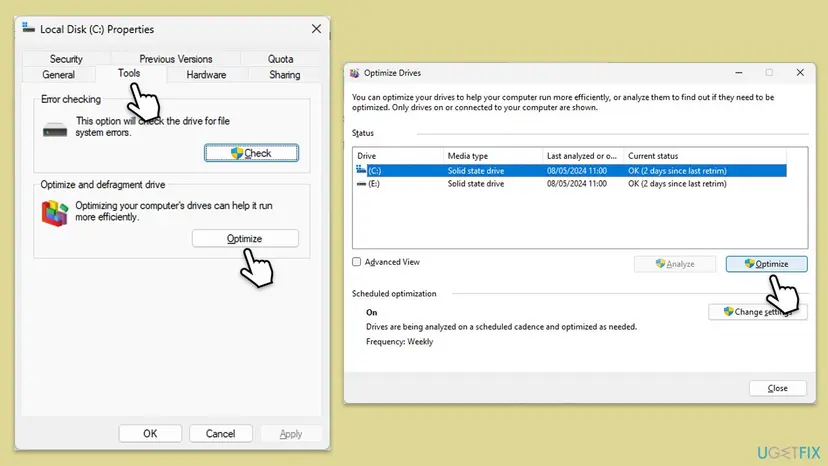
It worked if: Optimize Drives shows the hard disk as OK with little or no fragmentation, and the file can grow again.
If not: If the drive is an SSD or the error returns within days, the file keeps fragmenting. Go to Fix 3 or Fix 5.
Fix 3. Split the backup archive or the big file into parts
15 minutes plus a new full backupLow riskA backup, image or retention job fails with 0x80070299 or "Cannot write data to file due to a file system limitation".
Backup archives grow and shrink with every merge and cleanup, so their pieces multiply. Acronis states that retention operations increase the number of pieces and that splitting the archive avoids the limit. Smaller files each have their own list.
- Open your backup app and find the backup plan's options for splitting or volume size.
- Turn on a fixed size for each part. Acronis suggests a slice size between 100 GB and 500 GB.
- Save the plan.
- Start a new full backup: in Acronis an old archive stays unsplit, so you remove it and create a new one.
- Keep the old backup until the new one has finished and you can open it.
- If several backup streams write to the same drive at once, send them to different drives or run them one after another.
Menu names differ between backup apps. In Acronis Cyber Protect the setting is Backup Options > Splitting > Fixed size. Acronis notes that splitting is not available for some plans, such as the Always incremental scheme in Acronis Cyber Backup 12.5.
It worked if: The new backup is saved as several files of the size you chose and finishes without the error.
If not: If your app cannot split backups, give the backup drive large file records with Fix 5.
Fix 4. Turn off NTFS compression for the folder or drive
10 minutes to an hourLow riskThe file sits in a compressed folder or on a drive with Compress this drive to save disk space ticked.
NTFS compresses a file in small separate units, so a large compressed file that keeps changing can end up in a great many pieces. Without compression the file is written in larger runs. We could not confirm from a Microsoft page how much this adds, so try it after Fix 1 to 3.
- Make sure the drive has enough free space for the files once uncompressed.
- In File Explorer, right-click the drive and select Properties.
- On the General tab, clear Compress this drive to save disk space.
- Select Apply, choose to apply the change to the drive, subfolders and files, and select OK.
- For a single folder: right-click it, Properties, Advanced, clear Compress contents to save disk space, then OK and Apply.
- When it finishes, copy the large file to another drive and back with Fix 1, so it is rewritten in one piece.
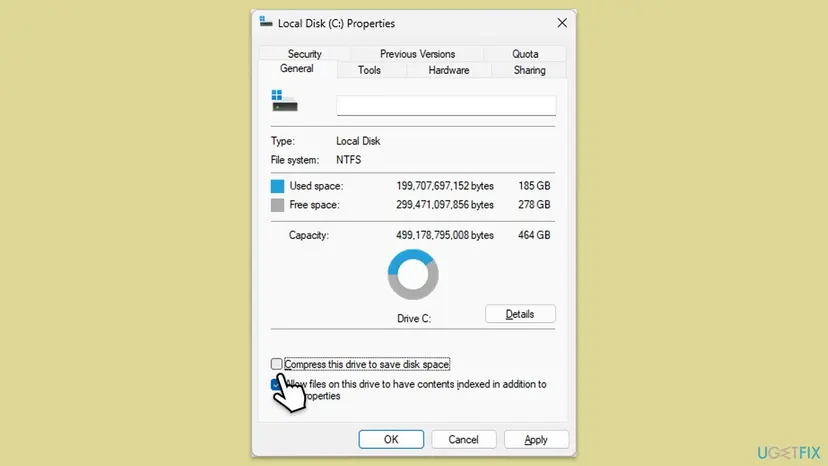
It worked if: File names no longer show in blue and the large file copies or grows without the error.
If not: If the drive was not compressed, or the error stays, format the drive with Fix 5.
Fix 5. Format the backup or data drive with large file records (/L) and 64 KB clusters
1 to several hours, including the backupRead the warningThe error keeps returning on a drive that holds backups, VHDX files or databases, and the drive is not the Windows drive.
Large file record segments make room for more entries per file, which Microsoft says may relieve this problem. A 64 KB cluster also raises the largest NTFS file from 16 TB to 256 TB. Microsoft recommends both for volumes with large files and VHDX files over 1 TB.
Copy every file you want to keep to another drive first and check that the copies open. Formatting removes all data on the drive. Step by step: Back up your files (Windows Backup, File History, Time Machine). Never format the drive Windows runs from.
- Copy all data from the drive to another drive and check it.
- Note the drive letter in File Explorer, for example
E:. - Open Command Prompt as administrator: How to run a program as administrator or in compatibility mode.
- Type the command below with your letter and press Enter.
- Confirm the drive letter and the warning that all data will be lost, and wait for the format to finish.
- Copy your data back to the drive.
format E: /FS:NTFS /L /A:64KIn PowerShell as administrator the same format is Format-Volume -DriveLetter E -FileSystem NTFS -AllocationUnitSize 65536 -UseLargeFRS. The Format window in File Explorer has no option for large file records, so use one of these commands.
| Cluster size | Largest NTFS file and volume |
|---|---|
| 4 KB (default) | 16 TB |
| 16 KB | 64 TB |
| 64 KB | 256 TB |
| 2048 KB (largest) | 8 PB |
It worked if: The drive formats without errors, and the backup or VHDX file that failed now grows past the point where it stopped.
If not: Microsoft notes that /L may not help when the file is a sparse snapshot, as with SQL Server DBCC CHECKDB. For that case use Fix 6.
Fix 6. Use ReFS for backup, VM or database storage
2 to 6 hours with the backupRead the warningWindows Server, or a PC that keeps very large VM, backup or database files and can format a drive as ReFS.
Microsoft calls ReFS the best long-term fix, because it does not have the attribute list limit that NTFS has. It only helps for the data you move onto a ReFS volume.
Changing a drive to ReFS means formatting it, which erases the drive. Copy all data off first: Back up your files (Windows Backup, File History, Time Machine). Check that your backup and VM software supports ReFS before you switch.
- Copy all data from the drive to another drive and check the copies.
- Open Disk Management: right-click Start and select it.
- Right-click the volume, select Format, and pick ReFS under File system if Windows offers it.
- Confirm the warning and wait for the format to finish.
- Copy the backup, VM or database files back.
It worked if: Large files on the ReFS volume keep growing without error 665.
If not: If ReFS is not offered on your edition of Windows, use Fix 5 on NTFS.
If error 0x80070299 is still there
Find out which file failed and how big it is. The backup app's log, the SQL Server error log or the Explorer dialog names the file. Then collect these facts before you contact the backup vendor or your IT support.
- The file's full path and size, and the drive's free space.
- The drive type from Optimize Drives (hard disk or SSD) and its File system from Properties.
- Whether the folder or drive is compressed (Fix 4).
- The exact message: 0x80070299, error 665 or "Cannot write data to file".
- Whether the copy to another drive in Fix 1 worked.
- When it is not this limit: Windows offers to scan and fix the drive, or files on it turn unreadable. Then check the drive for damage: Check a disk for errors (chkdsk).
How to stop 0x80070299 from coming back
- Keep backup archives split into parts of 100 to 500 GB.
- Format new backup and VM drives with
/L /A:64Kbefore the first backup. - Leave the weekly optimization in Optimize Drives turned on for hard disks.
- Keep free space on drives that hold large, growing files.
- Compress folders that hold VHDX files, databases or backups.
- Write several large backup streams to one drive at the same time.
- Let one backup chain merge into a single huge file for years.
- Format the backup drive again without copying the data off first.
Frequently asked questions
What does error 0x80070299 mean?
It is Windows system error 665, with the text quoted in the title. NTFS could not write more to one file, because the file is split into so many pieces that its attribute list is full, or because it reached the largest size the volume allows. It is a limit of that file on NTFS, not a lack of free space. Copying the file to another drive is the fastest fix (Fix 1).
Why do I get a file system limitation error when the drive has free space?
Because the limit counts the pieces of one file, not the free bytes. When a large file grows a little at a time on a busy drive, it is stored in many separate pieces. NTFS keeps an entry for each piece, and that list has a fixed size. When it is full, the next write fails even with plenty of free space. A fresh copy or a defragmented hard disk stores the file in fewer pieces.
Does defragmenting fix error 0x80070299 on an SSD?
Usually not. Microsoft says defragmentation works differently on SSDs and typically does not address this problem. On an SSD, copy the file to another drive and, if you want, back again (Fix 1). The copy is written in larger runs and needs fewer entries. Windows still runs its own scheduled optimization (retrim) on SSDs, which is fine to leave on.
Is it safe to run format with the /L option?
The /L option itself is safe, but any format erases the drive. Copy all data off first and check the copies, then run format E: /FS:NTFS /L /A:64K with your drive letter. Do not use it on the drive Windows runs from. Microsoft recommends large file records and 64 KB clusters for volumes with large files, deduplication or VHDX files over 1 TB.
Why does my backup fail with 0x80070299 after working for months?
Each backup, merge and cleanup changes the same large archive, and its pieces add up over time. Acronis says the number of pieces grows during retention operations, until NTFS cannot record more. The fix is to split the archive into parts of 100 to 500 GB and start a new full backup (Fix 3). Formatting the backup drive with large file records helps as well (Fix 5).
Is 0x80070299 caused by the 4 GB FAT32 limit?
No. A file over 4 GB on a FAT32 drive gives a different message, saying the file is too large for the destination file system. Error 0x80070299 comes from NTFS and its record of a file's pieces. If you copy to a FAT32 USB drive and see a size message, format the drive as exFAT or NTFS instead. This page is about the NTFS limit.
What is the largest file NTFS can hold?
It depends on the cluster size. Microsoft lists 16 TB with the default 4 KB cluster, 64 TB with 16 KB, 256 TB with 64 KB and up to 8 PB with 2048 KB clusters on Windows 10 1709 and later. Most readers never reach this size. Error 0x80070299 on a file of a few hundred gigabytes is almost always fragmentation, not size.
What is Xbox error code 0x80070299?
We could not confirm what the code means on an Xbox console. The same number on Windows is the NTFS file system limitation described here. If you see it while copying games to an external drive on a PC, the fixes on this page apply. On the console itself, check the Xbox error code lookup and Xbox Support.
Can I ignore the error and keep using the file?
The file you already have is usually fine; only new writes to it fail. But the program that needs to grow it, such as a backup or a virtual machine, will keep failing until the file is stored in fewer pieces. A backup that cannot finish leaves you without a current copy, so fix it soon with Fix 1 or Fix 3.
The search led me here with a question in another language. Is this the right page?
This page is about the Windows message "The requested operation could not be completed due to a file system limitation", code 0x80070299. If you asked why it happens, the answer is in the section on causes: one large file is split into too many pieces on an NTFS drive. If the error is still there after the fixes, read the section on what to collect for support.
Sources
- Microsoft Learn: OS errors 665 and 1450 are reported for SQL Server files (learn.microsoft.com)
- Microsoft Learn: NTFS overview (learn.microsoft.com)
- Acronis: Operation fails with Windows error 0x80070299 due to a file system limitation (care.acronis.com)
Did this fix work?
One click, no account. It tells the next reader which guides are worth their time.
Questions and experiences: 0x80070299: The requested operation could not be completed due to a file system limitation
Still broken, or found a fix we did not cover? Ask here: members and our editors answer. Reading is open; writing needs a free account.
…