How to fix
“Invalid Response Received” error on YouTube
on Windows
Resolve the "Invalid Response Received" error on YouTube in Windows 10 or 11 with expert-tested solutions and clear screenshots for quick fixes.

![[Fix] “Invalid Response Received” error on YouTube](https://ugetfix.com/wp-content/uploads/articles/askit/invalid-response-received-error-on-youtube_en-768x432.jpg)
What causes [Fix] “Invalid Response Received” error on YouTube?
- Not set up Google account name
- Browser ad blocker settings
- Third-party ad blocker
- Using the Brave browser
- Website trackers and ads being blocked
Repairs Windows system files, removes malware, and restores a clean OS state — without reinstalling.
Hello. Every time I try to watch the web version of YouTube on mobile, it does not play and just takes me to a page that says “invalid response received”. Is there any way to fix this?
YouTube is the most popular video-sharing platform with more than one billion monthly users. People use it to get information on various different topics. People can find tutorials, tips, vlogs, news, and anything you can think of. Since Google purchased it,[ref en-1] YouTube has expanded beyond the website into mobile apps, network television, and the ability to link with other services. YouTube revolutionized the way users can access and share videos online, and it remains the leading video sharing and streaming site to this day.
Although most of the time the website works perfectly, sometimes users can experience stuttering videos and slow speed but that is rarely YouTube's fault. In rare cases, users come across errors too. Some people reported seeing the “invalid response received” error while trying to use Youtube in the mobile browser.
Most see this when trying to search for a video. Instead of seeing the search results, the mentioned error message appears. Additionally, some people encounter the error when trying to open a certain video. In rare cases, the error appeared while trying to leave a comment.
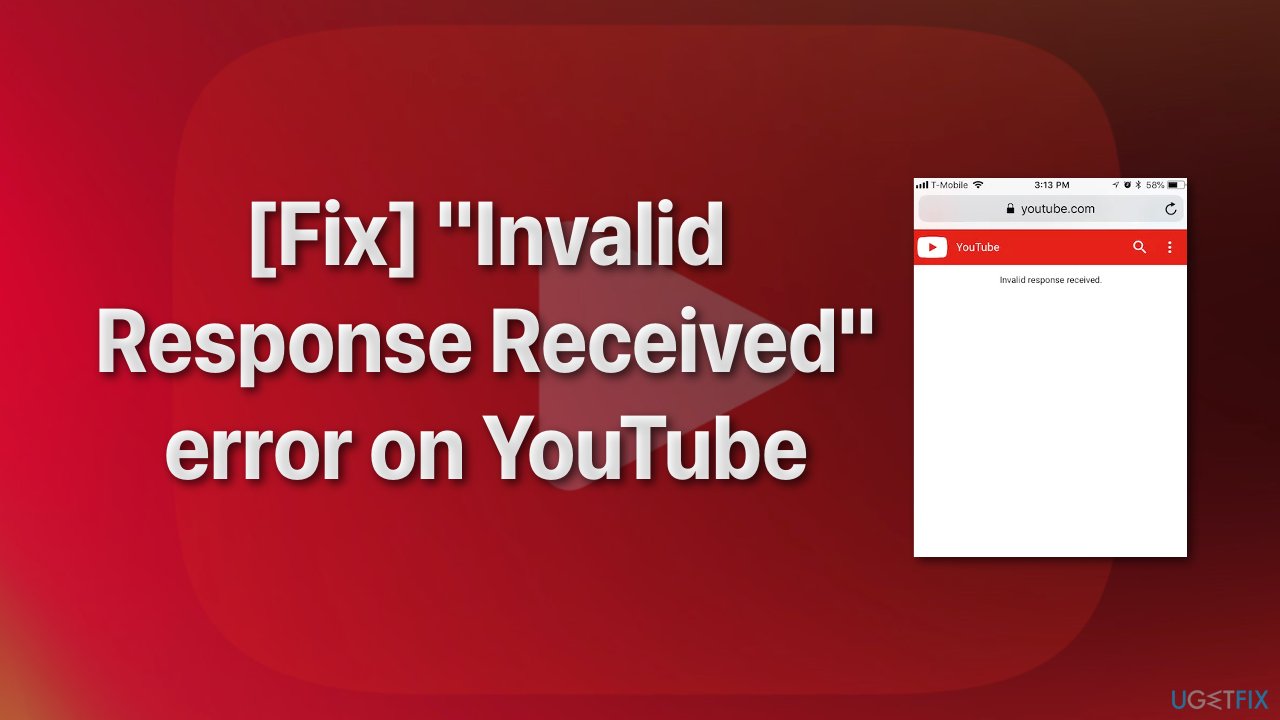
The reason why you are seeing the error message can vary. If you see the “invalid response received” error message while trying to comment on a YouTube video, it might be because you have not set up your Google account name. There is also a good chance that the issue is being caused by your browser ad blocker settings or a third-party ad blocker[ref en-2] that you have in your device.
However, most users reported that they faced this problem while using the Brave browser.[ref en-3] It is well known for its shield feature that blocks all website trackers and ads as you surf through the internet. While this is a very great feature, it can sometimes cause issues while trying to access certain content or perform specific tasks.
There are multiple ways you can try to resolve the problem. We have a few methods that could help you get back to watching YouTube without any errors:
Method 1. Use a Different Browser
As we said before, the problem can be caused by the web browser you are using. You could also try to see if it needs updates. If not, we suggest trying a different browser and see if the problem still persists.
Method 2. Check Google Account Name
If your Google account does not have a name set up, your email will be chosen instead, which can cause the "invalid response received” message.
- Open your browser
- Go to the Google Account section
- Make sure you are signed in to the correct Google account if you have multiple
- Click on the Personal Info
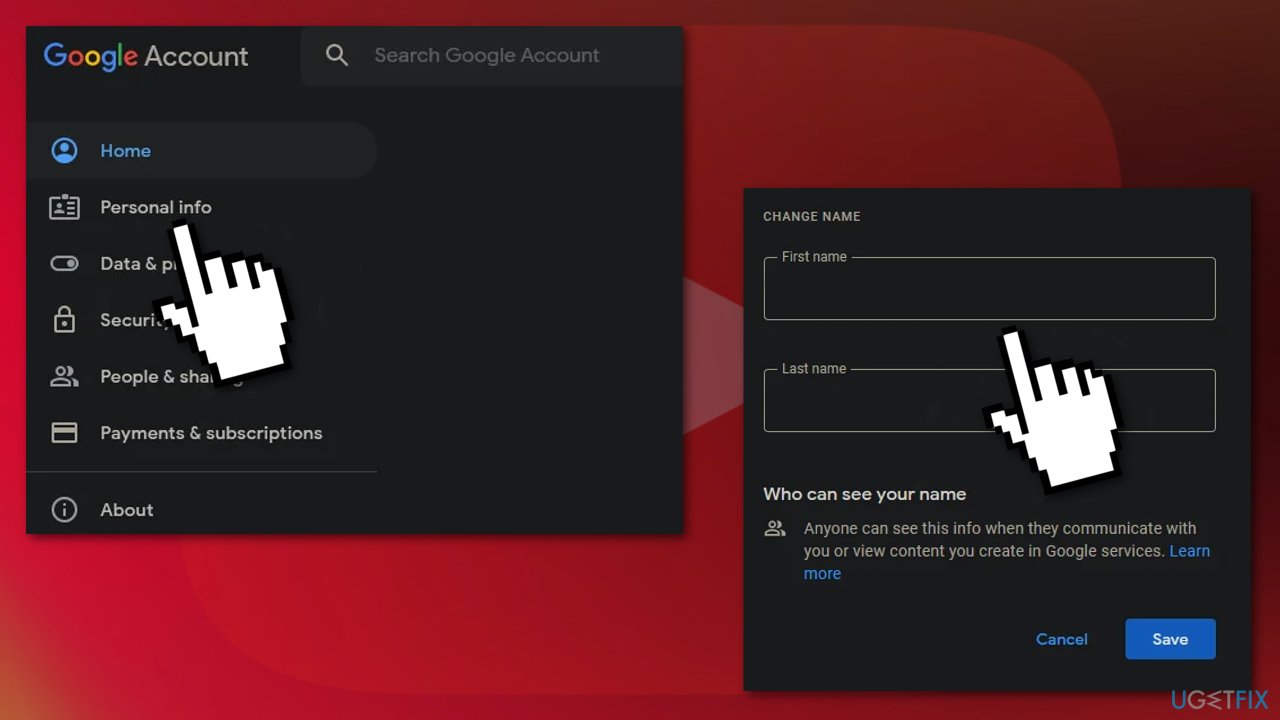
- Choose the Name field and type in your name
- Click the Save button
Method 3. Disable Brave Shield
If you use Brave, the error is most likely caused by its Brave Shield feature. The good thing is that you only have to disable it:
- Disable the Brave Shield by clicking the Brave icon next to the address bar
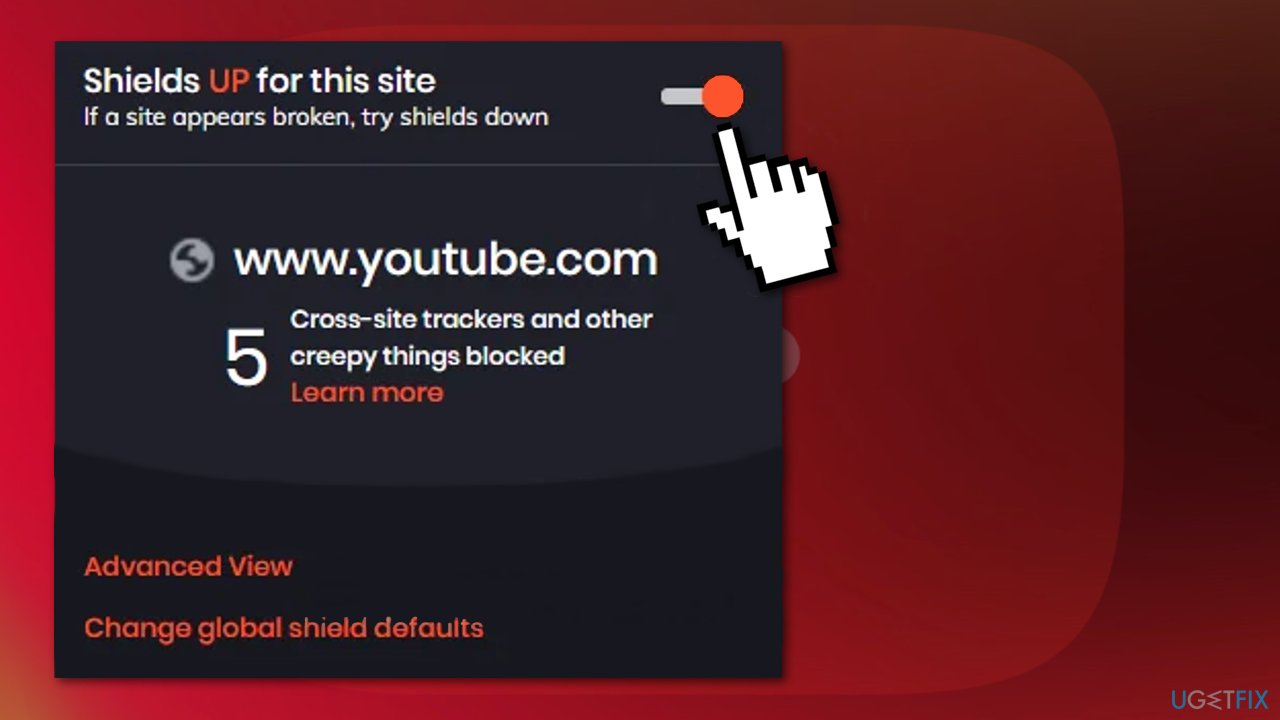
- Refresh the page
Method 4. Disable the ad blocking extension
- Tap on the Menu icon
- Choose Extensions or Add-ons depending on your browser
- On the Extensions screen, tap on the ad blocker add-on that you are using to open it
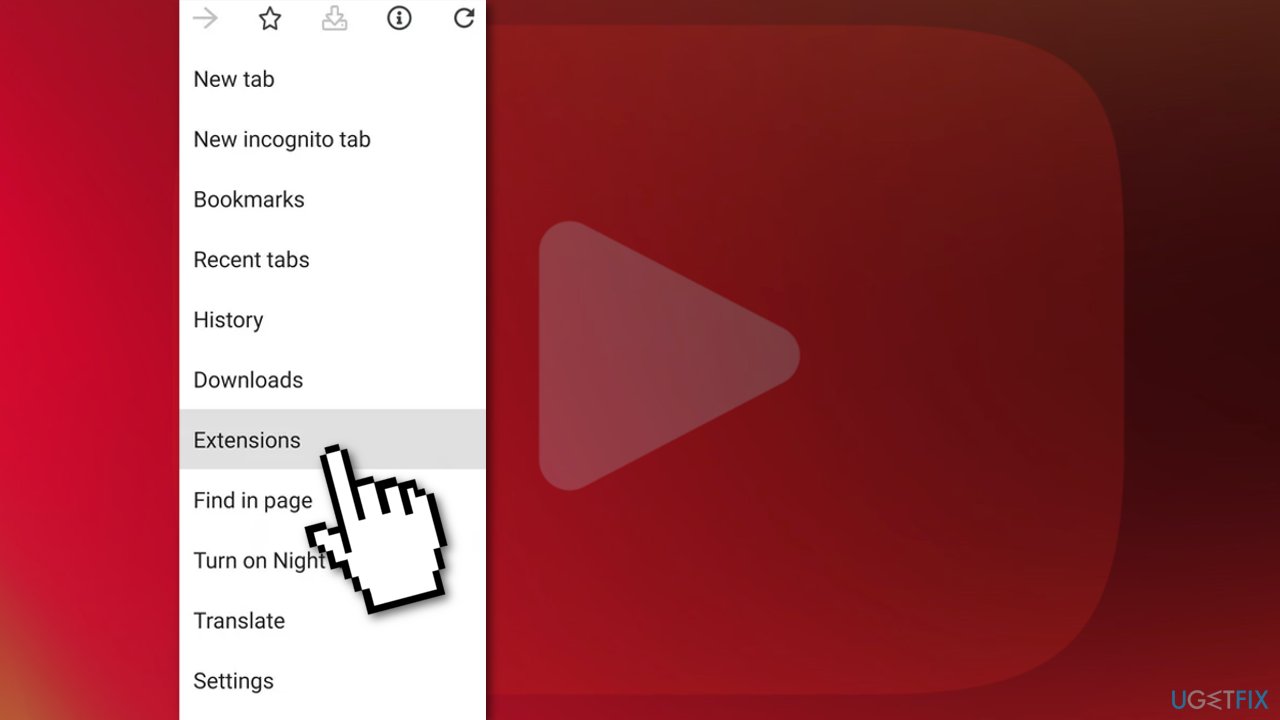
- Disable it
Method 5. Use the app
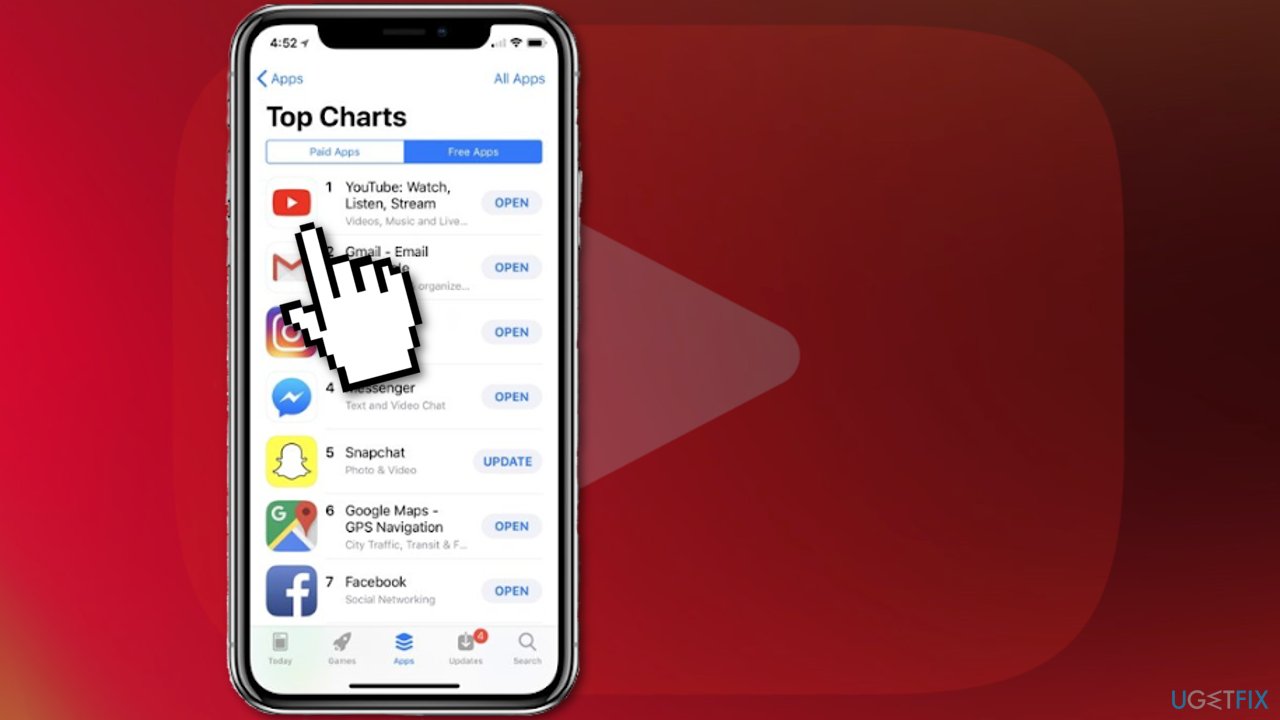
Using the YouTube app to watch videos provides a much smoother and faster experience compared to the mobile website. This error seems to appear only when using the website to access it, so you try using the app. You can get it for free from Google Play Store or any other official mobile app store.
You might also be interested in these topics:
Bottom line
To resolve the 'invalid response received' error on YouTube, you can try setting up your Google account name, adjusting your ad blocker settings, or switching browsers. If these fixes do not work, consider disabling the ad blocker or trying a different browser altogether.
Frequently asked questions
This error typically occurs due to network connectivity issues, corrupted browser cache, or problems with the YouTube service itself.
You can clear your browser cache by going to the settings, finding the privacy section, and selecting the option to clear browsing data, then choose cached images and files.
Yes, you can troubleshoot network issues by running the built-in Network Troubleshooter found in the Settings app under Update & Security > Troubleshoot > Additional troubleshooters.




Report an issue
What's wrong with this guide? We review every report and update or remove content.
Report received — thank you. We'll review and fix it.
You need a free account to submit a report.
Be the first to comment