
Logitech G435 turning off randomly or disconnecting: how to fix it

Prefer to fix it yourself? The manual steps follow.
- 8methods
- 2 to 20 minutes
- Easy
Applies to Logitech G435 LIGHTSPEED Wireless Gaming Headset with the USB receiver or Bluetooth, on Windows 11 and Windows 10
8 methods in this guide
Hello. I recently bought Logitech G435 headphones and they randomly turn off. I saw other people complaining about the same issue. Is there a way to fix it?
A Logitech G435 that turns off on its own is most often doing what Logitech built it to do: it shuts down after 30 minutes of inactivity. When it dies sooner, the cause is usually a low battery, a weak LIGHTSPEED link or Windows power saving. Check the battery LED first, then work down the fixes below.
Logitech says the G435 switches itself off after 30 minutes of inactivity, and there is no setting to change that (Fix 1). Press the Power button once: a red or flashing red LED means the battery is under 30% and needs a full charge (Fix 2). If it drops sooner, move the USB receiver closer (Fix 3), pair Bluetooth again (Fix 4) and stop Windows power saving (Fix 5).
| Error | No message on screen: the headset goes silent, the LED goes dark, and Windows switches the sound back to the speakers. With Bluetooth, the G435 may stay on but drop out of Bluetooth & devices. |
|---|---|
| Where it appears | On the headset itself, during games, calls or music, on PC, PlayStation, phone or Nintendo Switch |
| Main cause | The built-in auto shutoff after 30 minutes of inactivity, then a battery under 30% |
| Fastest fix | Keep sound playing to rule out the auto shutoff (Fix 1), then check the battery with one short press of Power (Fix 2) |
| Also written as | G435 keeps turning off, randomly turns off, disconnecting randomly, turning on and off, audio cutting out |
| Battery and range | Up to 18 hours per charge; LIGHTSPEED range up to 10 meters (33 feet), as Logitech states |
| Affects | Every G435 (LIGHTSPEED receiver and Bluetooth), on Windows 11 (25H2, 26H2), Windows 10 22H2, Mac, PS4, PS5, phones and Switch |
| Vendor status | Not listed as a known fault. The only firmware Logitech offers is the G435 Update Tool 3.0.1.81 from 23 January 2022. |
| Time to fix | 2 minutes for the auto shutoff and battery checks, up to 20 minutes with the firmware update |
Facts checked on 15 October 2026. Steps written for Windows 11 (25H2 and 26H2) and Windows 10 22H2.
What it means when the Logitech G435 turns off or disconnects
Two different things look the same from the chair. When the G435 turns off, its LED goes dark and the headset needs a 1.5 second press of Power to come back. When it disconnects, the headset stays on, but the PC or phone loses it and plays sound from its own speakers.
Logitech's setup guide lists one reason the G435 switches off by itself, under "Auto Shutoff": after 30 minutes of inactivity. Users report that a quiet game lobby, a paused video or a muted call counts as inactivity, so the headset can turn off while you still wear it.
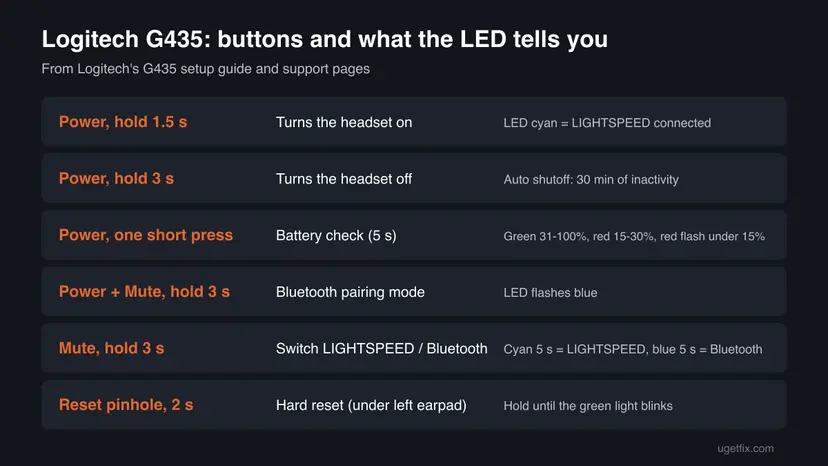
- Turn on
- Hold Power for 1.5 seconds; the LED turns cyan when the LIGHTSPEED receiver is connected
- Turn off
- Hold Power for 3 seconds
- Auto shutoff
- After 30 minutes of inactivity
- Bluetooth
- One Bluetooth device at a time; LIGHTSPEED and Bluetooth are switched with the Mute button
Why the Logitech G435 keeps turning off, from most to least common
Most often the headset is simply following its 30-minute rule. Next comes a battery that is lower than it looks, then a radio link that breaks for a moment. Windows power saving and pairing mix-ups are less common, and a faulty battery or board is rare.
| Cause | How common | What you see | Fix |
|---|---|---|---|
| 30-minute auto shutoff | Most cases | It turns off after a long quiet stretch, never in the middle of loud play | Fix 1 |
| Battery under 30% or not fully charged | Common | Red or flashing red LED on one short press of Power | Fix 2 |
| Receiver too far away, behind the PC or next to a USB 3.0 device | Common on desktops | Sound cuts out or the headset drops when you lean back or walk away | Fix 3 |
| Bluetooth paired to two devices, or an old pairing | Less common | Bluetooth drops while the LED stays lit; it jumps to your phone | Fix 4 |
| Windows turns off the Bluetooth adapter or USB port to save power | Less common, laptops | Drops only on one PC, often on battery power | Fix 5 |
| Firmware glitch or an interrupted update | Rare | Odd LED behaviour, will not pair, turns off on every device | Fix 6 and Fix 7 |
| Worn battery or hardware fault | Rare | Turns off at a full green battery on every device and every mode | Still turning off, below |
How to stop the Logitech G435 from turning off and disconnecting
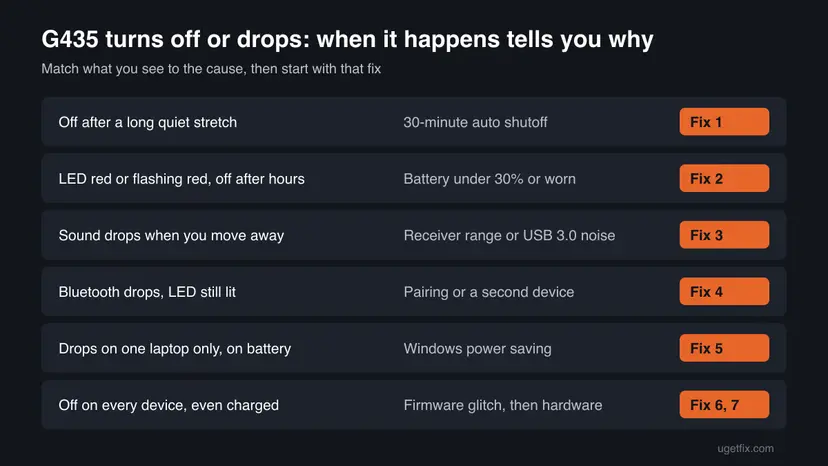
Fix 1 and Fix 2 take two minutes and solve most cases, so do them first. Fixes 3 to 5 are for a headset that drops while sound is playing. Fixes 6 to 8 are for a G435 that misbehaves on every device.
| What you see | Start with |
|---|---|
| It turns off after a long silence, a paused game or a muted call | Fix 1 |
| One short press of Power shows a red or flashing red LED | Fix 2 |
| Sound cuts out when you lean back, turn your head or walk away from the PC | Fix 3 |
| Bluetooth drops, or the headset jumps between your phone and the PC | Fix 4 |
| It drops only on one laptop, mostly when the laptop runs on battery | Fix 5 |
| It turns off on every device, even with a green battery LED | Fix 6, then Fix 7 |
| It will not pair or show up after an update | Fix 6 |
Fix 1. Rule out the 30-minute auto shutoff
2 minutes plus a test of 40 minutesNo riskEveryone whose G435 turns off after a quiet stretch rather than in the middle of loud play.
Logitech builds the G435 to switch itself off after 30 minutes of inactivity. If the turn-offs always follow a quiet spell, nothing is broken, and no Windows setting or driver will change it.
- Note when the headset last turned off and what you were doing: a lobby, a paused video, a muted call or reading.
- Turn the G435 on by holding Power for 1.5 seconds and wait for the cyan LED (LIGHTSPEED) or the connection on Bluetooth.
- Play a long video or a playlist without pauses and keep the headset on for at least 40 minutes.
- If it stays on the whole time, the auto shutoff was the cause. Keep low background sound playing during long quiet sessions.
- If it turns off while sound is playing, go to Fix 2.
We found no option for it in Logitech's G435 support pages, and an independent review notes that the G435 does not use the G HUB app. We could not confirm any official way to change the 30 minutes.
It worked if: The headset stays on through 40 minutes of steady sound and only turns off after silence.
If not: If it turns off while sound is playing, check the battery in Fix 2.
Fix 2. Check the battery with the LED and charge the G435 fully
1 minute to check, a few hours to chargeNo riskReaders whose headset turns off after a few hours, or whose LED shows red.
A battery under 15% is close to empty, and a short top-up does not fill it. Logitech's LED check shows the real level in one press.
- With the headset on, press Power once, briefly.
- Read the LED for five seconds: green means 31% to 100%, red means 15% to 30%, flashing red means under 15%.
- If it is red or flashing red, connect the supplied charging cable to a USB port on the PC or a phone charger.
- Charge until the battery check shows green, then leave it a while longer so it is full.
- Use the headset again and check the LED once more after an hour of play.
Logitech rates the G435 at up to 18 hours on a full charge. Users report that a new headset sometimes holds a charge badly until it has been run down and charged fully once. If a full charge still lasts only an hour or two, see Still turning off below.
It worked if: The battery check shows green, and the G435 lasts for hours of play instead of minutes.
If not: If the battery is green but it still drops while sound plays, go to Fix 3.
Fix 3. Give the LIGHTSPEED receiver a clear line to the headset
5 minutesNo riskDesktop PC and PlayStation users whose sound cuts out or whose headset drops when they move.
LIGHTSPEED reaches up to 10 meters, but a receiver in a rear port behind a metal case loses much of that. Microsoft also warns that unshielded USB 3.0 devices nearby can interfere with wireless links.
- Unplug the G435 USB receiver from the back of the PC.
- Plug it into a front USB port, or into a USB extension cable placed on the desk where you can see it.
- Keep the receiver away from external USB 3.0 drives, USB hubs and the Wi-Fi router.
- Turn the headset on with Power for 1.5 seconds and wait for the cyan LED.
- Play sound and walk around the room to test the link.
LIGHTSPEED works on PS4 and PS5 too. The same rule applies: use the front USB port of the console rather than a port hidden behind it.
It worked if: The cyan LED stays steady and sound no longer cuts out when you lean back or move around.
If not: If you use Bluetooth, or the drop still happens next to the receiver, go to Fix 4.
Fix 4. Pair the G435 again over Bluetooth and keep it on one device
5 minutesLow riskReaders who use Bluetooth with a PC, phone or Switch and see the connection drop while the LED stays lit.
The G435 can connect to one Bluetooth device at a time. A phone that grabs it, or an old pairing on the PC, makes the PC lose the headset even though the headset never turned off.
- Windows 11: open Settings > Bluetooth & devices > Devices, select the three dots next to G435 and choose Remove device, then Yes.
- Windows 10: open Settings > Devices > Bluetooth & other devices, select G435 and choose Remove device, then Yes.
- Remove or turn off Bluetooth for the G435 on your phone, tablet or Switch too, so only one device can claim it.
- On the headset, hold Power and Mute together for three seconds. The LED flashes blue in pairing mode.
- On the PC, select Add device > Bluetooth, choose G435 and wait until it shows as connected.
If you do not need Bluetooth at all, hold Mute for three seconds to switch to LIGHTSPEED: the LED lights cyan for five seconds. Hold it again to go back to Bluetooth, shown by blue for five seconds.
It worked if: The G435 shows as connected in Bluetooth & devices and stays connected while the phone is nearby.
If not: If it drops only on this one PC, go to Fix 5.
Fix 5. Stop Windows from turning off Bluetooth or the USB port to save power
5 minutesLow riskLaptop users whose G435 drops on one PC only, mostly when the laptop runs on battery.
Microsoft names power-saving settings as a common reason Bluetooth keeps disconnecting. Windows can also cut power to an idle USB port, which takes the LIGHTSPEED receiver with it.
- Windows 11: open Settings > System > Power & battery and turn off Energy saver. Windows 10: open Settings > System > Battery and turn off Battery saver.
- Right-click Start and select Device Manager.
- For Bluetooth: expand Bluetooth, right-click the adapter (its name often contains "Wireless" or "radio") and select Properties.
- Open the Power Management tab, untick Allow the computer to turn off this device to save power and select OK.
- For the USB receiver: expand Universal Serial Bus controllers, open each USB Root Hub entry and untick the same box on its Power Management tab.
- Restart the PC and test the headset on battery power.
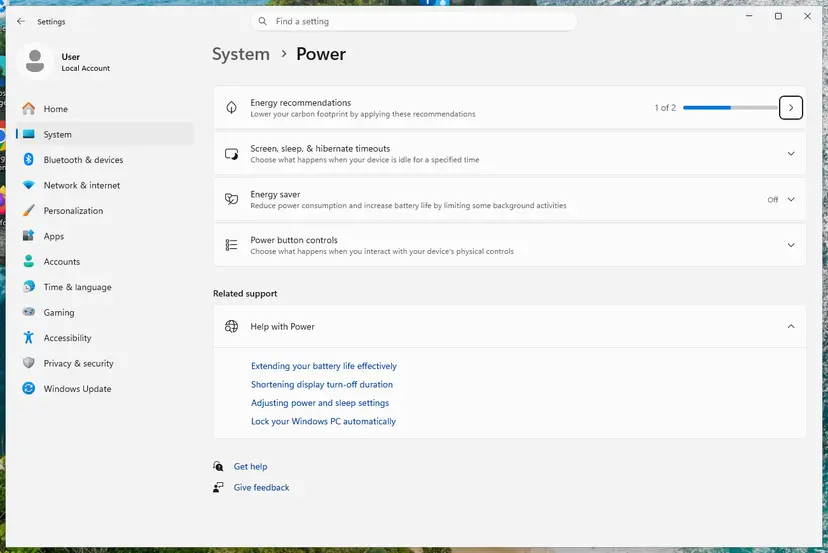

Some PCs show no Power Management tab for the adapter; that is normal when the PC maker's driver controls power itself. Choosing a higher power mode also helps: Change the power mode.
It worked if: The G435 stays connected while the laptop runs on battery and after it has been idle for a while.
If not: If the headset turns off on every device, not just this PC, go to Fix 6.
Fix 6. Hard reset the G435 with the reset button under the left earpad
5 minutesLow riskReaders whose G435 turns off on every device, will not pair, or stopped working after an update.
This is the reset Logitech itself documents for the G435. It restarts the headset's own software, which clears a stuck state that no setting on the PC can reach.
- Gently pull back the edge of the left earpad until you can see the small reset hole.
- Insert a SIM ejector tool or a straightened paper clip into the hole.
- Press and hold the reset button for about two seconds, until the green light blinks.
- Put the earpad back in place and turn the headset on with Power for 1.5 seconds.
- Check the LIGHTSPEED link (cyan LED) and pair Bluetooth again as in Fix 4 if it no longer connects.
Many videos and older guides say to hold Power for 10 seconds. Logitech's own pages list 3 seconds to turn the headset off and the pinhole button to reset it. We could not confirm any other reset combination.
It worked if: The green light blinks, the headset turns on normally and stays on during play.
If not: If it still turns off with a green battery, update the firmware in Fix 7.
Fix 7. Update the G435 firmware with Logitech's Update Tool
15 minutesLow riskReaders with a G435 bought around launch, or one that misbehaves on every device after the reset.
Logitech's only firmware update for the G435 adds Nintendo Switch Bluetooth support and other minor fixes. Early headsets shipped without it, so it is worth applying once if your headset never had it.
- On a Windows 11 or Windows 10 PC, open Logitech's G435 support page and download Logitech G435 LIGHTSPEED Wireless Gaming Headset Update Tool, version 3.0.1.81, about 5.7 MB.
- Plug the USB receiver into the PC and turn the headset on, so it is connected over LIGHTSPEED.
- Check the battery with one short press of Power: Logitech asks for at least 30%, so you want a green LED.
- Run
G435Update_3.0.1.81.exe, select Continue and follow the instructions on the screen. - Wait for the window that says the update was successful before you turn anything off.
Logitech warns that an interrupted update may fail. Keep the receiver plugged in and the headset close. If it fails, do the pinhole reset from Fix 6 and run the tool again.
It worked if: The tool reports a successful update and the headset works on LIGHTSPEED and Bluetooth.
If not: If the tool cannot find the headset, try another USB port; if the G435 still turns off, see Still turning off below.
Fix 8. Restart the Bluetooth service and update the Bluetooth driver
10 minutesLow riskReaders whose Bluetooth drops with every headset or speaker on this PC, not only the G435.
When every Bluetooth device drops on one PC, the PC is the problem. Microsoft lists a restart of the Bluetooth Support Service and a current adapter driver among its fixes for Bluetooth that keeps disconnecting.
- Press Win + R, type
services.mscand press Enter. - Right-click Bluetooth Support Service and select Restart.
- Open Device Manager, expand Bluetooth, right-click the adapter and select Update driver > Search automatically for drivers.
- If Windows finds nothing, get the Bluetooth driver from the PC or motherboard maker's support page, then restart.
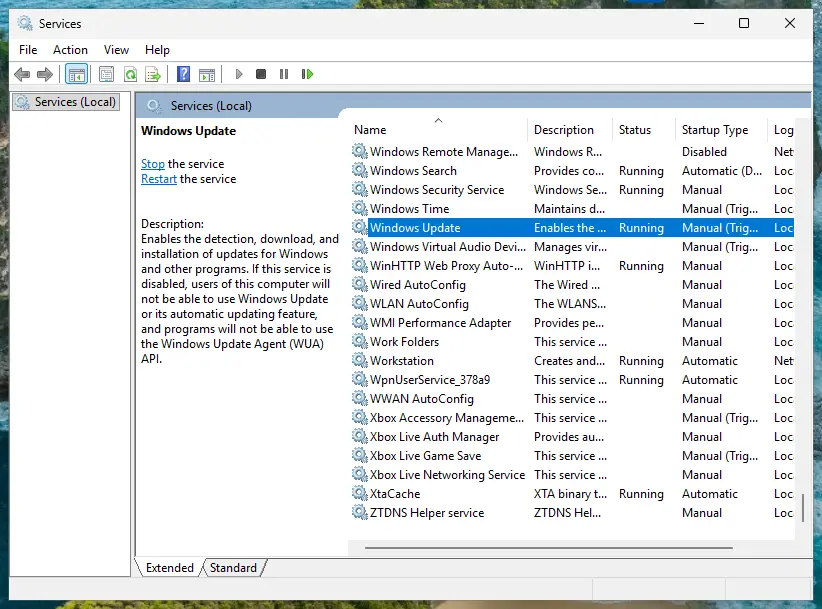
Full steps: Check and restart Windows services and Update, roll back or reinstall a driver.
It worked if: Bluetooth devices, the G435 included, stay connected after the restart.
If not: If the G435 also turns off on a phone or console, the problem is the headset: see Still turning off below.
Logitech G435 still turning off or not working: when it is the hardware
The G435 has no log file you can read, so the test is where it fails. Use it on a second device, such as a phone over Bluetooth or a console over LIGHTSPEED. If it fails everywhere, the headset is the cause; if it fails on one PC only, go back to Fix 5 and Fix 8.
- Turns off at a green battery on every device and in both modes: a fault in the battery or the board. Contact Logitech support with the details below.
- A full charge lasts one or two hours instead of up to 18: the battery is worn. The setup guide lists the battery as removable for recycling, but Logitech does not sell it as a spare part; the listed spares are earpads, the USB receiver and the charging cable.
- Will not turn on or charge at all: try another cable and USB port. If the LED never lights, it is a hardware fault.
- Only the receiver fails: Logitech lists the wireless USB receiver as a spare part, so it can be replaced on its own.
Give the serial number from the label, the date and shop of purchase, the battery LED colour when it turns off, and whether it happens on LIGHTSPEED, Bluetooth or both. Say that you did the pinhole reset and the firmware update.
How to keep the G435 from turning off and dropping in the future
- Check the battery with one press of Power before a long session and charge it when the LED shows red.
- Keep the USB receiver on the desk, in a front port or on an extension cable.
- Use one Bluetooth device at a time, and switch to LIGHTSPEED with Mute for long PC sessions.
- Keep quiet background sound during long idle stretches so the 30-minute shutoff does not trigger.
- Leave the receiver in a rear port right next to a USB 3.0 drive or hub.
- Run firmware tools from video descriptions or file-sharing links; use only Logitech's support page.
- Interrupt the firmware update by turning off the headset or unplugging the receiver.
Windows 10 left support on 14 October 2025. The G435 still works with Windows 10 22H2, but a PC that stays on it gets no new Bluetooth fixes from Windows Update.
Frequently asked questions
Why does my Logitech G435 keep turning off?
Most often because of its built-in auto shutoff: Logitech says the G435 turns itself off after 30 minutes of inactivity. A quiet lobby, a paused video or a muted call can count as inactivity. If it turns off while sound is playing, check the battery with one short press of Power: red or flashing red means under 30%. A receiver hidden behind the PC, Bluetooth paired to two devices or Windows power saving are the next causes, as in Fixes 3 to 5.
How do I turn off the Logitech G435?
Hold the Power button for three seconds while the headset is on, and the LED goes out. To turn it on again, hold Power for 1.5 seconds. You do not have to turn it off every time: the G435 shuts down by itself after 30 minutes of inactivity. A single short press of Power does not turn it off; it shows the battery level for five seconds instead.
How do I reset my Logitech G435 headset?
Logitech documents one hard reset for the G435. Pull back the left earpad, insert a SIM ejector tool into the small reset hole and hold it for about two seconds, until the green light blinks. Then turn the headset on and pair Bluetooth again if needed. Logitech gives this reset for a firmware update that was interrupted, but it also clears other stuck states. Holding Power for 10 seconds, as many videos say, is not a reset Logitech lists.
Can I turn off the 30-minute auto shutoff on the G435?
Not as far as we could find. Logitech's G435 pages describe the 30-minute auto shutoff but offer no setting for it, and an independent review notes that the G435 does not use the G HUB app where other Logitech headsets have such options. We could not confirm any official way to change it. The practical workaround is to keep low sound playing during long quiet stretches, or simply turn the headset back on.
Why does my G435 headset keep disconnecting and reconnecting?
When the LED stays lit but the sound jumps away, the headset has lost its link rather than turned off. On LIGHTSPEED, the usual reason is a receiver too far away or next to a USB 3.0 device (Fix 3). On Bluetooth, the G435 connects to only one device at a time, so a phone nearby can take it over (Fix 4). On a laptop, Windows power saving can cut the Bluetooth adapter or USB port (Fix 5).
How do I turn off Bluetooth on the Logitech G435?
Switch the headset to LIGHTSPEED: hold the Mute button for three seconds, and the LED lights cyan for five seconds. Hold Mute for three seconds again to go back to Bluetooth, shown by a blue light. To stop one phone or PC from connecting, remove G435 from that device's Bluetooth list. We found no Logitech setting that disables the Bluetooth radio for good, so switching modes is the way to keep it on the receiver.
Why is my G435 headset flashing blue?
A flashing blue LED means the G435 is in Bluetooth pairing mode, which starts when you hold Power and Mute together for three seconds. The headset is waiting for a phone, PC or Switch to connect. Pick G435 in that device's Bluetooth list to finish. If you meant to use the USB receiver, hold Mute for three seconds until the LED lights cyan. A solid blue light for five seconds only confirms a switch to Bluetooth.
Why is there no sound from my G435 even though it is connected?
Usually Windows is still sending sound to another output. Select the speaker icon on the taskbar and pick the G435 as the output device, or set it in Settings > System > Sound. Check the volume on the headset too. If Windows sent sound to the speakers after a drop, the headset turned off or lost its link first, so work through the fixes above. This also answers searches in other languages about the G435 having no sound.
Does the G435 work with Logitech G HUB?
We found no sign of it. The only G435 download we found on Logitech's support site is the G435 Update Tool for firmware, version 3.0.1.81, for Windows 11 and Windows 10, and an independent review notes that the G435 does not use G HUB. The older advice to update the G435 firmware through G HUB is therefore wrong. Use the Update Tool from Logitech's support page, as in Fix 7.
Is my G435 broken if it turns off with a full battery?
Not yet. First rule out the 30-minute auto shutoff (Fix 1) and the receiver position (Fix 3), then do the pinhole reset (Fix 6) and the firmware update (Fix 7). If it still turns off at a green battery on every device and in both LIGHTSPEED and Bluetooth mode, the battery or board is likely at fault. Contact Logitech support with the serial number and purchase date.
Sources
- Microsoft Support: Bluetooth keeps disconnecting in Windows (support.microsoft.com)
- Microsoft Support: Fix Bluetooth problems in Windows (support.microsoft.com)
- Logitech Support: How to power on and off your G435 (support.logi.com)
Did this fix work?
One click, no account. It tells the next reader which guides are worth their time.
Questions and experiences: Logitech G435 turning off randomly or disconnecting: how to fix it
Still broken, or found a fix we did not cover? Ask here: members and our editors answer. Reading is open; writing needs a free account.
…