
[Fix] Phone Link app always asks to "Unlock on your phone" in Windows

Prefer to fix it yourself? The manual steps follow.
- 7methods
- 2 to 15 minutes
- Easy
Applies to Windows 11 and Windows 10 with Phone Link, Android phones with Link to Windows (Samsung, HONOR, OPPO, ASUS, vivo, Xiaomi and others that support Apps and Phone screen)
7 methods in this guide
I have been using the Phone Link app on both my computer and my phone, which lets me show my phone's screen on my computer and unlock it from there. Now I'm unable to unlock it from my PC, and a message says, "Unlock on your phone. To protect your credentials, you need to unlock the phone first." Any ideas on why this is happening?
Phone Link shows "Unlock on your phone" when you open Apps or Phone screen while the Android phone is locked. You cannot unlock your phone from the PC; the prompt is there by design. Unlock the phone once, keep its screen awake longer, and turn off battery optimization for Link to Windows.
The message means the phone is locked, and Phone Link will not open the lock screen for you. Unlock or swipe the phone, and the PC window continues. To see it less often, give the phone a longer screen timeout and set Link to Windows to Don't optimize for battery (Fix 1 and Fix 2). If it appears while the phone is already unlocked, check Wi-Fi and account (Fix 3).
| Error | "Unlock on your phone. To protect your credentials, you need to unlock the phone first." shown in the Phone Link window on the PC. |
|---|---|
| Where it appears | When you open Apps or Phone screen in Phone Link, or an Android app pinned to Start or the taskbar, while the phone's screen is off or locked. |
| Main cause | The phone's lock screen is active. Phone Link mirrors the phone's display and cannot enter your PIN, pattern or fingerprint from the PC. |
| Fastest fix | Unlock or swipe the phone once, then keep its screen awake while you work on the PC (Fix 1, 2 minutes). |
| Also written as | phone link keeps asking to unlock, phone link keeps asking for permission, how to use phone link without unlocking phone, unlock on your phone to protect your credentials. |
| Affects | Phone Link on Windows 11 and Windows 10 (Windows 10 May 2019 Update or later for Apps). Windows 10 left support on 14 October 2025. |
| Phone side | Android 10 or later with Link to Windows (pre-installed), on the same Wi-Fi network as the PC, per Microsoft. |
| Microsoft's status | Not listed as a known issue. Microsoft's Phone screen troubleshooting page covers Wi-Fi, Battery Saver, battery optimization and account checks. |
| Time to fix | 2 to 5 minutes for the phone settings. About 10 minutes to reset Phone Link and link the phone again (Fix 7). |
Facts checked on 15 October 2026. Steps written for Windows 11 (25H2 and 26H2) and Windows 10 22H2.
What "Unlock on your phone" means in Phone Link
Phone Link can show the screen of an Android phone on the PC and run its apps in a window. Microsoft calls these features Apps and Phone screen. They work over Wi-Fi, and they show exactly what the phone shows, including its lock screen.
When the phone is locked, Phone Link stops and shows Unlock on your phone with the line To protect your credentials, you need to unlock the phone first. Your PIN, pattern, password or fingerprint stays on the phone. The PC never receives it and has no field to type it in.
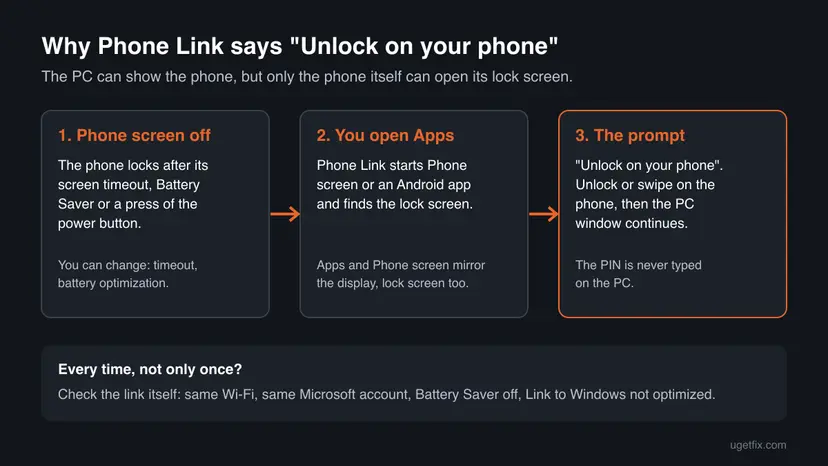
| What you see | What it means |
|---|---|
| The prompt once, after the phone sat idle | Normal. The phone locked itself. Unlock it and continue. |
| The prompt every few minutes while you work | The phone's screen timeout or battery saving turns the screen off too soon (Fix 1, Fix 2). |
| The prompt although the phone is unlocked in your hand | The PC and the phone do not talk properly: Wi-Fi, account or background limits (Fix 3, Fix 4, Fix 5). |
| Link to Windows asks for permissions again and again | The phone app lost or never got its permissions (Fix 6). |
Why Phone Link keeps asking you to unlock your phone, most likely first
- Most often: the phone locked itself. A short screen timeout, a press of the power button or a smart cover turns the screen off, and Android locks it. This is expected behaviour, not a fault (Fix 1).
- Often: battery saving on the phone or the PC. Microsoft names Battery Saver and battery optimization for Link to Windows as things that interrupt the connection (Fix 2).
- Sometimes: the two devices are not on the same network or account. Microsoft requires the same Wi-Fi network and the same Microsoft account in Link to Windows and on the PC (Fix 3).
- Sometimes: Phone Link cannot run in the background on the PC, so each time you open it, it starts a new session (Fix 4).
- Rarely: an old version or a damaged app on one side, or permissions that Link to Windows lost after a phone update (Fix 5, Fix 6, Fix 7).
Users on Microsoft Q&A report that the prompt still appears with Android's extended unlock turned on. They say a swipe on the phone is enough then, because no PIN is needed, but the screen still has to be woken on the phone.
How to stop Phone Link from asking to unlock your phone
Start with Fix 1 if the prompt only appears after the phone sat idle. Start with Fix 3 if it appears while the phone is unlocked in your hand. Fix 6 is for Link to Windows asking for permissions again and again.
| What you see or what your devices have | Start with |
|---|---|
| The prompt after the phone screen turned off | Fix 1 |
| The prompt every few minutes, Battery Saver is on | Fix 2 |
| The prompt while the phone is unlocked, or "couldn't connect" | Fix 3 |
| Phone Link starts from zero each time you open it | Fix 4 |
| It started after a Phone Link or phone update | Fix 5 |
| Link to Windows keeps asking for permission | Fix 6 |
| Nothing above helped | Fix 7 |
Fix 1. Unlock the phone once and keep its screen awake longer
2 minutesNo riskThe prompt appears after the phone has been idle, or every time its screen goes dark.
The prompt only appears when the lock screen is active. A phone that stays awake while you use Apps or Phone screen never reaches the lock screen, so Phone Link has nothing to ask for.
- On the phone, unlock it with your PIN, pattern or fingerprint. The Phone Link window on the PC continues on its own.
- Open the phone's Settings and search for Screen timeout.
- Pick a longer time, for example the longest value your phone offers, while you work with Phone Link.
- Leave the phone on the charger and face up, so a smart cover or a pocket sensor does not turn the screen off.
- Set the timeout back to a shorter value when you are done, to keep the phone secure when you carry it.
The setting is called Screen timeout on most Android phones, but menus differ between Samsung, Xiaomi, OPPO and others. We could not confirm one path for all of them, so search Settings for the name.
It worked if: Apps and Phone screen open on the PC without the prompt as long as the phone's screen stays on.
If not: If the prompt still appears within a minute or two, battery saving is turning the screen or the link off: use Fix 2.
Fix 2. Turn off Battery Saver and battery optimization for Link to Windows
3 minutesNo riskThe prompt or a lost connection comes back every few minutes, or Battery Saver is on.
Microsoft says battery optimization on some Android phones interrupts the connection. When Link to Windows is paused in the background, Phone Link reconnects and meets the lock screen again.
- On the phone, turn Battery Saver off. On the PC, turn Battery saver off too, as Microsoft's checklist asks.
- On the phone, open Settings > Apps & notifications > App info > Link to Windows > Advanced > Battery > Manage Battery Usage > Battery optimization.
- Scroll to Link to Windows and select Don't optimize.
- On some phones the path is Settings > Apps > Link to Windows > Battery > Optimize battery usage. Select All, find Link to Windows and turn the toggle Off.
- If your phone offers a battery choice named Unrestricted for the app, as the old version of this guide noted, pick it.
It worked if: The link stays up while you work, and the prompt only appears after the phone has really locked.
If not: If the prompt appears while the phone is unlocked, the devices are not reaching each other: use Fix 3.
Fix 3. Put the phone and PC on the same Wi-Fi and the same Microsoft account
5 minutesNo riskThe prompt appears although the phone is unlocked, or Phone Link says it could not connect.
Microsoft states that Phone screen only works when both devices are on and on the same Wi-Fi network, signed in with the same account. A broken link makes Phone Link wait for a phone it cannot see.
- On the phone, open Settings > Connections > Wi-Fi, check that Wi-Fi is On and note the network name under the current network.
- On the PC, open Settings > Network & Internet > Wi-Fi and check that the same network is connected. A 2.4 GHz and a 5 GHz network with different names count as two networks.
- Turn Airplane mode off on the phone.
- In the Link to Windows app on the phone, check that you are signed in with the same Microsoft account as on the PC.
- On the PC, open Settings > System > Shared experiences. If you see Fix now under Accounts, select it and follow the steps.
Microsoft warns that public and work networks may block the connection, and that a VPN or firewall can do the same. Pausing a VPN for one test is fine; turn it back on afterwards and ask your network administrator at work.
It worked if: Phone Link shows the phone as connected, and the prompt only appears when the phone is really locked.
If not: If Phone Link connects but starts from zero each time you open it, use Fix 4.
Fix 4. Let Phone Link run in the background on the PC
2 minutesNo riskPhone Link reconnects from scratch each time you open its window.
If Windows stops Phone Link when its window closes, every new start opens a fresh session with the phone. The old guide named this as a cause of the repeated prompt, and it costs nothing to rule out.
- Windows 11: open Settings > Apps > Installed apps, select the three dots next to Phone Link and then Advanced options.
- Under Background app permissions, set Let this app run in background to Always or Power optimized.
- Windows 10: open Settings > Apps > Apps & features > Phone Link > Advanced options and turn Background apps on.
- Close the Phone Link window and open it again.
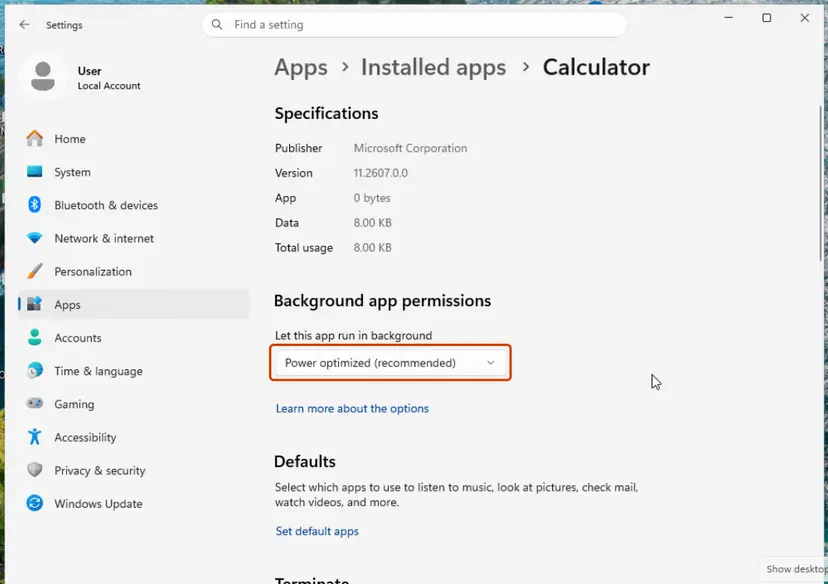
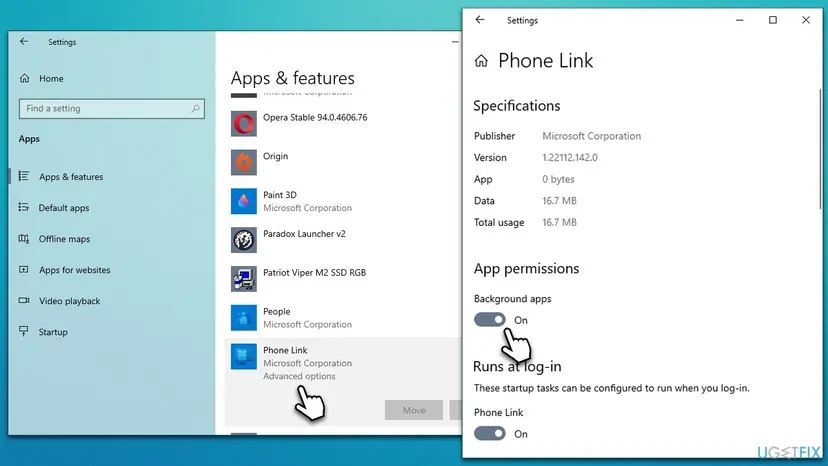
The general procedure with all options explained is here: Stop apps from running in the background.
It worked if: Phone Link opens straight to the connected phone without a new setup screen.
If not: If the prompt started after an update, update both apps with Fix 5.
Fix 5. Update Phone Link on the PC and Link to Windows on the phone
5 minutesNo riskThe prompt started after one side updated, or one app is much older than the other.
Apps and Phone screen depend on matching features on both sides; Microsoft lists minimum versions for each. A mismatch can break the session, so both apps should be current.
- On the PC, open Phone Link, select the gear icon (Settings) at the top right and then About.
- Select Check for updates and wait until it says you are up to date.
- Or open Microsoft Store > Library > Get updates and update Phone Link there.
- On the phone, update Link to Windows from Google Play or, on Samsung phones, from the Galaxy Store.
- Restart both devices and open Apps again.
Some readers arrive here searching for a short link such as ask.ms/linkpc from a pairing screen. We could not confirm where that link leads today, so get both apps only from Microsoft Store and your phone's own app store.
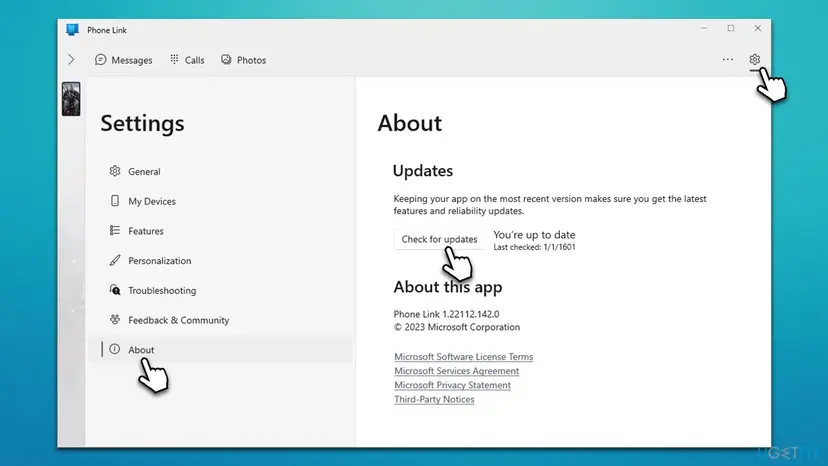
It worked if: Both apps report the newest version, and Apps opens after a single unlock.
If not: If Link to Windows keeps asking for permissions, use Fix 6.
Fix 6. Give Link to Windows its permissions on the phone
3 minutesNo riskLink to Windows keeps asking for permission, or a feature in Phone Link stays empty.
When Link to Windows lacks a permission, it asks again each time it needs it, and Phone Link shows prompts that look like the unlock message. Granting them once ends that loop.
- On the phone, touch and hold the Link to Windows icon and select App info.
- Open Permissions.
- Open each permission you want to use with the PC and select Allow.
- Go back and open Battery. Select Unrestricted if it is offered.
- Unlock the phone and open Apps on the PC again.
Permission names and menus change between Android versions and phone makers. Microsoft does not publish one list for all phones, so allow only what the features you use need.
It worked if: Link to Windows stops asking, and the features you use in Phone Link fill with content.
If not: If nothing has helped so far, reset Phone Link and link the phone again with Fix 7.
Fix 7. Repair or reset Phone Link and link the phone again
10 minutesLow riskFixes 1 to 6 did not help, or the prompt appears on every start no matter what you do.
Repair fixes damaged app files and keeps your data. Reset deletes Phone Link's data on this PC, including the stored link to the phone, so the next pairing starts clean.
Select Terminate first, then Repair. Use Reset only if Repair does not help. After a Reset, open Phone Link and pair the phone again; messages and photos stay on the phone.
- Open Installed apps. Select Start > Settings > Apps > Installed apps.
- Open the app's advanced options. Find the app in the list, select the three dots next to it and select Advanced options. Some apps do not have this option: for those, see the section about desktop programs below.
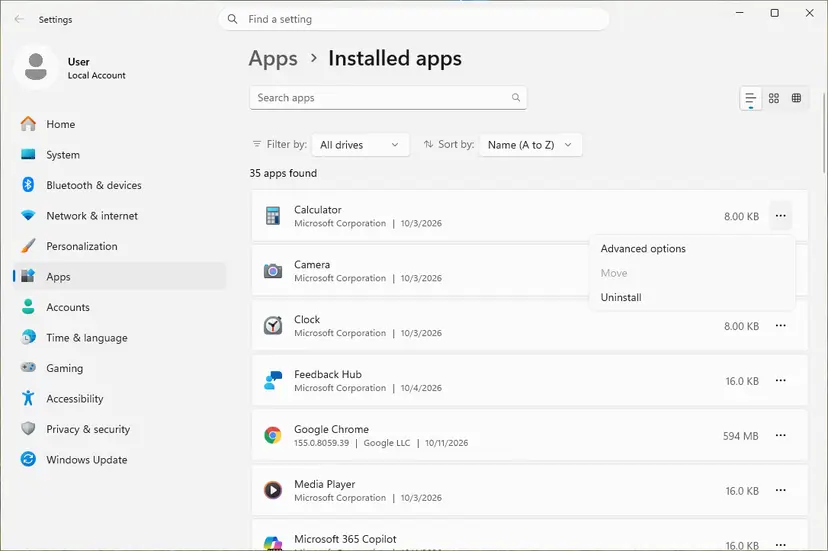
The three dots next to an app open Advanced options. Screenshot: Windows 11 26H2. - Repair first. On the page that opens, select Repair if it is there. The app's data stays. Open the app and check whether it works.
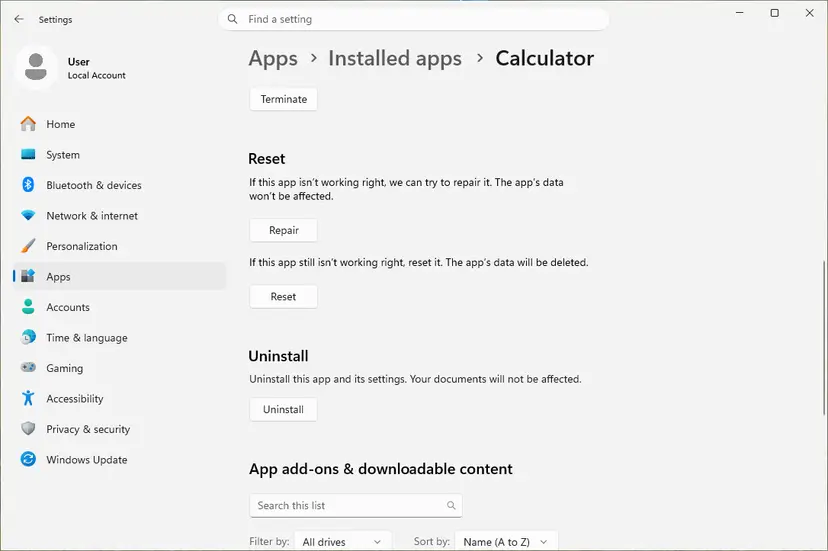
Repair keeps the app data. Reset deletes it. Screenshot: Windows 11 26H2. - Reset if Repair did not help. Select Reset. This deletes the app's data on this PC, including sign-in details and settings. Open the app and set it up again.
These steps were written for Windows 11 25H2 and 26H2. The full page with the other versions and what each result means: How to repair or reset an app in Windows
It worked if: Phone Link opens to its welcome screen, pairs again, and Apps opens after a single unlock on the phone.
If not: Collect the details listed under "Still asking" below and send them through Feedback Hub.
Phone Link still asks to unlock your phone: what to check
- Is your phone supported for Apps? Microsoft lists select Samsung, HONOR, OPPO, ASUS, vivo and Xiaomi devices with Link to Windows (pre-installed), on Android 10 or later. Other phones do not get Apps at all.
- Does the PC meet the requirements? Windows 10 May 2019 Update or later and a graphics card that supports DirectX 11.
- Is the network a work or public one? Microsoft says those may block the connection; try a home network.
- Is it a Galaxy Z Flip? Microsoft says to keep it open while mirroring; a closed Flip gives a blurred image you cannot use.
To report it, open Feedback Hub on the PC and give the exact text of the prompt, the Phone Link version from Settings > About, the phone model and Android version, and which fixes you tried. That is also what Microsoft Q&A will ask for.
How to see the "Unlock on your phone" prompt less often
- Unlock the phone before you open Apps or Phone screen on the PC.
- Keep the phone on the charger and awake while you work with it from the PC.
- Keep Link to Windows out of battery optimization.
- Keep Phone Link and Link to Windows updated.
- Do not remove the screen lock from the phone to avoid the prompt. Anyone who picks up the phone would then have your accounts.
- Do not install third-party tools that promise to unlock your phone from the PC.
- Do not expect Phone Link to accept your PIN on the PC. It is not built to.
Frequently asked questions
How do I use Phone Link without unlocking my phone?
For Apps and Phone screen you cannot. These features mirror the phone's display, so a locked phone shows its lock screen and Phone Link asks you to unlock it on the phone. The PC has no field for your PIN, by design. What you can do is unlock once and keep the screen awake longer while you work (Fix 1), and keep Link to Windows out of battery optimization (Fix 2). We could not confirm from Microsoft which other Phone Link features keep working while the phone is locked.
Why does Phone Link keep asking for permission?
Usually because Link to Windows on the phone does not have a permission it needs, or Android took it away after an update or a long pause. Open the app's info on the phone, go to Permissions and allow the ones for the features you use (Fix 6). Battery optimization can also pause the app, so set it to Don't optimize or Unrestricted (Fix 2). If the prompt is the "Unlock on your phone" message, it is not a permission at all: the phone is simply locked.
Can I enter my phone's PIN or pattern on the PC?
No. The message itself says why: to protect your credentials, the phone has to be unlocked on the phone. Phone Link sends the screen image and your clicks, but the lock screen only accepts the unlock on the device. A reader on Microsoft Q&A asked how to unlock a phone with a broken screen through Phone Link; there is no such option. For a broken screen, ask the phone maker about their own recovery tools.
Why does Phone Link keep opening or popping up?
Phone Link starts with Windows and runs in the background so it can show notifications from the linked phone. When you open an Android app pinned to Start or the taskbar, it also opens Phone Link, and if the phone is locked, the unlock prompt comes up. If you do not want it to start on its own, turn it off in Settings > Apps > Startup. Our guide to the PhoneExperienceHost.exe error explains how to turn Phone Link off fully: PhoneExperienceHost.exe.
Is the Phone Link pop-up a Windows Security warning?
No. "Unlock on your phone" is a Phone Link message, not a Windows Security alert, and it does not mean anything is wrong with your PC. It appears in the Phone Link window when the phone is locked. If you see a pop-up that claims to be Windows Security and asks you to call a number or install something, that is a different thing and should not be trusted. Real Windows Security alerts open in the Windows Security app.
Does Smart Lock or Extend Unlock stop the prompt?
Not completely, according to users on Microsoft Q&A. They report that with extended unlock on, the prompt still appears every time the phone screen is off. The difference is that a swipe on the phone is enough, because Android does not ask for the PIN then. So Smart Lock makes the prompt quicker to answer, but the screen still has to be woken on the phone itself. Settings for Smart Lock differ between phone makers.
What do I need for Apps and Phone screen in Phone Link?
Microsoft lists a PC with the Windows 10 May 2019 Update or later and a DirectX 11 graphics card, and an Android phone with Android 10 or later and Link to Windows (pre-installed). Both must be on the same Wi-Fi network. Apps is available on select Samsung, HONOR, OPPO, ASUS, vivo and Xiaomi devices. Running several apps at once needs Android 11, and Microsoft recommends 8 GB of RAM for that.
Does this work with an iPhone?
No. Apps and Phone screen are for Android phones with Link to Windows, so an iPhone never shows this prompt in Phone Link. This page is about Android phones. If you see a similar message with an iPhone, it comes from another feature, and the fixes here do not apply. Microsoft's supported devices page lists what each phone type can do in Phone Link.
The page is in another language. Is it the same message?
Yes. Phone Link shows the same prompt in the language of Windows. Readers searching in French, Spanish or Chinese, for example "ça ne marche pas encore", "esa opcion no me aparece" or "請連結裝置解鎖方式", reach this page with the same problem. The fixes are the same in every language; only the menu names on the phone and PC are translated. Search the phone's Settings for screen timeout and battery optimization in your language.
Sources
- Microsoft Support: Troubleshooting Phone screen for the Phone Link (Wi-Fi, Battery Saver, battery optimization, Shared experiences) (support.microsoft.com)
- Microsoft Support: Setting up Apps in the Phone Link (requirements and supported devices) (support.microsoft.com)
- Microsoft Q&A: How to unlock phone on computer or using Phone Link? (user reports, 2024) (learn.microsoft.com)
Did this fix work?
One click, no account. It tells the next reader which guides are worth their time.
Questions and experiences: [Fix] Phone Link app always asks to "Unlock on your phone" in Windows
Still broken, or found a fix we did not cover? Ask here: members and our editors answer. Reading is open; writing needs a free account.
…