
[Fix] We couldn't find a camera compatible with Windows Hello Face

Prefer to fix it yourself? The manual steps follow.
5 methods in this guide
Hi, I'm having issues with my Windows Hello Face login - it simply stopped working suddenly. I loved the quick and easy login process with the facial recognition feature, but now it no longer works. I am not sure what caused it. Please advise.
Windows Hello Face is a secure and convenient Windows 10 feature that allows users to log in to their devices using facial recognition technology. It eliminates the need for complex passwords and typing them in every time you log in. With a 3D infrared camera, Windows Hello Face creates a digital map of your face, which is used to identify you and log you into your device. It provides a fast and efficient way to access your device while ensuring that your data is safe and secure.
However, some users may encounter issues when setting up their camera for Windows Hello Face or when the feature stops working altogether. One common problem that users face is seeing the message "We couldn't find a camera compatible with Windows Hello Face" in the settings. This message usually appears under varying circumstances but most commonly occurs after Windows updates.
If you're experiencing this problem, there are a few things you can try. First, make sure that your camera meets the necessary requirements for Windows Hello Face. Check that your device has a compatible camera and that it's enabled in the device manager. You should also verify that your device is running the latest version of Windows 10/11 and that all updates are installed.
If you've confirmed that your device meets the necessary requirements, but you're still unable to set up Windows Hello Face, try installing Windows Hello Face drivers. If Windows Hello Face stops working after a Windows update, try rolling back the update or updating or reinstalling the camera driver. You can also try resetting the feature, as mentioned above.
Below you will find a step-by-step guide that should help you fix the "We couldn't find a camera compatible with Windows Hello Face" error on Windows.
Fix 1. Update camera driver
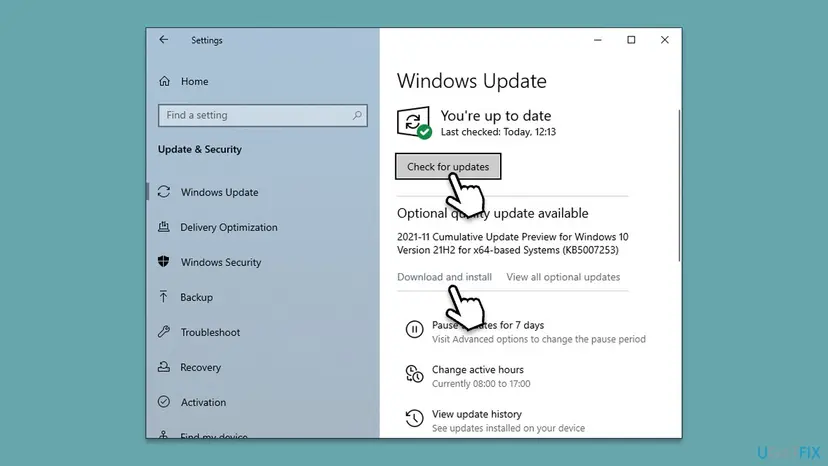
If Windows Hello Face issues occur suddenly, we first recommend updating drivers. You can first try using the Windows update feature:
- Type Updates and click Enter.
- In the new window, click Check for updates.
- If any optional updates are available, install them too.
- When done, restart your system.
Fix 2. Reinstall camera driver
If updating drivers didn't work, you can opt to reinstall the driver:
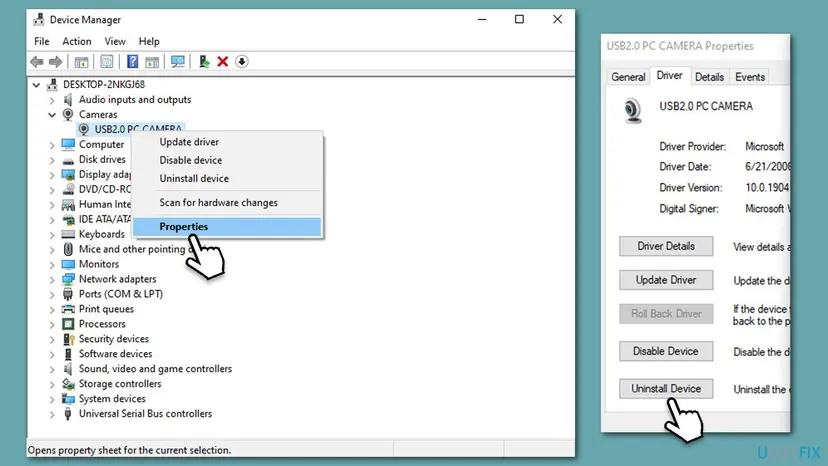
- Right-click on Start and pick Device Manager.
- Locate your camera: expand Imaging devices, Cameras, or Camera, Sound, video and game controllers section (the location depends on your Windows version).
- Right-click on your camera and pick Properties.
- Go to the Driver tab and pick the Uninstall Device option at the bottom.
- When prompted, mark the Delete the driver software for this device checkbox and click Uninstall.
- Finally, use one of the methods described above to find and install the latest drivers for your camera.
Fix 3. Uninstall the latest Windows update [workaround]
If issues started after the Windows update, you could uninstall it.
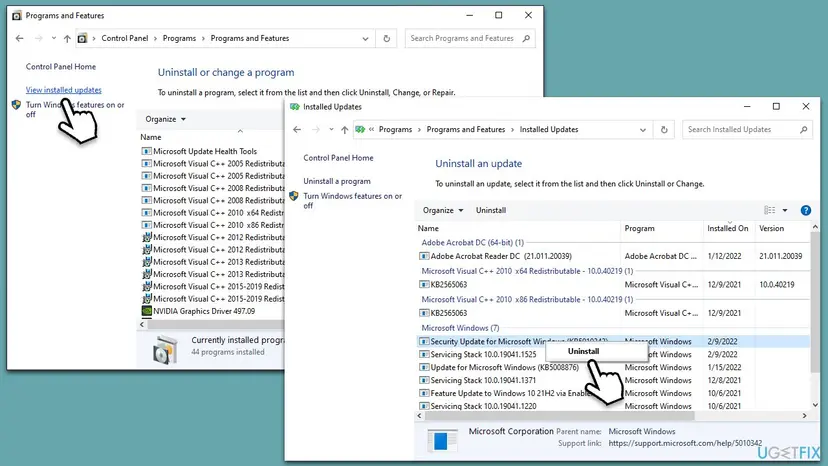
- Type Control Panel in Windows search and press Enter.
- Here, go to Programs > Uninstall a program.
- Select View installed updates.
- Locate the latest update (sort it by the Installed On column), right-click, and select Uninstall.
- Type in Updates in Windows search and press Enter.
- Here, click the Pause updates for 7 days button (or if you are using Windows 11, you can customize the time you can pause the updates).
- Restart your system.
Fix 4. Install Windows Hello Face driver
You might be missing the Windows Hello Face driver. Here's how to install it:
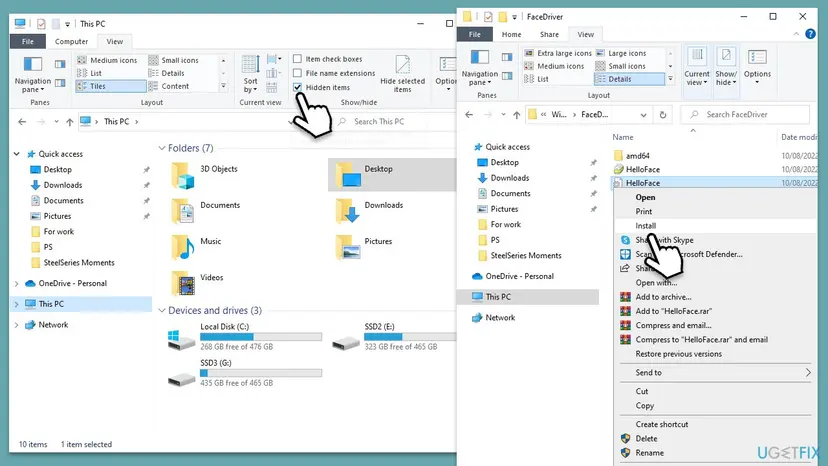
- Press Win + E to open File Explorer.
- At the top, go to the View tab and mark the Hidden items box.
- Next, navigate to the following location:
C:\Windows\System32\WinBioPlugIns\FaceDriver - Right-click on HelloFace.inf and select Install.
- Once done, right-click on HelloFaceMigration.inf (if available) and select Install.
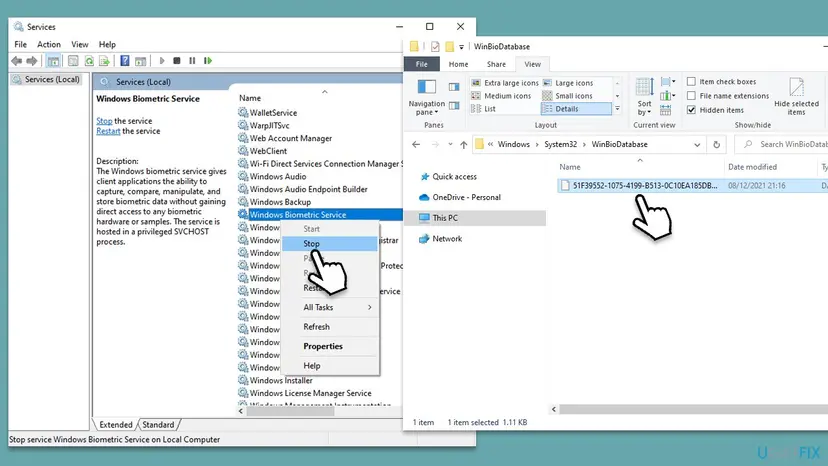
Fix 5. Reset Biometric Service
- Type Services in Windows search and press Enter.
- Scroll down to find Windows Biometric Service.
- Right-click on it and select Stop. Do not close this window yet.
- Press Win + E to open File Explorer (make sure Hidden items are visible).
- Navigate to the following location:
C:\Windows\System32\WinBioDatabase - Copy files located in this folder into a safe location on your PC as a backup.
- Mark the original files and press Shift + Del on your keyboard to remove them.
- Go back to Windows Biometric Service, right-click, and select Start.
- Finally, go to Settings > Accounts > Sign-in options and set up Windows Hello Face once more.
Related:
Did this fix work?
One click, no account. It tells the next reader which guides are worth their time.
Questions and experiences: [Fix] We couldn't find a camera compatible with Windows Hello Face
Still broken, or found a fix we did not cover? Ask here: members and our editors answer. Reading is open; writing needs a free account.
…