How to fix
Windows activation error 0x8007267C
on Windows
Resolve the Windows activation error 0x8007267C quickly and effectively with our expert-tested solutions for Windows 10 and 11. Fixed in minutes!

![[Fix] Windows activation error 0x8007267C](https://ugetfix.com/wp-content/uploads/articles/askit/fix-windows-activation-error-0x8007267c_en-768x432.jpg)
What causes [Fix] Windows activation error 0x8007267C?
- No DNS servers configured for local system
- Issues with DNS settings
- Communication failure between PC and Microsoft
- Corrupted system files
- Registry issues
Repairs Windows system files, removes malware, and restores a clean OS state — without reinstalling.
Hello. I tried to activate a Windows 10 computer multiple times, but every time I receive a message saying "Windows activation error 0x8007267C". I have run out of ideas on how to fix this. Please help.
The Domain Name System (DNS) is the phonebook of the Internet. Humans access information online through domain names, and web browsers interact through Internet Protocol (IP) addresses. DNS translates domain names[ref en-1] to IP addresses so browsers can load Internet resources. DNS servers eliminate the need for people to memorize IP addresses such as 123.987.875.243.
When something is not working smoothly during the whole process, people can experience many different issues on PCs, Video Game consoles, phones, and other devices. Today we are going to focus on an error that users experience while using Windows - one of the most popular operating systems in the world developed by Microsoft.[ref en-2]
Users report that they experience issues with DNS when trying to activate new Windows. This is the message that many receive:
Error code 0x8007267C definition:
No DNS servers configured for local system
DNS_ERROR_NO_DNS_SERVERS
In simple terms, this means that your PC and Microsoft failed to communicate with each other. There are many possibilities why this is happening, but the issue most likely lies in your settings.
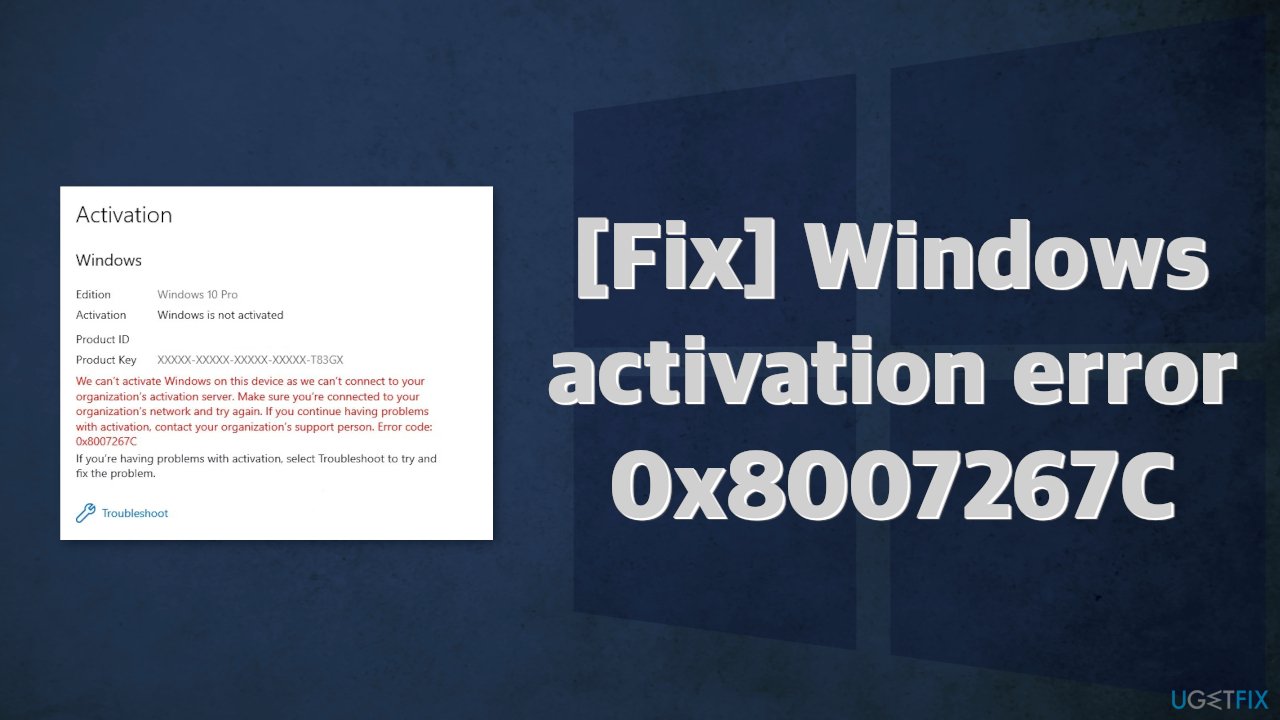
This article provides a couple of possible solutions for the Windows activation error 0x8007267C. Depending on the severity of your issue, simply running an automatic built-in Windows troubleshooter could be enough, or you might have to use a Command Prompt. You can try using a repair tool [d1] to avoid going through all the possible fixes. This powerful software can solve various system errors, registry issues, corrupted files, BSODs[ref en-3] and optimize the machine to increase the performance speed.
Below, you will find a couple of fixes that may help you. You can do them step-by-step or out-of-order. If you are ready to start the troubleshooting process, make sure to follow the steps carefully:
Method 1. Run the Activation Troubleshooter
- Press Windows key + R to open the Run dialog
- Type in ms-settings:activation and press Enter
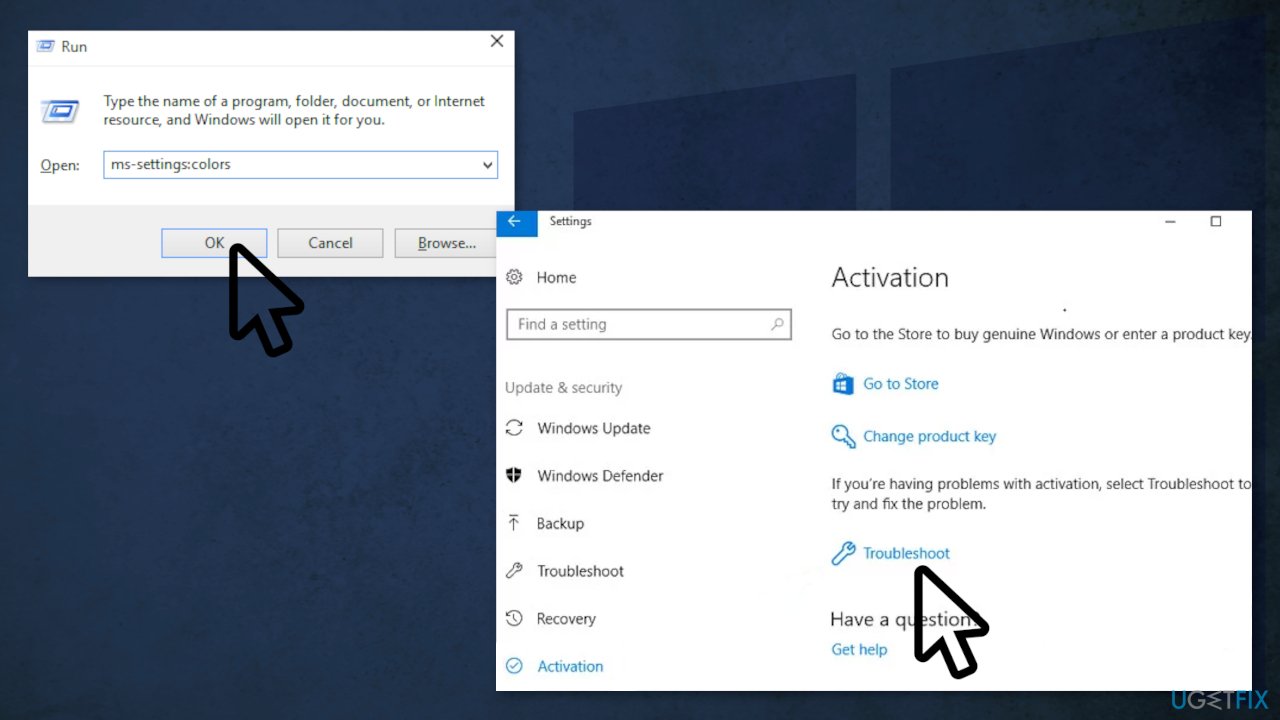
- In the Activation tab of the Settings menu, click on Troubleshoot
- Wait for the scan to complete, then click on Apply this fix if available
- Restart your PC
Method 2. Flush DNS Cache
Network inconsistencies could be preventing your computer from connecting to the Activation server, so you can try flushing your DNS cache to see if the issue still persists:
- Press Windows key + R to open up a Run dialog
- Type cmd inside the text box and press Ctrl + Shift + Enter to open Command Prompt
- When you’re prompted by the UAC, click Yes to grant admin access
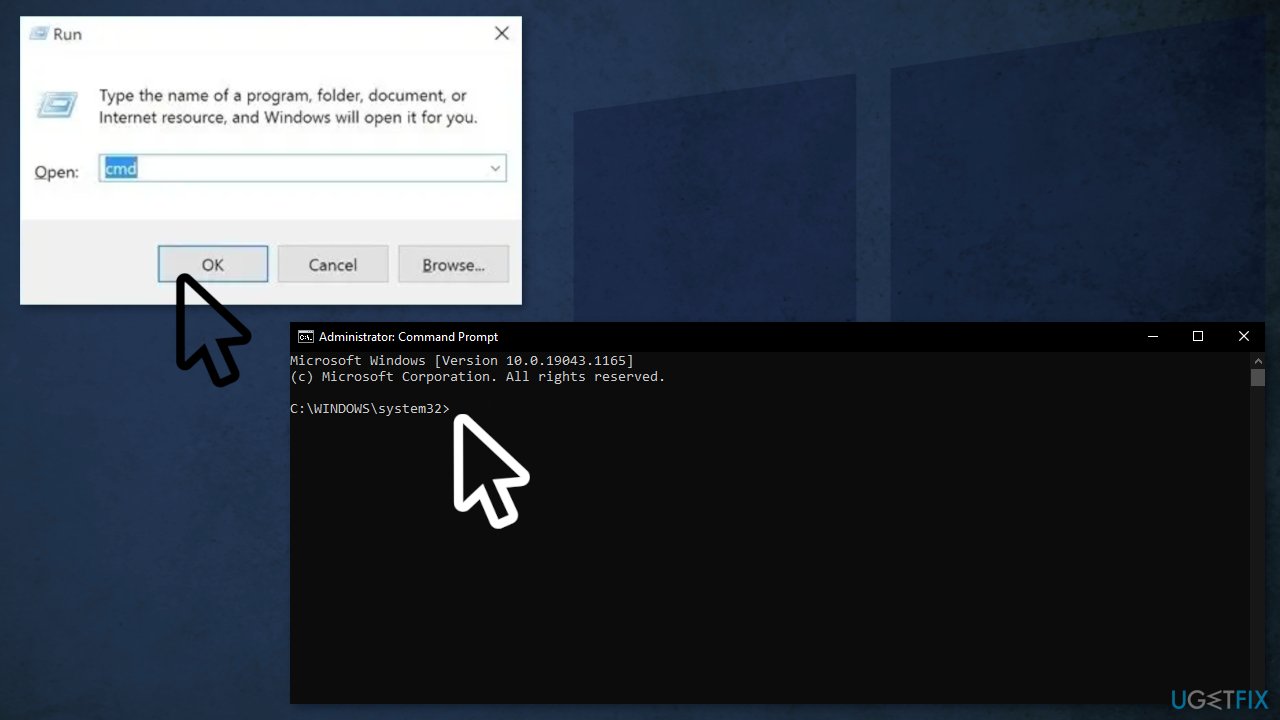
- Type the following command and press Enter to flush the current DNS cache:
ipconfig /flushdns
- You should get a confirmation pop-up telling you that the DNS has been successfully refreshed
- After that, type the following command and press Enter to renew the current IP configuration:
ipconfig /renew
Method 3. Change DNS range
It is possible that the current DNS range used by your ISP (Internet Service Provider) is no longer accepted by the MS activation server. You can try changing the DNS range with the equivalents supplied by Google:
- Press Windows key + R to open the Run dialog box
- Type ncpla.cpl and press Enter
- If you’re prompted by the UAC (User Account Control), click Yes to grant admin access
- When you are inside the Network Connections window, right-click on Wi-Fi (Wireless Network Connections) and choose Properties; If you’re using the wired connections tab, right-click on Ethernet (Local Area Connection)
- Click on the Networking tab and find the section that says This connection uses the following items
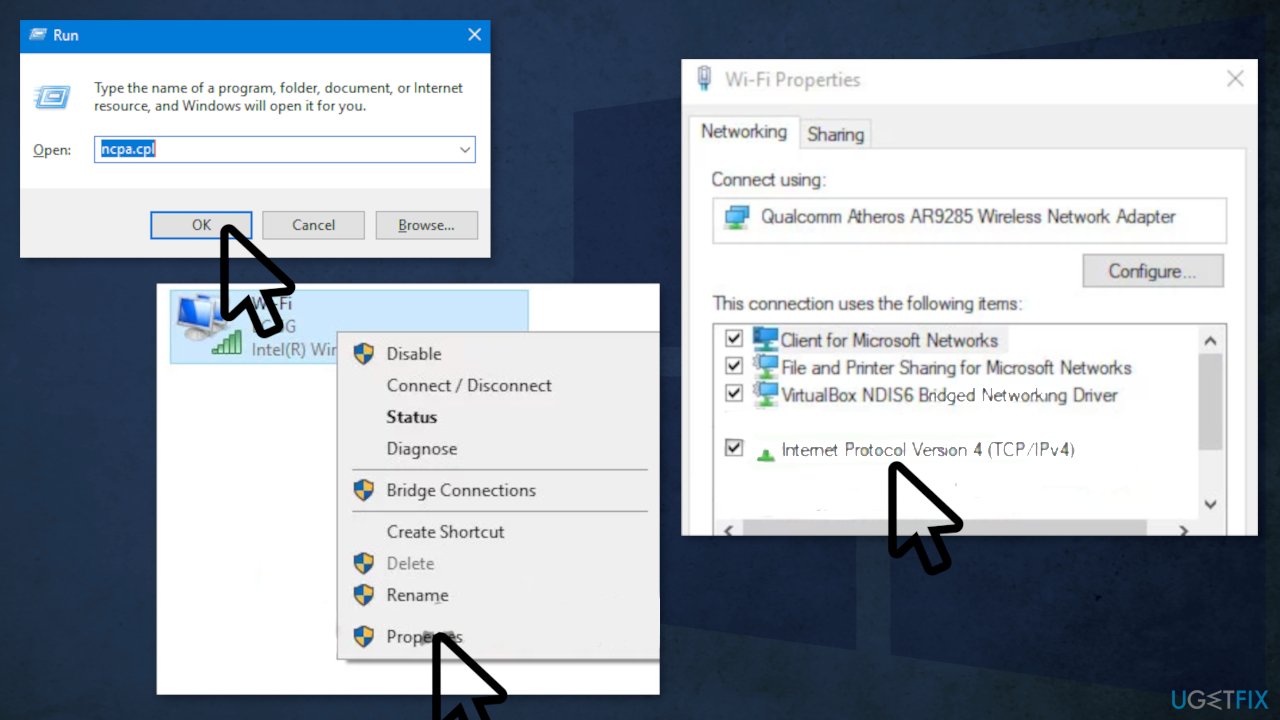
- Click on Internet Protocol Version 4 (TCP / IPv4), then click on the Properties button
- Inside the Internet Protocol Version 4 settings, click on General, then enabe the box associated with Use the following DNS server address
- Replace the current values of Prefered DNS settings and Alternate DNS server with the following values:
8.8.8.8
8.8.4.4
- Save the changes to enforce the DNS range, then return to the Initial Properties screen and modify the DNS range for Internet Protocol Version 6 (TCP/IPv6) with the following Preferred DNS server and Alternate DNS server values:
2001:4860:4860::8888
2001:4860:4860::8844
- Hit the Apply button and restart your computer
Method 4. Use the Multiple Activation Key
One last thing you can try is switching to a MAK product key to activate your volume license installation:
- Press Windows key + R to open the Run dialog box
- Type cmd inside the text box and press Ctrl + Shift + Enter
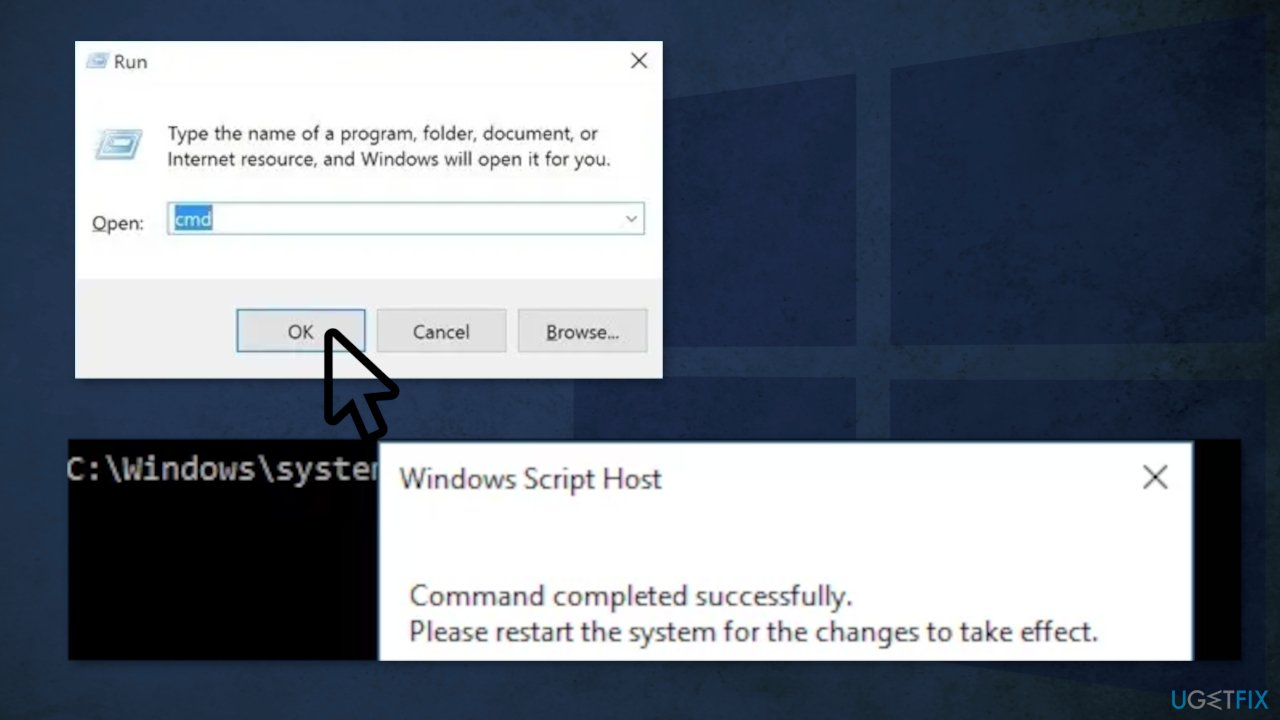
- When you’re prompted by the UAC (User Account Control), click Yes to grant admin access
- Once you’re inside the Command Prompt, type the following commands and press Enter after each one:
slmgr /ipk *YOUR LICENCE KEY HERE*
slmgr /ato
- Once both commands are processed successfully and you get the confirmation message, reboot your machine
You might also be interested in these topics:
Bottom line
To resolve the Windows activation error 0x8007267C, you can try running the Activation Troubleshooter or using Command Prompt for further troubleshooting. If these methods do not work, consider using a repair tool to fix system errors and optimize performance.
Frequently asked questions
The error 0x8007267C indicates that your Windows 10 or Windows 11 system is unable to connect to the activation server, often due to network issues or system configuration problems.
To fix the error 0x8007267C on Windows 10, try running the Activation Troubleshooter from the Settings app and ensure your internet connection is stable.
Yes, you can open Command Prompt as an administrator and run the command 'slmgr.vbs /ato' to attempt reactivating your Windows 11 system, which may resolve the error.




Report an issue
What's wrong with this guide? We review every report and update or remove content.
Report received — thank you. We'll review and fix it.
You need a free account to submit a report.
Be the first to comment