
How to fix 0x80070003 Windows update error?

Prefer to fix it yourself? The manual steps follow.
8 methods in this guide
Hello. I want to update my Windows 10 to the latest version, but I instead encounter error 0x80070003. Is there anything that can be done about this? I am not sure what to do as I have never had to deal with something like this before.
0x80070003 is yet another error that users might encounter when trying to update Windows. In most cases, this happens during the update process, i.e., the installation already proceeds for a while until it is canceled and the error code is displayed. At this time, Windows suggests users try later again, although this rarely brings any use.
Microsoft ships new patches regularly (typically, on the second Tuesday of each month, unless some urgent fixes need to be applied), providing the necessary security updates to prevent malware intrusions. Besides this, updates are also useful in the sense they generally greatly improve user experience with the introduction of new features, UI improvements, and bug fixes.
Unfortunately, some users - and there are over 1.5 billion of them - who prefer Windows as their PC OS have been running into issues, either when trying to update or after the installation is complete. 0x80070003, similarly to 0x80070002, 0x80072ee7, 0x8024402c, or 0x8007000d, might occur not only when trying to install the latest Windows updates, but also when using Microsoft Store or trying to upgrade to the newest version of the operating system, for example, Windows 10.
That being said, users most commonly encounter 0x80070003 when trying to install the newest updates, which provides the explanation in a message (although this may vary from device to device):
There were problems installing some updates, but we'll try again later. If you keep seeing this and want to search the web or contact support for information, this may help: Error 0x80070003.
While the provided error code is definitely useful, there are no provided solutions for the error 0x80070003 fix. The most prominent reason for this issue to arise is missing Windows update components or files, which does not allow the update to finish. That being said, there could be an array of Windows problems that could be causing it to fail the updates, including system file corruption, software conflicts, etc.
This solution could be the quickest way to fix 0x80070003 and many other problems that could arise, such as BSODs, malware damage, missing DLL files, and others.
Fix 1. Run Windows Update Troubleshooter
Let's start from the very basics - you should try running Windows update troubleshooter as a first method.
- Right-click on Start and select Settings
- Pick Update & Security
- Select Troubleshoot
- If you can't see troubleshooters listed on the right, click Additional troubleshooters
- Locate Windows Update and click Run the troubleshooter.
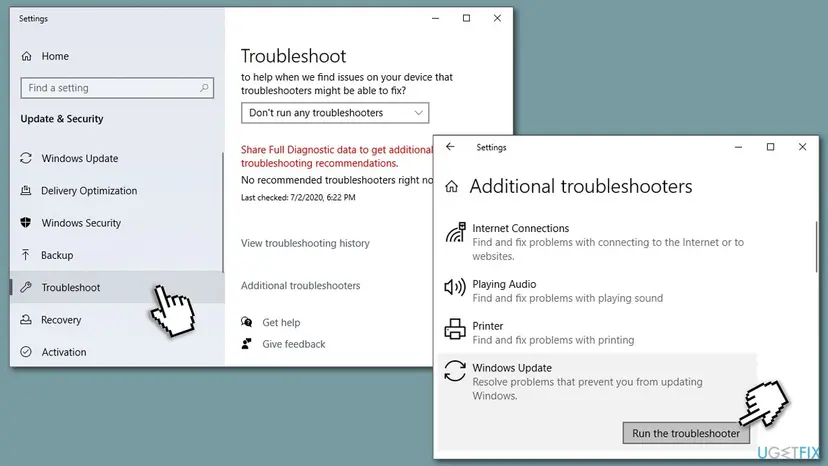
How to fix 0x80070003 windows update error run windows update troubleshooter
Fix 2. Run System File Checker
Since one of the main reasons why the error occurs is system file corruption, we recommend running an SFC scan.
- Type in cmd in Windows search
- Right-click on Command Prompt result and pick Run as administrator
- In the new window, copy and paste the sfc /scannow command and press Enter
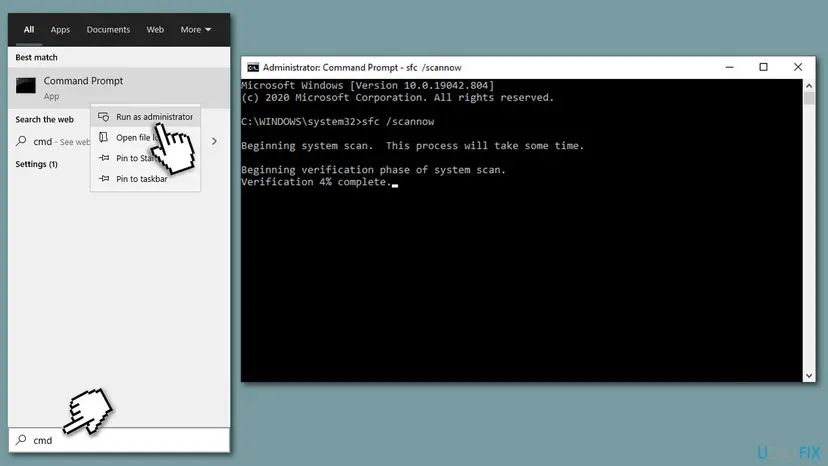
How to fix 0x80070003 windows update error run sfc scan - Wait till the scan finishes and Windows reports the results
- Reboot your PC and try downloading Windows updates once again.
Fix 3. Disable third-party antivirus
Some third-party security applications are way too aggressive, even when it comes to Windows updates. To put it simply, they might simply block the connection to Microsoft servers, resulting in updates not being downloaded and installed fully. Therefore, you should temperately disable third-party anti-malware and try downloading updates then.
Be warned that staying unprotected can be dangerous and result in malware infection. Thus, if you chose to uninstall your security software in the attempt to fix 0x80070003 error, you should either employ a tool from another vendor or simply rely on Windows Defender
Fix 4. Check date and time
One of the most overlooked reasons for various download errors is the incorrect date and time settings. Hence, to make sure that your time and date settings are correct, perform the following steps:
- Type in Control Panel in Windows search and press Enter
- Go to Clock and Region and click on Date and Time
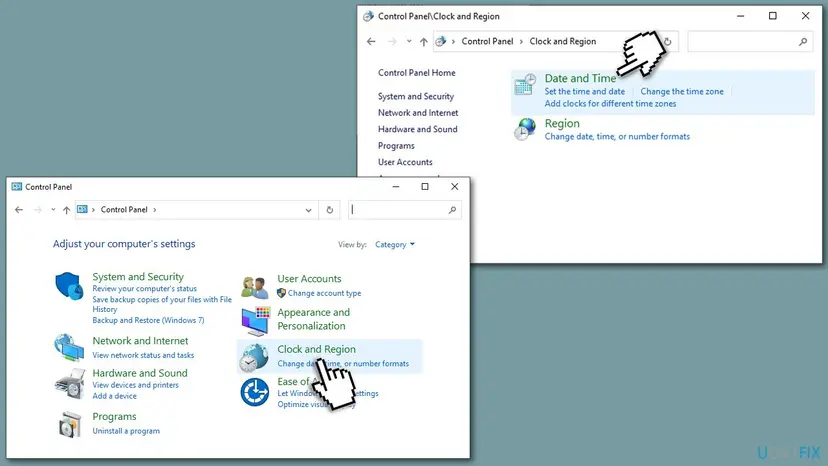
How to fix 0x80070003 windows update error check time and date sync - Pick the Internet Time tab and select Change Settings
- Make sure that Synchronize with an Internet time server box is ticked
- Click Update now and OK.
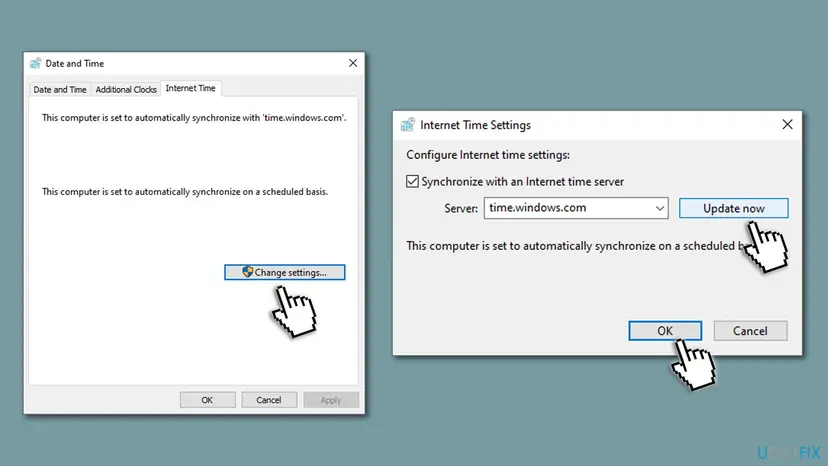
How to fix 0x80070003 windows update error check time and date sync2
Fix 5. Download the update manually
Instead of relying on the built-in Windows update service, you can download the relevant update and install it manually via Windows Catalog.
- Right-click Start button and select Settings > Update & Security
- Click View update history which you can find under the Check for updates section
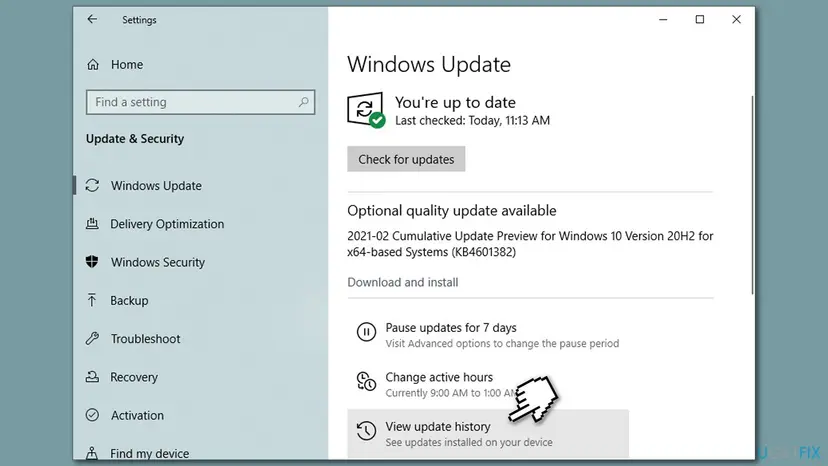
How to fix 0x80070003 windows update error view update history - In here, you will find the list of installed updates, as well as those that failed
- Write down the KB number that failed to install due to the error code
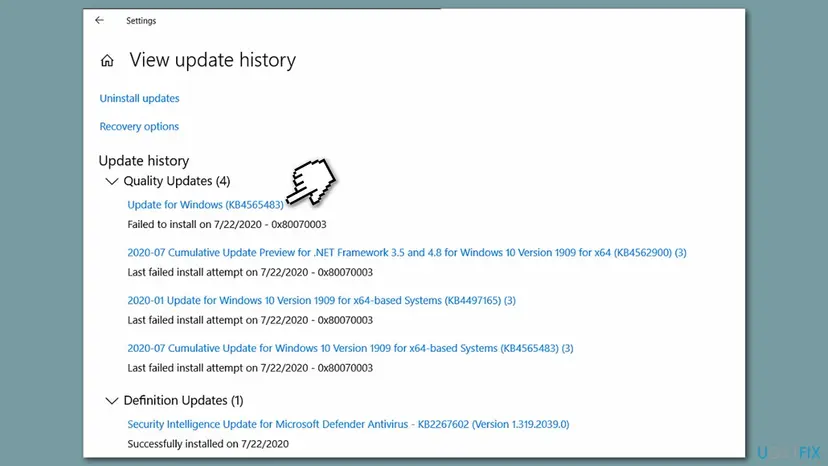
How to fix 0x80070003 windows update error write down the kb number - Go to Microsoft Update Catalog page, type in the noted KB number and press Search
- Click Download next to the appropriate version of the update and install it manually.
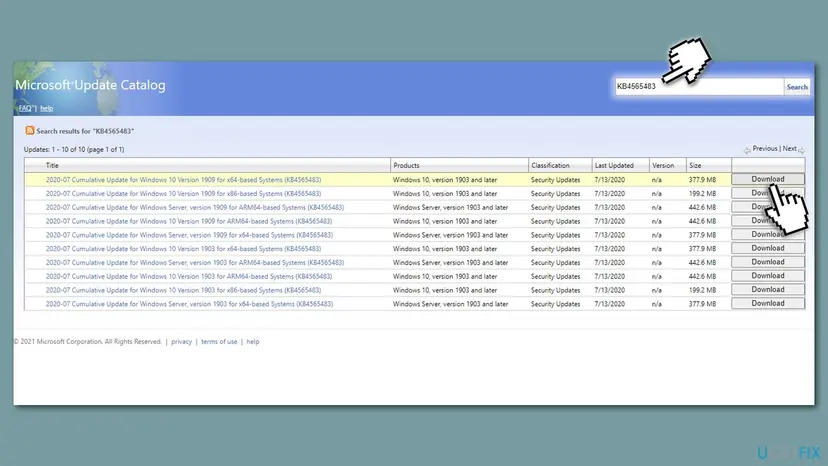
How to fix 0x80070003 windows update error download update from microsoft catalog
Fix 6. Delete SoftwareDistribution folder
- Press Win + E on your keyboard to open File Explorer
- Go to the following location:
C:\\Windows\\SoftwareDistribution\\Download
- Press CTRL + A to mark everything and then press Shift + Del to delete all the contents of the SoftwareDistribution folder.
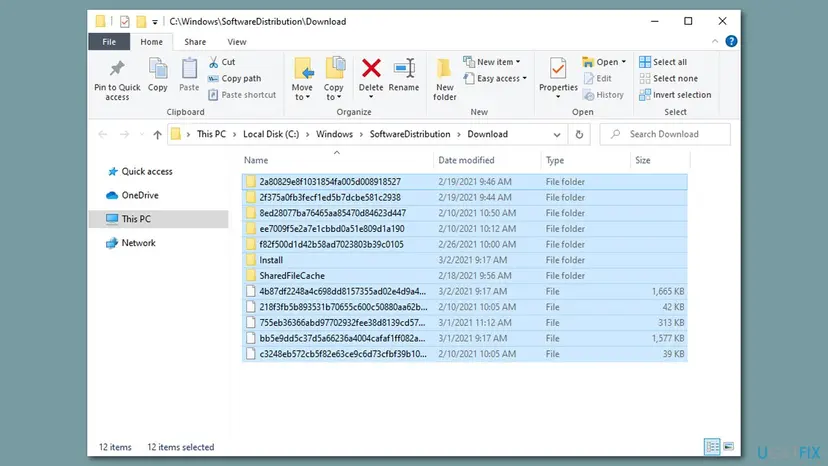
How to fix 0x80070003 windows update error delete software distribution folder
Fix 7. Restart Windows Update-related services via Command Prompt
While you could open the Services app to restart Windows Update-related services, you can do it quicker via Command Prompt.
- Type in cmd in Windows search
- Right-click on Command Prompt result and pick Run as administrator
- Once Command Prompt opens, type in the following commands, pressing Enter after each:
Net Stop bits
Net Stop wuauserv
Net Stop appidsvc
Net Stop cryptsvc
Net Start bits
Net Start wuauserv
Net Start appidsvc
Net Start cryptsvc - Reboot the PC and see if the problem persists.
Fix 0x80070003 on Windows Store
If you are getting the error when trying to update programs via Windows Store, you should try resetting the app:
- Type in WSReset in Windows search and press Enter
- In a short while, you will see a black pop-up window - do not close it down
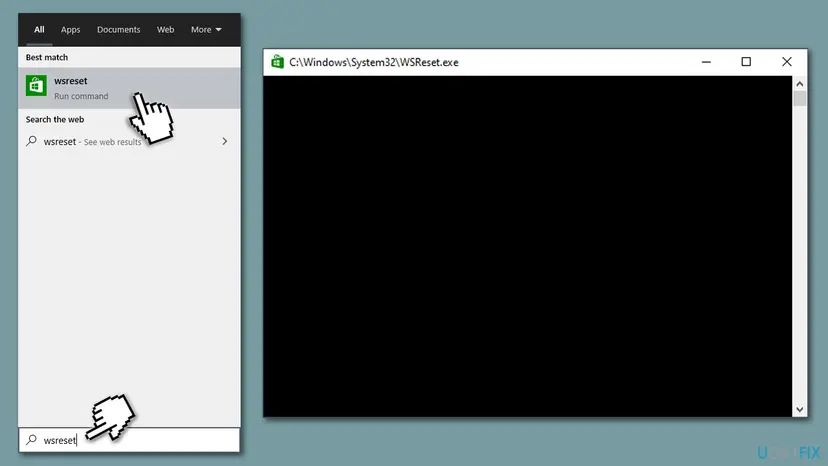
How to fix 0x80070003 windows update error reset windows store - Once it disappears, your Windows Store will be reset.
Did this fix work?
One click, no account. It tells the next reader which guides are worth their time.
Questions and experiences: fix 0x80070003 Windows update error
Still broken, or found a fix we did not cover? Ask here: members and our editors answer. Reading is open; writing needs a free account.
…