
How to fix 0x81000001 error when creating backup in Windows?

Prefer to fix it yourself? The manual steps follow.
- 7methods
- 10 minutes for the first fix, up to 1 hour for a full drive check
- Intermediate
Applies to Backup and Restore (Windows 7) file backups and Create a system image on Windows 11 and Windows 10
7 methods in this guide
I am trying to complete the Windows backup, and it always fails with the 0x81000001 error. It always occurs just before the process is completed. How do I fix this?
Error 0x81000001 is the "internal error" of Backup and Restore (Windows 7), and it usually stops the backup near the very end. Most often an old backup set or setting, the backup drive, or one very large file is to blame. Reset the backup components first, then check the drive.
0x81000001 is a catch-all internal error of Windows Backup, not damage to your files. Stop the backup services, rename the old WindowsImageBackup folder on the backup drive and set the backup up again (Fix 1). If it still fails, check the backup drive's free space and file system with chkdsk (Fix 2), then look for one very large file in the file backup (Fix 3).
| Error | "Windows Backup encountered an internal error. Please review your settings and retry the operation." Details: Incorrect function. Error code: 0x81000001. |
|---|---|
| Where it appears | In Control Panel > Backup and Restore (Windows 7), after a file backup or a system image run, often when the progress bar is almost full. |
| Main cause | An old backup set or broken backup settings on the target drive. Then the backup drive itself: too little space, file system errors or a weak connection. |
| Fastest fix | Stop the Windows Backup and Block Level Backup Engine services, rename WindowsImageBackup, start the services and set the backup up again (Fix 1). |
| Also written as | backup error code 0x81000001, Windows backup error 0x81000001, "an internal error" in Backup and Restore. Close relatives: 0x81000008, 0x81000037 (shadow copy read) and 0x81000033 (not enough space on a critical volume). |
| Affects | Windows 11 and Windows 10, and the same tool on Windows 7. Windows 10 left support on 14 October 2025. |
| Microsoft's status | No patch and no knowledge base article for this code. Microsoft community support staff answer it case by case: drive health, a reset of the backup services, free space and a clean boot. |
| Where the cause is written | Event Viewer > Applications and Services Logs > Microsoft > Windows > Backup > Operational, and Windows Logs > Application for VSS errors. |
| Time to fix | 10 minutes for Fix 1, 5 minutes for Fix 3 once you know the large file, up to an hour when chkdsk scans a big hard disk. |
Facts checked on 16 October 2026. Steps written for Windows 11 (25H2 and 26H2) and Windows 10 22H2.
What Windows backup error 0x81000001 means
Code 0x81000001 belongs to Backup and Restore (Windows 7), the older backup tool that still ships in Windows 11 and Windows 10. It makes two kinds of backup: copies of your files and folders, and a system image of the drives Windows needs to start. When something inside that tool fails and it has no better code, it reports this general internal error.
The full window reads like this:
Windows Backup encountered an internal error.
Please review your settings and retry the operation.
Details: Incorrect function. Error code: 0x81000001.- When you see it: most readers see it right at the end, at around 99 %, after the backup has run for a long time. That is why it feels so frustrating.
- Which part fails: a combined backup first copies files, then writes the image. The error does not say which part broke, so the fixes below test both.
- What it is not: a sign that your data on drive C: is damaged. A failed run only means this backup did not finish.
- What it is not either: an error of the newer Windows Backup app in Windows 11, which saves folders and settings to OneDrive and uses other messages.
The text after Details: is the real reason Windows got back. Incorrect function is the most common one. If you see a disk or space message instead, go straight to Fix 2.
Why 0x81000001 appears, from most to least common
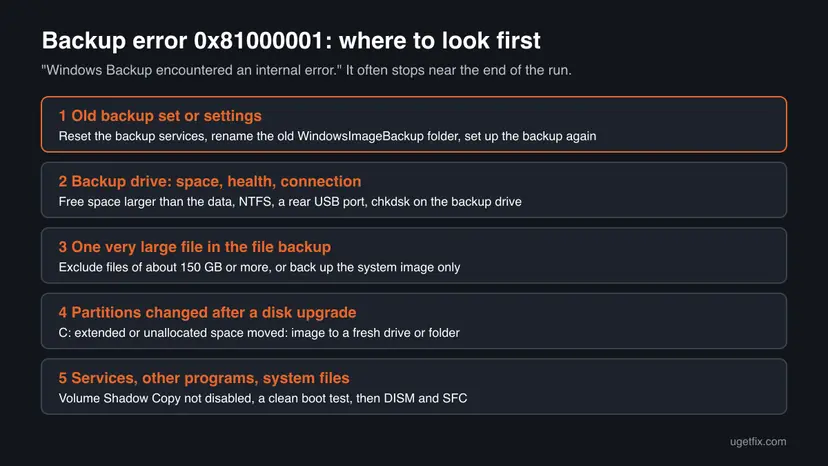
- Most often: an old backup set or broken settings. Windows adds each new run to what is already on the target. Microsoft support staff answer this code by stopping the backup services and renaming the old
WindowsImageBackupfolder. Fix 1. - Often: the backup drive. Bad sectors, file system errors or too little free space stop the write. Microsoft staff list a chkdsk of the external drive first and a space check third. Fix 2.
- Less often: one very large file. A user on Microsoft's forum narrowed the failure down to one file of 160 GB; when he excluded it, the backup completed. Another tester reported a limit of about 162 GB on 64-bit Windows. Fix 3.
- Less often: changed partitions. After moving Windows to a bigger SSD and extending drive C:, a user got 0x81000001 at the end of every image, and 0x81000037 with another layout. Fix 4.
- Rarely: services, other programs or system files. A disabled Volume Shadow Copy service, another backup tool or damaged Windows files. Fixes 5 to 7.
| Cause | Sign | Start with |
|---|---|---|
| Old backup set or settings | The drive already holds earlier backups, or the backup worked before | Fix 1 |
| Backup drive | External USB drive, little free space, or disk errors in Event Viewer | Fix 2 |
| One very large file | Your libraries hold a video, disk image or virtual machine of 150 GB or more | Fix 3 |
| Changed partitions | You recently cloned, moved or extended drive C: | Fix 4 |
| Disabled services | Volume Shadow Copy or Windows Backup shows Disabled | Fix 5 |
| Another program | You use other backup, sync or security software | Fix 6 |
| Damaged system files | Fixes 1 to 6 changed nothing | Fix 7 |
How to fix Windows backup error 0x81000001
Fix 1 resets the backup set and solves most cases. Fixes 2 to 4 deal with the drive, the data and the disk layout. Fixes 5 to 7 are the general checks for services, other programs and Windows files.
| What you see or have | Start with |
|---|---|
| The backup worked before, or the drive holds earlier backups | Fix 1 |
| You back up to an external USB drive that is nearly full | Fix 2 |
| Event Viewer shows disk or NTFS errors | Fix 2 |
| One file in your folders is larger than about 150 GB | Fix 3 |
| The error began after moving Windows to a new disk or extending C: | Fix 4 |
| Volume Shadow Copy is disabled in Services | Fix 5 |
| Everything above failed | Fixes 6 and 7 |
Fix 1. Reset Windows Backup and start a fresh backup set
10 minutesLow riskThe backup drive already holds earlier backups, or the backup used to work and now fails at the end.
Each run builds on the backup set and settings already in place. Microsoft support staff answer 0x81000001 by stopping the two backup services, renaming the old WindowsImageBackup folder and setting the backup up again, which gives Windows a clean start.
- Right-click Start and open Terminal (Admin) on Windows 11 or Command Prompt (Admin) on Windows 10.
- Stop the Windows Backup service and the Block Level Backup Engine Service.
net stop SDRSVC net stop wbengine - Open File Explorer with Win + E and select the backup drive, for example E:.
- Show hidden items: on Windows 11 select View > Show > Hidden items, on Windows 10 tick Hidden items on the View tab.
- Right-click the WindowsImageBackup folder, select Rename and name it
WindowsImageBackup.old. - Back in the admin window, start both services again.
net start SDRSVC net start wbengine - Open Control Panel > System and Security > Backup and Restore (Windows 7), select Change settings, pick the drive and the content again, and run the backup.
Rename or copy the old folder instead of deleting it if it holds your only system image. Delete it only after a new backup has completed. If the drive is too full to keep both, copy the old folder to another disk first.
A net stop wbengine message that the service is not started is normal: it runs only during a backup.
It worked if: The backup runs to the end and Backup and Restore shows the date and time of the last successful backup.
If not: If it fails again at the same point, check the backup drive with Fix 2.
Fix 2. Check the backup drive's free space, file system and connection
10 minutes, plus the disk checkLow riskYou back up to an external drive, the drive is fairly full, or Event Viewer shows disk errors.
A backup writes for a long time and finishes the image at the end. Bad sectors, file system errors or too little space stop that last write. Microsoft support staff put a chkdsk of the backup drive first and a space check third for this code.
- Open File Explorer, right-click the backup drive and select Properties. Its free space should be larger than the used space on drive C: plus the files you back up.
- In the same window check that File system says NTFS. A FAT32 or exFAT drive is a poor target for large backups.
- Connect the drive straight to a USB port on the back of the PC, with no hub or extension cable.
- In Terminal (Admin) check the backup drive. Type its own letter instead of E:.
chkdsk E: /f - If chkdsk fixes errors, run the backup again.
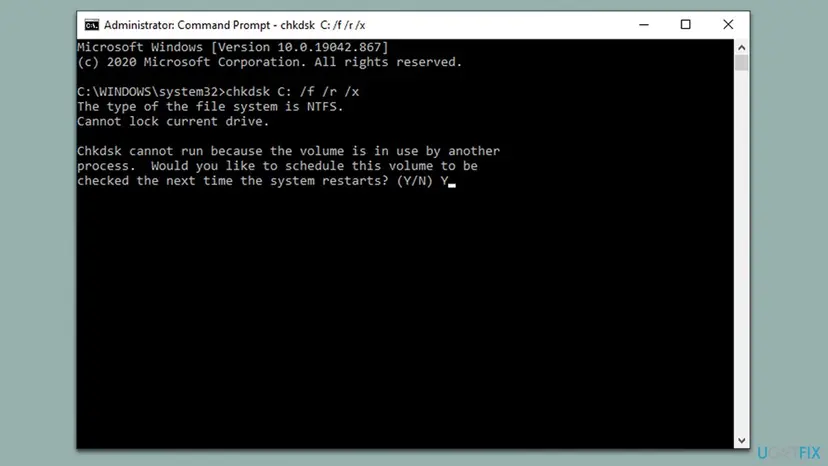
Step by step, also from File Explorer: Check a disk for errors (chkdsk). If drive C: itself is nearly full, free some room first: Free up disk space and delete temporary files.
Adding /r makes chkdsk read every sector. On a large hard disk that can take hours. Do not stop it once it has started.
It worked if: chkdsk reports "Windows has scanned the file system and found no problems" or that it fixed errors, and the next backup completes.
If not: If the drive is healthy and roomy, look for one very large file with Fix 3.
Fix 3. Find and exclude one very large file from the file backup
10 minutesLow riskYour libraries or folders hold a video, a disk image, a virtual machine disk or an archive larger than about 150 GB.
On Microsoft's forum one user traced 0x81000001 to a single 160 GB file: the backup completed as soon as he excluded it. Another tester reported that the file part of Backup and Restore cannot handle files above about 162 GB on 64-bit Windows.
- Open File Explorer, select the folder you back up, and type
size:giganticin the search box. It lists files larger than 4 GB. - Sort the results by Size and note any file near or above 150 GB.
- Open Backup and Restore (Windows 7) and select Change settings.
- Choose Let me choose and select Next.
- Clear the folder that holds the huge file, or move the file to a folder you do not back up.
- Save the settings and run the backup.
The same tester found that a plain system image copies a huge file without trouble when it sits in a folder on drive C:. If you only need the image, clear all libraries and keep Include a system image ticked.
It worked if: The backup passes the point where it used to stop and ends without an error.
If not: If no file is that large, check whether your disk layout changed with Fix 4.
Fix 4. Write the image to a fresh target after a disk upgrade
15 minutes, plus the backupLow riskThe error began after you cloned Windows to a bigger SSD, extended drive C:, or moved partitions.
A user who extended drive C: after moving to a bigger SSD got 0x81000001 at about 99 % of every image. With another layout he got 0x81000037, and he suspected the earlier backups on the drive no longer matched the new disk.
- Press Win + X and open Disk Management. Note whether drive C: was extended or whether unallocated space sits next to it.
- Rename the old
WindowsImageBackupfolder as in Fix 1, or use an empty drive or an empty network folder as the target. - Run Create a system image from Backup and Restore (Windows 7) to that fresh target.
- If it still fails, leave the partitions as they are and keep the old image apart from new ones until the new one succeeds.
Moving or resizing partitions can make the PC unbootable if it goes wrong. Change the layout only with a working backup in another place, and never as a first try for this error.
It worked if: The new image completes on the fresh target.
If not: If the error stays even on an empty drive, check the services with Fix 5. We could not confirm a fix from Microsoft for this case.
Fix 5. Make sure Volume Shadow Copy and Windows Backup are not disabled
5 minutesNo riskA tuning tool changed your services, or other backup and restore point tools fail too.
Every backup starts with a Volume Shadow Copy snapshot, and the Windows Backup service runs the job. If either is Disabled, the run cannot finish.
- Press Win + R, type
services.mscand press Enter. - Double-click Volume Shadow Copy and look at Startup type.
- If it says Disabled, set it to Manual or Automatic, select Apply, then Start.
- Do the same check for Windows Backup and Block Level Backup Engine Service.
- Run the backup again.
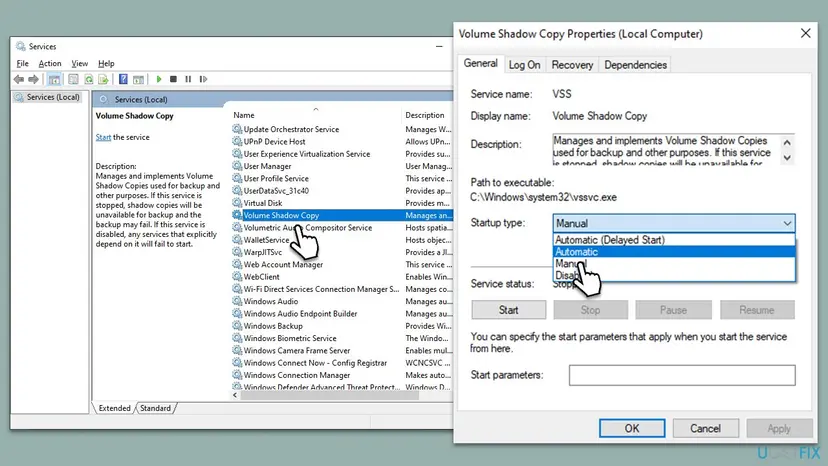
Both services are set to Manual and show Stopped while idle; Windows starts them when a backup runs. Disabled is the setting that breaks backups.

It worked if: Both services start without an error and the backup runs to the end.
If not: If they run but the error stays, rule out other programs with Fix 6.
Fix 6. Test the backup in a clean boot
15 minutesLow riskYou use other backup, sync or security software, or the error began after installing a program.
Microsoft support staff suggest a clean boot for this code. It starts Windows with Microsoft services only, so another backup tool or a security program cannot hold the files or the snapshot while Windows Backup works.
- Open System Configuration. Select Search on the taskbar, type msconfig and select System Configuration from the results.
- Hide Microsoft services. On the Services tab, select the Hide all Microsoft services check box. Only services from other companies stay in the list.
- Disable the remaining services. Select Disable all, then select Apply.
- Open Task Manager. On the Startup tab of System Configuration, select Open Task Manager.
- Disable the startup apps. On the Startup apps tab in Task Manager, select each item whose status is Enabled and select Disable. Write down or take a screenshot of the items you disable: you need the list to turn them back on.
- Confirm the changes. Close Task Manager. On the Startup tab of System Configuration, select OK.
- Restart and test. Restart the PC. Windows now starts in a clean boot environment: try again the thing that failed (run the app, install the update, uninstall the program).
These steps were written for Windows 11 25H2 and 26H2. The full page with the other versions and what each result means: How to perform a clean boot in Windows
Run the backup in the clean boot. If you must pause a security program to test it, turn it back on right after: Turn off Microsoft Defender protection for a moment.
It worked if: The backup completes in the clean boot. Turn services back on in halves until the error returns; the last group holds the program to blame.
If not: If it fails in a clean boot too, repair Windows files with Fix 7.
Fix 7. Repair Windows system files with DISM and SFC
20 to 40 minutesLow riskFixes 1 to 6 did not help, or other Windows tools also fail.
Windows Backup and Volume Shadow Copy run from system files. If one is damaged, the job can stop with a general internal error. DISM and SFC replace damaged files from a clean copy and leave your data alone.
- Open an elevated command window. Right-click Start and select Terminal (Admin), or type cmd in the search box, right-click Command Prompt and select Run as administrator. Select Yes when Windows asks for permission.
- Run DISM first. Type the command below and press Enter. DISM downloads clean copies of damaged components from Windows Update, so it can take several minutes. Wait until it says The operation completed successfully.
DISM.exe /Online /Cleanup-Image /RestoreHealth - Run System File Checker. In the same window, type the command below and press Enter. Do not close the window until the verification reaches 100%.
sfc /scannow - Read the result and restart. Compare the last message with the table below this guide, then restart the PC so that repaired files are loaded.
These steps were written for Windows 11 24H2 and 25H2. The full page with the other versions and what each result means: Run DISM and SFC to repair Windows system files

It worked if: SFC ends with "Windows Resource Protection did not find any integrity violations" or reports repairs, and the backup works after a restart.
If not: Read the logs in the next section before going further.
If 0x81000001 still appears: the logs to read and when it is the drive
- Press Win + R, type
eventvwr.mscand press Enter. - Open Applications and Services Logs > Microsoft > Windows > Backup > Operational and read the errors from the time of the failed run.
- Open Windows Logs > Application and look for VSS errors at the same time.
- Open Windows Logs > System and look for disk, NTFS or USB errors. They point at the backup drive.
- In Terminal (Admin) check the shadow copy writers. Each should show State: [1] Stable and Last error: No error.
vssadmin list writers
When you ask on Microsoft Q&A, post the full message with the Details line, the Event Viewer text and the vssadmin list writers output. Add the backup drive model, its free space, how it is connected and your Windows version from winver.
If chkdsk finds bad sectors, the same drive fails on several ports, or the System log keeps showing disk errors, the backup drive is failing. Use another drive. If errors point at drive C:, copy your files elsewhere first (Back up your files (Windows Backup, File History, Time Machine)) and check C: with Check a disk for errors (chkdsk).
How to keep Windows backups from failing again
- Keep the backup drive's free space larger than everything you back up.
- Use an NTFS drive connected straight to the PC, with no hub.
- Keep very large files, such as virtual machine disks, out of the file backup.
- Start a fresh backup set after you clone or resize drive C:.
- Check now and then that Backup and Restore shows a recent successful backup.
- Do not run two backup programs on the same schedule.
- Do not let tuning tools disable Volume Shadow Copy or Windows Backup.
- Do not unplug the drive or let the PC sleep during a backup.
Backup and Restore (Windows 7) is an old tool that Microsoft no longer develops. Keep your personal files in a second place too, for example in OneDrive or on another drive, so one failed backup never leaves you with nothing.
Frequently asked questions
What does error code 0x81000001 mean?
It means Windows Backup hit an internal error and could not finish the run. The window says "Windows Backup encountered an internal error. Please review your settings and retry the operation." and often adds Details: Incorrect function. The code is general, so the cause is found by testing: an old backup set, the backup drive, one very large file, changed partitions, or the backup services. Your files on drive C: are not harmed.
Why does the backup fail just before it completes?
A combined backup copies your files first and finishes the system image last, so a problem with the target drive or the backup set shows up at the end. Readers on Microsoft's forum describe the same pattern: the bar gets almost full, then 0x81000001 appears. Start with a fresh backup set in Fix 1, then check the drive's free space and file system in Fix 2.
How do I fix 0x81000001 on Windows 11?
The tool and the fixes are the same as on Windows 10. Open Control Panel > System and Security > Backup and Restore (Windows 7). Reset the backup set with Fix 1, then check the backup drive with Fix 2. The newer Windows Backup app in Windows 11 saves folders and settings to OneDrive and does not show this code, so it is not the tool that failed.
How do I fix 0x81000001 on Windows 10?
Follow Fixes 1 to 3 in order: reset the backup services and the old WindowsImageBackup folder, check the backup drive with chkdsk, and look for one file larger than about 150 GB. Windows 10 left support on 14 October 2025, so a working image is a good safety net before you move to Windows 11 or to a new PC.
Is a 5 TB external drive too big for Windows Backup?
A large drive is not the problem by itself. A reader with a 5 TB external drive asked about this code, and Microsoft support staff answered with a chkdsk of the drive, a reset of the backup services, a free space check and a clean boot. Make sure the drive is NTFS, healthy and connected straight to the PC, which Fix 2 covers.
Is there a file size limit in Windows Backup?
Users report one. A tester on Microsoft's forum found that the file backup part of Backup and Restore failed with files above about 162 GB on 64-bit Windows, and about 152 GB on 32-bit Windows. Another user's backup completed once he excluded a single 160 GB file. Microsoft has not documented the limit. Exclude such files with Fix 3.
Is it safe to delete the WindowsImageBackup folder?
Only when you do not need the image inside it. The folder holds your earlier system images, and deleting it removes them for good. Rename it instead, for example to WindowsImageBackup.old, or copy it to another drive. Windows then writes a fresh folder. Delete the old one only after a new backup has completed.
What are 0x81000037 and 0x81000033?
They are related Backup and Restore codes with clearer messages. 0x81000037 says Windows Backup failed to read from the shadow copy on one of the volumes. A user saw it next to 0x81000001 after changing partitions, so Fix 4 applies. 0x81000033 says Windows skipped the system image because one of the critical volumes, the drives Windows needs to start, does not have enough free space. Free up space there and run the backup again.
Does turning off the antivirus fix 0x81000001?
Not as a lasting fix. A security program can hold files during a backup, so a clean boot in Fix 6 is the safe test. If you pause protection to check, turn it back on right after the backup. If the program is to blame, update it or add the backup drive to its exclusions, and keep protection on.
Sources
- Microsoft Q&A: backup error 0x81000001 what do I do? (answer by Microsoft Community support staff) (learn.microsoft.com)
- Microsoft Q&A: Windows Backup nearly completes but fails with 0x81000001 error (learn.microsoft.com)
- Ten Forums: Backup and Restore fails when volumes are re-ordered or extended (tenforums.com)
Did this fix work?
One click, no account. It tells the next reader which guides are worth their time.
Questions and experiences: fix 0x81000001 error when creating backup in Windows
Still broken, or found a fix we did not cover? Ask here: members and our editors answer. Reading is open; writing needs a free account.
…