
How to fix 0x8900002A error in Windows 10?

Prefer to fix it yourself? The manual steps follow.
- 7methods
- 5 to 20 minutes
- Easy
Applies to Windows 11, Windows 10; Optimize Drives (defrag.exe) and the scheduled drive optimization task
7 methods in this guide
I updated the operating system recently, and now I have this issue with the defragmenting and optimization tool. I even get an error message about requests the hardware does not support. I cannot understand what is wrong or how to solve this. Can you help me fix the 0x8900002A error and understand what is wrong?
Error 0x8900002A is logged when the Windows storage optimizer asks a drive to retrim and the drive, or the controller behind it, does not support that command. On a hard disk drive it is harmless and can be ignored. Open Defragment and Optimize Drives first and read the drive's Media type.
0x8900002A means retrim, the TRIM pass Optimize Drives runs on SSDs, was sent to a drive that cannot take it. Open Defragment and Optimize Drives and read Media type (Fix 1). A Hard disk drive needs no TRIM, so the event is harmless. On a Solid state drive, check that TRIM is on with fsutil (Fix 2). For a USB, RAID or virtual volume, take it off the schedule (Fix 4).
| Error | The storage optimizer couldn't complete retrim on OS (C:) because: The operation requested is not supported by the hardware backing the volume. (0x8900002A) |
|---|---|
| Where it appears | In Event Viewer > Windows Logs > Application as an error with Event ID 264 from the source Defrag, after Optimize Drives or its weekly scheduled task has run. |
| Main cause | A retrim request sent to a volume whose hardware cannot do TRIM: a hard disk drive, an SSD with TRIM switched off, a USB drive, a RAID array or a virtual volume. |
| Fastest fix | Check the Media type in Optimize Drives. For a hard disk drive, ignore the event (Fix 1). For an SSD, check TRIM with fsutil (Fix 2). |
| Also written as | 0x8900002a, Event 264, "storage optimizer couldn't complete retrim", "not supported by the hardware backing the volume". |
| Affects | Windows 10 since version 2004 (2020) and Windows 11. Windows 10 left support on 14 October 2025. |
| Vendor status | Microsoft documents retrim as part of the monthly SSD optimization. A Windows 10 2004 bug that made it run too often was reported in 2020 and fixed by later updates, press reports say. |
| Data at risk | None. The event says a maintenance step was skipped. Your files are not touched. |
| Time to fix | 2 minutes to read the drive type; 10 to 20 minutes for the driver or disk check. |
Facts checked on 15 October 2026. Steps written for Windows 11 (25H2 and 26H2) and Windows 10 22H2.
What error 0x8900002A means
Windows has a built-in tool called Defragment and Optimize Drives (the program is defrag.exe). On a hard disk it moves file pieces together. On an SSD it runs retrim: it tells the drive which blocks are free so that the drive can erase them in the background. Microsoft's defrag reference lists retrim as the /L switch and says the scheduled task runs it on SSDs once per month.
When the drive or the controller under the volume answers that it does not know this command, Windows writes the full message to the event log:
The storage optimizer couldn't complete retrim on OS (C:) because: The operation requested is not supported by the hardware backing the volume. (0x8900002A)
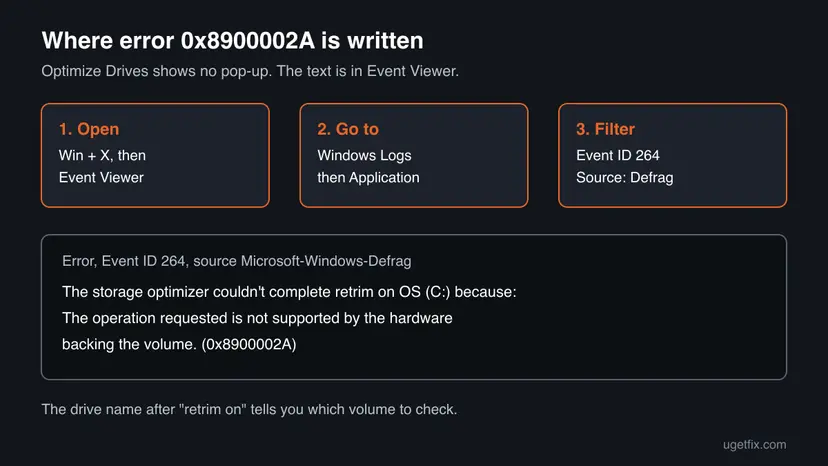
OS (C:)is the name and letter of the volume. Yours may show another drive, or a volume with no letter.- Retrim tells you which step failed. A defrag of a hard disk is a different step and is not affected.
- People search it as 0x8900002A, 0x8900002a and by the sentence "the operation requested is not supported by the hardware backing the volume". It is the same event.
Why Windows cannot retrim the drive
Most often the volume sits on a hard disk drive, where retrim has no meaning, and Windows tried it anyway. Less often it is an SSD with TRIM switched off or reached through a USB adapter or a RAID controller. Rarely it is a real disk problem.
| Cause | How often | How to tell | Fix |
|---|---|---|---|
| Retrim was run on a hard disk drive, as reported after the Windows 10 2004 update. | Most often | Optimize Drives shows Hard disk drive for that volume. | Fix 1 |
| TRIM is switched off in Windows for the SSD. | Sometimes | fsutil reports DisableDeleteNotify = 1. | Fix 2 |
| The volume is on a USB drive, a RAID array, a storage pool or a virtual disk. | Sometimes | The event names a drive you do not know, or a volume with no letter. | Fix 3, Fix 4 |
| The storage controller driver does not pass TRIM to the SSD. | Less often | An SSD with TRIM on still fails, often behind a RAID or vendor controller. | Fix 5 |
| The volume has file system errors. | Rarely | Optimize Drives says the drive needs repair, or other disk events appear. | Fix 6 |
How to fix error 0x8900002A in Windows 10 and Windows 11
Fix 1 tells you in two minutes whether there is anything to fix at all. Fixes 2 to 5 deal with SSDs and with volumes that cannot take TRIM. Fixes 6 and 7 are general checks for the rare case where the disk or Windows itself is at fault.
| What you see or have | Start with |
|---|---|
| The event names a volume on a hard disk drive. | Fix 1 |
The event names an SSD, such as OS (C:) on a laptop with an SSD. | Fix 2 |
| The event names a USB drive, a volume with no letter or many small volumes. | Fix 3, then Fix 4 |
| SSD with TRIM on, connected through a RAID or vendor storage controller. | Fix 5 |
| Optimize Drives says the drive needs repair, or the PC shows other disk errors. | Fix 6 |
Fix 1. Check the drive type in Optimize Drives and leave a hard disk alone
2 minutesNo riskEveryone who sees Event 264 with 0x8900002A, before changing anything.
Retrim only means something for an SSD. If the volume is a hard disk drive, the failed retrim cannot harm it and the defrag of that disk still runs, so there is nothing to repair.
- Select Start or the search box and type
defrag. - Open Defragment and Optimize Drives.
- Find the drive named in the event, for example OS (C:).
- Read the Media type column next to it.
- If it says Hard disk drive, select it and select Optimize once. If the defrag finishes, you are done: the event can be ignored.
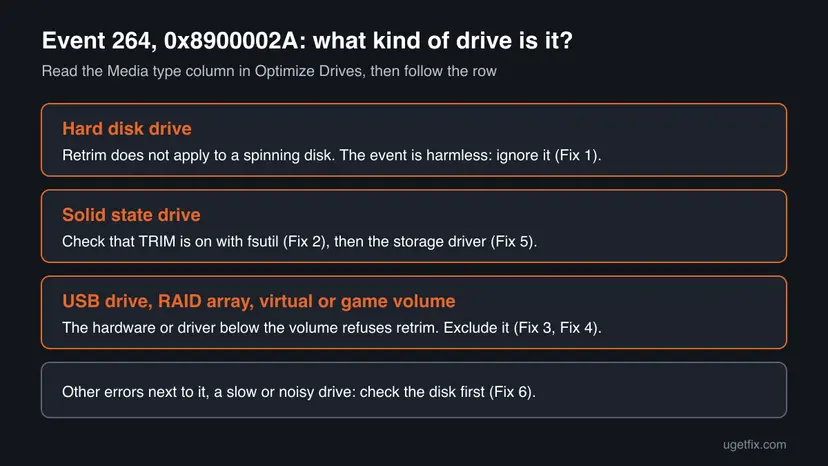
Users on Microsoft's forum report that the event came back after every run on a hard disk since the Windows 10 2004 update, while defrag itself kept working. A Microsoft forum answer advises that it can be ignored on a hard disk.
It worked if: The Media type is Hard disk drive and Optimize finishes with the status OK (0% fragmented) or a small percentage.
If not: If the Media type is Solid state drive, go to Fix 2. If the drive is not in the list or has an odd name, go to Fix 3.
Fix 2. Check that TRIM is switched on for the SSD
3 minutesLow riskThe volume in the event is on a Solid state drive.
Retrim is a batch of TRIM commands. If Windows has TRIM switched off for the file system, the retrim request can fail, and the SSD slowly loses the free blocks it needs to keep writing fast.
- Type
cmdin the search box, right-click Command Prompt and select Run as administrator, then Yes. - Type this command and press Enter:
fsutil behavior query DisableDeleteNotify - Read the NTFS line.
DisableDeleteNotify = 0means TRIM is on.= 1means it is off. - Only if it shows 1, turn TRIM back on:
fsutil behavior set DisableDeleteNotify 0 - Run a retrim of the drive by hand and watch the result:
defrag C: /L /U /V
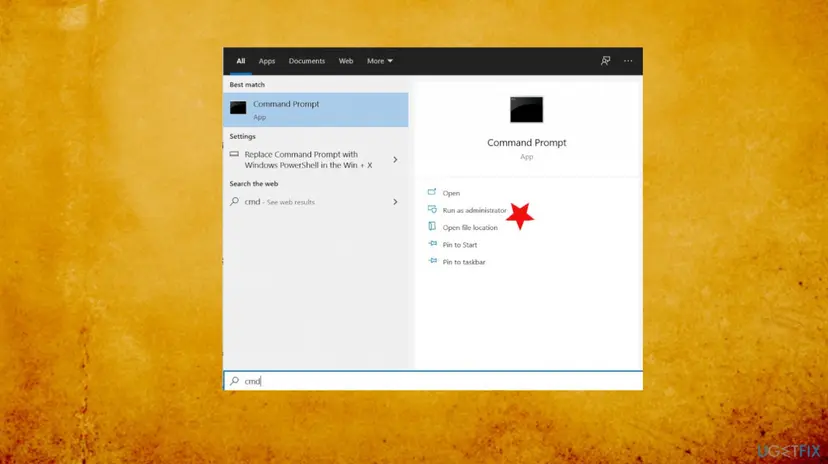
In the defrag command, /L is retrim, /U prints progress and /V prints details, as Microsoft's reference lists. Replace C: with the letter from the event.
It worked if: fsutil shows DisableDeleteNotify = 0 and the defrag retrim reports that the operation completed without the 0x8900002A text.
If not: If retrim still fails on an SSD with TRIM on, the controller blocks it: go to Fix 5. If the drive sits in a USB case, go to Fix 4.
Fix 3. Find out which volume the event really means
5 minutesNo riskThe event names a drive you do not recognise, a volume without a letter, or many volumes at once.
Optimize Drives also lists USB drives, storage pools and virtual disks that games or other apps mount. Their hardware layer often cannot pass TRIM, so the error belongs to that volume and not to your main SSD.
- Press Win + X and select Event Viewer.
- Open Windows Logs > Application.
- In the right panel select Filter Current Log, type
264in the event ID box and select OK. - Open each 0x8900002A event and write down the volume after the words retrim on.
- Open Defragment and Optimize Drives and find the same name and its Media type.
- Press Win + X, select Disk Management and see on which disk that volume lies: an internal disk, a USB disk or a virtual disk.
Flight simulator users report that Optimize Drives listed more than 50 game volumes of the XVD type, each with this event. Lenovo documents that drives behind a Broadcom RAID card show "Optimization not available" for the same reason: the controller hides what the drive can do.
It worked if: You know which physical drive or virtual volume the event names and whether it is internal, USB, RAID or virtual.
If not: If the volume is an internal SSD, go back to Fix 2. If it is USB, RAID or virtual, continue with Fix 4.
Fix 4. Take the drive off the optimization schedule
3 minutesLow riskThe volume is a USB drive, a RAID array, a virtual or game volume, or a hard disk where the log noise bothers you.
Optimize Drives lets you choose which drives the weekly task touches. A volume whose hardware cannot take retrim gains nothing from the task, so leaving it out stops the event without changing your other drives.
- Open Defragment and Optimize Drives.
- Under Scheduled optimization, select Change settings.
- Keep Run on a schedule (recommended) ticked and select Choose next to Drives.
- Clear the box of the drive named in the event. Leave your internal SSD and hard disks ticked.
- Select OK, then OK again.
Do not turn the whole schedule off to silence one event. Without it, your SSDs get no monthly retrim and your hard disks no defrag.
It worked if: The excluded drive no longer appears in new Event 264 entries after the next scheduled run.
If not: If the event names your main SSD and TRIM is on, the driver is the next suspect: go to Fix 5.
Fix 5. Update Windows and the storage controller driver
15 minutesLow riskAn internal SSD with TRIM on still fails, or the PC runs an old Windows 10 build.
The retrim command passes through the storage controller driver. An old RAID or vendor driver may not forward it, and the 2020 Windows 10 bug that sent retrim to the wrong drives was fixed only in later updates.
- Open Settings > Windows Update, select Check for updates, install everything and restart.
- Press Win + X and select Device Manager.
- Expand Storage controllers and note the controller of your SSD (for example Standard NVM Express Controller or a RAID controller).
- Download the newest storage or chipset driver for your PC model from the PC or motherboard maker, and install it.
- Restart and run
defrag C: /L /U /Vagain in an administrator Command Prompt.
The steps to update, roll back or reinstall a driver in Device Manager: Update, roll back or reinstall a driver. Windows 10 22H2 left support on 14 October 2025, so a Windows 10 PC gets fixes only through Extended Security Updates.
It worked if: After the restart the manual retrim completes and no new Event 264 with 0x8900002A appears.
If not: If it still fails on a RAID array, the controller does not support TRIM: exclude the volume (Fix 4). Otherwise check the disk (Fix 6).
Fix 6. Check the disk for file system errors
10 minutesLow riskOptimize Drives says the drive needs repair, or other disk errors appear in the log next to Event 264.
Microsoft's defrag reference says a volume marked dirty cannot be optimized until chkdsk has run. A damaged file system is a different problem from a missing TRIM, but it can stop the optimizer on the same drive.
chkdsk C: /scan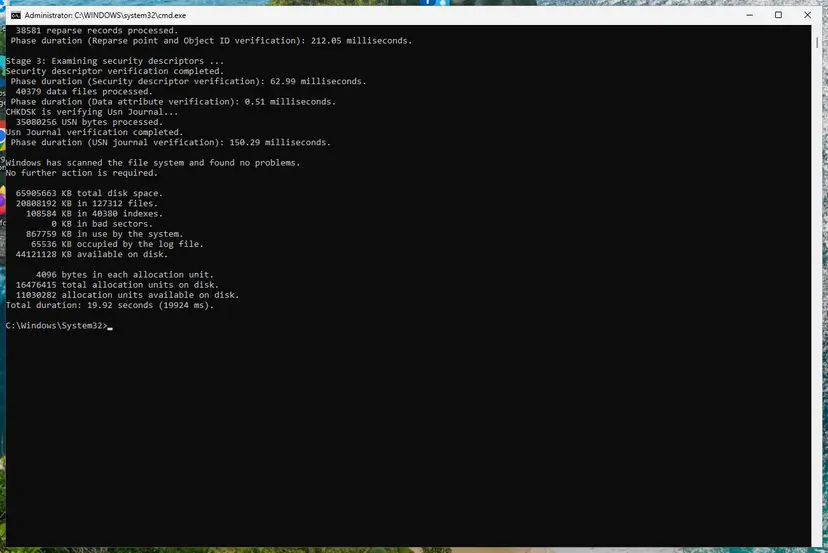
- Run the scan above in an administrator Command Prompt, with the letter from the event.
- If it reports errors, schedule the repair and restart as the procedure below shows: Check a disk for errors (chkdsk)
It worked if: chkdsk reports that Windows found no problems, or it fixes them at the next restart.
If not: If chkdsk finds bad sectors or cannot finish, back up the drive now and read the section on hardware below.
Fix 7. Repair Windows system files
20 minutesNo riskThe drive type, TRIM and the driver are fine but Optimize Drives itself misbehaves or will not open.
This is a general repair, not a specific cure for 0x8900002A. It makes sense only when the optimizer program or its service is damaged, which the old guide's Windows Update cache steps did not address.
- Open Command Prompt as administrator.
- Run System File Checker and wait until it reaches 100%:
sfc /scannow

The full procedure with DISM: Run DISM and SFC to repair Windows system files
It worked if: SFC reports that it found no integrity violations or that it repaired them, and Optimize Drives opens normally.
If not: Collect the event details as the next section explains and ask the PC maker's support.
If 0x8900002A keeps coming back on an SSD
On a hard disk drive, a returning Event 264 is expected and not a fault. On an internal SSD with TRIM on and current drivers, collect three things before you ask the PC or SSD maker for help:
- The full text of the latest Event 264 from Windows Logs > Application, with its date.
- The output of
defrag C: /L /U /Vfrom an administrator Command Prompt. - The model of the SSD and the name of its controller from Device Manager > Storage controllers.
Back up your files first if the drive clicks, disappears from Explorer, chkdsk finds bad sectors or Windows freezes while copying files. Those are signs of a failing drive, and 0x8900002A is then only a side effect.
How to keep the 0x8900002A event from coming back
- Keep Run on a schedule on, and exclude only the volume that cannot take retrim.
- Install Windows updates and the storage driver from the PC or motherboard maker.
- Check the Media type of a new drive in Optimize Drives once after you add it.
- Leave about 15% of each drive free, as Microsoft's defrag reference advises.
- Do not switch TRIM off with fsutil to silence the event on an SSD.
- Do not turn off the whole optimization schedule for one drive.
- Do not run a full defrag of an SSD by hand again and again: Windows decides what each media type needs.
Microsoft's reference adds that the scheduled task does not wake the PC and does not run on battery, so a laptop may show an old Last run date even when nothing is wrong.
Frequently asked questions
What does error 0x8900002A mean?
It means the Windows storage optimizer tried to run retrim on a volume and the hardware under it refused the command. Retrim tells an SSD which blocks are free so it can erase them. The full event reads "The storage optimizer couldn't complete retrim" followed by the volume name and "The operation requested is not supported by the hardware backing the volume. (0x8900002A)". It is logged as Event ID 264 in the Application log. Your files are not affected.
What does "The operation requested is not supported by the hardware backing the volume" mean?
The "hardware backing the volume" is whatever really stores the drive letter: a hard disk, an SSD, a USB case, a RAID controller or a virtual disk file. The sentence says that this layer does not support the request, which for 0x8900002A is retrim. A hard disk never supports TRIM, and many USB adapters and RAID controllers do not pass it on. Check the Media type in Optimize Drives to see which case you have (Fix 1).
Is error 0x8900002A dangerous for my drive?
No. The event records a skipped maintenance step, not damage. On a hard disk drive retrim has no purpose, so nothing is lost. On an SSD, retrim helps keep write speed up over time, so it is worth making sure TRIM is on (Fix 2). Only if other disk errors appear next to it, or the drive is slow, noisy or disappears, should you back up and check the disk (Fix 6).
Can I just ignore Event 264 with 0x8900002A?
Yes, when the volume is a hard disk drive or a USB, RAID or virtual volume that cannot take TRIM. Users on Microsoft's forum have reported it on hard disks since the Windows 10 2004 update, and a forum answer there advises ignoring it. If you want a clean log, take that volume off the schedule (Fix 4). On your main SSD, check TRIM before you ignore it.
Why did 0x8900002A start after a Windows update?
The question in this guide is a typical case: the event appeared after a feature update. Users reported in 2020 that Windows 10 version 2004 ran retrim on hard disks and optimized SSDs too often, and press reports say later updates fixed that. On a current Windows 11 or Windows 10 22H2, an update can also add new volumes, such as game or virtual disks, that cannot take retrim.
How do I check whether TRIM is enabled in Windows?
Open Command Prompt as administrator and run fsutil behavior query DisableDeleteNotify. A value of 0 on the NTFS line means TRIM is on, and 1 means it is off. To turn it back on, run fsutil behavior set DisableDeleteNotify 0. Then test with defrag C: /L /U /V, which runs retrim on drive C by hand and shows the result. Fix 2 has the steps.
Should I defragment an SSD to fix 0x8900002A?
No. A traditional defrag does not fix a retrim error. Microsoft's reference explains that the scheduled task already decides what each SSD needs, including a defrag about once a month, and that a manual defrag between runs makes the next run skip it. Let Optimize Drives choose the action by selecting Optimize, and fix TRIM or the driver instead.
Do the old steps with the Windows Update service and SoftwareDistribution folder help?
They do not touch the cause. 0x8900002A comes from the storage optimizer and the drive, not from Windows Update. Stopping the Windows Update service and emptying SoftwareDistribution\DataStore only resets update history, and that does not change whether a drive supports TRIM. Our earlier version of this guide suggested those steps; they are removed here.
Does 0x8900002A appear in Windows 11 too?
Yes. Windows 11 uses the same Optimize Drives tool and the same retrim step, so the event and the fixes are the same. The menu paths in this guide are given for Windows 11 25H2 and 26H2 and for Windows 10 22H2. Windows 10 left support on 14 October 2025, so its storage fixes now arrive only through Extended Security Updates.
Sources
Did this fix work?
One click, no account. It tells the next reader which guides are worth their time.
Questions and experiences: fix 0x8900002A error in Windows 10
Still broken, or found a fix we did not cover? Ask here: members and our editors answer. Reading is open; writing needs a free account.
…