
How to fix 2147500037 error code in Windows?

Prefer to fix it yourself? The manual steps follow.
- 7methods
- 20 minutes to a few days (when you wait for firmware)
- Intermediate
Applies to Windows 11 and Windows 10 PCs with UEFI Secure Boot, Windows Server, Hyper-V guests and Configuration Manager task sequences
7 methods in this guide
Hello. I need help with the 2147500037 error code. I get the error when trying to print the HomeGroup password. The issue occurs on my Windows 10 computer. It has been a while, but I cannot find the proper solution online. Can you help me?
2147500037 is the decimal form of 0x80004005, the Windows code for "Unspecified error". In 2026 most people find it in the UEFICA2023Error registry value, which means the Secure Boot certificate update stopped at a step. Install all Windows updates, restart twice, then check Windows Security before you change anything else.
2147500037 equals 0x80004005, E_FAIL, "Unspecified error". As UEFICA2023Error it means Windows could not finish writing the 2023 Secure Boot certificates to the firmware. Install every Windows update and restart twice (Fix 1). If the value stays, update the BIOS or UEFI firmware from your PC maker (Fix 2), then read the TPM-WMI event that names the failed step (Fix 3). In a Configuration Manager task sequence, read smsts.log (Fix 6).
| Error | 2147500037, which is the hexadecimal code 0x80004005, name E_FAIL, description "Unspecified error". A catch-all Windows failure code. |
|---|---|
| Where it appears | The UEFICA2023Error registry value and other Secure Boot servicing values, Secure Boot events 1795 and 1796, and the Configuration Manager message "The operating system reported error 2147500037: Unspecified error". |
| Main cause | In 2026: the Secure Boot certificate update could not write to the firmware, most often because the BIOS or UEFI firmware is too old or blocked for that model. In task sequences: an application step that failed. |
| Fastest fix | Install all Windows updates, restart twice, and check Windows Security > Device security > Secure Boot (Fix 1). |
| Also written as | 0x80004005, 80004005, -2147467259 (the same value read as a signed number), "Unspecified error", and exit code 16389 (0x4005) in task sequences. |
| Affects | Windows 11 (25H2, 26H2 and older releases) and Windows 10 22H2 PCs with Secure Boot, Windows Server, Hyper-V virtual machines, and Configuration Manager deployments. |
| Microsoft's status | The Secure Boot certificates from 2011 expire between 24 June and 19 October 2026. Microsoft delivers the 2023 certificates through Windows Update and names firmware limits as the main reason a device cannot finish. |
| Not the fix | Setting Internet Explorer as the default browser or running the HomeGroup troubleshooter. Older guides, ours included, suggested both. HomeGroup was removed in Windows 10 version 1803. |
| Time to fix | 20 to 40 minutes with updates and two restarts. Longer when the PC maker has not released a firmware update yet, which you cannot speed up. |
Facts checked on 15 October 2026. Steps written for Windows 11 (25H2 and 26H2) and Windows 10 22H2.
What error code 2147500037 means
Windows stores many error codes as 32-bit numbers. Written in hexadecimal, 2147500037 is 0x80004005. Microsoft's reference list of Windows error values names it E_FAIL with the text "Unspecified error". A program returns it when something failed and no more exact code fits, so the number alone never tells you the cause. The place where you saw it does.
- Same code, other spellings: 0x80004005, 80004005, -2147467259 and "Error: 80004005; Source: Windows". Tools that print the code as a plain decimal number show 2147500037.
- The exit code 16389 in Configuration Manager is 0x4005, the last part of the same code. The full message then adds "The operating system reported error 2147500037: Unspecified error".
- Other apps: the Xbox app shows the same code in hexadecimal at sign-in. That case has its own page: Xbox app error 0x80004005.
- Unrelated searches: queries that mix this number with phone numbers or loan app names are not about a Windows error. This page covers the Windows code only.
Microsoft is replacing the Secure Boot certificates from 2011 with 2023 versions on every Windows PC. When a step of that update fails, Windows writes the code to UEFICA2023Error. The decimal number in that value is 2147500037 on many PCs whose firmware refused the change.
Where you see 2147500037: UEFICA2023Error, Event Viewer and task sequences
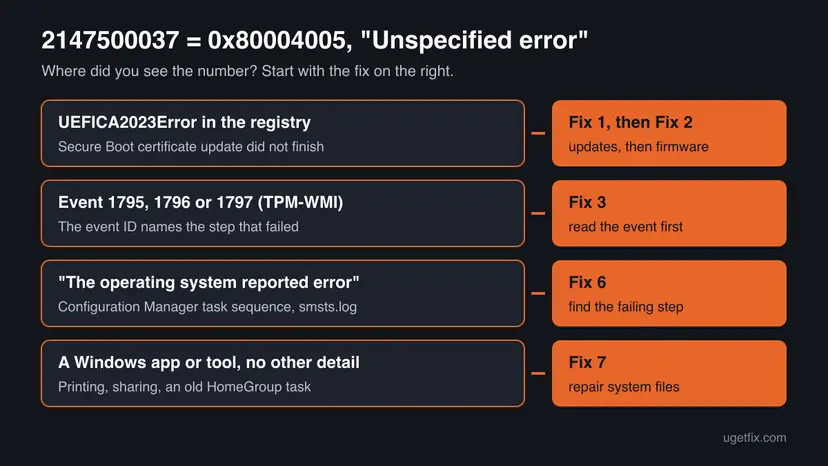
These are the places the number shows up today, with the exact names Windows and Configuration Manager use. Find your row first, then go to the fix it points to.
| Where | What you see | Go to |
|---|---|---|
Registry: HKEY_LOCAL_MACHINE\SYSTEM\CurrentControlSet\Control\SecureBoot\Servicing | UEFICA2023Error = 2147500037, UEFICA2023Status = InProgress | Fix 1, then Fix 2 |
| Same key, per step values | DBLastUpdateError, KEKLastUpdateError or BootMgrLastUpdateError = 2147500037 with a reason such as Firmware_KI_7 or PCA2023NotFoundInDB | Fix 2, then Fix 3 |
| Event Viewer, Windows Logs > System, source TPM-WMI | Event 1795: "The system firmware returned an error", or event 1796: "The Secure Boot update failed to update" with an error code | Fix 3 |
| Windows Security > Device security > Secure Boot | "Not yet updated" with a yellow badge, or a message about hardware or firmware limitations | Fix 1, then Fix 2 |
| Configuration Manager task sequence | The task sequence failed to install application, The operating system reported error 2147500037: Unspecified error | Fix 6 |
| A Windows tool with no other detail | A print, share or settings task fails with the number and nothing else | Fix 7 |
Why 2147500037 happens: the causes, most common first
The ranking follows Microsoft's Secure Boot event and troubleshooting pages and the reports in HP's and Microsoft's forums. Each cause has its own fix, so check the sign before you act.
| How often | Cause | Sign | Fix |
|---|---|---|---|
| Most often | The update is waiting for a restart or for the next monthly update | Status InProgress, no 1795 or 1802 event, recent updates still pending | Fix 1 |
| Often | Old BIOS or UEFI firmware refuses the write to the Secure Boot variables | Event 1795, a Firmware_KI reason, or a "firmware limitations" message in Windows Security | Fix 2 |
| Often | A later step waits for an earlier one | Event 1797: Windows UEFI CA 2023 is not in DB, or a PCA2023NotFoundInDB reason | Fix 2, then Fix 3 |
| Less often | BitLocker would ask for the recovery key, so Windows held the update | Event 1032 | Fix 4 |
| Less often | The update was never started on a managed PC | Status NotStarted, AvailableUpdates is 0 | Fix 5 |
| Rarely, but only the maker can fix it | The model is blocked or has no maker-signed KEK | Event 1802 or 1803, or "Not Supported" as the confidence level | Still broken section |
| In deployments | An application or update step failed inside a task sequence | smsts.log shows hr=0x80004005 next to an Install Application step | Fix 6 |
How to fix error 2147500037 in Windows 11 and Windows 10
Fixes 1 to 5 are for the Secure Boot certificate update, the most common place of this code in 2026. Fix 6 is for Configuration Manager task sequences. Fix 7 is for a Windows tool that shows the number with no other detail. Steps are written for Windows 11, with the Windows 10 path where it differs. Windows 10 left support on 14 October 2025.
| What you see or have | Start with |
|---|---|
| UEFICA2023Error shows 2147500037 and you have not checked for updates this week. | Fix 1 |
| Windows Security mentions hardware or firmware limitations, or Event Viewer shows event 1795. | Fix 2 |
| You do not know which step failed. | Fix 3 |
| Event Viewer shows event 1032 about BitLocker. | Fix 4 |
| A managed PC shows NotStarted and nothing changes after weeks. | Fix 5 |
| A Configuration Manager task sequence reports error 2147500037. | Fix 6 |
| A Windows tool shows only the number. | Fix 7 |
Fix 1. Install every Windows update, restart twice and check the Secure Boot status
20 to 40 minutesNo riskEveryone who found 2147500037 in UEFICA2023Error or in a Secure Boot event, first.
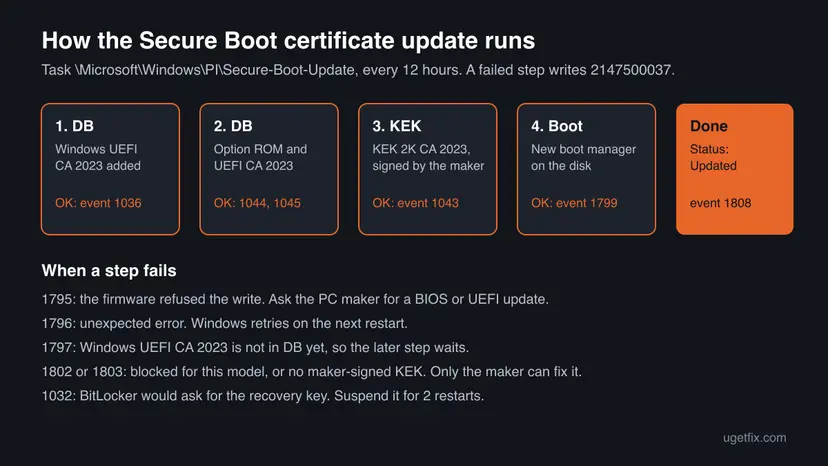
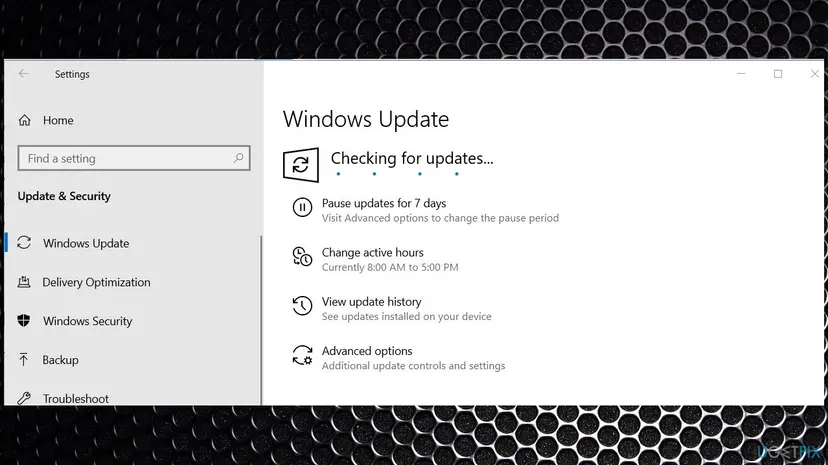
Windows delivers the 2023 certificates through Windows Update and finishes some steps only after a restart. Event 1796 is retried on the next restart by design, so a value seen before the second restart is often an old one.
- Press Win + I and open Windows Update. On Windows 10: Update & Security > Windows Update.
- Select Check for updates and install everything offered, optional firmware or driver updates from your PC maker included.
- Restart the PC. When it is back, restart it a second time.
- Open Windows Security from the Start menu and go to Device security > Secure Boot.
- Read the message. A green check and "Secure Boot is on and all required certificate updates have been applied" means you are done.
- If it says your device is affected by a known issue and updates are paused, wait. Microsoft says the update resumes on its own.
If Windows Update itself fails, fix that first: Install an update from the Microsoft Update Catalog
It worked if: Windows Security shows a green check for Secure Boot, and UEFICA2023Status reads Updated with no UEFICA2023Error value.
If not: If the status stays InProgress or the message mentions firmware limitations, go to Fix 2.
Fix 2. Update the BIOS or UEFI firmware from your PC maker
20 to 30 minutesRead the warningEvent 1795, a Firmware_KI reason, or a Windows Security message about hardware or firmware limitations.
The certificates live in the firmware, not in Windows. Microsoft's action for event 1795 is to contact the device manufacturer for a firmware update, because only the firmware can accept or refuse the write.
A firmware update that loses power can leave the PC unable to start. Plug a laptop into the charger and close all apps. If the system drive uses BitLocker, write down the recovery key from your Microsoft account first, because the next start can ask for it.
- Press Win + R, type
msinfo32and press Enter. - Note System Manufacturer, System Model and BIOS Version/Date.
- Open the support site of that manufacturer, enter the model and open the BIOS or firmware downloads.
- Compare the newest version with yours. Read its notes for Secure Boot, 2023 certificates or KEK.
- Install it with the maker's own tool or instructions and let the PC restart on its own.
- After Windows starts, run Fix 1 again: updates, two restarts, then the Secure Boot status.
Newer firmware can also arrive through Windows Update as an optional update, or through the maker's update app. Use only the maker's site or those tools, never a firmware file from another website.
It worked if: Event 1795 stops appearing after the next restarts, and the status moves to Updated with event 1808 in the System log.
If not: If you already have the newest firmware, read the event that names the failed step in Fix 3.
Fix 3. Read the Secure Boot event and registry values that name the failed step
10 minutesNo riskYou do not know which step failed, or Fixes 1 and 2 did not change the value.
2147500037 only says that something failed. Microsoft logs one TPM-WMI event per failed step, and the event ID tells you whether Windows, BitLocker or the firmware stopped it.
- Press Win + X and select Event Viewer.
- Open Windows Logs > System and select Filter Current Log on the right.
- In the Event IDs box type
1032,1795,1796,1797,1798,1801,1802,1803,1808and select OK. - Open the newest event and read its text and, for 1795, 1801 and 1802, the BucketConfidenceLevel line.
- Right-click Start, select Terminal (Admin) and run the command below to see the status values.
Read the Secure Boot servicing status (Terminal or PowerShell as administrator)
Get-ItemProperty -Path "HKLM:\SYSTEM\CurrentControlSet\Control\SecureBoot\Servicing" | Select-Object UEFICA2023Status, UEFICA2023Error, UEFICA2023ErrorEvent| Event | What Microsoft says it means | What to do |
|---|---|---|
| 1795 | The system firmware returned an error when Windows tried to update DB, DBX or KEK | Firmware update from the maker (Fix 2) |
| 1796 | An unexpected error. Windows retries on the next restart | Restart twice (Fix 1), then check again |
| 1797 | The Windows UEFI CA 2023 certificate is not present in DB | The first DB step must succeed first (Fix 2) |
| 1032 | Not applied because of the current BitLocker configuration | Suspend BitLocker for 2 restarts (Fix 4) |
| 1802, 1803 | Blocked for a known firmware issue, or no maker-signed KEK for this model | Ask the maker (Still broken section) |
| 1808 | This device has updated Secure Boot CA/keys | Nothing. The update is complete |
It worked if: You know the event ID of the failed step and which fix belongs to it.
If not: If the newest event is 1032, go to Fix 4. If there is no event at all and the status is NotStarted on a managed PC, go to Fix 5.
Fix 4. Suspend BitLocker for two restarts so the update can finish
10 minutesLow riskEvent Viewer shows event 1032: the update was not applied because of the BitLocker configuration.
Changing Secure Boot values changes what BitLocker measures at start. Windows holds the update rather than send the PC into BitLocker recovery, and Microsoft's documented resolution is to suspend BitLocker for two restart cycles.
- Make sure you have the BitLocker recovery key, for example at aka.ms/myrecoverykey.
- Right-click Start and select Terminal (Admin). On Windows 10: Windows PowerShell (Admin).
- Run the first command below. Protection stays suspended for exactly 2 restarts.
- Restart the PC two times.
- Run the second command to make sure protection is back on, then check the status as in Fix 3.
Suspend BitLocker for 2 restarts, then confirm it is on again
manage-bde -protectors -disable %systemdrive% -RebootCount 2
manage-bde -protectors -enable %systemdrive%
It worked if: Event 1032 no longer appears, BitLocker shows protection on, and the status moves forward.
If not: If the status still does not move, read the newest event again (Fix 3). On a managed PC that never started, go to Fix 5.
Fix 5. Start the certificate update by hand on an IT-managed PC
15 minutes plus a restartRead the warningAn IT-managed PC shows NotStarted or an old error for weeks, and your organization lets you deploy the update yourself.
On managed PCs Windows may wait for IT to start the update. Microsoft documents the AvailableUpdates value 0x5944 and the Secure-Boot-Update task for exactly this. A fresh run also shows whether the old 2147500037 still happens.
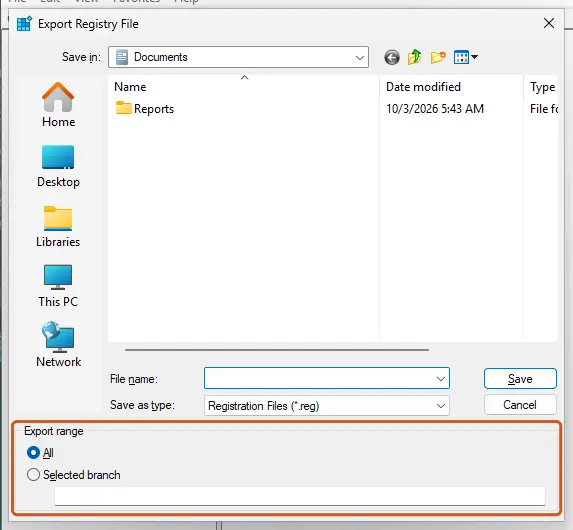
This writes to the registry and then to the firmware. Microsoft notes that some firmware overwrites DB instead of adding to it, and such a PC may not start. Update the firmware first (Fix 2), keep the BitLocker recovery key at hand and back up the registry: Back up the registry before editing it
- Right-click Start and select Terminal (Admin).
- Run the two commands below. The first sets the update flags, the second runs the task now instead of within 12 hours.
- Run the status command from Fix 3. Microsoft says
AvailableUpdatesshould change to 0x4100 quickly. - Restart the PC, then run the second command again.
- Check once more:
AvailableUpdatesshould be 0x4000 andUEFICA2023Statusshould read Updated.
Start the Secure Boot certificate update (Terminal or PowerShell as administrator)
reg add HKEY_LOCAL_MACHINE\SYSTEM\CurrentControlSet\Control\SecureBoot /v AvailableUpdates /t REG_DWORD /d 0x5944 /f
Start-ScheduledTask -TaskName "\Microsoft\Windows\PI\Secure-Boot-Update"
If PowerShell says the task is not found, check it with schtasks.exe /Query /TN "\Microsoft\Windows\PI\Secure-Boot-Update" /FO LIST /V. Microsoft's troubleshooting guide says a missing task must be recreated, and a disabled one enabled.
It worked if: UEFICA2023Status reads Updated, UEFICA2023Error is gone or 0, and event 1808 is in the System log.
If not: If the same step fails again with 2147500037, the firmware is the limit: see the Still broken section.
Fix 6. Find the failing step in a Configuration Manager task sequence
15 to 45 minutesLow riskA task sequence shows "The operating system reported error 2147500037: Unspecified error" or a process exit code 2147500037.
In a task sequence the code is passed up from the step that failed, most often an Install Application step. The step name and the line before it in smsts.log tell you which application, policy or content was missing.
- On the failed PC open smsts.log. When the deployment has ended it is in the client log folder
C:\Windows\CCM\Logs. During Windows PE it is on the X: drive. - Search for
2147500037,0x80004005orFailed to run the actionand note the action name. - Read the lines above it.
Policy Evaluation failedpoints to policy or detection, a download error points to content. - Check that the application's content is on a distribution point in the PC's boundary group, and redistribute it if not.
- Check the application's detection method. An application that is already installed but not detected can fail this way.
- If the failure happens on the first Install Application step after a restart, set the task sequence variables
SMSTSAssignmentsDownloadRetryandSMSTSAssignmentsDownloadInterval. - Run the task sequence again and read the new log.
Admins on windows-noob report the same message with exit code 16389 when one application install starts while msiexec is still busy with the last one. Their workarounds were a package instead of an application, or a wrapper that waits for msiexec. We could not confirm this as a Microsoft-documented cause.
It worked if: The task sequence passes the step and smsts.log shows the application installed with exit code 0.
If not: If the log shows a different error code next to 0x80004005, search for that code. It is the real cause.
Fix 7. Repair Windows system files when a Windows tool shows only the number
20 to 30 minutesLow riskA print, share or settings task in Windows fails with 2147500037 and no Secure Boot or deployment context.
When a built-in Windows component returns an unspecified error, damaged system files are one cause you can test without guessing. DISM repairs the component store and SFC then replaces damaged files from it.
- Open an elevated command window. Right-click Start and select Terminal (Admin), or type cmd in the search box, right-click Command Prompt and select Run as administrator. Select Yes when Windows asks for permission.

Search for cmd and choose Run as administrator. Screenshot: Windows 11 26H2. - Run DISM first. Type the command below and press Enter. DISM downloads clean copies of damaged components from Windows Update, so it can take several minutes. Wait until it says The operation completed successfully.
DISM.exe /Online /Cleanup-Image /RestoreHealth
DISM /RestoreHealth running. Screenshot: Windows 11 26H2. - Run System File Checker. In the same window, type the command below and press Enter. Do not close the window until the verification reaches 100%.
sfc /scannow
sfc /scannow at 100%. Screenshot: Windows 11 26H2. - Read the result and restart. Compare the last message with the table below this guide, then restart the PC so that repaired files are loaded.

The result line tells you what SFC did. Screenshot: Windows 11 26H2.
These steps were written for Windows 11 24H2 and 25H2. The full page with the other versions and what each result means: Run DISM and SFC to repair Windows system files
- HomeGroup: if the error came while opening or printing the HomeGroup password, the feature no longer exists. Microsoft removed HomeGroup in Windows 10 version 1803. Share printers and folders through Settings > Bluetooth & devices > Printers & scanners and file sharing instead.
- Internet Explorer: older guides told you to set it as the default browser. Internet Explorer is retired, and the default browser is not linked to this code.
It worked if: SFC reports that it found no integrity violations or repaired them, and the task works after a restart.
If not: If it still fails, note the exact app and the step, and read the Application log in Event Viewer at the time of the error.
If 2147500037 is still there: when only the PC maker can fix it
Microsoft's troubleshooting guide is plain about one case. If the maker has not given Microsoft a KEK signed with the device's platform key, Windows cannot complete the KEK update, and there is no supported manual recovery path. This happens on older models that no longer get firmware.
- Event 1802 or 1803, or BucketConfidenceLevel "Not Supported": contact the PC maker and ask whether the model supports the 2023 Secure Boot certificates and when firmware is planned.
- What to send: the model and BIOS version from
msinfo32, the newest TPM-WMI event text, and the valuesUEFICA2023Status,UEFICA2023ErrorandUEFICA2023ErrorEvent. - Hyper-V virtual machine: Microsoft says event 1795 in the guest points to a host without the March 2026 update, and 1803 to a guest without it. Update the host or the guest.
- Do not reset Secure Boot keys to factory defaults in the firmware as a test. Microsoft lists failure to start after such a reset as a known problem.
- What it means for you: the PC keeps starting and keeps getting normal Windows updates. It stops getting new protections for the start process.
An HP community thread from June 2026 shows an EliteOne 800 G4 with the newest BIOS, UEFICA2023Error 2147500037, reason Firmware_KI_7 and confidence "Temporarily Paused". The accepted answer was to ask HP Business Support, not to force the certificates in by hand.
How to keep 2147500037 from coming back
- Install the monthly Windows update and restart at least once a week.
- Install BIOS and UEFI updates from the PC maker, from its site or its update app.
- Keep your BitLocker recovery key in your Microsoft account or on paper.
- Check Windows Security > Device security > Secure Boot once after each big update.
- In Configuration Manager, keep application content on the distribution points of every boundary group.
- Change
AvailableUpdateson a home PC that gets updates automatically. - Reset Secure Boot keys in the firmware to see what happens.
- Install firmware files from websites other than the PC maker's.
- Chain application installs in a task sequence with no retry or wait.
The certificate deadlines matter here. Microsoft lists 24 June 2026 for the Microsoft Corporation KEK CA 2011, 27 June 2026 for the Microsoft UEFI CA 2011 and 19 October 2026 for the Microsoft Windows Production PCA 2011. A PC that finished the update logs event 1808 and needs nothing more.
Frequently asked questions
What is error code 2147500037?
It is the decimal form of 0x80004005, the Windows error E_FAIL with the text "Unspecified error". Any Windows component can return it when something failed without a more exact code. That is why the fix depends on where you saw it. In 2026 it most often sits in the UEFICA2023Error registry value of the Secure Boot certificate update. In deployments it comes from a Configuration Manager task sequence step. Start with the table in the Where it appears section.
What does UEFICA2023Error 2147500037 mean?
It means the Secure Boot certificate update stopped at a step and the first error was 0x80004005. Microsoft says the value stays 0 on success and holds the code of the first failure otherwise, while UEFICA2023Status stays InProgress. UEFICA2023ErrorEvent in the same key names the event that explains it, often 1795 or 1797. Install updates and restart twice, then update the firmware and read that event (Fixes 1 to 3).
Is UEFICA2023Error 2147500037 dangerous, and will my PC stop booting?
No, not by itself. Microsoft says devices without the 2023 certificates keep starting and keep receiving normal Windows updates. What they lose is new protection for the start process, such as boot manager fixes and revocation lists. Newer operating systems or boot software may also fail to load over time. So it is worth fixing, but it is not an emergency, and you should not take risky steps such as resetting Secure Boot keys.
What does "The operating system reported error 2147500037" mean in SCCM?
It is Configuration Manager passing up 0x80004005 from a step that failed, most often an Install Application step in a task sequence. The text usually says "The task sequence failed to install application" and gives the exit code 16389, which is 0x4005. Open smsts.log, search for the action name and read the lines above it. Missing content, a failed policy download or a wrong detection method are the usual leads (Fix 6).
What does "Process completed with exit code 2147500037" mean?
It is a line in smsts.log or in a script log. The process ended with 0x80004005, so it failed without a more exact code. In a task sequence the next lines name the action, such as "Failed to run the action", followed by "Unspecified error (Error: 80004005; Source: Windows)". Read the lines before it to find the application or command that ran, then check its own log, such as AppEnforce.log for applications.
What is exit code 2147500037 in a script or installer?
The program returned 0x80004005 as its exit code. Many tools print exit codes as unsigned decimal numbers, so the same failure appears as 2147500037. It tells you only that the program failed without a specific reason. Run the program again with logging turned on, read its own log, and look for the first error above the exit line. If the program ran inside a task sequence, use Fix 6.
Do I need to update my BIOS to fix 2147500037?
Often yes, when the code comes from the Secure Boot update. The certificates are written into the firmware, and Microsoft's action for event 1795 is to ask the device manufacturer for a firmware update. Check your model and BIOS version with msinfo32, compare with the maker's support page and install a newer version if there is one. If you already run the newest firmware, read the event in Fix 3 before you do anything else.
How do I check if the Secure Boot certificates are updated?
Open Windows Security and go to Device security > Secure Boot. Microsoft added the status there from April 2026, with a green, yellow or red badge. You can also read UEFICA2023Status under HKEY_LOCAL_MACHINE\SYSTEM\CurrentControlSet\Control\SecureBoot\Servicing. It reads NotStarted, InProgress or Updated. Event 1808 in the System log confirms that all certificates and the new boot manager are in place.
Can I still fix 2147500037 when printing the HomeGroup password?
Not in the old way, because HomeGroup no longer exists. Microsoft removed it in Windows 10 version 1803, so there is no HomeGroup password to print and no HomeGroup troubleshooter. Share a printer through Settings and share folders with file sharing instead. If a print or sharing task still fails with 2147500037 on a current Windows version, repair system files as in Fix 7.
Sources
- Microsoft Support: Secure Boot DB and DBX variable update events (KB5016061) (support.microsoft.com)
- Microsoft Support: Registry key updates for Secure Boot, Windows devices with IT-managed updates (support.microsoft.com)
- Microsoft Support: Secure Boot troubleshooting guide (support.microsoft.com)
Did this fix work?
One click, no account. It tells the next reader which guides are worth their time.
Questions and experiences: fix 2147500037 error code in Windows
Still broken, or found a fix we did not cover? Ask here: members and our editors answer. Reading is open; writing needs a free account.
…