
How to fix Xbox app error 0x80004005 in Windows?

Prefer to fix it yourself? The manual steps follow.
- 7methods
- 5 to 40 minutes
- Intermediate
Applies to Windows 11 and Windows 10: the Xbox app for PC, Microsoft Store, PC Game Pass, Minecraft Launcher and Store games that sign in with Xbox
7 methods in this guide
I have a Game Pass Ultimate subscription, but every time I try to log in to the Xbox app, it says "We couldn't sign you in to Xbox Live" with error code 0x80004005. Sometimes it also says I'm not connected to the internet, which is weird because my internet works fine everywhere else. I checked it.
Xbox error 0x80004005 is Windows' generic "Unspecified error": the Xbox app, Minecraft Launcher or a PC game tried to sign you in to Xbox Live, the sign-in failed, and nothing more specific was reported. It is often temporary. Check the Xbox status page, close and reopen the Xbox app, and try again before you change anything.
0x80004005 is E_FAIL, "Unspecified error", in Microsoft's list of Windows error codes. In the Xbox app it means the Xbox Live sign-in failed for a reason the app does not name. Xbox Support's own first steps: try again, quit and restart the Xbox app, and check for Windows and Xbox app updates (Fix 1). Then sign out and back in with one account in Microsoft Store and the Xbox app (Fix 2) and correct the clock (Fix 3).
| Error | 0x80004005, name E_FAIL, description "Unspecified error". A catch-all Windows code, not an Xbox-only code. |
|---|---|
| Where it appears | Signing in to the Xbox app for PC, Minecraft Launcher or Microsoft Flight Simulator ("We couldn't sign you in to Xbox Live"), and opening a game or app from the Xbox app. |
| Main cause | The Xbox Live sign-in did not complete: a temporary Xbox service problem, a stale or mixed-up sign-in, a wrong clock, or a broken Xbox sign-in component on the PC. |
| Fastest fix | Check the Xbox status page, quit and restart the Xbox app, retry, and install Windows and Xbox app updates (Fix 1). |
| Also written as | 0x80004005, 80004005, "(0x80004005)", and the typo 0x80004oo5 with the letter o. All are the same code. |
| Affects | Windows 11 and Windows 10: the Xbox app, PC Game Pass, Minecraft Launcher, Microsoft Flight Simulator and other Store games that sign in with Xbox. Xbox consoles can show the same code. |
| Microsoft's status | Xbox Support has a page for 0x80004005 when a game or app will not open on a console or PC. No single bug or patch is named for it. |
| Not the fix | Turning off Windows Defender Firewall or deleting Gaming Services registry keys by hand. Older guides, ours included, suggested both. |
| Time to fix | A few minutes when the cause is temporary or a stale sign-in. 20 to 40 minutes when a component must be repaired or a block found. |
Facts checked on 15 October 2026. Steps written for Windows 11 (25H2 and 26H2) and Windows 10 22H2.
What Xbox error 0x80004005 means
Microsoft's reference list of Windows error values gives 0x80004005 the name E_FAIL and the description "Unspecified error". Any Windows program can return it when something failed and no better code fits. In the Xbox app it almost always comes with the sign-in to Xbox Live, so read it as: the sign-in failed, and the app does not say why.
That is the difference from the Xbox sign-in codes that start with 0x8923. Those name the exact step that failed. Our guide to Xbox app error 0x89235106 covers one of them, a sign-in request that failed on the network. With 0x80004005 you find the cause by elimination, which is why the fixes below go from the cheapest test to the deepest repair.
- Spellings people search: 0x80004005, 80004005, "error 0x80004005" and 0x80004oo5. The last one is the same code typed with the letter o instead of zero.
- Xbox Support's page for this code is titled "Error 0x80004005 occurs when you try to open a game or app on your XBOX console or PC". Its PC advice is short: try again, quit and restart the Xbox app, and check for Windows and Xbox app updates.
- The same number outside Xbox also shows up when copying files, in Windows Update and in virtual machines. Those are different problems with different fixes. This page is about the Xbox sign-in on a Windows PC.
Where you see 0x80004005 and what the message says
The wording comes from the app that tried to sign you in. These are the screens users quote in Microsoft Q&A, game forums and the Google searches that bring readers to this page.
| Where | What users report on screen | Go to |
|---|---|---|
| Xbox app for PC, at sign-in | We couldn't sign you in to Xbox Live. Sorry, something went wrong. Try again in a while. (0x80004005) | Fix 1, then Fix 2 |
| Xbox app, a few seconds later | A note that you are not connected to the internet, while websites open fine | Fix 3, then Fix 6 |
| Minecraft Launcher, at start | "we couldn't sign you into your Xbox Live account" and error code 0x80004005 | Fix 1, then Fix 2 |
| Microsoft Flight Simulator on PC | "We couldnt sign you in to Xbox Live" Error 0x80004005 | Fix 1, then Fix 5 |
| Opening a Game Pass game from the Xbox app | The game does not start and 0x80004005 is shown | Fix 4, then Fix 5 |
Users report waves of this error on the same days. A Microsoft Q&A thread about Minecraft on 17 February 2026 collected more than 20 "same question" votes, and a Flight Simulator forum thread with the same code opened the next day. Its author wrote that it worked again after some tries. When that happens, waiting is the fix.
Why 0x80004005 happens in the Xbox app: the causes, most common first
Microsoft names no single cause for this code in the Xbox app. The ranking follows Xbox Support's advice for the code, Microsoft staff answers in Q&A threads about it, and what users report. Each cause has its own fix.
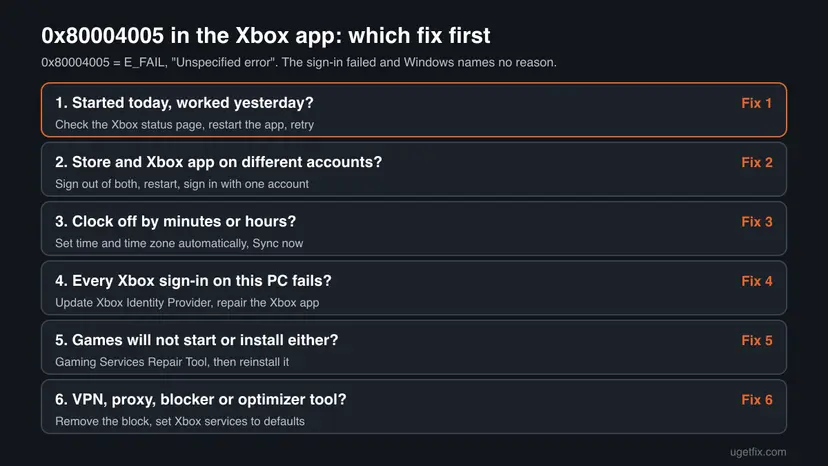
| How often | Cause | Sign | Fix |
|---|---|---|---|
| Most often | A temporary Xbox service problem, or an Xbox app that needs a restart or an update | It started suddenly, others report it the same day | Fix 1 |
| Often | A stale sign-in, or different accounts in Microsoft Store and the Xbox app | It started after a password change, a new PC or a Windows update | Fix 2 |
| Often | A wrong clock or time zone | The clock is minutes or hours off, or a sign-in fails in other Microsoft apps too | Fix 3 |
| Less often | An outdated or damaged Xbox Identity Provider or Xbox app | Every Xbox sign-in on this PC fails, the account works on a phone | Fix 4 |
| Less often | Broken Gaming Services | Games will not start or install either | Fix 5 |
| Rarely | A proxy, VPN, hosts file block or disabled Xbox services | You use a VPN, an ad blocker or a PC optimizer | Fix 6 |
| Rarely | A damaged Windows user profile | It works in another Windows user account | Fix 7 |
How to fix Xbox error 0x80004005 in Windows 11 and Windows 10
Fix 1 is for everyone and takes a few minutes. Fixes 2 and 3 are quick checks of the account and the clock. Fixes 4 and 5 repair the Xbox parts of Windows. Fixes 6 and 7 are for the error that survives all of that. Steps are written for Windows 11, with the Windows 10 path where it differs. Windows 10 left support on 14 October 2025.
| What you see or have | Start with |
|---|---|
| The code appeared today, and it worked yesterday. | Fix 1 |
| You changed your password, your PC or your Microsoft account. | Fix 2 |
| The app says you are not connected, but every website opens. | Fix 3, then Fix 6 |
| The same account works on a phone or console, but no Xbox sign-in works on this PC. | Fix 4 |
| Game Pass games will not start or install. | Fix 5 |
| You use a VPN, a proxy, an ad blocker or a PC optimizer. | Fix 6 |
| Nothing above helped. | Fix 7 |
Fix 1. Check the Xbox status, restart the Xbox app and install updates
5 to 15 minutesNo riskEveryone, first, and above all when the error appeared suddenly.
This is what Xbox Support itself tells PC users with 0x80004005: try again, quit and restart the Xbox app, and check for Windows and Xbox app updates. An unspecified sign-in failure is often a passing service problem, and a full restart of the app makes it request a new sign-in.
- Open the Xbox status page. If a service shows an alert, expand it, wait until it clears and skip the rest.
- Close the Xbox app and any game or launcher. Press Ctrl + Shift + Esc, find Xbox under Processes and select End task if it still runs.
- Open the Xbox app again and sign in.
- If it fails, open Microsoft Store, select Library, then Get updates, and wait until the Xbox app and Gaming Services are updated.
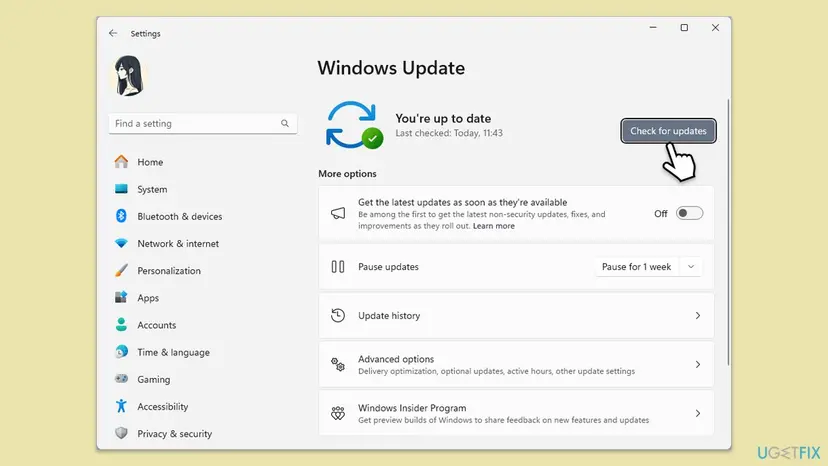
- Press Win + I, open Windows Update and select Check for updates. Install what is offered. On Windows 10: Update & Security > Windows Update.
- Restart the PC and sign in to the Xbox app again.
It worked if: The Xbox app shows your gamertag and picture, and the game opens without the code.
If not: If the status page is green and the app is up to date, go to Fix 2.
Fix 2. Sign out and back in with one account in Microsoft Store and the Xbox app
5 minutesNo riskThe error started after a password change, a new PC, a Windows update or a switch between accounts.
Microsoft Store and the Xbox app each hold a sign-in. When one of them still holds an old one, or they are signed in with different accounts, the Xbox Live sign-in can fail without a clear reason. A fresh sign-in with the account that pays for Game Pass makes both apps ask for new tokens.
- Open Microsoft Store, select your profile picture at the top and select Sign out.
- Open the Xbox app, select your profile picture and sign out there too.
- Close both apps and restart the PC.
- Open Microsoft Store and sign in with the account that owns the game or pays for Game Pass.
- Open the Xbox app and sign in with the same account. Then try again.
- Check the subscription: sign in at account.microsoft.com/services. Game Pass for Console does not include PC games, so a console plan alone will not work in the Xbox app.
- Test the account elsewhere: if you cannot sign in at xbox.com or on a phone either, the problem is the account or Xbox, not Windows.
It worked if: Both apps show the same account, and the Xbox app signs in.
If not: Go to Fix 3 and check the clock.
Fix 3. Set the date, time and time zone automatically
5 minutesNo riskThe clock is wrong, the PC was off for a long time, you changed the battery, or you dual boot with another system.
Sign-in tokens are tied to time. A Microsoft support moderator answering a Minecraft thread with this exact code asked for this first: turn on automatic time and time zone, select Sync now and restart the apps. Xbox Support also lists an accurate date and time as a requirement for its network connections on Windows.
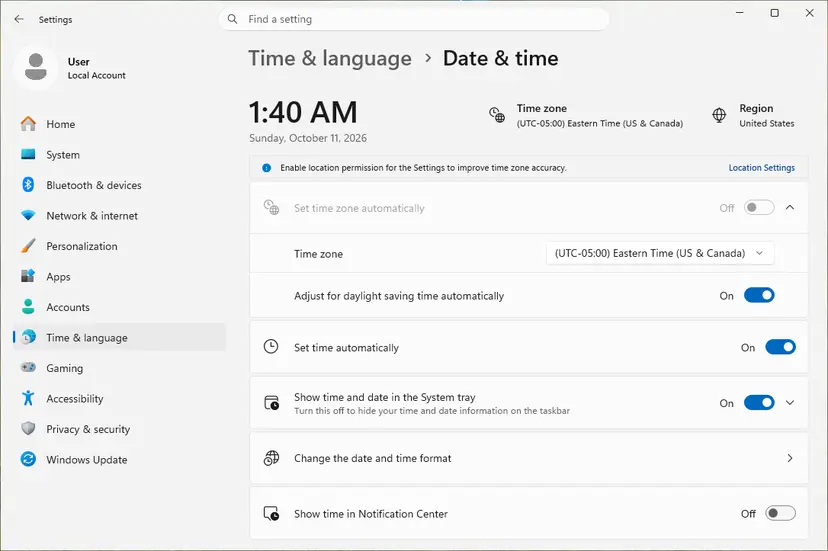
- Press Win + I and open Time & language > Date & time. On Windows 10: Time & Language > Date & time.
- Turn on Set time automatically and Set time zone automatically.
- Select Sync now.
- Compare the clock with your phone. It should match to the minute.
- Close and reopen the Xbox app, then sign in.
If the clock does not stay correct after a restart, the full steps with the Windows Time service are here: How to fix the date and time in Windows
It worked if: The clock matches your phone and the Xbox app signs in.
If not: If the clock is right and the sign-in still fails, go to Fix 4 and repair the Xbox sign-in apps.
Fix 4. Update the Xbox Identity Provider and repair or reset the Xbox app
10 to 15 minutesLow riskNo Xbox sign-in works on this PC, while the same account works on a phone, a console or xbox.com.
The Xbox sign-in on Windows is done by small system apps, not only by the Xbox app. Microsoft Store describes the Xbox Identity Provider as "a system app that enables PC games to connect to Xbox Live". If it or the Xbox app is damaged or out of date, the sign-in can fail with an unspecified error.
- Open the Xbox Identity Provider page in Microsoft Store. Select Get, Install or Update, whichever shows.
- Press Win + I, open Apps > Installed apps (Windows 10: Apps > Apps & features), find Xbox, select the three dots and Advanced options.
- Select Terminate, then Repair. Try to sign in.
- If it still fails, come back and select Reset. It signs you out of the app and deletes its local data. Your installed games stay.
- Restart the PC and sign in to the Xbox app.
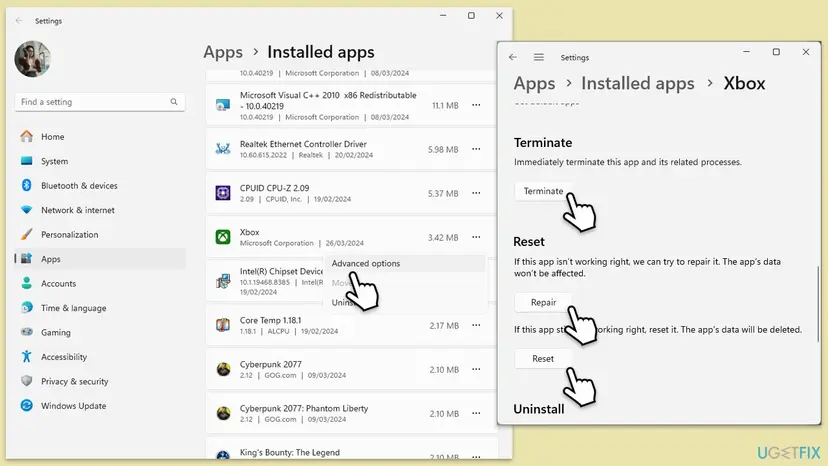
The general steps for any app, with screenshots: How to repair or reset an app in Windows. If Microsoft Store itself misbehaves, its own cache reset and repair are here: Reset the Microsoft Store
It worked if: The Xbox app signs in and shows your library.
If not: If games still will not start or install, go to Fix 5. If only the sign-in fails, go to Fix 6.
Fix 5. Run the Gaming Services Repair Tool, then reinstall Gaming Services
10 to 20 minutesLow riskGame Pass games will not start or install, or the Xbox app shows that Gaming Services needs attention.
Gaming Services is the Windows component that installs and runs Xbox games. Xbox Support's Gaming Services Repair Tool sits inside the Xbox app and checks it for you. A Microsoft Q&A answer about this code on Minecraft also points to reinstalling Gaming Services.
- Open the Xbox app, select your profile picture and then Support.
- Select Gaming Services Repair Tool and then Start Troubleshooting. Follow what it reports.
- Restart the PC and try the game again.
- If it still fails, close Microsoft Store and the Xbox app. Right-click Start and select Terminal (Admin). On Windows 10: Windows PowerShell (Admin).
- Run the command below to remove Gaming Services.
- Install it again from the Gaming Services page in Microsoft Store and restart the PC.
Remove Gaming Services (PowerShell or Terminal as administrator)
Get-AppxPackage Microsoft.GamingServices | Remove-AppxPackage -AllUsers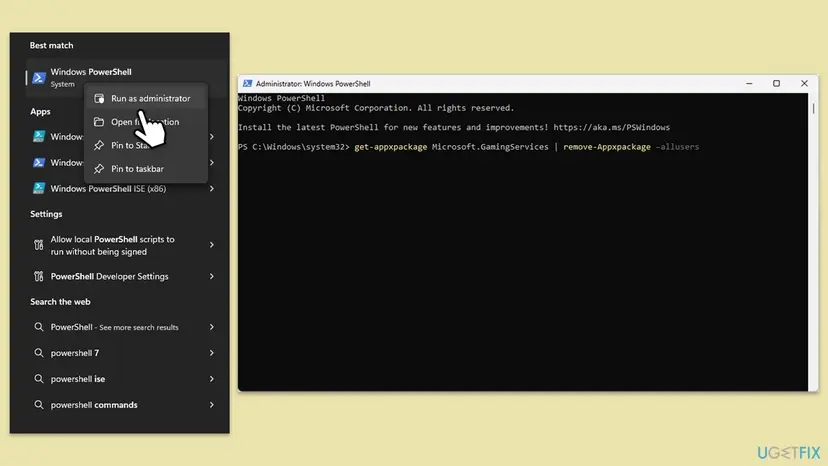
The old version of this page also deleted two Gaming Services keys from the registry. We dropped that step. If Gaming Services will not install again, our guide to error 0x80073CF6 covers that repair.
It worked if: The repair tool reports no problem, or Gaming Services installs again, and the game starts.
If not: If games still fail after the reinstall, go to Fix 6 and look for a block on the PC.
Fix 6. Remove what blocks Xbox: proxy, VPN, hosts file and disabled Xbox services
15 to 25 minutesLow riskWebsites open but Xbox sign-in fails, and you use a VPN, a proxy, an ad or telemetry blocker, or a PC optimizer.
Xbox Support warns that some apps that tune a PC disable Xbox services. Privacy tools and debloat scripts can also add hosts file lines or a proxy that stop the sign-in while ordinary browsing still works. Xbox Live Auth Manager, in Microsoft's words, "provides authentication and authorization services for interacting with Xbox Live".
- Disconnect any VPN and close its app. Test the Xbox sign-in once without it.
- Press Win + I, open Network & internet > Proxy and turn off Use a proxy server unless your work or school needs it.
- Right-click Start, select Terminal (Admin) and run
netsh winhttp show proxy. "Direct access (no proxy server)" is normal. If a proxy shows that you did not set, runnetsh winhttp reset proxy. - Copy
C:\Windows\System32\drivers\etc\hoststo your desktop. Open the original in Notepad run as administrator and put a#before lines that pointxboxliveorlive.comnames to0.0.0.0or127.0.0.1. Save. - Press Win + R, type
services.mscand press Enter. - Open Xbox Live Auth Manager. If Startup type says Disabled, set it to Manual, select Apply, then Start and OK. Do the same for Xbox Live Networking Service and Gaming Services.
- Restart the PC and sign in to the Xbox app.
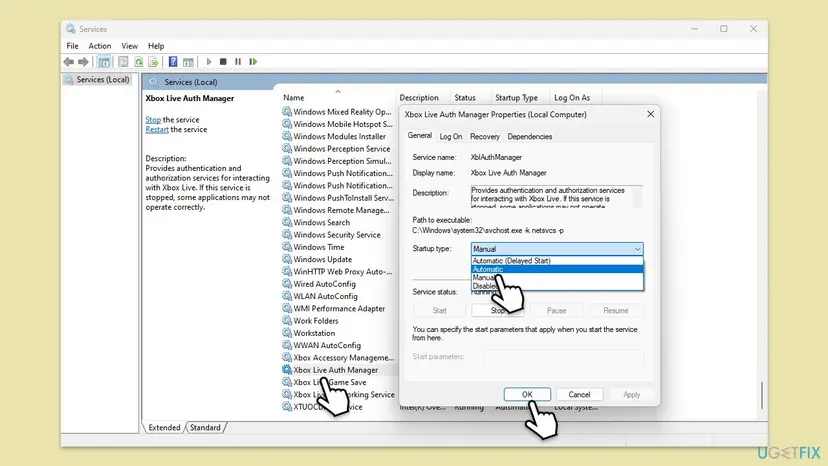
- Do not set everything to Automatic. The old version of this page said so. Manual is enough: the service starts when an app asks for it.
- Opening and restarting services, with screenshots: Check and restart Windows services
- Security software: if you use a third-party antivirus or firewall suite, pause it for one sign-in test and turn it back on right after: Turn off Microsoft Defender protection for a moment
- A phone hotspot test: connect the PC to your phone's hotspot and try once. If it works there, the block is in your home network, such as a router with DNS filtering.
It worked if: No proxy is set, the hosts file has no Xbox lines, no Xbox service shows Disabled, and the Xbox app signs in.
If not: Put the hosts file back from your desktop copy if it changed nothing, and go to Fix 7.
Fix 7. Test a new Windows user account, then reinstall the Xbox app
20 to 30 minutesLow riskEverything above failed and every Xbox sign-in on this PC shows 0x80004005.
Sign-ins and app data are stored per Windows user. A new user account tells you in minutes whether the problem sits in your profile or in the whole PC. Uninstalling the Xbox app does not uninstall your games.
- Press Win + I, open Accounts > Other users and select Add account. A local account is enough for the test.
- Sign out, sign in to the new account, open the Xbox app and sign in with your Microsoft account.
- If it works there, go back to your own account and open Settings > Apps > Installed apps.
- Find Xbox, select the three dots and Uninstall. Restart the PC.
- Install it again from the Xbox app page in Microsoft Store and sign in.
- If it fails in the new account too, the cause is PC-wide. Delete the test account and read the next section.
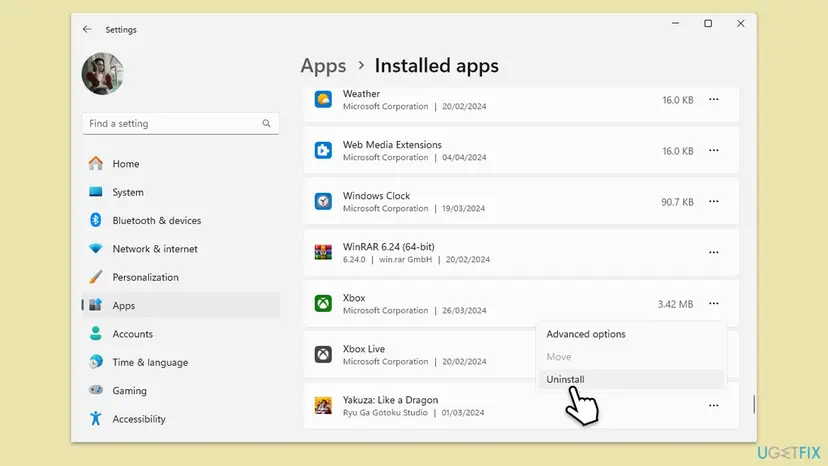
Full steps for the test user: Create a new user account to test a problem
It worked if: The Xbox app signs in either in the new account (your profile was the cause) or in your own account after the reinstall.
If not: Collect the details listed under "If 0x80004005 is still there" and contact Xbox Support.
If 0x80004005 is still there: what to check and what to send Xbox Support
Microsoft documents no log file for this error in the Xbox app. What helps support is a clear picture of where the sign-in stops, so gather these facts first.
- The exact screen: a screenshot of the message with the code, and which app showed it.
- Your account: does the same account sign in on xbox.com, a phone or a console? Which Game Pass plan is active?
- The tests: does it fail on a phone hotspot, in a new Windows user account, and with any VPN and third-party security paused?
- The versions: your Windows version (press Win + R, type
winver) and the Xbox app version from its Settings. - Event Viewer: press Win + X, select Event Viewer and open Windows Logs > Application. Note errors from the time of the sign-in that name Xbox or Gaming Services. We could not confirm one event that always appears for this code.
If the account fails on every device, the problem is the account or Xbox services, not Windows. Check the Xbox status page again and contact Xbox Support at support.xbox.com/contact-us with the code and the facts above.
How to keep 0x80004005 from coming back
- Use one Microsoft account for Microsoft Store, the Xbox app and your games.
- Let Microsoft Store update the Xbox app, the Xbox Identity Provider and Gaming Services. Check Library > Get updates after a big Windows update.
- Keep Set time automatically and Set time zone automatically on.
- Look at the Xbox status page first when the error appears out of nowhere.
- Do not let optimizer tools disable Xbox services or edit the hosts file if you play on PC.
- Do not turn off Windows Defender Firewall to make Xbox work.
- Do not delete Gaming Services registry keys by hand.
- Do not set Xbox services to Automatic by hand. Manual is their normal state.
Frequently asked questions
What does error 0x80004005 mean on Xbox?
It is Windows' general failure code. Microsoft's list of Windows error values names 0x80004005 E_FAIL with the description "Unspecified error". In the Xbox app it means the sign-in to Xbox Live or the start of a game failed, and the app did not report a more exact reason. That is why the fixes go by elimination: first a temporary service problem and the app itself, then the account, the clock and the Xbox parts of Windows.
How do I fix "We couldn't sign you in to Xbox Live" with 0x80004005?
Start with Xbox Support's own steps: check the Xbox status page, quit and restart the Xbox app, and install Windows and Xbox app updates (Fix 1). Then sign out of Microsoft Store and the Xbox app, restart, and sign in to both with the same account (Fix 2). If it still fails, turn on automatic time and select Sync now (Fix 3), then update the Xbox Identity Provider and repair the Xbox app (Fix 4).
Why does the Xbox app say I am not connected to the internet when my internet works?
Because only the Xbox sign-in has to fail for the app to show that note. Websites can still open. A wrong clock, a proxy, a VPN, a hosts file line from a privacy tool, or Xbox services disabled by an optimizer can all stop the sign-in alone. Check the clock first (Fix 3), then remove proxies, VPNs and blocks and set the Xbox services back (Fix 6).
Is Xbox Live down when I get 0x80004005?
Sometimes. Users report waves of this code on the same days, such as in February 2026 when Minecraft and Flight Simulator players reported it within one day. Open the Xbox status page at support.xbox.com before you change anything. If a service shows an alert, wait for it to clear. If everything is green and only your PC fails, the cause is local, so continue with Fix 2.
How do I fix 0x80004005 in Minecraft Launcher?
Minecraft Launcher uses the same Xbox sign-in as the Xbox app, so the same fixes apply. Sign out of Microsoft Store and the Xbox app, restart, and sign in to both with the account you use for Minecraft (Fix 2). Check that the clock is set automatically, as a Microsoft moderator asked in a Minecraft thread with this code (Fix 3). Reinstalling only the Launcher did not help the user in that thread.
Does 0x80004005 mean my Game Pass has expired?
Not by itself. The code is a general failure and does not name a subscription problem. Still, check your plan at account.microsoft.com/services with the account you use in the Xbox app. Game Pass for Console does not include PC games, so a console plan alone will not let you play in the Xbox app for Windows. If the plan is active, the cause is elsewhere, so follow the fixes in order.
I get 0x80004005 on my Xbox console, not on a PC. Does this page help?
Partly. This page is about the Xbox app and games on a Windows PC. Xbox Support's page for 0x80004005 has a separate section for consoles, because the code can appear when you open a game or app there too. The status check and the account check in Fix 1 and Fix 2 also apply to a console. The Windows repairs in Fixes 3 to 7 do not.
Should I turn off Windows Defender Firewall or my antivirus to fix 0x80004005?
No. The old version of this page suggested disabling security software, and that weakens the PC without targeting the sign-in. If you suspect third-party security software, pause it for one sign-in test and turn it back on at once. Windows Defender Firewall should stay on with its default settings, because Xbox Support says its connections need it.
Will reinstalling the Xbox app delete my games or saves?
No. Uninstalling the Xbox app removes only the app, and installed games stay on the disk. Games that use cloud saves sync them again when you sign in. A Reset of the Xbox app under Advanced options also keeps your games and only clears the app's own data and sign-in. Try Repair and Reset (Fix 4) before a full reinstall (Fix 7).
Sources
- Microsoft Learn: [MS-ERREF] HRESULT values (0x80004005 E_FAIL, Unspecified error) (learn.microsoft.com)
- Microsoft Store: Xbox Identity Provider (apps.microsoft.com)
- Microsoft Learn: Security guidelines for system services (Xbox Live Auth Manager, XblAuthManager) (learn.microsoft.com)
Did this fix work?
One click, no account. It tells the next reader which guides are worth their time.
Questions and experiences: fix Xbox app error 0x80004005 in Windows
Still broken, or found a fix we did not cover? Ask here: members and our editors answer. Reading is open; writing needs a free account.
…