
How to fix Xbox app error 0x89235106 in Windows?

Prefer to fix it yourself? The manual steps follow.
- 7methods
- 5 to 40 minutes
- Intermediate
Applies to Windows 11 and Windows 10: the Xbox app for PC, Microsoft Store, Minecraft Launcher, PC Game Pass and Xbox Play Anywhere games
7 methods in this guide
I can't launch some of the games in the Xbox app on Windows. Whenever I try, I keep getting error 0x89235106. It seems to only affect some of the Game Pass games. What can I do to fix it?
Error 0x89235106 means the Xbox sign-in library on your PC sent a request to Xbox and got a network error back, so the Xbox app, Microsoft Store or Minecraft Launcher cannot confirm who you are. Your internet can work fine while this happens. Check the Xbox status page first, then sign out and back in with the same account in Microsoft Store and the Xbox app.
0x89235106 is E_XAL_NETWORK, "A network error occurred while processing the request", in Microsoft's Xbox error table. Open the Xbox status page, then sign out of Microsoft Store and the Xbox app, restart the PC and sign in to both with the account that owns the game or Game Pass (Fix 1). If it stays, update the Xbox Identity Provider and repair the Xbox app (Fix 2), then remove any proxy, VPN or hosts file block (Fix 3).
| Error | 0x89235106, name E_XAL_NETWORK, description "A network error occurred while processing the request." XAL is the Xbox sign-in library. |
|---|---|
| Where it appears | Signing in to the Xbox app or Minecraft Launcher ("You're not connected to the internet"), installing an owned game in Microsoft Store ("Can't install this app through Microsoft Store"), and starting Game Pass games on PC. |
| Main cause | The request for an Xbox sign-in token did not get through: an Xbox service outage, a broken sign-in component, or something on the PC (proxy, VPN, hosts file, security software, disabled services) that stops the connection. |
| Fastest fix | Check the Xbox status page, then sign out and back in with the same Microsoft account in Microsoft Store and the Xbox app, and restart (Fix 1). |
| Also written as | 0x89235106, 0X89235106, 89235106, error code: 0x89235106, "0x89235106 Microsoft Store". Neighbors in the same table: 0x89235107 (E_XAL_CLIENTERROR) and 0x89235104 (E_XAL_USERSIGNEDOUT). |
| Affects | Windows 11 and Windows 10: the Xbox app, Microsoft Store, Minecraft Launcher, Game Pass and Store games such as Forza Horizon 5 and Roblox, and other Microsoft apps that sign in with Xbox. |
| Microsoft's status | A documented Xbox services code, not one bug with one patch. Microsoft publishes no single fix for it. Xbox Support's general advice for the Xbox app applies. |
| Not the cause | NAT type and port forwarding. Xbox Support ties those to multiplayer in select games, not to signing in. |
| Time to fix | About 5 minutes when an outage or a stale sign-in is the cause. 20 to 40 minutes when a proxy, hosts file or disabled service has to be found. |
Facts checked on 14 October 2026. Steps written for Windows 11 (25H2 and 26H2) and Windows 10 22H2.
What error 0x89235106 means
Microsoft's Game Development Kit lists every Xbox services error code in one table. There, 0x89235106 has the name E_XAL_NETWORK and the description "A network error occurred while processing the request". XAL is the Xbox Authentication Library: the part that signs a player in to Xbox services and fetches the tokens that prove who you are and what you own.
So the code does not say that your PC is offline. It says that one request, the Xbox sign-in request, failed on the network. The same table has a separate code for a PC with no network at all, 0x89235006 (E_HC_NO_NETWORK). That is why so many people with working internet see this error and are told to "check your connection".
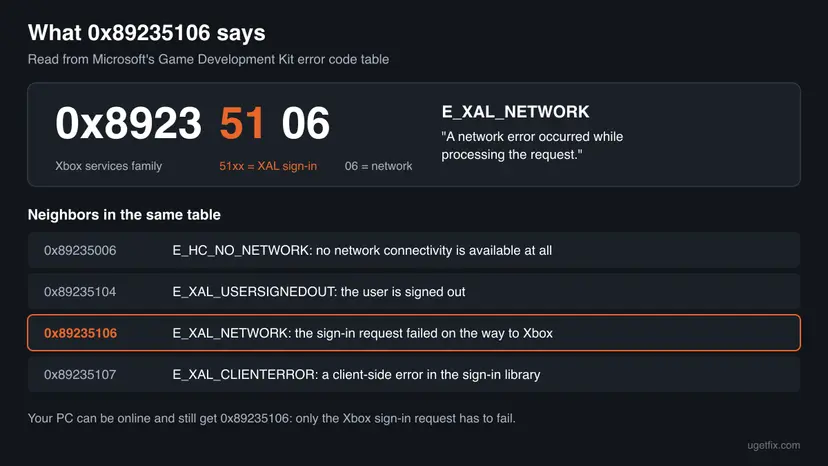
| Code | Name in Microsoft's table | What it tells you |
|---|---|---|
| 0x89235006 | E_HC_NO_NETWORK | No network connectivity is available. The PC itself is offline. |
| 0x89235104 | E_XAL_USERSIGNEDOUT | The user is signed out. Signing in again is the fix. |
| 0x89235106 | E_XAL_NETWORK | A network error occurred during the sign-in request. The PC may be online. |
| 0x89235107 | E_XAL_CLIENTERROR | A client-side error in the sign-in library. Often searched together with Minecraft Launcher. |
| 0x89235206 | E_XBL_AUTH_NO_TOKEN | No authentication token is available for an Xbox services call. |
- Spellings people search: 0x89235106, 0X89235106, 89235106 and "error code: 0x89235106". They are the same code.
- The words around it differ by app. The code is what matters. The fixes below follow the app where you see it.
Where you see 0x89235106 and what the message says
The code comes from the sign-in layer, so any app that signs in with Xbox can show it. These are the places reported on Microsoft Q&A and in Google searches for this page, with the wording users quote.
| Where | What users report on screen | Go to |
|---|---|---|
| Xbox app, at sign-in or when a game starts | "You're not connected to the internet. Check your internet connection and try again." with (0x89235106) | Fix 1, then Fix 2 |
| Minecraft Launcher, after Microsoft Login | The same "You're not connected to the internet" Xbox screen | Fix 1, then Fix 5 |
| Microsoft Store, installing a game you own | "Can't install this app through Microsoft Store. Check with the app publisher" Code: 0x89235106. Free apps still install. | Fix 5 |
| Microsoft Store, installing Minecraft Launcher, Roblox, Forza Horizon 5 or a runtime package | Install stops with 0x89235106 | Fix 1, then Fix 3 |
| Several Microsoft apps at once (OneDrive, Minecraft, the Store) | 0x89235106 everywhere, websites open fine | Fix 3, then Fix 4 |
| Game Pass game in the Xbox app (Spanish Windows) | "No pudimos aplicar tus derechos de Xbox. Restablece tu conexión en configuración de la cuenta para aplicar el Game Pass." | Fix 1, then Fix 5 |
If every app that signs in with Xbox fails, the cause sits on the PC or the network (Fixes 2 to 4 and 6). If only one app fails, the cause sits in that app or in what your account owns (Fix 1 and Fix 5).
Why 0x89235106 happens: the causes, most common first
Microsoft names no single cause for this code. The ranking below follows what the code means, what Xbox Support lists for the Xbox app and its network, and what users report in Microsoft Q&A threads about 0x89235106.
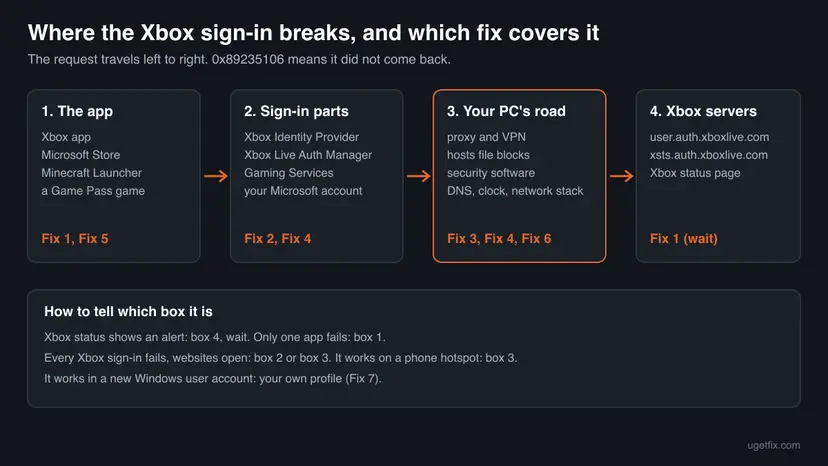
| How often | Cause | Sign | Fix |
|---|---|---|---|
| Most often | An Xbox services outage, or a stale sign-in after a password change, a new PC or a Windows update | It started suddenly, on several PCs or after an account change | Fix 1 |
| Often | A broken or outdated sign-in component: Xbox Identity Provider, the Xbox app or Gaming Services | Every Xbox sign-in on this PC fails, the account works on a phone or console | Fix 2 |
| Often | Something on the PC changes the road to Xbox: a proxy, a VPN, a hosts file block, third-party security software | Websites open, Xbox sign-in fails, often after installing a privacy, VPN or "optimizer" tool | Fix 3 |
| Less often | Xbox services set to Disabled by a tuning tool, or a wrong clock | Services show Disabled, or the clock is minutes or hours off | Fix 4 |
| Less often | The account in Microsoft Store does not own the game, or the game must come from the Xbox app | Only paid or Game Pass titles fail, free apps install | Fix 5 |
| Rarely | A damaged network stack or adapter settings | Other network apps misbehave too | Fix 6 |
| Rarely | A damaged Windows user profile | It works in another Windows user account | Fix 7 |
How to fix error 0x89235106 in Windows 11 and Windows 10
Fix 1 is for everyone and costs five minutes. Fixes 2 to 4 are for the error that appears in every Xbox sign-in on this PC. Fix 5 is for Microsoft Store and Minecraft. Fixes 6 and 7 are for the code that survives all of that. Steps are written for Windows 11, with the Windows 10 path where it differs. Windows 10 left support on 14 October 2025, and Xbox Support says some Xbox app features need at least Windows 10 22H2.
| What you see or have | Start with |
|---|---|
| The code appeared today, and it worked yesterday. | Fix 1 |
| The Xbox app says "You're not connected to the internet", but every website opens. | Fix 1, then Fix 2, then Fix 3 |
| You use a VPN, a proxy, an ad or telemetry blocker, or a PC "optimizer". | Fix 3, then Fix 4 |
| Microsoft Store will not install a game you own, but free apps install. | Fix 5 |
| Minecraft Launcher will not install or sign in. | Fix 1, then Fix 5 |
| Every Microsoft app that signs in fails, also after Fixes 1 to 4. | Fix 6, then Fix 7 |
Fix 1. Check the Xbox status, then sign out and back in with the same account everywhere
5 minutesNo riskEveryone, first, and above all when the error started suddenly.
0x89235106 is a failed sign-in request. When Xbox services have an outage, nothing on your PC can fix it. When the PC holds an old sign-in, a fresh sign-in with the account that owns the game makes the apps request new tokens. Xbox Support asks for the same Microsoft account in Microsoft Store and the Xbox app so the game's permissions can be checked.
- Open the Xbox status page. If a service shows an alert, expand it. Xbox Support says you can sign in under Notifications to get a message when it is back. Wait, and skip the rest.
- Open Microsoft Store, select your profile picture at the top and select Sign out.
- Open the Xbox app, select your profile picture and sign out there too.
- Close both apps and the game, and any launcher such as Minecraft Launcher. Check Task Manager (Ctrl + Shift + Esc) and select End task for any that still run.
- Select Start > Power > Restart.
- Open Microsoft Store and sign in with the account that bought the game or pays for Game Pass.
- Open the Xbox app and sign in with the same account. Then try the game or the install again.
- Which account owns it: sign in at account.microsoft.com/services to see your subscriptions. Xbox Support notes that Game Pass for Console does not work on PC.
- Account trouble shows other codes too. If the sign-in screen asks to fix your account or password, do that first on the Microsoft account page.
It worked if: The Xbox app shows your gamertag and picture, and the game starts or the install runs without the code.
If not: Go to Fix 2 if the Xbox app itself cannot sign in. For a Microsoft Store or Minecraft install that still fails, go to Fix 5.
Fix 2. Update the Xbox Identity Provider, repair the Xbox app and run the Gaming Services repair
10 to 15 minutesLow riskThe Xbox app cannot sign in on this PC, while the same account works on a phone, a console or xbox.com.
On Windows, the Xbox sign-in is done by small system apps, not only by the Xbox app. Microsoft Store describes the Xbox Identity Provider as "a system app that enables PC games to connect to Xbox Live". When it, the Xbox app or Gaming Services is outdated or damaged, the sign-in request can fail with this code.
- Open Microsoft Store, select Library, then Get updates, and wait until every update is installed. On Windows 10 the same button is in the Store's Downloads and updates page.
- Open the Xbox Identity Provider page in Microsoft Store. Select Get, Install or Update, whichever shows.
- Press Win + I, open Apps > Installed apps (Windows 10: Apps > Apps & features), find Xbox, select the three dots and Advanced options.
- Select Terminate, then Repair. Try to sign in. If that fails, come back and select Reset: it signs you out of the app and clears its local data, games stay installed.
- Open the Xbox app, select your profile picture, then Support, then Gaming Services Repair Tool, and select Start Troubleshooting.
- Restart the PC and sign in to the Xbox app again.
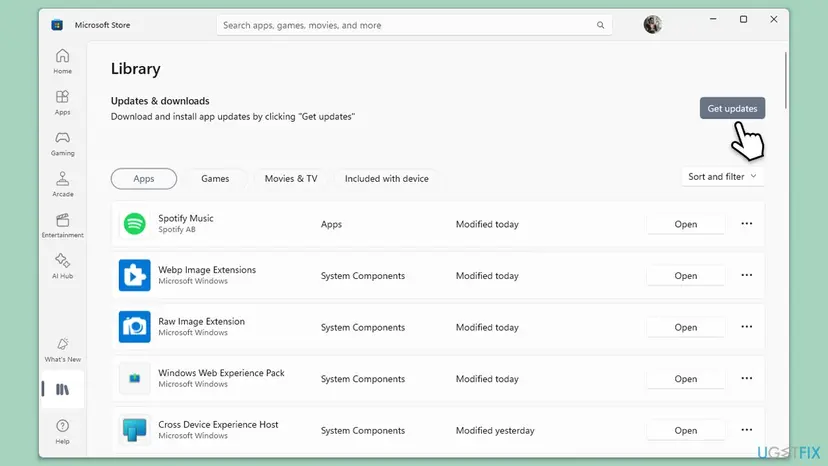
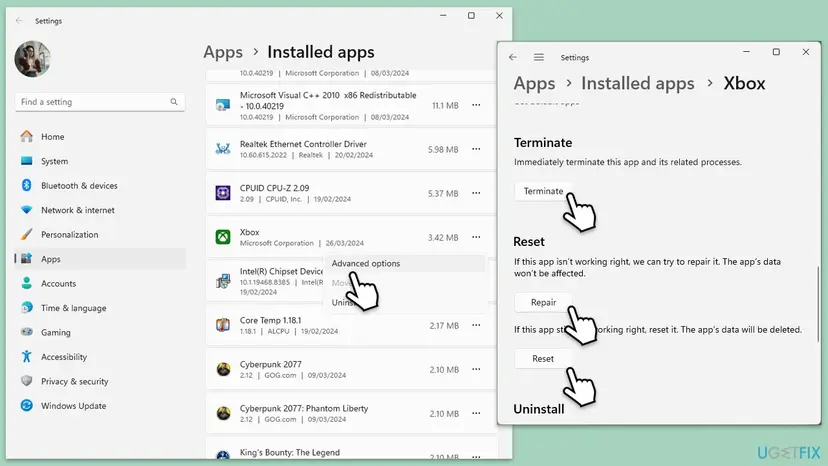
The general steps for any app, with screenshots: How to repair or reset an app in Windows. If Gaming Services itself will not install or update, its repair is a separate job described in our guide to error 0x80073CF6, so it is not repeated here.
It worked if: The Xbox app signs in and shows your library. Game Pass games show Play or Install instead of an error.
If not: If the sign-in still fails in every Xbox app, the request is blocked on the way: go to Fix 3.
Fix 3. Remove what sits between your PC and Xbox: proxy, VPN, hosts file and security software
10 to 20 minutesLow riskWebsites open but Xbox sign-in fails, and you use a VPN, a proxy, an ad or telemetry blocker, or third-party security software.
The code means the sign-in request failed on the network. Microsoft's documentation shows Xbox sign-in steps going to addresses such as login.microsoftonline.com, user.auth.xboxlive.com and xsts.auth.xboxlive.com. A proxy, a VPN tunnel, a hosts file line or a filtering program that changes or blocks one of these breaks the sign-in while ordinary websites still open.
- Disconnect any VPN and close its app. Test the Xbox sign-in once without it.
- Press Win + I and open Network & internet > Proxy. Turn off Use a proxy server unless your school or work needs it, and leave Automatically detect settings on.
- Right-click Start, select Terminal (Admin) and run
netsh winhttp show proxy. "Direct access (no proxy server)" is the normal answer. - If a proxy is listed and you did not set it, run
netsh winhttp reset proxy. Microsoft's documentation says it resets the WinHTTP proxy setting to DIRECT. - Open the hosts file as described below and look for lines that block Xbox or Microsoft sign-in.
- If you use third-party antivirus or a firewall suite, pause it for one sign-in test only, then turn it back on.
Check and reset the system proxy (Terminal as administrator)
netsh winhttp show proxy
netsh winhttp reset proxy
The hosts file. Windows reads C:\Windows\System32\drivers\etc\hosts before it asks any DNS server. Privacy tools, "debloat" scripts and some game-tuning programs add lines there that send Microsoft and Xbox addresses to 0.0.0.0 or 127.0.0.1. Xbox Support's own network page tells you to look for such entries when an Xbox connection fails.
- Copy the hosts file to your desktop first, so you can put it back.
- Type Notepad in Start, right-click it and select Run as administrator.
- Select File > Open, paste
C:\Windows\System32\drivers\etc\hostsin the file name box and select Open. - Press Ctrl + F and search for
xboxlive, then forlive.comandmicrosoft. - Put a
#at the start of every line that points one of those names to0.0.0.0or127.0.0.1, save, and restart the PC.
Microsoft Support has a page that resets the hosts file to the Windows default. The default file has only comment lines that start with #. Keep your desktop copy for a week in case another program needed one of its lines.
- VPN leftovers: Xbox Support documents VPN software that leaves a firewall rule and a TAP-Windows Adapter V9 behind, which block Xbox multiplayer connections even after the VPN is closed. We could not confirm that they block sign-in as well, but if you uninstalled a VPN recently, Xbox Support's Teredo page shows how to remove both.
- Security software: Xbox Support notes that third-party antivirus can cause install and launch errors and suggests suspending it while you test. Turn it back on right after. For Microsoft Defender the steps are here: Turn off Microsoft Defender protection for a moment
- A phone hotspot test: connect the PC to your phone's hotspot and try once. If it works there, the block is in your home network: a router with DNS filtering or a network-wide ad blocker.
It worked if: netsh winhttp show proxy reports direct access, the hosts file has no Xbox or Microsoft lines, and the Xbox app signs in.
If not: Put the hosts file and the security software back as they were if they changed nothing, and go to Fix 4.
Fix 4. Set the Xbox services back to their defaults and correct the clock
10 minutesLow riskYou used a tuning or "optimizer" tool, or the PC's clock is wrong after a battery change or a dual boot.
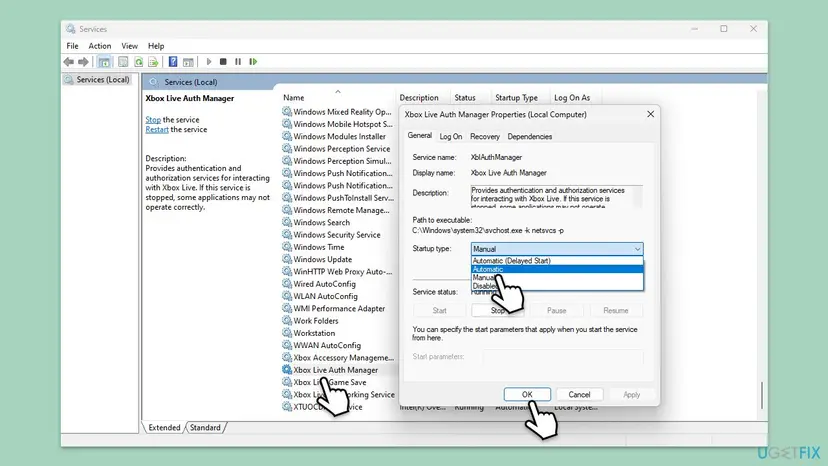
Xbox Live Auth Manager "provides authentication and authorization services for interacting with Xbox Live", in Microsoft's words. Xbox Support warns that some apps that tune a PC disable Xbox services. A sign-in token is also tied to time, and Xbox Support lists an accurate date and time as a requirement for its network connections.
| Service (display name) | Service name | Default startup type |
|---|---|---|
| Xbox Live Auth Manager | XblAuthManager | Manual |
| Xbox Live Networking Service | shown in its Properties window | Manual |
| IP Helper | iphlpsvc | Automatic |
| IKE and AuthIP IPsec Keying Modules | IKEEXT | Automatic (Trigger Start) |
- Press Win + R, type
services.mscand press Enter. - Find each service from the table and read its Startup Type column.
- If one says Disabled, double-click it, choose the default from the table under Startup type and select Apply.
- Select Start under Service status, then OK.
- Right-click Xbox Live Auth Manager and select Restart if it is running.
- Press Win + I, open Time & language > Date & time and turn on Set time automatically and Set time zone automatically. Select Sync now.
- Opening and restarting services, with screenshots: Check and restart Windows services
- Setting the clock, also when automatic time does not stick: How to fix the date and time in Windows
- Do not set everything to Automatic. Older guides, ours included, said so. Xbox Support lists Manual as the default for both Xbox Live services, and Manual is enough.
It worked if: No service from the table shows Disabled, the clock matches your phone to the minute, and the Xbox sign-in completes.
If not: If the tuning tool sets the services back after a restart, change its settings or remove it. For Store and Minecraft installs go to Fix 5, otherwise to Fix 6.
Fix 5. Install from the right place when Microsoft Store or Minecraft Launcher shows 0x89235106
10 minutesLow riskMicrosoft Store will not install a game you own or Minecraft Launcher, while free apps install normally.
A paid game or a Game Pass title needs an Xbox sign-in to check your rights before it installs, and a free app does not. That is why users report that only owned games fail. Minecraft's help center says the Launcher needs a Microsoft Store sign-in even when you download it from minecraft.net.
- In Microsoft Store, select your profile picture and check that the signed-in account is the one that bought the game. If not, sign out and sign in with that account.
- Install the game from the Xbox app instead: search for its name in the Xbox app and select Get or Install.
- For Minecraft: in the Xbox app, search for Minecraft Launcher and select Get or Install. Minecraft's help center gives the minecraft.net download page as the other source.
- Check the purchase at account.microsoft.com under Order history, signed in with the same account.
- Clear the Store cache: press Win + R, type
wsreset.exeand press Enter. The Store opens again when it is done. - Try the install again from the Xbox app.

wsreset.exe finishes, Microsoft Store opens on its own. Repair and Reset for the Store are the next steps of the same procedure. Screenshot: Windows 11 26H2.If the cache reset did not help, repair or reset Microsoft Store itself: Reset the Microsoft Store. A Microsoft community moderator also suggests checking that Country or region in Time & language > Language & region (Windows 10: Time & Language > Region) matches the country where you bought the game.
It worked if: The game or Minecraft Launcher downloads and installs, and the Launcher signs in after Microsoft Login without the Xbox error screen.
If not: If the purchase is missing from your order history, contact Xbox Support with the order details. Otherwise go to Fix 6.
Fix 6. Reset the Windows network stack
10 minutes plus a restartRead the warningThe sign-in still fails after Fixes 1 to 4, or other network apps on this PC also misbehave.
Old DNS answers, a damaged Winsock catalog or adapter settings left by removed software can break a single kind of request. Xbox Support's own step for Windows 11 when Xbox network connectivity is blocked is Settings > Network & internet > Advanced network settings > Network reset.
Network reset reinstalls every network adapter. Saved Wi-Fi networks, their passwords, VPN adapters and virtual switches are removed. Write down your Wi-Fi password and VPN settings before you start. The commands alone (flush DNS, Winsock, TCP/IP) do not remove saved networks.
Run in Terminal or Command Prompt as administrator, one line at a time
ipconfig /flushdns
netsh winsock reset
netsh int ip reset- Run the three commands above and restart the PC.
- Try the Xbox sign-in. If it works, stop here.
- If it still fails, press Win + I and open Network & internet > Advanced network settings > Network reset. On Windows 10: Network & Internet > Status > Network reset.
- Select Reset now, confirm, and let the PC restart.
- Connect to your Wi-Fi again and try the sign-in.
Every command explained, with screenshots: Reset the network and flush DNS. If your DNS servers were set by hand to a filtering service, set them back to automatic before you test.
It worked if: After the restart the PC is online again and the Xbox app, Microsoft Store and Minecraft Launcher sign in without the code.
If not: Go to Fix 7 to find out whether your Windows user profile is the cause.
Fix 7. Test a new Windows user account, then reinstall the Xbox app
20 to 30 minutesLow riskEverything above failed and the error appears in every Xbox sign-in on this PC.
Sign-in tokens and app data are stored per Windows user. A Microsoft community specialist answering a 0x89235106 thread names damaged user profiles as one cause. A new user account tells you in minutes whether the problem belongs to your profile or to the whole PC.
- Press Win + I, open Accounts > Other users and select Add account. A local account is enough for the test.
- Sign out, sign in to the new account and open the Xbox app there.
- Sign in to the Xbox app with your Microsoft account and start the game or install.
- If it works there, the cause is in your own profile. Go back to your account and reinstall the Xbox app: Installed apps > Xbox > Uninstall.
- Install it again from the Xbox app page in Microsoft Store and sign in.
- If it fails in the new account too, the cause is PC-wide. Delete the test account and read the next section.
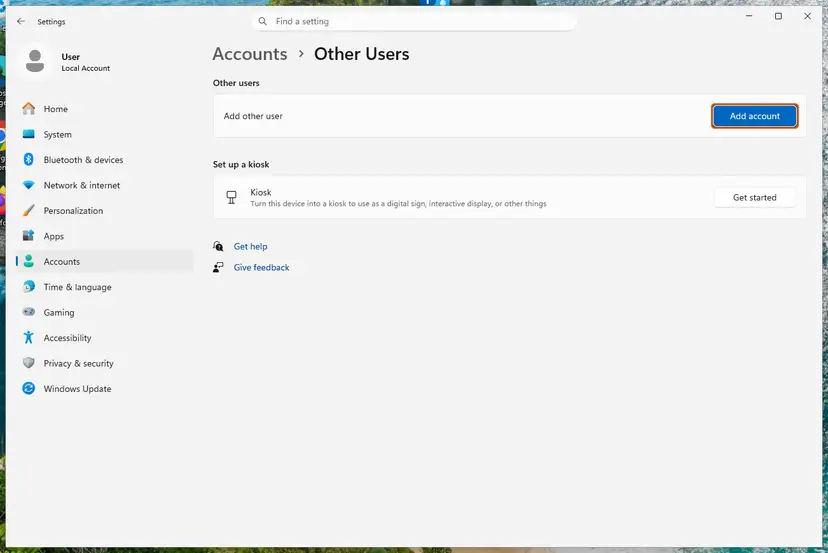
Full steps for adding the test user: Create a new user account to test a problem. Xbox Support itself says that problems with the Xbox app, not the games, are fixed by reinstalling the app from Microsoft Store. Uninstalling the app does not uninstall your games.
It worked if: The Xbox app signs in either in the new account (your profile was the cause) or in your own account after the reinstall.
If not: Collect the details listed under "If 0x89235106 is still there" and contact Xbox Support.
If 0x89235106 is still there: what to check and what to send Xbox Support
No Windows log names this code for a home user. The Xbox app writes no log that Microsoft documents for this error. What helps support is a clear picture of where the request stops, so gather these facts before you contact them.
- Windows 10: open Settings > Gaming > Xbox Networking. Xbox Support uses this page to show whether the PC can reach Xbox servers. Note what it says next to Server connectivity. We could not confirm a current Windows 11 page with the same check.
- The proxy line: the output of
netsh winhttp show proxy. - The test results: does it fail on a phone hotspot, in a new Windows user account, and with the VPN and third-party security paused?
- Your account: does the same account sign in on xbox.com, a phone or a console? Is the game in your order history or covered by your Game Pass plan?
- The exact screen: a screenshot of the message with the code, the app and its version.
If the account fails on every device, the problem is the account or Xbox services, not Windows. Check the Xbox status page again and contact Xbox Support at support.xbox.com/contact-us with the code and the facts above.
How to keep 0x89235106 from coming back
- Use one Microsoft account for Microsoft Store, the Xbox app and Minecraft Launcher.
- Let Microsoft Store update the Xbox app, the Xbox Identity Provider and Gaming Services. Check Library > Get updates after a big Windows update.
- Keep Set time automatically on.
- Read what a privacy or tuning tool will block before you run it, and keep a copy of your hosts file.
- Do not let "optimizer" tools disable Xbox Live services or edit the hosts file if you play Xbox games on PC.
- Do not leave a proxy or VPN on all the time when you install games, unless you need it.
- Do not turn off Windows Defender Firewall to make Xbox work. Xbox Support says its connections need the firewall on with the default policy.
- Do not set Xbox services to Automatic by hand. Manual is their normal state.
Frequently asked questions
What does error code 0x89235106 mean?
It means the Xbox sign-in request from your PC failed with a network error. Microsoft's Game Development Kit table gives the code the name E_XAL_NETWORK and the description "A network error occurred while processing the request". XAL is the Xbox Authentication Library that signs you in to Xbox services. The code does not mean the PC is offline: Microsoft has a different code for that, 0x89235006. Most often an outage, a stale sign-in or something that blocks Xbox addresses on the PC is behind it.
Why does the Xbox app say I am not connected to the internet when my internet works?
Because only the Xbox sign-in request has to fail for this message to appear. The Xbox app turns E_XAL_NETWORK into the general text "You're not connected to the internet", but websites can still open. A proxy, a VPN, a hosts file line from a privacy tool or third-party security software can block the Xbox sign-in addresses alone. Start with Fix 1, then go through Fix 2 and Fix 3.
Why does Microsoft Store show 0x89235106 only for games I own?
A paid game or a Game Pass title has to confirm your rights through an Xbox sign-in before it installs, and a free app does not. When that sign-in request fails, Microsoft Store shows "Can't install this app through Microsoft Store" with 0x89235106 while free apps install normally. Check that the Store is signed in with the account that bought the game, install it from the Xbox app instead, and confirm the purchase in your order history (Fix 5).
How do I fix 0x89235106 in Minecraft Launcher?
Sign in to Microsoft Store and the Xbox app with the Microsoft account you use for Minecraft, then install the Launcher from the Xbox app by searching for Minecraft Launcher. Minecraft's help center gives the minecraft.net download page as the other source and says the Launcher still needs a Microsoft Store sign-in. If Microsoft Login opens the Xbox "You're not connected to the internet" screen, the Xbox sign-in itself fails, so go through Fixes 1 to 3.
Is 0x89235106 caused by Xbox being down?
Sometimes. The code says that the network request failed, and an outage on the Xbox side produces exactly that. Open the Xbox status page at support.xbox.com before you change anything on your PC. If a service shows an alert, Xbox Support suggests signing in under Notifications to get a message when it is up again. If the status page is all green and only your PC fails, the cause is local.
Will opening my NAT type or forwarding ports fix 0x89235106?
No, that does not target this code. Xbox Support ties NAT type, Teredo and server connectivity to multiplayer and party chat in select games, not to signing in. A Strict NAT can stop you from joining some matches, but it does not stop the Xbox app from fetching your sign-in token. Leave router port settings alone for this error and work through the sign-in fixes instead.
Should I turn off Windows Defender Firewall to get rid of 0x89235106?
No. Older guides, including the earlier version of this page, suggested it, but Xbox Support says Xbox network connections need Windows Defender Firewall on with its default policy. Turning it off weakens the PC and does not address a blocked sign-in. If you suspect third-party security software, pause it for one test, try the sign-in and turn it back on right away.
What is the Xbox Identity Provider and do I need it?
It is a free system app from Microsoft. Its Microsoft Store page describes it as "a system app that enables PC games to connect to Xbox Live". Games and the Xbox app use it to sign you in. If it is missing or outdated, Xbox sign-in on the PC can fail. Open its page in Microsoft Store and select Get, Install or Update, then restart the PC and sign in again (Fix 2).
Is 0x89235106 the same problem as error 0x80073CF6?
No. 0x80073CF6 means Windows could not register an app package during an install or update, which is a problem on the disk or in the package. 0x89235106 is a failed Xbox sign-in request on the network. You can meet both while installing a game, but the fixes differ. When Gaming Services will not install or update, our 0x80073CF6 guide covers that repair.
What does the Spanish message "No pudimos aplicar tus derechos de Xbox" mean?
In English it reads roughly: "We couldn't apply your Xbox entitlements. Reset your connection in account settings to apply Game Pass." It is the Game Pass side of the same failed sign-in. The PC could not confirm your subscription with Xbox. Sign out and back in with the account that pays for Game Pass and check that it is a PC or Ultimate plan, because Game Pass for Console does not work on PC (Fix 1). This page is in English, but every step applies to Windows in any language.
Sources
- Microsoft Learn: Error codes, Microsoft Game Development Kit (E_XAL_NETWORK 0x89235106 and neighbors) (learn.microsoft.com)
- Microsoft Store: Xbox Identity Provider (apps.microsoft.com)
- Microsoft Learn: Xbox services sign-in for title websites (sign-in token addresses) (learn.microsoft.com)
Did this fix work?
One click, no account. It tells the next reader which guides are worth their time.
Questions and experiences: fix Xbox app error 0x89235106 in Windows
Still broken, or found a fix we did not cover? Ask here: members and our editors answer. Reading is open; writing needs a free account.
…