
How to fix error code 0x80073CF6 in Windows 10?

Prefer to fix it yourself? The manual steps follow.
- 7methods
- 5 to 30 minutes
- Intermediate
Applies to Windows 11, Windows 10; Microsoft Store apps and updates, the Xbox app and Game Pass games on PC, winget, Add-AppxPackage and .msix or .appx installers; a short section for Xbox consoles
7 methods in this guide
- What the error means
- The second error code
- Why it appears
- Apps that show it
- On an Xbox console
- The fixes
- 1. Restart and update the Store
- 2. Repair the game drive
- 3. Repair Microsoft Store
- 4. Register with PowerShell
- 5. Clear a half-removed package
- 6. Test a new user account
- 7. Update and repair Windows
- Still broken: read the log
- Keep it from coming back
- FAQ
I get the error 0x80073CF6 on Windows when updating and when installing apps on Windows 10. I get the error code when restarting the Xbox, but my friend got the same error when updating an application via Windows Store and after an operating system upgrade. I tried to clean the cache and checked the status on Xbox. I haven't had any luck with this. Can you help?
Error 0x80073CF6 means that Windows put an app package on the disk but could not register it for your account, so the install or update stops. In the Xbox app, Xbox Support says the drive you install the game to is not compatible. Restart the PC and update Microsoft Store first, and for a game run the Drive Compatibility Tool in the Xbox app.
0x80073CF6 is the code for "Package could not be registered". Close the app, restart the PC, open Microsoft Store, select Library > Get updates and try the install again (Fix 1). For a game in the Xbox app, select your profile picture, then Support, and run the Drive Compatibility Tool and the Gaming Services Repair Tool (Fix 2). If you used PowerShell, read the second error code in the message before anything else (Fix 4).
| Error | 0x80073CF6, name ERROR_INSTALL_REGISTRATION_FAILURE, text "Package could not be registered." |
|---|---|
| Where it appears | Under the Install or Update button in Microsoft Store, in the Xbox app when a game installs, in winget as "Failed to install or upgrade Microsoft Store package. Error code: 0x80073cf6", in PowerShell after Add-AppxPackage, and on an Xbox console after a system update. |
| Main cause | Windows could not finish the registration step of an app package: something holds its files or data, an older copy was only half removed, or the drive or the user profile does not accept the registration. |
| Fastest fix | Close the app, restart the PC, then Microsoft Store > Library > Get updates and install again (Fix 1). For Xbox app games: the Drive Compatibility Tool (Fix 2). |
| Also written as | 0x80073cf6, 0X80073CF6, 80073cf6, 15606, 0x3CF6, "Deployment failed with HRESULT: 0x80073CF6", "AddPackage failed with HRESULT 0x80073CF6". |
| Affects | Windows 11 and Windows 10. The same code was reported on Windows 8 in 2013. Xbox One and Xbox Series consoles show it after a system update. |
| Microsoft's status | A documented deployment error, not one bug with one patch. Microsoft's table gives it no list of causes and points to the AppXDeployment-Server event log. Xbox Support has its own page for the code. |
| Where the cause is logged | Event Viewer > Applications and Services Logs > Microsoft > Windows > AppXDeployment-Server > Microsoft-Windows-AppXDeploymentServer/Operational, or Get-AppxLog in PowerShell. |
| Sister code | 0x80073CF3 is the code before registration: the package failed its dependency or conflict check. |
| Time to fix | About 5 minutes when a restart and Store updates are enough. Up to 30 minutes for a drive repair or a package cleanup. |
Facts checked on 14 October 2026. Steps written for Windows 11 (25H2 and 26H2) and Windows 10 22H2.
What error code 0x80073CF6 means
0x80073CF6 is the HRESULT form of Windows system error 15606, which Microsoft names ERROR_INSTALL_REGISTRATION_FAILURE. The text that Windows stores for it is "Package could not be registered." Apps from Microsoft Store, games from the Xbox app and built-in apps are all app packages, with the file type .msix or .appx.
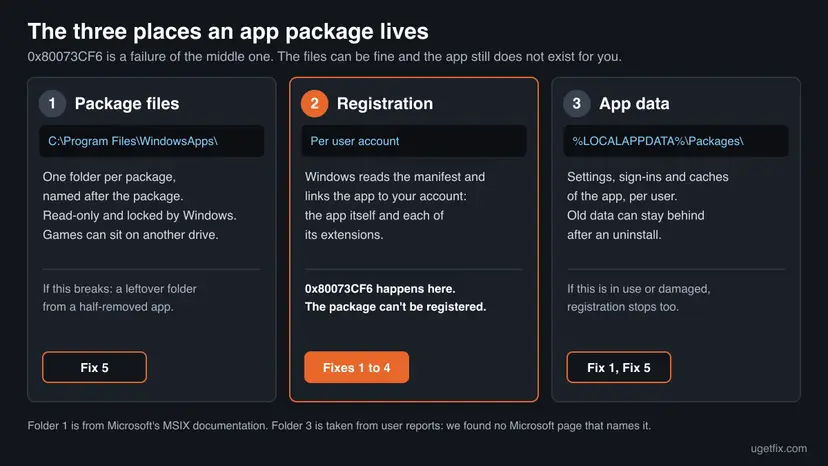
Installing a package has several stages. Windows downloads it, checks it, puts its files on the disk and, last of all, registers it for the user account. Registration is the stage that makes the app exist for you. The code says that this last stage did not finish, so the files may be on the disk while the app is missing or will not update.
- HRESULT
- 0x80073CF6 (people also type 0x80073cf6, 0X80073CF6 and 80073cf6)
- Win32 error
- 15606, in hexadecimal 0x3CF6
- Name
ERROR_INSTALL_REGISTRATION_FAILURE- Text in Windows
- Package could not be registered.
- Text in Microsoft's developer table
- The package can't be registered. For more information, check the AppXDeployment-Server event log.
- Xbox Support, on a PC
- The drive you're installing to is incompatible and needs to be configured properly before games can be installed on it.
Microsoft's developer documentation gives the general meaning: a package could not be registered, for a reason that is written in the log. Xbox Support gives the meaning for one situation, a game install on a PC: the drive is not compatible. If your code comes from the Xbox app, start with the drive (Fix 2). Everywhere else, start with Fix 1.
The second error code inside the 0x80073CF6 message
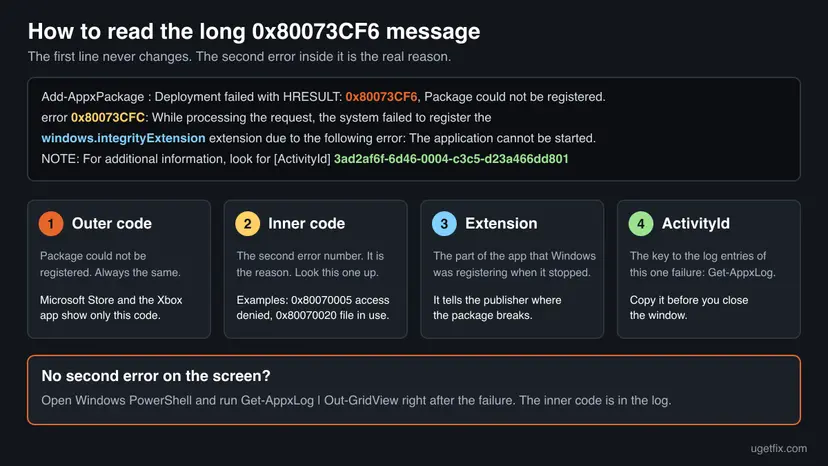
0x80073CF6 on its own never tells you why registration failed. The reason is a second error that Windows attaches to it. PowerShell prints that second error on the next line. Microsoft Store, the Xbox app and winget show only the outer code, and you get the inner one from the log.
| Inner code | Microsoft's text for it | What it means here | Fix |
|---|---|---|---|
| 0x80070020 | The process cannot access the file because it is being used by another process. | Something still holds a file of the package. Microsoft's winget maintainers decoded this pair in one report. | Fix 1 |
| 0x80073D05 | An error occurred while deleting the package's previously existing application data. | Old data of the app is open or cannot be removed. Microsoft's example: a log file open in a text editor. | Fix 1, then Fix 5 |
| 0x80073D02 | The package couldn't be installed because resources it modifies are currently in use. | The app or a helper of it is running. | Fix 1 |
| 0x80070005 | Access is denied. | Your account may not write the registration. In one winget report the permissions of a key in the user's own registry hive were wrong. | Fix 6 |
| 0x80073CFC | The app can't be started. Try reinstalling the app. | The installed package is damaged, so its manifest cannot be registered again. | Fix 3, then Fix 5 |
| 0x80070003 | The system cannot find the path specified. | The package folder or its drive is not where Windows expects it. | Fix 2 for games, otherwise Fix 5 |
The long message ends with "look for [ActivityId]" and a long number. Copy it. With Get-AppxLog -ActivityId it selects the log entries of this one failure, which is what a publisher's support team asks for.
The table holds the inner codes that we found in real reports. Yours may be another one. Search Microsoft's documentation for the code exactly as it is printed.
Why the package could not be registered: the causes, ranked
Most often the cause is temporary: the app, a helper process or an unfinished update still holds the package, and a restart clears it. For games the usual cause is the drive. Less often an earlier install was removed only in part. Rarely the user profile or Windows itself is damaged.
| Cause | How often | How to tell | Fix |
|---|---|---|---|
| The app, a launcher or a background helper still holds the package, or an update is half done. | Most often | The code appears during an update of an app you used a moment ago, or right after another install. | Fix 1 |
| The drive for games is not compatible: used on another PC, or set up before an upgrade from Windows 10 to Windows 11. | Most often for Xbox app games | Games fail on one drive and install on another. The Xbox app says the drive needs repairing. | Fix 2 |
| Microsoft Store or Gaming Services is out of date or its own package is damaged. | Often | Every Store install fails, or the Store will not open. | Fix 3 |
| The registration command is used the wrong way, or the manifest of the installed package is damaged. | Often with PowerShell | Add-AppxPackage -Register answers with the code and a second error. | Fix 4 |
| An older copy of the app was removed only in part: its registration, folder or data stayed behind. | Sometimes | One app fails again and again, also after a restart, while other apps install. | Fix 5 |
| The user profile does not accept the registration. | Rarely | Nothing installs in your account, and everything installs in a new account. | Fix 6 |
| Windows is out of date or its app platform is damaged. | Rarely | Nothing installs in any account. | Fix 7 |
The column "How often" is our reading of Microsoft's documentation, the Xbox Support pages and the reports on Microsoft Q&A and GitHub. Microsoft publishes no numbers for this error, and its table lists no causes for it at all.
Where 0x80073CF6 shows up: Microsoft Store, the Xbox app, winget and PowerShell
| Where | What you see | Start with |
|---|---|---|
| Microsoft Store | The code under the Install or Update button, sometimes for every app. | Fix 1, then Fix 3 |
| Xbox app and Game Pass games on a PC | The code when a game starts to install or update. | Fix 2 |
| winget | Failed to install or upgrade Microsoft Store package. Error code: 0x80073cf6 | Fix 1, then Fix 3 |
| Windows PowerShell | Add-AppxPackage : Deployment failed with HRESULT: 0x80073CF6, Package could not be registered. and a second error. | Fix 4 |
| App Installer with an .msix or .appx file | The install stops near the end. The App Installer log holds an "Extended Error Code". | Fix 1, then Fix 5 |
| The setup program of a desktop app that is delivered as a package | AddPackage failed with HRESULT 0x80073CF6 in the setup window or its log. | Fix 1, then Fix 5 |
| Xbox One or Xbox Series console | The code after an update has downloaded and the console has restarted. | The console section below |
The winget line is a fixed text in winget's source code with a placeholder for the code. The program prints it when the install of a Microsoft Store package fails, so for winget this is the Store's error and the Store fixes apply.
- Minecraft Launcher, Microsoft Flight Simulator and other games: they install through the Xbox app or Microsoft Store, so Fix 2 and Fix 3 are the place to start. We found no Microsoft page with a cause that is specific to one game.
- Desktop apps with their own installer: reports on GitHub show the code from setup programs that install an MSIX package in the background. The publisher's log names the package, and Fix 5 works with that name.
- Work or school PCs: winget has separate messages for a Store client or an app that is blocked by policy. If you see one of those, ask the administrator.
Error 0x80073CF6 on an Xbox console
On a console the code appears after a system update has downloaded and the console has restarted. Xbox Support gives two solutions for it, and neither involves a PC. The fixes further down this page are for Windows and do not apply to a console.
- Open the Xbox status page on a phone or a PC. If a service shows an alert, wait until it is running again and then restart the console.
- If the console shows a Something went wrong screen with a code that starts with E, select Restart this Xbox with the D-pad and the A button.
- If the screen returns, select Troubleshoot to open the Xbox Startup Troubleshooter.
- Select Reset this Xbox and, when asked, Keep games and apps. Xbox Support says this resets the system and removes possibly corrupted data without deleting your games or apps.
- If that fails too, follow the offline system update steps on Xbox Support's startup error page. They need a USB flash drive formatted as NTFS with at least 6 GB of space.
Remove everything erases all accounts, saved games and settings that are not synchronized with the Xbox network. Xbox Support calls it a last resort. Use Keep games and apps first.
A user on the Microsoft Flight Simulator forum reported in 2021 that the code went away after a reset that kept games and apps, after uninstalling and reinstalling the game had not helped. That is one report, and it matches the order above.
How to fix error 0x80073CF6 in Windows 11 and Windows 10
The address of this page says Windows 10, but the fixes are written for Windows 11 and Windows 10 both, with the two paths where they differ. Fix 1 is for everyone. Fix 2 is for games, Fix 3 for Microsoft Store, Fix 4 for PowerShell. Fixes 5 to 7 are for the code that keeps coming back.
| What you see or have | Start with |
|---|---|
| The code appeared once, during an install or update in Microsoft Store. | Fix 1 |
| A game in the Xbox app or a Game Pass game will not install, most of all on a second or external drive. | Fix 2 |
| Every app in Microsoft Store fails, or winget says "Failed to install or upgrade Microsoft Store package". | Fix 1, then Fix 3 |
PowerShell shows "Deployment failed with HRESULT: 0x80073CF6" after Add-AppxPackage. | Fix 4 |
| One app fails every time, also after a restart, or its setup program reports "AddPackage failed". | Fix 5 |
| Nothing installs in your account, and you have never tried another account. | Fix 6 |
| The code started after a Windows upgrade and no fix above helped. | Fix 7 |
| An Xbox console shows the code after a system update. | The console section above |
Fix 1. Close what holds the package, restart and update Microsoft Store
5 to 10 minutesNo riskYou see the code for the first time, in Microsoft Store, winget, App Installer or a setup program.
Registration fails when a file or the data of the package is in use. Microsoft's own descriptions of the inner codes say so: a file used by another process, resources currently in use, open files in the app data. A restart ends every process that could hold them, and a Store update repairs a half-finished one.
- Close the app that you are installing or updating, and any launcher that belongs to it.
- Press Ctrl + Alt + Del, select Task Manager, select a program that is still listed for that app and select End task.
- Select Start > Power > Restart.
- After the restart, open Microsoft Store and sign in with your Microsoft account.
- Select Library, then Get updates, and wait until the list is empty. Microsoft Store updates itself in the same run.
- Start the install or the update again, from the same place where it failed.
- Windows 10: in Microsoft Store select See more > Downloads and updates > Get updates.
- Signed in with the right account: Microsoft's help page for Store app problems begins with signing in to your Microsoft account. For games, Xbox Support asks for the same account in the Store and in the Xbox app.
- Browser helpers: in one report on GitHub a helper program of the app that the browser had started kept the old app data open. Closing the browser, or installing right after the restart before you open it, released the data.
It worked if: The install or update runs to the end, and the app starts from the Start menu.
If not: For a game go to Fix 2. For Microsoft Store and winget go to Fix 3. For one app that fails every time go to Fix 5.
Fix 2. Run the Drive Compatibility Tool and the Gaming Services Repair Tool in the Xbox app
10 to 30 minutesRead the warningA game from the Xbox app or Game Pass stops with 0x80073CF6 on a PC or a handheld.
Xbox Support states that on a PC this code means the install drive is incompatible and has to be configured before games can go on it. The Drive Compatibility Tool does that configuration. The Gaming Services Repair Tool repairs the service that installs games.
Xbox Support says that in rare cases the tool has to move or uninstall games and apps on the drive. It tells you before it does and you can stop. Saved data is not lost, but a large game means a long download. Other files on the drive are not part of this, and a copy never hurts: Back up your files (Windows Backup, File History, Time Machine)
- If the games are on an external drive or an SD card, connect it.
- Open the Xbox app and select your profile picture.
- Select Support, then Drive Compatibility Tool. The entry is shown only while an incompatible drive is attached.
- Follow the instructions until the app says that the storage device is ready.
- If there is no such entry, or the game still fails, select your profile picture and Support again.
- Select Gaming Services Repair Tool, then Start Troubleshooting, and let it finish.
- Restart the PC and install the game again.
| Check | What Xbox Support says |
|---|---|
| File system of the game drive | Games must be installed to a drive formatted as an NTFS volume with a 4K cluster size. Other volume types are not supported. |
| When a drive becomes incompatible | Typically when an external drive is used on several PCs, or after a major upgrade such as Windows 10 to Windows 11. |
| Is the drive broken? | No. The message does not mean the drive is corrupt. It has to be configured before the Xbox app can use it. |
| Drive missing from the list | Profile picture > Settings > Installation options > Not seeing your drives? shows every drive and the error for each. |
| Repair tool will not run | On Windows 22H2 or older it may need the local administrator account. Xbox Support's advice is to update Windows. |
- A quick test: change the install location to the C: drive under Settings > Installation options and install a small game. If that works, the other drive is the cause.
- After the repair: if you use the external drive on another computer, you may have to run the tool again.
- Antivirus: Xbox Support notes that third-party antivirus software can cause install errors and suggests suspending it for the test only. Turn it back on afterwards: Turn off Microsoft Defender protection for a moment
It worked if: The Xbox app reports that the storage device is ready, and the game downloads and installs past the point where it stopped.
If not: Go to Fix 3, because games use the Microsoft Store client as well. Then read the log as described under "If the error is still there".
Fix 3. Repair or reset Microsoft Store, then run the Store apps troubleshooter
10 minutesLow riskEvery install in Microsoft Store fails, the Store will not open, or winget cannot install Store packages.
The Store is an app package too. When its cache or its own package is damaged, it cannot hand new packages over for registration. Microsoft's help pages give the cache reset first, then Repair and Reset. Xbox Support adds the Windows Store Apps troubleshooter for this code.
- Press Win + R, type
wsreset.exeand select OK. - Wait. A blank Command Prompt window opens, closes after about ten seconds, and Microsoft Store opens by itself.
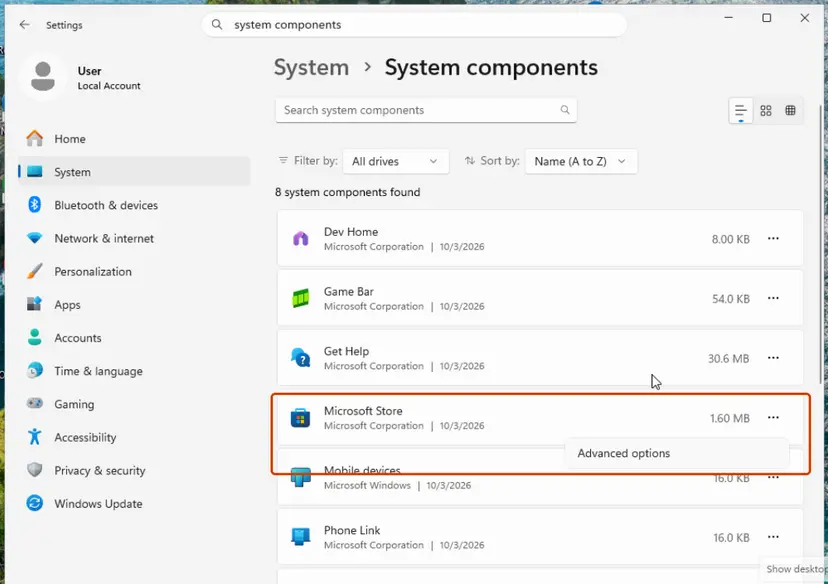
- Try the install. If the code is back, select Start > Settings > System > System components.
- Next to Microsoft Store, select the three dots and Advanced options.
- Select Repair and try the install again.
- If Repair does not help, select Reset on the same page, open the Store and sign in again.
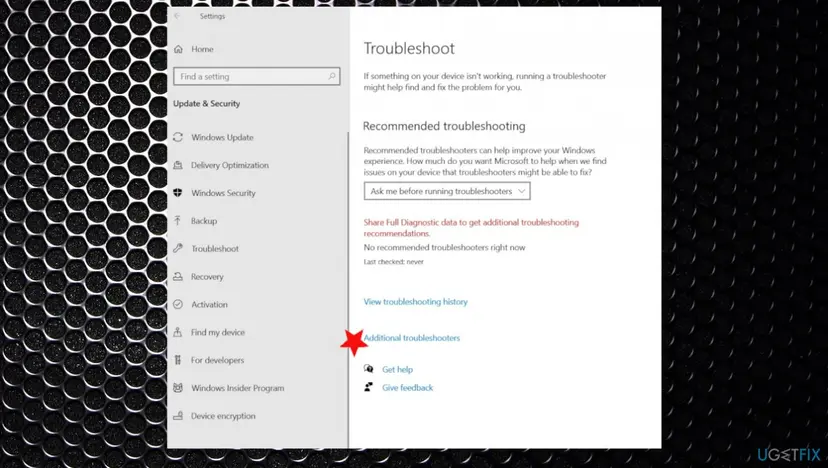
- On Windows 10, run the troubleshooter: Start > Settings > Update & Security > Troubleshoot > Additional troubleshooters > Windows Store Apps > Run the troubleshooter.
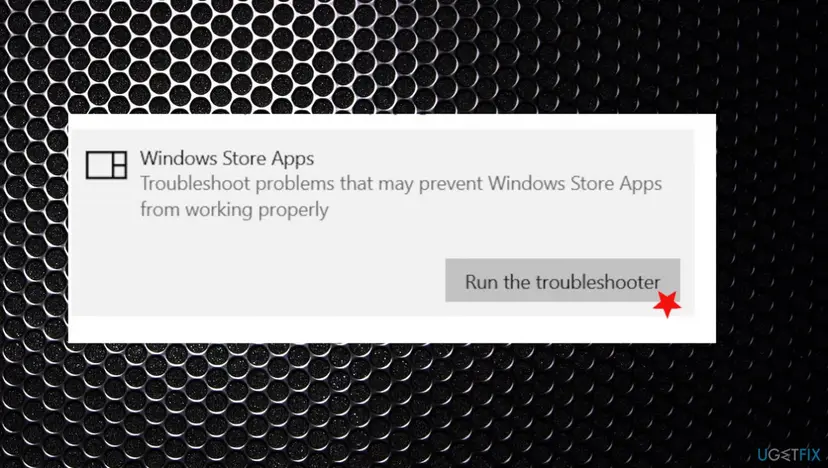
- Windows 10 path for Repair and Reset: Start > Settings > Apps > Apps & features > Microsoft Store > Advanced options.
- Windows 11 and the troubleshooter: Microsoft's own list of fixes for Store apps has the troubleshooter step for Windows 10 only. We could not confirm that Windows 11 25H2 and 26H2 still offer a Windows Store Apps troubleshooter.
- What Reset removes: the Store's data on this PC, which means the sign-in. Purchases belong to your Microsoft account and stay.
- The Store is missing: Microsoft's help page offers it as a download from the Store's website.
The same steps with every screen: Reset the Microsoft Store
It worked if: Microsoft Store opens, installs the app that failed, and winget installs Store packages again.
If not: If the Store itself is the package that will not register, go to Fix 4. Otherwise go to Fix 5.
Fix 4. Register the package again the right way with Add-AppxPackage
10 minutesLow riskYou ran Add-AppxPackage -Register and got the code, or an installed app or the Store itself will not start.
Microsoft documents that -Register alone registers an app in development mode, from a folder of unpackaged files. To register an existing installation you must add -DisableDevelopmentMode. Many commands that are copied around leave that out or point at the wrong folder, and the answer is 0x80073CF6.
- Select Start, type PowerShell and open Windows PowerShell the normal way, not as administrator.
- Run the first command below with a part of the app's name between the asterisks.
- Check that it prints exactly one package with an InstallLocation. No output means the app is not installed for your account, and there is nothing to register: install it from the Store instead.
- Run the second block with the same name.
- No red text means the registration worked. Start the app.
- If red text appears, copy the second error code and the ActivityId, and look the code up in the table above.
1. Find the package
Get-AppxPackage -Name '*WindowsStore*' | Select-Object Name, Version, InstallLocation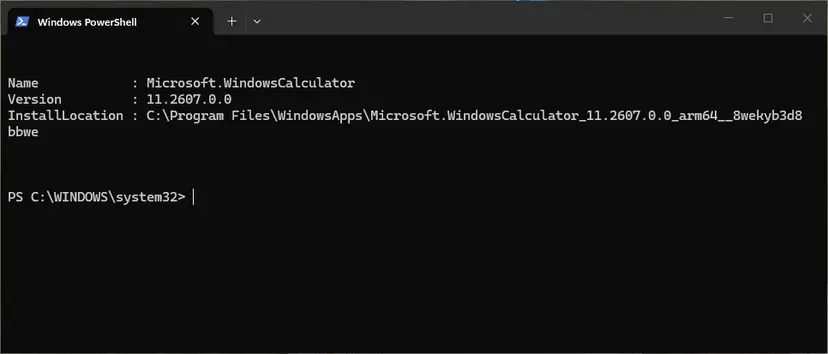
2. Register the existing installation (Microsoft's documented form)
$InstallLocation = Get-AppxPackage -Name '*WindowsStore*' |
    Select-Object -ExpandProperty InstallLocation
$ManifestPath = $InstallLocation + '\AppxManifest.xml'
Add-AppxPackage -Path $ManifestPath -Register -DisableDevelopmentMode| What you typed or see | What is wrong | Do this |
|---|---|---|
Add-AppxPackage -Register with no -DisableDevelopmentMode | Windows treats the folder as an app under development. | Add -DisableDevelopmentMode, as in block 2. |
| A path with a version number copied from a web page | That folder does not exist on your PC. Versions change with every update. | Let block 2 read the path from your own PC. |
| An administrator window | Packages are registered per user. The command then acts for the administrator account. | Use a normal window signed in as the user who has the error. |
| Second error 0x80073CFC | The installed package is damaged. | Fix 3 for the Store, Fix 5 for other apps. |
| Second error 0x80070005 | Access is denied. | Fix 6. |
- A report for the Store on Windows 11: a user on Microsoft Q&A wrote in July 2026 that registering
Microsoft.WindowsStorefor all users from an administrator window let installs work, but only until the next time. If you have to repeat a registration, the cause is elsewhere: go to Fix 6. - A report about a framework: a Super User answer traced the code for the Store to a C++ runtime framework version that the Store's manifest named and the PC did not have. A missing framework has its own code and its own page: error 0x80073CF3.
The procedure with its Windows 10 notes: How to re-register Microsoft Store apps with PowerShell
It worked if: The command ends without red text, and the app or the Store opens from the Start menu.
If not: Use the second error code to choose: a file in use means Fix 1, a damaged package means Fix 5, access denied means Fix 6.
Fix 5. Remove what an earlier install left behind, then install again
15 minutesRead the warningOne app stops with the code every time, also after a restart, or its setup program reports that AddPackage failed.
A package can be removed in part: the registration goes while the folder or the data stays, or the other way round. The new install then meets the remains and cannot register. Removing the old package for every user and clearing its data gives the install a clean start.
Settings, sign-ins, local sessions and game saves that exist only on this PC go with the package and its data folder. Sign in to the app's cloud sync first if it has one, or copy the data folder to another place: Back up your files (Windows Backup, File History, Time Machine)
- Press Win + I and open Apps > Installed apps. On Windows 10 open Apps > Apps & features.
- If the app is listed, select the three dots, then Advanced options, and try Repair and then Reset.
- If that does not help, select Uninstall for the app and restart the PC.
- Open Windows PowerShell as administrator and run the first command below with a part of the app's name.
- If it still prints a package, run the second command with the PackageFullName from the output.
- Restart the PC once more.
- Install the app again from one source only: Microsoft Store or the publisher's installer.
Windows PowerShell as administrator: find the package for every user, then remove it
Get-AppxPackage -AllUsers -Name '*PartOfTheName*' | Select-Object Name, PackageFullName, Status
Remove-AppxPackage -Package 'PackageFullName-from-the-first-command' -AllUsers| What is left | How to see it | What to do |
|---|---|---|
| A registration with a status other than Ok | The Status column of the first command. Reports show values such as Modified and NeedsRemediation. | Run the second command, restart, install. |
| An app data folder with no package | A folder that begins with the app's name under %LOCALAPPDATA%\Packages, while the first command prints nothing. | Restart, copy the folder away, delete it before you open other programs, install. |
| A package folder with no registration | The setup log names a folder under C:\Program Files\WindowsApps, while the first command prints nothing. | Do not change permissions there. See "If the error is still there". |
- The middle row comes from one user's report about a desktop app on Windows 11. After a Windows feature upgrade the old data folder could not be deleted by the installer, and removing it by hand right after a restart let the install finish. The data in it was lost.
Remove-AppxPackagekeeps nothing by default. Microsoft documents a-PreserveApplicationDataswitch for the cases where the data must stay.- The Settings steps for both Windows versions: How to repair or reset an app in Windows and Uninstall a program or app in Windows
It worked if: The first command prints nothing for the app before the new install, and afterwards it prints one package with the status Ok.
If not: Go to Fix 6 to find out whether your account is the cause. If the setup log names a folder that you cannot remove, read "If the error is still there".
Fix 6. Test a new user account to find out whether your profile is the cause
10 minutesNo riskNothing installs in your account, or the second error code is 0x80070005, access denied.
Microsoft's documentation says that app packages are installed per user, not for the whole system. A registration is written into the profile of one account. If the same app installs in a fresh account, Windows and the package are fine and only your profile refuses the registration.
- Press Win + I and open Accounts > Other users.
- Next to Add other user, select Add account.
- Select I don't have this person's sign-in information, then Add a user without a Microsoft account.
- Enter a name and a password and select Next.
- Sign out, sign in to the new account and open Microsoft Store. Sign in to the Store with your Microsoft account when it asks.
- Install the app that failed.
- Note the result: it decides the next step in the table below.
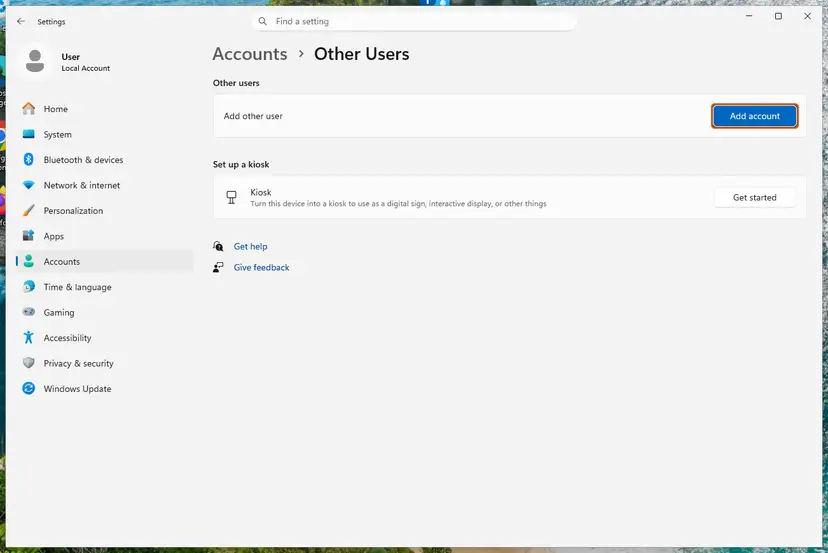
| Result in the new account | What it means | Next step |
|---|---|---|
| The app installs | Your own profile is the cause. | Fix 4 in your own account. If it fails again, keep the new account and move your files to it. |
| The same code | The cause is in Windows, the drive or the package, not in the profile. | Fix 7, and delete the test account. |
| The app installs only as administrator | Permissions in the profile are wrong. | See the reports below, and ask a technician before you edit permissions. |
- A permissions report: in a 2026 report in Microsoft's winget repository, registration failed with 0x80070005 and 0x80073CF6 for the normal user only. The key
HKCU\Software\Classes\ActivatableClasses\Packagehad lost its inherited permissions, and restoring the inheritance ended the error. - A profile size report: a commenter on Microsoft Q&A wrote that the code appeared when the profile's registry file, NTUSER.DAT in
%USERPROFILE%, had grown to 2 GB. We could not confirm this in Microsoft's documentation. - Microsoft's warning: its article about Store apps and changed permissions says that wide permission changes in the registry and file system cannot be rolled back. Change only what a log entry names.
- Windows 10 has the same page under Settings > Accounts > Family & other users > Add someone else to this PC. Step by step: Create a new user account to test a problem
It worked if: You know whether the app installs in a clean profile, and with that which half of the PC holds the cause.
If not: If the new account shows the same code, go to Fix 7.
Fix 7. Update Windows, then repair Windows and keep your files
30 to 90 minutesRead the warningThe code appears for every app in every account, or it started after a Windows upgrade and nothing above helped.
Xbox Support's last solution for this code is the Windows Update troubleshooter, and Microsoft's Store pages put Windows updates near the top. For a repair tool that still fails, Xbox Support says the PC may have a critical system issue that only a reset or a Windows upgrade removes.
Reset this PC with Keep my files keeps personal files and removes installed apps and settings. Back up first, and try the repair install with Windows Update before a reset: Back up your files (Windows Backup, File History, Time Machine)
- Select Start > Settings > Windows Update > Check for updates and install everything, including the restart.
- Select Start > Settings > System > Troubleshoot > Other troubleshooters and select Run next to Windows Update.
- Try the install again.
- If the code is still there, open Settings > System > Recovery and select Reinstall now under Fix problems using Windows Update.
- Let Windows reinstall the current version. Apps, files and settings stay.
- Only if that fails too, use Reset this PC with Keep my files.
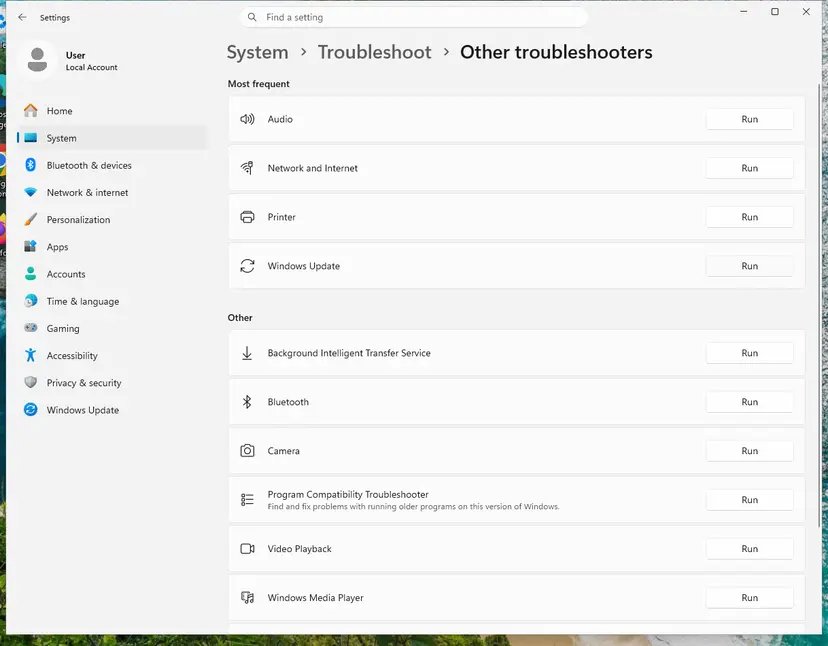

- Windows 10: updates are under Settings > Update & Security > Windows Update, and the troubleshooter under Troubleshoot > Additional troubleshooters. Xbox Support's wording is to type "Find and fix problems with Windows Update" into the Settings search box.
- Windows 10 after October 2025: Microsoft ended support for Windows 10 on 14 October 2025. Apps can still be installed, but the Xbox app already asks for 22H2 or newer for some features.
- The two procedures: Run the Windows Update troubleshooter and Reinstall Windows without losing files
It worked if: Windows reports that it is up to date, and Store apps and games install in every account.
If not: Collect the log entry as described in the next section and contact Microsoft Support or Xbox Support with it.
If the error is still there: find the inner code in the deployment log
Microsoft's entry for 0x80073CF6 has one piece of advice: check the AppXDeployment-Server event log. That log holds the second error code and the name of the package even when the screen showed only the outer code.
- Make the error appear once more and note the time.
- Open Windows PowerShell and run the first command below. A table opens in its own window.
- Look for the rows with the outer code and read the lines around them for a second code and a package name.
- For all older failures, open PowerShell as administrator and run the second command.
- If you have an ActivityId from a long message, run the third command with it.
- To read the same entries in Event Viewer, run
eventvwr.mscand expand Applications and Services Logs > Microsoft > Windows > AppXDeployment-Server. - Open Microsoft-Windows-AppXDeploymentServer/Operational and read the Error entries at the time you noted.
The last deployment, every stored log, or one failure
Get-AppxLog | Out-GridView
Get-AppxLog -All | Out-GridView
Get-AppxLog -ActivityId 'paste-the-ActivityId-here'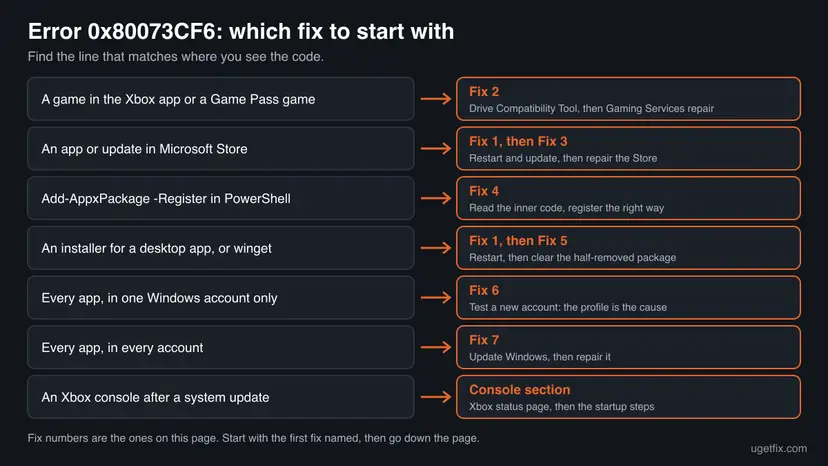
- What to send to support: the full text of the error entry and the ActivityId. Add the Windows edition and OS build from Settings > System > About, the drive you install to with its file system, and the result of the new account test.
- A package folder you cannot remove: one user reported that a leftover folder under
C:\Program Files\WindowsAppsblocked every new install and that taking ownership of it did not help. Microsoft says these files are heavily locked down and that Windows stops apps from starting if they are tampered with. Do not change permissions there. Send the setup log to the publisher. - Signs that it is not your PC: the Xbox status page shows an alert, or many people report the same game or app on the same day. Wait and try again before you change anything.
- Signs of hardware: games fail on one drive only, and the Drive Compatibility Tool cannot repair it after a restart. Test the drive on its own before you blame Windows. Nothing in Microsoft's description of the code itself points to failing hardware.
- Out of space is another code: a full disk gives 0x80073CF4, and a failed download gives 0x80073CF5.
How to keep 0x80073CF6 from coming back
- Close an app before you update it, and let Microsoft Store finish its updates before you shut the PC down.
- Keep games on a drive formatted as NTFS with a 4K cluster size, which is what Xbox Support requires.
- After an upgrade from Windows 10 to Windows 11, open the Xbox app and look under Support for the Drive Compatibility Tool before you install a game.
- Install each app from one source, and uninstall it through Settings so that its registration and its data go together.
- Do not delete, rename or take ownership of folders under
C:\Program Files\WindowsApps. A folder that is gone while its registration stays is a common way to get this code. - Do not let file compression tools work on the folders where games are installed. Xbox Support advises against it.
- Do not run scripts that re-register every app for all users as a routine cure. Register the one package that failed.
- Do not change permissions across the registry or the system drive. Microsoft says such changes cannot be rolled back.
Most reports share one pattern: a package was changed while something else was still using it, or its parts were removed separately. Letting installs and uninstalls finish, and leaving the package folders to Windows, removes both.
Frequently asked questions
What does error code 0x80073CF6 mean?
It means that Windows could not register an app package. Microsoft's name for the code is ERROR_INSTALL_REGISTRATION_FAILURE, its number is 15606 and its text says that the package could not be registered. Registration is the last stage of an install or update: the files are on the disk, and Windows links the app to your user account. The code itself does not say why that failed. The reason is a second error code, shown in PowerShell after the first one and written to the AppXDeployment-Server event log in every other case. For games in the Xbox app, Xbox Support gives a narrower meaning: the install drive is not compatible.
How do I fix 0x80073CF6 in Microsoft Store?
Start with a restart. Then open Microsoft Store, sign in, select Library and Get updates, wait until every update is done and try the install again. If the code returns, press Win + R, run wsreset.exe and wait until the Store opens by itself. The next step is Repair, and then Reset, on the Store's Advanced options page, which Windows 11 keeps under Settings > System > System components. On Windows 10 you can also run the Windows Store Apps troubleshooter. If every app still fails, test a new user account, because the registration is stored per account.
Why does the Xbox app show 0x80073CF6 when I install a Game Pass game?
Because the drive is not set up for Xbox games, according to Xbox Support. Its page for this code says that on a PC the drive you install to is incompatible and must be configured first. That happens when an external drive was used on another PC, or when Windows was upgraded from Windows 10 to Windows 11 after the drive was set up. Open the Xbox app, select your profile picture, then Support, and run the Drive Compatibility Tool. The entry appears only while an incompatible drive is attached. Game drives must be NTFS with a 4K cluster size.
Does 0x80073CF6 appear on both Windows 10 and Windows 11?
Yes. The code belongs to the app package system that both versions share, and the reports we read come from both, and from Windows 8 before them. The address of this page names Windows 10 because the first version of the guide was written for it. The fixes here are written for Windows 11 25H2 and 26H2 and for Windows 10 22H2, with both paths where the menus differ. Microsoft ended support for Windows 10 on 14 October 2025. Apps still install there, but the Xbox app asks for 22H2 or newer for some of its features.
What does "Failed to install or upgrade Microsoft Store package. Error code: 0x80073cf6" mean?
It is winget's message for a Microsoft Store package that did not install. The sentence is a fixed text in winget's source code, and the code after it is passed on from the Store's install. So the error is the same registration failure, reported by a different program. Treat it as a Store problem: restart, update all Store apps, reset the Store cache with wsreset.exe, then repair the Store. winget has two other messages that look alike and end with "blocked by policy". Those mean that an administrator has blocked the Store client or the app, and no fix on this page changes that.
Is 0x80073CF6 the same as 0x80073CF3 or 0x80073CF9?
No, they are three neighbours in the same list with different meanings. 0x80073CF3 means the package failed its update, dependency or conflict check, usually because a framework is missing. That happens before registration. 0x80073CF6 means the package passed the checks and could not be registered. 0x80073CF9 is the general "Package install failed" code, for which Microsoft says to contact the software vendor. Two more are close: 0x80073CF4 means there is not enough disk space, and 0x80073CF5 means the package could not be downloaded. Check the last two characters before you follow a guide.
Do I need to run SFC and DISM for this error?
Not as a first step. Neither Microsoft's description of the code nor the Xbox Support page for it names system file repair, and we found no source that ties the code to damaged system files. The earlier version of this guide listed SFC and DISM last, and we removed them for that reason. What the official pages do name is the drive check for games, the Windows Store Apps troubleshooter and the Windows Update troubleshooter. If the code appears for every app in every account, a repair install of Windows through Windows Update is the documented way to rebuild the app platform.
Will resetting Microsoft Store or an app delete my purchases or game saves?
A reset of Microsoft Store removes the Store's data on this PC, which is mainly your sign-in. Purchases and Game Pass belong to your Microsoft account and come back when you sign in. Resetting or uninstalling another app is different: it deletes that app's local data, and saves that exist only on this PC go with it. Check that the game or app has synced to the cloud first. For the Drive Compatibility Tool, Xbox Support says you may have to delete some games and apps, but you will not lose saved data.
I see the code in another language or searched for it with other words. Is this the same error?
Yes. The code is the same in every language, whether you searched for "0x80073cf6 오류" in Korean, "Fehlercode 0x80073cf6" in German or "erro 0x80073cf6" in Portuguese. Windows translates the sentence "Package could not be registered" and the names of menus and buttons, but the code, the package names and the PowerShell commands stay in English. This page uses the English labels. In another display language the buttons are in the same places, so you can follow the steps by position. The log entries also keep the same codes, which is what support staff look for.
Sources
- Microsoft Learn: Troubleshooting packaging, deployment, and query of Windows apps (error codes, event logs) (learn.microsoft.com)
- Microsoft Learn: System Error Codes (12000-15999), error 15606 (learn.microsoft.com)
- Microsoft Learn: System Error Codes (0-499) and (1000-1299) (learn.microsoft.com)
Did this fix work?
One click, no account. It tells the next reader which guides are worth their time.
Questions and experiences: fix error code 0x80073CF6 in Windows 10
Still broken, or found a fix we did not cover? Ask here: members and our editors answer. Reading is open; writing needs a free account.
…