
How to fix "Package Failed updates, dependency or conflict validation" error in Windows?

Prefer to fix it yourself? The manual steps follow.
- 6methods
- 5 to 20 minutes
- Intermediate
Applies to Windows 11, Windows 10; Microsoft Store apps, Photos, Notepad, Xbox app games, App Installer, winget and .msix or .appx packages
6 methods in this guide
- What the error means
- Read the rest of the message
- Why it appears
- Framework packages
- Apps that show it
- The fixes
- 1. Update all Store apps
- 2. Repair or reinstall the app
- 3. Install the missing framework
- 4. Remove the conflicting copy
- 5. Check architecture and version
- 6. Reset Store, register the app
- Still broken: read the log
- Keep it from coming back
- FAQ
Hello. Whenever I try to open pictures I receive an error message saying "Package Failed updates, dependency or conflict validation." What does that mean and how do I fix this?
"Package failed updates, dependency or conflict validation" is Windows error 0x80073CF3: an app package could not be installed, updated or started because a package it depends on is missing or too old, or because another copy is in the way. When it appears as you open a picture, the Photos app is the package that fails. Update every app in Microsoft Store first, then repair or reinstall that app.
Windows could not validate an app package. If a photo or a text file will not open, open Microsoft Store, select Library > Get updates and let every app update, then try the file again (Fix 1). If the dialog returns, repair, reset or reinstall the app that opens the file (Fix 2). If you install with PowerShell, winget or App Installer, read the rest of the message: it names the missing framework (Fix 3) or the conflicting package (Fix 4).
| Error | Package failed updates, dependency or conflict validation. Code 0x80073CF3, name ERROR_INSTALL_RESOLVE_DEPENDENCY_FAILED. |
|---|---|
| Where it appears | In a small dialog with a file path when you open a picture or a text file. In Microsoft Store and the Xbox app during an install. In PowerShell, winget and App Installer as "Deployment failed with HRESULT: 0x80073CF3". |
| Main cause | A framework package that the app depends on is missing or older than the app needs. Less often a package with the same name is already installed. |
| Fastest fix | Microsoft Store > Library > Get updates, wait until every app is updated, restart and try again (Fix 1). |
| Also written as | 0x80073cf3, 0X80073CF3, 15603, 0x3CF3, "The package failed update, dependency, or conflict validation", "package failed update dependency". |
| Affects | Windows 11 and Windows 10, on x64 and ARM64 PCs. Users also report it in new Windows 11 ARM virtual machines in Parallels Desktop and VMware Fusion. |
| Microsoft's status | A documented deployment error, not one bug with one patch. One server-side case is on record: in November 2025 a fault in the Microsoft Store pipeline caused it for several apps, and Microsoft corrected it. |
| Related codes | 0x80073CFD (Windows is too old for the package), 0x80073D06 (a higher version is already installed), 0x80073D10 (wrong processor architecture). |
| Where the cause is logged | Event Viewer > Applications and Services Logs > Microsoft > Windows > AppXDeployment-Server > Microsoft-Windows-AppXDeploymentServer/Operational, or Get-AppxLog in PowerShell. |
| Time to fix | About 10 minutes when Store updates are enough. Up to 20 minutes when a framework has to be installed by hand. |
Facts checked on 13 October 2026. Steps written for Windows 11 (25H2 and 26H2) and Windows 10 22H2.
What "Package failed updates, dependency or conflict validation" means
The sentence is the text that Windows stores for system error 15603, named ERROR_INSTALL_RESOLVE_DEPENDENCY_FAILED. Written as an HRESULT, the same error is 0x80073CF3. Apps from Microsoft Store and built-in apps such as Photos and Notepad are app packages, and Windows checks every package before it installs, updates or registers it.
Microsoft's developer documentation gives three possible causes for this code:
- Conflict: the incoming package conflicts with an installed package.
- Dependency: a package dependency that the app names cannot be found.
- Architecture: the package does not support the correct processor architecture.
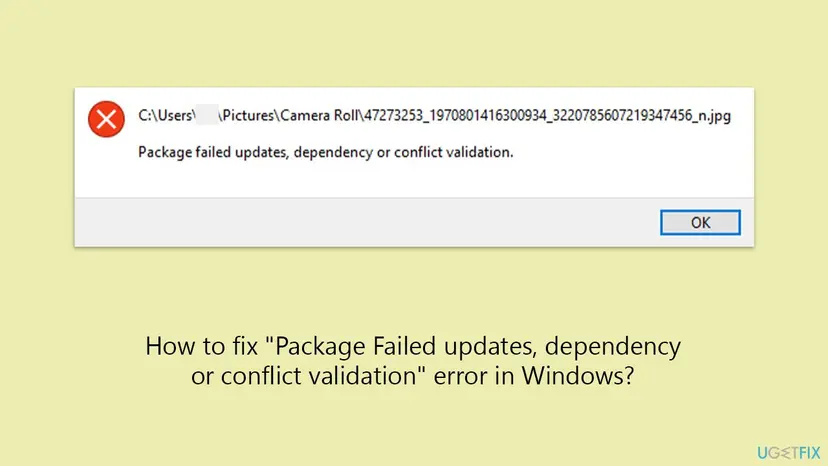
The short form is the dialog above: you open a file, and Windows shows the file path and the sentence. The long form appears in PowerShell, winget and App Installer: "Deployment failed with HRESULT: 0x80073CF3", the same sentence, and then lines that name the package. Microsoft Store and the Xbox app show only the code.
- HRESULT
- 0x80073CF3 (people also type 0x80073cf3 and 0X80073CF3)
- Win32 error
- 15603, in hexadecimal 0x3CF3
- Name
ERROR_INSTALL_RESOLVE_DEPENDENCY_FAILED- Text in Windows
- Package failed updates, dependency or conflict validation.
- Text in Microsoft's table
- The package failed update, dependency, or conflict validation.
Microsoft has no help page for the short dialog that appears when a file is opened. Its documentation covers the code. From the code and from the reports we read, the dialog means that the app set to open the file is a package that failed this check. The message is about that app, not about your file.
How to read the rest of the 0x80073CF3 message
The first sentence never changes, so it tells you nothing about your case. The lines after it say which check failed and name the package. In PowerShell they follow straight away. Microsoft Store and the file dialog hide them, and you get them from the log described under "If the error is still there".
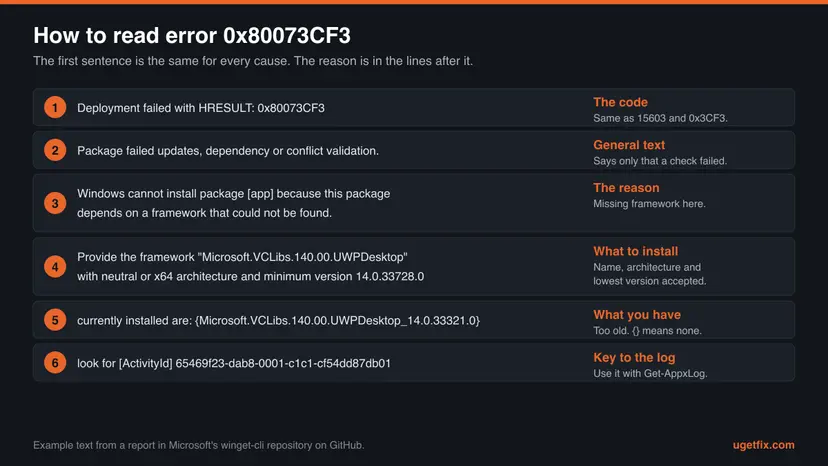
| The message says | It means | Fix |
|---|---|---|
depends on a framework that could not be found. Provide the framework "<name>" | A framework package is not installed for your account, or it is older than the minimum version in the same sentence. | Fix 1, then Fix 3 |
The frameworks with name "<name>" currently installed are: {} | Empty braces: the framework is not installed at all. A name with a lower version number inside the braces: it is installed but too old. | Fix 3 |
because a different package <name> with the same name is already installed. Remove package <name> before installing. | Another copy of the app is installed, for example one from the publisher's site next to one from Microsoft Store. | Fix 4 |
with neutral or x64 processor architecture | The framework must be a neutral build or have the same architecture as the app package. | Fix 5 |
Wait a few minutes and try that again. The update failed. (Xbox app) | Xbox Support: a version of the game is already on the device. | Fix 4 |
| Only the sentence and a file path | The details are hidden. The app that opens the file is the package that failed. | Fix 1, then Fix 2 |
The long message ends with "look for [ActivityId]" and a long number, followed by the command Get-AppPackageLog -ActivityID. Keep that number. It selects the log entries of this one failure. Microsoft documents the command under the name Get-AppxLog.
Why Windows shows this error: the causes, ranked
Most often a framework package is missing or out of date, because the Store apps on the PC were never updated together. Less often another copy of the app blocks the new one. Rarely the reason is the architecture of the package or a fault on Microsoft's side.
| Cause | How often | How to tell | Fix |
|---|---|---|---|
| Store apps and their frameworks were not updated: new PC, fresh Windows install, new virtual machine, or app updates paused. | Most often | The short dialog appears when you open a picture or a text file. Photos or Notepad will not start. | Fix 1 |
| The package of one app is damaged or only half updated. | Often | One app fails and the others work, also after Store updates. | Fix 2 |
| A package you install by hand needs a framework that is missing or too old. | Often with PowerShell, winget and App Installer | The message says "depends on a framework that could not be found". | Fix 3 |
| Another copy or an older version of the same app is installed. | Sometimes | The message says "with the same name is already installed", or a game stops with the code in the Xbox app. | Fix 4 |
| The package or its framework has the wrong processor architecture. | Rarely | ARM or 32-bit PC, or a file downloaded for another architecture. | Fix 5 |
| The Store cache or the app's registration is damaged. | Rarely | Several Store apps fail to install, or an installed app will not start. | Fix 6 |
| A fault on Microsoft's side. | Rarely | Many users report the same app on the same day. | See "If the error is still there" |
The column "How often" is our reading of Microsoft's documentation and of the reports on Microsoft Q&A, GitHub and vendor forums. Microsoft publishes no numbers for this error.
The framework packages that the message names
A framework package holds shared code that many apps use. An app lists each one in its manifest as a PackageDependency with a name and a MinVersion. Microsoft's rule is short: the installed version of the dependency must be greater than or equal to that minimum.
| Name in the message | What it is | Where it comes from |
|---|---|---|
Microsoft.VCLibs.140.00 and Microsoft.VCLibs.140.00.UWPDesktop | The C++ Runtime framework packages for Store apps and packaged desktop apps. | Microsoft Store, automatically. Microsoft also allows a manual install with Add-AppxPackage. |
Microsoft.UI.Xaml.2.x, for example 2.8 | Microsoft's user interface library package for Store apps. | Microsoft Store. The files are also in the releases of Microsoft's microsoft-ui-xaml repository on GitHub. |
Microsoft.NET.Native.Framework.x.x and Microsoft.NET.Native.Runtime.x.x | The .NET Native framework and runtime. | Microsoft Store only. Microsoft staff say that normal users cannot install it by hand. |
Microsoft.WindowsAppRuntime.x.x | The Windows App SDK runtime: the Framework, Main, Singleton and DDLM packages. | Microsoft Store, or the installer on Microsoft's Windows App SDK downloads page. |
The Microsoft.VCLibs framework is a different thing from the Microsoft Visual C++ Redistributable that you see in Control Panel. Microsoft states that packaged desktop apps cannot use the libraries installed by the redistributable. Installing or repairing the redistributable does not satisfy this dependency.
To see which frameworks your account has, open Windows PowerShell and run the command below. Compare the names and versions with the ones in the message.
List the installed framework packages
Get-AppxPackage -PackageTypeFilter Framework | Select-Object Name, Version, ArchitectureWhich apps show the error, and what to do if you need the file now
| App | What people see | Start with |
|---|---|---|
| Microsoft Photos (JPG, PNG and other pictures) | The short dialog with the path of the picture, on Windows 10 and Windows 11. | Fix 1, then Fix 2 |
| Notepad (text files) | Users report the short dialog in new Windows 11 ARM virtual machines, where Notepad does not start on its own either. | Fix 1 |
| Games in the Xbox app and Microsoft Store | 0x80073CF3 with "Wait a few minutes and try that again. The update failed." | Fix 4 |
| App Installer and winget | The long message that names Microsoft.VCLibs.140.00.UWPDesktop. | Fix 3 |
| Any app from Microsoft Store | The code under the Install button. | Fix 1, then Fix 6 |
| An .msix or .appx file from a publisher's site | The long message in App Installer or PowerShell. | Read the message, then Fix 3 or Fix 4 |
Right-click the file, select Open with and choose Paint or another program. The picture opens there, because the error belongs to the Photos package and not to the file. Then come back and fix the app.
- OneDrive: we found no Microsoft page that ties this message to OneDrive itself. If the file sits in a OneDrive folder, test it with Open with as described above.
- GeForce NOW and other apps not listed here: we could not confirm a cause that is specific to them. The log names the package that failed, and that name decides the fix.
How to fix Package failed updates, dependency or conflict validation (0x80073CF3)
Fixes 1 and 2 solve the dialog that appears when a file will not open. Fixes 3 to 5 act on what the rest of the message names: a framework, a conflicting copy or an architecture. Fix 6 resets the Store's side for the installs that still fail.
| What you see or have | Start with |
|---|---|
| A picture, a video or a text file will not open and a small dialog shows the message. | Fix 1, then Fix 2 |
| A new PC, a fresh Windows install or a new virtual machine in Parallels Desktop or VMware Fusion. | Fix 1 |
| The message says the package "depends on a framework that could not be found". | Fix 3 |
| winget or App Installer itself will not install or run. | Fix 3 |
| The message says a package "with the same name is already installed", or a game shows 0x80073CF3 in the Xbox app. | Fix 4 |
| The message names a processor architecture, or the PC has an ARM or a 32-bit processor. | Fix 5 |
| Several apps from Microsoft Store stop with 0x80073CF3. | Fix 1, then Fix 6 |
Fix 1. Update Microsoft Store and every app in it
10 minutesNo riskA file will not open, the PC or virtual machine is newly set up, or Store updates have been off for a while.
Framework packages reach your PC through Microsoft Store, and Microsoft says Windows moves to the newest version of a framework as it is released. One full round of Store updates brings the app and the frameworks it depends on to versions that match.
- Select Start and open Microsoft Store. Sign in with a Microsoft account if the Store asks for it.
- Select Library, then Get updates.
- Wait until every update in the list is installed. Framework packages are updated in the same run, so do not stop after the app that failed.
- Select Start > Settings > Windows Update > Check for updates and install what Windows offers.
- Restart the PC.
- Open the file or start the install again.
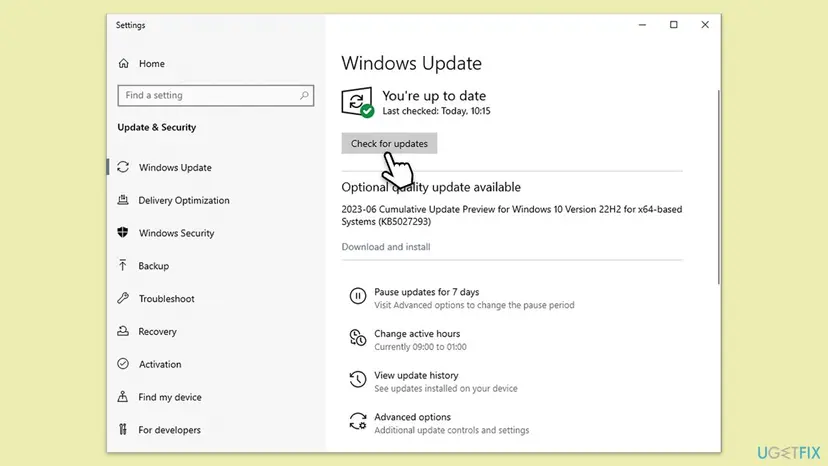
- Windows 10: in Microsoft Store select See more > Downloads and updates > Get updates.
- Different label: one of Microsoft's help pages names the Store button Check for Updates. It starts the same update run.
- Microsoft Store is missing: Microsoft's help page offers the Store as a download at
apps.microsoft.com/detail/9wzdncrfjbmp. A user in the VMware Fusion community reports thatwsreset.exe -iin an administrator Command Prompt installed the Store. We could not confirm that switch in Microsoft's documentation.
This is the fix that users of new Windows 11 ARM virtual machines report. One Parallels Desktop user writes that Notepad showed the message on a fresh install until all Store app updates were downloaded. A VMware Fusion user reports the same for a new text file.
It worked if: The Library shows no waiting updates, and the picture or text file opens in its app.
If not: Go to Fix 2 and repair the app that opens the file.
Fix 2. Repair, reset or reinstall the app that fails
5 to 10 minutesLow riskOne app, for example Photos or Notepad, shows the dialog while other apps work.
The dialog comes from the package of the app that opens the file. Repair and Reset rebuild that one app without a download. A reinstall from Microsoft Store fetches the current package together with the dependencies it declares.
- Press Win + I and open Apps > Installed apps.
- Find the app. For pictures it is Microsoft Photos: type Photos in the search box of the list.
- Select the three dots next to the app and select Advanced options.
- Select Repair, then open the file again.
- If the dialog returns, select Reset on the same page and confirm.
- If Reset does not help, go back to the list, select the three dots and Uninstall.
- Open Microsoft Store, select Library, find the app and select Install.
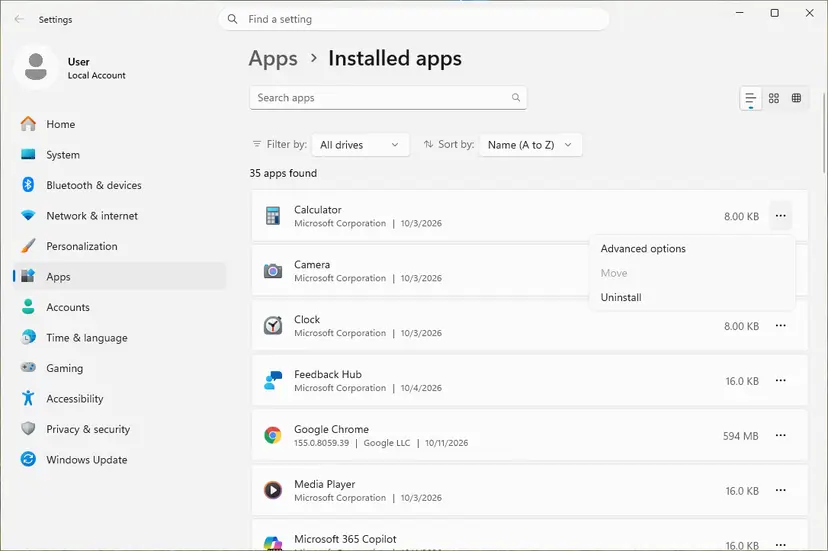

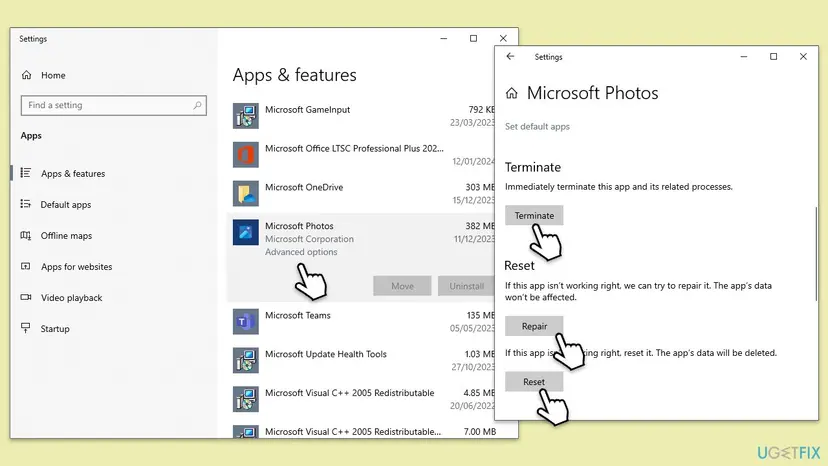
Windows says that Repair leaves the app's data alone and that Reset deletes it. App data means settings and sign-ins inside the app. Your picture files stay in their folders, for example in C:\Users\<you>\Pictures. If the pictures cannot be replaced, make a copy first: Back up your files (Windows Backup, File History, Time Machine)
If Settings offers no Uninstall for Photos: Windows PowerShell, your own account
Get-AppxPackage *Microsoft.Windows.Photos* | Remove-AppxPackageThe command comes from an answer on Microsoft Q&A and removes Photos for your account only. Install it again from the Store Library afterwards. Both Windows versions step by step: How to repair or reset an app in Windows
It worked if: The picture opens in Photos, or the text file in Notepad, without the dialog.
If not: Read the log as described under "If the error is still there" to get the package name, then use Fix 3 or Fix 4.
Fix 3. Install the framework that the message names
10 to 15 minutesLow riskThe message or the log says that the package depends on a framework that could not be found.
Windows refuses the package until a framework with that name, a fitting architecture and at least the minimum version is installed for your account. Supplying that one package removes the reason for the refusal.
- Write down three things from the message: the framework name in quotes, the processor architecture and the minimum version.
- Select Start, type PowerShell and open Windows PowerShell.
- Run the first command below and look for the framework name in the list.
- Get the framework from Microsoft as shown in the table below.
- Install it, or pass it along with the app as in the second command.
- Run the install of the app again.
1. What is installed now
Get-AppxPackage -PackageTypeFilter Framework | Select-Object Name, Version, Architecture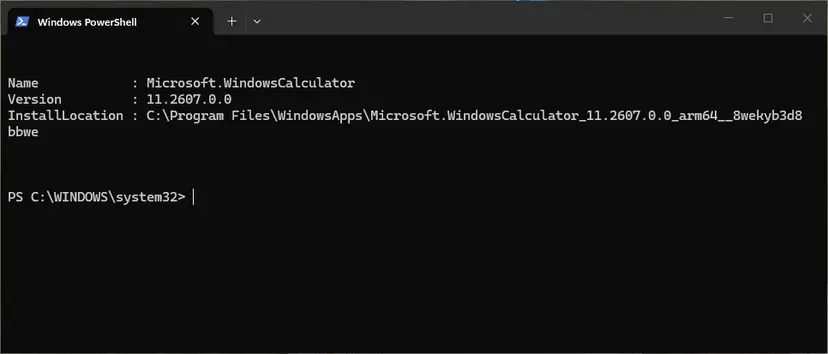
| Framework in the message | How to get it |
|---|---|
Microsoft.WindowsAppRuntime | Open Microsoft's page Latest Windows App SDK downloads, download the Installer for x64, x86 or arm64 and run it. Older versions are on the archive page linked there. |
Microsoft.VCLibs.140.00.UWPDesktop | Run Fix 1 first. For a manual install Microsoft's download server has the x64 file at https://aka.ms/Microsoft.VCLibs.x64.14.00.Desktop.appx. We did not check the files for other architectures. |
Microsoft.UI.Xaml.2.x | Run Fix 1 first. The .appx files are attached to the releases of microsoft-ui-xaml on GitHub. |
Microsoft.NET.Native.Framework or Runtime | Microsoft Store only (Fix 1). If the Store does not deliver it, the fault is not on your PC: see "If the error is still there". |
| App Installer (winget) dependencies | Each winget-cli release carries DesktopAppInstaller_Dependencies.zip. Or let the third command repair it. |
2. Install an app file together with its framework file
Add-AppxPackage -Path '.\MyApp.msix' -DependencyPath '.\Microsoft.VCLibs.x64.14.00.Desktop.appx'3. Repair App Installer and winget (Windows PowerShell as administrator)
Install-PackageProvider -Name NuGet -Force | Out-Null
Install-Module -Name Microsoft.WinGet.Client -Force -Repository PSGallery | Out-Null
Repair-WinGetPackageManager -AllUsersUse microsoft.com, aka.ms links and Microsoft's own GitHub repositories. Sites that generate download links for Store packages are not Microsoft, and a package from there is installed with the same rights as any other app.
-DependencyPathaccepts several files. Microsoft notes that you can leave out a dependency that is already installed for the user.- The Windows App SDK installer adds four packages in one run: Framework, Main, Singleton and DDLM.
- In a report in Microsoft's winget-cli repository, the installed
Microsoft.VCLibs.140.00.UWPDesktopwas version 14.0.33321.0 and App Installer asked for 14.0.33728.0. An installed framework can still be too old.
It worked if: The framework is in the list with a version equal to or above the minimum, and the install ends without 0x80073CF3.
If not: If the message now names another framework, repeat the steps for that one. If it names a package that is already installed, go to Fix 4.
Fix 4. Remove the conflicting or older copy, then install again
10 minutesRead the warningThe message says that a package with the same name is already installed, or a game fails in the Xbox app with 0x80073CF3.
Windows does not install a package next to a different package with the same name. Xbox Support says that for games this code means a version of the game is already on the device. Its two solutions are to wait and retry, then to uninstall and reinstall.
Settings, sign-ins and game saves that are stored only on this PC go with the app. Check that the game or app has synced to the cloud, or export its data first. For files you keep yourself: Back up your files (Windows Backup, File History, Time Machine)
- Wait a few minutes and try the install once more. This is the first solution on the Xbox Support page.
- Press Win + I and open Apps > Installed apps.
- Type the name of the app in the search box. Two entries for one app are the conflict.
- Select the three dots next to the copy you do not want and select Uninstall.
- Restart the PC.
- Install the app again from one source only.
- If Settings shows no entry but the message still names a package, remove it with the two commands below.

Windows PowerShell as administrator: find the package, then remove it for all users
Get-AppxPackage -AllUsers -Name '*PartOfTheName*' | Select-Object Name, PackageFullName
Remove-AppxPackage -Package 'PackageFullName-from-the-first-command' -AllUsers| Code | Microsoft's description | What to do |
|---|---|---|
| 0x80073CFB | The package is already installed and reinstallation is blocked, because the new file is not identical to the installed one. | Remove the old package for every user, then install. |
| 0x80073D06 | A higher version of this package is already installed. | Keep the newer version, or remove it first if you need the older one. |
| 0x80073D02 | Resources that the package modifies are currently in use. | Close the app and try again. |
One vendor example: Affinity's help page says its Microsoft Store version and the version from its own site cannot be installed side by side, and the second install ends with this code. More ways to uninstall: Uninstall a program or app in Windows and, for built-in apps, Remove built-in Windows apps with PowerShell
It worked if: Only one entry for the app is left in Installed apps, and the install runs to the end.
If not: Go to Fix 5 if the message names an architecture. Otherwise go to Fix 6.
Fix 5. Match the processor architecture and the Windows version
5 minutesNo riskYou install an .msix or .appx file by hand, or the PC has an ARM or a 32-bit processor.
Microsoft lists a package that does not support the correct processor architecture among the causes of 0x80073CF3. The framework has to fit as well: the message asks for a neutral build or one with the same architecture as the app.
- Press Win + I and open System > About.
- Under Device specifications, read the system type: 64-bit or 32-bit, x64-based or ARM-based.
- Under Windows specifications, read the version and the OS build.
- Read the architecture in the message or in the file name of the package: x64, x86 or arm64.
- Download the build of the app that fits your PC, and frameworks of the same architecture.
- Run the install again.
| The message says | Code | Meaning |
|---|---|---|
requires architecture x64, but this computer has architecture x86 | 0x80073D10 | A 64-bit package on 32-bit Windows. Only another build of the app helps. |
not compatible with the device. The package requires OS version 10.0.19041.0 or higher | 0x80073CFD | Windows is older than the minimum version in the app's manifest. Update Windows. |
- A bundle file with several architectures in its name, such as
_x86_x64_arm64.msixbundle, holds a package for each one, and Windows picks the right one. - The minimum Windows version is the
MinVersionofTargetDeviceFamilyin the manifest. Microsoft: if the system's version is lower, the app is not considered applicable. - Windows 10 left support on 14 October 2025. An app update can require a newer build than the PC has. We could not confirm that this is the reason for the Photos reports on Windows 10.
It worked if: The architecture of the package and of its frameworks matches the PC, and the install finishes.
If not: Go to Fix 6, then read the log if the code is still there.
Fix 6. Reset the Microsoft Store cache and register the app again
10 minutesLow riskInstalls from Microsoft Store still stop with 0x80073CF3 after Fix 1, or an installed app will not start.
Resetting the Store cache with wsreset.exe is the first step on Microsoft's help page for a Store that does not open. Registering makes Windows read the app's manifest again. Microsoft documents this for an installation that was disabled, did not register or has become corrupted.
- Press Win + R, type
wsreset.exeand select OK. - Wait. A blank Command Prompt window opens, closes after about ten seconds, and Microsoft Store opens by itself.
- Try the install in the Store again.
- If the app is installed but will not start, open Windows PowerShell the normal way, not as administrator.
- Run the commands below with a part of the app's name between the asterisks.
- Start the app.

Register an installed app again (example: Photos)
$InstallLocation = Get-AppxPackage -Name '*Photos*' |
    Select-Object -ExpandProperty InstallLocation
$ManifestPath = $InstallLocation + '\Appxmanifest.xml'
Add-AppxPackage -Path $ManifestPath -Register -DisableDevelopmentMode- For App Installer on Windows 11, Microsoft's winget notes give a shorter way:
Get-AppxPackage Microsoft.DesktopAppInstaller | Reset-AppxPackage. - If the registration itself answers with 0x80073CF3, the long message now names the framework that is missing. Go back to Fix 3 with that name.
Each of the two steps has its own page with the Windows 10 paths: Reset the Microsoft Store and How to re-register Microsoft Store apps with PowerShell
It worked if: The Store installs the app, or the registered app starts from the Start menu.
If not: The cause is in the log. Read it as described below and send the entry to the publisher of the app.
If the error is still there: read the AppXDeployment-Server log
Windows writes the full reason into an event log even when the screen shows only the sentence or the code. Microsoft's advice is to start with the log named AppXDeployment-Server.
- Make the error appear once more and note the time.
- Select Start, type Event Viewer and press Enter. You can also run
eventvwr.msc. - Expand Event Viewer (Local) > Applications and Services Logs > Microsoft > Windows.
- Open AppXDeployment-Server, then Microsoft-Windows-AppXDeploymentServer/Operational.
- Find the entries with the level Error at the time you noted.
- Read the entry whose text begins with "Windows cannot install package". It names the app, the framework or the conflicting package.
- Or open Windows PowerShell and run one of the two commands below.
The last deployment in a table, or one failure by its ActivityId
Get-AppxLog | Out-GridView
Get-AppxLog -ActivityId 'paste-the-ActivityId-here'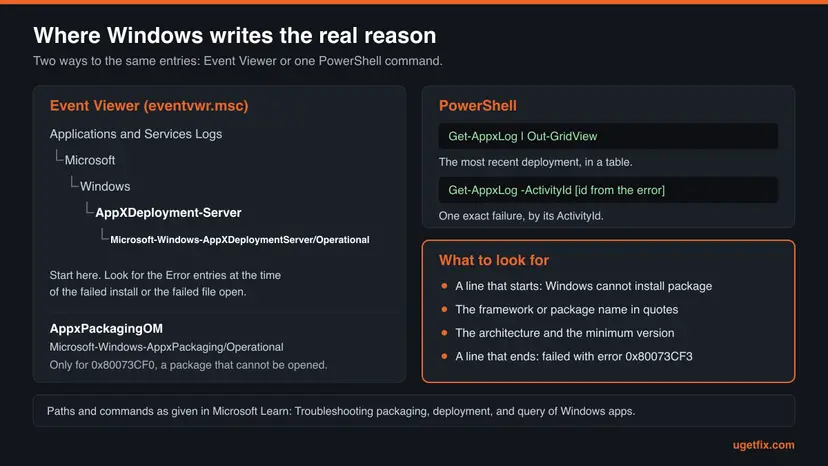
- What the entries look like: in a log that a developer posted on Microsoft Q&A, event 628 held the sentence about the missing framework. Event 605 said that the last successful state was "Indexed" and that the failure came before "Resolved". Event 404 repeated the reason with the code.
- What to send to the app's publisher or to Microsoft: the full text of that entry, the ActivityId, your Windows edition and OS build, the system type and the output of the framework list from Fix 3.
- Test another account: packages are registered per user. If the app works in a new account, only your own registration is damaged, and Fix 6 in your account is the right step. How to make one: Create a new user account to test a problem
- When it is not your PC: in November 2025 a fault in the Microsoft Store pipeline made app updates ask for
Microsoft.NET.Native.Framework.2.3, which the Store did not deliver. Microsoft staff wrote that there was no fix on the user's side. Microsoft corrected the pipeline within days. - Work or school PC: blocked installs have their own codes, 0x80073CFF and 0x80073D01. Ask the administrator, because policy settings are not yours to change.
- Hardware: nothing in Microsoft's description of this code points to failing hardware. A full disk has its own code, 0x80073CF4.
If many people report the same app on the same day, wait a day and run Fix 1 again before you change anything else. In the November 2025 case the apps installed normally once their publishers had submitted them again.
How to keep the error from coming back
- Leave app updates in Microsoft Store switched on. Microsoft is making them automatic and still lets you pause them when needed.
- After a fresh Windows install or in a new virtual machine, open the Store and run Get updates before you use the built-in apps.
- Install each app from one source: Microsoft Store or the publisher's installer, not both.
- Keep the framework files next to an .msix installer that you use again, and install with
-DependencyPath.
- Do not remove packages named
Microsoft.VCLibs,Microsoft.UI.Xaml,Microsoft.NET.NativeorMicrosoft.WindowsAppRuntimeto tidy up. Apps depend on them, and Windows removes old framework versions itself when nothing uses them. - Do not run scripts that remove all built-in apps at once. They also remove frameworks.
- Do not download .appx or .msix files from sites that are not Microsoft's or the publisher's.
- Do not install the Visual C++ Redistributable as a cure for this message. It is not the framework that the message asks for.
The pattern behind most reports is the same: an app was updated or installed while the packages around it stayed old. Regular Store updates keep the app and its frameworks in step, and one source per app keeps two copies from meeting.
Frequently asked questions
What does "Package failed updates, dependency or conflict validation" mean?
It means that Windows checked an app package and the check failed. The sentence is the text of system error 15603, which is written 0x80073CF3 as an HRESULT. Microsoft gives three possible causes: the package conflicts with one that is already installed, a package it depends on cannot be found, or the package does not support the processor architecture of the PC. The sentence itself does not say which of the three applies. That is written in the lines after it in PowerShell, or in the AppXDeployment-Server event log when you see only a dialog or a code.
Why do I get this message when I open a JPG picture in Photos?
Because the Photos app is an app package, and that package is the one that failed the check. The picture is not the problem: it opens in Paint or another program through Open with. Reports on Microsoft Q&A and vendor forums describe the same dialog on Windows 10 and Windows 11. Microsoft has not published a single cause for it. Start with a full round of updates in Microsoft Store, because the frameworks that Photos depends on arrive that way. Then repair, reset or reinstall Photos as described in Fix 2.
Is 0x80073CF3 the same error?
Yes. 0x80073CF3 is the code and "Package failed updates, dependency or conflict validation" is its text. Microsoft Store and the Xbox app usually show only the code. PowerShell, winget and App Installer show "Deployment failed with HRESULT: 0x80073CF3" followed by the sentence and the details. The dialog that appears when a file will not open shows only the sentence. The decimal number of the same error is 15603, and its name in Microsoft's documentation is ERROR_INSTALL_RESOLVE_DEPENDENCY_FAILED. People also type the code in lower case, 0x80073cf3.
Will resetting the Photos app delete my pictures?
No, a reset removes the data of the app, not your files. Windows describes the two buttons this way: Repair does not affect the app's data, and Reset deletes it. For Photos that means settings and sign-ins inside the app. The pictures themselves are files in your folders, such as the Pictures folder, and a reset does not touch those folders. Try Repair first, because it changes less. If your pictures exist in one place only, copy them to another drive before you change anything. That is good practice whatever the error is.
Does the error appear on both Windows 10 and Windows 11?
Yes. The code belongs to the app package system that both versions share, and the reports we read come from both. On Windows 11 the list of apps is under Settings > Apps > Installed apps. On Windows 10 it is under Settings > Apps > Apps & features, and the Store's update button sits under See more > Downloads and updates. Microsoft ended support for Windows 10 on 14 October 2025. Apps can still be repaired and reinstalled there, but an app update may ask for a newer Windows build than the PC has.
How do I find out which framework is missing?
Read the lines after the first sentence. In PowerShell the message says "Provide the framework" and gives the name in quotes, the architecture and the minimum version. It also lists what is installed now: empty braces mean the framework is not there at all. If you see only a dialog or a code, open Event Viewer and go to Applications and Services Logs > Microsoft > Windows > AppXDeployment-Server. The error entry at the time of the failure holds the same text. In PowerShell the command Get-AppxLog prints these entries without Event Viewer.
Does installing the Visual C++ Redistributable fix it?
No. The framework that the message names, Microsoft.VCLibs.140.00 or Microsoft.VCLibs.140.00.UWPDesktop, is an app package of its own. Microsoft states that packaged desktop apps cannot use the C++ runtime libraries that come with Visual Studio or with the Visual C++ Redistributable. Store apps get the framework package through Microsoft Store, which is why a full round of Store updates is the first fix. For a package that you install by hand, pass the framework file with the DependencyPath parameter of Add-AppxPackage. Repairing the redistributable in Control Panel changes nothing for this error.
The message is in Dutch, Portuguese or another language. Is it the same error?
Yes. Windows translates the sentence, so Dutch users search for "Validatie van updates, afhankelijkheid of conflict voor het pakket is mislukt" and Portuguese users for "Falha do pacote nas atualizações, na dependência ou na validação do conflito". People also add words such as "artinya", Indonesian for "meaning". The code 0x80073CF3 and the package names in the log are the same in every language. This page uses the English names of menus and buttons. In another language the buttons are in the same places, so the steps can be followed by position.
What do users on Reddit and other forums report as the fix?
The reports we read name three things. Users of new Windows 11 ARM virtual machines in Parallels Desktop and VMware Fusion report that signing in to Microsoft Store and installing all app updates ended the message. On Microsoft Q&A, a reset of Photos followed by a reinstall from the Store is the answer with the most votes, and one user there reports that Repair alone did not help. In another forum thread the person simply switched to a different picture viewer. These are reports, not tests of ours. They match Fix 1 and Fix 2.
I see the message with OneDrive, GeForce NOW or another app. What should I do?
Find out which package failed, because the message can come from any packaged app. We could not confirm a cause that is specific to OneDrive or to GeForce NOW. If a file in a OneDrive folder will not open, the app that opens that file type is the one to repair, and Open with shows whether the file itself is fine. For an app that will not install, note the code and read the AppXDeployment-Server log. The entry names the package, and its wording tells you whether Fix 3, Fix 4 or Fix 5 applies.
Sources
- Microsoft Learn: Troubleshooting packaging, deployment, and query of Windows apps (error codes, event logs) (learn.microsoft.com)
- Microsoft Learn: System Error Codes (12000-15999), error 15603 (learn.microsoft.com)
- Microsoft Learn: Add-AppxPackage (learn.microsoft.com)
Did this fix work?
One click, no account. It tells the next reader which guides are worth their time.
Questions and experiences: fix "Package Failed updates, dependency or conflict validation" error in Windows
Still broken, or found a fix we did not cover? Ask here: members and our editors answer. Reading is open; writing needs a free account.
…