
Remove built-in Windows apps with PowerShell (Remove-AppxPackage)
PowerShell removes preinstalled Microsoft Store apps that have no Uninstall button, for your account or for every account on the PC.
- Time
- A few minutes
- Level
- Medium
- You need
- An administrator account for the all-users commands.
Before you start
- Try the normal way first: Uninstall a program or app in Windows. Many built-in apps can be uninstalled from Settings.
- Remove only apps you know. Do not remove Microsoft Store, App Installer or other system components: Windows features depend on them.
Windows 11 and 10
Steps written for Windows 11 and Windows 10 (the commands are the same).
Open PowerShell as administrator
Right-click Start and select Terminal (Admin). Select Yes when Windows asks for permission.
Find the package name
List the installed apps with the command below. To narrow the list, put part of the name between asterisks, for example
Get-AppxPackage *Weather* | Select-Object Name, PackageFullName.Get-AppxPackage | Select-Object Name, PackageFullName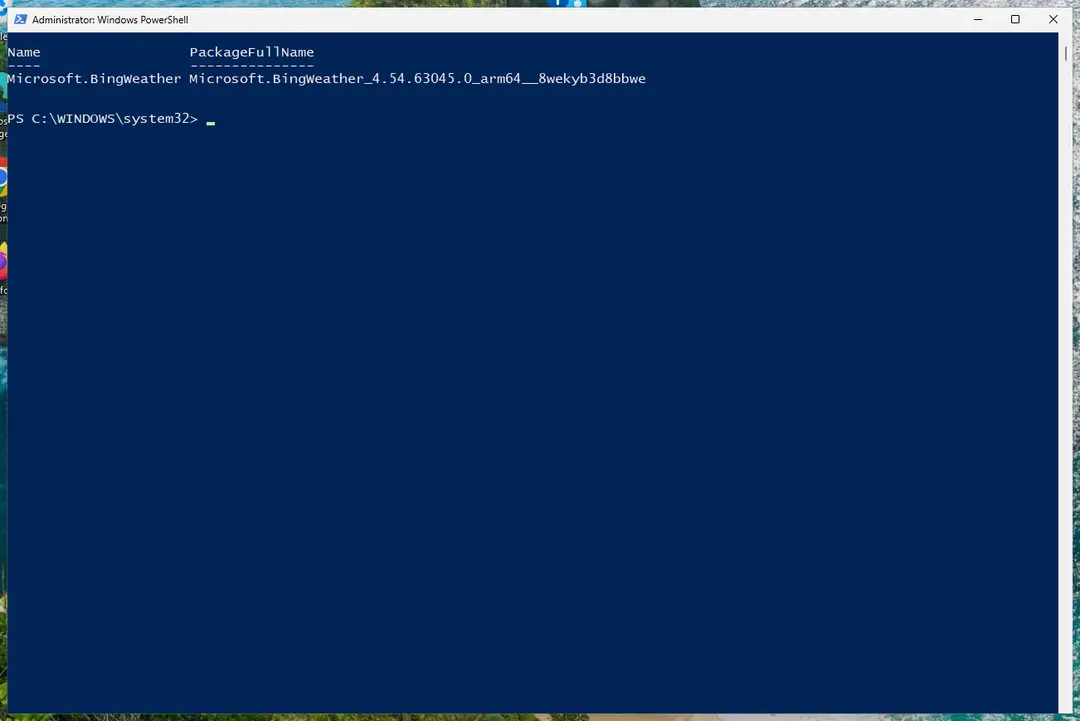
The Name column is the name you use in the next command. Screenshot: Windows 11 26H2 Remove the app
Run the command below with the name you found. It removes the app for your account.
Get-AppxPackage *Microsoft.BingWeather* | Remove-AppxPackageCheck that it is gone
Run the search again. If it prints nothing, the app is removed.
Get-AppxPackage *Microsoft.BingWeather*Remove it for all users (optional)
To remove the app from every account on the PC, run:
Get-AppxPackage -AllUsers *Microsoft.BingWeather* | Remove-AppxPackage -AllUsersStop it coming back for new users (optional)
Windows installs provisioned apps for every new account. This removes the app from that list:
Get-AppxProvisionedPackage -Online | Where-Object DisplayName -like "*BingWeather*" | Remove-AppxProvisionedPackage -Online
If the command shows an error
Some packages are part of Windows and cannot be removed; PowerShell then shows a red error and the app stays. That is expected: leave it. An error about permissions means PowerShell is not running as administrator.
Get an app back
Open Microsoft Store, search for the app by name and select Get or Install.
Used in 13 guides
How to fix Phone Link clipboard not working?
How to fix Background Task Host high CPU usage in Windows 11?
How to fix error 0x8000000b when you add an email account in Windows
How to fix State Repository Service high CPU usage in Windows?
How to fix Xbox app error 0x80073D19 in Windows?
How to fix Windows update error 0x80073D06?
How to fix AppX Deployment Service (AppXSVC) and wsappx high CPU usage?
How to fix "Incorrect function" error in Windows?
How to fix Microsoft Store error 0x80073CF1 on Windows
How to fix PhoneExperienceHost.exe error in Windows?
How to fix Microsoft Office installation error 0-2035?
How to fix Microsoft Office error code 30015-25 (1006) in Windows?
How to fix "Package Failed updates, dependency or conflict validation" error in Windows?
Sources
- Microsoft Learn: Remove-AppxPackage (read Oct 3, 2026)
- Microsoft Learn: Get-AppxPackage (read Oct 3, 2026)
- Microsoft Learn: Remove-AppxProvisionedPackage (read Oct 3, 2026)