
How to fix Microsoft Office error code 30015-25 (1006) in Windows?

Prefer to fix it yourself? The manual steps follow.
- 8methods
- 10 to 45 minutes
- Intermediate
Applies to Microsoft 365, Office 2024, Office 2021, Office 2019 and Office 2016 installed with Click-to-Run on Windows 11 and Windows 10
8 methods in this guide
I am trying to install Microsoft Office, but it gives me an error code of 30015-2025. This happens during the setup process, and it stops the installation completely. What is the general cause of this error, and what are the potential steps to get it fixed? I've already checked my internet connection and system requirements, but the issue persists.
Error Code: 30015-25 (1006) is a failure of Click-to-Run, the engine that installs, updates, repairs and removes Microsoft 365 and Office 2016 to 2024. In most reports a damaged or half-finished Office installation is in the way. Restart the PC, remove what is left of Office with Microsoft's uninstall troubleshooter, then install again.
Restart the PC, let Windows finish any pending update and run Office setup once more (Fix 1). If the code comes back, the Office that is already on the PC is damaged or only half installed. Open Microsoft's page Uninstall Microsoft 365 or Office from a PC, start the uninstall troubleshooter, restart and install again (Fix 3). If Office still opens, try Online Repair first (Fix 2). On a work or school network, use the offline installer (Fix 5).
| Error | Error Code: 30015-25 (1006) at the bottom of the Office setup window. During a new installation users see it under Sorry, we ran into a problem streaming Office. Please try again later. The number in brackets changes from PC to PC. |
|---|---|
| Where it appears | In the small Microsoft setup window, at three moments: when Office is being installed, when you select Uninstall, and when you select Modify to repair or change it. After you close it, a second window with 0-2031 (17002) can follow. |
| Main cause | An Office installation that is damaged or was never finished: an interrupted setup or update, leftovers of an older Office, or files removed by a cleaning tool. |
| Fastest fix | Restart, then remove Office with Microsoft's uninstall troubleshooter and install it again (Fix 1 and Fix 3). |
| Also written as | 30015-25(1006), error 30015 25 1006, Error Code: 30015-25, codigo de error 30015-25. This page's address says 30015-2025, which is how the earlier version of the guide wrote the code. |
| Affects | Click-to-Run products: Microsoft 365 Personal, Family and business plans, Office 2024, 2021, 2019 and 2016, Project and Visio. Windows 11 and Windows 10. |
| Microsoft's status | No support article for 30015-25 (checked 14 October 2026). Microsoft's list of installation errors has 30015-6, 30015-4 (1392) and 30015-1011 (1392) only. Not a known bug with a patch. |
| What (1006) means | It matches Windows system error 1006, ERROR_FILE_INVALID: the volume for a file was altered so that the opened file is no longer valid. That reading is ours, Microsoft does not document the brackets. |
| Where the cause is logged | %temp% and %windir%\Temp, in files named MachineName-Date-time.log. |
| Time to fix | 10 minutes when a restart or a repair is enough. 30 to 45 minutes for a full removal and a new installation. |
Facts checked on 14 October 2026. Steps written for Click-to-Run versions of Microsoft 365 and Office on Windows 11 (25H2 and 26H2) and Windows 10 22H2, read against Microsoft's documentation.
What error code 30015-25 (1006) means in Office setup
Every desktop Office sold today, from Microsoft 365 to Office 2024, is installed by a technology called Click-to-Run. Microsoft describes it as a way to install and update Office over the internet that works similarly to streaming video. The same engine also repairs and uninstalls Office. When one of these jobs fails, the setup window shows a pair of numbers and often a third one in brackets.
The code 30015-25 (1006) is such a failure. It does not say that your licence is wrong, and it does not say that the PC is too old. It says that Click-to-Run started a job on this PC and could not finish it. The cause is found on the PC or on the network, not in your account.
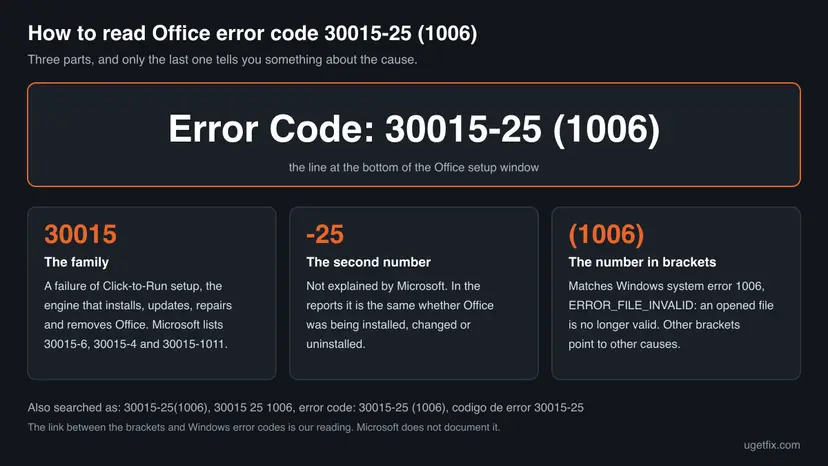
Error 30015-25 (1006), error code 30015-25(1006), Error Code: 30015-25 (1006), 30015 25 1006 and "codigo de error 30015-25" are the same thing. The address of this page says 30015-2025 because the earlier version of this guide wrote the code that way. We found no Microsoft page and no user report with 30015-2025, so if you see a 30015 code that ends in 25, you are in the right place.
Microsoft's page Troubleshoot installing Office says of its own list that not every error is listed there. For this code the practical knowledge comes from the answers of Microsoft's forum staff on Microsoft Q&A, and from the pages Microsoft wrote for the neighbours 30015-4 and 30015-1011. This guide follows both.
Where error 30015-25 appears: install, uninstall and repair
Most guides treat 30015-25 as an installation error only. The reports show three different moments, and the moment decides where to start. One user of Office Professional Plus 2021 met the same code three times in a row: on Uninstall, on Modify, and when he ran the installer again over the existing product.
| Moment | What users see | What it tells you |
|---|---|---|
| Installing Office | Sorry, we ran into a problem streaming Office. Please try again later. with Error Code: 30015-25 and a number in brackets. Setup may stay at 0 % or 3 % for a long time first. | Setup could not lay down or fetch its files. An older Office, leftovers, or the network are the suspects. |
| Selecting Uninstall in Settings or Control Panel | The setup window opens for a moment and ends with 30015-25. Office stays in the list of apps. | The installed copy is too damaged to remove itself. A removal tool has to do it. |
| Selecting Modify for Quick Repair or Online Repair | The repair ends with 30015-25, or with its sibling 30015-4 and the same number in brackets. | The repair engine is part of the damaged installation. Repair cannot fix itself. |
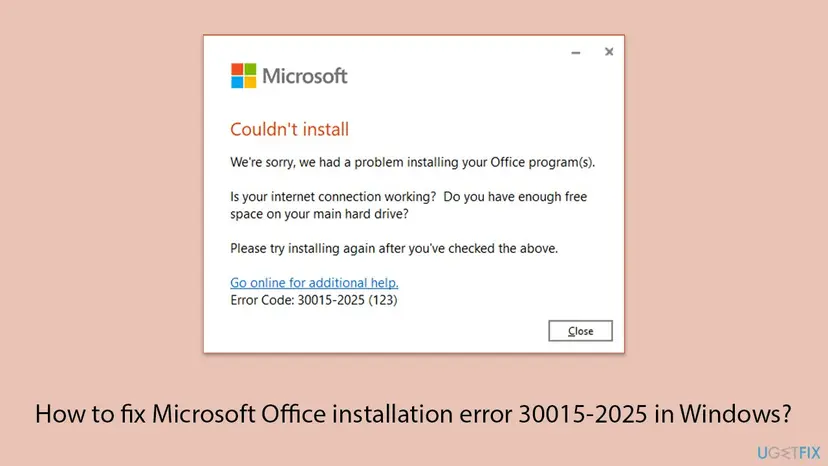
| After closing the first window | We're sorry, we had a problem installing your Office program(s). Is your internet connection working? Do you have enough free space on your main hard drive? with 0-2031 (17002). | This is the general closing message of setup. It adds no new cause. |
- The (1006) variant is tied to an existing installation. A Tech Community user got 30015-4 (1006) on Online Repair and 30015-25 (1006) on uninstall after an update failed. Another got 30015-4 (1006) on repair and on uninstall after an update.
- A user on a Greek forum reports that 30015-25 (1006) began after a power cut in the middle of an Office 2019 installation, and that every later attempt ended the same way.
- No screenshot of the exact wording above 30015-25 (1006) has been posted. The texts in the table come from reports with other numbers in brackets.
The number in brackets after 30015-25 and what it points to
The same 30015-25 arrives with very different numbers in brackets. Small numbers are plain Windows system error codes. The long ones turn into familiar Windows error values when you convert them to hexadecimal in the Windows Calculator, in Programmer mode. Microsoft does not document this link for Office setup, so treat the table as a hint and not as a diagnosis.
| Brackets | As a Windows error | Windows' own text | Start with |
|---|---|---|---|
(1006) | 1006, ERROR_FILE_INVALID | The volume for a file has been externally altered so that the opened file is no longer valid. | Fix 1, Fix 2, Fix 3 |
(5) | 5, ERROR_ACCESS_DENIED | Access is denied. | Fix 6 (security software), then Fix 3 |
(2147942487) | 0x80070057, which carries error 87, ERROR_INVALID_PARAMETER | The parameter is incorrect. | Fix 3, then Fix 8 |
(2147954430) | 0x80072EFE, which carries WinINet error 12030, ERROR_INTERNET_CONNECTION_ABORTED | The connection with the server has been terminated. | Fix 6, then Fix 5 |
(2147500054), (2231435265), (-1610612703) | We could not match these to a documented Windows error. | None | Fix 3 |
Two reports support the reading. The person with (2147954430), the connection error, wrote back that it was a firewall issue and that Office installed on a completely different network. The person with (2147942487) had used registry and disk cleaning tools before Office stopped updating, repairing and uninstalling.
A file that setup opened is no longer valid. In practice that fits an installation whose files were cut off or changed under it: a power cut, a forced restart during an update, a cleaning tool, or a disk with errors. That is why the first fixes for (1006) restart the PC and then repair or remove the existing Office, and why the network comes later.
What causes Office error 30015-25, from the most common to the rare
Microsoft publishes no list of causes for 30015-25. The ranking below is our reading of the solved reports on Microsoft Q&A and of what Microsoft's forum staff name as common causes, checked against Microsoft's pages for the neighbouring 30015 codes. It is an order of likelihood, not a statistic.
| How often | Cause | Typical sign | Fix |
|---|---|---|---|
| Most often | A damaged or half-finished Office installation: setup or an update was interrupted, or a pending restart blocks the files | The code began after a failed update, a power cut or a forced shutdown. The brackets say (1006). | Fix 1, Fix 2 |
| Most often | Leftovers of an earlier Office that a normal uninstall did not remove | You uninstalled one Office and the next one will not install. One user found Office 2010 and 2007 files on a freshly installed Windows. | Fix 3 |
| Often | The Microsoft Store edition or a preinstalled Office app, which the removal tool does not touch | The PC came with Office, or an app from the Store is still listed. | Fix 4 |
| Often | A firewall, proxy, VPN or security program that cuts the download from the Office servers | It fails on several PCs on the same network, or stays at 0 % to 3 %. | Fix 5, Fix 6 |
| Less often | The Click-to-Run service is disabled, or the Windows user profile is damaged | Uninstall and Modify close at once. Office apps do not start either. | Fix 7 |
| Rarely | Registry keys and folders of Office removed or changed by a cleaning tool, so that no tool can finish the removal | Repair, uninstall and the removal tool all fail. | Fix 8 |
Several websites blame the Windows Installer service, missing Windows updates or damaged Windows system files. No Microsoft page ties any of them to 30015-25. One user did report that 30015-4 (1006) went away after Windows finished its own updates, which is why pending updates are part of Fix 1. Microsoft has never confirmed a faulty Office build behind this code.
How to fix error code 30015-25 (1006) when you install, repair or uninstall Office
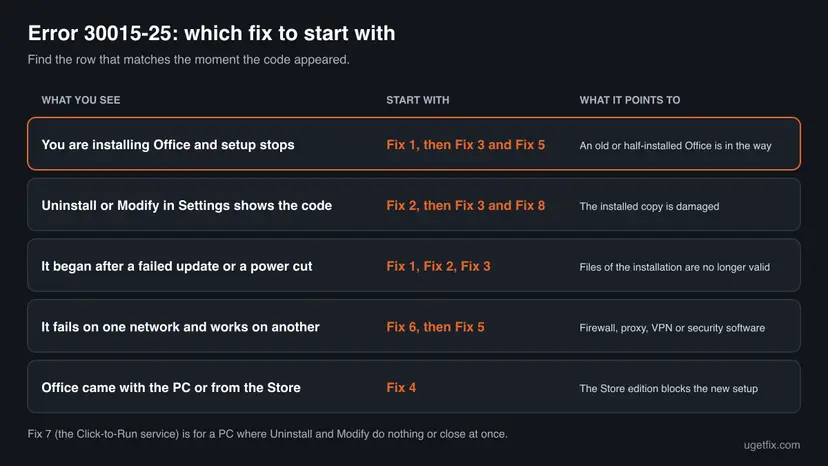
Fix 1 to Fix 3 solve most cases and are ordered by how little they cost you. Fix 4 to Fix 6 are for a Store edition and for networks that block the download. Fix 7 and Fix 8 are for an Office that refuses every normal tool. Use the table to pick your start.
| What you see or have | Start with |
|---|---|
| The code appears while you install Office for the first time on this PC | Fix 1, then Fix 5 |
| You removed another Office before, or setup was interrupted | Fix 1, then Fix 3 |
| Office is installed and still opens, but will not update or repair | Fix 2 |
| Uninstall in Settings or Control Panel ends with 30015-25 | Fix 3, then Fix 8 |
| The PC came with Office, or you once installed Office from the Microsoft Store | Fix 4 |
| It fails at work or school and you can take the PC to another network | Fix 6, then Fix 5 |
| Uninstall and Modify close at once and Office apps do not start | Fix 7 |
Fix 1. Restart the PC, let pending updates finish and run setup again
10 minutesNo riskEveryone, first, and above all when the code began after an interrupted setup or update.
Microsoft's page for the sibling codes 30015-4 and 30015-1011 lists the most common solutions first, and the first one is to restart the device and install Office again. A restart ends a stuck setup process and releases files that a half-finished update still holds, which is the situation that (1006) describes.
- Look at the notification area next to the clock, including the hidden icons. If an Office icon is there, select it and check the progress. Microsoft notes that a running installation, update or uninstall blocks the next one.
- If something is still running, wait until it is done.
- Save your work and restart the PC with Start > Power > Restart. Do not use Shut down: with Fast Startup on, a shutdown does not fully reset Windows.
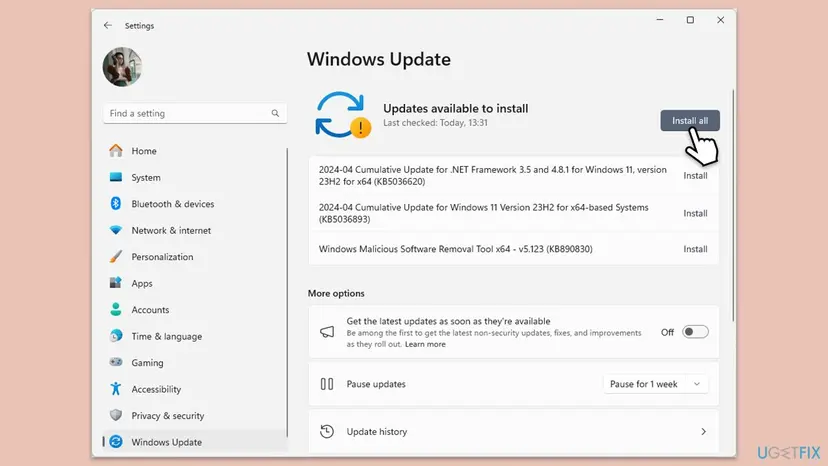
- Open Settings > Windows Update and select Check for updates. Install what is offered and restart again if Windows asks.
- Start the Office job that failed once more: the installer, Uninstall, or Modify.
- Sign in the same way as before. To install again, go to
m365.cloud.microsoft/apps, sign in with the account that owns the product and select Install apps. Microsoft requires an administrator account on the PC for installing Office. - One user's report: 30015-4 (1006) on a repair of Office 365 Personal ended after Windows 10 installed its waiting updates. The Office update then ran through. Microsoft has not confirmed a link, so see it as a cheap test.
It worked if: Setup runs past the point where it stopped and ends with You're all set, or the repair or uninstall finishes without the code.
If not: If Office is still installed and opens, go to Fix 2. If it is half installed or will not uninstall, go to Fix 3.
Fix 2. Repair the installed Office with Online Repair
15 to 30 minutesLow riskOffice is installed and the code appears when it updates, or the apps stopped working after an update.
Online Repair downloads the Office files again and replaces the installed ones, while Quick Repair only detects and replaces corrupted files from what is already on the disk. A file that is no longer valid, which is what (1006) reports, is exactly what Online Repair is meant to replace.
- Close every Office app, including Outlook and Teams.
- Windows 11: right-click Start and select Installed apps. Windows 10: right-click Start and select Apps and Features.
- Find your Microsoft 365 or Office product. In Windows 11 select the three dots next to it, then Modify. In Windows 10 select the product, then Modify.
- In the window How would you like to repair your Office programs? select Online Repair, then Repair.
- Stay connected to the internet until the repair is done, then restart the PC.
- Open Word, go to File > Account and select Update Options > Update Now.
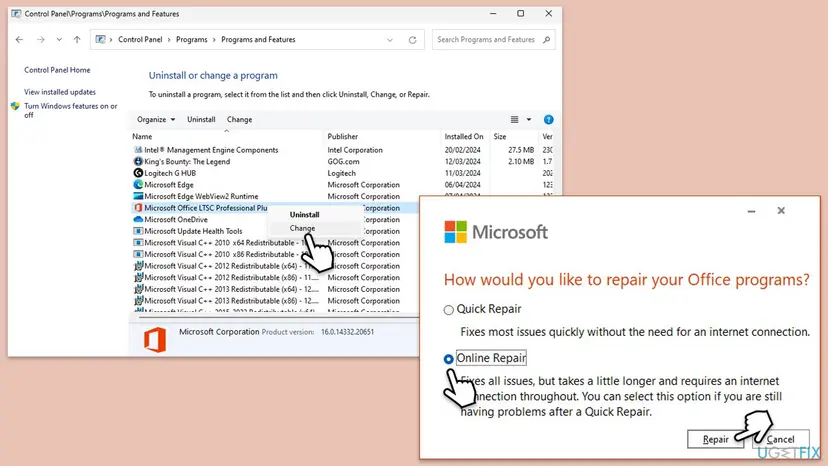
The repair covers the whole suite, even if only one app misbehaves. All screens and the Control Panel route are in the library procedure: How to repair Microsoft 365 or Office.
If Modify ends with 30015-25 or 30015-4, do not repeat it. The repair engine belongs to the damaged installation. That is the point where Microsoft's own pages move on to the uninstall troubleshooter, which is Fix 3.
It worked if: The repair ends without an error, the apps open, and Update Now reports that Office is up to date.
If not: If the repair window shows 30015-25 or 30015-4, or does not open at all, remove Office with Fix 3.
Fix 3. Remove Office completely with Microsoft's uninstall troubleshooter
15 to 30 minutesRead the warningSetup, repair or uninstall keeps ending with 30015-25, or an Office was removed before and the new one will not install.
This is the answer Microsoft's forum staff give to 30015-25 in every thread we read: a previous Office was not removed completely, so use the uninstall support tool. In the accepted answers this alone ended the error, in one case by clearing Office 2010 and 2007 files nobody knew were there.
Microsoft states that uninstalling removes the apps only, not the files, documents or workbooks you created. What you can lose is the way back: note which Microsoft account or product key the product belongs to before you start, and make sure you can sign in to m365.cloud.microsoft/apps. Copy custom Word templates and Outlook signatures if you cannot afford to set them up again: Back up your files (Windows Backup, File History, Time Machine).
- Sign in to Windows with an administrator account. Microsoft's staff name this as the first condition.
- Open Microsoft's page Uninstall Microsoft 365 or Office from a PC and keep the Click-to-Run tab selected.
- Under the uninstall troubleshooter heading select the Uninstall button.
- When the browser says This site is trying to open Get Help, select Open.
- Follow the prompts in the Get Help app. If it asks which versions to remove, choose all of them.
- Restart the PC when you are prompted.
- Open Settings > Apps > Installed apps (Windows 10: Apps & features) and check that no Microsoft 365, Office, Project or Visio entry is left.
- Install Office again from
m365.cloud.microsoft/apps.

| Limit | What Microsoft says |
|---|---|
| Products | The troubleshooter removes Microsoft 365, Office 2021, Office 2019 and Office 2016. |
| Office 2024 | The uninstall troubleshooter currently can't uninstall Office 2024. Use Control Panel, or the Deployment Tool below. |
| Windows | You need Windows 10 or higher to run it, and it must run on the PC that has the Office you want to remove. |
| The older tool | Microsoft Support and Recovery Assistant, the download behind old links such as SetupProd_OffScrub.exe, is deprecated. Its job moved into Get Help. |
For Office 2024, and for administrators, the Office Deployment Tool can remove Click-to-Run products with a configuration file. Microsoft documents the Remove element: with All="TRUE", all Microsoft 365 Apps products and languages are removed, including Project and Visio.
Save as remove.xml next to the Deployment Tool, then run in an elevated Command Prompt: setup.exe /configure remove.xml
<Configuration>
  <Remove All="TRUE" />
</Configuration>- If the Deployment Tool itself stops before it does anything, with a window about a configuration file, that is a different problem: see our guide to error code 0-2048.
- Administrators with many PCs can use the command line version of Get Help. Microsoft lists the scenario
OfficeScrubScenario, described as scrubbing any version of Office from a device, with the switches-S,-AcceptEulaand-OfficeVersion All. - After the removal, Microsoft's staff advise deleting the temporary files in
%temp%and inC:\Windows\Tempbefore the new installation: Free up disk space and delete temporary files.
It worked if: No Office entry is left in Installed apps, and the new installation runs through to You're all set.
If not: If the troubleshooter says it finished and setup still fails, look for a Store edition with Fix 4. If the troubleshooter itself cannot finish, go to Fix 8.
Fix 4. Remove the Microsoft Store edition of Office and preinstalled Office apps
10 minutesLow riskThe PC came with Office preinstalled, or Office was once installed from the Microsoft Store.
Microsoft names three installation types: Click-to-Run, MSI and the Microsoft Store app. The removal tool is made for the first two. In one solved 30015-25 thread the user found that an Office app from the Store had not been removed by the tool, and setup worked as soon as that app was gone.
- If an Office app still opens, go to File > Account and select About. A Store installation shows a version and build number with the phrase Microsoft Store. Click-to-Run shows the phrase Click-to-Run.
- Open Settings > Apps > Installed apps (Windows 10: Apps & features) and type
officein the search box. - Uninstall every Store entry you find, such as Microsoft 365 (Office) or Microsoft Office Desktop Apps. Every screen: Uninstall a program or app in Windows.
- If the entry will not go, right-click Start and select Terminal (Admin). On Windows 10 it is Windows PowerShell (Admin).
- Type this command and press Enter. It takes a few minutes:
Get-AppxPackage -name "Microsoft.Office.Desktop" | Remove-AppxPackage - Check the result. If only a new prompt appears and no other information, the Store edition is gone:
Get-AppxPackage -name "Microsoft.Office.Desktop" - Restart the PC and run Office setup again.
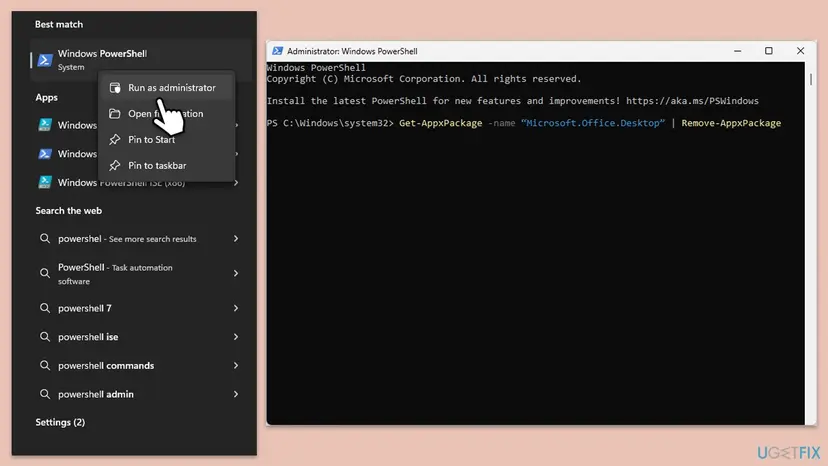
It removes the Microsoft Store edition only. A normal Click-to-Run Office is not an app package, so the command returns nothing for it and changes nothing. The earlier version of this guide gave the command as the general way to remove older Office versions, which it is not. For built-in apps in general see Remove built-in Windows apps with PowerShell.
It worked if: The second command returns nothing, the Store entry is gone from Installed apps, and setup no longer stops with 30015-25.
If not: If no Store edition was on the PC, the download is the next suspect. Go to Fix 5.
Fix 5. Install Office with Microsoft's offline installer
20 to 40 minutesNo riskA new installation ends with 30015-25, stays at 0 % to 3 %, or the brackets hold a connection error such as (2147954430).
Normal setup streams Office from Microsoft's servers while it installs, and the error text is about a problem streaming Office. The offline installer puts all files on the disk first. Microsoft offers it as Option 2 for 30015-4 and 30015-1011 because it may bypass proxy, firewall, antivirus and connection problems.
- Open Microsoft's page Use the Office offline installer and choose the Office for home tab.
- Select Download and sign in with the Microsoft account that owns the product.
- In the Install window open the Choose a version list and select Offline installer.
- Pick the language and select Install. Save the file when the browser asks.
- Open the Downloads folder and double-click the image file. For Microsoft 365 Family and Personal its name is
O365HomePremRetail.img. - Windows opens it as a virtual drive with the next free letter. If no window opens, find the new drive in File Explorer.
- Open the Office folder on that drive and run
Setup64.exefor 64-bit Office orSetup32.exefor 32-bit. - Wait for the message You're all set, then open Word and accept the licence terms to activate.
| Your product | Offline route |
|---|---|
| Microsoft 365 Family or Personal, Office Home 2024, Office 2021 or 2019 for home | The image file from your account, as in the steps above. No command line is needed. |
| Microsoft 365 Apps for business or for enterprise (work or school account) | The Office Deployment Tool in a folder such as c:\ODT: first setup.exe /download with a small XML file, then setup.exe /configure with the same file. |
- You still need the internet once, to download the image. After that the installation itself runs without a connection, and Microsoft suggests saving a copy of the image to a thumb drive for later.
It worked if: The setup started from the image ends with You're all set, and the Office apps appear in the Start menu.
If not: If the offline setup stops with the same code, the network is not the cause. Go back to Fix 3 and remove what is left of Office. If you cannot even download the image, test the network with Fix 6.
Fix 6. Rule out the network, the proxy, security software and disk space
10 to 20 minutesLow riskThe code appears on a work, school, hotel or VPN connection, on several PCs at once, or with (5) in the brackets.
Microsoft's forum staff list an antivirus or firewall that blocks the installation and proxy settings among the common causes of this error. One person with 30015-25 on four computers solved it by installing on a completely different network. Microsoft's own page for blocked installations orders the tests the same way as below.
- If you use Wi-Fi, connect the PC with a network cable. Microsoft lists a wired connection before any other network test.
- Disconnect a VPN and run setup again.
- Try another network, for example at home or a phone hotspot. If Office installs there, the first network limits the download. Basic checks: How to check your internet connection in Windows.
- Open Settings > Network & internet > Proxy. Under Manual proxy setup check whether a proxy server is switched on, note the setting, switch it off for the test and select Save.
- Pause the real-time protection of your security program for one attempt. Steps for Microsoft Defender: Turn off Microsoft Defender protection for a moment.
- Run setup once more, then turn the protection and the proxy setting back on straight away, whatever the result.
- Open Settings > System > Storage and read the free space on drive C:. Microsoft asks for 4 GB of available disk space for Office LTSC 2024.
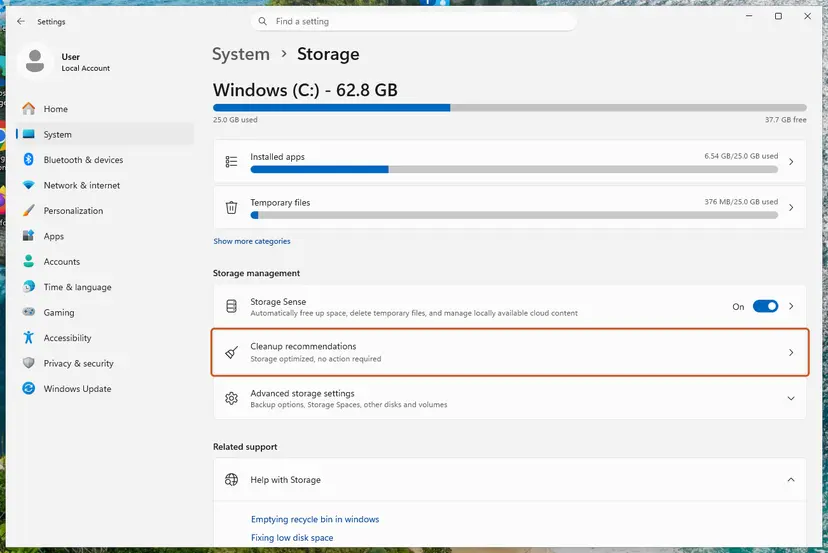
If Office installs only with the protection paused, do not leave it off. Use the offline installer from Fix 5, which needs no download during setup, or ask the maker of the security program why it stops a Microsoft installer.
Microsoft's list of Microsoft 365 URLs and IP address ranges names officecdn.microsoft.com on TCP ports 443 and 80 as a required address for Microsoft 365 Apps. If a firewall or proxy inspects or blocks it, setup can fetch part of the files and then fail. That fits the report of a download that looked complete on the firewall and still ended with 30015-25.
It worked if: Setup passes the first few percent, keeps downloading and ends with You're all set on the other network or with the proxy off.
If not: Turn everything back on. If the network makes no difference, the installation on the PC is the cause: go to Fix 3, or to Fix 7 if Uninstall and Modify do nothing.
Fix 7. Check the Microsoft Office Click-to-Run Service
5 minutesLow riskOffice is installed, but Uninstall and Modify close at once and the Office apps do not start either.
Updating, repairing and uninstalling an installed Office are done by one Windows service, Microsoft Office Click-to-Run Service. Tuning tools and some manual tweaks set it to Disabled. Microsoft's forum staff tell users with Office start errors to check that its startup type is Automatic.
- Press Win + R, type
services.mscand press Enter. - Find Microsoft Office Click-to-Run Service in the list and double-click it.
- Set Startup type to Automatic and select Apply.
- If Service status is not Running, select Start. If it is running, close the window, right-click the service and select Restart.
- Select OK, close Services and try Modify or Uninstall again.
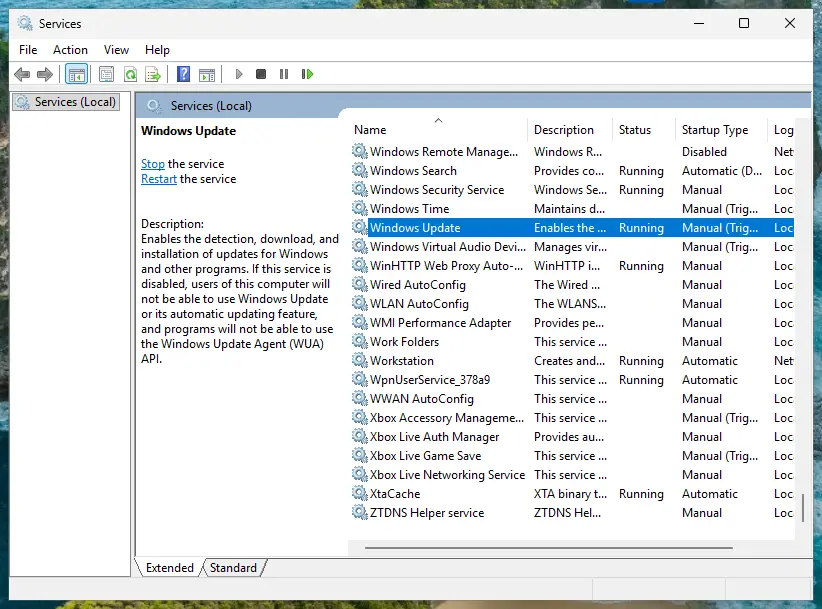
The same check in an elevated Command Prompt: STATE should say RUNNING
sc query ClickToRunSvcHow the Services console works, with every screen: Check and restart Windows services. If the service is not in the list at all, Office is not installed as Click-to-Run or its installation is already half removed. In both cases go on with Fix 3.
The earlier version of this guide told readers to restart the Windows Installer service. That service handles MSI packages, and we found no Microsoft page that links it to 30015-25. Current Office versions are Click-to-Run products and depend on the service above.
It worked if: The service shows Running with the startup type Automatic, and Modify or Uninstall opens the Office setup window and finishes.
If not: If the service will not start or the code returns, the installation has to be removed by hand. Go to Fix 8.
Fix 8. Remove a broken Click-to-Run installation by hand
30 to 45 minutesRead the warningUninstall, repair and the uninstall troubleshooter all fail, typically after a cleaning tool or an interrupted setup.
When the installed Office can no longer remove itself, the parts that setup trips over have to be deleted directly: the scheduled tasks, the service, the program folders and the Click-to-Run registry keys. Microsoft publishes the order, and its forum staff point to it for 30015-25 on uninstall.
Microsoft's own warning: removing Office manually is a long, complex process and might require that you reinstall the operating system if certain steps are done incorrectly. Use it only after Fix 3. Export the registry first, Back up the registry before editing it, and create a restore point, Undo recent changes with System Restore. Deleting HKEY_CURRENT_USER\Software\Microsoft\Office resets your Office settings. Your documents and Outlook data files are not touched.
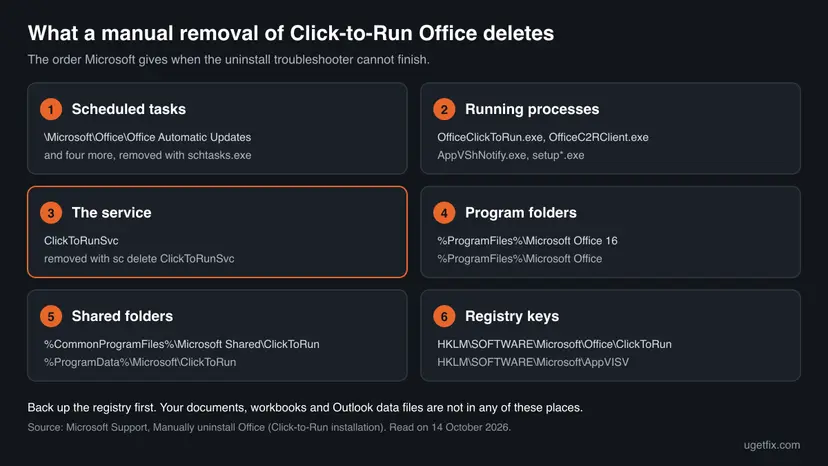
Part one runs in an elevated Command Prompt and in Task Manager. Sign in with an administrator account. A task that does not exist returns an error, which is fine.
- Select Start, type
cmd, right-click Command Prompt and select Run as administrator. - Delete the Office scheduled tasks. Press Enter after each line and confirm with
Y:schtasks.exe /delete /tn "\Microsoft\Office\Office Automatic Updates" schtasks.exe /delete /tn "\Microsoft\Office\Office Subscription Maintenance" schtasks.exe /delete /tn "\Microsoft\Office\Office ClickToRun Service Monitor" schtasks.exe /delete /tn "\Microsoft\Office\OfficeTelemetryAgentLogOn2016" schtasks.exe /delete /tn "\Microsoft\Office\OfficeTelemetryAgentFallBack2016" - Press Ctrl + Shift + Esc to open Task Manager. End these processes if they run:
OfficeClickToRun.exe,OfficeC2RClient.exe,AppVShNotify.exeand anysetup*.exe. How to end a task: Close a frozen app (Task Manager, Force Quit). - Back in the Command Prompt, delete the Office service:
sc delete ClickToRunSvc
Part two removes the files and the registry keys. If a folder cannot be deleted because it is in use, Microsoft's advice is to restart the computer and try again.
- Press Win + R, type
%ProgramFiles%and select OK. Delete the folders Microsoft Office 16 and Microsoft Office. - Open
%ProgramFiles(x86)%the same way and delete the Microsoft Office folder. - Open
%CommonProgramFiles%\Microsoft Sharedand delete the ClickToRun folder. - Open
%ProgramData%\Microsoftand delete the ClickToRun folder, if it exists. - Open
%ProgramData%\Microsoft\Officeand delete the file ClickToRunPackagerLocker. - Press Win + R, type
regeditand select OK. - Delete the keys
HKEY_LOCAL_MACHINE\SOFTWARE\Microsoft\Office\ClickToRunandHKEY_LOCAL_MACHINE\SOFTWARE\Microsoft\AppVISV. - Under
HKEY_LOCAL_MACHINE\SOFTWARE\Microsoft\Windows\CurrentVersion\Uninstalldelete the key named after your product, for example Microsoft Office Professional Plus 2021 - en-us. - Delete
HKEY_CURRENT_USER\Software\Microsoft\Office, restart the PC and install Office again.
- Microsoft's page Manually uninstall Office adds two more parts: deleting the Start menu shortcuts and removing three small licensing and localisation components with
MsiExec.exe /Xcommands. The product codes differ for 32-bit and 64-bit Office, so copy them from that page.
It worked if: The folders, the service and the keys are gone, Installed apps shows no Office, and a new installation finishes without 30015-25.
If not: If setup fails on a PC with no trace of Office left, read the setup log as described below and test with a new administrator account.
If 30015-25 is still there: read the setup log and test the profile and the disk
The setup window gives one line. Click-to-Run writes much more to its log files, and Microsoft's deployment pages end their troubleshooting advice with the same sentence: review the log files in the %temp% folder. Microsoft's forum staff also ask for the contents of C:\Windows\Temp.
| Folder | How to open it | What to look for |
|---|---|---|
%temp% | Press Win + R, type %temp%, press Enter. Use the account that ran setup. | The newest file named MachineName-Date-time.log, written in the minute of the failure. |
%windir%\Temp | Press Win + R, type %windir%\Temp and confirm the permission prompt. | Logs of the same name pattern written by the system account, which does the installing and patching. |
- Run the failing job once more and note the time.
- Open
%temp%, switch to the Details view and sort by Date modified, newest first. - Open the newest file that begins with the name of your PC and ends in
.log. It opens in Notepad. - Press Ctrl + F and search for
30015, then forerrorandfail. Read the lines just before the first hit. - Look for a file path or a web address in those lines. A path points to the file that is no longer valid. An address points to the network.
- Repeat it in
%windir%\Temp.
If the log is too short, Microsoft's article on enterprise logging turns on verbose logging for installation and patching with two registry values. Run the commands in an elevated Command Prompt, then restart the Microsoft Office Click-to-Run service in Services for the logging to take effect.
Turn verbose setup logging on
reg add HKLM\SOFTWARE\Microsoft\ClickToRun\OverRide /v LogLevel /t REG_DWORD /d 3
reg add HKLM\SOFTWARE\Microsoft\ClickToRun\OverRide /v PipelineLogging /t REG_DWORD /d 1The commands add two values and change nothing else, but a typing mistake in the registry can cause other problems, so export the key first: Back up the registry before editing it. Microsoft tells you to disable the verbose logging after you collected the log, because the files become very large. The commands below remove the two values again.
Turn verbose setup logging off again
reg delete HKLM\SOFTWARE\Microsoft\ClickToRun\OverRide /v PipelineLogging
reg delete HKLM\SOFTWARE\Microsoft\ClickToRun\OverRide /v LogLevel- Test with a new administrator account. A Microsoft support specialist answering 30015-25 on uninstall wrote that the 30015 error may also be related to the system's user profile, and advised a new local administrator account for the test. Steps: Create a new user account to test a problem.
- Check the disk when the brackets say (1006). The Windows error behind that number is about a file on a volume that is no longer valid. If it returns after a complete removal, check drive C: for file system errors: Check a disk for errors (chkdsk). This step follows from our reading of the number, not from a Microsoft instruction.
- What to send to Microsoft support or your administrator: the full code with the brackets and the moment it appears (install, Modify or Uninstall). Add the product, whether it is 32-bit or 64-bit, the Windows version from Settings > System > About and the newest log from both folders.
Three cases cannot be solved with the fixes above. A managed work PC may block installations by policy, and then only the administrator can install or remove Office. Your account may show no product to install, which is a licence question for the seller or for Microsoft support. And a disk that keeps reporting errors needs a backup and a replacement before any new Office setup: Back up your files (Windows Backup, File History, Time Machine).
How to avoid error 30015-25 the next time you install or update Office
Almost every report of this code begins with an Office job that was cut short or with a tool that cleaned too much. Prevention is a matter of letting Click-to-Run finish and of removing Office only with Microsoft's own tools.
- Keep a laptop on mains power and online until setup says You're all set or the update window closes.
- Restart the PC before a new Office installation, and let Windows Update finish first.
- Uninstall the old Office with Settings or with Microsoft's uninstall troubleshooter before you install another edition or switch between 32-bit and 64-bit. Microsoft requires the uninstall for that switch.
- Remove a preinstalled Store edition before you install Office from your account.
- Keep the offline installer image on a thumb drive if your connection is slow or filtered.
- Shut down or force a restart while Office is installing or updating.
- Start a second installation while the Office icon in the notification area still shows progress.
- Let registry cleaners or disk cleaning tools remove Office keys and folders. One user linked his 30015-25 to exactly such tools.
- Delete folders under Program Files by hand to get rid of Office, unless you follow Microsoft's manual steps to the end.
- Leave security software paused after a test installation.
Frequently asked questions
What does error code 30015-25 (1006) mean?
It means that Click-to-Run, the engine that installs, updates, repairs and removes Office, could not finish a job on your PC. The first number, 30015, is a family of setup failures. Microsoft does not explain the 25. The 1006 in brackets equals a Windows system error whose text says that an opened file is no longer valid, which fits an installation that was interrupted or damaged. Microsoft has no support article for this exact code. Its staff answer it with one instruction: remove Office completely with the uninstall tool and install it again.
Why do I get error code 30015-25 (1006) when I try to uninstall Office?
Because the uninstaller is part of the installation that is broken. When you select Uninstall in Settings, Windows starts Office's own Click-to-Run setup, and that setup fails on the same damaged files as a repair would. Several users saw 30015-25 on Uninstall and 30015-4 on Online Repair on the same PC. The way out is a tool that does not depend on the installed Office: Microsoft's uninstall troubleshooter in the Get Help app (Fix 3). If that cannot finish either, Microsoft's manual removal deletes the service, the folders and the registry keys directly (Fix 8).
Is 30015-2025 the same error as 30015-25?
We believe so, with one reservation. The earlier version of this guide wrote the code as 30015-2025, and that spelling is still in the address of this page. We found no Microsoft page and no user report that shows 30015-2025 in a setup window, while 30015-25 appears in many threads on Microsoft Q&A. People who reach this page search for 30015-25, most often with (1006). If your window really shows another second number, such as 30015-4, 30015-11 or 30015-28, the same order of fixes is still a sound start, because the family is the same.
Does error 30015-25 mean that a firewall is blocking Office?
Sometimes, but not usually when the brackets say (1006). A firewall, proxy or VPN is a real cause for a new installation that stays at 0 % to 3 %: one person fixed 30015-25 on four computers by using another network. A Tech Community user with (1006) had read the same firewall advice, turned the Windows firewall off and removed malware, and still had the error on repair and uninstall. For (1006) start with the restart, the repair and the full removal. Test the network with Fix 6 when the installation is new.
Will I lose my documents or Outlook mail if I remove Office to fix this?
No. Microsoft states that uninstalling Microsoft 365 or Office only removes the applications and does not remove any files, documents or workbooks you created. Mail in an Exchange, Microsoft 365 or Outlook.com account stays on the server. The manual removal in Fix 8 deletes the Office settings key of your user account, so toolbars, recent file lists and some preferences start fresh. Before any removal, make sure you know the Microsoft account or the product key of your Office, because you need it to install and activate again.
Is there an official Microsoft fix or patch for 30015-25?
No. Microsoft does not treat it as a bug in one Office build, and its list of installation error codes does not include it. The list has pages for 30015-6, where the installation is probably fine and a repair is suggested, and for 30015-4 (1392) and 30015-1011 (1392), where Microsoft says to restart and then use the offline installer. For 30015-25 the consistent advice of Microsoft's forum staff is the uninstall troubleshooter, a test without proxy, VPN and security software, and a new installation.
Will SFC, DISM or restarting the Windows Installer service fix error 30015-25?
Probably not. System File Checker and DISM repair Windows system files, and the Windows Installer service handles MSI packages. Current Office versions are Click-to-Run products with their own service, Microsoft Office Click-to-Run Service. No Microsoft page and no solved report that we read credits SFC, DISM or Windows Installer for this code. They do no harm, so you can run them when everything else failed, but they cost time that the uninstall troubleshooter uses better. One user did report that pending Windows updates were the obstacle, which is why Fix 1 includes them.
This page is in English. Is "codigo de error 30015-25 (1006)" the same error?
Yes. The setup window is translated into the language of your Office, but the code is identical in Spanish, English and every other language, and so is the cause. The commands on this page are the same everywhere: services.msc, sc query ClickToRunSvc, the folder %temp%. Only the labels of Windows and Office differ, such as Modify, Online Repair and Uninstall. Microsoft's uninstall page exists in Spanish too: change en-us in its address to es-es. The troubleshooter button opens the Get Help app in the language of your Windows.
Sources
- Microsoft Support: Troubleshoot installing Office (list of installation error codes) (support.microsoft.com)
- Microsoft Support: Error code 30015-1011 (1392) and 30015-4 (1392) when installing Office (support.microsoft.com)
- Microsoft Support: Error code 30015-6 when installing Office (support.microsoft.com)
Did this fix work?
One click, no account. It tells the next reader which guides are worth their time.
Questions and experiences: fix Microsoft Office error code 30015-25 (1006) in Windows
Still broken, or found a fix we did not cover? Ask here: members and our editors answer. Reading is open; writing needs a free account.
…