
How to fix Microsoft Office error code 0-2048 in Windows?

Prefer to fix it yourself? The manual steps follow.
- 8methods
- 5 to 30 minutes
- Intermediate
Applies to Office LTSC 2024, Office LTSC 2021, Office 2019, Office 2024 and Microsoft 365 Apps installed with the Office Deployment Tool on Windows 11 and Windows 10
8 methods in this guide
- What the error means
- Which Office you have
- Causes, ranked
- The command explained
- The fixes
- 1. Elevated Command Prompt
- 2. Check the file name
- 3. Short folder, full paths
- 4. New configuration file
- 5. Newest Deployment Tool
- 6. Remove the other Office
- 7. Internet, space, antivirus
- 8. Install without the tool
- Still there: the setup log
- Prevent it
- FAQ
I'm getting the Microsoft Office error code 0-2048 (0) when I try to install Office on my Windows 10 computer, and I get a message saying There was a problem with the installation. I've tried closing other programs and have a stable internet connection, but the error persists, and I cannot get Office installed. Why am I getting this error, and how can I fix it?
Error Code: 0-2048 (0) comes from the Office Deployment Tool, the setup.exe that installs Office LTSC 2024, 2021, 2019 and Microsoft 365 Apps from a command. In most cases the tool did not receive its configuration file, so nothing was installed. Open Command Prompt as administrator, go to the folder that holds setup.exe and the XML file, and run the command again.
Read the sentence above the code. If it says We couldn't find the specified configuration file, the fault is in the command, not in Windows: open Command Prompt with Run as administrator, type cd /d C:\ODT (your folder), then setup.exe /configure configuration.xml (Fix 1). Check that the file is not really configuration.xml.txt (Fix 2). If the window asks about your internet connection and disk space, start with Fix 5 to Fix 7.
| Error | Couldn't install. We couldn't find the specified configuration file. Check the file path and file name. Under it: Go online for additional help. and Error Code: 0-2048 (0). An older variant of the window starts with We're sorry, we had a problem installing your Office program. |
|---|---|
| Where it appears | In the small Microsoft setup window that opens right after you run setup.exe /configure or setup.exe /download from the Office Deployment Tool. Office has not started to install at that moment. |
| Main cause | The tool cannot find or read the XML file named in the command: the command window is not elevated, the name or extension is wrong, or the path does not exist in the elevated session. |
| Fastest fix | An elevated Command Prompt, cd /d into the folder with both files, then setup.exe /configure configuration.xml (Fix 1). |
| Also written as | error code 0-2048 (0), 0-2048(0), Error Code: 0-2048, error 0 2048 0, error 02048, error 2048 Office. The neighbour 0-2054 (0) is a different message from the same tool. |
| Affects | Every product installed with the Office Deployment Tool: Office LTSC 2024 and 2021, Office 2019, Project and Visio, Microsoft 365 Apps, and retail Office 2024 or 2021 when someone installs it with the tool. Windows 11 and Windows 10. |
| Microsoft's status | Not a known bug and not in Microsoft's list of Office installation error codes (checked 14 October 2026). Microsoft staff on Microsoft Q&A describe it as the tool failing to find or read the configuration file. |
| Where the cause is logged | %temp% and %windir%\Temp, in files named after the PC, the date and the time, ending in .log. |
| Time to fix | About 5 minutes when the command is the problem. Up to 30 minutes when an older Office has to be removed first. |
Facts checked on 14 October 2026. Steps written for the Office Deployment Tool 16.0.20326.20112 on Windows 11 (25H2 and 26H2) and Windows 10 22H2, read against Microsoft's documentation.
What error code 0-2048 (0) means when Office says Couldn't install
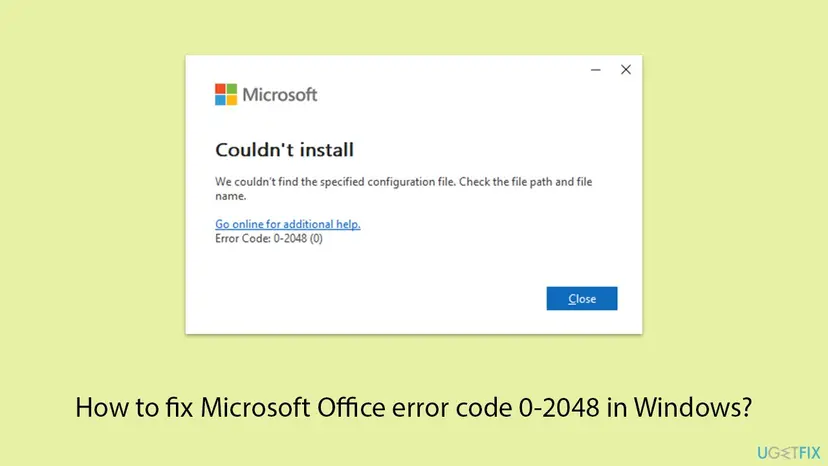
The window is small and white, with the Microsoft logo and the heading Couldn't install. Under the text there is a link, Go online for additional help., and the line Error Code: 0-2048 (0). It opens a second or two after you start setup.exe with a command, and the only button is Close.
That setup.exe is the Office Deployment Tool (ODT), Microsoft's command-line installer for Click-to-Run versions of Office. It consists of two files: the tool and an XML file that says what to install. The code 0-2048 is shown when the tool stops before the installation begins. Nothing was changed on the PC, so there is nothing to clean up or roll back.
| Text above the code | What it tells you | Start with |
|---|---|---|
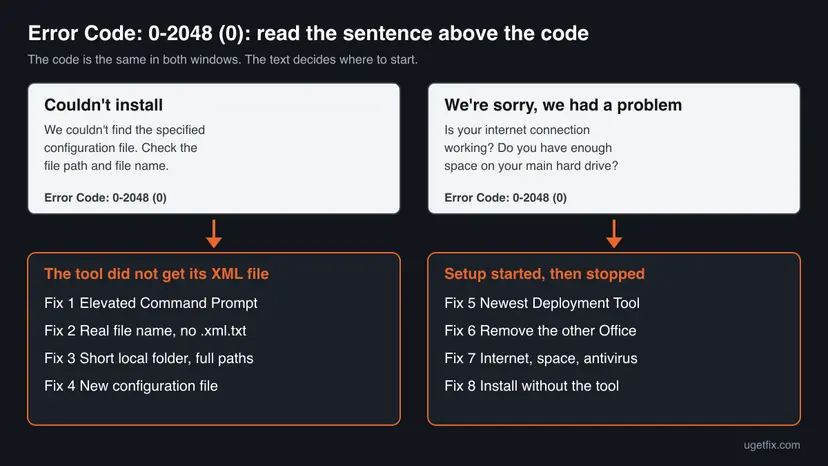
| Couldn't install. We couldn't find the specified configuration file. Check the file path and file name. | The tool started, looked for the XML file named in the command and did not get it. This is the form seen in almost every recent report. | Fix 1 to Fix 4 |
| We're sorry, we had a problem installing your Office program, followed by the questions Is your internet connection working? and whether you have enough space on your main hard drive | The general failure text of Office setup, seen with this code in a Microsoft Q&A report from 2021. The tool gives no specific reason. | Fix 5 to Fix 7 |
Error code 0-2048 (0), 0-2048(0), Error Code: 0-2048, error 0 2048 0, error 02048 and "error 2048 Office" are the same thing. The (0) at the end is part of the code. The first 0 also matters: codes that start with 30 and end with a dash and a number, such as 30182-2016 (3), come from a later stage of setup and have other causes.
Microsoft's support page Troubleshoot installing Office lists dozens of installation codes, from 0-3 to 30183-4. The code 0-2048 is not among them, and we found no Microsoft Learn article that defines it. What exists is the answer of Microsoft's own forum staff: the error appears when the tool cannot find or read the XML configuration file referenced in the command.
Which Office you are installing decides whether you need this tool at all
Many readers meet this error because a video or a seller told them to install Office with a command and a configuration.xml. That is the right way for some products and the wrong way for others. Check your product first, because the fastest fix may be to stop using the tool.
| Your product | How Microsoft installs it | Do you need the Deployment Tool? |
|---|---|---|
| Office LTSC Professional Plus 2024 or Standard 2024, Project and Visio 2024 (volume licence) | Only with the Office Deployment Tool, or with Configuration Manager. Channel PerpetualVL2024. | Yes. Fix 1 to Fix 6. |
| Office LTSC 2021 or Office 2019 (volume licence) | With the Office Deployment Tool. Channels PerpetualVL2021 and PerpetualVL2019. | Yes. Office 2019 left support on 14 October 2025. |
| Microsoft 365 Apps for business or for enterprise | From m365.cloud.microsoft/apps with Install apps. The tool is the option for administrators and for an offline installation. | Only if you want an offline or customised installation. |
| Microsoft 365 Family or Personal, Office Home 2024, Home & Business 2024, Office 2021 | From m365.cloud.microsoft/apps after signing in with your Microsoft account, or with Microsoft's offline installer image. | No. Go to Fix 8. |
- There is no lifetime Microsoft 365. A Microsoft Q&A moderator answered a reader with this error who had followed a video for an "Office 365 lifetime" key: Microsoft 365 is always a subscription. A one-time purchase is called Office 2024 or Office 2021.
- Office LTSC 2024 is not for every Windows 10 PC. Microsoft lists Windows 11, Windows 11 LTSC 2024, Windows 10 LTSC 2021, Windows 10 LTSC 2019, Windows Server 2025 and Windows Server 2022. Ordinary Windows 10 Home and Pro are not on the list.
- The tool itself runs on Windows 11 and Windows 10, and on Windows Server 2022, 2019 and 2016. Windows 10 left support on 14 October 2025, so new Office releases are not tested on it.
- The product ID must fit the licence. Microsoft's note is short: if you use the wrong product ID, you cannot activate Office.
What causes error code 0-2048, from the most common to the rare
Microsoft publishes no list of causes for this code. The ranking below is our reading of the reports on Microsoft Q&A, where Microsoft's forum staff and the people who solved the error describe what they changed, checked against the rules in Microsoft's deployment guides. It is an order of likelihood, not a statistic.
| How often | Cause | Typical sign | Fix |
|---|---|---|---|
| Most often | The command was run in a window that is not elevated, or by double-clicking, or from the Run box | The same XML file worked for /download and fails for /configure. A permission prompt appears, then the error. | Fix 1 |
| Often | The name in the command is not the name of the file: a typing mistake, another name than the one you saved, or a hidden .txt ending | The file was made in Notepad. Explorer shows configuration.xml with the type Text Document. | Fix 2 |
| Often | The tool and the file are in different folders, on a mapped network drive, or in a long path with spaces | The prompt shows C:\Windows\System32 while the files are in Downloads, or the files sit on drive Z:. | Fix 3 |
| Less often | The XML file exists but cannot be read as a configuration: broken tags, curly quotes, a product ID or channel that does not exist | The file was copied from a web page or a video description, or edited by hand several times. | Fix 4 |
| Less often | An old or damaged copy of the tool | The setup.exe came with the product files or from another site and is years old. | Fix 5 |
| Less often | Another Office is already installed that cannot live next to the new one | The window shows the general failure text. An MSI Office 2016, a 32-bit Office or a preinstalled Office is on the PC. | Fix 6 |
| Rarely | No connection to the Office servers, a full system drive, or security software that blocks the tool | The general failure text, or the error comes and goes with the network. | Fix 7 |
Users report that the elevated window is what fixes the error, even when the file name was right. Microsoft has not explained why a missing permission is reported as a missing file. Several websites also blame damaged Windows system files. No Microsoft document and no solved report that we read supports that for this code.
How the tool looks for configuration.xml: the command, word by word
The whole installation is one line with three parts. Microsoft's deployment guide for Office LTSC 2024 gives it as setup /configure configuration.xml, typed in an elevated command prompt in the folder where you saved the tool and the file. Each part can cause 0-2048 if it does not match what is on the disk.
| Part | What it is | What goes wrong |
|---|---|---|
setup.exe | The Office Deployment Tool, extracted from the download officedeploymenttool executable. | Another setup.exe is started, for example one inside the downloaded Office folder, or the tool is started by double-click with no command at all. |
/configure | The mode that installs. /download only saves the installation files, /customize applies app preferences. | A missing space or a dash in place of the slash. |
configuration.xml | The file with your settings. Microsoft says you can name it anything you prefer as long as it keeps the .xml extension. | The command names configuration.xml and the file is config.xml, Configuration-Office2024.xml or configuration.xml.txt. |
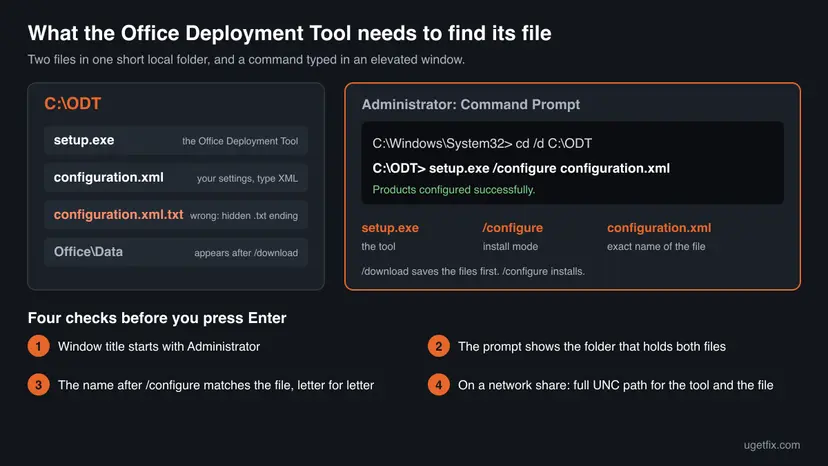
- A file name without a folder is searched for where the command window currently is. The prompt shows that place before the
>sign. - For a network share, Microsoft asks for the full network path of both
setup.exeand the configuration file. - After a successful installation the command prompt shows Products configured successfully. That sentence is Microsoft's own sign that the tool read the file.
How to fix error code 0-2048 (0) when installing Office
Fix 1 to Fix 4 repair the command and the file, and they solve the form of the error that names the configuration file. Fix 5 to Fix 7 are for the general failure text. Fix 8 is for home products, which do not need this tool. Use the table to pick your start.
| What you see or have | Start with |
|---|---|
| The text says We couldn't find the specified configuration file | Fix 1, then Fix 2 |
/download worked and /configure fails with the same file | Fix 1 |
| You wrote the XML in Notepad or copied it from a web page | Fix 2, then Fix 4 |
| The files are in Downloads, on the desktop, on a USB stick or on a network drive | Fix 3 |
| The text asks about your internet connection and disk space | Fix 5, Fix 6, Fix 7 |
| An older Office, a trial or a 32-bit Office is already installed | Fix 6 |
| You bought Office Home 2024 or a Microsoft 365 Family or Personal plan | Fix 8 |
Fix 1. Run the command in an elevated Command Prompt, from the folder with both files
5 minutesNo riskEveryone who sees the configuration file text, first.
Microsoft's guides for Office LTSC 2024, LTSC 2021 and Office 2019 all say to open an elevated command prompt and go to the folder of the tool before typing the command. In the accepted answers on Microsoft Q&A, elevating the window alone ended the error for people whose file was correct.
- Select Start and type
cmd. - Right-click Command Prompt and select Run as administrator. Select Yes when Windows asks for permission.
- Check the title bar. It must begin with Administrator:.
- Go to the folder that holds
setup.exeand your XML file. ReplaceC:\ODTwith your folder:cd /d C:\ODT - List the folder and check that both files are shown:
dir - Start the installation. Use the exact name of your XML file:
setup.exe /configure configuration.xml

- Windows Terminal or PowerShell: right-click Start and select Terminal (Admin). In PowerShell the tool is started as
.\setup.exe /configure configuration.xml, with the dot and the backslash in front. - The Run box (Win + R): Microsoft's offline installer page uses it with the full path of the tool, for example
c:\odt\setup.exe /configure installOfficeProPlus32.xml. If that gives 0-2048, use the elevated window above. - Double-clicking setup.exe gives the tool no file name at all. It always needs a command.
Plain cd does not change the drive. If the files are on D: and the prompt stays on C:, the tool looks in the wrong place. cd /d D:\ODT changes the drive and the folder in one step.
It worked if: The Office setup window opens and shows the progress, or with a silent configuration the prompt returns after some minutes and shows Products configured successfully.
If not: If dir does not list your XML file under the name you typed, go to Fix 2. If the folder is on a network drive or in a long path, go to Fix 3.
Fix 2. Check the real name and extension of the configuration file
5 minutesNo riskThe XML was written or edited in Notepad, renamed, or downloaded under another name than the one in the command.
Microsoft staff name this trap in their answer to the error: the file must be in XML format, not Configuration.xml.txt. Windows hides known extensions by default, so a text file can look exactly like the XML file the command asks for.
- Open the folder with the tool in File Explorer.
- Select View > Show > File name extensions. On Windows 10 the same File name extensions check box is on the View tab.
- Read the full name of the file. If it ends in
.xml.txt, right-click it, select Rename, delete.txtand confirm the change of extension. - Compare the name with the command, letter for letter.
config.xml,Configuration.xmlandconfiguration (1).xmlare three different names for the tool. - If the name contains spaces, either rename the file or put the name in quotation marks in the command.
- Run the command from Fix 1 again with the corrected name.
A file name with spaces needs quotation marks
setup.exe /configure "Office 2024 config.xml"To avoid the hidden ending when you save from Notepad, select File > Save as and set Save as type to All files. Type the name with .xml at the end and keep the encoding UTF-8, which is what Microsoft's forum staff advise for this file.
The internal knowledge base of one company, which ranks first in Google for this code, explains 0-2048 (0) in a single sentence: the XML file name was misspelled in the command. That matches Microsoft's wording of a file that cannot be found.
It worked if: The dir command shows the file with the type you expect, the name in the command is identical, and setup starts.
If not: If the name is right and the window is elevated, the path is the next suspect. Go to Fix 3.
Fix 3. Move the tool and the file to a short local folder, or use full paths
5 minutesNo riskThe files are in Downloads, on the desktop, on a USB stick, in a OneDrive folder, or on a mapped network drive.
Microsoft's own example for a single PC is a folder named c:\ODT. A short local path removes spaces, long names and cloud folders from the question, and the highest-voted user answer on Microsoft Q&A is to place both files in a directory of the system disk.
- Create the folder
C:\ODTin File Explorer. - Move
setup.exeand your XML file into it. Do not put them inside the Office folder that/downloadcreated. - Open an elevated Command Prompt as in Fix 1.
- Run the command with full paths, so that the current folder no longer matters:
C:\ODT\setup.exe /configure C:\ODT\configuration.xml
On a network share the rules change in an elevated window. Windows keeps drive letters per logon session, and Microsoft documents that mapped drives can be unavailable in an elevated command prompt. The drive Z: that you see in File Explorer may not exist there.
From a network share: pushd gives the elevated window its own temporary drive letter
pushd \\server\share\ODT
setup.exe /configure configuration.xml
popd- One administrator wrote on Microsoft Q&A that
pushdwas what ended her 0-2048 error with Office LTSC 2024 on a server share. - The other way is Microsoft's rule for shares: pass the full network path for both files,
\\server\share\ODT\setup.exe /configure \\server\share\ODT\configuration.xml. SourcePathinside the XML is a different thing. It says where the installation files are, and Microsoft notes that it should not include the/Officepart of the path.
It worked if: The tool finds the file in C:\ODT and the setup window with the progress bar opens.
If not: If the full local paths still give the configuration file text, the content of the file is the problem. Build a new one with Fix 4.
Fix 4. Build a new configuration file with the Office Customization Tool
10 minutesNo riskThe file is found but not accepted: it was copied from a web page, edited by hand many times, or made for another product.
Microsoft staff describe the error as a file the tool cannot find or read, and their second advice after the elevated window is to create the file with the Office Customization Tool. The web tool writes valid XML with product IDs and channels that exist, which hand editing often gets wrong.
- Open config.office.com/deploymentsettings in a browser. No sign-in is needed to create a file.
- Under Products and releases choose the architecture, then your product, for example Office LTSC Professional Plus 2024.
- Choose the language, and leave the installation options on the Office Content Delivery Network unless you install from a share.
- Under Licensing and activation accept the terms automatically if you want, and enter the KMS or MAK key settings for a volume product.
- Select Finish, check the summary on the right and select Export.
- Accept the licence terms, name the file
configuration.xmland save it toC:\ODT. - Run the command from Fix 1.
If you prefer to check a hand-written file, compare it with Microsoft's sample from the deployment guide for Office LTSC 2024, reduced here to one product.
Office LTSC Professional Plus 2024, 64-bit, from the Office servers (replace the key with your own)
<Configuration>
  <Add OfficeClientEdition="64" Channel="PerpetualVL2024">
    <Product ID="ProPlus2024Volume" PIDKEY="#####-#####-#####-#####-#####">
      <Language ID="en-us" />
    </Product>
  </Add>
  <RemoveMSI />
</Configuration>| Product | Product ID | Channel |
|---|---|---|
| Office LTSC Professional Plus 2024 | ProPlus2024Volume | PerpetualVL2024 |
| Office LTSC Standard 2024 | Standard2024Volume | PerpetualVL2024 |
| Office LTSC Professional Plus 2021 | ProPlus2021Volume | PerpetualVL2021 |
| Office Professional Plus 2019 | ProPlus2019Volume | PerpetualVL2019 |
| Microsoft 365 Apps for enterprise | O365ProPlusRetail | Current, MonthlyEnterprise or SemiAnnual |
| Microsoft 365 Apps for business | O365BusinessRetail | Current, MonthlyEnterprise or SemiAnnual |
Text copied from a web page or a chat often arrives with curly quotation marks in place of straight ones, or with a tag that is never closed. An XML reader stops at both. A user on Reddit also reports that a file meant to fall back from a local source to the internet produced this code for Office LTSC 2024. We could not confirm the exact trigger.
It worked if: With the exported file the tool starts the installation, and the product named in the file appears in the setup window.
If not: If a fresh file from the Customization Tool fails in an elevated window in C:\ODT, replace the tool itself with Fix 5.
Fix 5. Download the newest Office Deployment Tool and extract it again
5 minutesNo riskThe setup.exe came from a seller, an old archive or a video link, or the window shows the general failure text.
Microsoft's deployment guides repeat one sentence at every troubleshooting step: make sure you have the newest version of the tool. It is released about once a month, and an old copy may not know the product IDs or channels of Office LTSC 2024.
- Right-click your current
setup.exe, select Properties and open the Details tab. Note the File version. - Open Microsoft's download page: Office Deployment Tool.
- Download the file. Its name begins with
officedeploymenttool. - Double-click it, accept the Microsoft Software License Terms and select
C:\ODTas the folder. - Let it replace the old
setup.exe. Keep your own XML file. The extracted sampleconfiguration.xmlcan overwrite a file of the same name, so rename yours first. - Run the command from Fix 1.
| Release date | Version of setup.exe |
|---|---|
| 9 September 2026 | 16.0.20326.20112 |
| 11 August 2026 | 16.0.20228.20124 |
| 14 July 2026 | 16.0.20131.20090 |
In October 2024 a user on Microsoft Q&A suspected that one build of the tool, 16.0.18129.20030, caused the error with Office LTSC 2021. Microsoft never confirmed a faulty build, and the release notes of that period only say "Resiliency and Reliability Improvements". Going back to an older build is not a fix we can recommend.
It worked if: The Details tab shows the current version, and the command starts the setup window.
If not: If the newest tool with a new file still fails, look at what is already installed. Go to Fix 6.
Fix 6. Remove the Office version that conflicts with the new one
15 to 30 minutesRead the warningAnother Office, a trial, Visio or Project is already on the PC, or the window shows the general failure text.
Microsoft's first answer to this code in 2021 was to uninstall other Office versions with its uninstall tool. Its compatibility rules explain why: two products of version 16.0 with different installation technologies cannot share a PC, and all Office products on one device must be either 32-bit or 64-bit.
Uninstalling Office removes the apps, not your documents. Microsoft states that files, documents and workbooks stay. What you can lose is the ability to reinstall the old version: write down its product key or the account it belongs to first. Outlook profiles and signatures stay in your Windows profile, but export anything you cannot afford to set up again.
| Already installed | What Microsoft says | What to do |
|---|---|---|
| Office 2016 or older, installed with Windows Installer (MSI) | Not supported next to a Click-to-Run Office of version 16.0. | Add <RemoveMSI /> to the XML, or uninstall it. |
| Office 2019, 2021 or Microsoft 365 (Click-to-Run) with the same apps | Two Click-to-Run versions with overlapping apps cannot be installed together. | Uninstall it in Windows, or use the Remove element. |
| A 32-bit Office when you install 64-bit, or the reverse | You cannot have both on the same device. | Uninstall it, or install the matching edition. |
| Visio or Project from another channel | Products on the same PC must use the same update channel. | Use the same channel in the XML. |
- Open an Office app if one starts and go to File > Account. If Update Options is shown, it is Click-to-Run. If only About is there, it is an MSI installation.
- Windows 11: open Settings > Apps > Installed apps. Windows 10: open Settings > Apps > Apps & features.
- Find every Microsoft 365, Office, Visio and Project entry. Select Uninstall for the ones that conflict. Every screen: Uninstall a program or app in Windows.
- Restart the PC.
- If an entry refuses to go, open Microsoft's page Uninstall Microsoft 365 or Office from a PC and start the uninstall troubleshooter. It opens in the Get Help app.
- Restart again and run the command from Fix 1.

- Microsoft notes that the uninstall troubleshooter covers Microsoft 365, Office 2021, 2019 and 2016, needs Windows 10 or later and currently cannot uninstall Office 2024.
RemoveMSIremoves the 2007, 2010, 2013 and 2016 versions that were installed with Windows Installer. It does not remove Click-to-Run versions.- The old advice to run
Get-AppxPackagewithRemove-AppxPackageonly removes the Microsoft Store edition of Office. It does nothing for a normal installation.
It worked if: Installed apps no longer lists the old Office, and the Deployment Tool installs the new one without the error.
If not: If no other Office is installed, test the connection, the disk and the security software with Fix 7.
Fix 7. Rule out the internet connection, disk space and security software
10 to 20 minutesLow riskThe window asks whether your internet connection works and whether you have enough space, or the error appears only on one network.
Unless the XML names a local source, the tool fetches the installation files from the Office Content Delivery Network, and Microsoft requires network connectivity even in download mode. Office LTSC 2024 needs 4 GB of available disk space, and Microsoft staff suggest one test without antivirus or firewall interference.
- Open a browser and load
https://config.office.com. If it does not open, fix the connection first: How to check your internet connection in Windows. - Disconnect a VPN, or try another network such as a phone hotspot, and run the command again.
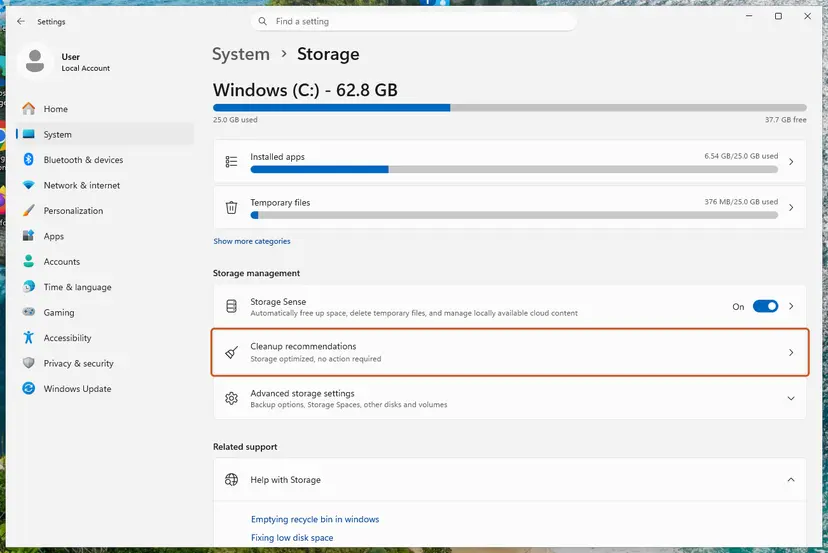
- Open Settings > System > Storage and read the free space on drive C:. Office is always installed on the system drive, and Microsoft says the location cannot be changed.
- If less than 4 GB is free, make room: Free up disk space and delete temporary files.
- Pause the real-time protection of your antivirus for this one test and run the command once more. Steps for Microsoft Defender: Turn off Microsoft Defender protection for a moment.
- Turn the protection back on straight after the test, whatever the result.
If the installation works only with the protection paused, do not leave it off. Add C:\ODT\setup.exe to the exclusions of the security program, or ask its maker why it blocks a Microsoft installer. On a company network, the proxy or firewall has to allow the Office Content Delivery Network, which is the network administrator's job.
Run the tool in two steps. setup.exe /download configuration.xml saves the files to the folder first. Microsoft warns that it can look as though nothing is happening while the download runs in the background. When the prompt returns and an Office folder with a Data subfolder exists, run setup.exe /configure configuration.xml.
It worked if: The download or the installation runs through, and an Office folder with a Data subfolder appears next to the tool, or Office appears in the Start menu.
If not: Turn the protection back on. If you have a home product, go to Fix 8. For a volume product, read the setup log as described in the next section.
Fix 8. Install a home or small business product without the Deployment Tool
20 to 40 minutesNo riskYou have Microsoft 365 Family, Personal or a business plan, or a one-time purchase such as Office Home 2024, and used the tool only because a guide said so.
Microsoft's overview of the tool says plainly that it is for enterprise administrators, and sends everyone else to the normal download from the account. That route needs no XML file and no command, so the code 0-2048 cannot appear in it.
- A product key that was never used is redeemed first: Microsoft's install page sends home products to
microsoft365.com/setuporsetup.office.com, where the key is linked to a Microsoft account. - Go to
m365.cloud.microsoft/appsand select Sign in. Use the account that owns the product. - Select Install apps, then Install, and run the small installer that downloads.
- If that installer fails as well, open Microsoft's page Use the Office offline installer and select the Office for home tab.
- In the Install window choose Offline installer in the Choose a version list, pick the language and select Install.
- Double-click the downloaded image file, for example
O365HomePremRetail.img. Windows opens it as a virtual drive. - Open the Office folder on that drive and run
Setup64.exefor 64-bit Office orSetup32.exefor 32-bit.
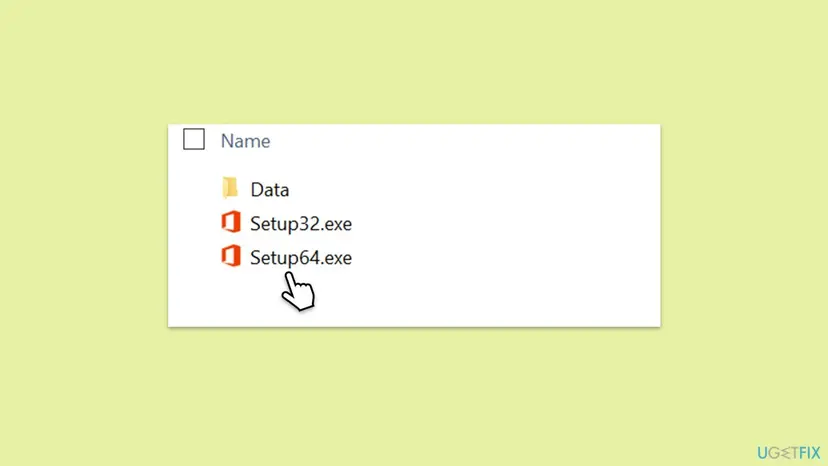
Microsoft describes the offline installer as a way around proxy, firewall, antivirus and connection problems during installation. For a business plan the same page uses the Deployment Tool with a short XML file, which brings you back to Fix 1 to Fix 4.
It worked if: Setup ends with the message You're all set, and Word or Excel activates after you accept the licence terms.
If not: If your account shows no product to install, the key or the licence is the problem and not the PC. Contact the seller or Microsoft support with the proof of purchase.
If 0-2048 is still there: find the setup log and read it
The error window gives one sentence. The tool writes more than that to a log file, and Microsoft's deployment guides end every troubleshooting paragraph with the same advice: review the log files in the %temp% folder. A second set is written by the part of setup that runs under the system account.
| Folder | How to open it | What is in it |
|---|---|---|
%temp% | Press Win + R, type %temp% and press Enter. Do it as the user who ran the command. | The log of the Deployment Tool run. Microsoft names this folder for the tool's download and install problems. |
%windir%\Temp | Press Win + R, type %windir%\Temp and confirm the permission prompt. | Logs of installation and patching, which use the system account. Microsoft asks support cases to collect these too. |
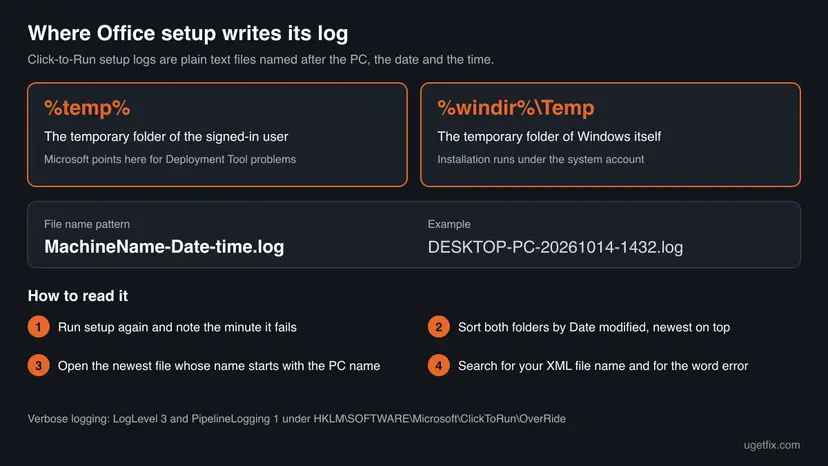
- Run the failing command once more and note the time.
- Open
%temp%, switch to the Details view and sort by Date modified, newest first. - Open the newest file whose name begins with the name of your PC and ends in
.log. It opens in Notepad. - Press Ctrl + F and search for the name of your XML file. The lines around it show the path the tool worked with.
- Search for
errorandfail, and read the lines just before the end of the file. - Repeat it in
%windir%\Temp. If no new file exists there, setup stopped before the installation part began, which points back to the command and the file.
Microsoft does not document which exact line the tool writes for 0-2048, so we do not quote one. Treat the log as evidence: a path that differs from the one you expected, a file name with a wrong ending, or an access problem. If no log file is created at all, the tool did not get far enough to write one.
If the log is too short to explain anything, Microsoft's article on enterprise logging turns on verbose logging for installation with two registry values. Run them in an elevated Command Prompt.
Turn verbose setup logging on
reg add HKLM\SOFTWARE\Microsoft\ClickToRun\OverRide /v LogLevel /t REG_DWORD /d 3
reg add HKLM\SOFTWARE\Microsoft\ClickToRun\OverRide /v PipelineLogging /t REG_DWORD /d 1These commands add two values and change nothing else, but a typing mistake in the registry can cause other problems. Export the key before you start: Back up the registry before editing it. Microsoft tells you to restart the Microsoft Office Click-to-Run service in Services for the logging to take effect (Check and restart Windows services), and to switch the logging off after the test, because the files grow very large.
Turn verbose setup logging off again
reg delete HKLM\SOFTWARE\Microsoft\ClickToRun\OverRide /v PipelineLogging
reg delete HKLM\SOFTWARE\Microsoft\ClickToRun\OverRide /v LogLevel- What to send to support or to your administrator: the exact command and the content of the XML file with the product key removed. Add the File version of
setup.exe, the newest log from both folders and the Windows version from Settings > System > About. - Test with a second administrator account. If the same folder and command work there, your profile or its temporary folder is at fault. Steps: Create a new user account to test a problem.
- A managed work PC may block command-line installers by policy. Then only the administrator can install Office, and no fix on this page will change that.
Three cases cannot be solved on the PC. The key does not belong to the product in the XML: Microsoft says a wrong product ID cannot be activated, and a volume key does not fit a retail product. The operating system is not supported for the release, such as Office LTSC 2024 on ordinary Windows 10. Or the licence was sold as something that does not exist, such as a lifetime Microsoft 365.
How to avoid error code 0-2048 the next time you install Office
The error is a mismatch between a command and a file, so prevention is a small routine. Administrators who install Office often keep one clean folder and never type the command from memory.
- Keep the tool and its XML files in one short local folder such as
C:\ODT. - Create the file with the Office Customization Tool and export it under a simple name with no spaces.
- Turn on File name extensions in File Explorer, so that a
.txtending is never hidden. - Save the working command in a
.cmdfile next to the tool and start it with Run as administrator. Microsoft notes that most organisations run the command from a script with elevated permissions. - Download a fresh copy of the tool from Microsoft before each new deployment.
- Double-click
setup.exeand expect it to find the file by itself. - Paste an XML file from a video description or a chat without checking the quotation marks and the product ID.
- Rely on a mapped drive letter in an elevated window. Use
pushdor the full network path. - Install a new Office over an older one with another installation technology or another bit version.
- Use the Deployment Tool for a home product that installs from your Microsoft account.
Frequently asked questions
What does error code 0-2048 (0) mean?
It means that the Office Deployment Tool stopped before it installed anything. In nearly all recent reports the text above the code is "We couldn't find the specified configuration file. Check the file path and file name." Microsoft's forum staff put it this way: the tool cannot find or read the XML file referenced in the command. Microsoft has no support article for the code and does not list it among its Office installation errors. The usual causes are a command window that is not elevated and a file name that does not match.
Why do I get error code 0-2048 (0) with Office 2024 or Office LTSC 2024?
Because Office LTSC 2024 can only be installed with the Office Deployment Tool, so every buyer of a volume licence has to type the command, and many do it for the first time. The product needs the ID ProPlus2024Volume or Standard2024Volume and the channel PerpetualVL2024. Retail Office 2024, such as Office Home 2024, does not need the tool at all: it installs from your Microsoft account. If a seller sent you a configuration.xml for a retail product, try the normal download first, as in Fix 8.
The configuration file is in the same folder as setup.exe. Why can the tool not find it?
Most often because the command window is not elevated or is not in that folder. Several people on Microsoft Q&A had both files side by side and a correct name, and the error ended when they opened Command Prompt with Run as administrator. Microsoft has not explained this behaviour. Check three things: the title bar says Administrator, the prompt shows the folder with both files, and dir lists the XML file under exactly the name you type. A hidden .txt ending is the other classic reason.
Does error code 0-2048 mean my internet connection or disk is the problem?
Usually not. An older form of the window asks "Is your internet connection working?" and whether you have enough space on your main hard drive, and a user who posted it on Microsoft Q&A in 2021 was sure both were fine. That text is the general failure message of Office setup. Check the connection and the free space once, because the tool does need both: Office LTSC 2024 requires 4 GB of available disk space. Then go on with the newest tool and the conflict check in Fix 5 and Fix 6.
Is error code 0-2054 (0) the same as 0-2048 (0)?
No, but it is a neighbour from the same tool. Users report 0-2054 (0) with the text "The configuration file wasn't specified", which is what you get when setup.exe is started with a mode but with no file name, or by a shortcut that drops the name. We found no Microsoft page that defines either code. In practice both are repaired the same way: an elevated Command Prompt in the folder of the tool, and the full command setup.exe /configure configuration.xml with the real name of your file.
Will SFC, DISM or a clean boot fix error code 0-2048?
Very unlikely. The error is raised by the Office Deployment Tool before it touches Windows, and its text is about a file path. System File Checker repairs Windows system files and a clean boot removes startup programs. Neither changes what you typed or how the XML file is named. No solved report on Microsoft Q&A that we read credits them. They do no harm, but they cost half an hour that Fix 1 and Fix 2 do not need. Reinstalling Windows for this code is never justified.
Where is the Office setup log file?
In two temporary folders. %temp% is the folder of the signed-in user, and Microsoft's deployment guides name it for problems with the Deployment Tool. %windir%\Temp holds the logs of the installation itself, which runs under the system account. The files are named after the PC, the date and the time and end in .log. Sort by date, open the newest one in Notepad and search for the name of your XML file and for the word error. Verbose logging is switched on with two registry values described above.
Is there an official Microsoft fix or patch for error 0-2048?
No, and none is needed, because Microsoft does not treat it as a bug. There is no entry for the code on Microsoft's list of Office installation errors and no fix note in the release history of the Deployment Tool, whose entries only say "Resiliency and Reliability Improvements". Microsoft's standing advice is general: use the newest version of the tool, check that the configuration file and the command reference the correct locations, and review the log files in the %temp% folder.
This page is in English. Is the error the same in other languages, for example "0-2048 (0) office ошибка"?
Yes. The setup window is translated, but the code 0-2048 (0) and the cause stay the same in every language of Office and Windows. The commands on this page are identical everywhere: cd /d, setup.exe /configure configuration.xml, the folder %temp%. Only the labels of Windows menus differ, such as Run as administrator. The Language ID inside the XML file, for example en-us or fr-fr, decides in which language Office is installed, and a wrong value there is one more reason to create the file with the Customization Tool.
Sources
- Microsoft Learn: Overview of the Office Deployment Tool (learn.microsoft.com)
- Microsoft Learn: Configuration options for the Office Deployment Tool (learn.microsoft.com)
- Microsoft Learn: Deploy Office LTSC 2024 (learn.microsoft.com)
Did this fix work?
One click, no account. It tells the next reader which guides are worth their time.
Questions and experiences: fix Microsoft Office error code 0-2048 in Windows
Still broken, or found a fix we did not cover? Ask here: members and our editors answer. Reading is open; writing needs a free account.
…