
How to fix Phone Link clipboard not working?

Prefer to fix it yourself? The manual steps follow.
- 9methods
- 2 to 15 minutes
- Easy
Applies to Phone Link on Windows 11 and Windows 10 with Link to Windows on supported Android phones (Samsung with One UI 2.1 or later, select HONOR, OPPO, OnePlus, Realme, ASUS, vivo and Xiaomi models, Surface Duo)
9 methods in this guide
Hello. I tried to use the Phone Link clipboard feature, but it is not working. How do I fix it?
Phone Link copy and paste between an Android phone and a Windows PC works only on supported phones and only after you turn it on inside Phone Link. Most failures are that toggle, a phone that does not support it, or a link that dropped. Open Phone Link, go to Settings > Features and check Cross-device copy and paste first.
Open Phone Link on the PC, go to Settings > Features > Cross-device copy and paste and turn on the toggle (Fix 1). The feature exists only on supported Android phones such as Samsung Galaxy models, not on iPhone (Fix 2). If it is on and still fails, copy a smaller piece of text, then close and reopen Phone Link and Link to Windows (Fix 3 and Fix 4).
| Error | No error message. Text or a picture you copy on the phone does not paste on the PC, or the other way round. |
|---|---|
| Where it appears | Anywhere you paste with Ctrl + V on the PC or a long press on the phone, while Phone Link and Link to Windows are linked. |
| Main cause | The Cross-device copy and paste toggle in Phone Link is off, or the phone does not support the feature at all. |
| Fastest fix | Phone Link > Settings > Features > Cross-device copy and paste, toggle On (Fix 1, 1 minute). |
| Also written as | phone link copy paste not working, phone link clipboard sync not working, link to windows clipboard not working, cross device copy and paste not working. |
| Works on | Surface Duo, Samsung phones with One UI 2.1 or later, select HONOR, OPPO, OnePlus, Realme, ASUS, vivo and Xiaomi models. Not on iPhone. |
| What it carries | Text and images only. Images above 1 MB are resized. Content from a Samsung Secure Folder cannot be pasted on the PC. |
| Microsoft's status | Not a known bug with a fix version. Microsoft's own steps: the toggle, smaller pieces, reopen both apps, restart the PC, update Edge. |
| Time to fix | 1 to 5 minutes for the toggle and the checks. About 15 minutes to reset or reinstall Phone Link and link the phone again. |
Facts checked on 16 October 2026. Steps written for Windows 11 (25H2 and 26H2) and Windows 10 22H2.
What Phone Link cross-device copy and paste is, and what "not working" looks like
Phone Link is the Windows app that links your phone to the PC. On the phone the partner app is Link to Windows. On supported Android phones, the two apps share one clipboard: what you copy on either device replaces the clipboard on both, and you paste it with the usual shortcuts. Microsoft calls this Cross-device copy and paste.
There is no error message when it fails. You copy a line on the phone, press Ctrl + V on the PC, and the old PC clipboard comes out, or nothing at all. That is why people search for it under many names: Phone Link clipboard, clipboard sync, Link to Windows copy paste, cross device copy and paste.
| What you see | What it tells you |
|---|---|
| There is no Cross-device copy and paste entry in Phone Link Settings | Your phone does not support the feature, or it is an iPhone (Fix 2). |
| The entry is there, the toggle is off | The feature was never turned on, or a reset turned it off (Fix 1). |
| Short text pastes, a long text or a big picture does not | You hit the size limit of the feature (Fix 3). |
| Nothing pastes, and Messages or Photos in Phone Link are not current either | The link between the phone and the PC dropped (Fix 4, Fix 5). |
| It worked on Wi-Fi and stops outside the house | Syncing over mobile data is off (Fix 5). |
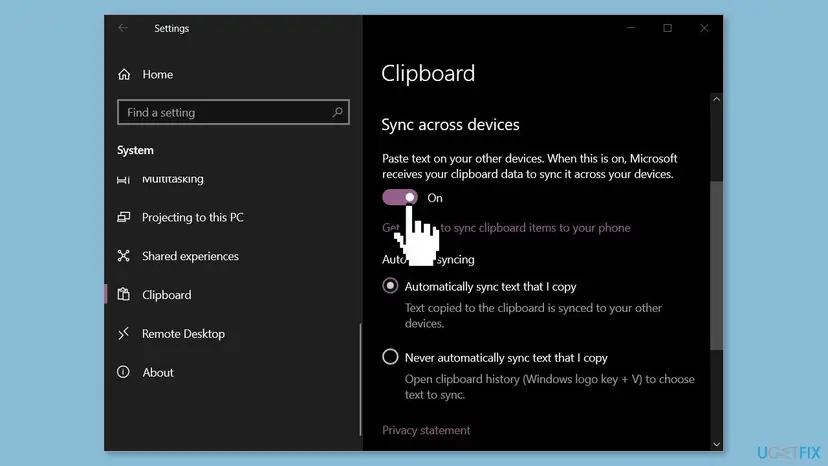
Windows also has its own clipboard setting under Settings > System > Clipboard, which syncs the Windows clipboard with your Microsoft account. Microsoft's Phone Link pages do not name it as a requirement for phone copy and paste. The switch that controls the phone feature is inside the Phone Link app.
Why Phone Link copy and paste stops working, most likely first
- Most often: the toggle in Phone Link is off. Microsoft says you must turn the feature on before the first use, and its troubleshooting starts with the same check (Fix 1).
- Often: the phone does not support it. Only Surface Duo and select Samsung, HONOR, OPPO, ASUS, vivo and Xiaomi phones have it. An iPhone or another Android brand has no shared clipboard in Phone Link (Fix 2).
- Often: what you copied is too big or not supported. Only text and images pass. A large block of text may exceed the limit, and Secure Folder content stays on the phone (Fix 3).
- Sometimes: the link between the two apps dropped. Microsoft's answer is to close and reopen Phone Link and Link to Windows, then restart the PC (Fix 4).
- Sometimes: the network. Without Wi-Fi the clipboard syncs only when mobile data syncing is allowed (Fix 5).
- Rarely: account, version or app damage. A different Microsoft account on one side, an old app version, Phone Link not allowed to run in the background, or a damaged install (Fix 6 to Fix 9).
Open Messages or Photos in Phone Link. Microsoft says your latest messages, photos and notifications show there when the connection works. If they are current, the link is fine and the problem is the toggle, the phone or the content you copied.
How to fix Phone Link copy and paste not working
Start with Fix 1 and Fix 2; together they explain most cases and take two minutes. If the feature is on and your phone is supported, go down the list. The last three fixes are for the rare case when the app itself is the problem.
| What you see or what your devices have | Start with |
|---|---|
| You never turned the feature on, or Phone Link was reset | Fix 1 |
| No Cross-device copy and paste entry, or you use an iPhone | Fix 2 |
| Short text works, long text or a big picture fails | Fix 3 |
| Nothing pastes and Messages or Photos are out of date | Fix 4 |
| It fails away from home Wi-Fi | Fix 5 |
| The phone was linked with another Microsoft account | Fix 6 |
| It stopped after an app update, or pasting into Edge fails | Fix 7 |
| It works only while the Phone Link window is open | Fix 8 |
| Nothing above helped | Fix 9 |
Fix 1. Turn on Cross-device copy and paste in Phone Link
1 minuteNo riskAnyone whose phone and PC are linked but copied text does not cross between them.
Microsoft says the feature must be turned on before you use it for the first time, and its troubleshooting starts with this same toggle. A reset or reinstall of Phone Link turns it off again.
- On the PC, open Phone Link from Start.
- Select Settings (the gear icon) in the Phone Link window.
- Open Features.
- Find Cross-device copy and paste.
- Turn On the toggle for Allow this app to access and transfer content I copy and paste between my phone and PC.
- Copy a short word on the phone and press Ctrl + V in Notepad on the PC to test.
In some Phone Link versions the entry sits directly under Settings > Cross-device copy and paste, the path Microsoft's troubleshooting section uses. If you cannot find it under Features, look there.
It worked if: The word you copied on the phone pastes in Notepad on the PC, and text copied on the PC pastes on the phone.
If not: If there is no such entry at all, use Fix 2. If the toggle is on and nothing pastes, use Fix 3.
Fix 2. Check that your phone supports cross-device copy and paste
2 minutesNo riskYou cannot find the toggle, you use an iPhone, or your phone is not a Samsung model.
Microsoft limits the feature to Surface Duo and select Samsung, HONOR, OPPO, ASUS, vivo and Xiaomi phones. On any other phone no setting on the PC makes it work, so checking first saves time.
- On the phone, open Settings > About phone > Software information (Microsoft writes it as Settings > About > Software Information).
- On a Samsung phone, check that One UI version is 2.1 or higher.
- On other brands, compare your model with Microsoft's list in the table below.
- If you use an iPhone, stop here: Phone Link on iPhone has messages, calls and notifications, but no shared clipboard.
| Phone | Supported, according to Microsoft |
|---|---|
| Samsung | Phones with One UI 2.1 or later, for example Galaxy Note20, Galaxy S21 series and Galaxy Z Flip |
| HONOR | Select models, Link to Windows 1.22036.14.0 or later, for example Magic4 Pro and Magic6 series |
| OPPO group | OnePlus, OPPO Find, OPPO Reno and Realme series, Link to Windows 1.23093.0 or later |
| ASUS | ROG Phone 8, ROG Phone 8 Pro, ROG Phone 8 Pro Edition |
| vivo and Xiaomi | vivo X Fold3 Pro, Xiaomi 14T series |
| Microsoft | Surface Duo |
| iPhone | Not supported |
It worked if: Your phone is on the list and the Cross-device copy and paste entry appears in Phone Link Settings.
If not: If your phone is supported and the toggle is on, use Fix 3. If it is not supported, see the FAQ on other ways to move text.
Fix 3. Copy text or a picture in smaller pieces
2 minutesNo riskShort text pastes, but a long text, a file or a large picture does not arrive.
Microsoft says only text and images cross, and that a large section of text that does not paste has likely exceeded the allowed amount. The fix is to send it in parts.
- Copy one paragraph instead of the whole page and paste it on the other device.
- If it arrives, copy the rest in a few more parts.
- For pictures, expect that an image larger than 1 MB arrives resized.
- For files, use the Share menu with Phone Link on the PC or Send to PC on the phone, not copy and paste.
- If the text came from a Samsung Secure Folder, move it out of the Secure Folder first.
- Formatting lost: Microsoft says apps read copied text differently, so bold, links or layout may not survive. The text itself still pastes.
- The PC clipboard was replaced: every copy on either device replaces the clipboard on both. Copying something on the phone overwrites what you copied on the PC.
- Secure Folder: you can paste into it, but its content cannot be pasted on the PC, and copying from it still clears the PC clipboard.
It worked if: A shorter piece of text or a smaller picture pastes on the other device.
If not: If even a single word does not paste, the link is the problem: use Fix 4.
Fix 4. Close and reopen Phone Link and Link to Windows, then restart the PC
3 minutesNo riskThe toggle is on, the phone is supported, and nothing pastes in either direction.
When the feature is on and still fails, Microsoft points to a connection issue between the two apps. Reopening both starts a new session, and a restart of the PC is Microsoft's last step for this.
- On the PC, close the Phone Link window. If Phone Link sits in the system tray, right-click its icon and close it there too.
- On the phone, close Link to Windows from the recent apps screen.
- Open Phone Link on the PC and Link to Windows on the phone again.
- In Phone Link, open Messages or Photos and check that your latest content appears.
- Test copy and paste. If it still fails, restart the PC and test once more.
It worked if: Your latest messages and photos show in Phone Link, and copied text crosses again.
If not: If Messages and Photos are out of date too, the devices do not reach each other: use Fix 5.
Fix 5. Put both devices on the same Wi-Fi or allow syncing over mobile data
3 minutesNo riskCopy and paste works at home but not elsewhere, or the phone is on mobile data.
Microsoft says that with mobile data syncing turned off, copy and paste works only when both the phone and the PC are on Wi-Fi. Phone Link also needs both on the same Wi-Fi network for its setup.
- On the phone, check that Wi-Fi is on and note the network name.
- On the PC, check that it is connected to the same Wi-Fi network.
- If you want the clipboard to work without Wi-Fi, on a phone with Link to Windows built in open Settings > Advanced features > Link to Windows and turn on Use mobile data.
- On some Android phones the setting is Settings > Sync over mobile data instead.
- In Phone Link on the PC, check Settings > Features for Sync your content over mobile data and turn it on if you want the same.

Syncing over mobile data uses your data plan, as Microsoft notes. If the PC has no network at all, work through How to check your internet connection in Windows first.
It worked if: Both devices show the same network, or mobile data syncing is on, and copied text crosses.
If not: If the network is fine and it still fails, check the account with Fix 6.
Fix 6. Use the same Microsoft account on the PC and in Link to Windows
5 minutesNo riskThe phone was linked with another account, or you changed accounts on the PC.
Microsoft's setup asks you to sign in to Link to Windows with the same Microsoft account you use on the PC. A phone linked under another account cannot share a clipboard with this PC.
- On the phone, open Link to Windows and note the Microsoft account it uses.
- On the PC, open Settings > Accounts > Your info and compare.
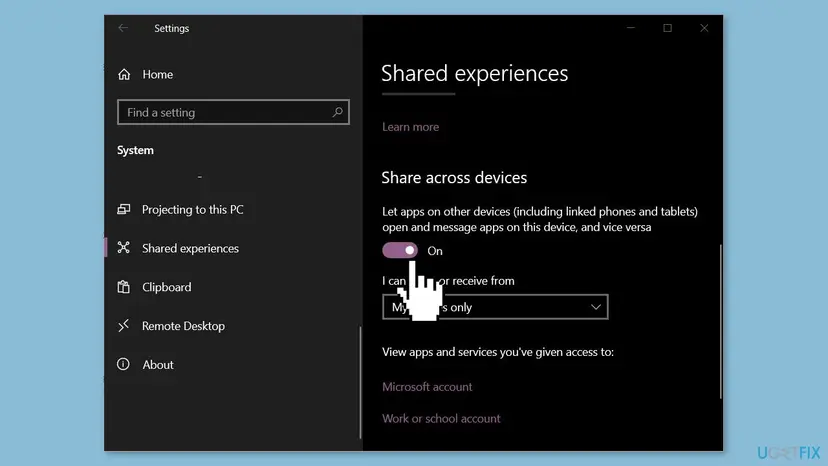
- On the PC, open Settings > System > Shared experiences (search Settings for Shared experiences if you do not see it there) and fix any account problem it reports.
- If the accounts differ, sign out of Link to Windows and sign in again with the account you use on the PC.
- Use a personal Microsoft account: Phone Link does not support work or school accounts.
It worked if: Both devices show the same personal Microsoft account and copied text crosses again.
If not: If the accounts match, update both apps with Fix 7.
Fix 7. Update Phone Link, Link to Windows and Microsoft Edge
5 minutesNo riskIt stopped after one side updated, or pasting fails mostly in the Edge browser.
The clipboard passes through both apps, so an old version on one side can break it, and Microsoft's troubleshooting adds one more item: if you use Microsoft Edge, update it to the latest version.
- On the PC, open Microsoft Store, select Library, then Get updates, and install any Phone Link update.
- On the phone, update Link to Windows from Google Play, or from the Galaxy Store on a Samsung phone.
- In Edge, open Settings and more > Help and feedback > About Microsoft Edge and let it update.
- Restart Edge and test copy and paste.
It worked if: No update is pending for any of the three apps, and text pastes in Edge and in other apps.
If not: If it works only while the Phone Link window is open, use Fix 8.
Fix 8. Let Phone Link run in the background
2 minutesNo riskCopy and paste works while Phone Link is open and stops after you close or minimize it.
The shared clipboard needs Phone Link running on the PC. If Windows is set never to let it run in the background, nothing is there to receive the phone's clipboard once the window is closed.
- On Windows 11, open Settings > Apps > Installed apps.
- Find Phone Link, select the three dots (More options) and select Advanced options.
- Under Background app permissions, set Let this app run in background to Always or Power optimized (recommended), not Never.
- On Windows 10, open Settings > Privacy > Background apps and check that Phone Link is allowed.
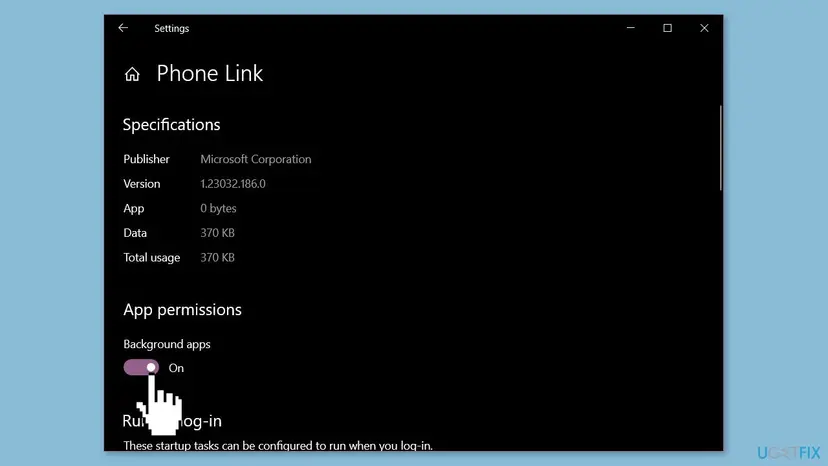
The same setting for any app, with Windows 11 screenshots: Stop apps from running in the background.
It worked if: Copied text still crosses after you close the Phone Link window.
If not: If nothing has helped so far, repair, reset or reinstall Phone Link with Fix 9.
Fix 9. Repair or reset Phone Link, and reinstall it if that fails
15 minutesLow riskFixes 1 to 8 did not help, or Phone Link itself behaves oddly on this PC.
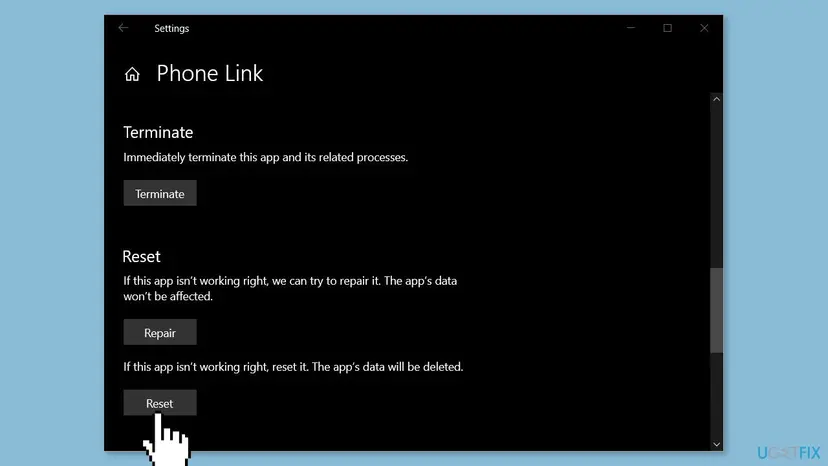
Repair fixes damaged app files and keeps its data. Reset clears Phone Link's data, including the stored link and its settings, so the phone is linked again from a clean state.
Select Terminate, then Repair, and test. Use Reset only if Repair does not help. After a Reset, link the phone again and turn the toggle in Fix 1 back on, because a reset turns it off.
- Open Installed apps. Select Start > Settings > Apps > Installed apps.
- Open the app's advanced options. Find the app in the list, select the three dots next to it and select Advanced options. Some apps do not have this option: for those, see the section about desktop programs below.
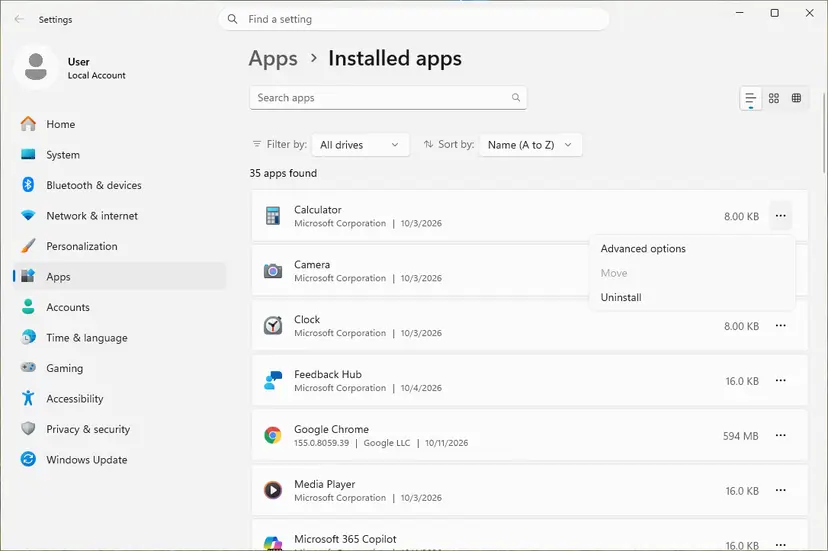
The three dots next to an app open Advanced options. Screenshot: Windows 11 26H2. - Repair first. On the page that opens, select Repair if it is there. The app's data stays. Open the app and check whether it works.

Repair keeps the app data. Reset deletes it. Screenshot: Windows 11 26H2. - Reset if Repair did not help. Select Reset. This deletes the app's data on this PC, including sign-in details and settings. Open the app and set it up again.
These steps were written for Windows 11 25H2 and 26H2. The full page with the other versions and what each result means: How to repair or reset an app in Windows
If Reset does not help, remove Phone Link and install it again. Phone Link's package name is Microsoft.YourPhone. Run the command below in Terminal (Admin), then reinstall Phone Link from Microsoft Store.
Get-AppxPackage Microsoft.YourPhone -AllUsers | Remove-AppxPackage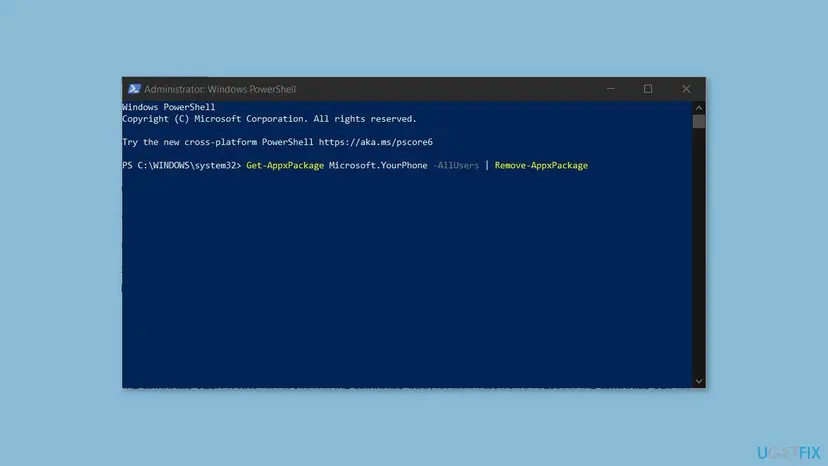
- Open Microsoft Store, search for Phone Link and select Install.
- If Store does not offer it, open Settings, search for Phone Link, select Enable or disable Phone Link and turn the toggle on, as Microsoft describes.
- Open Phone Link, link the phone again, then turn on Cross-device copy and paste (Fix 1).
More about removing built-in apps with PowerShell: Remove built-in Windows apps with PowerShell.
It worked if: Phone Link starts fresh, links to the phone, and copied text crosses after you turn the toggle on.
If not: Collect the details listed under "Still not working" below and send them to Microsoft.
Phone Link copy and paste still not working: what to check
- Does only the clipboard fail? If Messages, Photos and notifications are current, the link works and the problem is the feature, the phone model or the content you copy.
- Is it a work PC or a work phone profile? Phone Link does not support work or school accounts or multiple Android profiles, and an administrator can limit it.
- Is a third-party security app filtering the PC? Pause its protection for one test with Turn off Microsoft Defender protection for a moment, test copy and paste, and turn it back on. If that fixes it, allow Phone Link in that app's settings instead of leaving protection off.
- Does it fail on one PC only? Then the PC is the place to look: its account, its background setting or its copy of Phone Link (Fix 6, Fix 8, Fix 9).
To report it, open Phone Link Settings and use the feedback form under Feedback & Community, or open Feedback Hub from the taskbar search. Give the phone model, its One UI or Android version, the Phone Link and Link to Windows versions, whether you copy text or a picture, and which fixes you tried.
How to keep Phone Link copy and paste working
- Turn the Cross-device copy and paste toggle on again after any reset or reinstall of Phone Link.
- Keep Phone Link, Link to Windows and Edge updated.
- Use the same personal Microsoft account on the PC and in Link to Windows.
- Send long texts in parts, and send files with Share instead of copy and paste.
- Do not leave antivirus protection off to make Phone Link work; allow the app and turn protection back on.
- Do not install third-party tools that promise to fix Phone Link's clipboard.
- Do not expect copy and paste on an iPhone or on a phone outside Microsoft's list.
Frequently asked questions
Why is Phone Link copy and paste not working?
Most often the Cross-device copy and paste toggle in Phone Link is off. Microsoft says you must turn it on before the first use, under Phone Link Settings > Features. The next common reason is a phone that does not support the feature: only Surface Duo and select Samsung, HONOR, OPPO, ASUS, vivo and Xiaomi phones have it. After that come text that is too long, a dropped link between the apps, and the network. Fix 1 to Fix 5 cover these in that order.
How do I turn on Phone Link clipboard sync?
Open Phone Link on the PC, select Settings, open Features and find Cross-device copy and paste. Turn on the toggle for Allow this app to access and transfer content I copy and paste between my phone and PC. Then copy a word on the phone and paste it on the PC with Ctrl + V to test. If you do not see the entry, your phone may not support the feature; check Fix 2.
Does Phone Link copy and paste work with an iPhone?
No. Microsoft lists cross-device copy and paste only for Surface Duo and select Android phones from Samsung, HONOR, OPPO, ASUS, vivo and Xiaomi. An iPhone linked to Phone Link gets messages, calls and notifications over Bluetooth, but no shared clipboard. No setting on the PC or on the iPhone adds it. To move text from an iPhone to a Windows PC, you need another way, such as a note or message you open on both devices.
Is Link to Windows copy paste the same as Phone Link copy paste?
Yes, it is one feature seen from two sides. Link to Windows is the app on the Android phone and Phone Link is the app on the PC; the clipboard passes between them. So a search for Link to Windows clipboard not working has the same fixes as this page. The toggle is in Phone Link on the PC, while mobile data syncing is set on the phone in Link to Windows.
Can I copy files or pictures with Phone Link cross-device copy and paste?
Pictures yes, files no. Microsoft says only text and images can be copied between the devices, and images above 1 MB are resized. For files, use the Share menu: on the PC, right-click a file, select Share and pick Phone Link; on the phone, share it to Send to PC in Link to Windows. Files from the PC land in the phone's Downloads folder under Sent from your PC.
Why does copied text lose its formatting when I paste it?
Because the apps on each side read copied text in different ways. Microsoft says this is expected: the app you copy from and the app you paste into may not support the same formatting, so bold text, links or layout can be lost. The words still arrive. If you need the formatting, paste into an app that supports rich text, such as Word, or share the document itself instead of copying from it.
Does Phone Link copy and paste use mobile data?
Only if you allow it. Microsoft says the feature exchanges data between the phone and the PC. If mobile data syncing is on and you are not on Wi-Fi, copy and paste uses your data plan. If it is off, copy and paste works only when both devices are on Wi-Fi. On phones with Link to Windows built in, the switch is Settings > Advanced features > Link to Windows > Use mobile data.
Is the Windows clipboard sync setting the same as Phone Link's?
No. Windows has its own clipboard setting under Settings > System > Clipboard, which syncs the Windows clipboard with your Microsoft account. Microsoft's Phone Link pages do not list it as a requirement for copying between your phone and the PC. The switch for the phone feature is in the Phone Link app, under Settings > Features > Cross-device copy and paste, as in Fix 1.
What if my phone does not support cross-device copy and paste?
Then Phone Link cannot share a clipboard with it, and the fixes on this page will not add the feature. Other parts of Phone Link may still work, such as messages and photos. To move text, send it to yourself in a note or chat app you open on both devices. For files on a supported Android phone, use Share with Phone Link or Send to PC instead of the clipboard.
Sources
- Microsoft Support: Seamlessly transfer content between your devices (cross-device copy and paste, supported phones, limits, troubleshooting) (support.microsoft.com)
- Microsoft Support: Phone Link requirements and setup (same Wi-Fi, same Microsoft account, Features settings, installing Phone Link) (support.microsoft.com)
Did this fix work?
One click, no account. It tells the next reader which guides are worth their time.
Questions and experiences: fix Phone Link clipboard not working
Still broken, or found a fix we did not cover? Ask here: members and our editors answer. Reading is open; writing needs a free account.
…