
How to fix Windows update error 0x80073D06?

Prefer to fix it yourself? The manual steps follow.
- 6methods
- 2 to 15 minutes
- Easy
Applies to Windows 11 and Windows 10; Microsoft Store apps, .msix and .appx packages opened with App Installer, and app deployments through Intune, Configuration Manager or PowerShell
6 methods in this guide
Hello. I tried to install Windows updates but I get the 0x80073D06 error code. What should I do?
Error 0x80073D06 means Windows refused to install an app package because a higher version of the same app is already on the PC. It is a version check, not damage: the newer app keeps working. Check which version you have first; uninstall the newer one only if you really need the older file.
0x80073D06 is not a broken Windows update. Microsoft names it ERROR_INSTALL_PACKAGE_DOWNGRADE: the app you are installing is older than the copy already on the PC, so Windows stops. Check the installed version first (Fix 1). If it is newer, there is nothing to repair. If you need the older version, uninstall the newer one, then install the old file (Fix 3).
| Error | 0x80073D06, Windows name ERROR_INSTALL_PACKAGE_DOWNGRADE. Microsoft's text: "The package couldn't be installed because a higher version of this package is already installed." |
|---|---|
| Where it appears | In App Installer after you open an .msix or .appx file, in update history or Reliability Monitor as a failed app update, and in Intune, Configuration Manager or PowerShell app deployments. |
| Main cause | The same app, from the same publisher, is already installed with a higher version number than the package you are installing. |
| Fastest fix | Check the installed version in Settings > Apps > Installed apps > Advanced options (Fix 1). Newer? Keep it. Need the older one? Uninstall first (Fix 3). |
| Also written as | 0x80073d06, 80073D06, 0x80073D06(-2147009274) (the same number as a signed decimal), and the App Installer line "There's a newer version of this package already installed." |
| Affects | Windows 11 and Windows 10. Windows 10 left Microsoft support on 14 October 2025; the code and the fixes are the same there. |
| Microsoft's status | A documented app deployment check, not a bug. Windows does not allow an app package to go back to a lower version while the higher one is installed. |
| Is it harmful | No. Nothing is removed, and the installed (newer) app keeps working. |
| Time to fix | 2 minutes to check the version. 10 to 15 minutes to remove the newer copy and install an older one. |
Facts checked on 15 October 2026. Steps written for Windows 11 (25H2 and 26H2) and Windows 10 22H2.
What error 0x80073D06 means, and why it is called a Windows update error
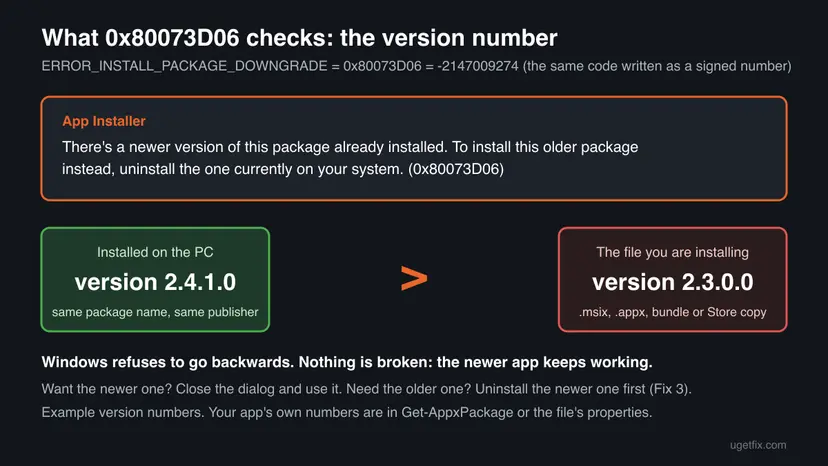
Microsoft's table of app deployment errors names 0x80073D06 ERROR_INSTALL_PACKAGE_DOWNGRADE: "The package couldn't be installed because a higher version of this package is already installed." Every Microsoft Store app, and every .msix or .appx file, carries a version number. When the PC already has the same package with a higher number, Windows refuses to replace it with the lower one.
Store apps update in the background, and Windows lists their results next to its own updates. That is why the code often reaches Google as a "Windows update error", even though no Windows update (no KB number) is involved. The old version of this guide treated it as a broken Windows Update; Microsoft's own description shows it is an app version check.
- The App Installer message
- "There's a newer version of this package already installed. To install this older package instead, uninstall the one currently on your system. (0x80073D06)"
- The decimal form
0x80073D06(-2147009274)is the same code: -2147009274 is 0x80073D06 read as a signed 32 bit number. Logs from management tools often print both.- What it is not
- Not damaged system files, not a network problem and not a stopped Windows Update service. Troubleshooters and SFC cannot change a version number.
- Close relative
- 0x80073D02 is a different app error: the update failed because the app was in use. See our guide to error 0x80073D02.
Why 0x80073D06 appears: the causes, ranked
Most often a newer copy of the app was already installed by another route: Microsoft Store updated it, a vendor's installer put a newer build in place, or Windows itself ships a newer copy. The older package then arrives and is turned away. Less often the newer copy belongs to another user account on the same PC, which you do not see in your own app list.
| Cause | How often | How to tell | Fix |
|---|---|---|---|
| The app already updated itself, and an older queued update or download was skipped. | Most often | The app opens normally and shows a version equal to or higher than the one that failed. | Fix 1 |
| You opened an old .msix or .appx file (from a download folder, an archive or a USB stick). | Often | App Installer shows "There's a newer version of this package already installed." | Fix 2, or Fix 3 if you need that exact version |
| Another user account, or the all users (provisioned) copy, holds the newer version. | Sometimes | Your own Installed apps list does not show the app, yet the install still fails. | Fix 4 |
| A company deployment pushes an older package than the one users already have. | Sometimes | The failure appears in Intune or Configuration Manager on some PCs only, users report this often with new Microsoft Teams. | Fix 5 |
| Microsoft Store keeps offering the same failed update from a stale cache. | Rarely | The same item fails again in Library although the app is already current. | Fix 6 |
Windows keeps one version of a package per user. To end 0x80073D06 you either install the same or a higher version, or you remove the higher version first. There is no repair that makes Windows accept the lower number on top of the higher one.
How to fix error 0x80073D06
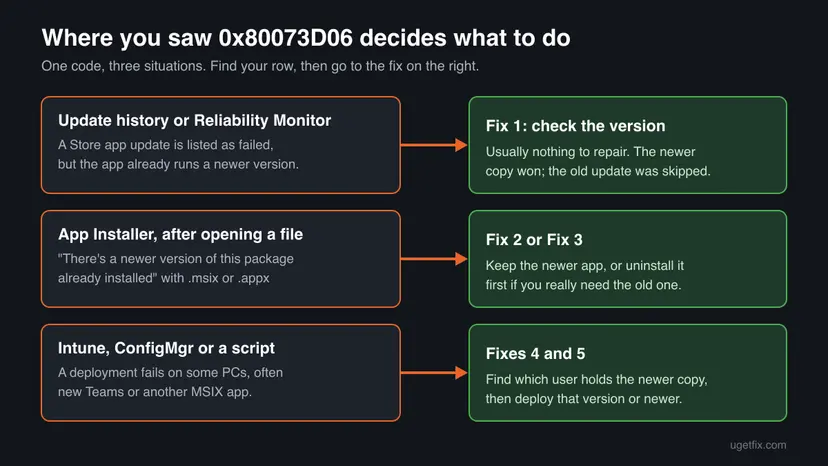
Start with Fix 1: in most cases the newer app is already there and nothing needs fixing. Fixes 2 and 3 are for the App Installer message. Fixes 4 and 5 are for PCs with several accounts and for IT deployments. Fix 6 clears a Store queue that keeps repeating the failed item.
| What you see or have | Start with |
|---|---|
| A failed app update in update history or Reliability Monitor, and the app works. | Fix 1 |
| App Installer says there's a newer version already installed, and any version will do. | Fix 2 |
| App Installer shows the message, and you need that older version. | Fix 3 |
| The app is not in your list, but the install still fails. | Fix 4 |
| Intune, Configuration Manager or a script reports 0x80073D06 or -2147009274. | Fix 5 |
| Microsoft Store retries the same update every day. | Fix 6 |
Fix 1. Check which version of the app is installed
2 minutesNo riskEveryone first, especially when the code appeared in update history and the app still opens.
0x80073D06 only fires when a higher version is already present. If your app shows that higher version, the failed line is a skipped older update and there is nothing left to repair.
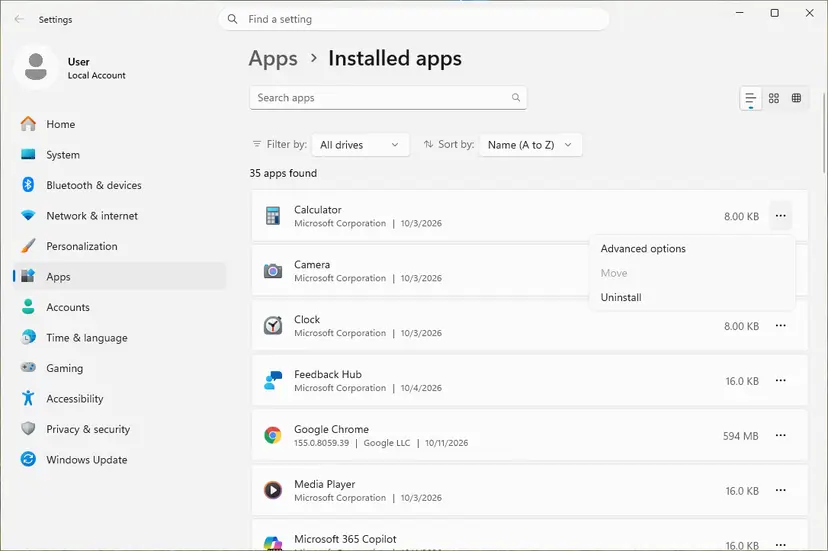
- Windows 11: open Settings > Apps > Installed apps. Windows 10: open Settings > Apps > Apps & features.
- Find the app named in the failed update or in App Installer.
- Windows 11: select the three dots next to it and Advanced options. Windows 10: select the app and Advanced options.
- Read Version under Specifications at the top of the page.
- Compare it with the version of the update or file that failed. If yours is the same or higher, you are done.
Open Microsoft Store > Library and select Get updates. If the app gets a new update without an error, the earlier 0x80073D06 line was only a record of an outdated download.
It worked if: The installed version is equal to or higher than the one that failed, and the app opens normally.
If not: If the installed version is lower, or the app is not listed at all, go to Fix 4: the newer copy belongs to another account.
Fix 2. Install the current version instead of the old file
5 minutesNo riskApp Installer showed the message after you opened an .msix, .appx or bundle file, and you do not need that exact old build.
The message appears because the file is older than what you have. Getting the app from its current source gives you a version equal to or higher than the installed one, which Windows accepts.
- Close the App Installer window with the 0x80073D06 message.
- Open the app from Start and check that it works. It is the newer version.
- If you wanted the app to update, open Microsoft Store, search for the app and select Update or Open.
- For an app not in the Store, download the current package from the developer's own site, not from an old folder or archive.
- Delete the old .msix or .appx file so it is not opened again by mistake.
If a newer file still gives 0x80073D06, compare the numbers: right-click the file, select Properties and look on the Details tab, or read the version in the App Installer window before you select Install. A file name can say "latest" and still hold an older build.
It worked if: The app opens in its current version, and no App Installer error appears.
If not: If you need the older build for a reason (a plugin, a test, a regression in the new version), go to Fix 3.
Fix 3. Uninstall the newer version, then install the older package
10 minutesRead the warningYou need that exact older version, and App Installer told you to uninstall the one on your system.
This is the route the message itself names. With the higher version gone, there is nothing to compare against, and Windows installs the older package as a fresh install.
Settings, sign in and files the app keeps inside its own folder are removed with it. Export or copy what you need first: Back up your files (Windows Backup, File History, Time Machine). Microsoft Store may also update the old version again later; turn off automatic app updates in Microsoft Store > Settings if you must stay on it.
- Close the app, including its icon next to the clock.
- Open Settings > Apps > Installed apps (Windows 10: Apps & features).
- Select the three dots next to the app and Uninstall, then confirm.
- Restart the PC.
- Open the older .msix or .appx file and select Install in App Installer.

Apps that come with Windows, such as Notepad or Microsoft Store, often have no Uninstall item. Do not force them out to install an old build: Windows features depend on them. Full steps for other apps: Uninstall a program or app in Windows
It worked if: App Installer installs the older version, and the app opens showing that version under Advanced options.
If not: If the same message appears after the uninstall, another account still has the newer copy: use Fix 4.
Fix 4. Find and remove the newer copy for all users with PowerShell
10 minutesRead the warningThe app is not in your list, the PC has several accounts, or Fix 3 did not end the message.
Settings shows only your own apps. A higher version installed for another account, or kept for all users, still blocks the older package for the whole PC. PowerShell with -AllUsers shows every copy with its version.
Remove-AppxPackage -AllUsers deletes the app and its local data for every user on the PC. Ask the other users first, and never run it for Microsoft Store, App Installer or other system apps.
- Right-click Start and select Terminal (Admin) (Windows 10: Windows PowerShell (Admin)). Select Yes.
- List every copy of the app with its version, with part of its name between asterisks, as in the first command below.
- Read the Version column. The highest one is the copy that blocks your package.
- If you are sure, remove it for all users with the second command, using the same name.
- Run the first command again. When it prints nothing, install the older package.
Terminal (Admin): list every copy of the app (replace Teams with part of your app's name)
Get-AppxPackage -AllUsers *Teams* | Select-Object Name, Version, PackageFullNameTerminal (Admin): remove that app for all users
Get-AppxPackage -AllUsers *Teams* | Remove-AppxPackage -AllUsers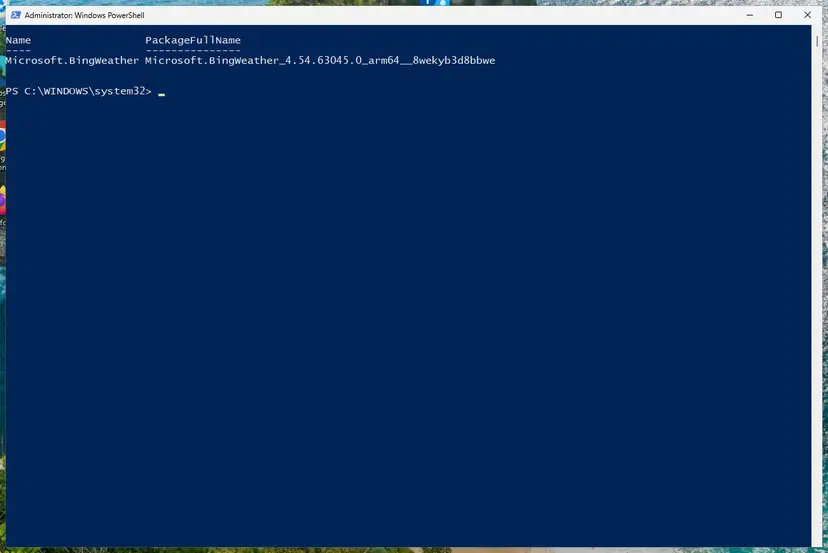
Windows also keeps a provisioned copy that it installs for every new account. How to list and remove it: Remove built-in Windows apps with PowerShell
It worked if: The list command prints nothing for the app, and the older package installs without 0x80073D06.
If not: If the package still fails, read the deployment log in the section If 0x80073D06 keeps coming back.
Fix 5. For IT: deploy the same or a higher version than users already have
15 minutesLow riskIntune, Configuration Manager or a deployment script reports 0x80073D06 or -2147009274 on some PCs.
On those PCs the app has already updated itself past the version in your deployment, so every retry is a downgrade. Microsoft's guidance for the related code 0x80073CFB is the same idea: raise the version number, or remove the old package for every user before installing.
- On one failing PC, run the list command from Fix 4 and note the installed Version.
- Compare it with the version of the package in your deployment.
- Replace the package in the deployment with the current release from the vendor, the same as or newer than the installed one.
- Check that your detection rule treats a higher installed version as installed, so PCs that are already newer report success instead of retrying.
- If you build the package yourself, increase its version number, then sign and publish it again.
- Apps that update themselves: users report this most with new Microsoft Teams and other MSIX apps that update outside your deployment. A deployment pinned to an old build will keep failing on every PC that moved ahead.
- Configuration Manager message: "The software change returned error code 0x87D00669(-2016410007)." is a general failure of the deployment. When the detailed log shows 0x80073D06 under it, the cause is the version check on this page. We could not confirm a more specific meaning for 0x87D00669 itself.
It worked if: The deployment shows success on the PCs that already had the newer version, and new PCs install the current one.
If not: If one PC still fails, check it for a copy in another account with Fix 4.
Fix 6. Reset the Microsoft Store cache when the same update keeps failing
5 minutesLow riskMicrosoft Store retries the same update every day although Fix 1 shows the app is already current.
A stale Store queue can keep an outdated download and offer it again. wsreset.exe clears the Store's cache without removing your apps, and the Store then checks versions again.
- Close Microsoft Store.
- Press Win + R, type
wsreset.exeand press Enter. - Wait for the blank window to close by itself; Microsoft Store then opens.
- Open Library and select Get updates.

If the Store itself misbehaves after that, reset the Store app: Reset the Microsoft Store
It worked if: Library lists no failed update for the app, and no new 0x80073D06 line appears the next day.
If not: If it returns, read the AppXDeployment-Server log as shown in the next section.
If 0x80073D06 keeps coming back: where to look and what to send
Microsoft's troubleshooting page for app deployment points to the AppXDeployment-Server event log for the details of a failed install. The entry names the package, the version that was refused and usually the version that is installed.
- Press Win + R, type
eventvwr.mscand press Enter. - Open Applications and Services Logs > Microsoft > Windows > AppXDeployment-Server > Microsoft-Windows-AppXDeploymentServer/Operational.
- Find the error at the time of the failure and read the package names and versions it lists.
- For a quick view instead, open PowerShell and run
Get-AppxLog, which Microsoft documents for the first logged events of the last deployment.
- What to send to support or the app's developer: the full message, the package name and both versions from the log, and your Windows version and build from Settings > System > About.
- Hardware: 0x80073D06 is about version numbers only. It is never a sign of a failing disk or memory.
- A real Windows update failing: if the failed item has a KB number and a different code, this page is not your problem; start with Reset Windows Update components.
Codes that look like 0x80073D06 and what each one means
These codes come from the same Microsoft table of app deployment errors. They look alike but stop at different checks.
| Code | Meaning (Microsoft Learn) | First step |
|---|---|---|
| 0x80073D06 | A higher version of the package is already installed. | This page: check the version (Fix 1). |
| 0x80073CFB | The same package is already installed, and reinstalling a package that is not bitwise identical is blocked. | Raise the version number, or remove the old package for every user. |
| 0x80073D02 | Resources the package modifies are in use. | Close the app and update it again. |
| 0x80073D05 | The package's old app data could not be deleted. | Close files the app has open, then retry. |
| 0x80073CF3 | The package failed update, dependency or conflict validation. | Read the AppXDeployment-Server log for the conflicting package. |
Some searches for 0x80073D06 also mention 0x80073D23. That code is not in the part of Microsoft's table we read, so we cannot say what it means; treat it as a different error.
How to avoid 0x80073D06 next time
- Install apps from their current source. Microsoft Store or the developer's own download page always gives the newest build; old files in Downloads do not.
- Delete old installer files after you install an app, so you do not open an outdated package later.
- Pin versions on purpose only. If you need an old build, turn off automatic app updates in Microsoft Store settings, and remember to turn them back on for security fixes.
- For IT: keep deployments at the current release of self updating apps, and use detection rules that accept a higher installed version.
Frequently asked questions
What does error 0x80073D06 mean?
It means Windows would not install an app package because a newer version of the same app is already installed. Microsoft names the code ERROR_INSTALL_PACKAGE_DOWNGRADE: "The package couldn't be installed because a higher version of this package is already installed." Nothing is broken and nothing was removed. Check the installed version in Settings > Apps > Installed apps > Advanced options. If it is newer, keep it. If you need the older one, uninstall the newer copy first.
What is 0x80073D06(-2147009274)?
It is the same error written twice: once in hexadecimal and once as a signed decimal number. Management tools such as Configuration Manager and Intune, and some Windows logs, print both forms side by side. -2147009274 always means 0x80073D06, the version check described on this page. Find which version is installed on the failing PC with the PowerShell command in Fix 4, then deploy that version or a newer one (Fix 5).
How do I fix "There's a newer version of this package already installed"?
Decide which version you want. If any version is fine, close App Installer and use the app you already have, or update it from Microsoft Store (Fix 2). If you need the older file, uninstall the installed app in Settings > Apps > Installed apps, restart, then open the older .msix or .appx file again (Fix 3). Back up the app's data before you uninstall, because it is removed together with the app.
Is 0x80073D06 a Windows Update error?
Not in the usual sense. The failed item is an app package, not a Windows update with a KB number. Windows lists Microsoft Store app updates in the same history as its own updates, so the failure can look like a Windows Update problem. That is why the classic fixes, such as the Windows Update troubleshooter, SFC or clearing SoftwareDistribution, do not change anything here. The cause is a version number.
Can I force Windows to install the older version over the newer one?
Not as an overwrite. Windows keeps one version of a package per user and refuses to step down while the higher version is installed. The supported way is to remove the higher version first, for your account (Fix 3) or for all accounts (Fix 4), then install the older package as a new install. Expect to lose the app's local data in the process, so back it up first.
Why does 0x80073D06 appear in update history when the app works fine?
Because the app already reached a newer version before an older queued update could install. The older one was turned away with 0x80073D06, and the record stayed in the history. If Settings shows a version equal to or higher than the failed one, you can ignore the line. If the same item fails every day, reset the Store cache with wsreset (Fix 6).
Why do I get 0x80073D06 when I deploy Microsoft Teams with Intune?
Users report this most with new Microsoft Teams because it updates itself outside the deployment. When the PC already runs a newer Teams build than the package in Intune, every install attempt is a downgrade and fails with 0x80073D06 or -2147009274. Upload the current Teams package and use a detection rule that counts a higher installed version as installed (Fix 5). Check one PC first with Get-AppxPackage -AllUsers to see the installed version.
What does "The software change returned error code 0x87D00669(-2016410007)" mean?
It is a Configuration Manager message that says an application deployment failed, without the reason. We could not confirm a more specific meaning for 0x87D00669 in Microsoft's documentation. Look at the client's detailed log or the AppXDeployment-Server event log on that PC. If it shows 0x80073D06, the PC already has a newer version of the app, and Fix 5 applies. If it shows another code, look that code up instead.
Is 0x80073D06 different on Windows 10?
No. The code and its meaning are the same on Windows 10 22H2 and on Windows 11 25H2 and 26H2. Only the Settings path differs: on Windows 10 installed apps are under Settings > Apps > Apps & features, and the version is under Advanced options. Windows 10 left Microsoft support on 14 October 2025, but Store apps and App Installer still work there.
Does uninstalling the app to fix 0x80073D06 delete my data?
Yes, for data the app keeps in its own folder: settings, sign in and local files are removed with the app. Data you saved elsewhere, such as Documents or a cloud account, stays. Before Fix 3 or Fix 4, export or copy anything you need. If you only wanted the app to work and any version will do, use Fix 2 instead; it removes nothing.
Sources
- Microsoft Learn: Troubleshooting packaging, deployment, and query of Windows apps (ERROR_INSTALL_PACKAGE_DOWNGRADE 0x80073D06 and related codes, AppXDeployment-Server log, Get-AppxLog) (learn.microsoft.com)
- Microsoft Learn: Add-AppxPackage (Appx module, adds a signed app package to a user account) (learn.microsoft.com)
Did this fix work?
One click, no account. It tells the next reader which guides are worth their time.
Questions and experiences: fix Windows update error 0x80073D06
Still broken, or found a fix we did not cover? Ask here: members and our editors answer. Reading is open; writing needs a free account.
…