
How to fix Windows update error 0x80073D02?

Prefer to fix it yourself? The manual steps follow.
- 7methods
- 5 to 20 minutes
- Easy
Applies to Windows 11 and Windows 10; Microsoft Store app updates shown as failed Windows updates (Widgets, Notepad, Snipping Tool, Phone Link, WhatsApp, Microsoft Store and others)
7 methods in this guide
Hi. I keep getting this Windows update install error: 0x80073D02. This happens several times a month. Any tips?
Error 0x80073D02 means Windows could not update a Microsoft Store app because the app's files were in use. The part after the code names the app, most often MicrosoftWindows.Client.WebExperience, which runs Widgets. Close that app, then update it from Microsoft Store > Library.
0x80073D02 is not a broken Windows update. A Store app was running while Windows tried to replace its files, so the update stopped. Read the app name after the code, close that app in Task Manager, and select Get updates in Microsoft Store > Library (Fix 1). If it fails again, restart and update before you open anything (Fix 2), then reset the Store cache (Fix 3).
| Error | 0x80073D02, Windows name ERROR_PACKAGES_IN_USE. Microsoft's text: "The package couldn't be installed because resources it modifies are currently in use." |
|---|---|
| Where it appears | As "Installation Failure: Windows failed to install the following update with error 0x80073D02" in Reliability Monitor (listed as a failed Windows update), and as a failed download in Microsoft Store. |
| Main cause | The app named in the message, or a process that belongs to it, was running when the automatic Store update tried to replace its files. |
| Fastest fix | Close the named app (Task Manager > End task), then open Microsoft Store > Library > Get updates (Fix 1). |
| Also written as | 0x80073d02, 80073D02, error 0x80073D02: 9MSSGKG348SP-MicrosoftWindows.Client.WebExperience., the same line in other Windows languages. |
| Apps most often named | Widgets (MicrosoftWindows.Client.WebExperience), Notepad, WhatsApp, Snipping Tool, Intel graphics software, Xbox, Windows Terminal, Phone Link, Microsoft Store itself. |
| Affects | Windows 11 and Windows 10. Windows 10 left Microsoft support on 14 October 2025; Store apps still update there and the fixes are the same. |
| Microsoft's status | A documented app deployment error, not a known bug. Windows keeps the old version of the app and tries again later. |
| Time to fix | 5 minutes in most cases. 20 minutes if the Store cache or the app itself needs a reset. |
Facts checked on 15 October 2026. Steps written for Windows 11 (25H2 and 26H2) and Windows 10 22H2.
What Windows update error 0x80073D02 means
Most Windows apps that come with the system, and every app from Microsoft Store, are app packages. Their updates arrive through Microsoft Store in the background, and Windows lists the result next to its own updates. That is why an app update looks like a failed Windows update. Microsoft's table of app deployment errors names 0x80073D02 ERROR_PACKAGES_IN_USE: "The package couldn't be installed because resources it modifies are currently in use."
- The full line
- "Installation Failure: Windows failed to install the following update with error 0x80073D02: 9MSSGKG348SP-MicrosoftWindows.Client.WebExperience." The app part changes; the code does not.
- What happened
- The update needed to replace files of an app that was open, or a background process of that app held them. Windows stopped instead of closing your app.
- What it is not
- Not a failed cumulative update (those have a KB number), not damaged system files and not a network error.
- Is it harmful
- No. The app keeps working on its old version. The update is retried on a later run, and it often goes through on its own.
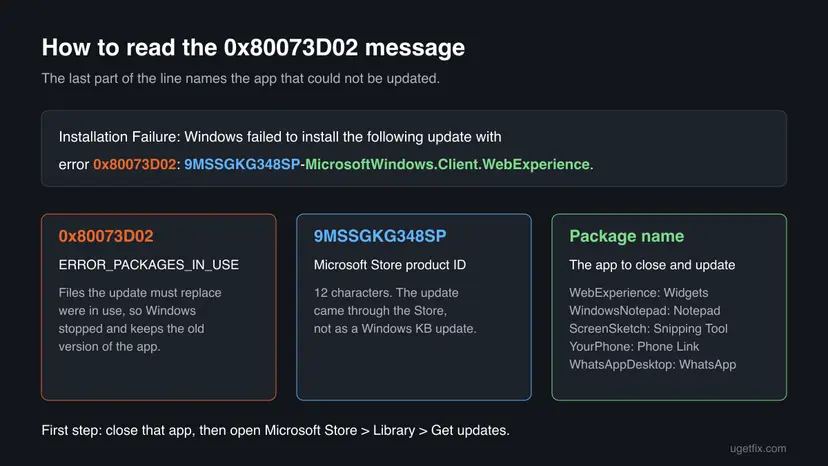
Which app the 0x80073D02 message names: WebExperience, Notepad, WhatsApp and others
After the code comes a 12 character Microsoft Store product ID, a hyphen and the package name. The package name tells you which app to close in Fix 1. These are the names readers search for most often.
| Text after the code | App | What keeps it running |
|---|---|---|
9MSSGKG348SP-MicrosoftWindows.Client.WebExperience | Windows Web Experience Pack (Widgets) | The Widgets board and the weather and news button on the taskbar. |
9MSMLRH6LZF3-Microsoft.WindowsNotepad | Notepad | An open Notepad window, including tabs restored after a restart. |
9NKSQGP7F2NH-5319275A.WhatsAppDesktop | WhatsApp left running in the background after you close its window. | |
9MZ95KL8MR0L-Microsoft.ScreenSketch | Snipping Tool | The Print Screen key set to open Snipping Tool, or an open capture. |
9P8K5G2MWW6Z-AppUp.IntelArcSoftware | Intel graphics software | Its tray icon and overlay. |
9MV0B5HZVK9Z-Microsoft.GamingApp, 9N0DX20HK701-Microsoft.WindowsTerminal | Xbox app, Windows Terminal | An open window or a running game. |
9NMPJ99VJBWV-Microsoft.YourPhone, 9NTXGKQ8P7N0-MicrosoftWindows.CrossDevice | Phone Link and its cross device service | A linked phone that stays connected in the background. |
9WZDNCRFJBMP-Microsoft.WindowsStore, 9NBLGGH4LS1F-Microsoft.StorePurchaseApp | Microsoft Store and its purchase app | The Store updating itself while it is open. |
Other names follow the same pattern, for example Microsoft.ZuneVideo (Movies & TV), Microsoft.DesktopAppInstaller (App Installer) or Microsoft.StartExperiencesApp. On a PC set to Russian, Japanese, German or Korean, the same line appears in that language; the code and the fixes are the same.
Why 0x80073D02 appears: the causes, ranked
Most often the app was simply open, or kept a background process alive, when the automatic update ran. Users on Microsoft Q&A report that the failures tend to appear at night, when the PC updates from sleep with apps still loaded. Less often the Store's own cache or queue is stuck and retries the same failed update, or the app's install is damaged.
| Cause | How often | How to tell | Fix |
|---|---|---|---|
| The named app or its background process was running during the update. | Most often | The app was open, or it sits in the tray or the taskbar (Widgets, WhatsApp, Phone Link). | Fix 1 |
| The PC updated from sleep with the app still loaded, and the same app fails every night. | Often | Several failures a month for the same app, as in the reader's question above. | Fix 2 |
| Microsoft Store's cache or download queue is stuck. | Sometimes | The update stays in Library as pending or fails again after you close the app. | Fix 3 |
| The app's own data or install is damaged. | Sometimes | Only one app fails, and it also misbehaves when you open it. | Fixes 4 and 6 |
| A third party startup program holds the app's files. | Rarely | The failure stops when you start Windows without other programs. | Fix 5 |
| The services that download updates are stopped. | Rarely | Other Store updates and Windows updates also fail, with other codes. | Fix 7 |
How to fix Windows update error 0x80073D02
Start with Fix 1: closing the named app and updating it by hand solves the in use case that Microsoft's description points to. Fix 2 is for a failure that returns every few days. Fixes 3 and 4 reset the Store and the app. Fixes 5 to 7 are the last checks when one app keeps failing.
| What you see or have | Start with |
|---|---|
| One failure, the app is open or sits in the tray. | Fix 1 |
| The same app fails again every few days or every night. | Fix 2 |
| The update stays pending in Microsoft Store > Library. | Fix 3 |
| One app fails and also crashes or will not open. | Fix 4, then Fix 6 |
| The message names Microsoft.WindowsStore. | Fix 3, then Fix 6 |
| Many Store and Windows updates fail, with other codes too. | Fix 7 |
Fix 1. Close the app named in the message and update it from Microsoft Store
5 minutesNo riskEveryone first, after a single failure or the first time you see the code.
Microsoft's description of 0x80073D02 is that the files the update modifies are in use. When no process of the app runs, nothing holds those files, and a manual update from the Store can replace them.
- Read the package name after the code and find the app in the table under Which app the 0x80073D02 message names.
- Save your work in that app and close its window.
- Press Ctrl + Shift + Esc to open Task Manager. On Processes, type the app name in the search box at the top (for example
Widgets,NotepadorWhatsApp). - Select each match and select End task.
- For Widgets on Windows 11, also open Settings > Personalization > Taskbar and turn Widgets off for now.
- Open Microsoft Store, select Library at the bottom left, then Get updates.
- Wait until the app shows no update button, then open it again (and turn Widgets back on).
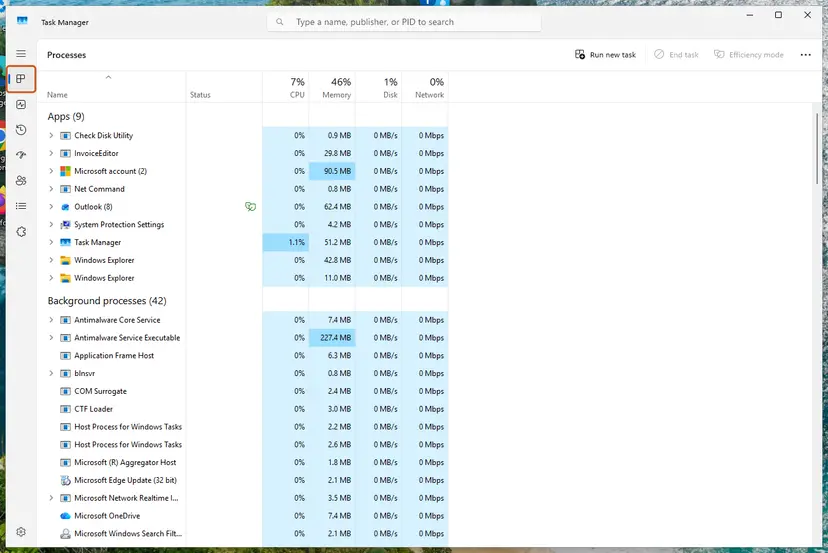
If Library shows no update for the app, the retry already went through. The failed line stays in the history as a record of the earlier attempt and does not need fixing.
It worked if: The app updates in Library without an error, and no new 0x80073D02 line appears for it.
If not: If the update fails again with the app closed, go to Fix 2 and update right after a restart.
Fix 2. Restart the PC and update the app before you open anything
5 minutesNo riskThe same app fails again and again, often overnight, or Task Manager shows no process to end.
A restart ends every process, including helpers that do not show as an open app. A Microsoft Q&A answer for this code puts "restart and retry" first, because a reboot frees the component that is in use.
- Save your work and close your apps.
- Select Start > Power > Restart. Use Restart, not Shut down, because a shutdown with fast startup does not end every process.
- After you sign in, do not open the app that failed.
- Open Microsoft Store > Library and select Get updates.
- Let all updates finish, then use the PC as usual.
- Failures at night: open Settings > Apps > Startup and turn off apps you do not need at sign in, such as WhatsApp. Fewer open apps leave fewer files in use when the update runs.
- Widgets every time: the Widgets board starts with Windows. If you never use it, keep Widgets off in Settings > Personalization > Taskbar; its updates then have nothing to collide with.
It worked if: Get updates finishes without 0x80073D02, and Reliability Monitor shows a successful update for the app the next day.
If not: If the update stays pending or fails right after a restart, reset the Store cache with Fix 3.
Fix 3. Reset the Microsoft Store cache with wsreset
5 minutesLow riskThe update stays pending in Library, or the message names Microsoft Store itself.
A stuck Store queue keeps retrying the same failed update. A volunteer moderator on Microsoft Q&A answered this exact message with wsreset.exe and Library > check for updates, and the asker reported it worked.
- Close Microsoft Store and the app named in the message.
- Press Win + R, type
wsreset.exeand press Enter. - A blank window opens. Do not close it; it closes by itself and Microsoft Store opens.
- In the Store, open Library and select Get updates.
If wsreset alone does not help, reset the Store app itself. It signs you out of the Store, but your apps stay installed. Step by step: Reset the Microsoft Store
It worked if: The Store opens on its home page and the update in Library runs to the end.
If not: If only one app still fails, repair or reset that app with Fix 4.
Fix 4. Repair or reset the app that fails to update
5 minutesRead the warningOne app keeps failing with 0x80073D02 and also crashes, hangs or will not open.
When an app's own data is damaged, a background part of it can hang and keep its files in use. Terminate ends every process of the app, and Repair or Reset gives it clean files before the update.
Repair keeps your data. Reset deletes the app's settings and local data, such as WhatsApp's sign in and Notepad's unsaved tabs. Save what you need first, and try Repair before Reset.
- Windows 11: open Settings > Apps > Installed apps, select the three dots next to the app and Advanced options. Windows 10: Settings > Apps > Apps & features, select the app and Advanced options.
- Select Terminate to end every process of the app.
- Select Repair and wait for the check mark.
- Open Microsoft Store > Library > Get updates.
- If it fails again, come back and select Reset, then update once more.
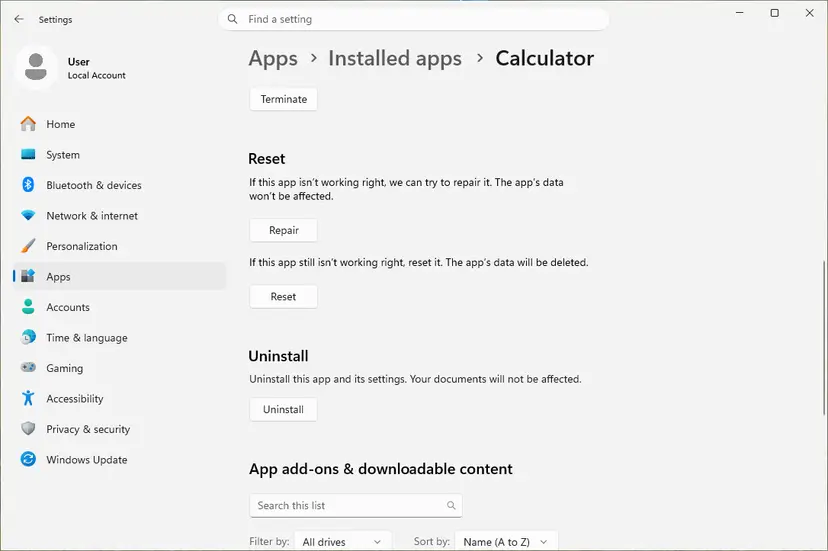
Widgets has no Advanced options page of its own on most PCs. For Widgets, use Fix 1 with the taskbar switch, then Fix 6. More detail: How to repair or reset an app in Windows
It worked if: The app opens normally and its update in Library finishes without an error.
If not: If the app updates only after a clean start, a startup program holds it: go to Fix 5.
Fix 5. Update the app in a clean boot
15 minutesLow riskFixes 1 to 4 did not help, and you run tools that hook into apps, such as overlays, tweakers or cleanup tools.
A clean boot starts Windows without third party services and startup programs. If one of them holds the app's files, the update runs through in a clean boot, and you know a startup program is the cause.
- Start Windows in a clean boot: How to perform a clean boot in Windows
- After the restart, open Microsoft Store > Library > Get updates and let the failed app update.
- Turn the services and startup programs back on as the procedure shows, in small groups, to find the one that collides.
- Restart normally.
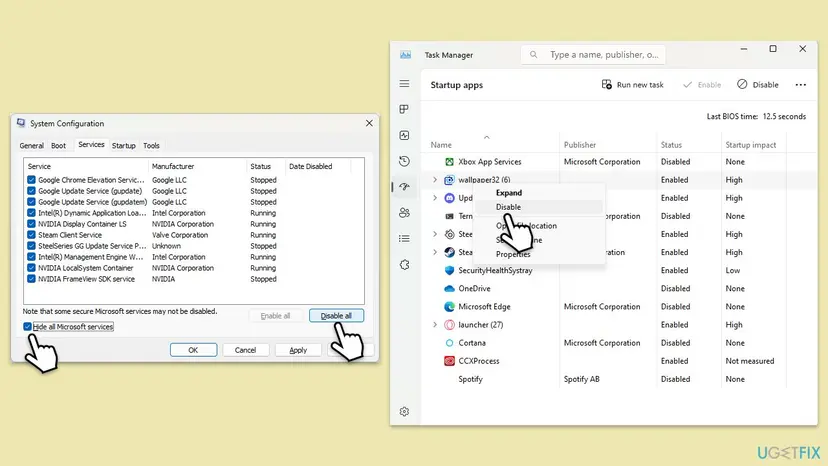
It worked if: The update finishes in the clean boot, and you can name the program that held the app.
If not: If it fails even in a clean boot, the app's install is the problem: reinstall it with Fix 6.
Fix 6. Reinstall or re-register the app that keeps failing
10 minutesRead the warningOne app fails in every test above, or the message names Microsoft Store and wsreset did not help.
A half updated package can leave a broken registration that every new update stumbles over. A fresh install or a new registration writes the package again, and the Store then installs the current version.
Uninstalling an app deletes its local data. Back up chats, notes or settings you need first: Back up your files (Windows Backup, File History, Time Machine). Re-registering keeps the data but needs PowerShell as administrator.
- Apps you installed (WhatsApp, Intel graphics software, Windows Terminal): uninstall the app in Settings > Apps > Installed apps, restart, and install it again from Microsoft Store.
- Apps that come with Windows (Widgets, Notepad, Snipping Tool, Microsoft Store): re-register the package with PowerShell instead of uninstalling it. Step by step: How to re-register Microsoft Store apps with PowerShell
- For Microsoft Store itself, run the command below in Windows PowerShell opened with Run as administrator.
- Restart the PC, then open Microsoft Store > Library > Get updates.
Windows PowerShell as administrator: register Microsoft Store again for all users
Get-AppxPackage -AllUsers *WindowsStore* | Foreach {Add-AppxPackage -DisableDevelopmentMode -Register "$($_.InstallLocation)\AppXManifest.xml"}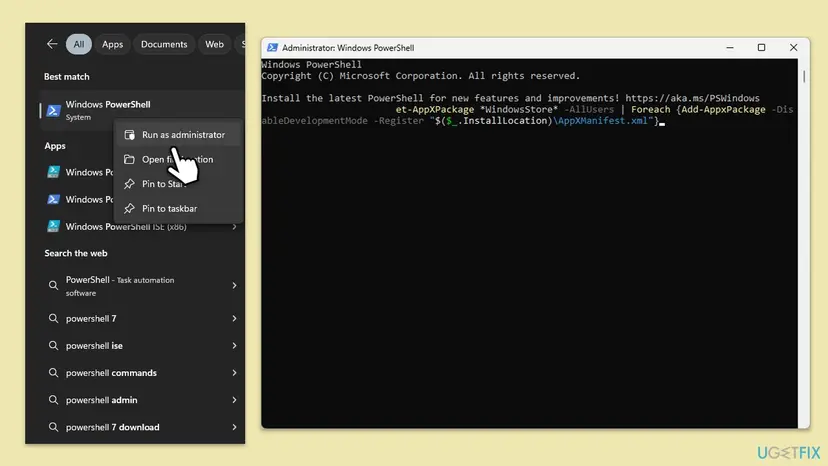
It worked if: The app opens on its new version, and Library shows no pending update for it.
If not: If the app still fails, check the update services with Fix 7 and read the logs under If 0x80073D02 keeps coming back.
Fix 7. Restart the services that download updates
10 minutesLow riskMany Store and Windows updates fail, some of them with other codes, not only one app.
Store app updates are downloaded by the same Background Intelligent Transfer Service and Windows Update service as system updates. If these are stopped or stuck, updates fail half way, and a retry can collide with the files the first try left.
- Press Win + R, type
services.mscand press Enter. - Find Background Intelligent Transfer Service. If it runs, right-click it and select Restart. If not, right-click and select Start.
- Do the same for Windows Update and Cryptographic Services.
- Close Services and select Get updates in Microsoft Store > Library.
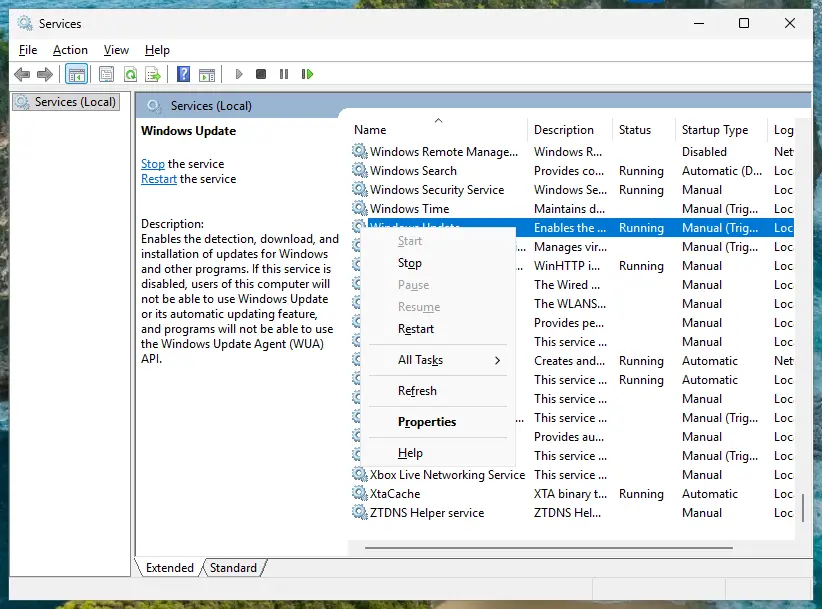
The full procedure, with the startup types to check: Check and restart Windows services. If many updates still fail, reset the Windows Update components: Reset Windows Update components
It worked if: The three services show Running, and Store and Windows updates install again.
If not: If the code still returns, read the logs as shown in the next section and repair system files: Run DISM and SFC to repair Windows system files
If 0x80073D02 keeps coming back: where to look and what to send
First check whether the update failed for good or only once. Windows retries Store updates, and a later success often stands next to the old failure. Microsoft's troubleshooting page for app deployment points to the AppXDeployment-Server event log for the details.
- Press Win + R, type
perfmon /reland press Enter to open Reliability Monitor. - Select the day with the red mark and find Failed Windows Update lines. Double-click one to see the full text.
- Look at later days: a successful update for the same app means the problem is gone.
- For the reason, press Win + R, type
eventvwr.msc, and open Applications and Services Logs > Microsoft > Windows > AppXDeployment-Server > Microsoft-Windows-AppXDeploymentServer/Operational. - Find the error at the time of the failure. It names the package and often the process or file that was in use.
- What to send to Microsoft support: the full line with the product ID and package name, the AppXDeployment-Server error text, and your Windows version and build from Settings > System > About.
- When the same app fails for months: a Microsoft Q&A user with a Phone Link component (
MicrosoftWindows.CrossDevice) reports that only an in-place repair of Windows, keeping files and apps, ended it. Keep files first: Reinstall Windows without losing files - Hardware: 0x80073D02 is about files in use, not about the disk or memory. A disk problem shows other codes or errors in the System log.
Codes that look like 0x80073D02 and what each one means
These codes come from the same Microsoft table of app deployment errors. Each one stops at a different check, so each needs a different first step.
| Code | Meaning (Microsoft Learn) | First step |
|---|---|---|
| 0x80073D02 | Resources the package modifies are in use. | This page: close the app and update. |
| 0x80073D00 | The app can't be started because it is updating. | Wait for the update to finish, then open the app. |
| 0x80073D01 | The deployment is blocked by policy. | See our guide to error 0x80073D01. |
| 0x80073D05 | The package's old app data could not be deleted. | Close files the app has open, then retry. |
| 0x80073D06 | A higher version of the package is already installed. | Nothing to fix; the newer version stays. |
| 0x80073CF6 | The package can't be registered. | Re-register or reinstall the app (Fix 6). |
How to keep 0x80073D02 from coming back
- Restart once a week. Sleep keeps apps loaded for days, and their files stay in use when the night update runs.
- Trim startup apps. Every app that starts with Windows and stays in the tray is one more app that can be in use. Step by step: Stop apps from opening at startup
- Turn off Widgets if you never use it. It is the app most often named with this code, and it runs from sign in.
- Update by hand now and then. Open Microsoft Store > Library > Get updates with your apps closed, so nothing waits for the night run.
- Keep Windows current. A Q&A agent found the reader's Windows 11 was over a year old; current builds bring current Store components.
If a single failure appears and the next day shows a success for the same app, you do not need to do anything. The code is a record that Windows waited, not a sign of damage.
Frequently asked questions
What does error 0x80073D02 mean?
It means Windows could not install an app update because files the update had to change were in use. Microsoft names the code ERROR_PACKAGES_IN_USE: "The package couldn't be installed because resources it modifies are currently in use." The app is named after the code, for example MicrosoftWindows.Client.WebExperience for Widgets. Close that app, end its processes in Task Manager and select Get updates in Microsoft Store > Library, as in Fix 1.
What is 9MSSGKG348SP-MicrosoftWindows.Client.WebExperience?
It is the Windows Web Experience Pack, the Store package that runs Widgets on Windows 11. 9MSSGKG348SP is its Microsoft Store product ID and MicrosoftWindows.Client.WebExperience is its package name. It is the app most often named with 0x80073D02, because the Widgets board and the weather button run from sign in. Turn Widgets off in Settings > Personalization > Taskbar, update it in Microsoft Store > Library, then turn it back on if you use it.
Is 0x80073D02 a Windows update error or a Microsoft Store error?
Both names are used, but the failed item is a Store app, not a Windows update. Windows lists Store app updates among its updates, so Reliability Monitor labels the line as a failed Windows update. A real Windows update has a KB number and a Windows Update code. That is why Windows Update troubleshooting and system file repairs rarely help here, while closing the app and updating it from the Store does.
How do I fix 0x80073D02 on Windows 11?
Close the app named after the code and end its processes in Task Manager (Fix 1). For Widgets, also turn the Widgets switch off in Settings > Personalization > Taskbar. Then open Microsoft Store, select Library and Get updates. If the same app fails again, restart and update before you open anything (Fix 2), then reset the Store cache with wsreset (Fix 3). The steps are the same on Windows 11 25H2 and 26H2.
Is 0x80073D02 different on Windows 10?
No. The code and its meaning are the same on Windows 10 22H2, and so are the fixes. Some paths differ: installed apps are under Settings > Apps > Apps & features, and Widgets does not exist there, so other apps such as Microsoft Store, Phone Link or Movies & TV are named more often. Windows 10 left Microsoft support on 14 October 2025, but Store apps still get updates on it.
Why does 0x80073D02 happen several times a month?
Because the app that fails is running whenever the automatic update tries again. Widgets, WhatsApp and Phone Link start with Windows and stay in the background, and a PC that only sleeps keeps them loaded for days. Users on Microsoft Q&A report the failures appear at night while the PC is in sleep mode. Restart regularly, turn off startup apps you do not need, and update by hand from Library now and then (Fix 2).
Is error 0x80073D02 dangerous, and can I ignore it?
It is not dangerous. The app keeps working on its old version, nothing is deleted, and Windows tries the update again later. If Reliability Monitor shows a successful update for the same app on a later day, you can ignore the old line. Fix it when the same app fails over and over, because you then miss its security and bug fixes. Fix 1 usually takes five minutes.
Does the Windows Store Apps troubleshooter fix 0x80073D02?
Rarely. The troubleshooter checks Store settings, but it cannot close an app that holds its files, which is the cause Microsoft names. Users on Microsoft Q&A also report that the Windows Store Apps troubleshooter is no longer listed on their Windows 11. The old version of this guide started with troubleshooters; we moved to closing the app and updating it by hand, which addresses the cause directly.
Why does 0x80073D02 appear in another language, such as Russian or Japanese?
Windows writes the message in its display language, so the same failure reads differently on a Russian, Japanese, German or Korean PC. The code 0x80073D02 and the product ID with the package name stay the same in every language. For example, 9MSSGKG348SP-MicrosoftWindows.Client.WebExperience is Widgets on every PC. Use the same fixes on this page: close the named app and update it from Microsoft Store > Library.
Sources
- Microsoft Learn: Troubleshooting packaging, deployment, and query of Windows apps (ERROR_PACKAGES_IN_USE 0x80073D02 and related codes) (learn.microsoft.com)
- Microsoft Q&A: Windows Update Issues (0x80073D02 for WebExperience, Microsoft Store, ScreenSketch, WhatsApp; volunteer moderator answer: wsreset and Library updates) (learn.microsoft.com)
- Microsoft Q&A: Windows Fails to Install Update to MicrosoftWindows.CrossDevice (0x80073D02 in Reliability Monitor; component in use, restart and retry) (learn.microsoft.com)
Did this fix work?
One click, no account. It tells the next reader which guides are worth their time.
Questions and experiences: fix Windows update error 0x80073D02
Still broken, or found a fix we did not cover? Ask here: members and our editors answer. Reading is open; writing needs a free account.
…