
How to fix Microsoft Office installation error 0-2035?

Prefer to fix it yourself? The manual steps follow.
- 8methods
- 5 to 45 minutes
- Easy
Applies to Microsoft 365, Office 2024, Office 2021, Office 2019 and Office 2016 installed with Click-to-Run on Windows 11 and Windows 10
8 methods in this guide
Every time I try to install Microsoft Office Professional 2021, I keep receiving error 0-2035. When I tried to install Office 365, I encountered the same problem.
Error Code: 0-2035 (0) appears when Office setup will not start because it believes another Office installation, update or uninstall is already running. Microsoft groups it with 0-1018 and 17003-2031. Check the Office icon next to the clock and let that job finish, restart the PC, then run setup only once.
0-2035 (0) is Office setup saying Please wait: another Office install, update or uninstall holds the installer. Look for an Office icon next to the clock and let it finish (Fix 1). If there is none, use Restart, not Shut down, and start setup once (Fix 2). If the code returns, remove every Office with Microsoft's uninstall troubleshooter, restart and install again (Fix 4).
| Error | Error Code: 0-2035 (0) under the heading Please wait and the text Office is already being installed (newer setup: Microsoft 365 and Office are already being installed). |
|---|---|
| Where it appears | In the small Microsoft setup window, a few seconds after you start the Office installer you downloaded from your account, a store or your school. Nothing is installed when it appears. |
| Main cause | Another installation, update or uninstall was running before you started Office setup. Microsoft names exactly this as the usual cause. |
| Fastest fix | Let the running Office job finish, or restart the PC and run the installer one time (Fix 1 and Fix 2). |
| Also written as | 0-2035, 0-2035(0), Error code: 0-2035 (0), 2035-0 (Microsoft's own article title), "codigo de error 0-2035 (0)". Same error in every language. |
| Affects | Click-to-Run setups of Microsoft 365, Office 2024, 2021, 2019 and 2016 on Windows 11 and Windows 10. Users report it for home, school and paid retail copies. |
| Microsoft's status | Documented on Microsoft's page for Another installation is in progress (codes 0-1018, 17003-2031 and 2035-0, page dated 16 May 2026). Not a bug with a patch. |
| Not the cause | Your licence, payment or product key. Setup stops before it checks any of them. |
| Where the cause is logged | %temp% and %windir%\Temp, in files named MachineName-Date-time.log. |
| Time to fix | 5 minutes when a restart is enough. 30 to 45 minutes when Office has to be removed and installed again. |
Facts checked on 14 October 2026. Steps written for Click-to-Run versions of Microsoft 365 and Office on Windows 11 (25H2 and 26H2) and Windows 10 22H2, read against Microsoft's documentation.
What error code 0-2035 (0) means in Office setup
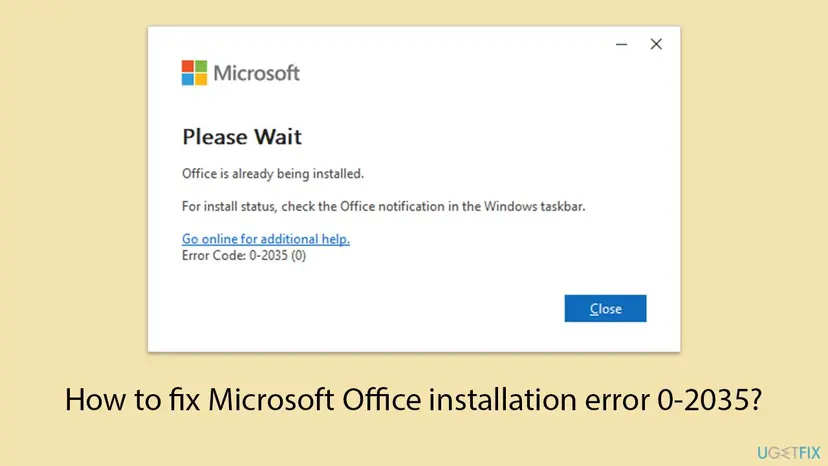
Error 0-2035 is not a crash and not a licence problem. It is a refusal. Office setup checks whether another Office job is already running on the PC, and if it finds one, it stops before it downloads or installs anything. The window says so in plain words: Office is already being installed.
| Line in the window | What it tells you |
|---|---|
| Please wait | Setup did not fail. It is waiting for something else to finish and gave up. |
| Office is already being installed or Microsoft 365 and Office are already being installed | Setup believes an Office installation is in progress. It may be a real one, an update, an uninstall or a stuck leftover. |
| For install status, check the Office notification in the Windows taskbar | If a real job is running, its icon sits in the notification area next to the clock. This is the first thing to check. |
| Error Code: 0-2035 (0) | The number Microsoft uses to point you to its page about another installation in progress. Microsoft does not explain the (0). |
0-2035, 0-2035 (0), 0-2035(0), error code: 0-2035 (0) and "codigo de error 0-2035 (0)" are the same error. Microsoft writes it as 2035-0 in the title of its support article. If you saw 2035-0 or 0 2035 0 in a search, you are in the right place.
What Microsoft says about error 0-2035 and its sibling codes
Microsoft covers 0-2035 on one support page together with 0-1018 and 17003-2031. The page title quotes the older message We're sorry, but we could not start your Office installation. Another installation is in progress, please try again later. All three codes have the same meaning and the same fix.
- The cause, in Microsoft's words
- This error usually occurs if another installation, update, or uninstall was running before you tried to install Office.
- Step 1
- Check for an Office icon in the system tray and select it to see the progress. If an install is running, wait until it is done.
- Step 2
- No icon: restart the computer and install Office again.
- Step 3
- Still failing: run the uninstall troubleshooter to clean up any full or partial Office installations, then reinstall.
- Limits
- The troubleshooter cannot uninstall Office 2024, needs Windows 10 or later, and must run on the PC that has the Office you want to remove.
- Products listed
- Microsoft 365 for home, Office 365 Small Business, Office 2019, 2016 and 2013. The reinstall links on the page also cover Office 2024 and 2021.
Microsoft's forum staff give the same order on Microsoft Q&A. In February 2026 a university user with Office Professional Plus 2024 got 0-2035 (0) together with 0-2054. The answer from Microsoft external staff was to restart, remove all existing Office versions and trials with the uninstall tool, and then install again.
- A second code after the first. Users report 0-2035 (0) followed by 30094-1, or by 0-2054. The second code belongs to the next attempt. Fix 0-2035 first, then look at the second code if it stays.
- A paid Office that will not download. Several posters on Microsoft Q&A paid for Office and got 0-2035 right away. The payment is not the problem: setup stops before it checks your licence.
What causes Office error 0-2035, from the most common to the rare
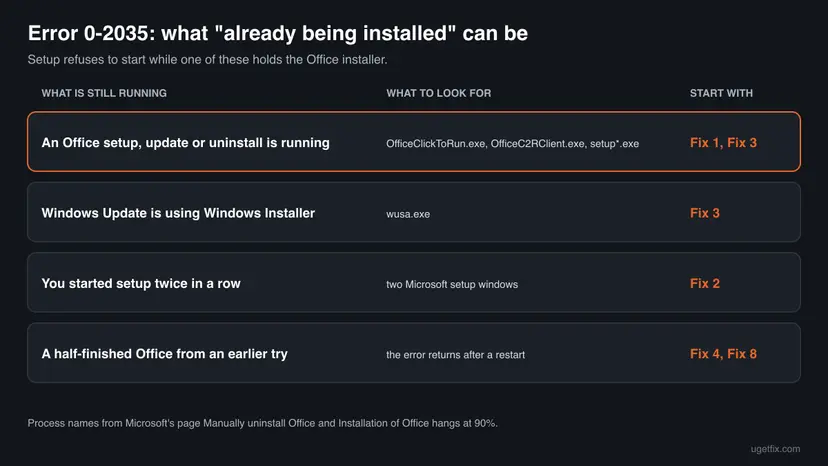
Microsoft names one cause: something else that installs, updates or removes software was running first. In practice that something has several faces. The ranking below is our reading of Microsoft's pages and of the solved reports on Microsoft Q&A. It is an order of likelihood, not a statistic.
| How often | Cause | Typical sign | Fix |
|---|---|---|---|
| Most often | An Office setup, update or uninstall is still running in the background | An Office icon sits next to the clock, or the error appears right after an earlier attempt you closed | Fix 1, Fix 3 |
| Most often | Setup was started twice: a double-click that did not seem to work, then another one | Two Microsoft setup windows, or the error a few seconds after the first click | Fix 2 |
| Often | A half-finished Office from an earlier attempt, a trial or an old version still holds the installer | The error returns after every restart. Office apps may be listed but do not open | Fix 4, Fix 5 |
| Less often | Windows Update is using Windows Installer at the same moment | Windows Update shows updates being installed or a restart pending | Fix 2, Fix 3 |
| Rarely | Another program's installer or updater starts with Windows and stays busy | The error stops in a clean boot | Fix 7 |
| Rarely | Leftovers of Click-to-Run that no tool can remove: a service, a scheduled task or a registry key | Even the uninstall troubleshooter fails or finishes without effect | Fix 8 |
Many websites blame damaged Windows system files, missing Windows updates or the antivirus for 0-2035. No Microsoft page ties any of them to this code. A reseller's help page says the error comes from starting the installer too many times in a short period. That matches the double-click case, but Microsoft does not say it.
How to fix error code 0-2035 (0) when you install Microsoft 365 or Office
Fix 1 to Fix 3 cost nothing and solve the cases where a real job is still running. Fix 4 and Fix 5 remove the Office that is in the way. Fix 6 to Fix 8 are for a PC where setup keeps refusing. Pick your start in the table.
| What you see or have | Start with |
|---|---|
| An Office icon is next to the clock, or you just closed another Office setup | Fix 1 |
| No icon, and this is your first or second try today | Fix 2 |
| The error comes back right after a restart | Fix 3, then Fix 4 |
| You had a trial, an older Office, or a work or school Office on this PC | Fix 4 |
| The PC came with Office, or Office was once installed from the Microsoft Store | Fix 5 |
| The download keeps failing or the network is slow or filtered | Fix 6 |
| Fix 4 finished but setup still says Office is already being installed | Fix 7, then Fix 8 |
Fix 1. Check the Office icon next to the clock and let the running job finish
5 to 30 minutesNo riskEveryone first, above all when you started Office setup or an update a short time ago.
The window itself points here: it asks you to check the Office notification in the taskbar. Microsoft's first step for 0-2035 is the same. If a real installation is running, waiting for it is the whole fix, and starting a second one only produces the error again.
- Select Close in the error window. Do not start the installer again yet.
- Look at the notification area at the right end of the taskbar. Select the small arrow (Show hidden icons) to see the icons that are folded away.
- If you see an Office or Microsoft 365 icon, select it. A progress window of the running installation, update or repair opens.
- Leave the PC on and connected to the internet until that window says it is done. Microsoft's install page says the end of a good installation is the message You're all set! Office is installed now.
- Open Start and look for Word or Excel. The first installation may have succeeded while you were looking at the error.
- No icon at all? Go to Fix 2. The job that blocks setup may be invisible, or it may have died and left its lock behind.
- An update is running instead of a setup? Let it finish as well. Microsoft's page counts an update or an uninstall as another installation.
It worked if: The running job ends, and either Office is installed or a new start of setup goes past the Please wait window.
If not: If no icon is there, or the job never moves, go to Fix 2 and restart the PC.
Fix 2. Restart the PC and run the Office installer only once
10 minutesNo riskThere is no Office icon next to the clock, or the running job seems stuck.
A restart ends every installer that is still loaded in memory, including one that crashed and never told setup it was done. Microsoft lists restart and reinstall as the solution for 0-2035 when no Office icon is shown.
- Save your work and close all apps.
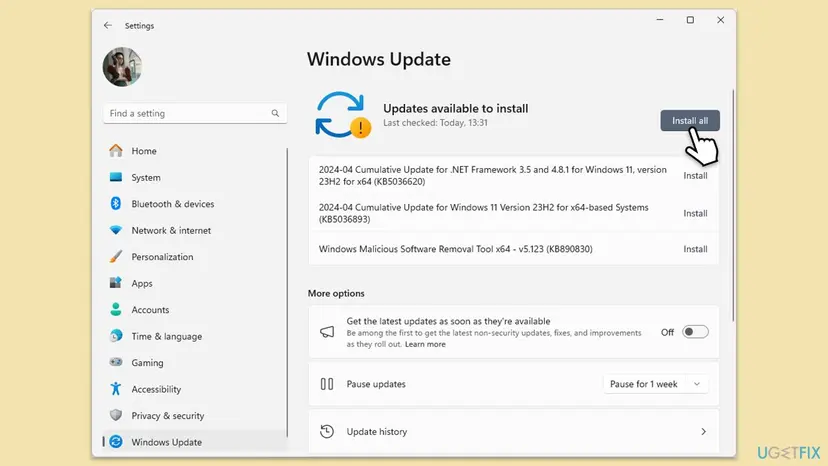
- Open Settings > Windows Update. If updates are downloading or installing, let them finish first, so that Windows does not hold its installer during Office setup.
- Select Start > Power > Restart. Use Restart, not Shut down: with Fast Startup on, a shutdown keeps part of the old Windows session.
- After the restart, sign in and wait a minute until the desktop is quiet.
- Sign in at
m365.cloud.microsoft/appswith the account that owns Office and select Install apps. For a product key or a school copy, use the download link you were given. - Run the downloaded setup file one time. If User Account Control asks to allow changes, select Yes. Then wait: the setup window can take a minute to appear.
The installer you download is small and takes a moment before it shows any window. A second double-click in that time starts a second setup, and the second one sees the first and stops with 0-2035. One reseller's help page names exactly this as the cause, and it costs nothing to avoid.
Microsoft's install page also says that you need an administrator account to install Office. On a PC where you are a standard user, the setup asks for an administrator's password before it begins.
It worked if: Setup goes past the Please wait window, shows its progress, and ends with You're all set.
If not: If 0-2035 (0) appears again right after a restart, something starts with Windows and holds the installer. Go to Fix 3.
Fix 3. Find the installer that is still running in Task Manager
5 minutesLow riskThe error comes back after a restart, or you want to see what is blocking setup before you remove anything.
Microsoft's page for manual removal names the Click-to-Run processes that keep running during an Office job, and its page on setup hanging at 90 % names the Windows Update installer. Seeing one of them tells you exactly what setup is waiting for.
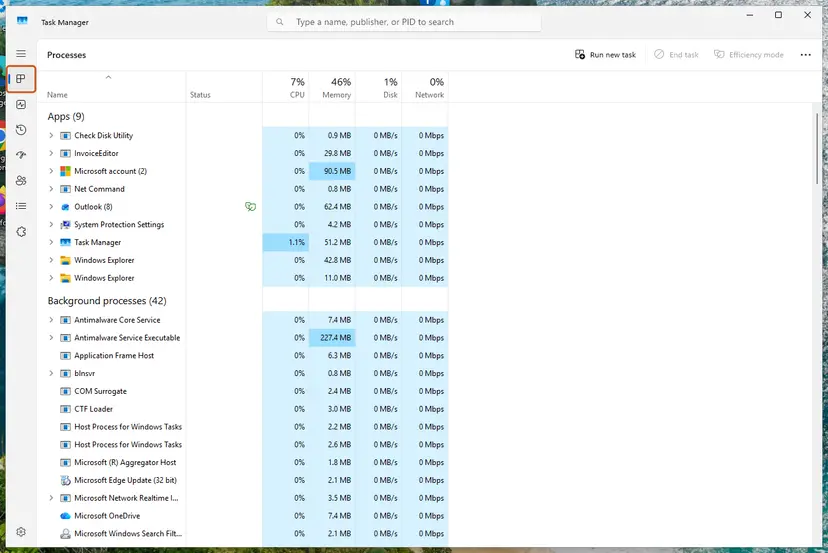
- Close the error window, then press Ctrl + Shift + Esc to open Task Manager.
- Select Details in the left menu (Windows 10: the Details tab; select More details first if you see a short list).
- Select the Name column header to sort by name, then look for
OfficeClickToRun.exe,OfficeC2RClient.exe,AppVShNotify.exeand anysetup*.exe. - Look also for
wusa.exe, the Windows Update Standalone Installer. Microsoft says Office setup has to wait while Windows Update uses Windows Installer. - If
wusa.exeis there, wait a few minutes until it disappears, then run Office setup once. - If a
setup*.exefrom an earlier Office attempt is still there and its window is gone, right-click it and select End task. Every screen: Close a frozen app (Task Manager, Force Quit). - Run Office setup once and wait.
You can do the same check in one line. Open Command Prompt and run the command below. Each line it prints is one of the programs that can make setup wait. No output means none of them is running.
List the setup and update programs that are running
tasklist | findstr /i "OfficeClickToRun OfficeC2RClient AppVShNotify setup wusa"If an Office is already installed, OfficeClickToRun.exe belongs to the Click-to-Run service (ClickToRunSvc) and keeps running while Office is installed. Its presence alone does not mean an installation is stuck. Do not end it while an update is running: that is what leaves half-finished installations behind.
It worked if: No setup or update program is left in the list, and the next start of Office setup goes past the Please wait window.
If not: If nothing is running and setup still says Office is already being installed, the lock is left by an earlier Office. Remove it with Fix 4.
Fix 4. Remove every Office with Microsoft's uninstall troubleshooter, then install again
20 to 40 minutesRead the warningThe error survives a restart, or a trial, an older Office or a work or school Office was on this PC before.
This is Microsoft's third step for 0-2035: clean up any full or partial Office installation. A half-finished install keeps telling the new setup that an installation is in progress. Removing it ends that state for good.
Microsoft states that uninstalling removes the apps only, not the documents or workbooks you created. What you can lose is the way back: note the Microsoft account or the product key that owns your Office before you start. Outlook data stored only on this PC, custom templates and signatures are worth a copy: Back up your files (Windows Backup, File History, Time Machine).
- Sign in to Windows with an administrator account.
- Open Microsoft's page Uninstall Microsoft 365 or Office from a PC and keep the Click-to-Run tab selected.
- Select the Uninstall button under the uninstall troubleshooter.
- When the browser says This site is trying to open Get Help, select Open.
- Follow the prompts in the Get Help app. If it asks which versions to remove, choose all of them.
- Restart the PC when you are prompted.
- Open Settings > Apps > Installed apps (Windows 10: Apps & features), type
officein the search box and check that no Microsoft 365, Office, Project or Visio entry is left. - Install Office again from
m365.cloud.microsoft/appsor your own download link, and run the installer once.

| Your Office | How to remove it |
|---|---|
| Microsoft 365, Office 2021, 2019 or 2016 | The uninstall troubleshooter in Get Help, as above. |
| Office 2024 | Microsoft says the troubleshooter currently cannot uninstall it. Use Control Panel > Programs > Programs and Features, select the product and Uninstall: Uninstall a program or app in Windows. |
| Office installed from the Microsoft Store | Not a Click-to-Run installation. Use Fix 5. |
| The old Support and Recovery Assistant | Deprecated. Old guides point to it; its job moved into Get Help. |
It worked if: No Office entry is left in Installed apps, and the new setup runs through to You're all set.
If not: If Installed apps still lists a Microsoft 365 (Office) app, go to Fix 5. If the troubleshooter finished and setup still refuses, try Fix 7 and then Fix 8.
Fix 5. Remove the Microsoft Store edition of Office and preinstalled Office apps
10 minutesLow riskThe PC came with Office preinstalled, or Office was once installed from the Microsoft Store.
Microsoft names three installation types: Click-to-Run, MSI and the Microsoft Store app. The uninstall troubleshooter is made for the first two, so a Store edition can stay behind and keep a second Office from installing.
- If an Office app still opens, go to File > Account and select About. A Store installation shows a version and build number with the phrase Microsoft Store.
- Open Settings > Apps > Installed apps (Windows 10: Apps & features) and type
officein the search box. - Uninstall every Store entry you find. Every screen: Uninstall a program or app in Windows.
- If an entry will not go, right-click Start and select Terminal (Admin). On Windows 10 it is Windows PowerShell (Admin).
- Type this command and press Enter. Microsoft says it takes a few minutes:
Get-AppxPackage -name "Microsoft.Office.Desktop" | Remove-AppxPackage - Check the result. If only a new prompt appears and nothing else, the Store edition is gone:
Get-AppxPackage -name "Microsoft.Office.Desktop" - Restart the PC and run Office setup once.
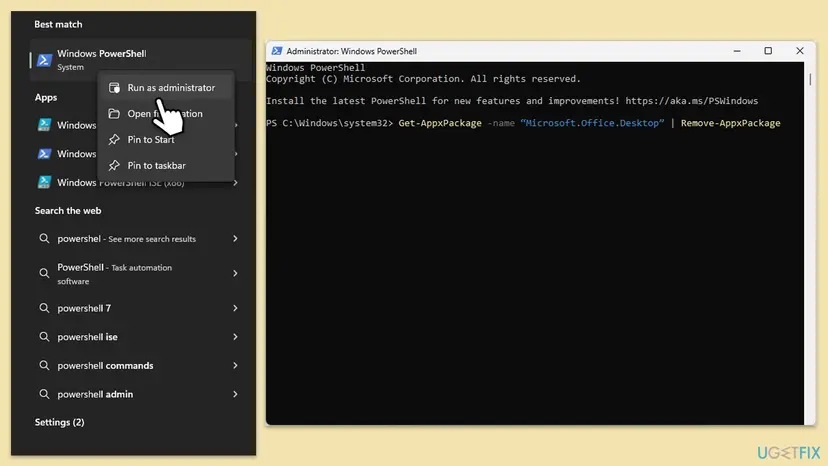
It removes the Microsoft Store edition only. A normal Click-to-Run Office is not an app package, so the command finds nothing and changes nothing. The earlier version of this guide gave it as the general way to remove older Office versions, which it is not. For built-in apps in general see Remove built-in Windows apps with PowerShell.
It worked if: The second command returns nothing, no Store entry of Office is left, and setup no longer stops with 0-2035.
If not: If there was no Store edition, the download itself may be the problem. Go to Fix 6.
Fix 6. Install Office with Microsoft's offline installer
20 to 40 minutesLow riskThe online setup keeps failing, the connection is slow, or a second code such as 30094 follows 0-2035.
The usual installer is a small program that streams Office from the internet while it installs. Microsoft says the offline installer may help bypass proxy, firewall, antivirus or connection problems, because the whole of Office is downloaded first as one image file.
- Open Microsoft's page Use the Office offline installer and select the tab for your product.
- Follow the download button there. In the Install window, choose Offline installer in the Choose a version list and pick your language.
- Open your Downloads folder and double-click the image file, for Microsoft 365 home plans
O365HomePremRetail.img. Windows opens it as a new drive, often (D:). - Open the Office folder on that drive.
- Run
Setup64.exefor 64-bit Office orSetup32.exefor 32-bit Office. Run it once. - Sign in to an Office app at the end to activate it.
Keep the image file until Office works. If the offline setup also shows 0-2035, the cause is on the PC and not in the download: go back to Fix 3 and Fix 4, then use Fix 7.
Microsoft has a separate page for error 30094. Its fixes are to delete temporary files with Disk Cleanup and to repair Office from Control Panel. Deleting temporary files is the same step that clears old setup leftovers: Free up disk space and delete temporary files.
It worked if: The offline setup runs from the mounted drive and ends with You're all set, with no 0-2035 window.
If not: If the offline setup shows the same Please wait window, another program is holding the installer. Go to Fix 7.
Fix 7. Start Windows in a clean boot and run Office setup there
15 minutes plus restartsLow riskFix 1 to Fix 4 did not help, and other software with its own updater is installed on the PC.
Microsoft's cause includes any other installation, update or uninstall, not only Office. A clean boot starts Windows without third-party services and startup apps, so an updater that starts with Windows cannot hold the installer. This test is our suggestion, Microsoft's page for 0-2035 does not list it.
- Open System Configuration. Select Search on the taskbar, type msconfig and select System Configuration from the results.
- Hide Microsoft services. On the Services tab, select the Hide all Microsoft services check box. Only services from other companies stay in the list.

With Hide all Microsoft services ticked, only third-party services stay in the list. Screenshot: Windows 11 26H2. - Disable the remaining services. Select Disable all, then select Apply.
- Open Task Manager. On the Startup tab of System Configuration, select Open Task Manager.

The Startup tab only links to Task Manager. Screenshot: Windows 11 26H2. - Disable the startup apps. On the Startup apps tab in Task Manager, select each item whose status is Enabled and select Disable. Write down or take a screenshot of the items you disable: you need the list to turn them back on.

Select an app, then Disable. Screenshot: Windows 11 26H2. - Confirm the changes. Close Task Manager. On the Startup tab of System Configuration, select OK.
- Restart and test. Restart the PC. Windows now starts in a clean boot environment: try again the thing that failed (run the app, install the update, uninstall the program).
These steps were written for Windows 11 25H2 and 26H2. The full page with the other versions and what each result means: How to perform a clean boot in Windows
- Run Office setup once while the PC is in the clean boot. If it installs, the blocker was one of the items you turned off.
- Return to normal startup afterwards. Turn the services and startup apps back on as the procedure describes, then restart.
- Do not use Safe Boot for this. The earlier version of this guide said to tick Safe boot on the Boot tab. That starts Safe Mode, a different and more limited startup, not a clean boot.
It worked if: Office setup runs to You're all set in the clean boot, and Office still opens after you return to normal startup.
If not: If the error also appears in a clean boot, a broken Click-to-Run installation is left that no tool could remove. Go to Fix 8.
Fix 8. Remove a broken Click-to-Run installation by hand
30 minutesRead the warningThe uninstall troubleshooter failed or had no effect and setup still says Office is already being installed.
When the removal tools cannot finish, the service, scheduled tasks and folders of Click-to-Run stay on the PC and keep reporting an installation. Microsoft's page Manually uninstall Office lists each part and the command that removes it.
Microsoft warns that manual removal is a long, complex process and that mistakes can force a reinstall of Windows. Your documents are not in these folders, but copy them anyway: Back up your files (Windows Backup, File History, Time Machine). Before the registry part on Microsoft's page, export the registry: Back up the registry before editing it.
- Sign in with an administrator account and open Command Prompt with Run as administrator.
- Delete the Office scheduled tasks. Microsoft lists these lines, one at a time:
schtasks.exe /delete /tn "\Microsoft\Office\Office Automatic Updates" schtasks.exe /delete /tn "\Microsoft\Office\Office Subscription Maintenance" schtasks.exe /delete /tn "\Microsoft\Office\Office ClickToRun Service Monitor" - In Task Manager, end
OfficeClickToRun.exe,OfficeC2RClient.exe,AppVShNotify.exeand anysetup*.exe, as in Fix 3. - Delete the Click-to-Run service:
sc delete ClickToRunSvc - Press Win + R, type
%ProgramFiles%and delete the Microsoft Office 16 and Microsoft Office folders. Do the same in%ProgramFiles(x86)%for Microsoft Office. - Delete the ClickToRun folder in
%CommonProgramFiles%\Microsoft Sharedand in%ProgramData%\Microsoft, and the ClickToRunPackagerLocker file in%ProgramData%\Microsoft\Office. - Restart, then run Office setup once.
Microsoft's page goes on with registry keys, Start menu shortcuts and licensing components. Follow it from Manually uninstall Office if setup still refuses after the steps above. Our guide to error 30015-25 walks through the same removal for a damaged Click-to-Run.
If a folder will not delete because it is in use, restart and try again, as Microsoft advises. A folder that is in use after a restart means a Click-to-Run process started again: end it in Task Manager first.
It worked if: No Office folders, service or tasks are left, and the next setup runs without the Please wait window.
If not: Collect the setup log described below and contact Microsoft support or your school or company IT with it.
Still getting error 0-2035? Read the setup log and ask the right people
Click-to-Run writes a log for every installation attempt. Microsoft's page on enterprise logging says that for installation issues the logs are in the %temp% folder, named in the format MachineName-Date-time.log. Logs of the system account are in %windir%\Temp.
- Run Office setup once more so that a fresh log is written.
- Press Win + R, type
%temp%and press Enter. - Sort the folder by Date modified and open the newest file whose name starts with your PC's name and ends in
.log. - Press Ctrl + F and search for
2035, then forerror. The lines just before the first hit name the job or the product setup found. - Repeat in
%windir%\Tempif%temp%has no new log.
| Your situation | Who can help | What to send |
|---|---|---|
| Microsoft 365 for home or Office bought from Microsoft | Microsoft support | The full error text, the Office product, your Windows version and the newest log |
| Office from a school or university | Your school's IT service desk | The same, plus which download link you used. |
| Office from a work account or a company PC | Your company IT | The same. Companies often install Office with their own tools, and such a job may be the one setup sees. |
| Office key bought from a reseller | The reseller first | The order number, the error text and the download link the reseller gave you. |
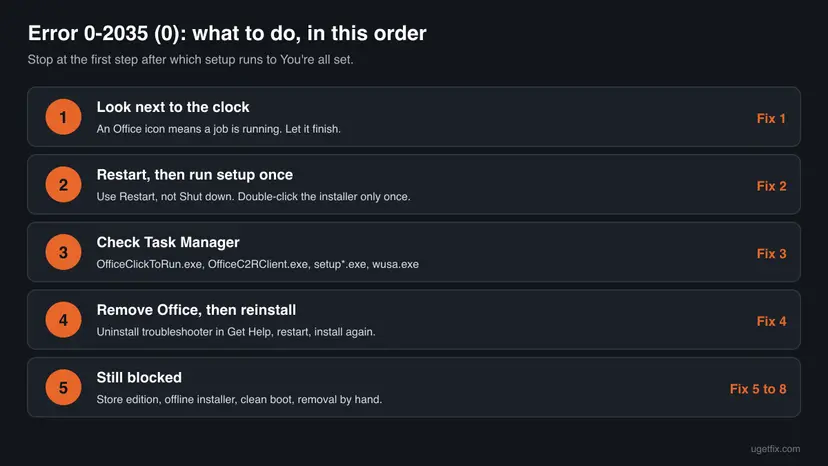
0-2035 has no hardware cause that Microsoft documents. It is about software that is running, not about the disk, the memory or the processor. If every step here fails on one PC and works on another with the same account, the cause is on that PC's Windows, not in your licence.
How to avoid error 0-2035 the next time you install Office
- Start the installer once and wait up to a minute for its window.
- Let Windows finish its updates and restart before you install Office.
- Remove a trial or an older Office with the uninstall troubleshooter before you install a new one.
- Keep the PC on and connected until You're all set appears.
- Double-click the installer again because nothing happened.
- Shut down or unplug the PC during an Office installation or update.
- End
OfficeClickToRun.exewhile an Office update is running. - Install Office from a link sent by a seller you do not know.
When you change from one Office to another, for example from a work Office LTSC to a home Microsoft 365, remove the old one first and restart once. A Microsoft Q&A user who had already removed Microsoft 365, Visio, Project and Outlook still could not install; the advice from a Microsoft MVP was the manual removal in Fix 8.
Microsoft ended support for Office 2016 and Office 2019 on 14 October 2025, and Windows 10 left support on the same day. If you install one of them again after removing it, expect no fixes from Microsoft for its setup.
Frequently asked questions
What does error code 0-2035 (0) mean?
It means Office setup would not start because it believes another Office installation, update or uninstall is already running. The window says Please wait and Office is already being installed. Microsoft covers it on its page about another installation in progress, together with 0-1018 and 17003-2031. Nothing is broken yet: setup stopped before it installed anything. Check for an Office icon next to the clock, let that job finish, or restart the PC and run setup once.
Is 2035-0 the same error as 0-2035 (0)?
Yes. Microsoft's support article writes the code as 2035-0 in its title, while the setup window shows Error Code: 0-2035 (0). Microsoft does not explain the extra (0). Users also search for 0-2035(0), 0 2035 0 and error code: 0-2035 (0); all are the same error with the same fix. Error 0-2039 (0) and 0-2031 are different codes from the same setup program, so check the exact numbers before you follow a guide.
What does "codigo de error 0-2035 (0) office" mean in English?
It is the Spanish version of the same window: Office setup says that Office is already being installed and shows error code 0-2035 (0). The meaning and the fixes do not depend on the language of Windows or Office. The window looks the same in every language, with the code on the last line. This page is in English; Microsoft has the same support article in Spanish and other languages under the title about another installation in progress.
I paid for Microsoft 365. Why does it say Office is already being installed?
Because setup checks the PC before it checks your purchase. The message is about something running on your computer, not about your account. Posters on Microsoft Q&A who paid for Office and saw 0-2035 got the same advice from Microsoft's staff: restart, remove old Office versions and trials with the uninstall tool, and install again from the account that owns the subscription. Your purchase stays in your Microsoft account while you do this.
Where is the Office notification in the Windows taskbar?
It is an icon in the notification area at the right end of the taskbar, next to the clock. Windows folds most icons away, so select the small arrow called Show hidden icons. If an Office or Microsoft 365 icon is there, select it to see the progress of the running installation, update or repair. If you find no icon, the job that blocks setup is not visible: restart the PC as in Fix 2.
How long should I wait before I try the Office installation again?
As long as the Office icon next to the clock shows progress, wait until it finishes. A full Microsoft 365 download takes from a few minutes to much longer on a slow connection. Microsoft has a separate page for installations that take a long time; it suggests a wired connection or the offline installer. If there is no icon and no setup or update program in Task Manager, do not wait at all: restart and try once.
Will uninstalling Office to fix 0-2035 delete my documents?
No. Microsoft states that uninstalling removes the Office applications only, not the files, documents or workbooks you created. What you can lose is the way back in: note which Microsoft account or product key owns your Office before you remove it. If you use Outlook with a mailbox that is stored only on this PC, copy that data first. Templates and signatures you set up yourself are worth a copy too.
Why do I get 0-2035 and then 30094-1 or 0-2054?
The second code belongs to a later attempt that started after the first one failed. Users on Microsoft Q&A report both pairs. Microsoft's advice in those threads was the same for both: restart, remove all existing Office versions and trials with the uninstall tool, then install again, and use the offline installer if the download still fails. Fix 0-2035 first with Fix 1 to Fix 4. If 30094 stays, Microsoft's page for 30094 suggests deleting temporary files and repairing Office.
Can I fix error 0-2035 for Office 2024 with the uninstall troubleshooter?
Not fully. Microsoft states that the uninstall troubleshooter currently cannot uninstall Office 2024. Remove Office 2024 from Control Panel, under Programs and Features, or from Installed apps in Settings, then restart and run setup once. The troubleshooter can still remove the other Office versions, such as Microsoft 365, Office 2021, 2019 and 2016, that may be blocking the new installation. If Office 2024 came from a school or a company, ask their IT for their own removal steps.
Do I need to disable my antivirus or run SFC to fix 0-2035?
No Microsoft page ties 0-2035 to the antivirus or to damaged Windows files, so start with the steps that match the error: let the running job finish, restart, and remove leftover Office. Microsoft does suggest pausing antivirus for slow or failing downloads, and only for the time of the test. If you try that, turn protection back on right after setup ends. The offline installer in Fix 6 avoids most download problems without touching security.
Sources
- Microsoft Support: "Another installation is in progress" or error code 0-1018, 17003-2031, or 2035-0 when installing Office (support.microsoft.com)
- Microsoft Support: Uninstall Microsoft 365 or Office from a PC (support.microsoft.com)
- Microsoft Support: Manually uninstall Office (processes, service, scheduled tasks and folders of Click-to-Run) (support.microsoft.com)
Did this fix work?
One click, no account. It tells the next reader which guides are worth their time.
Questions and experiences: fix Microsoft Office installation error 0-2035
Still broken, or found a fix we did not cover? Ask here: members and our editors answer. Reading is open; writing needs a free account.
…