
How to fix Xbox app error 0x80073D19 in Windows?

Prefer to fix it yourself? The manual steps follow.
- 8methods
- 10 to 30 minutes
- Intermediate
Applies to Windows 11 and Windows 10; the Xbox app, Gaming Services, Game Pass games, Microsoft Store apps and packages added or removed with PowerShell
8 methods in this guide
Every time I try to install a new game in the Xbox app, I receive error 0x80073D19. Any tips to fix this would be great, as I have been dealing with this for a while now.
Error 0x80073D19 means Windows stopped installing, updating or removing an app package because, in Microsoft's words, a user was logged off. In the Xbox app it usually stops a game install. Sign out every other account, restart, keep the PC awake and install the game again.
0x80073D19 is Microsoft's code ERROR_DEPLOYMENT_BLOCKED_BY_USER_LOG_OFF: "An error occurred because a user was logged off." The app package system stopped the install because a user session ended or could not be reached. Sign out every other Windows account, restart, keep the PC from sleeping and install the game again (Fix 1). If it returns, repair Gaming Services (Fix 2).
| Error | 0x80073D19, name ERROR_DEPLOYMENT_BLOCKED_BY_USER_LOG_OFF: "An error occurred because a user was logged off." |
|---|---|
| Where it appears | In the Xbox app when a game installs or updates, in Microsoft Store, in PowerShell after Add-AppxPackage or Remove-AppxPackage, and as an installer's exit code. |
| Main cause | The install was tied to a user session that ended or that Windows could not reach: another account signed out, the PC slept, or a package held for several accounts. |
| Fastest fix | Sign out every other account, restart, turn off sleep for the install and try again (Fix 1). Games still fail: repair Gaming Services (Fix 2). |
| Also written as | 0x80073d19, 80073D19, "HRESULT 0x80073D19", "Deployment failed with HRESULT: 0x80073D19, An error occurred because a user was logged off.", "Installer failed with exit code: 0x80073D19". |
| Affects | Windows 11 and Windows 10. Any app package: the Xbox app, Gaming Services, Game Pass games, Store apps and built-in apps removed by administrators. |
| Microsoft's status | A documented app deployment error, not a known bug with a patch. Microsoft gives only the one line of text, with no fix of its own. |
| Where the cause is logged | Event Viewer > Applications and Services Logs > Microsoft > Windows > AppXDeployment-Server > Microsoft-Windows-AppXDeploymentServer/Operational, or Get-AppxLog in PowerShell. |
| Time to fix | About 10 minutes for Fix 1. Up to 30 minutes when Gaming Services or the Xbox app is removed and installed again. |
Facts checked on 15 October 2026. Steps written for Windows 11 (25H2 and 26H2) and Windows 10 22H2.
What error code 0x80073D19 means
The Xbox app, Gaming Services, every Game Pass game and every Microsoft Store app are app packages. Windows installs, updates and removes them with one shared system called app deployment. Each package is registered for one or more user accounts on the PC.
Error 0x80073D19 is one of that system's codes. Microsoft's developer documentation names it ERROR_DEPLOYMENT_BLOCKED_BY_USER_LOG_OFF. Its whole description is one line: "An error occurred because a user was logged off." In plain words, Windows was working on a package for a user, and that user's session was no longer there to finish the job.
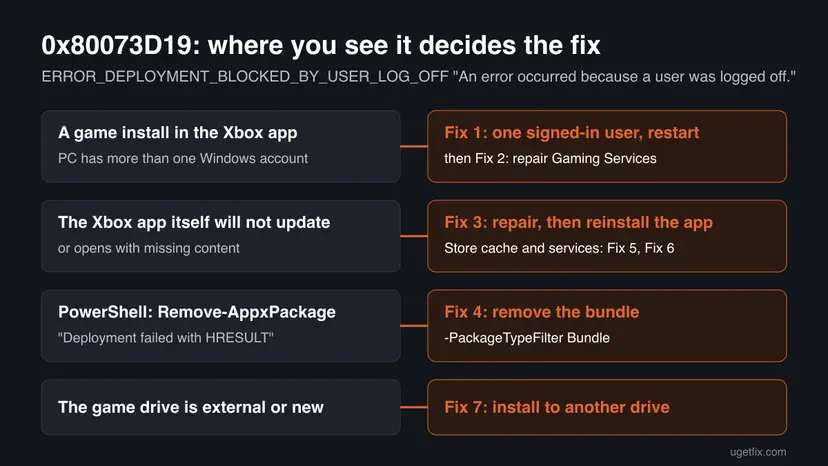
- HRESULT
- 0x80073D19 (also typed 0x80073d19 and 80073D19)
- Name
ERROR_DEPLOYMENT_BLOCKED_BY_USER_LOG_OFF- Microsoft's text
- An error occurred because a user was logged off.
- Family
- The 0x80073Dxx app deployment codes. Neighbours people also search: 0x80073D13 (package type not supported on this file system) and 0x80073D3F (install drive not found).
The code does not say your game or your account is broken. It says the install lost the session it was running for. Give it one clean session with no other users and no sleep (Fix 1), and repair the parts that install games (Fix 2 and Fix 3) if that is not enough.
Where 0x80073D19 shows up: the Xbox app, Microsoft Store, PowerShell and installers
| Where | What you see | Start with |
|---|---|---|
| Xbox app on a PC | A new game stops installing with 0x80073D19, every time, as in the reader's question. | Fix 1, then Fix 2 |
| Xbox app or Microsoft Store | The Xbox app or another Store app fails to update with the code. | Fix 3, then Fix 5 |
| Windows PowerShell | Deployment failed with HRESULT: 0x80073D19, An error occurred because a user was logged off. after Remove-AppxPackage or Add-AppxPackage. | Fix 4 |
| An app's installer | Installer failed with exit code: 0x80073d19 : An error occurred because a user was logged off. | Fix 1, then Fix 4 |
| Xbox console | Our sources describe the code only on Windows PCs. | Xbox Support |
The installer form of the message comes from programs that put an app package in place for you. The code and its meaning are the same as in PowerShell: the deployment step under the installer stopped, and the installer passes its code on.
Why the install stops: the causes of 0x80073D19, ranked
Most often the session the install ran for ended, or another account on the PC was signed out while a package shared between accounts was being changed. Less often the parts that install games are damaged and leave a half registered package behind. Rarely, and mostly for administrators, PowerShell is pointed at the wrong form of a bundled package.
| Cause | How often | How to tell | Fix |
|---|---|---|---|
| Another Windows account was signed in or signed out during the install, or the PC slept, hibernated or locked into another user. | Most often | The PC has more than one account, or you switch users, or the download runs while you are away. | Fix 1 |
| Gaming Services, which installs every Xbox game, is damaged or half updated. | Often for games | Every game fails, or the Xbox app opens with missing content. | Fix 2 |
| The Xbox app package itself is damaged. | Sometimes | The app fails to update or misbehaves even when no game is installing. | Fix 3 |
Remove-AppxPackage -AllUsers was given a single package when the app is installed as a bundle. | Rarely for players, often for administrators | The code appears in PowerShell when you remove a built-in or Xbox app. | Fix 4 |
| Microsoft Store's cache or its install services cannot finish the job. | Sometimes | Other Store apps also fail or stay at Pending. | Fix 5 and Fix 6 |
| The game drive was removed, renamed or uses a file system the package cannot use. | Rarely | The default game drive is external or new, or the code changes to 0x80073D3F or 0x80073D13. | Fix 7 |
Microsoft gives no list of causes and no numbers for this code. The ranking is our reading of Microsoft's one line of text and of the reports and write-ups we read.
How to fix Xbox app error 0x80073D19 in Windows 11 and Windows 10
Fix 1 gives the install the one clean session the error asks for. Fixes 2 and 3 repair Gaming Services and the Xbox app. Fix 4 is for PowerShell. Fixes 5 to 8 are for a Store, a service, a drive or a Windows that cannot finish the job. Paths are given for Windows 11 and Windows 10 where they differ.
| What you see or have | Start with |
|---|---|
| A new game fails to install with 0x80073D19 and the PC has other accounts or goes to sleep. | Fix 1 |
| Every game fails, or the Xbox app opens with missing content. | Fix 2 |
| The Xbox app itself fails to update or open. | Fix 3 |
| PowerShell shows the code after Remove-AppxPackage or Add-AppxPackage. | Fix 4 |
| Other Store apps also fail or stay at Pending. | Fix 5, then Fix 6 |
| Games install to an external or newly added drive. | Fix 7 |
| Nothing above helped and Windows has pending updates. | Fix 8 |
Fix 1. Sign out every other account, restart and keep the PC awake while the game installs
10 minutes plus the downloadLow riskA game install fails with 0x80073D19, the PC has more than one Windows account, you switch users, or the download runs while the PC can sleep.
Microsoft's text ties the code to a user who was logged off during the deployment. A game is registered for user accounts, so a second account that signs out, or a PC that sleeps or switches user, can end the session the install depends on. One signed-in user and no sleep removes that.
- Press Ctrl + Shift + Esc to open Task Manager and select the Users page.
- If any account other than yours is listed, ask its owner to save their work, then right-click that account and select Sign out.
- Select Start > Power > Restart and sign in with only your account.
- Press Win + I and open System > Power & battery (Windows 10: System > Power & sleep). Set sleep to Never for now.
- Open the Xbox app, select the game and select Install. Do not switch user or lock the PC until it finishes.
- When the install is done, set sleep back to what it was.
- Signing out ends the other person's open apps. Unsaved work in their session is lost, which is why they save first.
- On a work or school PC: a policy may sign users out or restart the PC at set times. Ask the administrator before a long download.
It worked if: The game downloads and installs to the end without the code, and Play appears on its page in the Xbox app.
If not: Go to Fix 2. If the PC has only one account and never slept, the parts that install games are the next suspect.
Fix 2. Run the Gaming Services Repair Tool, then remove and reinstall Gaming Services
10 to 20 minutesLow riskEvery game fails with 0x80073D19, Fix 1 did not help, or the Xbox app opens with missing content.
Gaming Services is the package that installs every Xbox game on the PC. If its own registration is damaged, each game install it starts can stop at the deployment step. Xbox Support's repair tool is meant for exactly these install and update problems, and a fresh copy replaces a half updated one.
- Open the Xbox app, select your profile picture and then Support.
- Select Gaming Services Repair Tool, then Start Troubleshooting, and follow what it reports.
- Restart the PC and try the game again.
- If the code returns, close the Xbox app and Microsoft Store. Right-click Start and select Terminal (Admin) (Windows 10: Windows PowerShell (Admin)), then Yes.
- Run the command below. It removes Gaming Services for all users.
- Install it again from the Gaming Services page in Microsoft Store and restart the PC.
Terminal (Admin): remove Gaming Services
Get-AppxPackage -AllUsers Microsoft.GamingServices | Remove-AppxPackage -AllUsers- The command itself fails with 0x80073D19: Gaming Services may be installed as a bundle. Use the bundle command in Fix 4 with the name
Microsoft.GamingServices. - The repair tool will not run: Xbox Support says that on Windows 22H2 or older it may need the local administrator account, and that updating Windows helps (Fix 8).
- Installed games stay on the drive. They will not start until Gaming Services is back.
It worked if: The repair tool reports no problem, or Gaming Services installs again, and the game installs.
If not: Go to Fix 3 if the Xbox app itself misbehaves, or Fix 5 if the Store fails too.
Fix 3. Repair or reset the Xbox app, then reinstall it
10 minutesLow riskThe Xbox app itself fails to update with the code, or it misbehaves when no game is installing.
Repair checks the app's files and keeps its data. Reset and a reinstall give the app a clean registration for your account, which replaces a copy whose earlier deployment was cut off.
- Close the Xbox app. Press Win + I and open Apps > Installed apps (Windows 10: Apps > Apps & features).
- Find Xbox, select the three dots (Windows 10: select the app) and then Advanced options.
- Select Terminate, then Repair. Open the Xbox app and try again.
- Still failing: go back and select Reset. You sign in to the app again afterwards.
- Still failing: select Uninstall, restart the PC, then install Xbox from Microsoft Store.
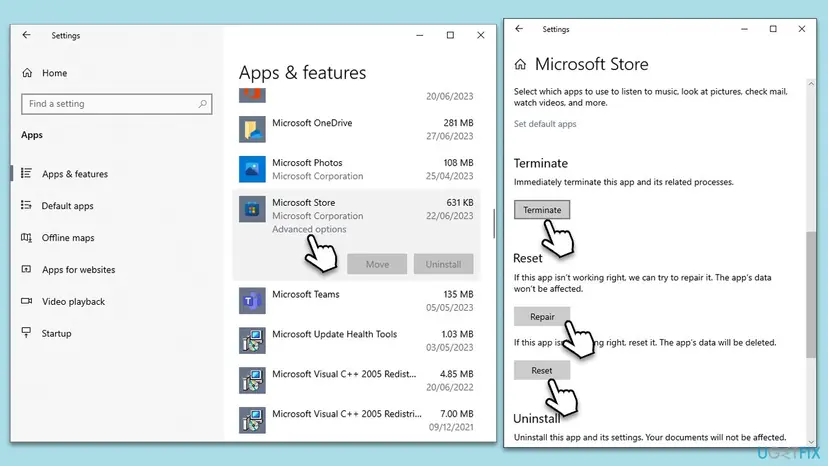

Your games are separate packages and stay on the drive, and cloud saves belong to your Xbox account. Every screen of this step: How to repair or reset an app in Windows
It worked if: The Xbox app opens, updates without the code and installs games again.
If not: If Uninstall is grey or fails, remove the app with PowerShell in Fix 4 using the name Microsoft.GamingApp.
Fix 4. When PowerShell shows 0x80073D19: remove the app as a bundle
10 minutesRead the warningRemove-AppxPackage or Add-AppxPackage fails with "Deployment failed with HRESULT: 0x80073D19", often while removing a built-in app, the Xbox app or the Xbox Game Bar for all users.
A widely shared Windows 10 Forums tutorial reports that this code appears when Remove-AppxPackage -AllUsers gets a single package while the app is installed as a bundle, so the name Windows looks up at the end does not match. Asking for the bundle removes the whole app.
-AllUsers removes the app for everyone on the PC. Local game data and saves go with a removed game, so let cloud saves sync first and copy local save folders: Back up your files (Windows Backup, File History, Time Machine)
- Right-click Start and select Terminal (Admin) (Windows 10: Windows PowerShell (Admin)). Select Yes.
- Run the first command with part of the app's name. It lists every copy with its full name.
- Read the PackageFullName. A name with
_neutral_~_is a bundle. A name with_x64__or_x86__is a single package. - For a bundle, run the second command. For a single package, run the third.
- Run the first command again. It should print nothing for the app.
- Restart the PC and, if you want the app back, install it from Microsoft Store.
Terminal (Admin): list, then remove as a bundle or as a package
Get-AppxPackage -AllUsers -Name '*Gaming*' | Select-Object Name, PackageFullName
Get-AppxPackage -AllUsers -Name 'Microsoft.GamingApp' -PackageTypeFilter Bundle | Remove-AppxPackage -AllUsers
Get-AppxPackage -AllUsers -Name 'Microsoft.GamingApp' | Remove-AppxPackage -AllUsers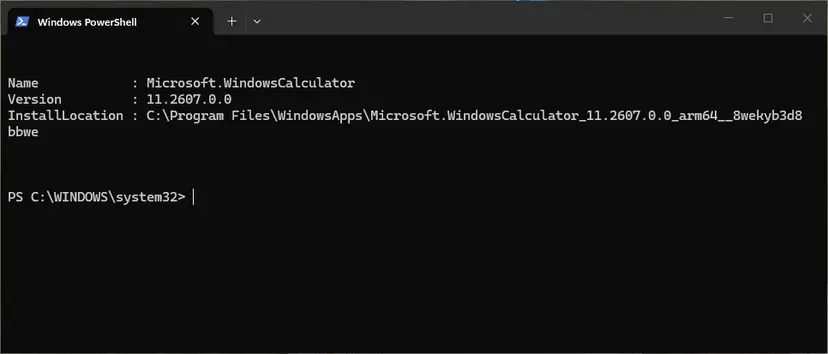
- Names to use:
Microsoft.GamingAppfor the Xbox app,Microsoft.GamingServicesfor Gaming Services,Microsoft.XboxGamingOverlayfor the Xbox Game Bar. - Do not remove packages you do not recognise. The list also shows Xbox helpers such as the Xbox Identity Provider.
- Removing a built-in app for new accounts too is a different step with
Remove-AppxProvisionedPackage: Remove built-in Windows apps with PowerShell
It worked if: The removal finishes with no red text, and the first command no longer lists the app.
If not: Sign out every other account and restart as in Fix 1, then run the command again before you open any app.
Fix 5. Reset the Microsoft Store cache, then repair or reset the Store
5 to 10 minutesLow riskOther Store apps also fail, installs stay at Pending, or the Store cannot install the fresh copy after Fix 2 or Fix 3.
The Xbox app hands game and app downloads to the Store's install system. A stuck cache or a damaged Store can break the deployment that follows, so this clears the way for the install to finish.
- Press Win + R, type
wsreset.exeand select OK. - Wait. A blank window opens, closes by itself, and Microsoft Store opens.
- Try the install. If it still fails, open Settings > System > System components on Windows 11, or Settings > Apps > Apps & features on Windows 10.
- Next to Microsoft Store, select the three dots and Advanced options.
- Select Repair. If that does not help, select Reset and sign in to the Store again.
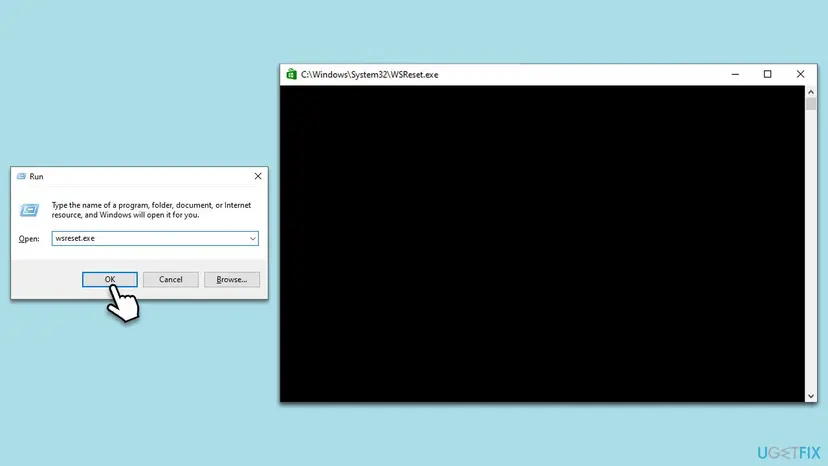
Reset removes the Store's sign-in on this PC. Your purchases and Game Pass belong to your Microsoft account and stay. Every screen: Reset the Microsoft Store
It worked if: The Store opens, Library > Get updates runs without errors, and the game installs from the Xbox app.
If not: Go to Fix 6 and check the services the install needs.
Fix 6. Check that the licence and install services can start
5 minutesLow riskInstalls stay at Pending or stop at once, or someone used a tool that turns off Windows services.
Store installs depend on background services: Client License Service (ClipSVC) for licences, Microsoft Store Install Service and Gaming Services for the install itself. A disabled one stops the deployment before it can finish.
- Press Win + R, type
services.mscand press Enter. - Find Client License Service (ClipSVC). Its Startup Type should not be Disabled.
- Check Microsoft Store Install Service, Gaming Services and Windows Update the same way. Right-click a running one and select Restart.
- If a service shows Disabled, double-click it, set Startup type to Manual, select Apply and then Start.
- Try the install again.
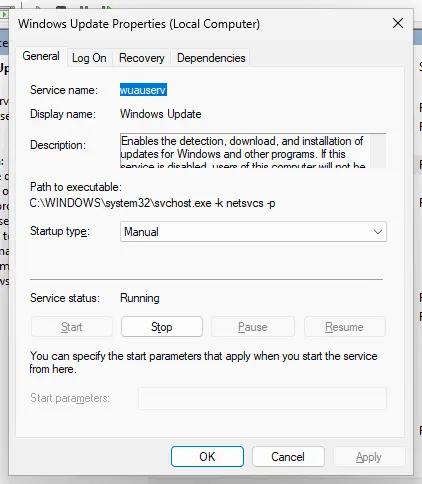
Many of these services start only when they are needed, so a status of Stopped is normal. Only Disabled is a problem. Step by step: Check and restart Windows services
It worked if: None of the services is Disabled, and the install finishes.
If not: Go to Fix 7 if games install to another drive, or Fix 8 to update Windows.
Fix 7. Install the game to a different drive
5 minutes plus the downloadLow riskGames install to an external, removable or newly added drive, or the code changes to 0x80073D3F or 0x80073D13.
The deployment writes the game to the drive set in the Xbox app. A drive that disconnects or cannot hold app packages ends the install. Microsoft's text for 0x80073D3F is "The drive referenced during package deployment couldn't be found", and for 0x80073D13 "This app package type is not supported on this filesystem".
- Open the Xbox app, select your profile picture and then Settings.
- Select Install options.
- Under Change where this app installs games by default, pick another drive, for example the internal drive C:.
- Install the game again.
- To check a drive, right-click it in File Explorer, select Properties and read File system. Microsoft does not list which file systems work, so prefer an internal drive that shows NTFS.
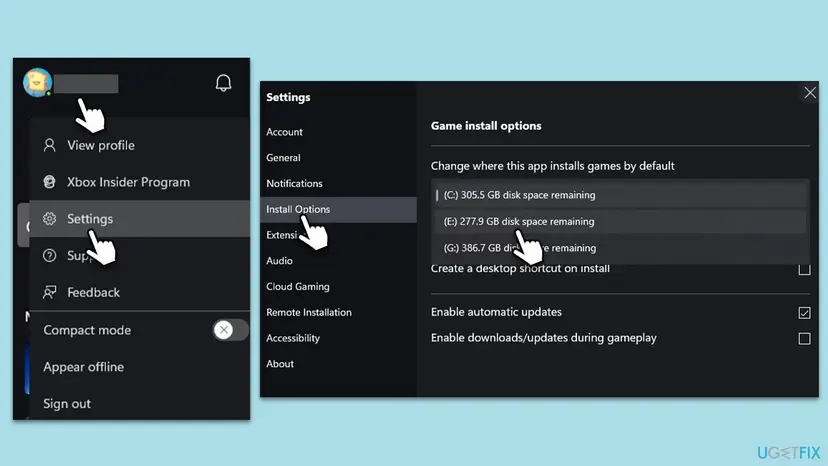
For new apps outside the Xbox app, Microsoft points to Settings > System > Storage > Change where new content is saved.
It worked if: The game installs on the other drive without the code.
If not: Go to Fix 8 and bring Windows up to date.
Fix 8. Install pending Windows updates, then try the install again
10 to 30 minutesLow riskWindows has pending updates, the Gaming Services Repair Tool will not run, or you are on Windows 10.
App deployment is part of Windows itself. Xbox Support asks for a Windows newer than 22H2 before its repair tool runs without the local administrator account, and an update replaces damaged parts of the system that installs packages.
- Press Win + I and open Windows Update (Windows 10: Update & Security > Windows Update).
- Select Check for updates and install everything that is offered.
- Restart the PC, even if Windows does not ask.
- Open Microsoft Store > Library > Get updates, then install the game again from the Xbox app.
Windows 10 left support on 14 October 2025. It still runs the Xbox app, but a PC that no longer gets updates keeps the app platform it has. When an update will not install: Install an update from the Microsoft Update Catalog
It worked if: Windows reports that it is up to date, and the game installs.
If not: Read the deployment log as shown below to see which package and which user the error names.
If the error is still there: read the deployment log and test a new account
Every app deployment error is written to the AppXDeployment-Server event log. The entry near 0x80073D19 names the package, and often the user, so you know what to remove or which account to sign out.
- Make the error appear once more and note the time.
- Open Windows PowerShell and run
Get-AppxLog | Out-GridView. A table opens in its own window. - Look for rows with 0x80073D19 and read the package name near them.
- To use Event Viewer instead, run
eventvwr.mscand open Applications and Services Logs > Microsoft > Windows > AppXDeployment-Server > Microsoft-Windows-AppXDeploymentServer/Operational. - Fix the package named there with Fix 2, 3 or 4.
Then test a fresh profile. A new account has its own clean set of app registrations. If the game installs there, the problem lives in your own profile, not in Windows: Create a new user account to test a problem
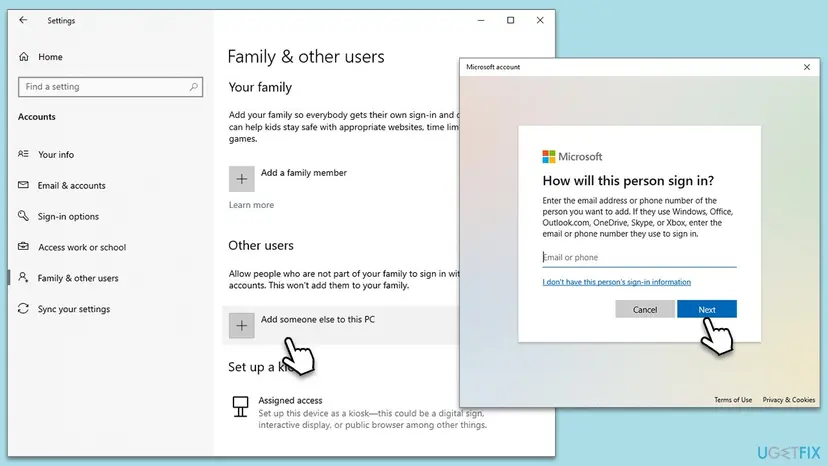
- What to send to Xbox Support: the log entry text, the Windows edition and build from Settings > System > About, the game's name and which fixes you tried.
- On a work or school PC: policies that sign users out, or apps installed by an administrator for all users, need the administrator.
- It is not a hardware fault in itself. A failing drive gives other codes. Only the drive cases in Fix 7 touch hardware.
How to keep 0x80073D19 from coming back
- Let large game installs finish before you switch users, sign out or let the PC sleep.
- On a shared PC, sign out accounts nobody is using instead of leaving them signed in in the background.
- Install games to an internal drive that stays connected.
- Keep Windows, Microsoft Store and Gaming Services updated.
- Administrators: remove bundled apps with
-PackageTypeFilter Bundle.
Frequently asked questions
What does error code 0x80073D19 mean?
It means Windows stopped an app install, update or removal because a user was logged off. Microsoft names the code ERROR_DEPLOYMENT_BLOCKED_BY_USER_LOG_OFF and gives only that one line. In practice the session the deployment depended on ended, for example because another account signed out, the PC slept, or PowerShell was asked to change a package for users the way it could not. It is not a hardware error and it does not mean your Xbox account is blocked.
How do I fix 0x80073D19 in the Xbox app when I install a game?
Start with a clean session. Open Task Manager, sign out every other account on the Users page, restart and turn sleep off until the download ends. Then install the game again without switching user. If it fails again, run the Gaming Services Repair Tool from the Xbox app's Support page, and if needed remove and reinstall Gaming Services. These are Fix 1 and Fix 2 on this page.
What is HRESULT 0x80073D19 in PowerShell?
It is the same deployment code, printed as "Deployment failed with HRESULT: 0x80073D19, An error occurred because a user was logged off." It shows most often when an administrator runs Remove-AppxPackage -AllUsers on an app that is installed as a bundle. List the package, check whether its full name holds _neutral_~_, and remove it with -PackageTypeFilter Bundle, as Fix 4 shows. Sign out other accounts first if it still fails.
What does "Installer failed with exit code: 0x80073d19" mean?
An installer that puts an app package in place passed on the deployment error it got from Windows. The meaning does not change: the deployment stopped because a user was logged off. Close other sessions, restart, run the installer once more in a single signed-in account, and keep the PC awake. If it still fails, read the AppXDeployment-Server log to see which package the installer was adding, and check that package with Fix 4.
What are errors 0x80073D13 and 0x80073D3F?
They are neighbours of 0x80073D19 in the same family, and both are about the install drive. Microsoft explains 0x80073D13 as "This app package type is not supported on this filesystem" and 0x80073D3F as "The drive referenced during package deployment couldn't be found." For 0x80073D3F, reconnect the drive set for apps or games. For both, choose an internal drive in the Xbox app's Install options, as in Fix 7. They also appear in Microsoft Store.
How do I repair the Xbox app on Windows 11?
Open Settings > Apps > Installed apps, select the three dots next to Xbox, then Advanced options. Select Terminate, then Repair, which keeps the app's data. If that does not help, select Reset and sign in again. If the app still fails, uninstall it, restart and install Xbox from Microsoft Store. Games are separate packages and stay on the drive. For game installs, also run the Gaming Services Repair Tool.
Will these fixes delete my games or saves?
Fixes 1, 2, 3, 5, 6, 7 and 8 do not delete games. Reinstalling the Xbox app or Gaming Services leaves games on the drive, and cloud saves belong to your Xbox account. Removing a game itself with PowerShell in Fix 4 deletes its local data on this PC, so let cloud saves sync first and copy any local save folder. Changing the game drive affects only new installs.
Should I turn off my antivirus to fix 0x80073D19?
No. No source we read ties this code to antivirus software, and the older version of this page listed that step without a reason. The code describes a user session that ended during deployment, so the fixes are about sessions, Gaming Services and the Store. If you still suspect a security program, pause it for one test install and turn it on again right after: Turn off Microsoft Defender protection for a moment
I have already tried everything. What do I do next?
Read the deployment log. Run Get-AppxLog | Out-GridView in PowerShell right after the error, or open the AppXDeployment-Server Operational log in Event Viewer, and find the package named near 0x80073D19. Then test a new Windows account. If the game installs there, your profile holds the problem. Send the log text and your Windows build to Xbox Support. This page is in English; the same steps work whatever language Windows uses.
Sources
- Microsoft Learn: Troubleshooting packaging, deployment, and query of Windows apps (ERROR_DEPLOYMENT_BLOCKED_BY_USER_LOG_OFF, 0x80073D19) (learn.microsoft.com)
- Xbox Support: Gaming Services Repair Tool for PC (support.xbox.com)
- Windows 10 Forums tutorial: Completely uninstall provisioned apps (0x80073D19 and bundled packages) (windowsphoneinfo.com)
Did this fix work?
One click, no account. It tells the next reader which guides are worth their time.
Questions and experiences: fix Xbox app error 0x80073D19 in Windows
Still broken, or found a fix we did not cover? Ask here: members and our editors answer. Reading is open; writing needs a free account.
…