
How to fix Microsoft Store error 0x80073CF1 on Windows

Prefer to fix it yourself? The manual steps follow.
- 8methods
- 5 to 30 minutes
- Medium
Applies to Windows 11 and Windows 10; Microsoft Store, Store apps, PowerShell commands Remove-AppxPackage and Get-AppxPackage, app removal scripts
8 methods in this guide
I have problems with Microsoft Store. Every time I attempt to download a new app, I receive error 0x80073CF1. Any advice on how to fix this? Tips appreciated.
Error 0x80073CF1 means Windows could not find the app package it was asked to handle. Microsoft says it most often appears when you remove a package that is not installed for the current user. Check which account has the app first; if the code came from Microsoft Store, clear and reset the Store.
0x80073CF1 is Windows' code for "the package couldn't be found". If you saw it while removing an app in PowerShell or Settings, the app is usually not installed for your account: find it with Get-AppxPackage -AllUsers and remove it there (Fix 1). If Microsoft Store shows it during a download, clear and reset the Store (Fix 4), then restart its install service (Fix 5).
| Error | 0x80073CF1. Windows name: ERROR_INSTALL_PACKAGE_NOT_FOUND, described by Microsoft as "The package couldn't be found." |
|---|---|
| Where it appears | Most often in PowerShell after Remove-AppxPackage or a script that removes built-in apps. Also when you uninstall an app from Settings, and in Microsoft Store when a download or update fails. |
| Main cause | Microsoft: you removed a package that isn't installed for the current user. Less often a stale package name, or a Store cache that points at a package that is gone. |
| Fastest fix | Check which account has the app with Get-AppxPackage -AllUsers and remove it there (Fix 1). From the Store: reset the Store (Fix 4). |
| Also written as | 0x80073cf1, 80073CF1, HRESULT: 0x80073CF1, ERROR_INSTALL_PACKAGE_NOT_FOUND, and as the signed number -2147009295 in some logs and scripts. |
| Affects | Windows 11 and Windows 10, and Windows Phone 8.1 in the past. Windows 10 left Microsoft support on 14 October 2025; the fixes below still work on it. |
| Microsoft's status | A documented app package error, not a known bug and not tied to one Windows update. No Windows version fixes it, because it describes a request, not damage. |
| Related codes | 0x80073CF0 (package could not be opened), 0x80073CF6 (registration failed), 0x80073CF9 (install failed), 0x80073CFA (removal failed). |
| Time to fix | 5 minutes for Fix 1 or Fix 2. Up to 30 minutes when the Store needs a reset, updates and a system file check. |
Facts checked on 15 October 2026. Steps written for Windows 11 (25H2 and 26H2) and Windows 10 22H2.
What error 0x80073CF1 means
Microsoft Store apps are app packages, and one Windows service installs, updates and removes them. When the service cannot do what it was asked, it returns a code. Microsoft's developer documentation lists 0x80073CF1 as ERROR_INSTALL_PACKAGE_NOT_FOUND: "The package couldn't be found. You may get this error while removing a package that isn't installed for the current user."
Store apps are installed per user account. An app can be on the PC, in its folder, and still be "not found" for you, because it is registered to another account. That is the case Microsoft describes, and it explains most reports.
- What it means
- Windows looked for a package by its name for the account that asked, and there was none. Nothing was changed, and nothing was damaged by the error itself.
- Where you see it
- PowerShell prints it in a red error line with the code. Settings and Microsoft Store show only the code. Event Viewer shows it in the AppXDeployment-Server log.
- What it is not
- Not a failed download (0x80073CF5), not a broken registration (0x80073CF6) and not a failed removal of a package that exists (0x80073CFA).
The reader above saw the code in Microsoft Store when downloading new apps. Microsoft does not describe that case for this code. Our reading is that the Store asked Windows to work on a package that its cache or queue still lists, but that is no longer there. That is why the Store fixes below start with clearing the cache.
Why Windows shows 0x80073CF1: the causes, ranked
Most often the app is installed for a different account than the one that runs the command. Less often the name you typed is out of date, or Settings still lists an app that is already gone. In Microsoft Store the usual cause is a stuck cache or install queue.
| Cause | How often | How to tell | Fix |
|---|---|---|---|
| The app is installed for another user, not for the account that runs the command. | Most often | Get-AppxPackage finds nothing, Get-AppxPackage -AllUsers finds it. | Fix 1 |
| The command uses an old or mistyped full package name, for example from before an update. | Often | The name in your command has a different version than the one Windows lists. | Fix 2 |
| Settings or a script still lists an app that is already removed for your account. | Sometimes | Uninstall fails at once, and the app does not open either. | Fix 3 |
| The Store's cache or download queue points at a package that is gone. | Sometimes | The code appears in the Store for one or every download. | Fix 4 |
| The Microsoft Store Install Service is stopped or disabled. | Rarely | No Store download starts at all. | Fix 5 |
| Windows or the Store app is out of date, or the Store's own registration is damaged. | Rarely | The Store will not open, closes at once, or every install fails. | Fix 6 and Fix 7 |
| Damaged Windows system files. | Rarely | Other built-in apps also fail. | Fix 8 |
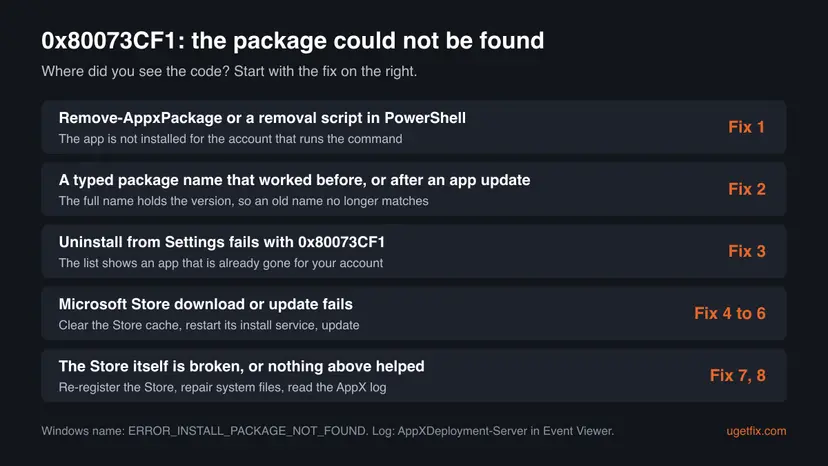
0x80073CF1 and its neighbours: 0x80073CF9, 0x80073CF0 and other app package codes
The 0x80073CFx codes all come from the same Windows service, so search results and forum threads mix them up. They mean different things. This table quotes Microsoft's descriptions.
| Code | Windows name | What Microsoft says |
|---|---|---|
| 0x80073CF0 | ERROR_INSTALL_OPEN_PACKAGE_FAILED | The package couldn't be opened, for example because it is unsigned or not at the given location. |
| 0x80073CF1 | ERROR_INSTALL_PACKAGE_NOT_FOUND | The package couldn't be found, for example when you remove a package that isn't installed for the current user. |
| 0x80073CF3 | ERROR_INSTALL_RESOLVE_DEPENDENCY_FAILED | The package failed update, dependency or conflict validation. |
| 0x80073CF6 | ERROR_INSTALL_REGISTRATION_FAILURE | The package can't be registered. |
| 0x80073CF9 | ERROR_INSTALL_FAILED | Package install failed. Contact the software vendor. |
| 0x80073CFA | ERROR_REMOVE_FAILED | Package removal failed, for failures during uninstall. |
| 0x80073D02 | ERROR_PACKAGES_IN_USE | Resources the package modifies are currently in use. |
- 0x80073CF3 has its own guide: Windows Store error 0x80073CF3.
- 0x80073CF6 has its own guide: error code 0x80073CF6.
- 0x80073CF8, an interrupted download, is explained in Microsoft Store error 0x80073CF8.
- 0x80073CF9 is a general install failure. Microsoft's only advice is to contact the app's maker and read the AppXDeployment-Server log, as the section after the fixes shows.
How to fix error 0x80073CF1 in PowerShell, Settings and Microsoft Store
Fixes 1 to 3 are for the code during an app removal, which is the case Microsoft documents. Fixes 4 to 6 are for a Microsoft Store download or update that fails. Fixes 7 and 8 repair the Store and Windows itself.
| What you see or have | Start with |
|---|---|
Remove-AppxPackage or an app removal script prints 0x80073CF1. | Fix 1 |
| You typed or pasted a full package name with a version in it. | Fix 2 |
| Uninstall in Settings fails with 0x80073CF1. | Fix 3 |
| Microsoft Store shows 0x80073CF1 when you download or update an app. | Fix 4, then Fix 5 |
| Every app fails, or Windows updates are paused. | Fix 6 |
| Microsoft Store will not open or closes at once. | Fix 4, then Fix 7 |
| Nothing above helped. | Fix 8, then the log in the next section |
Fix 1. Find which account has the app, and remove it there
5 minutesRead the warningYou removed an app in PowerShell or with a script, and the command ended with 0x80073CF1.
Microsoft says this code appears when you remove a package that isn't installed for the current user. Listing the packages of all accounts shows where the app really is, and the right command then finds it.
Each account loses the app and its local data: sign-in, settings and anything stored only on this PC. Do not remove Microsoft Store, App Installer or other system parts. Back up files you keep yourself first: Back up your files (Windows Backup, File History, Time Machine)
- Right-click Start and select Terminal (Admin) (Windows 10: Windows PowerShell (Admin)). Select Yes.
- Put a part of the app's name between the asterisks and run
Get-AppxPackage -Name '*Spotify*'. This lists the app for your own account only. - If nothing appears, run
Get-AppxPackage -AllUsers -Name '*Spotify*'. Look at PackageUserInformation: it shows which accounts have the app. - To remove it for every account, run
Get-AppxPackage -AllUsers -Name '*Spotify*' | Remove-AppxPackage -AllUsers. - To remove it for one other account only, sign in to that account and run
Get-AppxPackage -Name '*Spotify*' | Remove-AppxPackagethere.
- Administrator needed: Microsoft's reference says
-AllUsersand removing a package for another user both need administrator permissions. - Bundles:
-AllUsersworks on the parent package. If the app is a bundle, Microsoft says to list it withGet-AppxPackage -PackageTypeFilter Bundlefirst. - Nothing found even with -AllUsers: the app is not installed for anyone. There is nothing to remove, and the error is harmless.
It worked if: The command finishes without a red line, and Get-AppxPackage -AllUsers -Name '*Spotify*' returns nothing.
If not: If the name you used is a full package name with a version, go to Fix 2.
Fix 2. Remove the package by its current name, not a typed one
3 minutesRead the warningYour command or script holds a full package name, such as one copied from a forum or written before the app updated.
A full package name includes the version and the processor type. After an app updates, the old full name matches nothing, so Windows reports that the package couldn't be found. Passing the object from Get-AppxPackage always uses the current name.
Sign-in, settings and anything the app keeps only on this PC go with it. Check that the app syncs to your account, or back up its files first: Back up your files (Windows Backup, File History, Time Machine)
Instead of typing a name such as Microsoft.Example_1.2.3.0_x64__8wekyb3d8bbwe, let Windows find the package and hand it to the removal command:
Windows PowerShell: list the current full name, then remove it by piping
Get-AppxPackage -Name '*Example*' | Select-Object Name, PackageFullName
Get-AppxPackage -Name '*Example*' | Remove-AppxPackage- Check the first line's result: remove only when it shows the app you mean, not a system part with a similar name.
- In a removal script: look for full names with version numbers and replace them with a
Get-AppxPackageline as above. - Built-in apps step by step, for one user or all users: Remove built-in Windows apps with PowerShell
It worked if: The removal runs without 0x80073CF1, and the app is gone from Settings > Apps > Installed apps.
If not: If the app is listed in Settings but still cannot be removed, go to Fix 3.
Fix 3. Close the app, restart and uninstall it again from Settings
10 minutesRead the warningUninstall in Settings fails with 0x80073CF1, or the app shows in the list but will not open.
The Installed apps list can still show an app whose package is already gone for your account. A restart refreshes that list, and removing the leftover entry from PowerShell clears it if Settings still fails.
Sign-in, settings and anything the app keeps only on this PC go with it. Check that the app syncs to your account first, or back up its files: Back up your files (Windows Backup, File History, Time Machine)
- Close the app. If it does not close, end it in Task Manager: Close a frozen app (Task Manager, Force Quit)
- Restart the PC with Start > Power > Restart.
- Open Settings > Apps > Installed apps (Windows 10: Settings > Apps > Apps & features).
- Select the three dots next to the app, then Uninstall, and confirm.
- If 0x80073CF1 appears again, use Fix 1 to see which account still has the app.
It worked if: The app disappears from Installed apps and from the Start menu.
If not: If the app is not listed for any account and still appears in Settings, read the AppX log as the section after the fixes shows.
Fix 4. Clear the Store cache, then repair or reset Microsoft Store
5 to 10 minutesLow riskMicrosoft Store shows 0x80073CF1 when you download or update an app, as in the question above.
The Store keeps a cache and a list of downloads. If that list still names a package Windows no longer has, every new request runs into it. wsreset clears the cache, and Repair or Reset gives the Store a fresh start; your purchases stay in your Microsoft account.
- Clear the Store cache. Press Windows + R, type wsreset.exe and select OK. A blank Command Prompt window opens; after a short while it closes and Microsoft Store opens by itself.

After wsreset, the Store opens and loads again. Screenshot: Windows 11 26H2. - Open System components. If the problem stays, select Start > Settings > System > System components. Next to Microsoft Store, select the three dots and Advanced options. If Microsoft Store is not listed there, look for it in Settings > Apps > Installed apps.
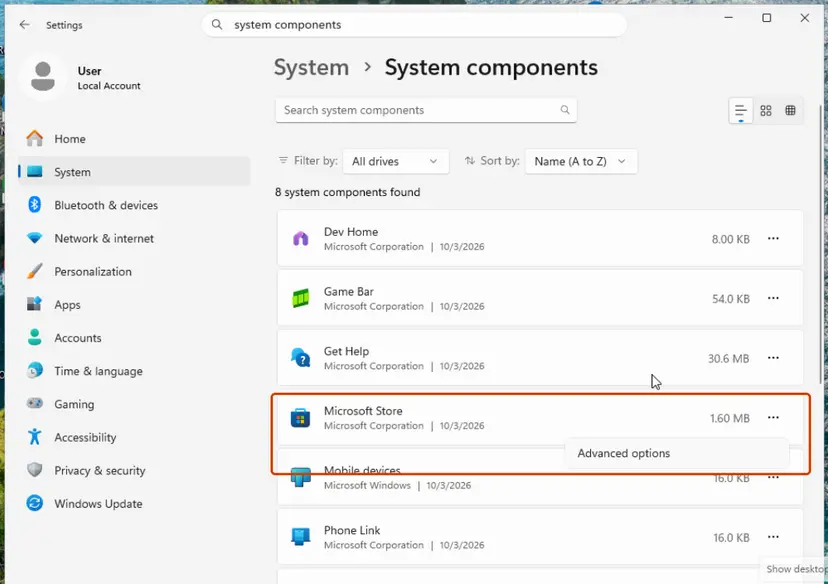
Microsoft Store is listed under System components. Screenshot: Windows 11 26H2. - Repair first. Scroll to Reset and select Repair. Repair keeps the app's data. Open the Store and check whether it works.
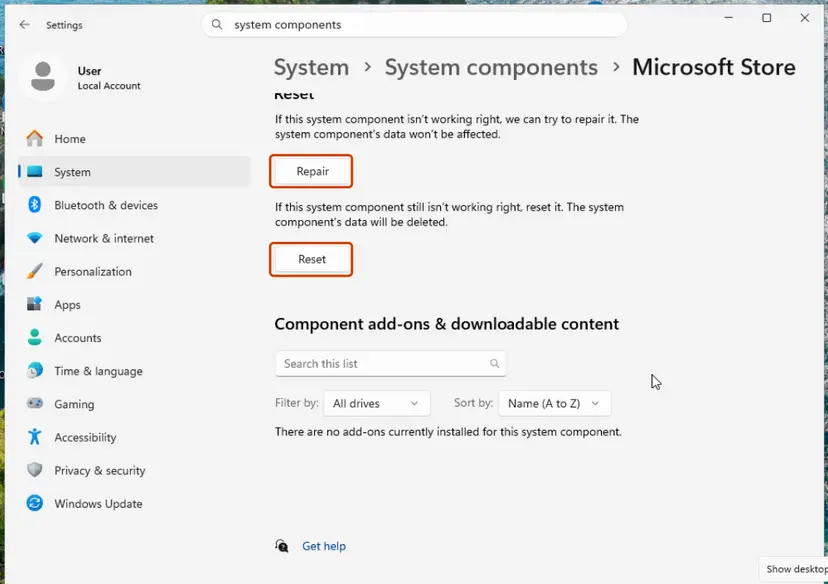
Repair keeps the app's data; Reset deletes it. Screenshot: Windows 11 26H2. - Reset if Repair did not help. Select Reset and confirm. This deletes the Store app's data on this PC; your purchases stay in your Microsoft account. Open the Store and sign in again.
These steps were written for Windows 11 26H2 (build 26300). The full page with the other versions and what each result means: Reset the Microsoft Store
After the reset, open the Store, sign in with the account that owns the app, select Library and start the download again.
It worked if: After wsreset the Store opens by itself on the home page, and the download starts when you try again.
If not: If no download starts at all, restart the Store's install service with Fix 5.
Fix 5. Restart the Microsoft Store Install Service
3 minutesLow riskNo Store download starts, or every download ends at once with an error.
The Store hands every download to this service. Its own description in Services says installations will not work properly when it is disabled, so a stopped or disabled service makes every request fail.
- Press Win + R, type
services.mscand press Enter. - Find Microsoft Store Install Service (service name
InstallService). - If it is running, right-click it and select Restart.
- If it is not running, double-click it, set Startup type to Manual, select Start, then OK.
- Open the Store and try the download again.
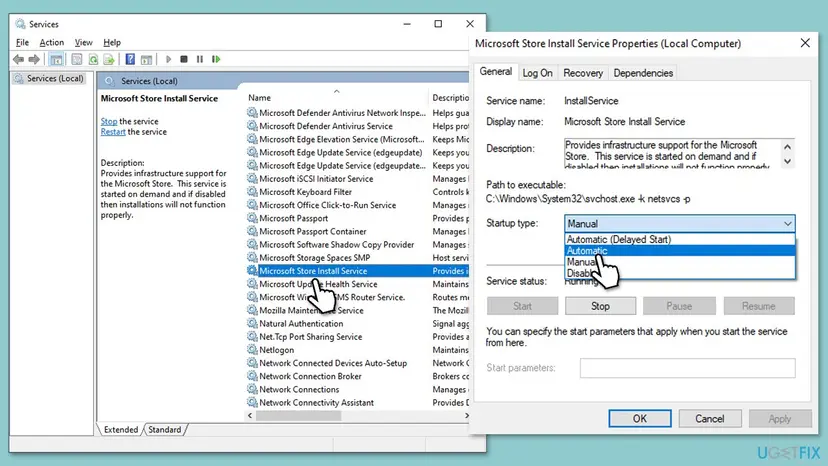
Step by step with screenshots: Check and restart Windows services
It worked if: The service shows Running, and the Store starts the download.
If not: If the service runs and the Store still fails, install pending updates with Fix 6.
Fix 6. Install pending Windows and Microsoft Store updates
15 to 30 minutesNo riskWindows updates are paused or waiting for a restart, the PC is new, or every app fails.
The Store and the package service are updated through Windows Update and the Store itself. A pending restart or an old Store app can leave downloads pointing at packages that are not there yet.
- Select Start > Settings > Windows Update > Check for updates (Windows 10: Settings > Update & Security > Windows Update).
- Install what Windows offers, then restart the PC.
- Open Microsoft Store, select Library, then Get updates (Windows 10: See more > Downloads and updates > Get updates).
- Let the Store update itself first, then start the failed download again.
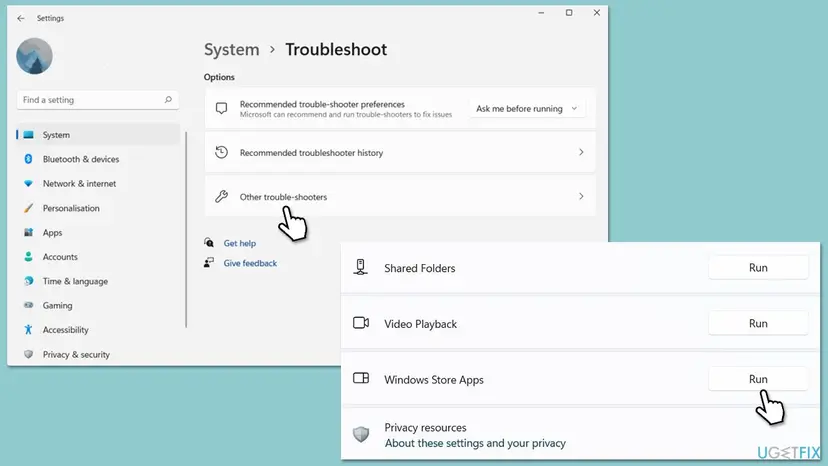
If Windows Update itself fails, fix that first: Run the Windows Update troubleshooter
It worked if: Windows Update says you are up to date, the Store shows no pending updates, and the app installs.
If not: If the Store will not open or still fails, re-register it with Fix 7.
Fix 7. Re-register Microsoft Store for your account
5 minutesLow riskMicrosoft Store will not open, closes at once, or stays broken after Fix 4.
The Store is a package registered to your account like any other. If that registration is damaged, the Store cannot find its own parts or hand requests to Windows. Re-registering reads its manifest again without downloading anything.
Use Microsoft.WindowsStore as the name in the commands of this procedure:
- Open PowerShell. Select Start, type PowerShell and select Windows PowerShell. Open it the normal way, not as administrator: in an administrator window the app is registered to the administrator account instead of yours.
- Find the app's package. Type the command below with a part of the app's name between the asterisks and press Enter. If the app is installed, PowerShell prints its details, including Name and InstallLocation. If nothing is printed, the app is not installed for your account: see the section below.
Get-AppxPackage -Name '*WindowsCalculator*' - Re-register the app. Paste the three commands below, with the same name between the asterisks, and press Enter. They read the folder the app is installed in and register its manifest again. If no red text appears, it worked.
$InstallLocation = Get-AppxPackage -Name '*WindowsCalculator*' | Select-Object -ExpandProperty InstallLocation $ManifestPath = $InstallLocation + '\Appxmanifest.xml' Add-AppxPackage -Path $ManifestPath -Register -DisableDevelopmentMode - Open the app. Close PowerShell and start the app from Start. If it still fails, restart the PC and try once more.
These steps were written for Windows 11 25H2 and 26H2, Windows 10 22H2. The full page with the other versions and what each result means: How to re-register Microsoft Store apps with PowerShell
The earlier version of this guide re-registered every app for every user and removed the Store with Remove-AppxPackage. Both are heavier than needed, and removing the Store can leave you without an easy way to get it back. Re-register the Store alone.
It worked if: The Store opens, Library loads, and downloads start.
If not: If the Store still fails, repair Windows system files with Fix 8.
Fix 8. Repair Windows system files with SFC and DISM
15 to 30 minutesLow riskNothing above helped, or other built-in apps also fail to open or update.
Every Store install and removal runs through Windows' own deployment service. If the system files behind it are damaged, requests can fail in odd ways. DISM repairs the Windows image, and SFC then repairs the files from it.
- Open an elevated command window. Right-click Start and select Terminal (Admin), or type cmd in the search box, right-click Command Prompt and select Run as administrator. Select Yes when Windows asks for permission.
- Run DISM first. Type the command below and press Enter. DISM downloads clean copies of damaged components from Windows Update, so it can take several minutes. Wait until it says The operation completed successfully.
DISM.exe /Online /Cleanup-Image /RestoreHealth - Run System File Checker. In the same window, type the command below and press Enter. Do not close the window until the verification reaches 100%.
sfc /scannow - Read the result and restart. Compare the last message with the table below this guide, then restart the PC so that repaired files are loaded.
These steps were written for Windows 11 24H2 and 25H2. The full page with the other versions and what each result means: Run DISM and SFC to repair Windows system files
- Order matters: run DISM first and SFC second, as the procedure shows.
- Restart afterwards, then try the download or the removal again.
It worked if: SFC reports that it found no integrity violations or that it repaired them, and the Store works again.
If not: If the code stays, read the AppX log as the next section shows and test another Windows account.
If 0x80073CF1 is still there: read the AppX log and what to send to support
Settings and the Store show only the code. Windows writes the details into an event log, and Microsoft's advice is to start with the AppXDeployment-Server log. It names the package Windows looked for, which tells you whether the name or the account was wrong.
- Try the install or removal once more and note the time.
- Press Win + R, type
eventvwr.mscand press Enter. - Expand Applications and Services Logs > Microsoft > Windows > AppXDeployment-Server.
- Open Microsoft-Windows-AppXDeploymentServer/Operational and find the errors at the time you noted.
- Compare the package name in the entry with what
Get-AppxPackage -AllUserslists.
Windows PowerShell: the first events of the most recent app operation
Get-AppxLog- Test another Windows account: packages are registered per user. If the Store works in a new local account, your own account holds the problem. How to make one: Create a new user account to test a problem
- Third-party antivirus: pause it for one test only and turn it back on at once: Turn off Microsoft Defender protection for a moment
- What to give Microsoft support or the app's maker: the app's name, the log text, your Windows version and build from Settings > System > About, and the fixes you tried.
- A work or school PC: an administrator may have removed or blocked Store apps by policy. Ask before you change anything.
How to keep 0x80073CF1 from coming back
Because the code means Windows looked for a package that is not there for that account, prevention is mostly about asking for the right package in the right account. These habits cover the common cases.
- Find packages with
Get-AppxPackageand pipe them into the removal command. - Use
-AllUsersin an administrator window when the PC has several accounts. - Keep Windows and the Store updated, and restart when asked.
- Clear the Store cache with wsreset when downloads start to fail.
- Run old app removal scripts with fixed package names and versions.
- Remove Microsoft Store or App Installer with PowerShell.
- Disable the Microsoft Store Install Service.
- Leave Windows updates paused for months.
Frequently asked questions
What does error code 0x80073CF1 mean?
It means Windows could not find the app package it was asked to install, update or remove. Microsoft names it ERROR_INSTALL_PACKAGE_NOT_FOUND and describes it as "The package couldn't be found." Microsoft adds that you may get it while removing a package that isn't installed for the current user. So the usual fix is to check which account has the app with Get-AppxPackage -AllUsers. If the code comes from Microsoft Store, clear and reset the Store first.
Is 0x80073CF1 the same on Windows 11 and Windows 10?
Yes. The code and its meaning are the same on Windows 11 and Windows 10, and every fix on this page works on both. Only some paths differ: Windows 11 has Installed apps and Library in the Store, while Windows 10 uses Apps & features and Downloads and updates. Windows 10 left Microsoft support on 14 October 2025. It still runs Store apps, but on an old build updating Windows is part of the fix.
Why do I get error code 0x80073CF1 when I uninstall an app?
Because Windows did not find the app for the account that tried to remove it. Store apps are installed per user, so an app can be on the PC for another account and still be "not found" for you. Microsoft names this exact case. Open an administrator PowerShell window and run Get-AppxPackage -AllUsers with part of the app's name. If it lists the app, remove it with -AllUsers as in Fix 1. If it lists nothing, the app is already gone.
Is 0x80073CF1 a virus or a sign that Windows is damaged?
No. It is a normal status code that Windows returns when a package is not where the request expected it. It does not mean that malware is present, and on its own it does not mean that system files are damaged. Damage is only a likely cause when the Store and other built-in apps also fail, which is when Fix 8 helps. If you suspect malware for other reasons, run a full scan with Microsoft Defender.
What is error code -2147009295?
It is 0x80073CF1 written as a signed decimal number. Some logs, scripts and management tools print error codes this way instead of in hexadecimal. The meaning is the same: the package couldn't be found. Treat it exactly like 0x80073CF1 and start with Fix 1 if it appeared during a removal, or with Fix 4 if it came from Microsoft Store. The section after the fixes shows how to read the full log entry.
How is 0x80073CF1 different from 0x80073CF9?
0x80073CF1 means Windows could not find the package. 0x80073CF9 means the package was found but the install failed; Microsoft names it ERROR_INSTALL_FAILED and advises contacting the app's maker and reading the AppXDeployment-Server log. With 0x80073CF9 the Store reset in Fix 4 and the updates in Fix 6 are still worth trying, but the log usually holds the real reason. Search for the exact code you see, because the fixes differ.
Can 0x80073CF1 appear on Xbox or a Windows phone?
On Windows Phone 8.1, yes: users on Microsoft Q&A reported 80073CF1 when installing apps, for example while the phone said it was restoring data. Windows Phone is no longer supported by Microsoft, so those apps cannot be fixed today. For Xbox consoles we could not confirm this code from Microsoft. On a Windows PC with the Xbox app, game installs use the same package service, so the Store fixes on this page apply.
Do I lose my apps or purchases if I reset Microsoft Store?
No. Resetting the Store deletes only the Store app's own data on this PC, such as its cache and sign-in. Your purchases are tied to your Microsoft account, and installed apps stay installed. After a reset, open the Store and sign in again. Removing an app with Remove-AppxPackage, as in Fixes 1 and 2, is different: it deletes that app's local data, so back up what matters first.
I searched in another language, such as fehlercode, erro or codigo de error. Is it the same error?
Yes. Whether you searched "fehlercode 0x80073cf1", "erro 0x80073cf1" or "codigo de error 0x80073cf1", the code is the same in every language of Windows. It means the package couldn't be found. Only the messages around it are translated. This page is in English. Use the chart near the top to pick where to start, and follow the fixes in order.
What is error 13001, and is it related?
This page is about Windows app package error 0x80073CF1, and we found no Microsoft source that links it to an error 13001. A plain number such as 13001 is used by many different programs and games, each with its own meaning. Look at which program shows it and search for that program's name together with the number. If the window also shows 0x80073CF1, follow this guide.
Sources
- Microsoft Learn: Troubleshooting packaging, deployment, and query of Windows apps (error codes and event logs) (learn.microsoft.com)
- Microsoft Learn: Remove-AppxPackage (learn.microsoft.com)
- Microsoft Q&A: Error code 80073cf1 (user reports from Windows Phone 8.1) (learn.microsoft.com)
Did this fix work?
One click, no account. It tells the next reader which guides are worth their time.
Questions and experiences: fix Microsoft Store error 0x80073CF1 on Windows
Still broken, or found a fix we did not cover? Ask here: members and our editors answer. Reading is open; writing needs a free account.
…