
How to fix Windows Store error 0x80073CF3?

Prefer to fix it yourself? The manual steps follow.
- 8methods
- 10 to 40 minutes
- Intermediate
Applies to Windows 11 and Windows 10; Microsoft Store, the Xbox app for PC, PC Game Pass games, Gaming Services
8 methods in this guide
- What the error means
- Why it appears
- MicrosoftGame.config message
- The fixes
- 1. Restart and retry
- 2. Remove the old copy
- 3. Update and repair the game
- 4. Repair Gaming Services
- 5. Check the install drive
- 6. Reset Store and Xbox app
- 7. Update Windows and the Store
- 8. Test without antivirus
- Still broken
- Related codes
- Prevent it
- FAQ
Hi. I am trying to download the game Subnautica from Microsoft Store, and it simply doesn't work: I get the error code 0x80073CF3. I waited a few days and tried again, just like the message said, but that did not help at all, and I still can't download or play the game. Advice would be appreciated.
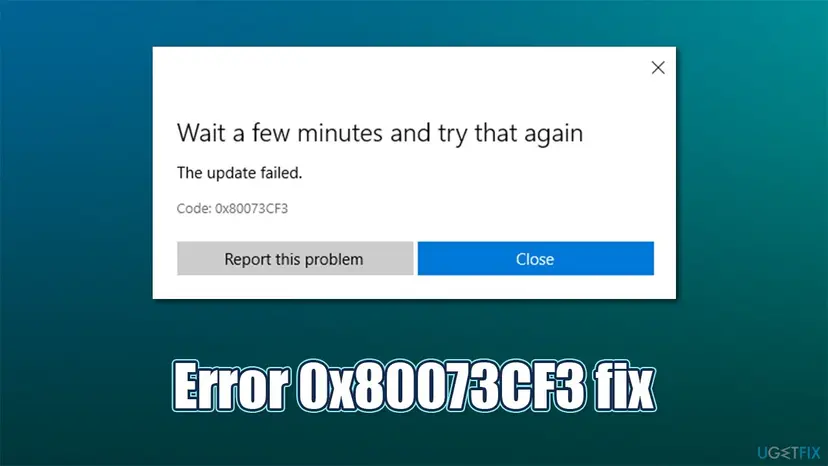
Error 0x80073CF3 in Microsoft Store or the Xbox app means Windows refused the download because it conflicts with something already on the PC, usually another version of the same game. Xbox Support says to wait and retry once, then uninstall and reinstall the game. Find the old copy first, because it is often in another account or on another drive.
0x80073CF3 means Windows found a conflict with a version that is already installed. Restart, sign in to Microsoft Store and the Xbox app with the same account and try once more (Fix 1). If the code returns, find the old copy of the game in other accounts, on other drives or in the app list, uninstall it, restart and install again from one place (Fix 2). Then run the Gaming Services Repair Tool (Fix 4).
| Error | 0x80073CF3 with "Wait a few minutes and try that again. The update failed." Windows name: ERROR_INSTALL_RESOLVE_DEPENDENCY_FAILED. |
|---|---|
| Where it appears | Under the Install or Update button in Microsoft Store and in the Xbox app for PC, mostly with games. Also in a command window as "MicrosoftGame.config registration failed. Failed with 0x80073CF3." |
| Main cause | Xbox Support: a version of the game already exists on the device. Less often Gaming Services or the Store itself is out of step. |
| Fastest fix | Restart, check the account in the Store and the Xbox app, retry once (Fix 1). Then remove the old copy and reinstall (Fix 2). |
| Also written as | 0x80073cf3, 80073CF3, Code: 0x80073CF3, Failed with 0x80073CF3., 0x80073CF3(-2147009293), error 15603. |
| Affects | Windows 11 and Windows 10, Xbox One consoles. Windows 10 left Microsoft support on 14 October 2025; the fixes below still apply to it. |
| Microsoft's status | A documented install error with two official solutions on Xbox Support. One server-side case is on record: in November 2025 a Store pipeline fault caused it for some apps, and Microsoft fixed it within days. |
| Related codes | 0x80073CF6 (registration failed), 0x80073CFB (same package already installed), 0x80073D06 (a higher version is installed), 0x80073D3F (install drive not found). |
| Time to fix | 5 minutes for Fix 1. 20 to 40 minutes when the game has to be downloaded again. |
Facts checked on 14 October 2026. Steps written for Windows 11 (25H2 and 26H2) and Windows 10 22H2.
What error 0x80073CF3 means in Microsoft Store and the Xbox app
Apps and games from Microsoft Store are app packages. Before Windows installs or updates one, it checks the package against what is already on the PC. 0x80073CF3 is the answer when that check fails. Microsoft's developer documentation names the error ERROR_INSTALL_RESOLVE_DEPENDENCY_FAILED and describes it as "The package failed update, dependency, or conflict validation".
- What Xbox Support says
- The code "means that there's already an existing version of the game on your console or Windows 10 device". Its two solutions: wait a bit and try again, then uninstall and reinstall the game.
- What Microsoft Learn says
- Three possible causes: the incoming package conflicts with an installed package, a package it depends on cannot be found, or it does not support the processor architecture.
- What it is not
- Not a network error (that is 0x80073CF5), not a full disk (0x80073CF4) and not an account or licence error.
So the message tells you to wait, but waiting rarely helps on its own. The reader above waited for days. The Store tries the same install again, Windows finds the same conflict, and the same code comes back.
If you see the sentence "Package failed updates, dependency or conflict validation" when you open a picture, or a long red message in PowerShell, App Installer or winget, the cause is usually a missing framework. That case has its own guide: Package failed updates, dependency or conflict validation (0x80073CF3). This page covers downloads and updates in Microsoft Store and the Xbox app.
Why Microsoft Store shows 0x80073CF3: the causes, ranked
Most often an earlier copy of the same game or app is still registered somewhere on the PC. Less often Gaming Services or the Store app is out of step with what is installed. Rarely the cause is on Microsoft's side, and then nothing on your PC helps.
| Cause | How often | How to tell | Fix |
|---|---|---|---|
| A one-time hiccup in the Store queue, or Windows waits for a restart after updates. | Often, and quick to rule out | The first try failed, nothing else is wrong. | Fix 1 |
| Another version of the game is installed: in another Windows account, half-installed in yours, or from another source. | Most often for games | The code returns after every retry. Another person uses the PC, or the game was installed before. | Fix 2 |
| The installed game is damaged, so its update cannot be applied. | Often for updates | The game is in My Library and the error appears on Update. | Fix 3 |
| Gaming Services is damaged or out of date. | Often when several games fail | Many games fail, or the Xbox app opens with missing content. | Fix 4 |
| The old copy sits on a second or external drive that is gone, renamed or needs repair. | Sometimes | Games were installed to a drive other than C:, or the drive was moved to another PC. | Fix 5 |
| The Store or the Xbox app itself is damaged. | Sometimes | Other downloads also stop or never start. | Fix 6 |
| Windows or the Store frameworks are behind. | Sometimes | Updates are paused, or the PC is new. | Fix 7 |
| A third-party antivirus blocks the install. | Rarely | The error stops while protection is paused for one test. | Fix 8 |
| A fault in the Store's publishing pipeline. | Rarely | Many users report the same app on the same day. | Wait for Microsoft |
In late November 2025 developers on Microsoft Q&A reported that their app updates failed from the Store with 0x80073CF3 because a framework was missing. A Microsoft employee wrote that a Store ingestion pipeline issue had been corrected, and the developers republished their apps. Users of those apps could not fix it themselves.
"MicrosoftGame.config registration failed. Failed with 0x80073CF3"
This line does not come from Microsoft Store. MicrosoftGame.config is the configuration file of a PC game built with the Microsoft Game Development Kit (GDK). Microsoft's GDK documentation describes wdapp.exe register as the tool that registers a loose game folder so that it can be launched with its Start menu and desktop icons.
- What fails: Windows tries to register the folder as a package and refuses, for one of the same three reasons: a conflict, a missing dependency or the wrong architecture.
- The likely conflict: the same game is already installed from Microsoft Store or PC Game Pass, or an earlier registration of the folder is still there. Microsoft's definition of the code points to this, but we found no Microsoft page about this exact line.
- For developers: uninstall the Store or Game Pass copy of the title for your account (Fix 2 shows how to find every copy), then register the build again.
- Other codes on the same line: 0x80070005 is "access denied" and 0x80070003 is "path not found". They are general Windows errors, not 0x80073CF3.
Many searches for this line, including "failed with 0x80073cf3 online fix", come from unofficial copies of Game Pass games that ship with a helper script. We do not give steps for those copies. They are not from the publisher, and their scripts change Windows in ways we cannot check. Buy or install the game from the Xbox app or Microsoft Store and use the fixes below.
How to fix error 0x80073CF3 in Microsoft Store and the Xbox app
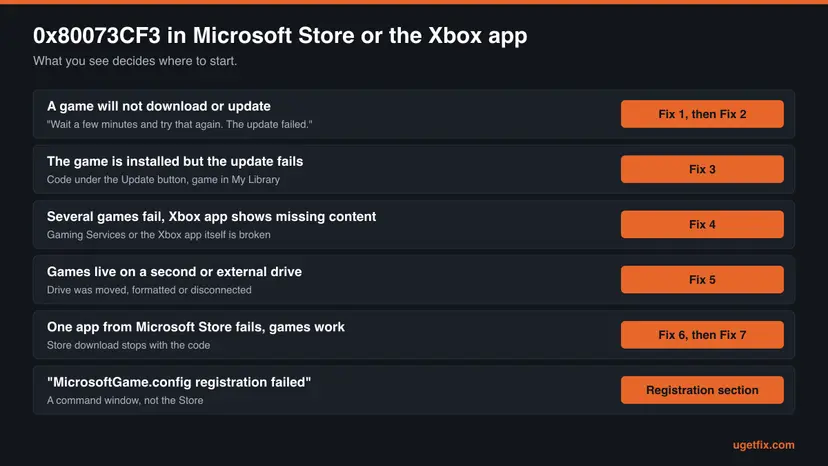
Start with Fix 1: it takes five minutes and rules out a temporary failure. Fix 2 is the one that solves most game installs, because it removes the version that Windows says is already there. Fixes 3 to 5 are for games in the Xbox app, Fixes 6 and 7 for the Store itself. Fix 8 is a short test.
| What you see or have | Start with |
|---|---|
| The error appeared for the first time, or right after Windows updates. | Fix 1 |
| A game will not install, the code returns after every retry. | Fix 2 |
| Another person uses the same PC with their own Windows account. | Fix 2 |
| The game is installed and only its update fails. | Fix 3, then Fix 2 |
| Several games fail, or the Xbox app opens with missing content. | Fix 4 |
| Games are installed to a second drive, an external drive or an SD card. | Fix 5 |
| One app from Microsoft Store fails, for example Facebook or a clock app. | Fix 6, then Fix 7 |
| "MicrosoftGame.config registration failed" in a command window. | The section above, then Fix 2 |
Fix 1. Restart, check the account and try the download once more
5 minutesNo riskEveryone, before anything else, and especially right after Windows installed updates.
Waiting and trying again is the first solution on the Xbox Support page for this code. Microsoft also says that a PC that installed Windows updates must restart before Store installs work. The Xbox app checks your rights to a game with the account that bought it.
- Open the Xbox status page and check that the store and game services show no alert. If one does, wait until it is resolved.
- Restart the PC with Start > Power > Restart, not with Shut down.
- Open Microsoft Store, select your profile picture at the top and note the account.
- Open the Xbox app, select your profile picture and check that it is the same account. It must be the account that bought the game or holds the Game Pass subscription.
- If the accounts differ, sign out of the wrong one and sign in with the right one.
- Start the install or update again from Library in the Store or from My Library in the Xbox app.
- Game Pass: Xbox Support notes that Game Pass for Console does not cover PC games. Check the subscription at account.microsoft.com/services.
- Try once, not ten times: if the same code comes back after a restart, the cause is on the PC. Go on to Fix 2.
It worked if: The download runs past the point where it stopped before, and the game appears as installed.
If not: If the code returns after the restart, go to Fix 2 and look for the copy that is already installed.
Fix 2. Find the copy that is already installed, remove it and install again
20 to 40 minutesRead the warningThe code comes back after a restart, the game was installed before, or the PC has more than one Windows account.
Xbox Support says 0x80073CF3 means an existing version of the game is on the device, and its second solution is to uninstall and reinstall. The old copy is often not where you look first: in another account, half-installed, or on another drive.
Most Xbox PC games keep saves in the cloud, but not all. Before you uninstall, start the game once if it still runs and let it sync, or check the publisher's notes on cloud saves. Files you keep yourself: Back up your files (Windows Backup, File History, Time Machine)
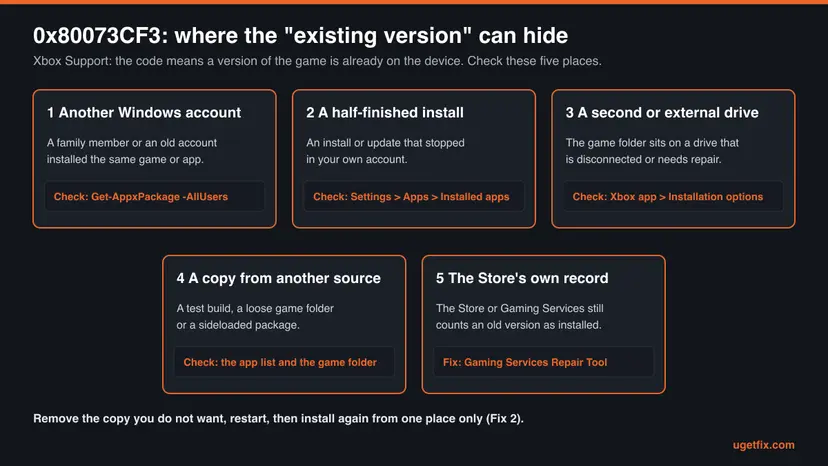
- Press Win + I and open Apps > Installed apps (Windows 10: Apps > Apps & features). Type the name of the game in the search box.
- If the game is listed, select the three dots next to it and Uninstall. If it is listed twice, remove both entries.
- Ask everyone who has a Windows account on this PC whether they installed the game. Each of them signs in and uninstalls it the same way.
- If you cannot sign in to the other accounts, open Windows PowerShell as administrator and run the first command below with a part of the game's name.
- If a game folder is left on a drive, for example in
XboxGames, leave it alone for now. Fix 5 deals with drives. - Restart the PC.
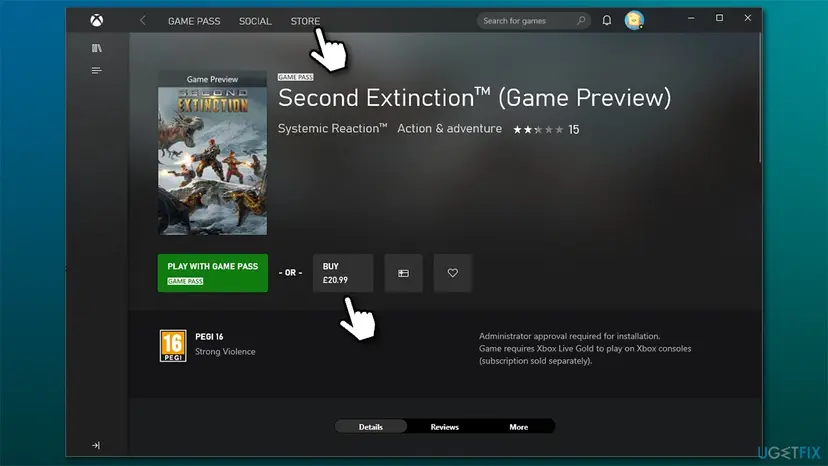
- Install the game again from one place only: My Library in the Xbox app, or Library in Microsoft Store.

Windows PowerShell as administrator: list every copy of a package on this PC, for all accounts
Get-AppxPackage -AllUsers -Name '*PartOfTheName*'Microsoft's reference for Get-AppxPackage says that -AllUsers lists app packages for all user accounts on the computer and needs administrator rights. A result here that does not appear in your own Installed apps list belongs to another account. The commands that remove such a package for all users are in our guide to the "Package failed updates" message, Fix 4.
It worked if: The game installs without the code and opens from the Start menu or from My Library.
If not: If no other copy exists and the code stays, run Fix 4 to repair Gaming Services, then try again.
Fix 3. Update and repair the game in the Xbox app
10 to 30 minutesLow riskThe game is installed and in My Library, and only its update stops with 0x80073CF3.
An update is checked against the installed files. If those files are damaged or half updated, Windows cannot apply the new version. Verify and repair in the Xbox app compares the files with the published version and replaces what is wrong.
- Open the Xbox app. Open the Xbox app.
- Select the game. In My Library, select the game.
- Check for updates first. Select the More options button (three dots), then Manage > Files > Check for updates.
- Verify and repair. If the update does not fix the problem, select Verify and repair on the same Files page. Then try to start the game again.
These steps were written for Xbox app on Windows. The full page with the other versions and what each result means: How to verify game files in Steam, Epic Games, Xbox app, EA app, Battle.net and GOG Galaxy
- Close game launchers first: Xbox Support advises closing the game, the Xbox app and third-party launchers such as the EA app or Ubisoft Connect, then opening the Xbox app again.
- Mods: if you added mod files through Manage > Files > Browse, remove them before you repair. A repair puts the original files back anyway.
It worked if: Verify and repair ends without an error, and the update installs on the next try.
If not: If the update still fails, uninstall the game as in Fix 2 and install it again.
Fix 4. Run the Gaming Services Repair Tool
10 minutesLow riskSeveral games fail, Gaming Services will not update, or the Xbox app opens with content missing.
Gaming Services is the Windows component that installs and manages Xbox games on PC. Xbox Support says its repair tool can resolve install, update and launch problems for games and for the Xbox app itself.
- Open the Xbox app.
- Select your Profile picture.
- Select Support.
- Select Gaming Services Repair Tool.
- Select Start Troubleshooting and wait until it finishes.
- Restart the PC and install the game again.
If the Xbox app itself does not open, use the downloadable version of the same tool from Microsoft's short link aka.ms/GamingRepairTool. It opens a command window, checks Gaming Services and installs the updates it needs. At the end it asks whether the problem is fixed. Type Y or N and press Enter.
- Windows 10 22H2 or older: Xbox Support says the tool may need the local administrator account there. If it will not run, update Windows (Fix 7).
- If the tool reports a critical system issue: Xbox Support's next step is to reset the PC or upgrade Windows. Back up your files before either one: Reinstall Windows without losing files
- Old advice to delete registry keys: some guides, including the earlier version of this one, told readers to delete the
GamingServicesandGamingServicesNetservice keys. We dropped that step: Microsoft does not document it, and the repair tool does the job safely.
It worked if: The tool ends without errors, the Xbox app shows all its sections, and the game installs.
If not: If the tool cannot fix Gaming Services, check the install drive with Fix 5, then reset the Store and the Xbox app with Fix 6.
Fix 5. Check the drive the game installs to
10 minutesRead the warningGames are installed to a second internal drive, an external drive or an SD card, or such a drive was moved or formatted.
An old version on a drive that is disconnected or needs repair still counts as installed, so a new install can conflict with it. Xbox Support lists disconnected drives, drives that need repair and drives with the wrong format among the causes of install problems.
If the Xbox app offers to format a drive, everything on it is deleted. Copy your own files from that drive to another place first. Game saves in the cloud are not affected.
- Connect the external drive or SD card that held your games, if there was one.
- In the Xbox app, select your profile picture, then Settings > Installation options.
- Read which drive and folder are set under Change where this app installs games by default. Pick the drive you want.
- If you see Not seeing your drives?, select it. It lists each drive with its problem, such as the wrong format, a deleted or renamed install folder, or an encryption lock.
- If the app says a drive requires repairing, select your profile picture, then Support > Drive compatibility tool, and follow the screens.
- Restart the Xbox app and install the game again.
| What you see | What it means | What to do |
|---|---|---|
| "(Drive:) requires repairing" | The drive held games and was used with a newer Windows, for example after the upgrade to Windows 11 or in another PC. | Run the Drive compatibility tool. Xbox Support says you may have to delete some games, but saved data is not lost. |
| The drive is not offered as an install location | Xbox Support: games need an NTFS volume with a 4K cluster size. | Copy your files off the drive, then format it from the Xbox app or with File Explorer > This PC > Format. |
| Games vanish from My Library | The drive with those games is disconnected. | Connect it again and restart the Xbox app. |
| Error 0x80073D3F instead | Microsoft: the drive used during the install could not be found. | Connect the drive or change Settings > System > Storage > Change where new content is saved. |
Xbox Support also advises against letting file compression software touch the folders where games are installed. If a compression or cleanup tool ran over the game folder, repair the game (Fix 3) or reinstall it (Fix 2).
It worked if: The drive appears under Installation options without a warning, and the game installs to it.
If not: If the drive looks fine and the code stays, set the install location to the C: drive for one test. If that works, the other drive is the problem.
Fix 6. Repair or reset Microsoft Store and the Xbox app
10 minutesLow riskStore downloads stop or never start, or one app from the Store fails while games work.
The Store keeps its own cache and a list of downloads in progress. When that list is damaged, the Store can keep sending a broken install to Windows. Clearing the cache and resetting the app gives it a fresh start, and your purchases stay in your Microsoft account.
- Clear the Store cache. Press Windows + R, type wsreset.exe and select OK. A blank Command Prompt window opens; after a short while it closes and Microsoft Store opens by itself.
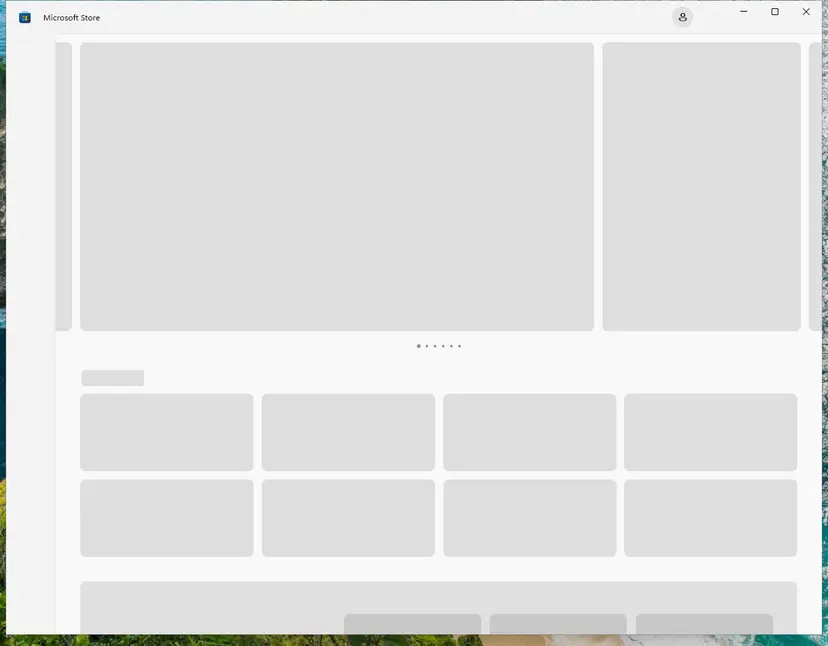
After wsreset, the Store opens and loads again. Screenshot: Windows 11 26H2. - Open System components. If the problem stays, select Start > Settings > System > System components. Next to Microsoft Store, select the three dots and Advanced options. If Microsoft Store is not listed there, look for it in Settings > Apps > Installed apps.
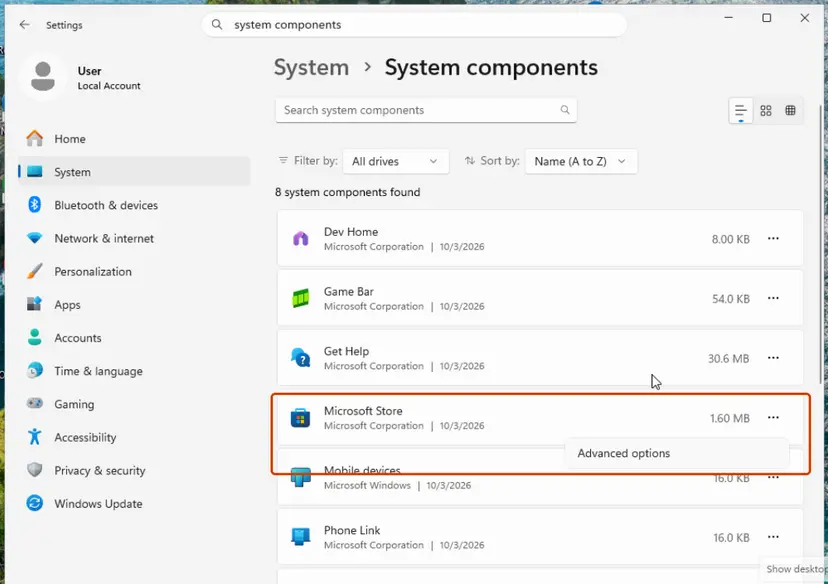
Microsoft Store is listed under System components. Screenshot: Windows 11 26H2. - Repair first. Scroll to Reset and select Repair. Repair keeps the app's data. Open the Store and check whether it works.
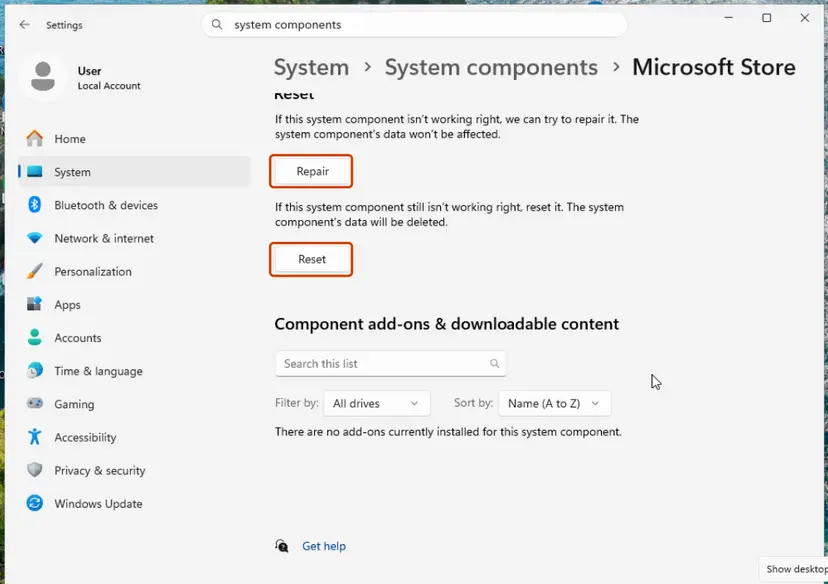
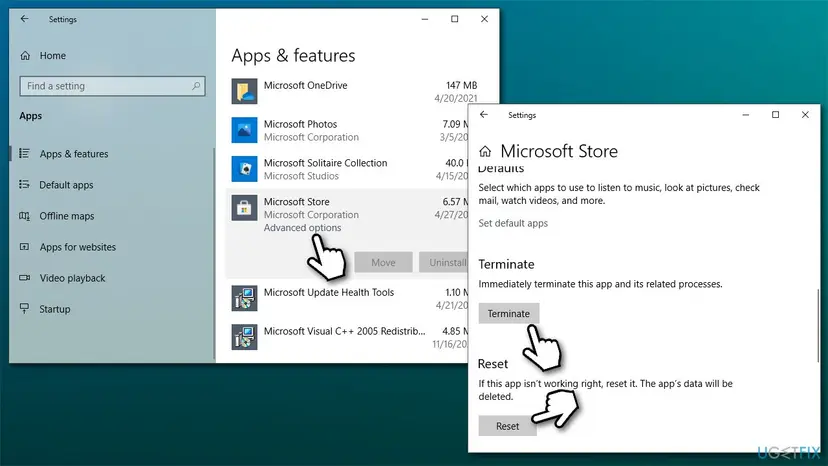
Repair keeps the app's data; Reset deletes it. Screenshot: Windows 11 26H2. - Reset if Repair did not help. Select Reset and confirm. This deletes the Store app's data on this PC; your purchases stay in your Microsoft account. Open the Store and sign in again.
These steps were written for Windows 11 26H2 (build 26300). The full page with the other versions and what each result means: Reset the Microsoft Store
- The Xbox app: Xbox Support's advice for problems with the app itself is to reinstall it from Microsoft Store. Uninstall Xbox in Apps > Installed apps, restart, then install it again from the Store.
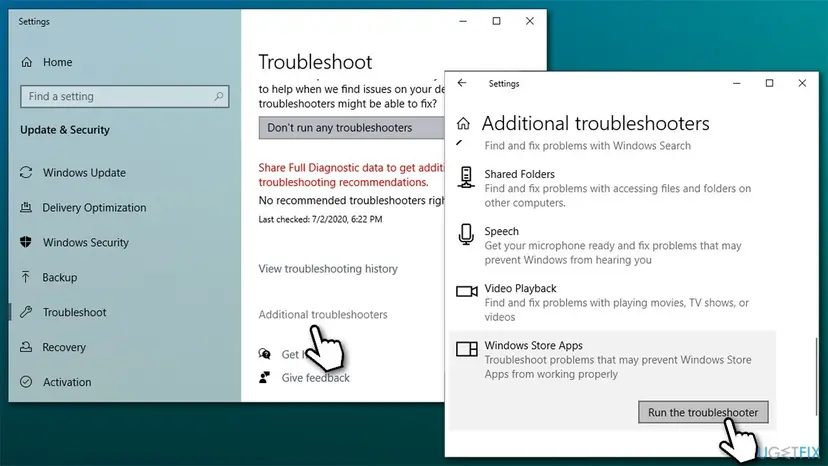
- Windows 10: Microsoft's page still lists the troubleshooter under Settings > Update & Security > Troubleshoot > Additional troubleshooters > Windows Store Apps > Run the troubleshooter.
It worked if: The Store opens on the home page after wsreset, you sign in again, and the download completes.
If not: If the Store resets but the code stays, install all pending updates with Fix 7.
Fix 7. Install pending Windows and Microsoft Store updates
15 to 30 minutesNo riskWindows or Store updates are paused, the PC is new, or the error appears with many apps.
Apps and games depend on framework packages that come through the Store, and some Xbox app features need Windows 10 22H2 or newer. Microsoft's first steps for app problems are a Windows update and a Store update.
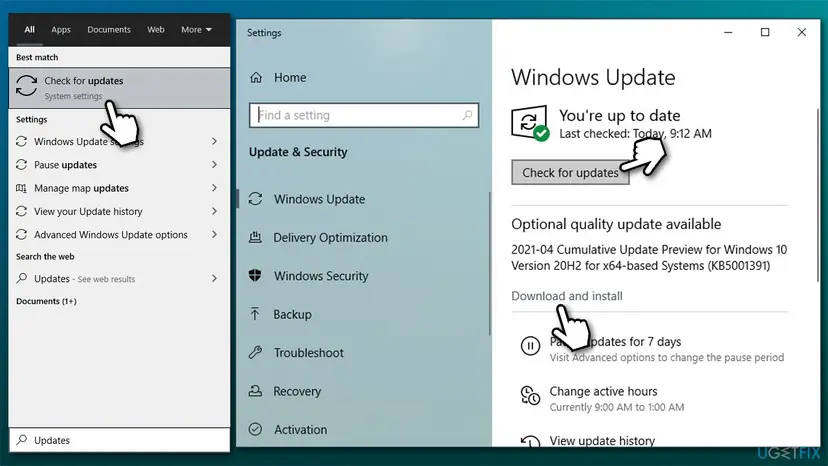
- Select Start > Settings > Windows Update > Check for updates (Windows 10: Settings > Update & Security > Windows Update).
- Install everything that Windows offers, then restart.
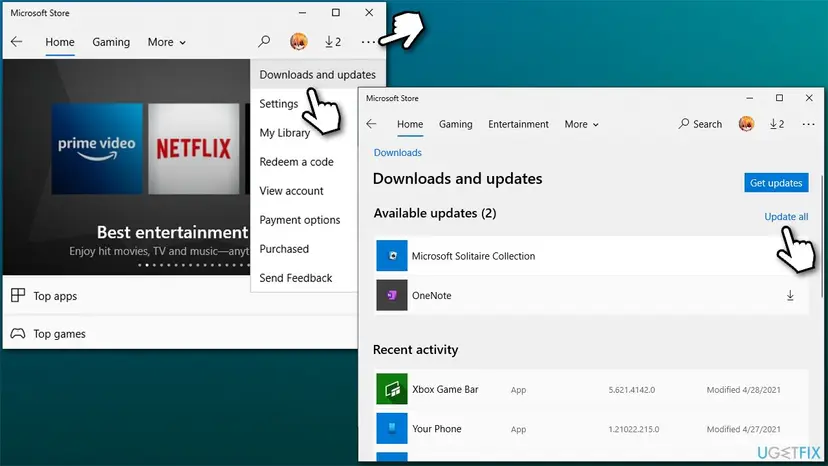
- Open Microsoft Store, select Library, then Get updates (Windows 10: See more > Downloads and updates > Get updates).
- Wait until every app in the list is updated, including Gaming Services and Xbox if they appear.
- Restart again and try the install.
If Windows Update itself fails, fix that first with Run the Windows Update troubleshooter. If the frameworks are still out of date after this fix, the sister guide linked in the first section shows how to read which one is missing.
It worked if: Windows Update and the Store's Library show no pending updates, and the install runs through.
If not: If everything is current and the code stays, pause the antivirus for one test with Fix 8.
Fix 8. Pause third-party antivirus for one install
10 minutesLow riskA third-party security program runs on the PC and everything above did not help.
Xbox Support says third-party antivirus software can cause installation errors and suggests suspending it temporarily while you test a game install. This is a test, not a fix: protection goes back on right after.
- Open your antivirus program and pause its real-time protection for the shortest time it offers, such as 10 or 15 minutes.
- Start the install in the Xbox app or Microsoft Store right away.
- Turn protection back on as soon as the install ends, even if it worked.
- If the install worked only with the pause, add the game's install folder to the program's exclusions or ask its publisher for help.
For Microsoft Defender the steps and screenshots are in Turn off Microsoft Defender protection for a moment. Never leave protection off and never uninstall it to get a game installed.
It worked if: The install completes during the pause, which shows that the security program blocked it.
If not: If it fails during the pause too, the antivirus is not the cause. Turn it back on and read the log as described under "If 0x80073CF3 is still there".
If 0x80073CF3 is still there: find the reason and what to send to support
The Store shows only the code. Windows writes the reason into an event log, and it names the package that blocks the install. Microsoft's advice is to start with the AppXDeployment-Server log.
- Try the install once more and note the time.
- Press Win + R, type
eventvwr.mscand press Enter. - Expand Applications and Services Logs > Microsoft > Windows > AppXDeployment-Server.
- Open Microsoft-Windows-AppXDeploymentServer/Operational and find the errors at the time you noted.
- Read the text: it says whether the conflict is another package, a missing framework or the architecture, and names the package.
- Test another Windows account: packages are registered per user. If the game installs in a new local account, your own account holds the old registration. How to make one: Create a new user account to test a problem
- Send feedback from the repair tool: if you answer N at the end of the Gaming Services Repair Tool, Feedback Hub opens. Xbox Support asks for as much detail as possible, with screenshots.
- What to give Xbox or Microsoft support: the game's name, the full text of the log entry, your Windows version and build from Settings > System > About, and which fixes you already tried.
- When it is not your PC: if many people report the same app at the same time, the fault may be in the Store, as in November 2025. Wait a few days and check for an update of the app.
- Hardware: Microsoft's description of this code points to package conflicts, not failing hardware. A full disk and a missing drive have their own codes, 0x80073CF4 and 0x80073D3F.
Codes that look like 0x80073CF3 and what each one means
The Store shows several codes from the same family, all starting with 0x80073C or 0x80073D. They differ in the step where the install stopped, so the fix is different. All meanings below are from Microsoft's table of app deployment errors.
| Code | Meaning | First step |
|---|---|---|
| 0x80073CF3 | Update, dependency or conflict check failed. | This page |
| 0x80073CF4 | Not enough disk space. | Free space on the install drive. |
| 0x80073CF5 | The package could not be downloaded. | Check the internet connection. |
| 0x80073CF6 | The package could not be registered. | Our guide to 0x80073CF6 |
| 0x80073CF9 | Package install failed. | Read the AppXDeployment-Server log. |
| 0x80073CFB | The same package is already installed and reinstalling it is blocked. | Remove the old package for every user, as in Fix 2. |
| 0x80073D06 | A higher version of the package is already installed. | Uninstall the newer copy, or keep it. |
| 0x80073D3F | The drive used during the install could not be found. | Fix 5 |
| 0x8D053CF3 | Not in Microsoft's table. Users report it in the Store with an "error on our side" message. | Fix 1, then Fix 6 |
How to keep 0x80073CF3 from coming back
- Install each game from one place only, the Xbox app or Microsoft Store, with one Microsoft account.
- Uninstall a game before you move its drive to another PC or upgrade Windows, or run the Drive compatibility tool afterwards.
- Keep Store app updates on, so Gaming Services and the frameworks stay current.
- Restart after Windows updates before you install large games.
- Remove a game in every Windows account that installed it before you reinstall it.
- Do not copy game folders between drives or PCs by hand.
- Do not let compression or cleanup tools touch the game install folders.
- Do not run helper scripts that register unofficial copies of Game Pass games.
- Do not delete Gaming Services registry keys or the WindowsApps folder.
- Do not leave the antivirus paused after a test.
Most repeats of this error happen on shared PCs, where one person installs a game and another installs a different version later. On such a PC agree on one account that installs the games.
Frequently asked questions
What does error code 0x80073CF3 mean?
It means Windows refused to install or update an app package because the package failed its update, dependency or conflict check. In Microsoft Store and the Xbox app it is usually a conflict: Xbox Support says a version of the game already exists on the device. Less often a framework the app needs is missing, or the package does not fit the processor. The message "Wait a few minutes and try that again" is generic. Waiting helps only when the cause was temporary, so restart and retry once, then look for the old copy as in Fix 2.
Is 0x80073CF3 different on Windows 11 and Windows 10?
No. The code and its meaning are the same on Windows 11 and Windows 10, and the fixes on this page work on both. Only some menu paths differ: Windows 11 shows Settings > Apps > Installed apps and the Store's Library page, while Windows 10 shows Apps & features and See more > Downloads and updates. Keep in mind that Windows 10 left Microsoft support on 14 October 2025, and Xbox Support says some Xbox app features need at least Windows 10 22H2.
Why does the Store say "The update failed" when I am installing a game for the first time?
Because Windows treats the install as an update of a version it thinks is already there. That is exactly what Xbox Support says the code means. The other version may be installed in another Windows account, left over from an install that stopped halfway, or sitting on a drive that is no longer connected. Look in all three places as described in Fix 2. When nothing is found, Gaming Services may still keep a record of the old version, which the repair tool in Fix 4 clears.
How do I fix 0x80073CF3 in the Xbox app?
Restart the PC and make sure the Xbox app and Microsoft Store use the same account that bought the game (Fix 1). If the code returns, uninstall every copy of the game, including copies in other Windows accounts, restart and install it again from the Xbox app (Fix 2). For an installed game whose update fails, use Manage > Files > Verify and repair (Fix 3). If several games fail, run the Gaming Services Repair Tool from Profile > Support in the Xbox app (Fix 4).
What does "MicrosoftGame.config registration failed. Failed with 0x80073CF3" mean?
Windows refused to register a loose game folder as a package. The line comes from the registration tool of Microsoft's Game Development Kit, not from Microsoft Store. By Microsoft's definition of the code, the usual reason is a conflict, most likely the same game already installed from the Store or Game Pass. Developers should uninstall the installed copy for their account and register the build again. Many people who search this line use unofficial copies of games, and we do not give steps for those.
Is "failed with 0x80073cf3 online fix" the same error?
The code is the same: a package conflict, dependency or architecture check failed while a game folder was registered. But this search comes from unofficial game copies that ship with their own registration helper. Those copies do not come from the publisher, and we cannot check what their scripts change in Windows, so this page gives no steps for them. If you own the game through Game Pass or a purchase, install it from the Xbox app and use Fix 2 to remove any other copy first.
What is error 0x8D053CF3 in Microsoft Store?
We could not find this code in Microsoft's documentation, so we cannot say what it means for certain. Users on Microsoft Q&A report it when installing certain apps from the Store, with a message that the error is on Microsoft's side, on Windows 11. The ending CF3 looks like 0x80073CF3, but that is not proof. Start with Fix 1 and Fix 6. If one app keeps failing for many people, wait a few days, because the fault may be on the Store side.
Will uninstalling the game delete my saves?
Usually not, but check first. Most Xbox PC games keep saves in the cloud and restore them when you install again. A game that stores saves only on the PC loses them with the uninstall. Start the game once before you remove it and let it sync, or read the publisher's notes about cloud saves. The Drive compatibility tool in Fix 5 may delete some games as well, and Xbox Support says saved data is not lost there.
Does wsreset fix 0x80073CF3?
Sometimes, when the Store's cache holds a broken download. It does not remove another installed copy of the game, which is the usual cause, so it often fails on its own. Run it as part of Fix 6: press Win + R, type wsreset.exe and wait until the Store opens by itself. If the code is still there afterwards, go back to Fix 2. One reader on Microsoft Q&A could not install the Facebook app after wsreset and all updates.
I see 0x80073CF3 when I open a photo, not in the Store. Is this page for me?
Not quite. When the error appears as you open a picture or a text file, the dialog says "Package failed updates, dependency or conflict validation" and the Photos app or Notepad is the package that fails. The usual cause there is a missing framework, not another copy of a game. Our separate guide to that message, linked in the first section of this page, covers Photos, Notepad, PowerShell and winget. The two pages share the code but not the fixes.
Sources
- Microsoft Learn: Troubleshooting packaging, deployment, and query of Windows apps (error codes and event logs) (learn.microsoft.com)
- Microsoft Learn: Get-AppxPackage (learn.microsoft.com)
- Microsoft Learn: Utilizing Microsoft Game Development Kit tools to install and launch your PC title (wdapp register) (learn.microsoft.com)
Did this fix work?
One click, no account. It tells the next reader which guides are worth their time.
Questions and experiences: fix Windows Store error 0x80073CF3
Still broken, or found a fix we did not cover? Ask here: members and our editors answer. Reading is open; writing needs a free account.
…