
AsIO.sys "A driver cannot load on this device": how to fix it in Windows 11 and 10

Prefer to fix it yourself? The manual steps follow.
- 6methods
- 2 to 15 minutes
- Easy
Applies to Windows 11 and Windows 10 PCs that show "A driver cannot load on this device" for AsIO.sys or AsIO3.sys
6 methods in this guide
Hi, every time I start my Windows PC, I get a popup saying "A driver cannot load on this device (AsIO.sys)." It has been happening since a recent update, and restarting doesn't help. How do I stop it?
AsIO.sys is an ASUS hardware-access driver used by Armoury Crate and other ASUS control tools, and Windows blocks it because programs can misuse it to reach the kernel. Your PC keeps working normally. Remove the ASUS tool you do not use, or hide the notice if you need the tool, and keep Memory integrity on.
The message means Memory integrity in Windows Security blocked AsIO.sys, a vulnerable ASUS driver. ASUS says it does not affect normal use and is not a virus. If you do not use Armoury Crate or other ASUS control tools, uninstall them (Fix 1). If you use them, tick Don't show this message again (Fix 2). If no ASUS software is left, delete the leftover driver with ASUS's two commands (Fix 4). Do not turn Memory integrity off for good.
| Error | "A driver cannot load on this device" from Program Compatibility Assistant, naming Driver: AsIO.sys |
|---|---|
| Where it appears | A small window right after sign-in, often after a Windows update, a Windows 11 upgrade or a new ASUS tool install |
| Main cause | Armoury Crate or another ASUS tool installs AsIO.sys to start with Windows, and Memory integrity with the Microsoft vulnerable driver blocklist refuses to load it |
| Fastest fix | Uninstall the ASUS tools you do not use (Fix 1); keep them and tick Don't show this message again if you use them (Fix 2) |
| Also written as | AsIO.sys, asio sys, AsIO2.sys, AsIO3.sys, AsIO64.sys, AsIO3_64.sys; typos aslo.sys; a different message from the ASUS tool itself: Can't open AsIO.sys !! (2) or (5) |
| Affects | Windows 11 (25H2, 26H2) and Windows 10 22H2 PCs with ASUS motherboards, laptops, mini PCs or ASUS software installed |
| Vendor status | ASUS FAQ 1054936: the driver does not affect normal use, is not a virus; hide the message or remove the service with sc delete asio |
| Microsoft's view | A blocked driver has a vulnerability and is most likely not malicious; look for an updated driver first |
| Time to fix | 2 to 15 minutes, with one restart |
Facts checked on 15 October 2026. Steps written for Windows 11 (25H2 and 26H2) and Windows 10 22H2.
What AsIO.sys is and what "A driver cannot load on this device" means
AsIO.sys is a kernel driver made by ASUSTeK Computer Inc. ASUS says certain ASUS features use it, such as Armoury Crate and E-Ink control, and that the message can appear even when you do not use those features. The driver gives ASUS software direct access to hardware: physical memory and I/O ports. That is how it reads and controls lighting, fans and sensors.
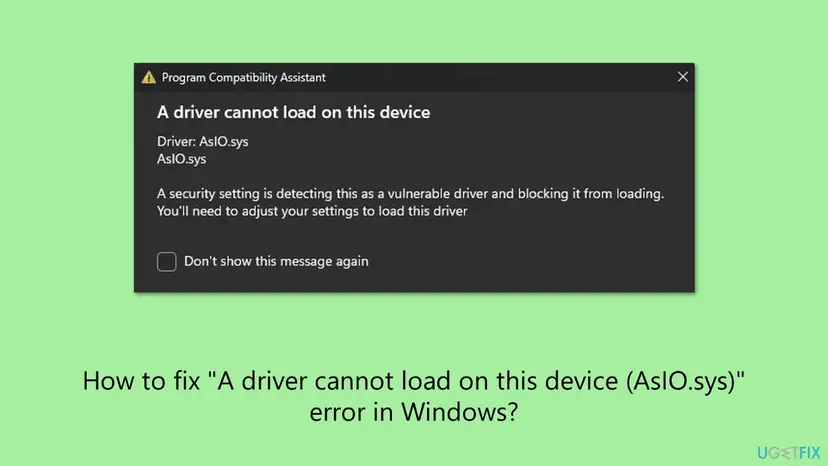
The window comes from Program Compatibility Assistant. Windows Security refused to load the driver because it is listed as vulnerable, not because a file is broken or missing. The window names the file twice, once after Driver: and once on its own line.
- Title
- A driver cannot load on this device
- Driver line
- Driver: AsIO.sys
- Reason line
- A security setting is detecting this as a vulnerable driver and blocking it from loading. You'll need to adjust your settings to load this driver
- Check box
- Don't show this message again
- Which setting
- Memory integrity in Windows Security, with the Microsoft vulnerable driver blocklist
- Usual location
C:\Windows\System32\drivers\AsIO.sys(ASUS's own command deletes it there)
The LOLDrivers project lists AsIO.sys and its relatives AsIO2.sys, AsIO3.sys, AsIO64.sys and AsIO3_64.sys as vulnerable. They expose physical-memory mapping and I/O-port access to ordinary programs, which can be abused to run code with kernel rights. Attackers carry such signed drivers onto PCs on purpose, a trick called "bring your own vulnerable driver". The block protects you from that.
Can't open AsIO.sys !! (2) is a different message. It comes from the ASUS program itself when it cannot open its own driver, often because Windows blocked it or the file is gone. Users report it with Armoury Crate and with lighting software from other brands. The fixes below are the same: update or remove the program that shows it.
Why the AsIO.sys error appears on Windows 11, from most to least common
Most often Armoury Crate, preinstalled on an ASUS PC or pulled in by an ASUS motherboard on first start, installs AsIO.sys as a service that starts with Windows. Less often you uninstalled the ASUS software but its driver service stayed. Rarely, the file sits somewhere unusual, which is a reason to scan.
| Cause | How common | What you see | Fix |
|---|---|---|---|
| Armoury Crate or another ASUS tool you do not use is installed | Most cases | The message at every sign-in, Armoury Crate in Installed apps | Fix 1 |
| You use the ASUS tool and its driver is blocked | Common | Lighting or fan control works partly or not at all | Fix 2, then Fix 3 |
| A Windows update or upgrade turned Memory integrity on, or refreshed the blocklist | Common | The message started after an update, nothing else changed | Fix 1 or Fix 2 |
| Leftover AsIO service after the ASUS software was removed | Less common | No ASUS software installed, the message still appears | Fix 4 |
| The file sits in a Temp or download folder | Rare | AsIO.sys outside C:\Windows\System32\drivers, or on a PC with no ASUS hardware | Fix 5 |
How to fix the AsIO.sys "A driver cannot load on this device" error on Windows 11 and Windows 10
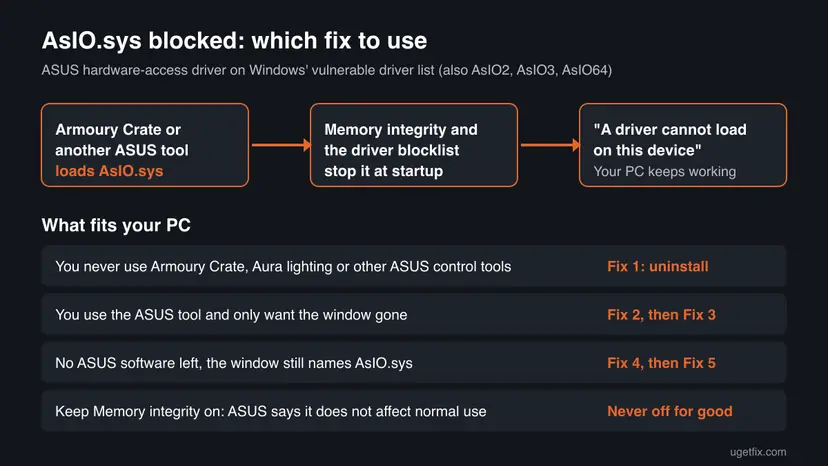
Start with Fix 1 if you never open Armoury Crate or ASUS lighting tools. Fix 2 is ASUS's own recommended way for everyone who keeps them. Fix 4 removes a leftover driver for good. Fix 6 exists because Microsoft mentions it, but it lowers protection and is meant for one task only. You need an administrator account.
| What you see or have | Start with |
|---|---|
| You do not use Armoury Crate, Aura lighting or other ASUS tools | Fix 1 |
| You use the ASUS tool and just want the window gone | Fix 2 |
| You use the ASUS tool and want it fully working | Fix 3 |
| No ASUS software installed but the message still appears | Fix 4 |
| Your PC has no ASUS parts, or the file sits in a Temp folder | Fix 5 |
| You must use an old ASUS feature once | Fix 6, then turn protection back on |
Fix 1. Uninstall Armoury Crate and other ASUS tools you do not use
10 minutesLow riskEveryone who does not use ASUS lighting, fan or device control. This is most readers with the message.
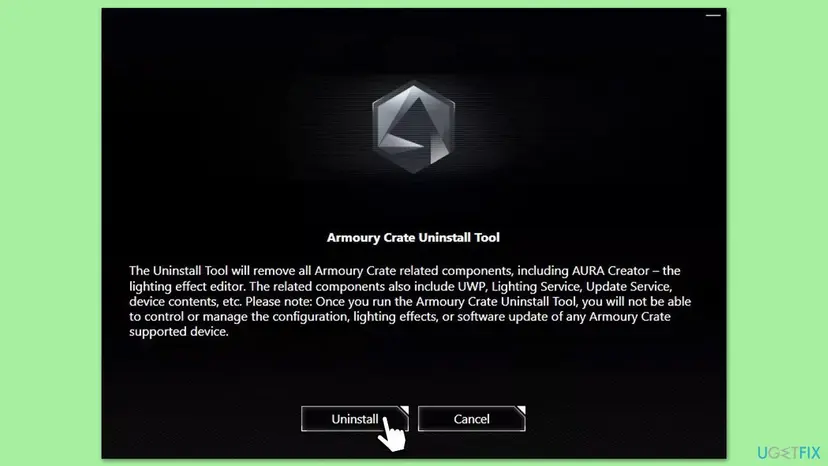
AsIO.sys only tries to load because ASUS software installed it to start with Windows. Armoury Crate has many parts (lighting service, update service, Store app), and ASUS's own uninstall tool removes them together. Without the software, nothing asks for the driver.
- Open asus.com, go to the Armoury Crate support page and download the Armoury Crate Uninstall Tool.
- Extract the ZIP file and run the tool.
- Read the notice: it removes all Armoury Crate parts, including AURA Creator, and ASUS device settings stop being managed.
- Select Uninstall and wait until it finishes.
- Check Settings > Apps > Installed apps (Windows 10: Apps & features) for other ASUS tools you do not use, and uninstall them.
- Restart the PC and sign in.

Users report that on some ASUS motherboards Armoury Crate offers to install itself again after Windows is reinstalled. We could not confirm the exact firmware setting from ASUS, so check your motherboard manual before you change anything there. The general uninstall steps are in Uninstall a program or app in Windows.
It worked if: After the restart no "A driver cannot load on this device" window appears, and your PC works as before.
If not: If the window still names AsIO.sys and no ASUS software is left, the driver service stayed behind: go to Fix 4.
Fix 2. Tick "Don't show this message again" (ASUS's recommended way)
1 minuteNo riskReaders who keep Armoury Crate or another ASUS tool and only want the window gone.
ASUS's FAQ names this as its recommended method: the driver does not affect normal use, so hiding the notice is enough. Windows keeps blocking AsIO.sys, so your PC stays protected.
- Wait for the A driver cannot load on this device window at sign-in.
- Tick Don't show this message again.
- Close the window.
- Restart once to check that the window no longer appears.
This only hides the notice. Features of the ASUS tool that need AsIO.sys can stay limited while the driver is blocked. If they matter to you, try Fix 3.
It worked if: You sign in without the AsIO.sys window, and Memory integrity is still on.
If not: If you want the ASUS features fully working, go to Fix 3. If you would rather have no ASUS software, use Fix 1.
Fix 3. Update Armoury Crate and look for a newer ASUS driver
10 minutesLow riskReaders who use ASUS lighting or device control and want it to work without the block.
Microsoft's first advice for a blocked driver is an updated, compatible driver from Windows Update or the maker. The LOLDrivers list shows some copies of the ASUS driver load with Memory integrity on and others do not, so a newer ASUS package may replace the blocked copy. We could not confirm which Armoury Crate version does.
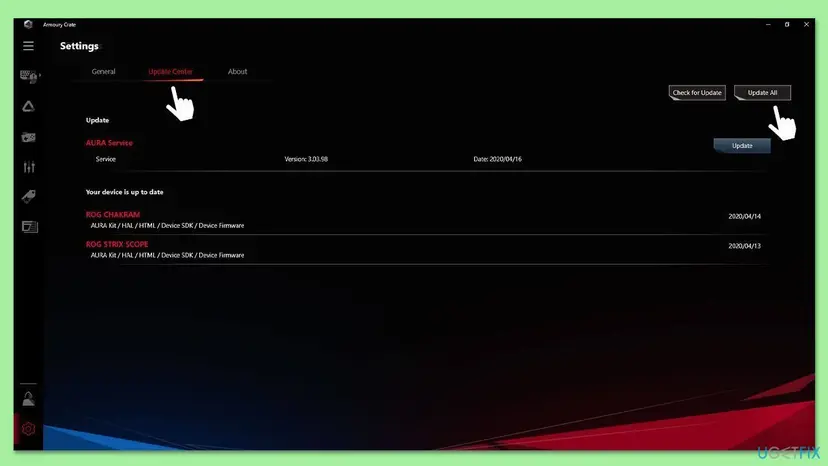
- Open Armoury Crate, select Settings and then Update Center.
- Select Check for Update, then Update All.
- Restart when the updates finish.
- Windows 11: open Settings > Windows Update > Advanced options > Optional updates. Windows 10: Settings > Update & Security > Windows Update > View optional updates.
- Expand Driver updates, tick only ASUS entries, select Download & install and restart if asked.
Microsoft suggests contacting the driver maker when no update is available. Give ASUS your exact model from Win + R, msinfo32 (the System Model or BaseBoard Product line) and a screenshot of the window.
It worked if: The ASUS tool works and no AsIO.sys window appears at sign-in.
If not: If the window still appears after updating, hide it (Fix 2) and keep Memory integrity on, or remove the tool (Fix 1).
Fix 4. Delete the leftover AsIO service and driver file
5 minutesRead the warningReaders who see the window although Armoury Crate is gone, or who want the driver removed for good. This is ASUS's "advanced" method.
An uninstaller can leave the driver's service entry behind, and Windows then tries to load the file at every start. ASUS's FAQ gives two commands: one deletes the service named asio, the other deletes the file.
Deleting a service removes its registry entry. ASUS tools that still need the driver will stop working until they are reinstalled. Create a restore point or registry backup first: Back up the registry before editing it. Type the commands exactly; do not delete other files in the drivers folder.
- Type
cmdinto the taskbar search box, right-click Command Prompt and select Run as administrator, then Yes. - Type
sc delete asioand press Enter. Windows replies that the service was deleted, or that it does not exist. - Type
del C:\Windows\System32\drivers\AsIO.sysand press Enter. - If your window named AsIO3.sys, use that name at the end of the command instead.
- Restart the PC.
sc delete asio
del C:\Windows\System32\drivers\AsIO.sys
It worked if: After the restart no AsIO.sys window appears, and C:\Windows\System32\drivers no longer holds the file.
If not: If the file comes back, an ASUS program is still installed and puts it there: remove it with Fix 1. If the file was never in the drivers folder, go to Fix 5.
Fix 5. Check where AsIO.sys sits and scan with Microsoft Defender
5 minutes plus the scanNo riskReaders whose PC has no ASUS motherboard, laptop or software, or who found the file outside the Windows drivers folder.
A copy installed by ASUS software sits in the Windows drivers folder and names ASUSTeK as its maker. The attack recorded by LOLDrivers creates a driver service that loads asio.sys from C:\windows\temp instead. Where the file sits tells you whether this is leftover software or something to scan for.
- Press Win + E, paste
C:\Windows\System32\driversinto the address bar and press Enter. - Find AsIO.sys, right-click it, choose Properties and open the Details tab. Read Copyright and Product name.
- If the file is not there, search This PC for
AsIOand note where it is. - If it sits in a Temp, Downloads or unknown folder, or your PC has no ASUS hardware or software, run a full Microsoft Defender scan.
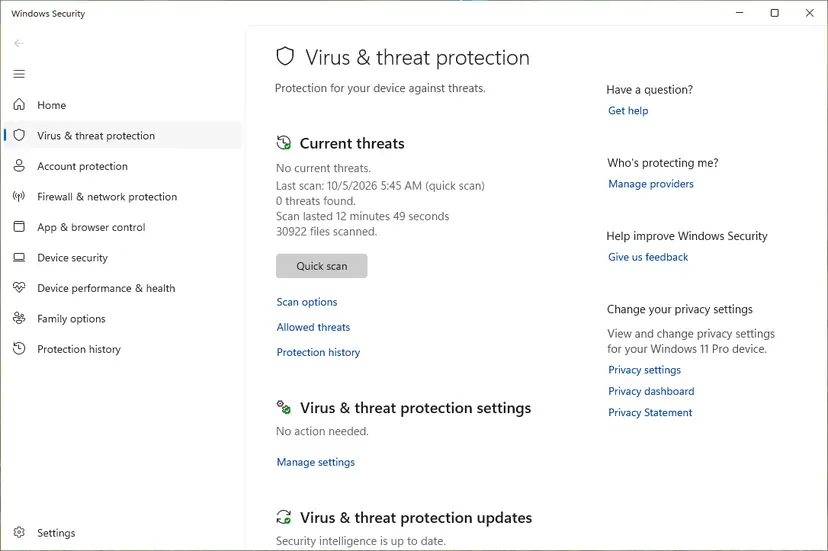
Full scan steps: How to scan for malware with Microsoft Defender. A copy in the drivers folder with ASUSTeK details on an ASUS PC is a leftover from ASUS software: remove it with Fix 4.
It worked if: You know which copy Windows blocks and whether it belongs to ASUS software.
If not: If Defender finds nothing and the file is an ASUS copy, remove it with Fix 4.
Fix 6. Only for one task: switch Memory integrity off, then straight back on
10 minutes plus two restartsRead the warningReaders who must use an old ASUS feature once and have no other way. Not a fix for the message.
Microsoft names turning Memory integrity off as the option when no updated driver exists. With AsIO.sys loaded, any program on the PC could use it to reach the kernel, so the protection must be on again as soon as the task is done.
While Memory integrity is off, the ASUS driver can load and any program could misuse it to read or change protected memory. Microsoft says turning Memory integrity off on a Secured-core PC takes it out of its Secured-core state. Back up important files first and do not browse or open downloads during the task.
- Type
Core isolationinto the taskbar search box and open it. Windows 11: Settings > Privacy & security > Windows Security > Device security > Core isolation details. Windows 10: Settings > Update & Security > Windows Security > Device security > Core isolation details. - Set Memory integrity to Off and restart.
- Use the ASUS feature and finish the one task.
- Go back to Core isolation details, set Memory integrity to On and restart.
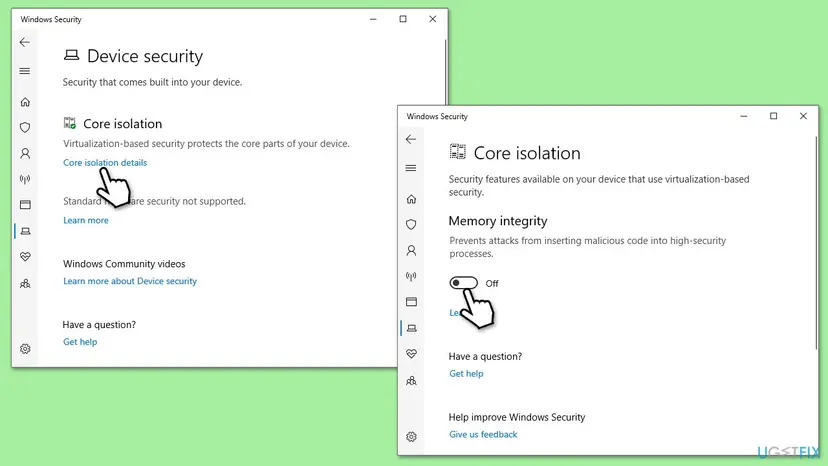
It worked if: The task is done and Memory integrity shows On again after the restart.
If not: If Memory integrity will not turn back on, select Review incompatible drivers on the same page, remove the program behind each file (Fix 1, Fix 4) and try again.
The AsIO.sys window still appears: what to check and what to send support
The window itself is the most direct log: it names the driver Windows blocked. Microsoft notes that the driver name and company name in the notice are the only reliable details it has about the driver. If the window now names another file, the same approach applies to that file and its maker.
- Core isolation details lists incompatible drivers: select Review incompatible drivers to see each file and its published name. Remove the program that installed it.
- The window names AsIO3.sys or AsIO2.sys after Fix 4: another ASUS driver version is installed. Repeat Fix 4 with that file name, or run Fix 1 again.
- Armoury Crate returns after every reinstall of Windows: users report that the motherboard offers it again. Decline the install prompt, or check your motherboard manual for the option that controls it.
- A blue screen names AsIO.sys: users report this with older ASUS utilities. Start in Start Windows or a Mac in Safe Mode, remove the ASUS software (Fix 1) and the driver (Fix 4).
- The Memory integrity switch is greyed out: an organisation manages the PC, or the hardware does not support it. That is not caused by AsIO.sys.
Send your PC or motherboard model from msinfo32 and your Windows version from winver. Add the Armoury Crate version from its Settings > About tab, the AsIO.sys details from Fix 5 and a screenshot of the "A driver cannot load on this device" window.
Keep AsIO.sys from coming back
- Install only the ASUS tools you really use, from asus.com or your model's support page.
- Keep Armoury Crate updated through its Update Center if you use it.
- Check Core isolation once after installing any lighting, fan or tuning software.
- Turn Memory integrity or the vulnerable driver blocklist off for good to keep an ASUS tool working.
- Download AsIO.sys from file download sites.
- Roll back the Windows update that started the message: the blocklist returns with the next one.
Microsoft updates the vulnerable driver blocklist through Windows updates, so the message can appear one day with no change on your side. That matches the reader's report after a recent update. Windows 10 left support on 14 October 2025, so a PC that stays on Windows 10 no longer gets those updates.
Frequently asked questions
What is AsIO.sys?
It is a kernel driver made by ASUSTeK Computer Inc. ASUS says certain ASUS features use it, such as Armoury Crate and E-Ink control. It gives ASUS software direct access to hardware, such as physical memory and I/O ports, to control lighting, fans and sensors. It is not a Windows file. Related versions are named AsIO2.sys, AsIO3.sys, AsIO64.sys and AsIO3_64.sys. Windows blocks it because other programs can misuse that hardware access.
Is AsIO.sys a virus?
No, a copy from ASUS software is not a virus, and ASUS says so in its FAQ. The message is Windows protecting you from the driver's weakness, not from malware. The risk is that another program could use the signed ASUS driver to reach the kernel. A copy in C:\Windows\System32\drivers with ASUSTeK details is a leftover from ASUS software. A copy in a Temp folder, or on a PC without ASUS parts, is a reason to scan with How to scan for malware with Microsoft Defender.
How do I fix AsIO.sys "driver cannot load" on Windows 11?
Uninstall Armoury Crate and other ASUS tools you do not use with ASUS's Armoury Crate Uninstall Tool and restart (Fix 1). That ends the message for most people. If you use the ASUS tool, tick Don't show this message again (Fix 2), which ASUS recommends. If no ASUS software is left, run sc delete asio and delete the file (Fix 4). Keep Memory integrity on.
What does "Can't open AsIO.sys !! (2)" mean?
It is an error from the ASUS program, not from Windows: the program could not open its own driver. Users see it at startup with Armoury Crate, and some see the same text with lighting software from other brands. We could not confirm from ASUS what the number in brackets means. In Windows error codes, 2 means the file was not found and 5 means access was denied. Update the program (Fix 3) or remove it with its driver (Fix 1, Fix 4).
Is it safe to delete AsIO.sys?
Yes, ASUS itself gives the commands: sc delete asio, then del C:\Windows\System32\drivers\AsIO.sys in an administrator Command Prompt (Fix 4). ASUS says the driver does not affect normal use. What stops working are ASUS features that need it, such as lighting or device control in Armoury Crate. Delete the service first, as ASUS does, so Windows stops trying to load the file. Back up the registry first.
Will my PC stop working if AsIO.sys is blocked?
No. Windows, your drivers for graphics, sound and network, and your games keep working. ASUS's FAQ says the driver does not affect the normal operation of the computer. Only ASUS features that talk to the hardware through AsIO.sys can stop working or work partly, for example lighting effects or some device settings in Armoury Crate.
Should I turn Memory integrity off to stop the message?
No, not to silence this message. Memory integrity keeps malicious code out of the most protected part of Windows, and it is what stops a driver like AsIO.sys from being misused. Ticking Don't show this message again or removing the ASUS tool takes a minute and keeps both your PC and the protection. If you must use an old ASUS feature once, follow Fix 6 and turn the protection back on.
Is AsIO.sys the same as an ASIO audio driver?
No. AsIO.sys is an ASUS hardware-access driver for its control software. ASIO audio drivers, such as those for audio interfaces and music programs, are a different thing with a similar name. Blocking or deleting AsIO.sys does not affect your sound or your audio interface. If you searched for an ASIO audio driver, get it from the maker of your audio interface.
What are asupio.sys and AsIO3.sys?
AsIO3.sys is a newer version of the same ASUS hardware-access driver, and LOLDrivers lists it as vulnerable too, so Windows can block it with the same message. The fixes are the same; use the AsIO3.sys name in Fix 4. We could not confirm from an official source what asupio.sys belongs to. Read the company name in the window or in Core isolation details, and remove that maker's program.
Is there a German version of this guide?
No, this page is in English only. The German message "Treiber AsIO.sys kann nicht geladen werden" is the same block as the English "A driver cannot load on this device". The steps are identical: remove or update the ASUS software (Fix 1, Fix 3), hide the notice (Fix 2) or delete the leftover driver (Fix 4). The menu names in German Windows differ, but the order of the menus is the same.
Sources
Did this fix work?
One click, no account. It tells the next reader which guides are worth their time.
Questions and experiences: AsIO.sys "A driver cannot load on this device": how to fix it in Windows 11 and 10
Still broken, or found a fix we did not cover? Ask here: members and our editors answer. Reading is open; writing needs a free account.
…