How to fix
BAD_OBJECT_HEADER
on Windows
Resolve the BAD_OBJECT_HEADER error on Windows 10 quickly and easily. Our expert-tested guide will help you get your system back on track!

What causes How to fix BAD_OBJECT_HEADER on Windows 10?
- Memory issues
- Faulty drivers
- Corrupted system files
- Incompatible software
- Hardware malfunctions
Repairs Windows system files, removes malware, and restores a clean OS state — without reinstalling.
Hello. Recently, my laptop has crashed several times with an error BAD_OBJECT_HEADER. What does this mean? I guess something is wrong and I don't know how to fix this. Could you help me with this?
BAD_OBJECT_HEADER is a Blue Screen of Death[ref en-3] error that interrupts all computer work on Windows and reboots immediately. Without a doubt, BSOD errors might not only be annoying, can result in data or work progress loss, but might also indicate that there is something wrong with Windows software or even hardware.
Windows 10 is an intricate operating system with thousands of different parameters, processes, services, and millions of files that work altogether. Unfortunately, due to the high customization options that the OS provides, things are bound to go wrong for some people. Due to this, there is no universal way to fix BAD_OBJECT_HEADER BSOD that would work for everybody, so you will have to perform some troubleshooting.
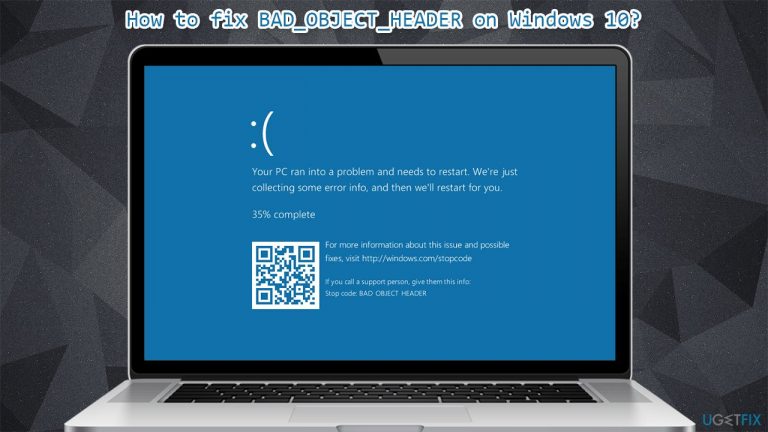
Users who receive the error are forced to restart their PCs (or rather, it happens automatically), and the only message they can see is as follows:
You PC ran into a problem and needs to restart. We're just collecting some more info, and then we'll restart for you.
1% complete
If you call a support person, give them this info:
Stop code: BAD OBJECT HEADER
As evident, while the error code name is useful when trying to find a way to fix this, this does not directly tell what is causing the problem or what to do to solve it. Luckily, you are in the right place for it, and we will help you with this problem. It is also worth motioning that users who dealt with this error later also encountered BAD_POOL_HEADER and PAGE_FAULT_IN_NONPAGED_AREA.
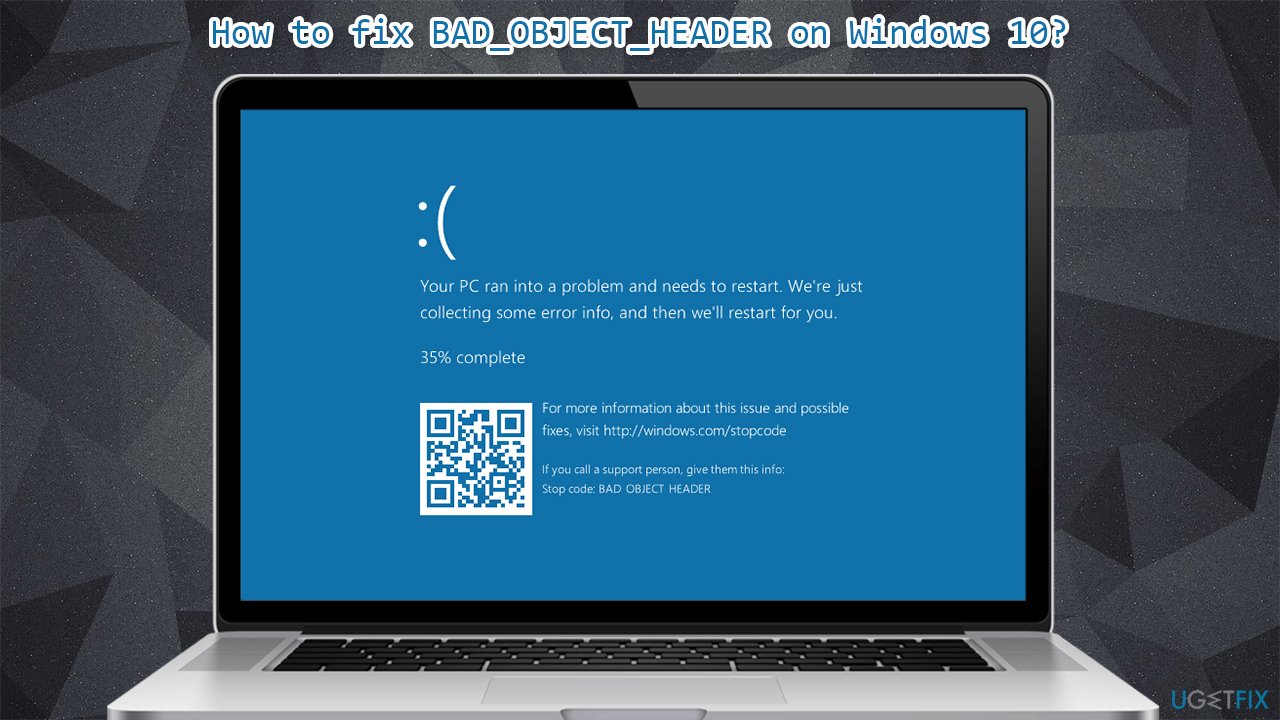
Reasons for the BSOD error BAD OBJECT HEADER might be plenty - from memory issues to faulty drivers. However, it seems like drivers are likely to be the cause, so updating or reinstalling them might solve the issue. Besides this, we also provide other ways on how to solve this problem once and for all below.
If you want an automatic BAD_OBJECT_HEADER fix, you can try using the [d1] repair tool instead - it is particularly designed to fix BSODs (so you will not have to deal with similar errors, such as SPECIAL POOL DETECTED MEMORY CORRUPTION or APC_INDEX_MISMATCH), missing DLLs,[ref en-2] registry errors, and much more - all automatically, without you having to reinstall Windows.
Solution 1. Update Windows
Windows updates are extremely important and can help patching various bugs on the system, so you should ensure that all the critical and optional updates are installed.
- Type in Windows Update in Windows search and press Enter
- On the right side of the window, press Check for updates
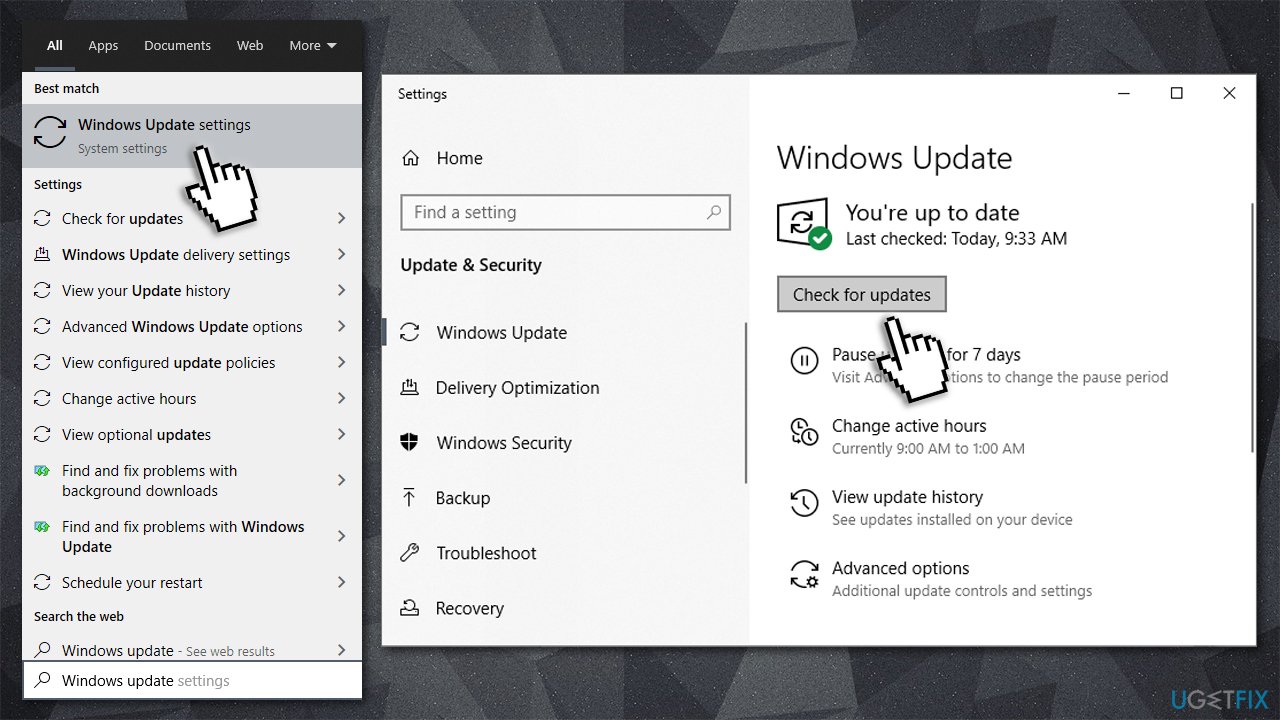
How to fix bad object header on windows 10 update operating system - Wait till all the relevant updates are installed automatically
- Restart your computer.
Solution 2. Stop Windows from automatically restarting
Some users claimed that they were unable to fix BAD OBJECT HEADER due to constant restart loop their Windows got stuck in for awhile. If you are affected by this issue, you can prevent Windows from rebooting each time:
- Right-click on Start and pick System
- On the right, scroll down until you see Advanced System Settings - click it
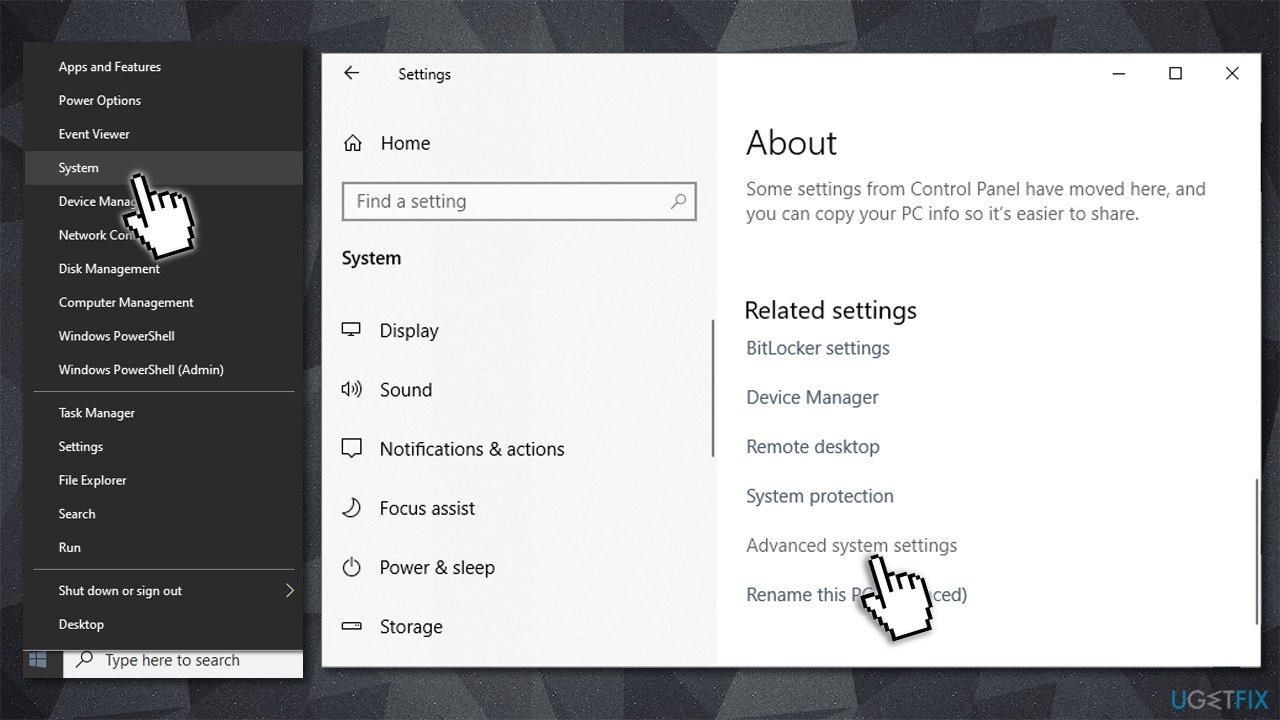
How to fix bad object header on windows 10 prevent from restarting - In the Advanced tab, click Settings under Startup and Recovery
- Untick Automatically restart and click OK.
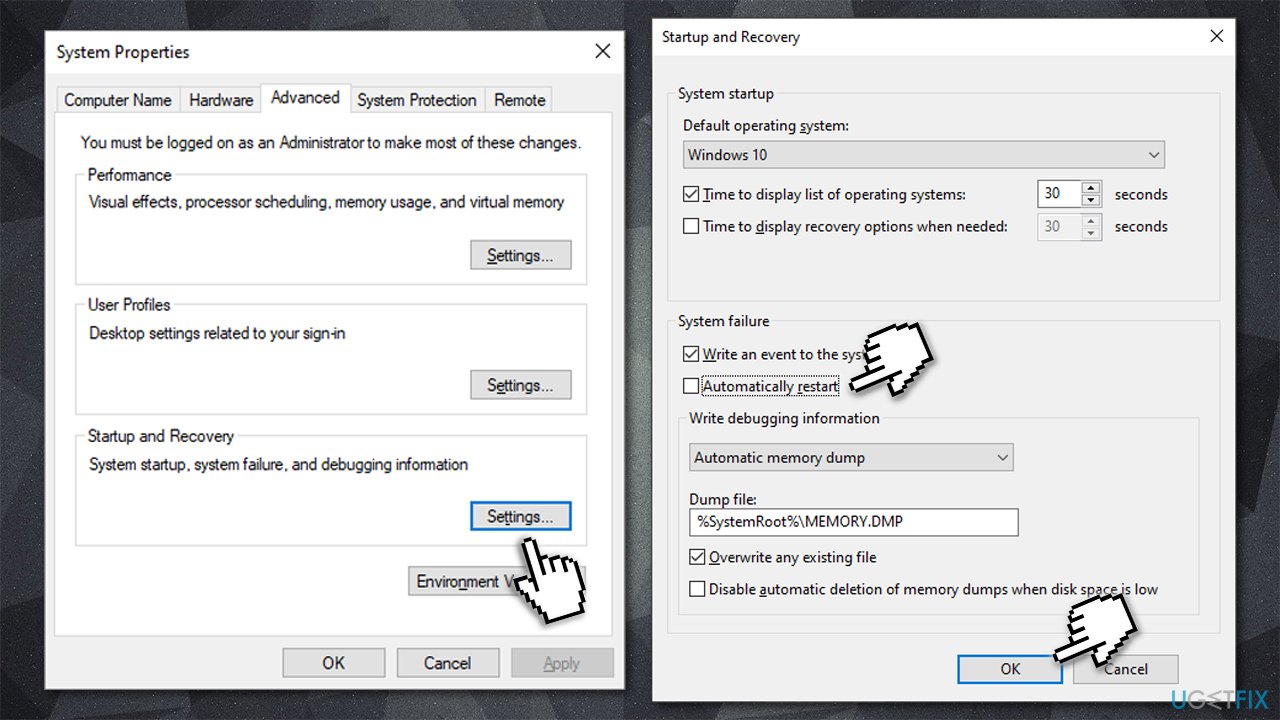
How to fix bad object header on windows 10 prevent from restarting2
Solution 3. Update your drivers
While some of the drivers are installed along with Windows updates, it does not apply to everything. Many people said that updating their Intel and video drivers helped them to solve the issue. Here's how you can do that via the Device Manager:
- Right-click on Start and pick Device Manager
- Expand Display Adapters
- Right-click on your device and select Update Driver
- Pick Search automatically for drivers and wait
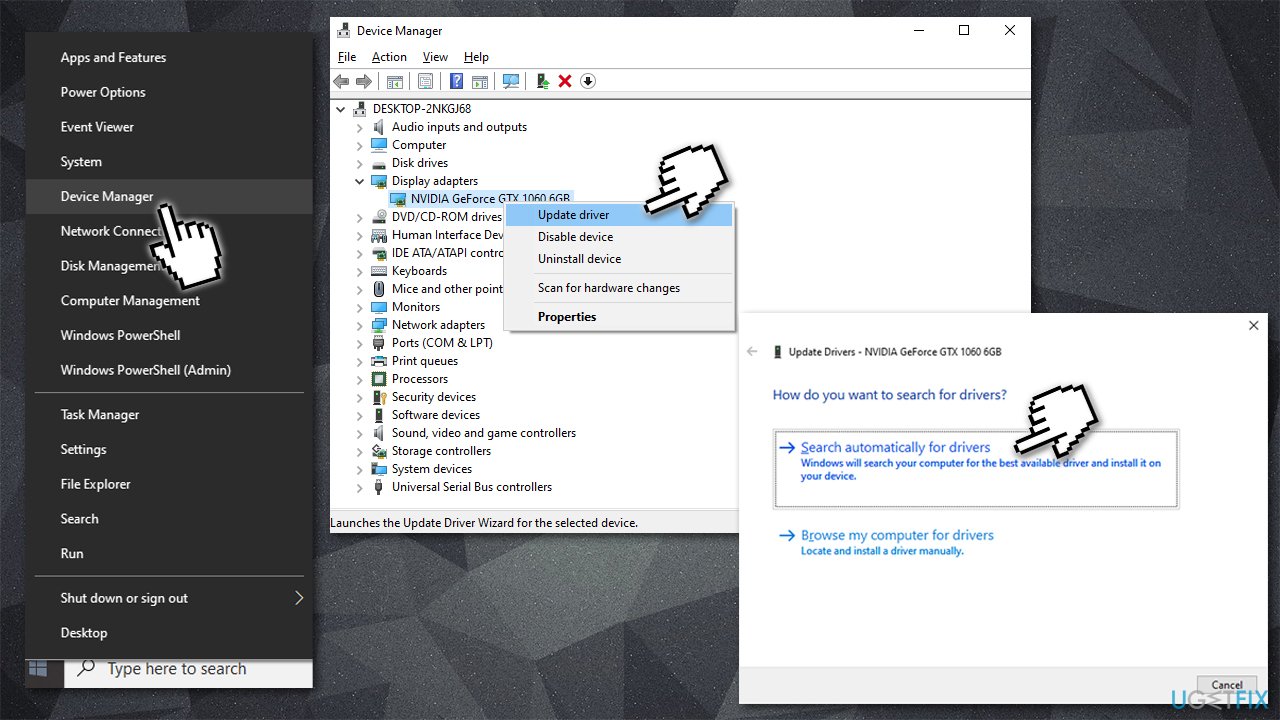
How to fix bad object header on windows 10 update drivers - Restart your computer once done.
Note: also update Thunderbolt drivers if you are using this hardware
It is, however, highly recommend you download the latest drivers from the official website of the device manufacturer, such as Nvidia or AMD. Alternatively, you can employ an automatic driver updater such as [rev id="DriverFix"] which would download and install appropriate drivers for all your devices automatically - fast.
Solution 4. Check your memory with Windows Media Diagnostic Tool
Memory corruption is one of the main culprits of certain BSOD errors. This, you should run the automatic check of your RAM[ref en-1] as follows:
- Type in Memory in Windows search and press Enter
- Once the new window pops up, select Restart now and check for problems (recommended)
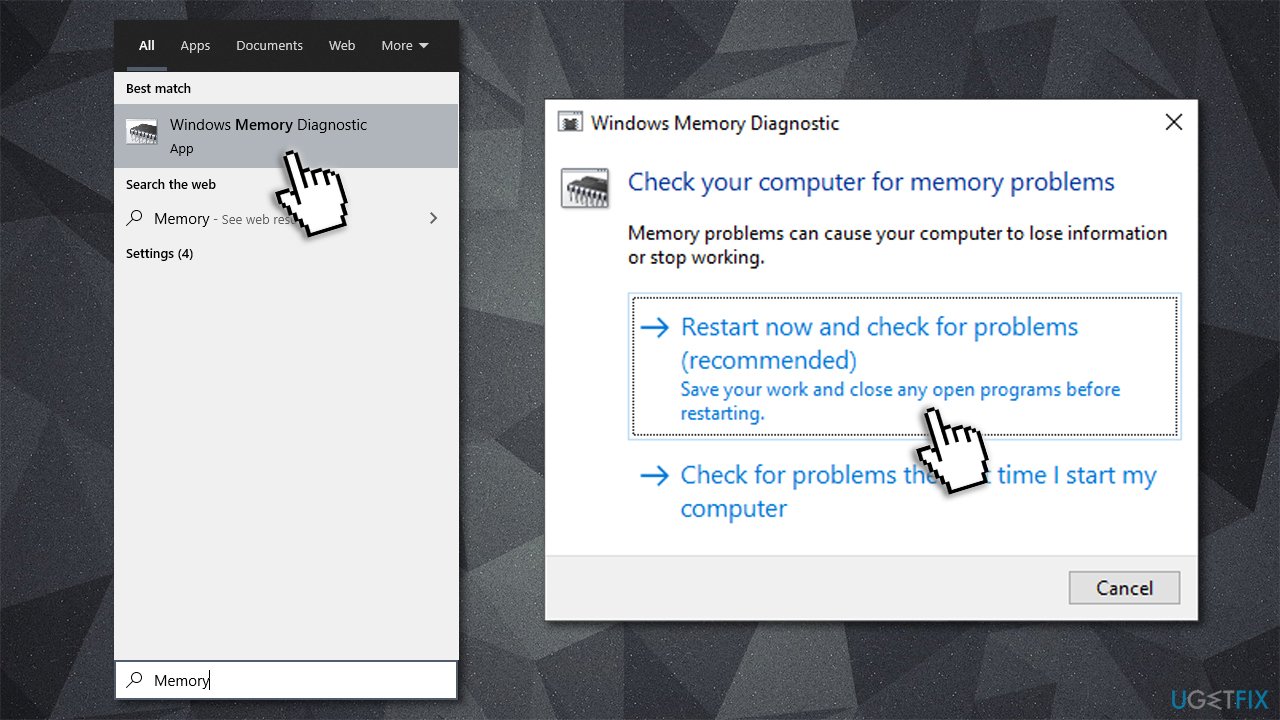
How to fix bad object header on windows 10 run memory diagnostic - This will automatically restart your computer and perform a memory check.
Solution 5. Run System File Checker
Check your system files for integrity violations as follows:
- Type in cmd in Windows search
- Right-click on Command Prompt and select run as administrator
- In the new window, type in sfc /scannow and hit Enter
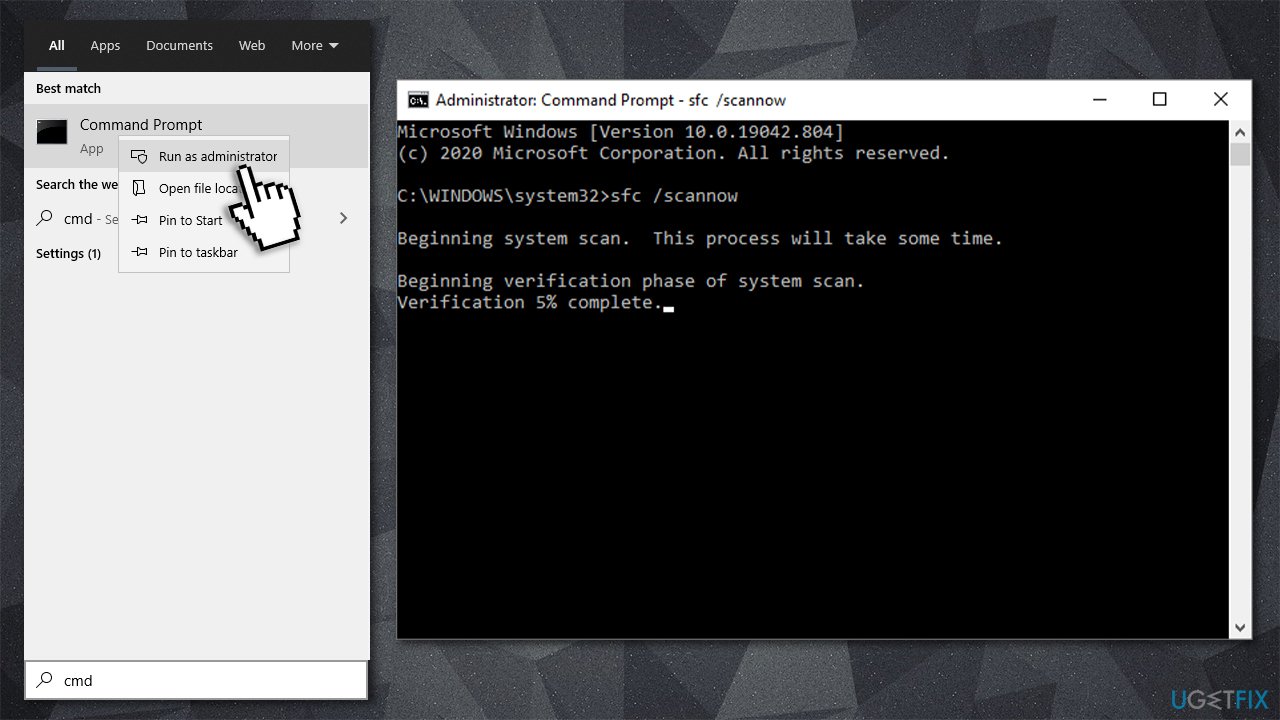
How to fix bad object header on windows 10 run sfc scan - Wait till Windows finishes the scan and reports the findings
- Restart your PC.
Bottom line
To resolve the BAD_OBJECT_HEADER error, you can try updating or reinstalling drivers, checking for memory issues, and repairing corrupted system files. If these solutions do not work, consider seeking further assistance or exploring additional troubleshooting methods.
Frequently asked questions
The BAD_OBJECT_HEADER error is often caused by corrupted system files, faulty drivers, or issues with installed applications on Windows 10.
You can troubleshoot this error by running the System File Checker (SFC) and the Deployment Imaging Service and Management Tool (DISM) to repair corrupted files.
To prevent the BAD_OBJECT_HEADER error, ensure that your Windows 10 system is regularly updated and that you have reliable antivirus software to protect against malware.




Report an issue
What's wrong with this guide? We review every report and update or remove content.
Report received — thank you. We'll review and fix it.
You need a free account to submit a report.
Be the first to comment