How to fix
Battery not charging after Windows 11 upgrade
on Windows
Resolve battery charging issues after your Windows 11 upgrade efficiently. Follow our expert-tested solutions and have your device running smoothly again!


What causes How to fix battery not charging after Windows 11 upgrade?
- Driver issues
- Outdated drivers
- Incompatible drivers
- Malfunctioning battery
- Power settings misconfiguration
Repairs Windows system files, removes malware, and restores a clean OS state — without reinstalling.
Just recently, I upgraded to Windows 11, and now I have problems with my laptop's battery - it won't charge at all and is completely dead. My laptop is now almost useless, as I can use it only when connected via the cord. I don't want to buy a new battery because of this, so I wonder if it can be fixed.
Windows 11 is the latest version of the Windows operating system developed by Microsoft. This new version offers a more intuitive user interface with faster performance, improved security features, an enhanced search experience, and better compatibility with other systems. With Windows 11, users can now enjoy a more intuitive user interface, faster performance, improved security features, an enhanced search experience, and better support for online services.
Unfortunately, not all users' experiences with this newest Windows version were positive. Some people encountered quite serious problems after upgrading, such as the system not shutting down, icons disappearing, high RAM usage, and similar.
Battery not charging after upgrading to Windows 11 is another issue that adds to this pile of complaints and can be incredibly frustrating to users. Many people rely on their laptops for work, school, and entertainment, so a malfunctioning battery can be extremely disruptive. Fortunately, there are ways to diagnose and resolve the issue.
Some users reported that they are not able to use batteries at all, and they are not charging when plugged in. Others even claimed that the laptop does not even work with a cord, which could be a huge problem. However, most people managed to turn the device on for at least some period of time - that's when the troubleshooting should be performed. This issue affects laptops from various manufacturers, including Dell, Acer, Asus, and others.
One of the most common causes of laptop batteries not working after upgrading to Windows 11 is a driver issue. Outdated or incompatible drivers can cause the laptop to run inefficiently, draining the battery life much faster than usual.
We would also recommend running a scan with [d1] PC repair tool that can diagnose your system and resolve all the underlying issues for you automatically. Alternatively, you can proceed with the solutions below.
Fix 1. Run Power troubleshooter
Once you can boot your laptop, start by running the built-in troubleshooter:
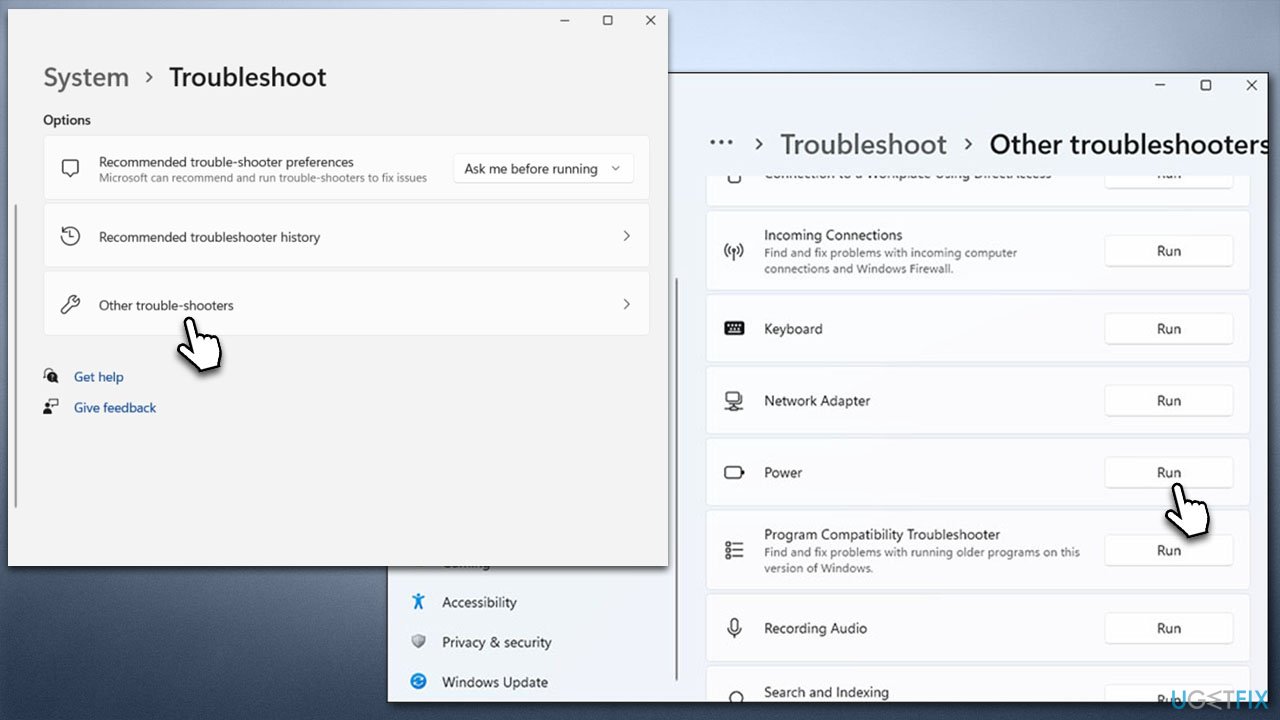
- Open Windows Settings (Win + I) and scroll down to find Troubleshoot option - click it
- Select Other troubleshooters
- Find Power from the list and click Run
- Follow on-screen instructions and apply all the suggested fixes.
Fix 2. Update motherboard drivers
Updating motherboard drivers is something you should do next. The easiest and quickest way of doing so it by running [rev id="DriverFix"] software. If you would like to update it manually, you need to find out which motherboard you are using - follow these steps:
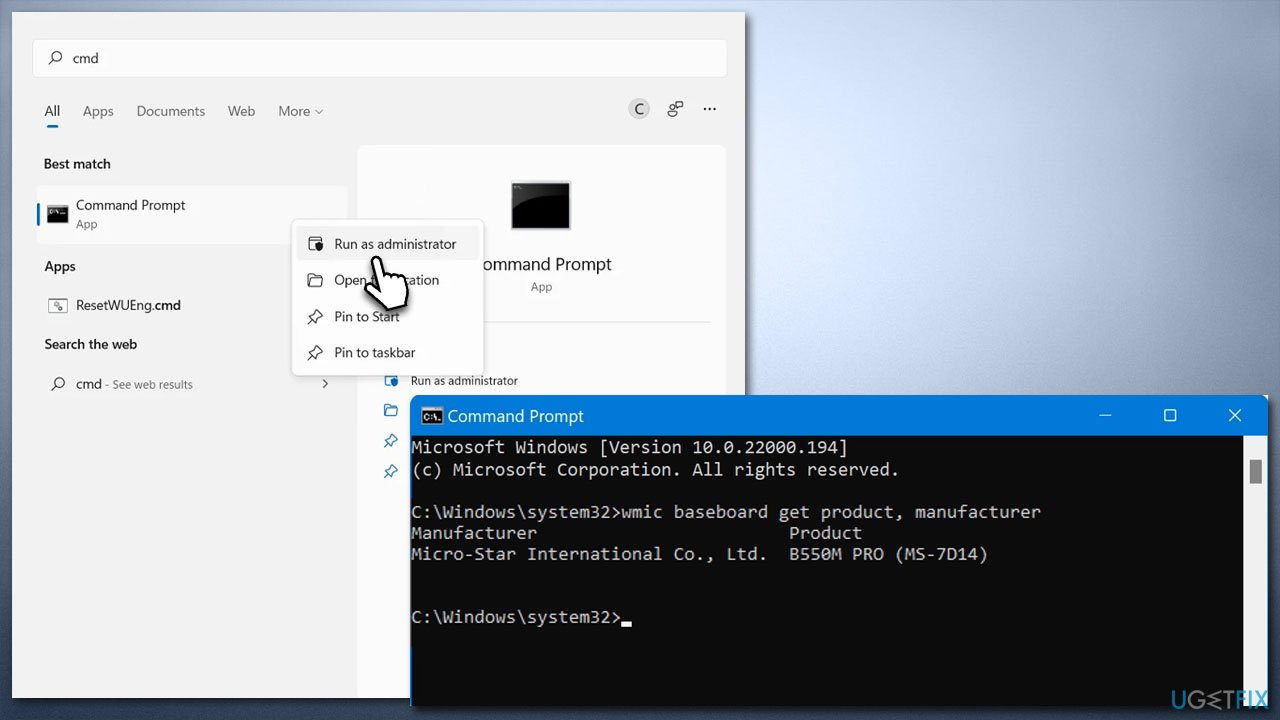
- Type cmd in Windows search
- Right-click on Command Prompt result and select Run as administrator
- When the User Account Control window pops up, click Yes
- Next, copy and paste the following command, and then press Enter:
wmic baseboard get product, manufacturer - Copy the name and close down Command Prompt.
Now head to your motherboard manufacturer's website, enter your name, make, and model, and download the latest available drivers and install them by following on-screen instructions. Don't forget to restart your system after.
Note: some users reported that installing the latest drivers for Intel Graphics and Realtek also contributed to the solution. If you are using other hardware equivalents, update them as well. BIOS is another aspect that should be updated as well.
Fix 3. Change power plan
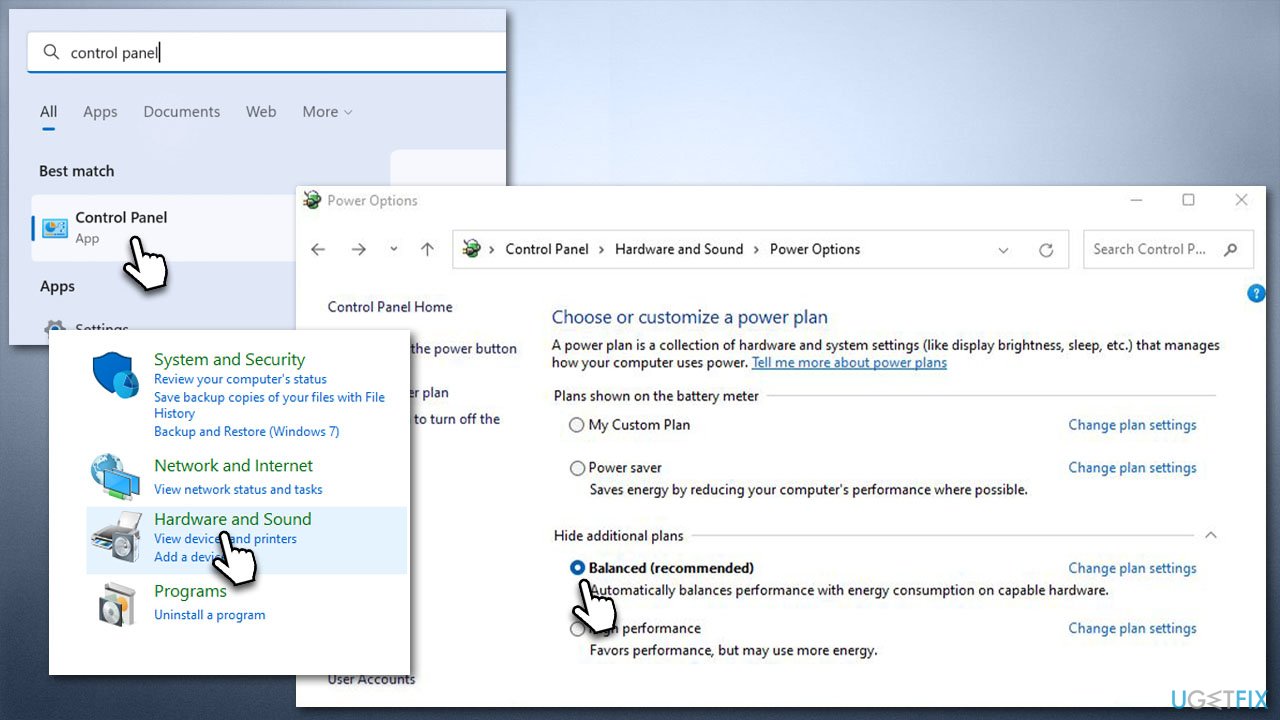
- Type Control Panel in Windows search and press Enter
- Go to the Hardware and sound section
- Select Power Options
- If you had the power plan set to Power saver or High performance, switch it to Balanced. If it was on Balanced already, switch it to Power saver.
Fix 4. Downgrade to Windows 10
Many users reported that they never encountered battery problems in Windows 10, so if none of the solutions worked for you, you can try downgrading to Windows 10 and see if that solves your problem. Some people said that even after downgrading, the problem persisted. You can then reset or reinstall Windows altogether.
Fix 5. Replace your battery
In an unfortunate course of events, the battery going dead after upgrading might be a bad coincidence, and it's simply your battery dying. Laptop batteries generally last between two to five years. To find a replacement, simply search online for the make and model of your laptop or contact your manufacturer directly.
Fix 6. Other tips
There are a few other tips that might help you resolve the issue:
- Power down your laptop, take out the battery and wait for a few minutes. Put it back in and see if that helps.
- Check the battery cable - make sure it is connected properly. Check if there's any physical damage.
- Try connecting the batter to a direct power source instead of a multiplug.
- Make sure all Windows updates are installed.
- Bring your device to a repair shop - each case can be very different, and sometimes only a professional can fix the battery not charging issues (usually, it is the faulty hardware).
Bottom line
To fix the battery not charging issue after upgrading to Windows 11, users should check for driver updates, ensure compatibility, and adjust power settings. If these solutions do not resolve the problem, further troubleshooting or professional assistance may be necessary.
Frequently asked questions
First, ensure that your power adapter is properly connected and functioning. You can also check for any visible damage to the charging port or cable.
You can update your battery drivers by going to Device Manager, expanding the 'Batteries' section, right-clicking on 'Microsoft ACPI-Compliant Control Method Battery', and selecting 'Update driver'.
Yes, you can reset the battery settings by running the 'Power Troubleshooter' from Settings > Update & Security > Troubleshoot, which can help identify and fix battery-related issues.




Report an issue
What's wrong with this guide? We review every report and update or remove content.
Report received — thank you. We'll review and fix it.
You need a free account to submit a report.
Be the first to comment