
How to fix BIOS is missing a required license error 0xC004F063?

Prefer to fix it yourself? The manual steps follow.
- 7methods
- 10 minutes to check, longer if the PC maker must update the BIOS
- Medium
Applies to Preinstalled (OEM) Windows 7, Vista, 8 and 8.1, Windows Server 2012, and Windows 10 or 11 PCs that show the same message
7 methods in this guide
Hi, I'm getting error 0xC004F063 when trying to validate Windows 7. I have no idea why the key is not accepted or what I should do, so every piece of advice would be appreciated. Thanks in advance!
Error 0xC004F063 means a Windows that came preinstalled on the PC cannot find the PC maker's licence data in the BIOS, so it cannot activate itself. It shows up most often on Windows 7 and Vista PCs after a motherboard repair. Start by checking what the BIOS reports as the serial number or Service Tag.
The PC maker's licence table (SLIC) or Service Tag in the BIOS is missing or wrong, usually after a motherboard replacement. Check the serial number the BIOS reports (Fix 1). If it is blank or a placeholder, ask the PC maker to write the Service Tag and update the BIOS, which is Microsoft's own resolution (Fix 2). Meanwhile you can activate with the key on the COA sticker (Fix 4).
| Error | 0xC004F063: "The Software Licensing Service reported that the computer BIOS is missing a required license." |
|---|---|
| Where it appears | The Windows Activation window or the validation check, after Activate Windows online now or when Windows checks its licence after a hardware change. |
| Main cause | Windows cannot read the SLIC table in the BIOS that a preinstalled OEM_SLP key needs, most often because the Service Tag was not written after a motherboard replacement. |
| Fastest fix | Read the serial number from the BIOS (Fix 1), then ask the PC maker to update the BIOS with the correct Service Tag (Fix 2). |
| Also written as | 0xc004f063, 0x004f063 (a zero dropped), "Error Code 0xC004F063", and the text "BIOS is missing a required license". |
| Affects | Preinstalled Windows 7, Vista, 8 and 8.1 and Windows Server 2012. Microsoft's article names Windows 8 and Server 2012; users report the same message on Windows 7 and Vista. |
| Microsoft's status | Documented in KB 2817024. Not a bug: Microsoft's resolution is that the PC maker updates the BIOS. |
| When it is not a software problem | A replaced or faulty motherboard without the maker's data. No command in Windows can write the SLIC table. |
| Time to fix | 10 minutes with a COA sticker key; days when the PC maker has to send a BIOS update or a technician. |
Facts checked on 15 October 2026. Steps written for Windows 11 (25H2 and 26H2) and Windows 10 22H2; Windows 7 and Vista steps from Microsoft's documentation.
What error 0xC004F063 "BIOS is missing a required license" means
Microsoft's article KB 2817024 quotes the message as "The Software Licensing Service reported that the computer BIOS is missing a required license". It appears when you try to activate or validate an OEM version of Windows, the copy the PC maker installed at the factory.
Such a copy does not activate online like a key you bought. It uses an OEM_SLP key that activates by itself when three things match: the key, an OEM certificate that Microsoft issues to each PC maker, and the SLIC table, a digital signature the maker places inside the BIOS. Error 0xC004F063 says the third part could not be read or verified.
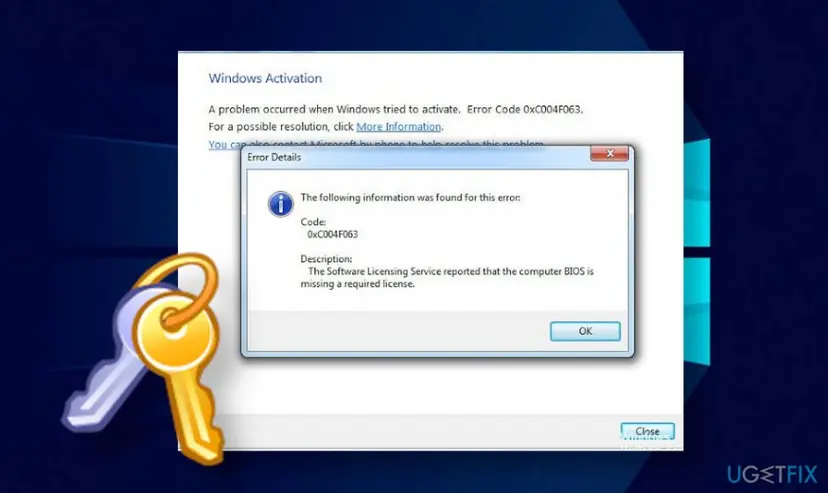
| What you see | Where | What it tells you |
|---|---|---|
| A problem occurred when Windows tried to activate. Error Code 0xC004F063. | Windows Activation window | Activation was tried and refused. |
| The Software Licensing Service reported that the computer BIOS is missing a required license. | Error Details box after More Information | The licence data in the BIOS is the problem, not the key you typed. |
| Windows is not genuine, or a validation failure | Desktop, or a Microsoft validation check | The result. The code tells you why. |
| 0x004f063 or 0xc004f06 | Typed into Google | The same code with a digit missing. |
The error does not delete files. Windows shows activation reminders until the licence is fixed, so you have time to check the BIOS before you buy anything.
Why error 0xC004F063 appears, from most to least common
Microsoft names one mechanism and three reasons. All of them are about the motherboard's firmware, which is why typing the same key again rarely helps. Find your row, then go to its fix.
| Cause | How often | How to tell | Fix |
|---|---|---|---|
| The motherboard was replaced and the PC maker did not write the Service Tag or serial number to the new board. | Most often | The BIOS serial is blank, or reads like "To be filled by O.E.M." (Fix 1). | Fix 2 |
| The BIOS holds a default or garbage value for the Service Tag. | Often | The serial does not match the sticker on the case. | Fix 2 |
| The BIOS has incorrect product information, for example an old BIOS on a new board. | Sometimes | The model or BIOS version differs from the maker's support page. | Fix 3 |
| The maker's Windows image was put on a PC of another make, or a board of another brand. | Sometimes | slmgr /dli shows an OEM_SLP channel on hardware that is not the maker's. | Fix 4, Fix 6 |
| The Windows edition differs from the one on the COA sticker. | Rarely | The sticker says Home Premium, Windows says Professional, or the reverse. | Fix 5 |
| A previous owner used a tool that faked the licence data, and it was removed. | Rarely | The PC was bought used and was never activated with the maker's image. | Fix 6, Fix 7 |
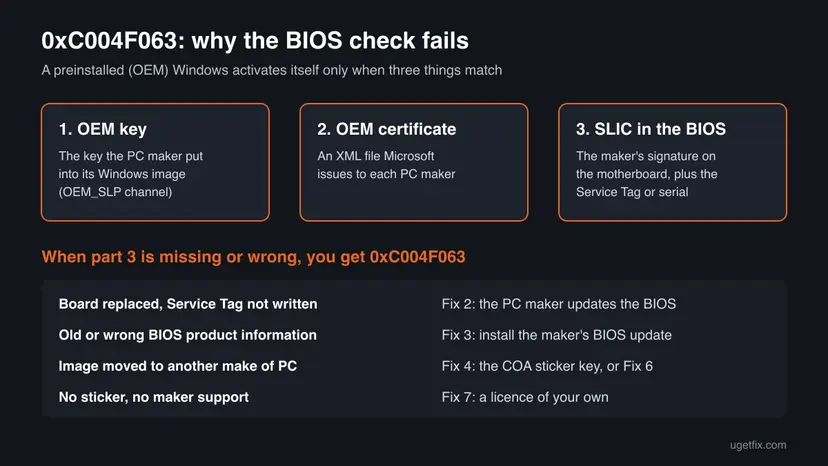
The old version of this page blamed Windows updates, Daemon Tools and Alcohol 120%. We found no Microsoft source for any of these, so they are not listed as causes here.
How to fix error 0xC004F063 "BIOS is missing a required license"
Fix 1 tells you which case you are in. Fixes 2 and 3 repair the BIOS, which is Microsoft's own resolution. Fix 4 activates with the key printed on the PC's sticker while you wait. Fixes 5 to 7 are for a wrong edition, a moved image and a PC with no licence left. Never use an activator or loader tool.
| What you see or have | Start with |
|---|---|
| You do not know why the error appeared. | Fix 1 |
| The motherboard was replaced, under warranty or not. | Fix 1, then Fix 2 |
| The BIOS serial is right, but the BIOS version is old. | Fix 3 |
| There is a COA sticker with a 25-character key on the case or under the battery. | Fix 4 |
| The edition on the sticker differs from the installed one. | Fix 5 |
| Windows was reinstalled from a disc that did not come with this PC. | Fix 6 |
| No sticker, no support from the PC maker, or Windows 10 or 11. | Fix 7 |
Fix 1. Read the serial number and model that the BIOS reports
2 minutesNo riskEveryone. It takes two minutes and decides which fix you need.
Microsoft says the OEM_SLP check also verifies the Service Tag in the BIOS after a hardware change. A blank or placeholder serial points straight at the BIOS, not at Windows.
- Open Start, type cmd, right-click Command Prompt and select Run as administrator.
- On Windows 7, Vista and 8, run the command Microsoft gives in its article:
wmic bios get serialnumber - On Windows 10 and 11, open Windows PowerShell instead and run:
Get-CimInstance Win32_BIOS | Select-Object Manufacturer, SerialNumber, SMBIOSBIOSVersion - Compare the serial with the Service Tag or serial number on the sticker on the case, under the laptop or under the battery.
- Show the licence channel Windows is using:
slmgr /dli - Read the Description line in the Windows Script Host box. OEM_SLP means the copy depends on the BIOS licence data.
| What the serial shows | What it means | Go to |
|---|---|---|
| The same Service Tag as the sticker | The tag is fine; the SLIC or product data may still be wrong. | Fix 3, then Fix 4 |
| Blank, "To be filled by O.E.M.", "Default string" or zeros | A default or garbage value, the case Microsoft describes. | Fix 2 |
| Another serial than the sticker | The board came from another PC or was not updated. | Fix 2 |
Microsoft's article still uses wmic. That tool is no longer included in current Windows 11 versions, so use the PowerShell line there. On Windows 7 the wmic line works as written.
It worked if: You see the serial number and the licence channel, and you know whether the BIOS data is blank, wrong or correct.
If not: If slmgr /dli shows RETAIL or VOLUME instead of OEM_SLP, this BIOS check is not your problem: go to Fix 4 and enter your own key.
Fix 2. Ask the PC maker to write the Service Tag and update the BIOS
15 minutes to contact, days for the repairNo riskThe serial is blank or wrong, most often after a motherboard replacement.
This is Microsoft's resolution for 0xC004F063: contact the OEM vendor to update the BIOS with the updated serial number or Service Tag. Only the maker has the tools and the signed data for its boards.
- Find the Service Tag or serial on the sticker of the PC and the model name.
- Save the output of Fix 1, showing the blank or wrong BIOS serial, as a screenshot.
- Open the PC maker's support site and start a request for the model, or call the number in your warranty papers.
- Say that Windows shows error 0xC004F063 and that the Service Tag is missing in the BIOS after a motherboard replacement.
- If a technician replaced the board under warranty, give the repair number and ask for a revisit.
- After the maker's fix, restart, open the Windows Activation window and select Activate Windows online now.
Users on Microsoft's forum report this most often on Dell PCs after a board swap, where the Service Tag is part of the BIOS. Other makers use a serial number in the same place.
It worked if: The BIOS serial in Fix 1 now matches the sticker, and Windows activates by itself or with one click.
If not: If the maker no longer supports the model, go to Fix 4 with the COA sticker key.
Fix 3. Install the PC maker's latest BIOS for this model
20 minutesRead the warningThe serial is right, but the BIOS is old or holds the wrong product information.
Microsoft says that upgrading the BIOS is an effort to put the correct SLIC table on the machine. A replacement board often ships with a generic or older BIOS.
A power cut or the wrong file during the update can leave the board unable to boot. Back up your files first (Back up your files (Windows Backup, File History, Time Machine)), plug a laptop into power with a charged battery, and use only the file for your exact model from the PC maker's own site.
- Note the BIOS version from Fix 1 (SMBIOSBIOSVersion, or BIOS Version/Date in msinfo32).
- Open the PC maker's support page, enter the Service Tag or model, and open Drivers or Downloads, category BIOS.
- Compare the versions. Download the newest BIOS only if it is newer than yours.
- Close all apps, suspend BitLocker if it is on, and run the file as administrator.
- Let the PC restart and finish the update without touching the power button.
- Back in Windows, try Activate Windows online now again.
It worked if: Fix 1 shows the new BIOS version, and Windows activates or shows a different code.
If not: If the error stays after the newest BIOS, the board lacks the maker's data: go back to Fix 2, or use Fix 4.
Fix 4. Activate with the product key on the COA sticker
10 minutesLow riskYour PC has a Certificate of Authenticity sticker with a 25-character key, as most Windows 7 and Vista PCs do.
The factory image uses a shared OEM_SLP key that needs the BIOS. The sticker key belongs to your PC alone and activates online or by phone without the SLIC table, so it works around the missing BIOS data.
Microsoft says the product key can typically be found on the Certificate of Authenticity sticker on the back or bottom of your device. On laptops it is often under the battery.
- Write down the 25-character key from the COA sticker. Check each character twice: 8 and B, and 2 and Z are easy to mix up.
- Open Start, type cmd, right-click Command Prompt and select Run as administrator.
- Install the sticker key in place of the factory key:
slmgr /ipk XXXXX-XXXXX-XXXXX-XXXXX-XXXXX - Start online activation:
slmgr /ato - If online activation fails, open Start, type SLUI 04 and press Enter to open activation by phone.
- Select your country, call the number shown, and give the installation ID groups when asked.
- Type the confirmation ID you hear into the boxes and select Activate.
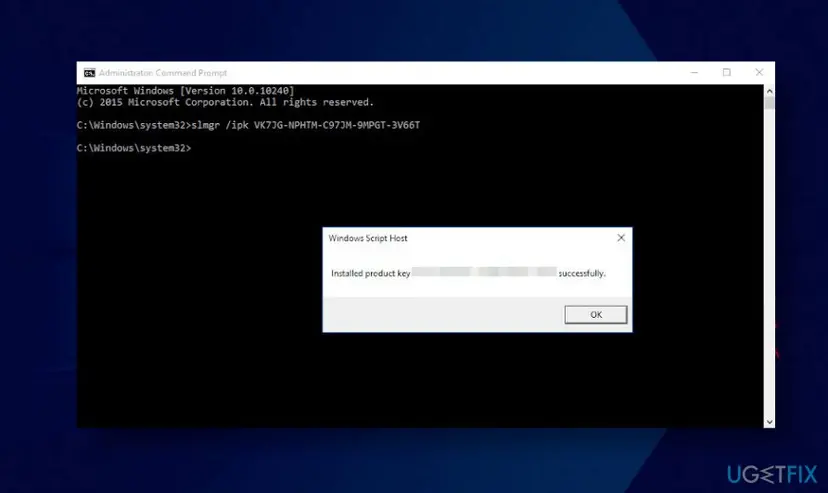
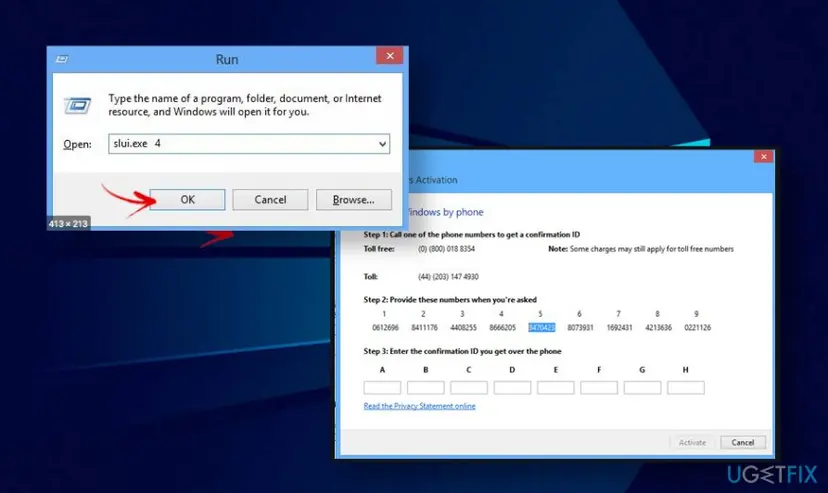
Microsoft says phone activation and SLUI 04 cannot be used for Pro for Workstations and Pro Education editions. We could not confirm that Microsoft's phone line still accepts every Windows 7 key today.
It worked if: slmgr /ato reports that the product was activated successfully, or the phone screen accepts the confirmation ID.
If not: A message that the key is for another edition means Fix 5. A key that is refused as invalid or used too often means Fix 7.
Fix 5. Install the edition printed on the COA sticker
1 hourRead the warningThe sticker says one edition, for example Home Premium, and another one is installed.
A key activates only the edition it was made for. If a shop or a previous owner installed another edition, neither the factory licence nor the sticker key can activate it.
Changing down from Professional to Home means a clean installation, which removes your apps, settings and files from drive C. Back up everything first: Back up your files (Windows Backup, File History, Time Machine).
- Compare the edition on the sticker with the one in Control Panel > System (Windows 7) or Settings > System > About (Windows 10 and 11).
- If they differ, back up your files.
- Install the edition named on the sticker, from the PC maker's recovery media if you have it (Fix 6).
- When setup asks for a key, enter the sticker key, then activate as in Fix 4.
It worked if: The edition matches the sticker, and Fix 4 activates it.
If not: If you have no media for that edition, ask the PC maker for recovery media for your Service Tag.
Fix 6. Restore the PC maker's own recovery image
1 to 2 hoursRead the warningWindows was reinstalled from a disc or image that did not come with this PC, or the image came from another make of PC.
Microsoft says the OEM_SLP key and the OEM certificate are verified against the maker's own SLIC. Only the maker's image for your model brings the right key and certificate for the SLIC in your BIOS.
Restoring the factory image returns drive C to the state it was in when the PC was new. Back up documents, photos and browser data first: Back up your files (Windows Backup, File History, Time Machine).
- Back up your files to an external drive or cloud storage.
- Find the recovery option: a recovery partition started with a key at power-on (the key differs by maker and is shown on the start screen or in the manual), or recovery discs or USB from the maker.
- If you have neither, order recovery media for your Service Tag from the PC maker's support site.
- Run the factory restore and follow the screen.
- After the first start, run
slmgr /dliand check that the channel is OEM_SLP and the status is licensed.
It worked if: Windows starts as it did when the PC was new and is activated without a key.
If not: If the restored image still shows 0xC004F063, the BIOS data is the problem: Fix 2, or Fix 4 with the sticker key.
Fix 7. Get a licence of your own when the factory licence cannot be repaired
15 minutesLow riskNo COA sticker, no support from the PC maker, or a Windows 10 or 11 PC that shows the same message.
A retail key or a digital licence from the Microsoft Store does not depend on the SLIC table in the BIOS, so the missing data no longer matters.
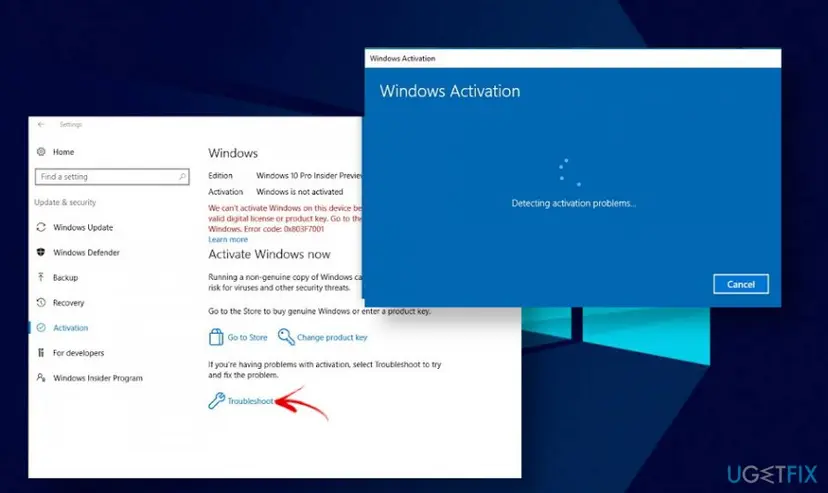
- On Windows 10 or 11, open Settings > System > Activation (Windows 10: Settings > Update & Security > Activation).
- Select Troubleshoot first. It finds a digital licence linked to your Microsoft account, if you have one.
- If it finds none, select Change product key and enter a retail key you own, or select Go to Microsoft Store to buy one.
- On Windows 7, move to Windows 11 if the PC supports it. Windows 7 no longer gets security updates, and a new licence is better spent on a supported Windows.
Tools that fake the SLIC table or patch activation run with full rights, change the boot files and often carry malware. Microsoft's licence terms forbid working around activation. This page does not name or link to any of them.
It worked if: The Activation page says Windows is activated, and the BIOS licence data is no longer needed.
If not: If a key you bought is refused, contact Microsoft support with the key and the screenshot from Fix 1. For a similar case after a hardware change, see error 0xC004F211.
If error 0xC004F063 is still there
When none of the fixes worked, gather the facts before you contact the PC maker or Microsoft. They decide the answer, and both will ask for them.
| What to collect | Where | Why |
|---|---|---|
| BIOS serial and version | Fix 1, wmic bios get serialnumber or PowerShell | Shows whether the Service Tag is missing. |
| Licence channel and status | slmgr /dli and slmgr /dlv | OEM_SLP, OEM or RETAIL, and whether a key took. |
| The sticker key and edition | COA sticker on the PC | The licence you are entitled to. |
| Repair history | Warranty papers or the shop's invoice | Proof that the board was replaced by the maker. |
| Activation events | Event Viewer, Windows Logs > Application, source Security-SPP | Time and code of each attempt. |
If you need Microsoft support for a business PC or a server, Microsoft asks you to collect data with its TSS tool for deployment issues first. For a home PC the PC maker is the first contact, because only it can change the BIOS.
The old version of this page suggested SFC and DISM. They repair Windows files, and 0xC004F063 is about data in the firmware, so they do not fix it. Run them only if Windows shows other faults: Run DISM and SFC to repair Windows system files.
How to keep error 0xC004F063 from coming back
- Before a motherboard repair, photograph the COA sticker and write the key down.
- After a warranty repair, run Fix 1 before the technician leaves and check that the Service Tag is in the BIOS.
- Keep the PC maker's recovery media, or create it with the maker's tool while Windows works.
- Use only BIOS files for your exact model from the maker's site.
- On Windows 10 and 11, link the licence to your Microsoft account so the next repair is easier.
Frequently asked questions
What does error code 0xC004F063 mean?
It means the Software Licensing Service could not find a required licence in the computer's BIOS. A preinstalled Windows uses a key that activates only when the PC maker's SLIC table in the BIOS matches it. Microsoft says this usually happens after hardware is changed or malfunctions, when the Service Tag was not updated, holds a default value, or the BIOS has wrong product information. Windows keeps working, but it is not activated until the BIOS data is fixed or you use another key.
How do I fix 0xC004F063 on Windows 7?
Check the BIOS serial with wmic bios get serialnumber first. If it is blank or a placeholder, ask the PC maker to write the Service Tag and update the BIOS, which is Microsoft's resolution. While you wait, install the key from the COA sticker with slmgr /ipk and activate with slmgr /ato, or by phone with SLUI 04. Windows 7 no longer gets security updates, so if you have to buy a licence, buy one for Windows 11 instead.
Why did 0xC004F063 appear on Windows 7 Ultimate?
PCs were rarely sold with Ultimate preinstalled, so this usually means an Ultimate image with an OEM key from another maker was installed on the PC. That key looks for its own maker's SLIC in the BIOS and does not find it. Check the edition on your COA sticker. If it says Home Premium or Professional, install that edition and activate it with the sticker key, as in Fix 5 and Fix 4. An Ultimate licence needs an Ultimate key of your own.
Is 0xC004F063 a sign of a pirated copy?
Not by itself. Microsoft's article describes genuine preinstalled copies that fail after a motherboard replacement or with a bad BIOS value. It can also appear when a factory image is put on hardware it was not made for, or after a tool that faked the BIOS licence data is removed. If your PC has a COA sticker and Windows came with it, your licence is genuine and the fix is in the BIOS.
Can I fix 0xC004F063 with a command?
Not the cause. No Windows command can write the SLIC table or the Service Tag into the BIOS; only the PC maker's tools can. Commands help you find the cause and work around it: wmic bios get serialnumber or the PowerShell line in Fix 1 shows the serial, slmgr /dli shows the licence channel, and slmgr /ipk with slmgr /ato activates with the COA sticker key.
Does 0xC004F063 happen on Windows 10 or Windows 11?
It is much rarer there. Microsoft's article names Windows 8 and Windows Server 2012, and later PCs store the key in the firmware in another way. If a Windows 10 or 11 PC shows the message, open the Activation page, run the troubleshooter and, if it finds no licence, enter a retail key or buy one in the Microsoft Store. Windows 10 reached end of support on 14 October 2025.
Will a BIOS update fix error 0xC004F063?
It can. Microsoft says that upgrading the BIOS is an effort to put the correct SLIC table on the machine. It helps when the board has an old or generic BIOS. It does not help when the Service Tag is missing, because a normal BIOS update keeps the serial as it is; then the PC maker has to write it. Use only the BIOS file for your exact model, and keep the PC on power during the update.
Is the 0xC004F063 error the same as 0x004f063?
Yes. "0x004f063" is the same code with the letter C missing, a common typing slip. Windows always shows it as 0xC004F063 with the text "The Software Licensing Service reported that the computer BIOS is missing a required license." The fixes on this page apply to both spellings, and to the shortened 0xc004f06 that some people type.
I searched in another language. Is this the right page?
Yes, if the code on your screen is 0xC004F063. People also search for this error in Arabic as Windows 7, and in Vietnamese as "how to handle this error". The steps are the same in every language of Windows; only the menu names are translated. Start with Fix 1 to read the BIOS serial, then follow the fix for your case.
Sources
- Microsoft Learn: Error code 0xc004f063 when activating or validating an OEM version of Windows (KB 2817024) (learn.microsoft.com)
- Microsoft Support: Get help with Windows activation errors (support.microsoft.com)
Did this fix work?
One click, no account. It tells the next reader which guides are worth their time.
Questions and experiences: fix BIOS is missing a required license error 0xC004F063
Still broken, or found a fix we did not cover? Ask here: members and our editors answer. Reading is open; writing needs a free account.
…