
How to fix Bluetooth missing Power Management tab in Windows 11 and 10

Prefer to fix it yourself? The manual steps follow.
- 6methods
- 5 to 20 minutes
- Easy
Applies to Windows 11 and Windows 10 PCs and laptops with built-in or USB Bluetooth adapters (Intel, Realtek, MediaTek, Qualcomm)
6 methods in this guide
The Power Management tab for Intel Bluetooth has vanished from Device Manager. Previously, there was a checkbox within the Intel Bluetooth settings that allowed me to activate power saving mode for Bluetooth peripherals. I wish to enable the option that says "Allow the computer to turn off this device to save power," but it's gone. Could you help?
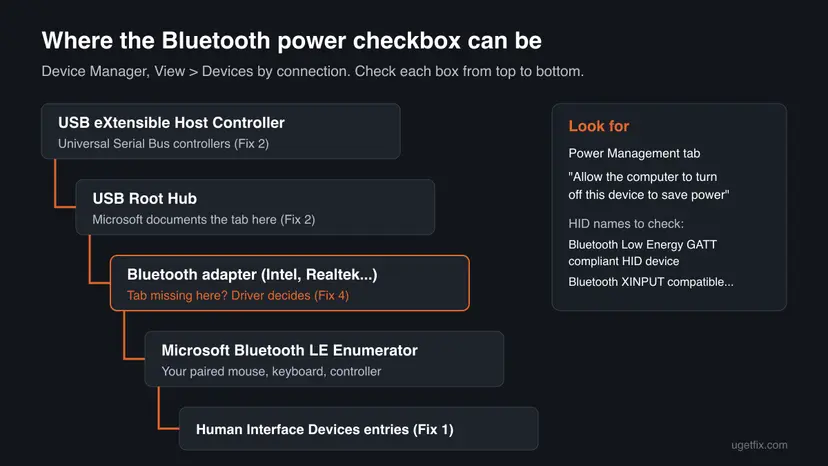
When the Bluetooth adapter in Device Manager has no Power Management tab, the setting has usually moved, not vanished. Its driver no longer offers it, but the same checkbox still sits on the Bluetooth mouse or keyboard under Human Interface Devices, or on the USB Root Hub the adapter hangs from. Look there first.
The adapter's driver decides whether the tab shows, and many Intel and laptop drivers stopped offering it after Windows 10 version 2004. Start with Fix 1: open Device Manager > Human Interface Devices and check the Power Management tab of Bluetooth Low Energy GATT compliant HID device. If it is not there, use View > Devices by connection and set the checkbox on the adapter's USB Root Hub (Fix 2).
| Error | No message. The Power Management tab and the checkbox Allow the computer to turn off this device to save power are missing from the Bluetooth adapter's Properties. |
|---|---|
| Where it appears | Device Manager > Bluetooth > your adapter > Properties. You see General, Advanced, Driver, Details and Events, but no Power Management. |
| Main cause | The adapter driver does not expose the setting. On many PCs the same checkbox is on the Bluetooth input device or the USB Root Hub instead. |
| Fastest fix | Set the checkbox under Human Interface Devices (Fix 1) or on the parent USB Root Hub (Fix 2). |
| Also written as | "power management tab missing in device manager", "no power management tab", "there is no power management option", "bluetooth power management windows 11". |
| Affects | Windows 11 and Windows 10, mostly laptops with Intel Wireless Bluetooth. Users first reported it after Windows 10 version 2004. |
| Vendor status | Microsoft's support page still tells you to use this tab on the Bluetooth device. It has no note about drivers that hide it. We found no Microsoft fix for the missing tab. |
| Time to fix | 5 minutes for Fixes 1 to 3; up to 20 minutes when you install the PC maker's Bluetooth driver. |
Facts checked on 15 October 2026. Steps written for Windows 11 25H2 and 26H2 and Windows 10 22H2, Device Manager and Power Options.
What a missing Bluetooth Power Management tab means
In Device Manager, many devices have a Power Management tab with the checkbox Allow the computer to turn off this device to save power. Ticked, Windows may cut power to the device when it is idle. Unticked, the device stays powered. Microsoft's page on Bluetooth that keeps disconnecting still says to untick it under Bluetooth in Device Manager.
The tab is not a Windows feature you can switch on. Device Manager shows it only when the device's driver reports that Windows may manage its power. So when the Intel or Realtek adapter lost the tab after a driver or Windows update, the driver stopped offering the setting there. The setting itself did not disappear from Windows.
- What people search for: "power management tab missing in device manager", "no power management tab", "there is no power management option", "where is the power management tab".
- Not the same problem: Bluetooth itself missing from Device Manager or Settings. Then Windows does not see the adapter at all, and the fixes are different.
- Same cause, other devices: Wi-Fi cards and network adapters can lose the tab in the same way. This page covers Bluetooth only.
Why the Power Management tab is missing: causes from most to least common
Most often the adapter's driver simply does not show the tab, while the device you actually care about, the mouse or keyboard, still has it. Less often the power cut comes from the USB hub the adapter sits on, or from the power plan. Rarely a generic Microsoft driver replaced the PC maker's driver, and the tab went with it.
| How often | Cause | Sign | Fix |
|---|---|---|---|
| Most often | Adapter driver no longer offers the tab; the input device still has it. | A Bluetooth mouse or keyboard is listed under Human Interface Devices. | Fix 1 |
| Often | The internal adapter is a USB device; its hub cuts power. | View > Devices by connection shows the adapter under a USB Root Hub. | Fix 2 |
| Less often | USB selective suspend in the power plan powers down idle USB devices. | Mouse lags or drops after a short idle time. | Fix 3 |
| Less often | Generic or outdated adapter driver. | Tab vanished after a Windows upgrade or a driver update. | Fix 4 |
| Rarely | Energy Saver or Battery saver is on. | Drops only on battery. | Fix 5 |
| Rarely | Bluetooth service stuck. | Other Bluetooth problems at the same time. | Fix 6 |
Most readers want to untick the checkbox because a Bluetooth mouse, keyboard or controller lags or disconnects. Microsoft lists power saving settings as a common cause of Bluetooth that keeps disconnecting. If you want the opposite, to let Windows save power, the same places work: tick the box instead.
How to fix the missing Bluetooth Power Management tab, from the most common cause
Work from Fix 1 down. Fixes 1 to 3 find the same setting in other places and solve most cases without new software. Fixes 4 to 6 repair the driver and the Bluetooth side of Windows. Paths are given for Windows 11 and Windows 10 22H2, although Windows 10 left support on 14 October 2025.
| What you see | Start with |
|---|---|
| A Bluetooth mouse, keyboard or controller lags or disconnects. | Fix 1, then Fix 2. |
| You want the setting for the adapter itself, for all devices at once. | Fix 2. |
| Devices drop after a few minutes idle, on every USB and Bluetooth device. | Fix 3. |
| The tab was there before a Windows upgrade or driver update. | Fix 4. |
| Drops happen only on battery. | Fix 5. |
Fix 1. Find the Power Management tab under Human Interface Devices
3 minutesNo riskEvery reader with a Bluetooth mouse, keyboard, pen or game controller. Above all laptops with Intel Wireless Bluetooth.
The adapter only carries the radio link. Each paired input device gets its own entry, often under Human Interface Devices, and that entry can still have the tab. In the Microsoft Q&A thread on this exact problem, the accepted answer found the tab there.

- Right-click Start and select Device Manager. You can also press Win + X and choose it there.
- Expand Human Interface Devices.
- Right-click Bluetooth Low Energy GATT compliant HID device and select Properties.
- Open the Power Management tab and untick Allow the computer to turn off this device to save power, or tick it if you want power saving. Select OK.
- Repeat for every other Bluetooth entry in the list, such as Bluetooth XINPUT compatible input device for a game controller.
- Also check Keyboards and Mice and other pointing devices for entries of the same Bluetooth device, and set them the same way.
- Restart the PC so every device starts with the new setting.
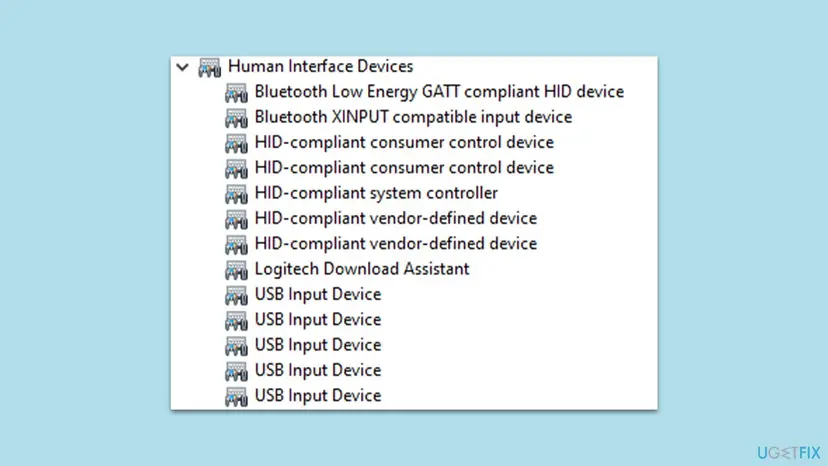
An entry with only General, Driver, Details and Events tabs cannot be managed this way. Skip it and try the next one. Users in the same thread found it on I2C HID Device too, which is the touchpad or touch screen, not Bluetooth.
It worked if: At least one Bluetooth entry shows the Power Management tab, and after the restart the mouse or keyboard no longer lags after idle time.
If not: If no Bluetooth entry has the tab, follow the chain up to the USB Root Hub in Fix 2.
Fix 2. Set the checkbox on the adapter's USB Root Hub and host controller
5 minutesLow riskNo Bluetooth entry has the tab, or you want one setting that covers every Bluetooth device.
Built-in Bluetooth on most laptops is connected inside the PC over USB. If Windows turns off the USB Root Hub above it, the adapter loses power too. Microsoft documents the checkbox on the Power Management tab of USB Root Hub Properties.
- In Device Manager, select View > Devices by connection.
- Expand the tree until you find your Bluetooth adapter, for example Intel(R) Wireless Bluetooth(R). Selecting it in the normal view first and then switching views jumps to it.
- Note the USB Root Hub directly above the adapter, and the USB eXtensible Host Controller above that hub.
- Right-click that USB Root Hub, select Properties and open Power Management.
- Untick Allow the computer to turn off this device to save power (or tick it to save power) and select OK.
- Do the same on the host controller above it, if it has the tab.
- Select View > Devices by type to return to the usual list, then restart the PC.
A root hub also serves other USB devices on the same ports. Unticking the box keeps them powered too, which costs a little battery on a laptop. Ticking it again restores the old behaviour.
One user in the Microsoft Q&A thread fixed a sleeping Logitech MX Master 3 this way. The user followed the adapter up to its USB Root Hub and host controller and down to the mouse under Microsoft Bluetooth LE Enumerator, then unticked the box on each one.
It worked if: The root hub keeps the adapter powered, and Bluetooth devices no longer drop after idle time.
If not: If the hub has no tab either, or drops continue, change the plan setting in Fix 3.
Fix 3. Turn off USB selective suspend in the power plan
3 minutesLow riskDevices lag or drop after a short idle time, and the tab was nowhere to be found in Fixes 1 and 2.
USB selective suspend is the power plan setting that lets Windows turn off idle USB hubs, and with them a USB Bluetooth adapter. Microsoft ties the Power Management checkbox on the USB Root Hub to this plan setting.
- Press Win + R, type
control powercfg.cpland press Enter. Power Options opens. - Next to the plan that is selected, select Change plan settings.
- Select Change advanced power settings.
- Expand USB settings, then USB selective suspend setting.
- Set On battery and Plugged in to Disabled, then select OK.
- Restart the PC.
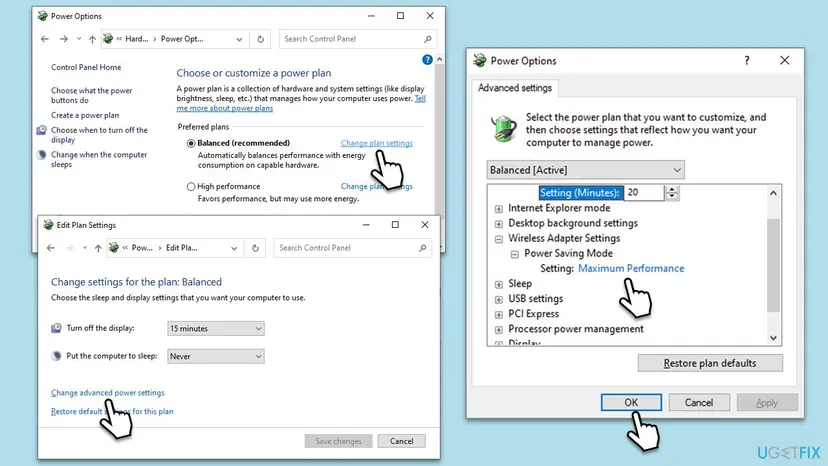
Some laptops hide plan settings. If USB settings is not listed, this fix does not apply to your PC. Go to Fix 4. Do not install third-party tools to unlock hidden plan settings.
It worked if: Bluetooth devices stay connected after the PC has been idle for a while.
If not: If nothing changed, the driver is next: Fix 4.
Fix 4. Install the PC maker's or chip maker's Bluetooth driver
15 minutesLow riskThe tab was there before a Windows upgrade or driver update, or the adapter shows a generic name.
Whether the tab shows is decided by the driver. A generic or newer driver can hide it, and the maker's driver for your model may offer it again. Microsoft also lists updating the Bluetooth driver among its fixes for drops.
- In Device Manager, expand Bluetooth, right-click the adapter and select Properties.
- On the Driver tab, note Driver Provider and Driver Version. If the tab disappeared after an update, try Roll Back Driver first.
- Otherwise, download the Bluetooth driver for your exact PC model from the PC maker's support page, or from Intel, Realtek or MediaTek for that chip.
- Install it and restart the PC.
- Open the adapter's Properties again and check for the Power Management tab.
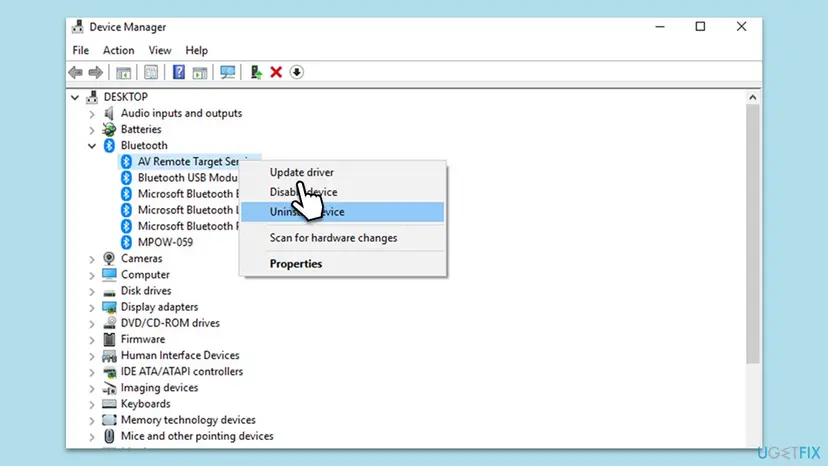
Update, roll back and reinstall a driver step by step, with Windows 11 screenshots: Update, roll back or reinstall a driver.
In the Microsoft Q&A thread, a user on Windows 10 2004 had Intel Bluetooth driver 21.90.2.1, the latest at that time, and still had no tab. If the maker's driver does not bring it back, use Fixes 1 to 3. They set the same power behaviour.
It worked if: The adapter shows the maker's name under Driver Provider, and on some PCs the Power Management tab is back.
If not: If the tab is still missing, keep the setting from Fixes 1 to 3 and check Energy Saver in Fix 5.
Fix 5. Turn off Energy Saver or Battery saver
1 minuteNo riskBluetooth devices drop or lag only on battery.
Microsoft's own fixes for Bluetooth that keeps disconnecting start with this mode, because it lowers power to devices system wide, whatever the Device Manager checkbox says.
- Select the battery icon on the taskbar.
- Windows 11: if Energy saver is on, select it to turn it off. Windows 10: turn off Battery saver.
- To stop it from coming back, open Settings > System > Power & battery > Energy saver (Windows 10: Settings > System > Battery) and lower the level at which it turns on.
- Use the Bluetooth device for a few minutes on battery to test.
It worked if: The device stays connected on battery as it does when plugged in.
If not: If drops continue on mains power too, go to Fix 6.
Fix 6. Restart the Bluetooth Support Service and run the troubleshooter
5 minutesLow riskBluetooth also misbehaves in other ways, or you want to reset Bluetooth settings without reinstalling Windows.
This does not bring the tab back. It clears a stuck Bluetooth Support Service (bthserv), which Microsoft lists next to the power settings as a fix for drops. It is the closest thing to resetting Bluetooth on Windows 11.
- Press Win + R, type
services.mscand press Enter. - Right-click Bluetooth Support Service and select Restart.
- Windows 11: open Settings > System > Troubleshoot > Other troubleshooters and select Run next to Bluetooth.
- Windows 10: open Settings > Update & Security > Troubleshoot > Additional troubleshooters, select Bluetooth and Run the troubleshooter.
- Accept the fixes it offers and restart the PC.
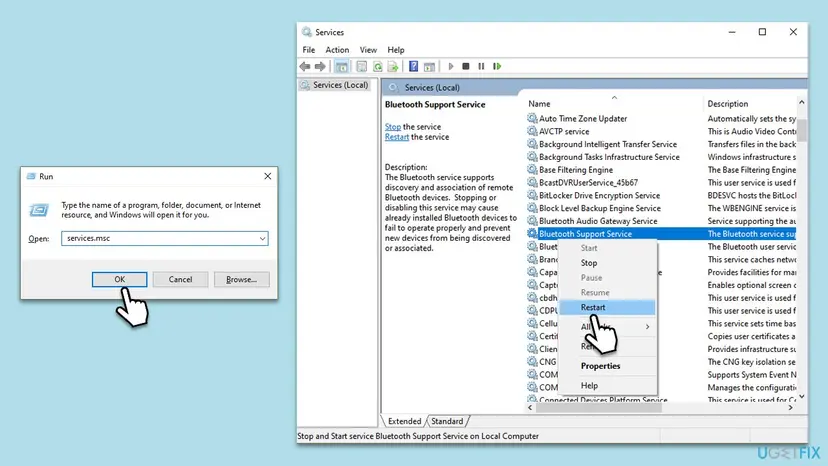
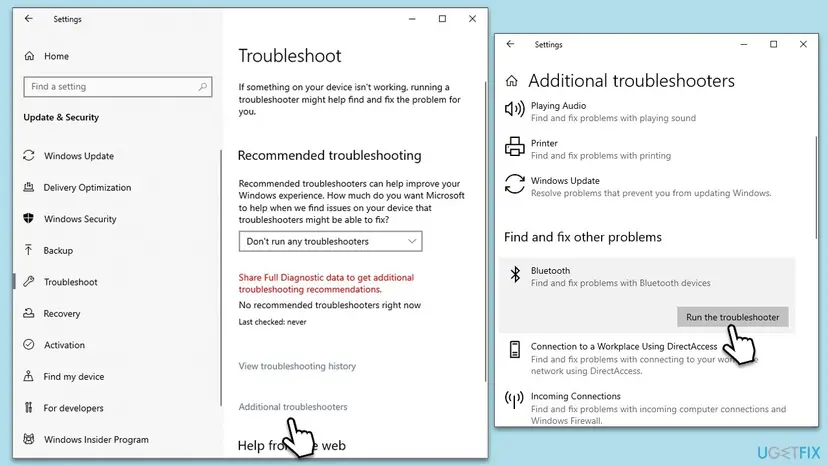
Services step by step: Check and restart Windows services. Never set Bluetooth Support Service to Disabled.
It worked if: The service shows Running, and the troubleshooter reports fixed problems or none found.
If not: Read the section below to decide whether more work is worth it.
If the tab is still missing or the device still drops
A missing tab on its own is not a fault. If the device works well with the settings from Fixes 1 to 3, you are done, even without the tab on the adapter. Keep going only if the mouse or keyboard still lags or disconnects.
| What you see | What it means | Next step |
|---|---|---|
| Drops even right after a restart, close to the PC. | Not a power setting; radio link or interference. | Move USB 3.0 drives and hubs away from the PC and test again. |
| Only one device drops, others are fine. | The device itself, its battery or firmware. | Charge or replace the battery, update it with the maker's app. |
| Every Bluetooth device drops on this PC only. | Adapter or driver. | Install the PC maker's driver (Fix 4) or test a USB Bluetooth adapter. |
| The adapter shows a yellow warning sign. | Driver or hardware error. | Read the error code on its General tab and contact the PC maker. |
- Where Windows logs it: the adapter's Properties > Events tab lists driver installs and device starts with dates. A new driver entry on the day the tab vanished points to Fix 4.
- What to send to support: your PC model, Windows version (Win + R,
winver), the adapter name and Driver Version from its Driver tab, and which device drops.
How to keep the setting after updates
- After a major Windows upgrade, check the Bluetooth entries under Human Interface Devices again. A reinstalled device can return to the default.
- When you pair a new mouse or keyboard, set its own Power Management tab right away.
- Install Bluetooth drivers from the PC maker, and roll back if a new driver brings drops back.
- If a headset switches to muffled mono sound in calls, that is a different setting: see the Hands-free Telephony guide.
Frequently asked questions
Where is Bluetooth power management in Windows 11?
It is in Device Manager, not in Settings. Right-click Start, select Device Manager, expand Bluetooth, right-click the adapter, select Properties and open Power Management. If that tab is missing, look on the Bluetooth entries under Human Interface Devices (Fix 1) or on the adapter's USB Root Hub (Fix 2). Settings only has Energy saver, which affects all devices.
Where is Bluetooth power management in Windows 10?
The same place as on Windows 11: Device Manager > Bluetooth > the adapter > Properties > Power Management. Windows 10 users first reported the tab missing after version 2004, mostly on Intel Bluetooth. Then use the entries under Human Interface Devices or the USB Root Hub. Windows 10 left support on 14 October 2025, so updated drivers for it may no longer come.
Why is there no Power Management tab in Device Manager?
Because the device's driver does not offer it. Device Manager shows the tab only for devices whose driver lets Windows manage their power. Many Bluetooth, Wi-Fi and network adapter drivers leave it out. The setting usually still exists one level up, on the USB Root Hub, or one level down, on the paired input device.
How do I turn off Bluetooth power saving in Windows 11?
Untick Allow the computer to turn off this device to save power on every Bluetooth entry that has a Power Management tab: the adapter, the devices under Human Interface Devices and the adapter's USB Root Hub. Then set USB selective suspend setting to Disabled in the advanced power plan settings and turn off Energy saver. Restart the PC afterwards.
Can I bring the tab back with the CsEnabled registry value?
Do not count on it. Old guides suggest adding CsEnabled with value 0 under the Power key in the registry. In the Microsoft Q&A thread, a user on Windows 10 2004 tried exactly this, restarted, and the tab did not come back. A registry change that hides a different power mode is not worth the risk when Fixes 1 to 3 reach the same setting.
How do I reset Bluetooth settings in Windows 11?
Windows 11 has no single reset button for Bluetooth. The closest steps come in three parts. First remove the device in Settings > Bluetooth & devices and pair it again. Then restart the Bluetooth Support Service and run the Bluetooth troubleshooter (Fix 6). As a last step, uninstall the adapter in Device Manager and restart, so Windows installs it fresh.
There is no Services tab either. Where is it?
The Services tab of a Bluetooth device is not in Device Manager. It is in the old Control Panel: press Win + R, type control printers, right-click the Bluetooth device in Devices and Printers and select Properties. It controls profiles such as Hands-free Telephony, not power saving. Our Hands-free Telephony guide uses it.
Bluetooth itself is missing from Device Manager. Is this the same problem?
No. If there is no Bluetooth category at all, Windows does not see the adapter, and power settings do not matter yet. Check that the PC has Bluetooth, that Airplane mode is off, and select Action > Scan for hardware changes in Device Manager. Then install the PC maker's Bluetooth driver. That is a separate problem from the missing tab.
I read these steps and the option is not there. What now?
This answers the short questions people type in many languages, such as "нет такого", "nie ma takiej zakładki" or "tidak ada tab power management". If you cannot see the tab on any Bluetooth entry, the Human Interface Devices entries or the USB Root Hub, your drivers hide it everywhere. Use USB selective suspend in Fix 3 and Energy saver in Fix 5 instead.
Sources
- Microsoft Support: Bluetooth keeps disconnecting in Windows (support.microsoft.com)
- Microsoft Learn: The Allow the computer to turn off this device to save power option doesn't remain selected (KB 930312) (learn.microsoft.com)
- Microsoft Q&A: Windows 10 missing Bluetooth power management tab (learn.microsoft.com)
Did this fix work?
One click, no account. It tells the next reader which guides are worth their time.
Questions and experiences: fix Bluetooth missing Power Management tab in Windows 11 and 10
Still broken, or found a fix we did not cover? Ask here: members and our editors answer. Reading is open; writing needs a free account.
…