
BrUsbSib.sys incompatible driver: how to fix it and turn Memory integrity back on in Windows

Prefer to fix it yourself? The manual steps follow.
- 6methods
- 15 to 25 minutes
- Medium
Applies to Windows 11 and Windows 10 PCs with Brother printer, scanner or all-in-one software that block Memory integrity because of BrUsbSib.sys
6 methods in this guide
Hi. Memory Integrity is disabled because of the incompatible driver BrUsbSib.sys. I am using Windows 10.
BrUsbSib.sys is a USB driver that Brother printer, scanner and all-in-one software installs, and Windows Security marks it as incompatible with Memory integrity. The fix is to remove the Brother software and its leftover driver package, turn Memory integrity on, and install the current Brother driver again. Start by uninstalling the Brother software.
Uninstall every Brother entry in Settings > Apps > Installed apps (Fix 1). Then delete the leftover BrUsbSib package from the driver store with pnputil /delete-driver oemNN.inf /uninstall /force, using the oem number Windows Security shows (Fix 2). Restart, turn Memory integrity on under Core isolation (Fix 3) and install the current driver for your model from support.brother.com (Fix 4). Brother itself recommends this order.
| Error | Memory integrity is off and cannot be turned on because of the incompatible driver BrUsbSib.sys, or the notice "A driver cannot load on this device - BrUsbSib.sys" |
|---|---|
| Where it appears | Windows Security > Device security > Core isolation details, or a notification after Memory integrity is already on |
| Main cause | An older Brother USB driver package, installed with the Brother full software package, that Memory integrity does not allow to load |
| Fastest fix | Uninstall the Brother software, then delete the BrUsbSib package with pnputil (Fix 1 and Fix 2) |
| Also written as | brusbsib.sys, BrUsbSib, brusbsib sys driver, "a driver cannot load on this device brusbsib.sys"; the package shows up as an oemNN.inf such as oem21.inf |
| Affects | Windows 11 (25H2, 26H2) and Windows 10 22H2 PCs that ever had Brother software installed over USB; Brother lists MFC, DCP, HL and ADS models |
| Vendor status | Brother's support answer: uninstall the Brother software, turn Memory integrity on, then install the Brother software from support.brother.com |
| Microsoft's view | The blocked driver has a minor vulnerability and is most likely not malicious; look for an updated driver first |
| Time to fix | 15 to 25 minutes, including two restarts |
Facts checked on 15 October 2026. Steps written for Windows 11 (25H2 and 26H2) and Windows 10 22H2.
What BrUsbSib.sys is and what the incompatible driver message means
BrUsbSib.sys is a kernel driver from Brother Industries. It arrives with the Brother full driver and software package for printers, scanners and all-in-one devices, usually when the device was once set up over a USB cable. It stays in the Windows driver store even when the printer is long gone.
Memory integrity (also called hypervisor-protected code integrity, part of Core isolation) only lets drivers load that meet its rules. Microsoft says a driver it blocks has a minor vulnerability and is most likely not malicious. So the message is not a virus warning: it says an old Brother driver stands between you and a Windows security feature.
- Form 1: Memory integrity is off
- The Memory integrity switch is off and Windows Security asks you to resolve driver incompatibilities; the list names BrUsbSib.sys with Brother as the producer
- Form 2: Memory integrity is on
- A notification "A driver cannot load on this device - BrUsbSib.sys"; Brother also lists "Failed to connect to the device" in Brother software
- Typical entry
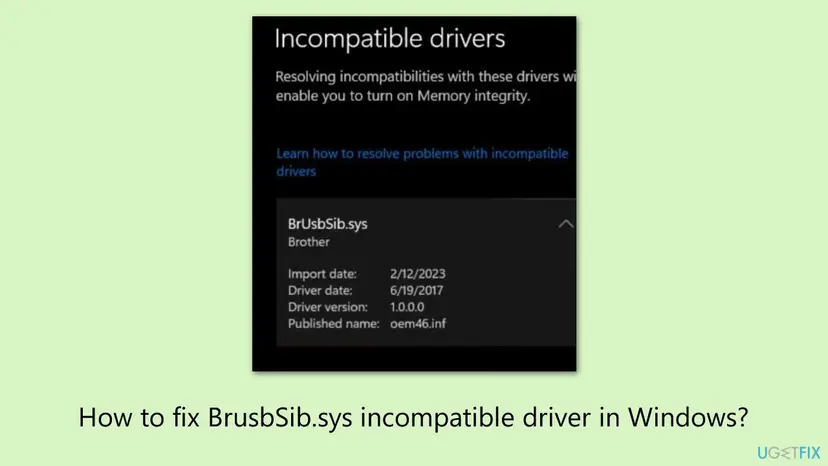
- In our example the list shows BrUsbSib.sys, Brother, driver date 6/19/2017, driver version 1.0.0.0, published name
oem46.inf - Where the file is
- A package in
C:\Windows\System32\DriverStore\FileRepository, published under a name such asoem21.inf; the number differs on every PC - Related query
- brusbser.sys is another Brother USB driver file name; if Windows Security lists it, the same steps apply
Your Brother device keeps working after the fix. Only the old USB driver package goes, and the current Brother driver or the driver Windows adds itself takes its place.
Why BrUsbSib.sys blocks Memory integrity, from most to least common
Most often the Brother software was uninstalled, or never used again, but its driver package stayed in the driver store. Less often the Brother software is still installed and current. Rarely, a new Brother package installs the same driver again after you removed it.
| Cause | How common | What you see | Fix |
|---|---|---|---|
| Brother full software package still installed with its old USB driver | Most cases | Brother entries in Installed apps, BrUsbSib.sys in the incompatible list | Fix 1, then Fix 2 |
| Brother software removed, driver package left in the driver store | Very common | No Brother app, but BrUsbSib.sys is still listed | Fix 2 |
| Driver removed but Memory integrity left off | Common | Empty incompatible list, switch still off | Fix 3 |
| The full package installed the old driver again | Less common | The warning returns after a Brother reinstall | Fix 4 (printer driver only) |
| A driver service entry left behind | Rare | pnputil finds no Brother package, Windows Security still lists the file | Fix 6 |
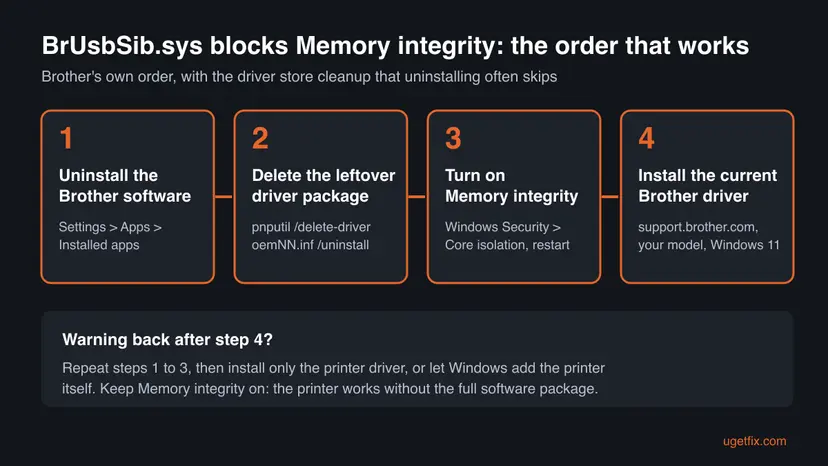
How to fix the BrUsbSib.sys incompatible driver on Windows 11 and Windows 10
Follow Fix 1 to Fix 4 in order: that is Brother's own sequence, with the driver store cleanup added. You need an administrator account. Fix 5 and Fix 6 are for the cases where the driver still shows up afterwards.
| What you see or have | Start with |
|---|---|
| Brother software is installed and Memory integrity is off | Fix 1 |
| No Brother app installed, but BrUsbSib.sys is still in the incompatible list | Fix 2 |
| The incompatible list is empty but the switch is still off | Fix 3 |
| "A driver cannot load on this device - BrUsbSib.sys" and you still use the Brother device | Fix 1, then Fix 4 |
| pnputil finds no Brother package, yet the file is still listed | Fix 6 |
Fix 1. Uninstall the Brother software from Installed apps
5 minutesLow riskEveryone with any Brother entry in the list of installed apps.
Brother's support answer for this exact message starts here. The Brother setup installs BrUsbSib.sys with its full package, so the package has to go before the driver can be removed for good.
- Unplug the USB cable of the Brother device, if one is connected.
- Windows 11: open Settings > Apps > Installed apps. Windows 10: open Settings > Apps > Apps & features.
- Type
Brotherinto the search box above the list. - Select ... next to each Brother entry (for example the full driver and software package, scanner utilities, iPrint&Scan) and choose Uninstall.
- Confirm, and accept the Brother uninstaller's prompts.
- Restart the PC when all Brother entries are gone.

If your model's download page at support.brother.com lists an Uninstall Tool, you can run it instead; it removes the Brother drivers as well. We could not confirm that it is offered for every model. The general steps are in Uninstall a program or app in Windows.
It worked if: No Brother entries are left in Installed apps after the restart.
If not: If Windows Security still lists BrUsbSib.sys, which is common, go on to Fix 2.
Fix 2. Delete the leftover BrUsbSib.sys driver package with pnputil
5 minutesLow riskAnyone who still sees BrUsbSib.sys in the incompatible driver list after Fix 1.
Uninstalling an app does not always remove its driver from the driver store, and Memory integrity checks the store. pnputil deletes the package itself; /uninstall also removes it from any device that uses it.
- Open Windows Security > Device security > Core isolation details and select the link to review incompatible drivers. Note the Published name next to BrUsbSib.sys, for example
oem21.inf. - Right-click Start and select Terminal (Admin) on Windows 11 or Windows PowerShell (Admin) on Windows 10, then select Yes.
- If you did not see a published name, list the third-party drivers with one of the commands below and look for Brother as the provider.
- Run
pnputil /delete-driver oemNN.inf /uninstall /force, with your own number in place ofoemNN. - Repeat for every Brother package that lists BrUsbSib.sys, then restart the PC.
Find the Brother package (Terminal as administrator)
pnputil /enum-drivers /files

REM Windows 10, or if /files is not accepted:
dism /online /get-drivers /format:table
Delete it (replace oem21.inf with your own published name)
pnputil /delete-driver oem21.inf /uninstall /force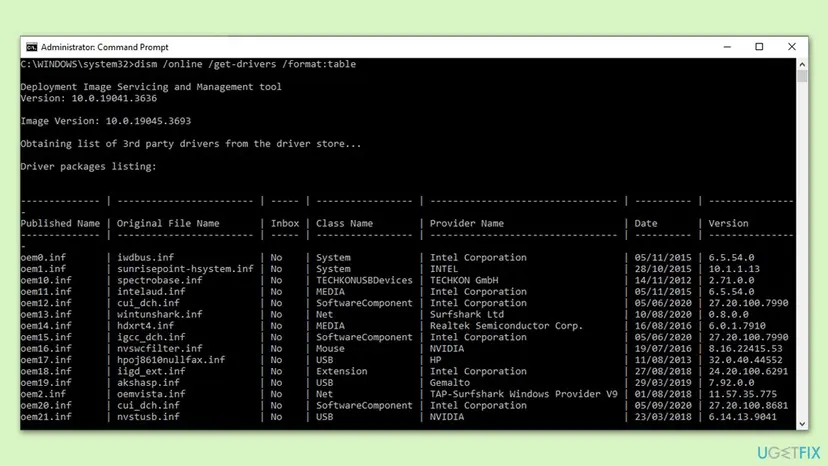
oem21.inf is only an example; on your PC it can belong to an NVIDIA, Intel or audio driver. Delete only a package whose provider is Brother or whose file list shows BrUsbSib.sys. The /files filter needs Windows 11 22H2 or later.
It worked if: pnputil reports that the driver package was deleted, and after the restart BrUsbSib.sys is gone from the incompatible list.
If not: If pnputil says the package is in use, restart and run it again. If no Brother package is listed at all, use Fix 6.
Fix 3. Turn Memory integrity on in Core isolation
3 minutes plus a restartLow riskEveryone, once BrUsbSib.sys is no longer listed.
Removing the driver does not switch the feature on by itself. Brother's answer puts this step before the Brother reinstall, so the new driver is installed with Memory integrity already active.
- Type
Core isolationinto the search box on the taskbar and open the result. - Or go there by hand. Windows 11: Settings > Privacy & security > Windows Security > Device security > Core isolation details. Windows 10: Settings > Update & Security > Windows Security > Device security > Core isolation details.
- Set Memory integrity to On and select Yes in the User Account Control prompt.
- Restart the PC when Windows Security asks.
If your organisation manages the PC, the setting may be locked; Brother also says to ask your system administrator or PC maker in that case. Some older processors cannot run Memory integrity at all.
It worked if: After the restart Memory integrity shows On and no incompatible drivers are listed.
If not: If the switch turns itself off again, another driver is listed: review the list, or see Still not working below.
Fix 4. Install the current Brother driver for your model
10 minutesLow riskReaders who still use the Brother printer, scanner or all-in-one.
This is Brother's third step. A driver package downloaded today for Windows 11 or Windows 10 replaces the old one, and installing it with Memory integrity on shows at once whether it is compatible.
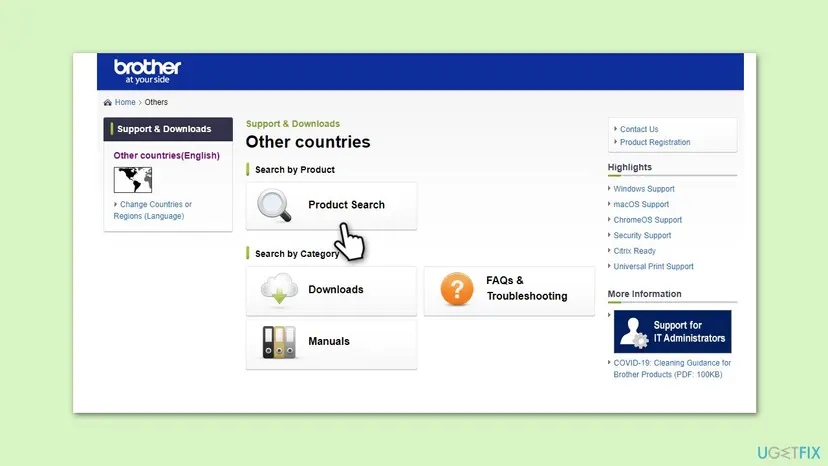
- Open
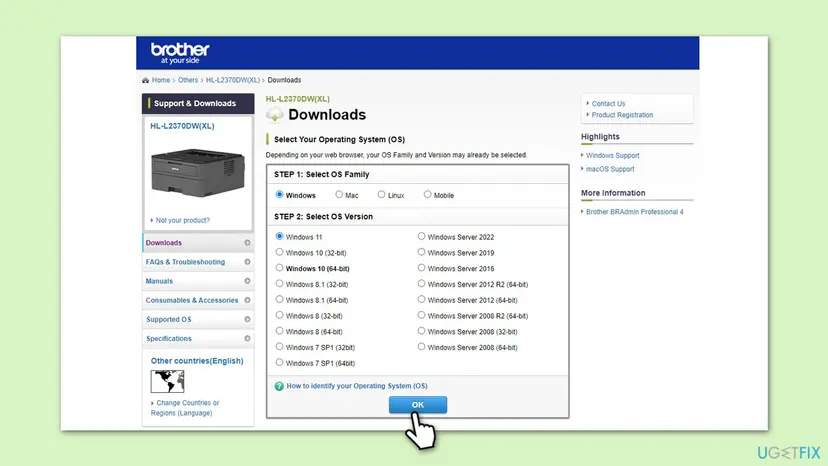
https://support.brother.comand select Product Search (or your country first). - Type your model, for example
HL-L2370DW, and open Downloads. - Select Windows and your version (Windows 11, or Windows 10 (64-bit)), then OK.
- Download the Full Driver & Software Package or, if you only print, the printer driver alone.
- Run the installer and connect the device as it asks (network or USB).
- Open Core isolation again and check that Memory integrity is still on.
Remove the package again (Fix 1 and Fix 2), keep Memory integrity on, and install only the printer driver. For a network printer you can also let Windows add it under Settings > Bluetooth & devices > Printers & scanners > Add device.
It worked if: The Brother device prints (and scans, if you installed the full package) with Memory integrity on.
If not: If BrUsbSib.sys returns in the incompatible list, the package still ships the old driver for your model: use the printer driver only, then Fix 5.
Fix 5. Look for an updated driver in Windows Update optional updates
5 minutesNo riskReaders who need a Brother USB connection and found no newer package on Brother's site.
Microsoft's first advice for a driver that Memory integrity blocks is to check Windows Update for an updated, compatible version. We could not confirm that one is offered for every Brother model.
- Connect the Brother device with its USB cable.
- Windows 11: open Settings > Windows Update > Advanced options > Optional updates. Windows 10: open Settings > Update & Security > Windows Update > View optional updates.
- Expand Driver updates and look for a Brother entry.
- Tick it, select Download & install and restart if asked.
Updating the device through Device Manager is shown step by step in Update, roll back or reinstall a driver.
It worked if: A Brother driver installs and the incompatible list stays empty.
If not: If no Brother entry is offered, use the printer driver only (Fix 4) and contact Brother support with your model number.
Fix 6. Remove a leftover BrUsbSib driver entry with Autoruns
10 minutesRead the warningAdvanced readers whose PC still lists BrUsbSib.sys although pnputil finds no Brother package.
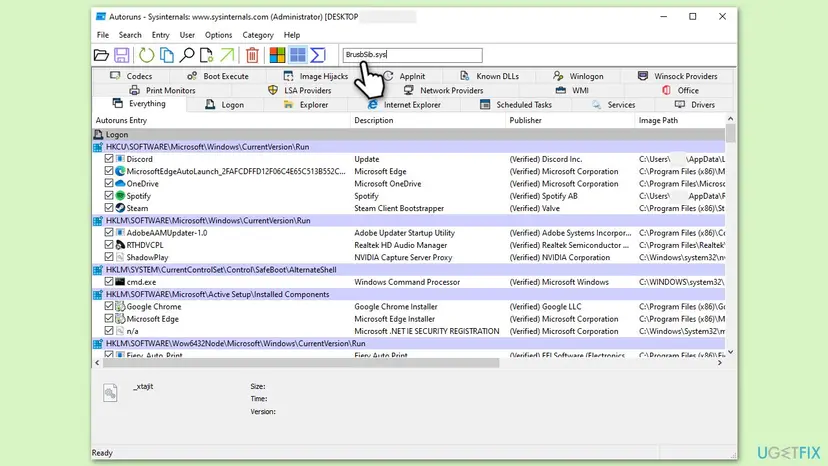
A driver can leave a service entry behind that points to the file. Autoruns, a free Microsoft Sysinternals tool, shows every driver Windows tries to load and can delete that entry.
Deleting an entry in Autoruns removes its registry key. Deleting the wrong driver can stop a device or even Windows from starting. Make a restore point or registry backup first: Back up the registry before editing it.
- Download Autoruns from Microsoft's Sysinternals page on learn.microsoft.com and extract the ZIP file.
- Right-click Autoruns64.exe and select Run as administrator, then Yes.
- Type
BrUsbSibinto the filter box at the top. - Check that the entry's image path ends in
BrUsbSib.sysand the publisher is Brother. - Right-click that entry, select Delete and confirm.
- Restart the PC and turn Memory integrity on (Fix 3).
It worked if: No BrUsbSib entry is left in Autoruns, and Memory integrity turns on after the restart.
If not: If the file is still listed, see Still not working below.
BrUsbSib.sys still listed: what to check and what to send Brother
The incompatible driver list in Windows Security is the most direct log: it names each driver, its published name and its producer. If another driver than BrUsbSib.sys appears after the fix, the same method applies to that driver and its maker.
- The same oem number is listed again after a restart: run
pnputil /enum-driversand check that the package is really gone; if pnputil refuses, run it once more after a restart. - The switch is greyed out: the PC is managed by your organisation or the processor does not support Memory integrity. That is not something the Brother driver causes.
- Brother software reports "Failed to connect to the device": that is form 2 of the same problem. The old driver is blocked; Fix 1, Fix 2 and Fix 4 replace it.
- The device needs a driver that Memory integrity always blocks: Microsoft notes you could turn Memory integrity off, but that lowers protection for the whole PC. Use the printer driver only, a network connection, or ask Brother when a fixed driver comes.
Your model number, your Windows edition and version from winver, a screenshot of the incompatible driver list, and the version and date of the Brother package you installed.
Keep Memory integrity on after a Brother printer or scanner setup
- Download Brother drivers only from support.brother.com for your exact model and Windows version.
- Check Core isolation once after every Brother install.
- Uninstall Brother software with its driver package when you replace the printer.
- Turn Memory integrity off to keep an old Brother driver.
- Use "driver updater" tools to look for BrUsbSib.sys.
- Force Virtualization Based Security on in Group Policy expecting it to fix the driver.
Windows 10 left support on 14 October 2025. The steps work on Windows 10 22H2, but a PC that stays on Windows 10 no longer gets security fixes, which weighs more than one Brother driver.
Frequently asked questions
What is BrUsbSib.sys?
It is a kernel mode USB driver from Brother Industries, installed with the Brother full driver and software package for printers, scanners and all-in-one devices. Windows keeps it in the driver store under a published name such as oem21.inf. It is not malware. Microsoft says drivers that Memory integrity blocks have a minor vulnerability and are most likely not malicious. The problem is only that this older version does not meet the rules of Memory integrity, so Windows Security will not let both run together.
How do I remove BrUsbSib.sys?
Uninstall all Brother software first, then delete the driver package. Open an administrator Terminal and run pnputil /delete-driver with the published name Windows Security shows for BrUsbSib.sys, for example pnputil /delete-driver oem21.inf /uninstall /force, and restart. Do not delete the .sys file from C:\Windows\System32\drivers by hand: the package would stay in the driver store and the warning would remain. Fix 1 and Fix 2 above give every step.
Is there a BrUsbSib.sys update for Windows 11?
Brother does not offer the driver as a separate download. Its advice is to uninstall the Brother software, turn Memory integrity on and then install the current Brother software for your model from support.brother.com. Microsoft also suggests checking Windows Update for an updated driver. If the newest package for your model still installs a BrUsbSib.sys that Memory integrity blocks, install only the printer driver and keep Memory integrity on.
Is BrUsbSib.sys safe to delete?
Yes, through pnputil or the Brother uninstaller. It only serves Brother USB connections, so Windows itself does not need it. If you still use the Brother device, install its current driver afterwards (Fix 4); printing over the network does not need this USB driver at all. Deleting the package is safer than turning Memory integrity off, which removes a protection for the whole PC.
What does oem21.inf mean?
It is the published name Windows gives a third-party driver package when it copies it into the driver store. The number is simply the order in which packages were added on that PC. On one PC the BrUsbSib package is oem21.inf, on another it may be oem7.inf or oem63.inf. Always read your own number in Windows Security or with pnputil /enum-drivers before deleting, because oem21.inf could be a graphics or audio driver on your PC.
Why does it say "A driver cannot load on this device - BrUsbSib.sys"?
Memory integrity is already on, and it stopped BrUsbSib.sys from loading. Windows stays protected, but the Brother software may report "Failed to connect to the device" over USB. Brother's answer for this message is the same as for the incompatible list: uninstall the Brother software, keep Memory integrity on, and install the current software for your model. Turning Memory integrity off to load the old driver is what Microsoft lists only as a last resort.
What is brusbser.sys?
It is another driver file name that Brother USB software uses. We could not confirm its exact role. If Windows Security lists brusbser.sys as an incompatible driver, treat it like BrUsbSib.sys. Uninstall the Brother software and delete the package with the published name shown next to it using pnputil. Then restart, turn Memory integrity on and install the current Brother driver for your model.
Will turning on Virtualization Based Security in Group Policy fix it?
No. The policy under Computer Configuration > Administrative Templates > System > Device Guard can force virtualization-based protection on, but it does not make BrUsbSib.sys compatible. At best you move from the incompatible list to the "A driver cannot load on this device" notice, with the Brother USB connection still blocked. Removing the old package is what clears the warning. Windows Home also has no Group Policy editor.
Should I just turn Memory integrity off?
We do not recommend it for a printer driver. Memory integrity stops malicious code from getting into the most protected parts of Windows, and Microsoft warns that turning it off on a Secured-core PC takes the device out of that state. Removing the old Brother package takes about 15 minutes and keeps both the printer and the protection. Only consider it if a device you cannot replace has no compatible driver at all.
I use Windows 10. Do the same steps work?
Yes. On Windows 10 22H2 the Brother software is under Settings > Apps > Apps & features. Core isolation is under Settings > Update & Security > Windows Security > Device security. pnputil /delete-driver works the same, but use dism /online /get-drivers /format:table to find the Brother package, because the /files filter needs Windows 11 22H2. Windows 10 no longer gets security updates since 14 October 2025.
Sources
- Brother USA support: "A driver cannot load on this device - BrUsbSib.sys" or "Failed to connect to the device" (help.brother-usa.com)
- Microsoft Support: A driver can't load on this device (support.microsoft.com)
- Microsoft Learn: PnPUtil command syntax (learn.microsoft.com)
Did this fix work?
One click, no account. It tells the next reader which guides are worth their time.
Questions and experiences: BrUsbSib.sys incompatible driver: how to fix it and turn Memory integrity back on in Windows
Still broken, or found a fix we did not cover? Ask here: members and our editors answer. Reading is open; writing needs a free account.
…