
How to fix "Can't delete Microsoft Defender Protection history" in Windows?

Prefer to fix it yourself? The manual steps follow.
- 5methods
- 5 to 15 minutes plus one restart
- Intermediate
Applies to Microsoft Defender Antivirus and the Windows Security app on Windows 11 and Windows 10
5 methods in this guide
Hello, I am unable to delete Microsoft Defender history when trying to do that through the "Clean Windows Defender scan history" option. How do I fix this?
Windows Security has no button that clears Protection history, and on current Defender versions even an administrator gets Access is denied on the history folder. Microsoft keeps the events for two weeks, so you can shorten that time from PowerShell, or clear the folder as SYSTEM on the next restart.
You cannot clear Protection history from Windows Security itself, and the history folder now accepts changes only from SYSTEM, so admin deletes fail. Shorten how long Defender keeps items with Set-MpPreference -ScanPurgeItemsAfterDelay 1 in an admin PowerShell and restart (Fix 1). To empty it at once, clear the folder with a one-time task that runs as SYSTEM at startup (Fix 2).
| Error | Protection history will not clear, or deleting its files shows You require permission from SYSTEM to make changes to this folder or Access is denied. |
|---|---|
| Where it appears | Windows Security > Protection history, and the folder C:\ProgramData\Microsoft\Windows Defender\Scans\History\Service. |
| Main cause | There is no clear button, and since a Defender security change in spring 2024 only SYSTEM can change the history folder. |
| Fastest fix | Shorten the retention time with Set-MpPreference -ScanPurgeItemsAfterDelay 1 and restart (Fix 1). |
| Also written as | Delete Windows Defender history, clear Protection history, clean Windows Defender scan history, remove protection history from Windows Security. |
| Affects | Windows 11 and Windows 10, Microsoft Defender Antivirus. Windows 10 left support on 14 October 2025. |
| Vendor status | By design. Microsoft says Protection history keeps events for two weeks, after which they disappear from the list. |
| What does not work | Clearing the Windows Defender Operational log in Event Viewer. Users report the cards stay. |
| Time to fix | 5 to 15 minutes plus one restart. |
Facts checked on 16 October 2026. Steps written for Windows 11 (25H2 and 26H2) and Windows 10 22H2.
What Protection history is and why you can't delete it
Protection history is the list of cards in Windows Security > Protection history. Microsoft describes it as the actions Microsoft Defender Antivirus took for you: threats found, quarantined or blocked, potentially unwanted apps removed, apps blocked by SmartScreen and important services that are off. You can also open it with the link windowsdefender://history.
The page has no Clear history button. Microsoft's own note is that the list keeps events for two weeks, after which they disappear. So the list empties itself, slowly. The cards are stored as files in a hidden folder, and that folder is what people try to delete.
- History folder
C:\ProgramData\Microsoft\Windows Defender\Scans\History\Service- Subfolders you see there
- DetectionHistory, Detections, History and Unknown
- Who may change it now
- Only the SYSTEM account. An administrator gets Access is denied.
- How long items stay
- Two weeks by Microsoft's note, set by the Defender preference ScanPurgeItemsAfterDelay
- Rights to see details
- Microsoft: you must have admin privileges to review the details of threats.
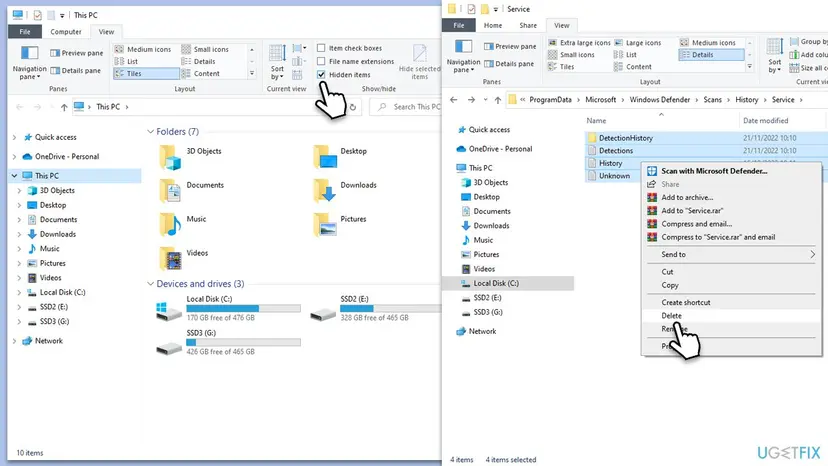
Why Protection history won't delete, from most to least common
Most often the folder is simply locked to SYSTEM, so every delete from your account fails. Less often the Windows Security page itself is fine and you only want one false-positive card gone. Rarely the reader is on an older Defender version where the old delete still works.
| Cause | How often | How to tell | Fix |
|---|---|---|---|
| No clear button, items wait out their retention time. | Most often | Old cards stay for days and nothing in Windows Security removes them. | Fix 1 |
| The history folder accepts changes only from SYSTEM. | Most often | You require permission from SYSTEM to make changes to this folder, or Access is denied in an admin Command Prompt. | Fix 2 |
| An older Defender version still lets administrators delete. | Rarely | The delete in an admin Command Prompt finishes with no error. | Fix 3 |
| One card is a false positive you want handled, not the whole list. | Sometimes | A trusted app shows as Threat quarantined or Threat blocked. | Fix 4 |
| Old definitions keep flagging the same file, so the card comes back. | Sometimes | The same detection appears again after you cleared it. | Fix 5 |
A common tip is to clear Applications and Services Logs > Microsoft > Windows > Windows Defender > Operational in Event Viewer. On Microsoft Q&A, the person who tried it reports the log was cleared but Protection history and the files in the Service folder stayed the same.
How to delete Windows Defender Protection history
Fix 1 uses Microsoft's own retention setting and suits most readers. Fix 2 empties the folder at the next restart when every delete says Access is denied. Fix 3 is the old delete, which works only on older Defender versions. Fixes 4 and 5 are for one false-positive card that keeps coming back.
| What you see or what you want | Start with |
|---|---|
| Old cards should go, and a day of waiting is fine | Fix 1 |
| You require permission from SYSTEM, or Access is denied | Fix 2 |
| An older PC where the delete still works | Fix 3 |
| One trusted app is flagged and you want to use it | Fix 4 |
| The same detection returns after clearing | Fix 5 |
Fix 1. Shorten how long Defender keeps Protection history
5 minutesLow riskEveryone who wants old cards gone and can wait until the next restart and a day.
Defender removes history items itself once they are older than the number of days in ScanPurgeItemsAfterDelay. Setting it to 1 makes Defender clean them up for you, with no fight over folder permissions.
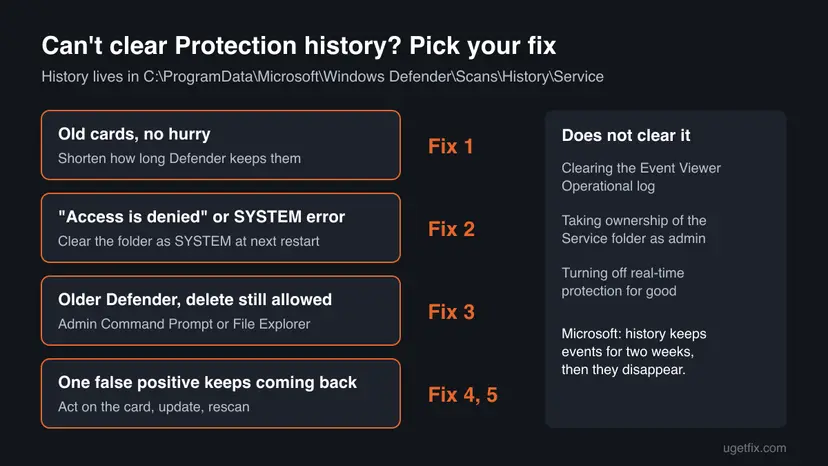
- Right-click Start and select Terminal (Admin). On Windows 10 select Windows PowerShell (Admin).
- Select Yes when User Account Control asks for permission.
- Read the current value and write it down, so you can set it back later.
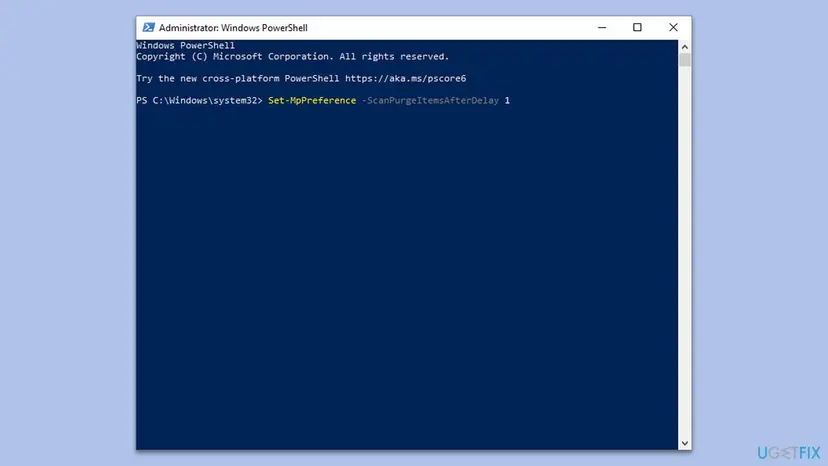
Get-MpPreference | Select-Object ScanPurgeItemsAfterDelay - Tell Defender to remove history items older than one day.
Set-MpPreference -ScanPurgeItemsAfterDelay 1 - Run the
Get-MpPreferenceline again and check that it now shows 1. - Restart the PC.
It worked if: After the restart and a day, the older cards are gone from Protection history, and new ones only stay a day.
If not: If the cards are still there after two days, or you need them gone now, use Fix 2.
Fix 2. Clear the history folder as SYSTEM at the next restart
10 minutes plus a restartLow riskDeleting the files shows You require permission from SYSTEM to make changes to this folder or Access is denied.
The history folder now accepts changes only from SYSTEM. A scheduled task can run as SYSTEM at startup, so it can empty the folder where your admin account cannot. An independent script author reports that since a Defender change in spring 2024 this only works at restart.
It removes only the Protection history list. It does not remove quarantined files, allowed threats or Defender settings. Copy the commands exactly: a wrong path in a task that runs as SYSTEM can delete the wrong folder.
- Right-click Start and select Terminal (Admin), or Windows PowerShell (Admin) on Windows 10, and select Yes.
- Describe what the task does: delete everything inside the Service folder.
$a = New-ScheduledTaskAction -Execute 'powershell.exe' -Argument '-NoProfile -Command "Remove-Item -Path ''C:\ProgramData\Microsoft\Windows Defender\Scans\History\Service\*'' -Recurse -Force"' - Set it to run at startup.
$t = New-ScheduledTaskTrigger -AtStartup - Register the task under the SYSTEM account.
Register-ScheduledTask -TaskName 'ClearDefenderHistory' -Action $a -Trigger $t -User 'SYSTEM' -RunLevel Highest - Restart the PC and wait a minute after you sign in.
- Open Windows Security > Protection history and check that the list is empty.
- Remove the task, so it does not run at every start.
Unregister-ScheduledTask -TaskName 'ClearDefenderHistory' -Confirm:$false
It worked if: Protection history shows no earlier cards, and the Service folder is empty or holds only new files Defender wrote after the restart.
If not: Check the task's Last Run Result in Task Scheduler under Task Scheduler Library > ClearDefenderHistory before you remove it. If it ran but the cards stay, fall back to Fix 1 and let them expire.
Fix 3. Delete the history from an admin Command Prompt or File Explorer
5 minutesLow riskA PC with an older Defender version where an administrator can still change the folder.
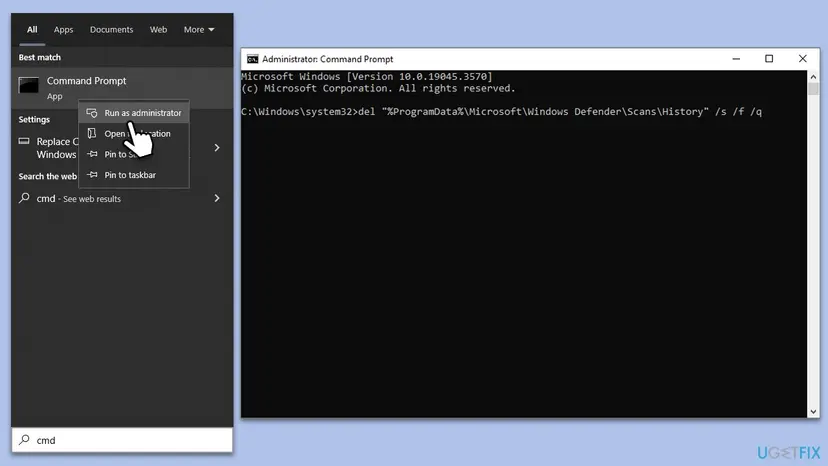
This was the standard way until the folder was locked to SYSTEM. On current versions it ends with Access is denied, which tells you to use Fix 2 instead. How to open an elevated window: How to run a program as administrator or in compatibility mode.
- Type cmd in Windows search, right-click Command Prompt and select Run as administrator, then Yes.
- Run the delete.
del "%ProgramData%\Microsoft\Windows Defender\Scans\History" /s /f /q - Close the window and restart the PC.
- Or in File Explorer: press Win + E, turn on hidden items (View > Show > Hidden items on Windows 11, View > Hidden items on Windows 10).
- Go to
C:\ProgramData\Microsoft\Windows Defender\Scans\History\Service, press Ctrl + A, then Shift + Del.
It worked if: No error, and after the restart Protection history is empty.
If not: Access is denied or You require permission from SYSTEM to make changes to this folder means your Defender has the lock: use Fix 2. Do not take ownership of the folder; users on Microsoft Q&A report it does not help.
Fix 4. Remove or allow the card itself in Protection history
3 minutesRead the warningYou want one false positive handled, so you can use a trusted file or app.
Most readers want the card gone because Defender blocked a file they trust. Microsoft's answer is the card's Actions menu, which removes the threat or allows it; the card then stops asking for attention.
Microsoft warns that Allow on device lets the file run, and if it was a real threat your data, personal information or device may be at risk. If you are not sure, choose Quarantine or Remove. You can undo an Allow later on the Allowed threats page.
- Open Windows Security > Protection history, or run
windowsdefender://historyfrom Win + R. - Select the card to expand it. Select Yes if User Account Control asks, since details need admin rights.
- For Threat quarantined, open Actions and select Remove to delete it, or Restore for a file you trust.
- For Threat found - action needed, choose Quarantine, or Allow on device if you are sure it is safe.
- For Threat blocked, select Actions > Allow and download the file again.
It worked if: The card no longer shows red or yellow, and the trusted file runs.
If not: If the same card returns after you allowed the file, update Defender and scan again with Fix 5.
Fix 5. Update Defender and scan again so an old detection stops returning
10 minutesNo riskThe same false positive keeps coming back after you cleared or allowed it.
A detection made with old definitions can stay in the history and keep flagging the file. New definitions and a fresh scan let Defender decide again with current data.
- Open Terminal (Admin) or Windows PowerShell (Admin) and select Yes.
- Download the newest security intelligence.
Update-MpSignature - Run a quick scan in Windows Security, as below.
- Open Windows Security. Select Start, type Windows Security and open the app.
- Open Virus & threat protection. Select Virus & threat protection. Under Current threats you see when the last scan ran, how long it took and how many files it checked.
- Run a quick scan. Select Quick scan. If Windows Security thinks a deeper scan is needed, it tells you when the quick scan is done.
- Open Scan options. If the quick scan finds nothing and you still suspect an infection, select Scan options under Current threats.
- Run a full scan. Select Full scan and start it. It checks every file and program on the device, so it takes much longer than a quick scan. Leave the PC on until it ends.
- Or scan one folder. To check only a download or a USB drive, select Custom scan in Scan options and choose the folder. You can also right-click a file or folder in File Explorer and select Scan with Microsoft Defender. On Windows 11 you may have to select Show more options first.
- Read Protection history. Go back to the first page of Windows Security and select Protection history. Select a card to expand it and see the details.
These steps were written for Windows 11 25H2 and 26H2, Windows 10 22H2. The full page with the other versions and what each result means: How to scan for malware with Microsoft Defender
It worked if: The scan finishes with no threats, and no new card appears for the file.
If not: If the file is still flagged with current definitions, treat the detection as real until you can check the file another way.
If Protection history still won't clear: what to check
| Where | What to look for |
|---|---|
Get-MpPreference | Select-Object ScanPurgeItemsAfterDelay | That the value you set in Fix 1 is still there after a restart. |
| Task Scheduler > ClearDefenderHistory | Last Run Result after the restart in Fix 2. 0x0 means the task finished. |
C:\ProgramData\Microsoft\Windows Defender\Scans\History\Service | Whether the subfolders still hold the old files, by their Date modified. |
| Event Viewer: Windows Defender > Operational | Detection events for the file that keeps coming back. |
- On a work or school PC, history may be kept by your organisation on purpose. Ask your IT team instead of deleting it.
- What to send to Microsoft support: your Windows build from
winver, the output ofGet-MpPreference | Select-Object ScanPurgeItemsAfterDelayand a screenshot of the error. - Is it hardware? No. This is a permission and setting matter, not a fault of the disk or PC.
How to keep Protection history short and clean
- Keep a short retention time with Fix 1 if you do not need old cards.
- Act on each card when it appears: remove, quarantine or allow.
- Keep Defender's security intelligence up to date.
- Do not turn off real-time protection for good to stop cards appearing.
- Do not take ownership of or change permissions on Defender folders.
- Do not leave the SYSTEM task from Fix 2 registered after it ran.
Set the retention back to the value you wrote down in Fix 1 if you later want a longer record of what Defender did. A longer list helps when you need to see how a threat reached the PC.
Frequently asked questions
How do I clear Protection history in Windows 11 and Windows 10?
Windows Security has no clear button on either version. The simplest way is to shorten the retention time with Set-MpPreference -ScanPurgeItemsAfterDelay 1 in an admin PowerShell and restart, so Defender removes items older than a day itself. To empty the list at once, clear the history folder with a one-time scheduled task that runs as SYSTEM at startup. Both steps are the same on Windows 11 and Windows 10, and Microsoft says the list keeps events for two weeks anyway.
Why do I get "You require permission from SYSTEM to make changes to this folder"?
The history folder C:\ProgramData\Microsoft\Windows Defender\Scans\History\Service is protected so that only the SYSTEM account can change it. Users on Microsoft Q&A reported the message from 2023, and an independent script author reports a further Defender change in spring 2024. Taking ownership or changing permissions as an administrator does not help, as those users found. A task that runs as SYSTEM at restart can clear it, which is Fix 2 on this page.
Where is Windows Defender history stored?
In the hidden folder C:\ProgramData\Microsoft\Windows Defender\Scans\History\Service, with the subfolders DetectionHistory, Detections, History and Unknown. Turn on hidden items in File Explorer to see it. You see the same data as cards in Windows Security > Protection history, or through the link windowsdefender://history. Defender's events also go to the Windows Defender > Operational log in Event Viewer, but clearing that log does not clear the cards.
Why is my Windows Defender Protection history empty or not showing?
An empty list is often normal. Microsoft says Protection history keeps events only for two weeks, so a PC with no recent detections shows nothing. If you shortened the retention time with ScanPurgeItemsAfterDelay, items go even sooner. Microsoft also says you need admin privileges to review the details of threats, so on a standard account select the card and approve the User Account Control prompt. If the whole Windows Security page is blank, that is a different fault of the app.
Does deleting Protection history remove the threats or quarantined files?
No. The history is only a record of what Defender did. Quarantined items, allowed threats and your Defender settings stay as they were. To remove a quarantined threat, open its card in Protection history and select Actions > Remove. To let a trusted file run, use Allow on device or Allow, and remember Microsoft's warning that allowing a real threat puts your data at risk.
Is it safe to delete Windows Defender history?
Deleting the history list is safe for the PC: Defender keeps protecting it and writes new cards for new events. You only lose the record of past detections, which can help you see how a threat got in. Deleting or uninstalling Microsoft Defender itself is a different thing and not advised. It is built into Windows 11 and Windows 10, and it steps aside on its own when you install another antivirus.
Does "Clean Windows Defender scan history" in Disk Cleanup or a cleaner app work?
Often not on current Windows. Any tool that runs under your account, even as administrator, hits the same SYSTEM lock on the history folder, so it reports success or fails silently while the cards stay. That is the problem in the reader's question on this page. Shorten the retention time (Fix 1) or clear the folder as SYSTEM at restart (Fix 2) instead.
The folder is not there, or none of the methods worked. What now?
If you cannot find the folder, turn on hidden items in File Explorer first, because ProgramData is hidden. Paste the full path C:\ProgramData\Microsoft\Windows Defender\Scans\History\Service into the address bar. If the delete still says Access is denied, that is expected on current Defender, so use Fix 2. If nothing worked, set the retention to 1 day and wait: Microsoft says the list empties after two weeks at most.
I searched in another language. Is this page for me?
Yes, if your problem is that Protection history in Windows Security does not delete, whatever words you used, such as "geht nicht" or "no hay esa carpeta". The page is in English, but the commands work the same on any Windows language. Copy the PowerShell lines exactly as shown, because command names are never translated. The Windows menu names will appear in your own language.
Sources
- Microsoft Support: Protection History in the Windows Security App (what it lists, two-week retention, card actions, admin rights) (support.microsoft.com)
- Microsoft Q&A (user reports): Unable to clear Windows Defender protection history, you require permissions from SYSTEM (learn.microsoft.com)
- ClearDefenderHistory project on GitHub (independent): history cleared by a task running as SYSTEM at restart since a spring 2024 Defender change (github.com)
Did this fix work?
One click, no account. It tells the next reader which guides are worth their time.
Questions and experiences: fix "Can't delete Microsoft Defender Protection history" in Windows
Still broken, or found a fix we did not cover? Ask here: members and our editors answer. Reading is open; writing needs a free account.
…