
How to fix a corrupted or missing Clair Obscur: Expedition 33 save file

Prefer to fix it yourself? The manual steps follow.
- 6methods
- 5 to 20 minutes
- Intermediate
Applies to Clair Obscur: Expedition 33 on PC (Steam, Epic Games Store, Xbox app and PC Game Pass), with notes for PlayStation 5 and Xbox Series X|S
6 methods in this guide
So I have been having a grand time with Expedition 33 recently, as it's an amazing game. Something bad happened today, and I'm scared I might lose all my progress, so I'm writing to you with the hope that you can help. I tried to play the game again today and saw that all my Expedition 33 save files had disappeared, even though my 42 achievements and game progression remain active. I am around 50 hours in and I don't want to lose my progress!
When Clair Obscur: Expedition 33 loses your progress or calls a save corrupted, a good copy usually still exists: the game writes dated backups, and Steam, Xbox and PlayStation keep cloud copies. Open Load Previous Saves in the game first. On PC with Steam or Epic, copy the newest file from the Backup folder back into the main save folder.
Do not start playing over the problem. Close the game and copy the whole save folder somewhere safe. Then open the pause menu and select Load Previous Saves: the game lists its backups there. On Steam or Epic, the dated backups sit in %LOCALAPPDATA%\Sandfall\Saved\SaveGames\<number>\Backup, and the newest one, renamed to EXPEDITION_0.sav with its SavesContainer.sav, brings most runs back. Game Pass, Steam Cloud and PS5 have their own copies, covered in Fixes 3 to 5.
| Error | No error code. The Continue button is gone, the game starts as a new game, an old point loads, or the game says the save is corrupted and offers previous saves. |
|---|---|
| Where it appears | On the title screen after a crash, a power cut, a forced shutdown, a cloud sync or a game update. Achievements stay, because they live in your Steam, Xbox or PlayStation account, not in the save. |
| Main cause | The main save EXPEDITION_0.sav or its index SavesContainer.sav was cut off while being written, so the game cannot read it. Less often a cloud sync replaced a good save with an older or broken one. |
| Fastest fix | Load Previous Saves in the game (Fix 1). On Steam or Epic: the newest file from the Backup folder (Fix 2). |
| Save file location | Steam and Epic: %LOCALAPPDATA%\Sandfall\Saved\SaveGames\<user ID>\. Xbox app and Game Pass: %LOCALAPPDATA%\Packages\KeplerInteractive.Expedition33_ymj30pw7xe604\SystemAppData\wgs\. |
| Also written as | Expedition 33 corrupted save, save file corrupted, lost save, save files disappeared, Continue button missing, save not loading, E33 save location. |
| Affects | All versions on PC, PS5 and Xbox Series X|S. Steam app ID 1903340. Latest patch at the time of checking: 1.5.6 (30 June 2026). |
| Developer status | Sandfall Interactive has published no patch note about saves that vanish. Patch 1.3.0 added support for renamed save files, and hotfix 1.5.1 fixed a soft lock in the backup save list. |
| Time to fix | 2 minutes for Fix 1, 10 to 20 minutes for the file copies in Fixes 2 to 4. |
Facts checked on 14 October 2026. Steps written for Clair Obscur: Expedition 33 up to patch 1.5.6 on Windows 11 (25H2 and 26H2) and Windows 10 22H2 with Steam, Epic Games and the Xbox app, plus the PS5 menus as PlayStation Support documents them.
What a corrupted or missing Expedition 33 save means
Expedition 33 does not show an error code when a save breaks. You see one of four things, and each one tells you something about where the damage is.
| What you see | What it usually means | Start with |
|---|---|---|
| Only New Game on the title screen, no Continue | The game cannot find or read the index file SavesContainer.sav, so it thinks there is no save. The save itself is often still on the disk. | Fix 1, then Fix 2 |
| Continue loads a point hours earlier | The newest save did not reach the disk, or a cloud copy from another session replaced it. | Fix 1, then Fix 3 |
| A message that the save is corrupted, with an offer to load previous saves | The main save file is damaged. The backups next to it are usually fine. | Fix 1, then Fix 2 |
| The game crashes or hangs while loading your save | Either the save is damaged or the game files are. A new game that loads fine points at the save. | Fix 2, then the end of this page |
Achievements and trophies are stored in your Steam, Xbox or PlayStation account. The save is a separate file on your PC or console. That is why a reader can keep 42 achievements and still lose 50 hours of progress: nothing is wrong with the account.
Players search for this in many spellings: corrupted save, save file corrupted, save corrupted, lost save, save files disappeared. They are the same problem with the same fixes.
Why Expedition 33 saves disappear or get corrupted, most common first
We found no single bug in the developer's notes that wipes saves. The reports fall into a few patterns, and each one has its own way back.
| Cause | How often | Sign | Fix |
|---|---|---|---|
| The game was closed while writing the save: a crash, a power cut, Alt+F4, a forced shutdown | Most often | Continue is gone or the save is called corrupted right after the crash | Fix 1 or Fix 2 |
| Steam Cloud uploaded a broken or older file, or a conflict was answered with the wrong side | Often on Steam | Progress rolled back after you played on another PC or offline | Fix 3 |
| The Xbox app did not finish syncing, or a sync brought down an old copy | Often on Game Pass | Progress gone after a restart or a sign-in, sometimes only on one PC | Fix 4 |
| A console save went missing after an update, a crash or a full storage | Less often | PS5 or Xbox Series X|S shows no save or an old one | Fix 5 |
| The save folder was deleted: a cleaner app, a reset of Windows, a new user account | Rarely | The whole Sandfall folder or the numbered folder is gone | Fix 6 |
| A failing drive | Rarely | Other files are damaged too, Windows reports disk errors | Still not fixed, below |
We read every patch note from 1.2.2 to 1.5.6. None of them names saves that vanish on PC. Patch 1.3.0 (June 2025) added support for renamed save files, hotfix 1.5.1 (December 2025) fixed a soft lock in the backup list, and patch 1.5.3 (March 2026) fixed a blocked save after a volleyball rematch on Gestral Beach.
Where are Expedition 33 save files? The save file location for each store
The folder depends on where you bought the game. PCGamingWiki lists these paths, and the old screenshot further down shows the Steam folder exactly as the game creates it. Paste a path into the Win + R box and press Enter: Windows fills in your user name.
| Version | Save file location | What is inside |
|---|---|---|
| Steam | %LOCALAPPDATA%\Sandfall\Saved\SaveGames\<user ID>\ | EXPEDITION_0.sav, SavesContainer.sav, settings files, steam_autocloud.vdf and the Backup folder |
| Epic Games Store | %LOCALAPPDATA%\Sandfall\Saved\SaveGames\<user ID>\ | The same .sav files |
| Xbox app, Microsoft Store, PC Game Pass | %LOCALAPPDATA%\Packages\KeplerInteractive.Expedition33_ymj30pw7xe604\SystemAppData\wgs\ | Folders with long hexadecimal names, each with container.1 (or .2, .3) and data files without an extension |
| Steam Cloud | In a browser: store.steampowered.com/account/remotestorage | The files Steam uploaded from the folder above |
| PlayStation 5 | Settings > Saved Data and Game/App Settings > Saved Data (PS5) | Console storage and, with PlayStation Plus, cloud storage |
| Linux and Steam Deck | steamapps/compatdata/1903340/pfx/ and inside it the same Windows path | The same .sav files |
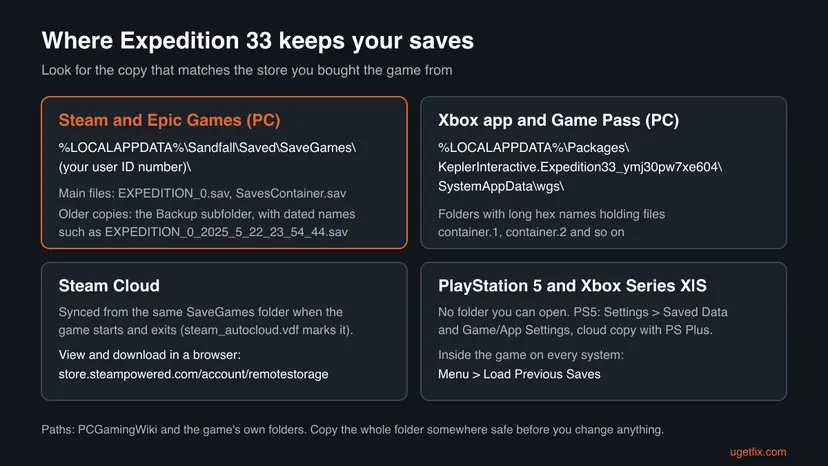
On Steam the numbered folder is your 64-bit Steam ID, a 17-digit number that starts with 7656119. If you see more than one numbered folder, the one with the newest Date modified belongs to the account you play on. AppData is hidden: typing the path is faster than turning on hidden items.
Before any fix: copy the save folder, and do not keep playing
Every fix below replaces files. If you pick the wrong file, the copy you made here is your way back. The game also keeps writing new backups while you play, and a long session on a fresh save can push your old backups out of the list.
- Quit the game from its menu with Quit, not with Alt + F4. On Steam, wait until the library no longer says the game is running or syncing.
- Press Win + R, paste
%LOCALAPPDATA%\Sandfall\Saved\SaveGames(Game Pass:%LOCALAPPDATA%\Packages\KeplerInteractive.Expedition33_ymj30pw7xe604\SystemAppData) and press Enter. - Right-click the numbered folder (Game Pass: the
wgsfolder) and select Copy. - Paste it on the Desktop or on another drive and rename the copy, for example
E33 saves 2026-10-14. - Leave the copy alone until your progress is back and you have played for a while.
Two fixes ask you to start a new game and play only to the first autosave, a few minutes. Playing further makes new backups that sit next to your old ones and can make the right file harder to find.
How to fix a missing or corrupted Expedition 33 save
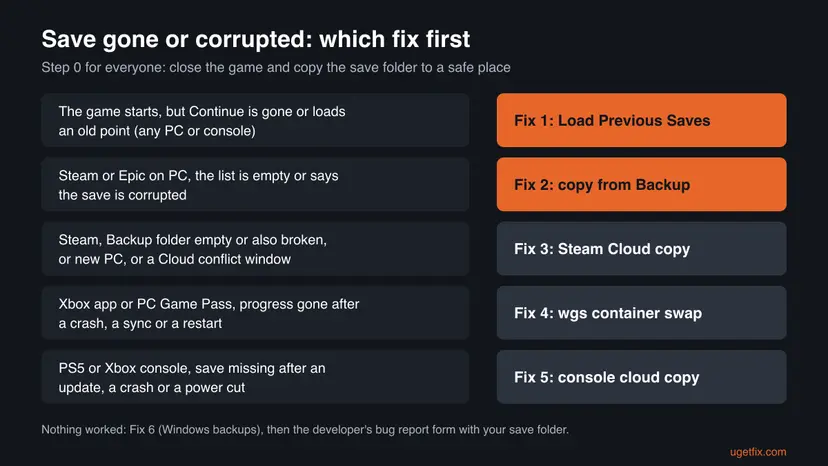
Start with Fix 1 on any system. On PC, Fix 2 brings back most saves on Steam and Epic, Fix 3 is for Steam Cloud and Fix 4 is for the Xbox app and Game Pass. Fix 5 covers PS5 and Xbox consoles, and Fix 6 the backups of Windows itself.
| Your case | Start with |
|---|---|
| Any system: the game starts, but Continue is gone or loads an old point | Fix 1 |
| Steam or Epic on PC: the list of previous saves is empty or every entry fails | Fix 2 |
Steam: the Backup folder is empty, you moved to a new PC, or Steam showed a cloud conflict window | Fix 3 |
| Xbox app or PC Game Pass: progress gone after a crash, a restart or a sync | Fix 1, then Fix 4 |
| PS5 or Xbox Series X|S: save missing after an update or a crash | Fix 1, then Fix 5 |
| The whole save folder is gone from the PC | Fix 6 |
Fix 1. Open Load Previous Saves and pick an earlier save
2 minutesNo riskEveryone, on PC and on consoles, before touching any files.
The game keeps a list of earlier saves next to the main one and shows it under Load Previous Saves. Hotfix 1.5.1 refers to backup saves shown in that list, so they are part of the game, not a mod. When only the newest file broke, an older entry in this list still loads.
- Start the game. If Continue is there, select it. If it loads, open the pause menu right away.
- If there is no Continue, select New Game, skip the opening scene and play until the game saves for the first time. That brings back the pause menu.
- Open the pause menu and select Load Previous Saves.
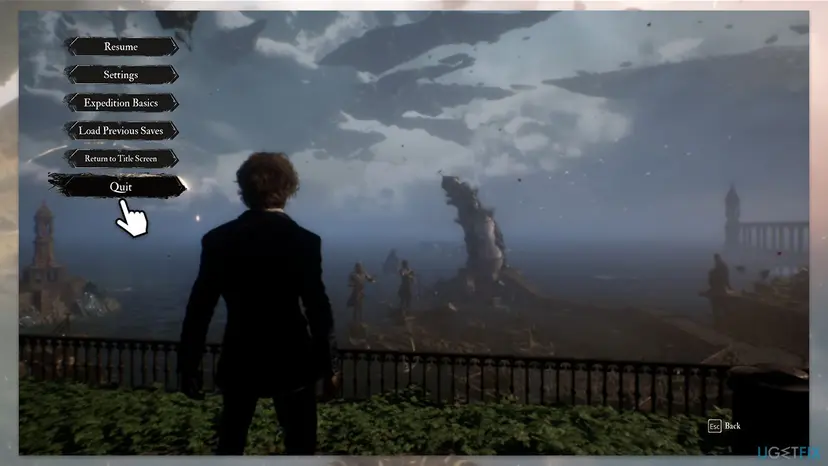
The pause menu on PC: Load Previous Saves sits above Return to Title Screen. - Look at the dates, locations and play times in the list. Your old run shows its own play time, much higher than the new game's.
- Highlight the newest entry of your old run and confirm. Always highlight a slot before you confirm: hotfix 1.5.1 fixed a hang when loading with no slot selected, and an older version still has it.
- If that entry fails, go one entry further back. Players report that the newest backup is sometimes the damaged one.
- When your run loads, rest at an Expedition Flag or play until the next autosave, then quit with Quit so a fresh main save is written.
It worked if: Your character stands where the old run was, with the old play time, and Continue loads it the next time you start the game.
If not: If your old run is not in the list at all, or every entry fails, go to Fix 2 on Steam or Epic, Fix 4 on Game Pass or Fix 5 on a console.
Fix 2. Restore the newest backup from the Backup folder (Steam and Epic)
10 minutesRead the warningSteam and Epic players on PC whose save is missing or called corrupted.
Next to the main EXPEDITION_0.sav the game keeps a Backup folder with dated copies of the save. When a crash cuts off the main file, these copies are usually intact. Copying the newest one back with its SavesContainer.sav gives the game a readable save again.
You overwrite the main save. If you pick a file that is older than you think, you lose the hours between the two. Make the folder copy from the section above first, and rename files instead of deleting them.
- Quit the game fully. On Steam, open the game's Properties, then General, and turn off Steam Cloud for this game for now, so Steam does not upload or download over your repair.
- Press Win + R, paste
%LOCALAPPDATA%\Sandfall\Saved\SaveGamesand press Enter. Open the numbered folder. - Rename the current
EXPEDITION_0.savtoEXPEDITION_0.sav.oldandSavesContainer.savtoSavesContainer.sav.old. If File Explorer hides extensions, turn them on under View > Show > File name extensions on Windows 11, or tick File name extensions on the View tab on Windows 10. - Open the
Backupfolder and switch to Details view. Sort by Date modified, newest first. - Find the newest file named like
EXPEDITION_0_2025_5_22_23_54_44.sav. The name holds the year, month, day, hour, minute and second of that save. - Check its Size. In our screenshot the good backups were about 250 to 275 KB. A file far smaller than its neighbours, or 0 KB, is likely the broken one: take the next older one.
- Copy that file and
SavesContainer.savfromBackupinto the numbered folder one level up. - In the numbered folder, rename the copied dated file to
EXPEDITION_0.sav, exactly the name of the main file it replaces. - Start the game and select Continue.
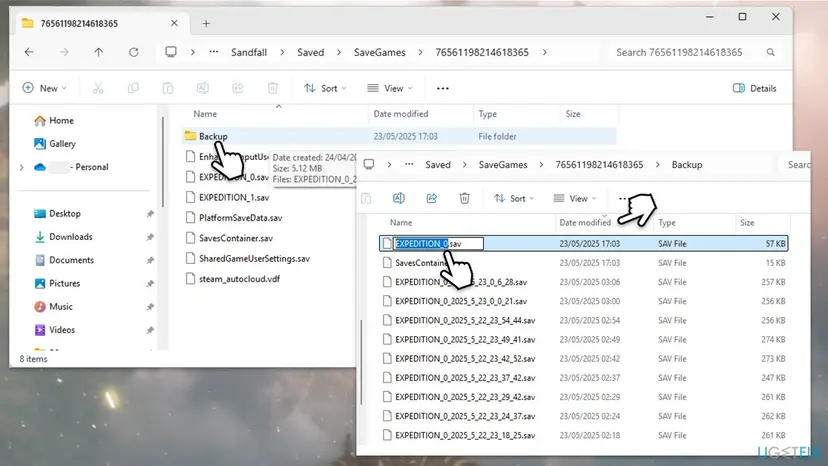
If your run used a second slot, its files start with EXPEDITION_1. Use the same number in the new name. Patch 1.3.0 states that renamed save files are supported in the EXPEDITION_XX format with a number from 00 to 09. We could not confirm whether the game wants one digit or two, so keep the form already in your folder.
No Continue button after the copy? Some players report the game ignores the restored file until a new save exists. Start a New Game, play to the first autosave, select Quit, then repeat steps 3 to 9. Continue may show the new game's picture and time at first, which is normal: it changes after the next save.
It worked if: Continue loads your old run with its real play time. After the next autosave the title screen shows the right picture and hours. Turn Steam Cloud back on for the game after a short session.
If not: If the newest backups fail too, try two or three older ones. If the Backup folder is empty, use Fix 3 on Steam or Fix 6 for the Windows backups.
Fix 3. Download an earlier save from Steam Cloud
10 minutesRead the warningSteam players whose local backups are empty or broken, or who moved to a new PC.
The steam_autocloud.vdf file in the save folder shows that Steam Auto-Cloud covers it. Valve's documentation says Auto-Cloud syncs these files when the game starts and exits. So the cloud often holds the copy from your last clean exit, before the crash broke the local file.
Cloud copies are only as old as your last clean exit, and a sync after the crash can upload the broken file. Keep the folder copy from the start of this page. Steam Support states it cannot recover lost saves, so the files you see are all there is.
- In a web browser, open
https://store.steampowered.com/account/remotestorageand sign in with your Steam account. - Find Clair Obscur: Expedition 33 in the list and select Show Files.
- Read the file names and their dates. Look for
EXPEDITION_0.sav,SavesContainer.savand any dated backups dated before the loss. - Download the files you need. Your browser saves them in Downloads.
- Quit the game, turn off Steam Cloud for this game under Properties > General, and copy the downloaded files into
%LOCALAPPDATA%\Sandfall\Saved\SaveGames\<user ID>\. - Rename a dated file to
EXPEDITION_0.savas in Fix 2, start the game and select Continue. - When the run is back and saved again, turn Steam Cloud back on so the good file is uploaded.
If Steam shows a cloud conflict window when you start the game, do not click blindly. Steam Support advises comparing the dates and times of the local and cloud files with when you last played, and picking the newer one in most cases. Playing in Offline Mode is a common cause of these conflicts.
To see what Steam uploaded and when, open C:\Program Files (x86)\Steam\logs\cloud_log.txt. Steam writes a line each time a file goes to the cloud or comes back from it, so you can find the session that replaced your save.
It worked if: The run you downloaded loads with Continue, and the next sync uploads it without a conflict window.
If not: If the cloud holds only the broken or the new file, the cloud cannot help. Try the older dated files, then Fix 6, then contact the developer as described below.
Fix 4. Swap the Game Pass container files in the wgs folder
15 minutesRead the warningPC players who run the game from the Xbox app, the Microsoft Store or PC Game Pass.
This version does not use .sav files on disk. It keeps saves in the Xbox wgs folder as containers. An older container with your run often survives next to the new one, and pointing the new container at the old data brings the run back into the list. Neither Microsoft nor Sandfall documents this: it is a player workaround.
A wrong swap can make the game unable to read any save, and the Xbox app may sync the change to the cloud. Copy the whole wgs folder first and keep that copy until the run is back.
- Start the game from the Xbox app while you are online, let it finish syncing, then start a New Game and play until the Prologue autosaves.
- Open the pause menu, select Return to Title Screen or Quit, and confirm.
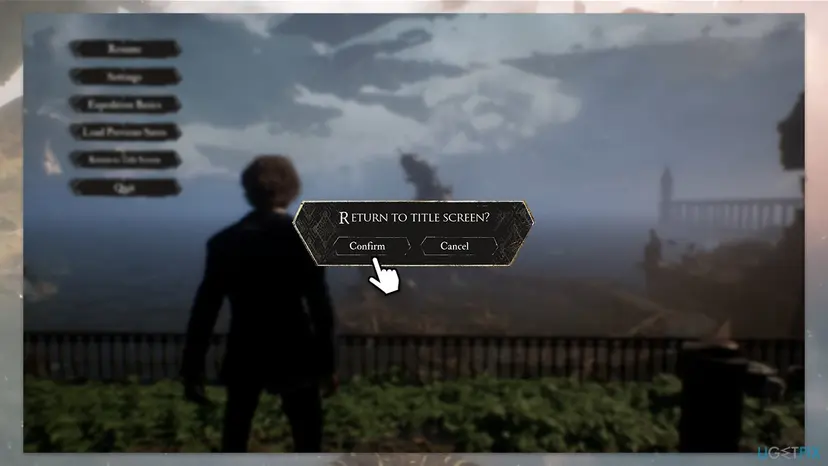
Leave the new game as soon as it has saved once. - Make sure the game is closed, then press Win + R, paste
%LOCALAPPDATA%\Packages\KeplerInteractive.Expedition33_ymj30pw7xe604\SystemAppData\wgsand press Enter. - Open the folder with the long numbered name (one per Xbox profile), switch to Details view and sort by Date modified.
- Open the newest folder that holds a file called
container.1(the number can be 2 or higher). That is the new Prologue save. Note the folder. - Open older folders one by one until you find another one with a
containerfile. That older folder is most likely your lost run. - Copy both files from the older folder and paste them into the newer folder. When Windows asks, replace the
containerfile. - Start the game. Continue shows the Prologue save, which is expected. Open the menu, select Load Previous Saves and pick your old run.
It worked if: Your old run appears in Load Previous Saves with its own play time, and it loads. Save once, and it becomes the run that Continue opens.
If not: Try the next older folder with a container file. If none works, restore your copy of wgs, go online, open the Xbox app and let it sync again, then try Fix 1.
Fix 5. Restore the save from cloud storage on PS5 or Xbox
5 minutesRead the warningPlayers on PlayStation 5 or Xbox Series X|S whose save is missing or old.
Consoles hide the save files, but both keep a second copy online. On PS5 that needs PlayStation Plus, and PlayStation Support documents the menus to check and download it. If the console copy broke after an update or crash, the cloud copy from before may still be good.
Downloading from cloud storage replaces the save on the console. If auto-sync is on, the console can also upload a broken save over the good cloud copy. Check the sync status and the dates first.
- PS5: highlight the game on the Games home, press the options button and select Check Sync Status of Saved Data. Note the dates of the console and cloud copies.
- If the cloud copy is the older, good one, stop auto-sync for this game: Settings > Saved Data and Game/App Settings > Saved Data (PS5) > Sync Saved Data > Auto-Sync Saved Data, then turn it off for Expedition 33.
- Go back to Saved Data (PS5) and select Download or Delete from Cloud Storage.
- Open the Download to Console Storage tab, select Expedition 33's saved data and select Download.
- Start the game, try Continue, then Load Previous Saves as in Fix 1.
- Xbox Series X|S: cloud saves sync on their own while you are online. The game is Xbox Play Anywhere, so if you also play on a PC with the Xbox app, the
wgsfolder there may hold the run (Fix 4).
It worked if: After the download, Continue or Load Previous Saves opens your run from before the loss. Turn auto-sync back on once it is saved again.
If not: If the cloud copy is as broken as the console copy, or you have no PlayStation Plus, there is no other copy we know of. Report it to the developer as described below.
Fix 6. Bring the save folder back from Windows backups
10 minutesLow riskPC players whose whole save folder is gone, or whose every file fails to load.
If a cleaner, a reset or a new Windows account removed the Sandfall folder, the game has nothing to show in its list. Windows can only bring the folder back if a backup covered it, so this is the last step, not the first.
- Open the Recycle Bin. Search for
SandfallorSaveGames. If the folder is there, right-click it and select Restore. - Check another Windows account on the PC: if you play under a new account, the old save is still in that account's
AppData\Local\Sandfallfolder. - Open
%LOCALAPPDATA%\Sandfall\Savedin File Explorer, right-click theSaveGamesfolder and look for Restore previous versions, as in the steps below. - Restore any version you find to another folder first, then copy the files you need back as in Fix 2.
- Open the folder that held the file. Open File Explorer and go to the folder where the file was. If the file was directly on a drive, for example C:\, use the drive itself.
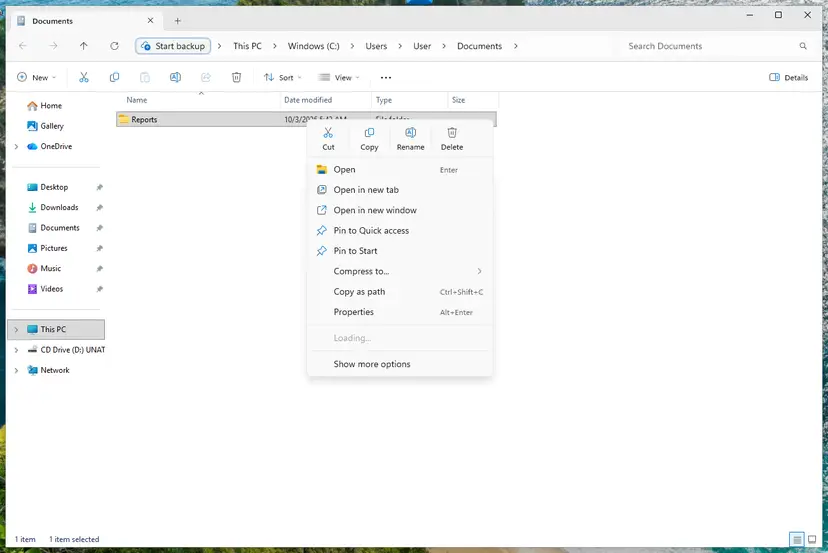
Right-click the folder: Restore previous versions. Screenshot: Windows 11 26H2. - Open its previous versions. Right-click the folder (not the missing file) and select Restore previous versions. You can also select Properties and open the Previous Versions tab. For a file that still exists, right-click the file itself.
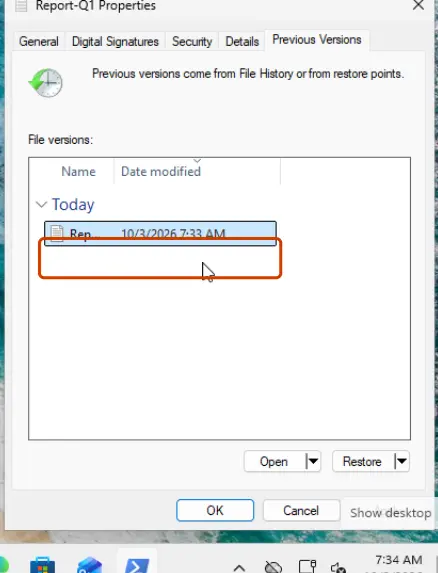
The Previous Versions tab lists the saved copies. Screenshot: Windows 11 26H2. - Pick the right date. The list shows the saved versions with their dates. Choose a version from before the file was deleted or changed. If the file is in a library, open it from its real location instead of the library.
- Check before you restore. Expand Open and select Open in File History to look inside the saved version first.
- Restore to a safe place. Expand Restore and select Restore to…, then choose another folder. Plain Restore replaces the current version on your PC, and that cannot be undone.
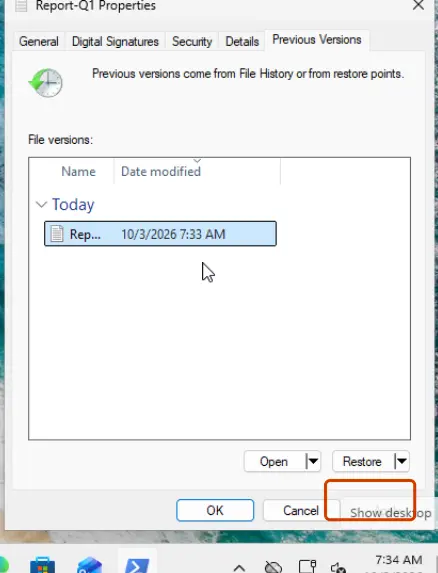
Restore, or the arrow next to it for Restore to. Screenshot: Windows 11 26H2.
These steps were written for Windows 11 and Windows 10 (the steps are the same). The full page with the other versions and what each result means: Restore an earlier version of a file or folder
File History saves your libraries and the Desktop by default, not AppData, so the list is empty on most PCs. More ways to get a deleted folder back are in Recover deleted files (Recycle Bin, backups, OneDrive).
It worked if: The SaveGames folder with its numbered folder and Backup is back, and Fix 1 or Fix 2 now finds your run.
If not: If no backup holds the folder, there is no local copy left. Try Fix 3 on Steam, then report the loss to the developer.
Still lost or still corrupted: what to check and whom to ask
- The game crashes on any save, even a new one. Then the game files are the problem, not the save. Verify them in Steam, Epic or the Xbox app: How to verify game files in Steam, Epic Games, Xbox app, EA app, Battle.net and GOG Galaxy. Verifying checks the install folder only and leaves
AppDataalone. - Steam: what happened to the cloud copy. Read
C:\Program Files (x86)\Steam\logs\cloud_log.txtfor the upload after the crash, and compare it with the dates on the Steam Cloud page. - Report it to the developer. Sandfall Interactive collects bug reports with the form linked in its patch notes:
https://sandfallinteractive.typeform.com/coe33. Zip your copy of the save folder, and give your platform, the patch number and what happened before the loss. - Steam Support cannot help with the file itself. Valve states that it cannot recover lost saves or settle cloud conflicts.
- When the drive is the cause. If other files on the same drive are damaged too, or Windows reports disk errors after a power cut, check the drive before you trust new saves to it: Check a disk for errors (chkdsk).
Sites offer finished Expedition 33 saves for download. They contain someone else's progress, not yours, and they replace your files. Use them only if you accept starting from another player's run, and keep your own copy.
How to keep Expedition 33 saves safe from now on
- Quit with Quit in the pause menu and wait a few seconds before you shut down the PC.
- On Steam, wait until the library stops showing the game as running or syncing.
- On PS5, keep auto-sync on and check Check Sync Status of Saved Data after a crash.
- Copy the
SaveGamesfolder to another drive after long sessions, or with the command below.
- End the game with Task Manager or by holding the power button while it saves.
- Answer a Steam Cloud conflict window without reading the dates.
- Let cleaner apps empty
AppData\Localfolders they do not know. - Play a long new game on top of a lost run before you have restored it.
Copy all Steam and Epic saves to drive D (Command Prompt, run after playing)
robocopy "%LOCALAPPDATA%\Sandfall\Saved\SaveGames" "D:\Backups\Expedition33" /Erobocopy with /E copies the numbered folder and its Backup folder and does not delete anything at the target. Change D: to any drive you have. For a backup that runs on its own, see Back up your files (Windows Backup, File History, Time Machine) and add the folder to it.
Frequently asked questions
Where are Expedition 33 save files on PC?
On Steam and the Epic Games Store, the saves are in %LOCALAPPDATA%\Sandfall\Saved\SaveGames\ followed by a numbered folder for your account. The main files are EXPEDITION_0.sav and SavesContainer.sav, and older copies sit in the Backup folder inside. The Xbox app and PC Game Pass version keeps its saves in %LOCALAPPDATA%\Packages\KeplerInteractive.Expedition33_ymj30pw7xe604\SystemAppData\wgs\ as container files. Paste either path into Win + R to open it, because AppData is hidden.
Can a corrupted Expedition 33 save be fixed?
The damaged file itself usually cannot be repaired: it is a binary file, and no official tool reads it. What works is replacing it with a good copy. The game writes dated backups every few minutes of play, Steam Cloud keeps the copy from your last clean exit, and PS5 keeps one in PlayStation Plus cloud storage. In most cases one of these copies is only minutes or hours older than the lost save. Start with Load Previous Saves in the pause menu.
I lost my Expedition 33 save on PS5. Can I get it back?
Only if a copy exists in PlayStation Plus cloud storage or in the game's own list of previous saves. First try Load Previous Saves in the game. Then highlight the game, press the options button and check the sync status. If the cloud copy is older and good, turn off auto-sync for the game and download it under Saved Data (PS5) > Download or Delete from Cloud Storage. Without PlayStation Plus there is no cloud copy, and we know of no other way.
How do you save in Clair Obscur: Expedition 33?
The game saves on its own, and the pause menu has no Save button: it lists Resume, Settings, Expedition Basics, Load Previous Saves, Return to Title Screen and Quit. Players report that resting at an Expedition Flag saves the game, and that the game also autosaves around fights and area changes. Before you quit, rest at a flag, then use Quit from the menu so the last save is written completely.
Can you have more than one save file in Expedition 33?
The save folder in our screenshot held both EXPEDITION_0.sav and EXPEDITION_1.sav, and patch 1.3.0 added support for renamed save files in the format EXPEDITION_XX, with a number from 00 to 09. So the game can read more than one main save. The dated files in the Backup folder are copies of a run at different times, not separate runs. If you want a safe copy of a run, copy the whole save folder to another drive.
Why are my achievements still there when the save is gone?
Achievements and trophies are stored in your Steam, Xbox or PlayStation account, and the platform keeps them even if every save file disappears. The save is a separate file on your PC or console that holds your position, party, items and story progress. That is why the game can start as a new game while your profile still shows dozens of achievements. It also means the account is fine: only the save needs to be restored.
Does verifying the game files fix a corrupted save?
No. Verifying in Steam, Epic or the Xbox app compares the installed game files with the originals and downloads damaged ones. Your saves are not in the install folder but in AppData, so verifying neither repairs nor deletes them. Verify the files when the game crashes on every save, including a brand new one. When only your own run fails to load, the save is the problem, and Fixes 1 to 3 are the way.
Does Steam Cloud back up Expedition 33 saves?
Yes. The save folder contains steam_autocloud.vdf, which Steam creates in folders covered by Steam Auto-Cloud, and Valve says Auto-Cloud syncs these files when the game starts and exits. You can see and download the uploaded files at store.steampowered.com/account/remotestorage. The cloud is not a history of versions: it holds what was uploaded last, which after a crash may be the broken file.
Will reinstalling Expedition 33 delete my save?
Uninstalling removes the game's install folder. The saves for Steam and Epic are in %LOCALAPPDATA%\Sandfall, outside that folder, so they normally stay. Reinstalling also does not fix a broken save, because the same file is still there afterwards. Before you uninstall anything, copy the SaveGames folder to another drive anyway. For the Game Pass version we could not confirm what removing the app does to the wgs folder, so make that copy first.
Sources
- PCGamingWiki: Clair Obscur: Expedition 33, game data and save locations (pcgamingwiki.com)
- Expedition 33 official site: Patch 1.3.0 notes (renamed save files) (expedition33.com)
- Steam news: Clair Obscur: Expedition 33 Hotfix 1.5.1 (store.steampowered.com)
- Steam news: Clair Obscur: Expedition 33 patch notes 1.2.2 to 1.5.6 (store.steampowered.com)
- Steam Support: Steam Cloud (help.steampowered.com)
- Steamworks Documentation: Steam Cloud and Steam Auto-Cloud (partner.steamgames.com)
- PlayStation Support: PlayStation Plus cloud storage for PS5 consoles (playstation.com)
Did this fix work?
One click, no account. It tells the next reader which guides are worth their time.
Questions and experiences: fix a corrupted or missing Clair Obscur: Expedition 33 save file
Still broken, or found a fix we did not cover? Ask here: members and our editors answer. Reading is open; writing needs a free account.
…