
How to fix ClipUp.exe - Bad Image error in Windows?

Prefer to fix it yourself? The manual steps follow.
- 7methods
- 5 to 40 minutes
- Intermediate
Applies to Windows 11 and Windows 10: the window titled ClipUp.exe - Bad Image that appears while you activate Windows, change the product key or upgrade the edition
7 methods in this guide
Hello. When I activate Windows I receive a ClipUp.exe - Bad Image error. It does not seem to affect the activation process, but is there still a way to get rid of it?
ClipUp.exe is a Windows activation and licensing tool in C:\Windows\System32. Its Bad Image window almost always names another file: in the reports we found, a hook DLL of a third-party security program that ClipUp refused to load. Check first whether Windows is activated anyway, then update or reinstall the program the window names.
ClipUp.exe is a Microsoft licensing tool, not a virus. The Bad Image window means ClipUp could not load the file named on the second line, which in reported cases is a DLL of a third-party antivirus such as Trend Micro or Comodo. First confirm that Windows is activated (Fix 1): if it is and the window came once, you can ignore it. If it keeps coming, update or reinstall the security program the path points to (Fix 2 and Fix 3).
| Error | ClipUp.exe - Bad Image window: a DLL "is either not designed to run on Windows or it contains an error", followed by an error status such as 0xc0000428. |
|---|---|
| Where it appears | While Windows activates, when you enter a product key or upgrade the edition (for example Home to Pro), and sometimes once right after setup. |
| Main cause | ClipUp.exe refuses a DLL that another program loads into every process. In the reports we read, that DLL belongs to a third-party security program. |
| Fastest fix | Check Settings > System > Activation (Fix 1). If Windows is active and the window does not return, nothing needs fixing. If it returns, update the security program named in the path (Fix 2). |
| Also written as | ClipUp.exe bad image, clipup exe, clipup.exe error, clipup exe file is missing, ClipUp.exe application error. |
| Status codes reported | 0xc0000428 (the hash of the DLL is not in the system catalogs) in the Microsoft Q&A report. 0xc000012f and 0xc000007b use the same window for a damaged file. |
| Affects | Windows 10 and Windows 11. Windows 10 left support on 14 October 2025, so Windows 10 22H2 gets no more fixes from Microsoft. |
| Microsoft's status | No Microsoft article for this window. A Microsoft Q&A answer treats it as harmless when it shows once and activation succeeds. |
| Effect on activation | Usually none. Posters on Microsoft Q&A report that Windows still activates and the window shows only once. |
| Time to fix | 5 minutes for Fix 1. 15 to 40 minutes to update or reinstall a security program. |
Facts checked on 15 October 2026. Steps written for Windows 11 (25H2 and 26H2) and Windows 10 22H2.
What ClipUp.exe is, and why it runs during activation
ClipUp.exe is a small command line program that ships with Windows 10 and Windows 11. Posters on Microsoft Q&A describe it as the Client License Platform migration tool, and a Microsoft Q&A answer says it is related to the activation of Windows. It has no window of its own. Windows starts it in the background when licence data has to be converted or moved.
- File
ClipUp.exeinC:\Windows\System32, with a copy in aC:\Windows\WinSxS\amd64_microsoft-cli...folder- Job
- Licence and activation housekeeping (Client License Platform)
- Publisher
- Microsoft Corporation, part of Windows
- Runs
- In the background while Windows activates, takes a new key or changes edition
- Can be removed
- No. It is a Windows component, restored by Windows repair tools
- Is a virus
- Not by its name. A file called ClipUp.exe outside System32 and WinSxS is suspicious (Fix 6)
Because ClipUp.exe runs only at those moments, its error also appears only then: during activation, right after you type a product key, or during an edition upgrade. That timing is the best clue that the window has to do with licensing work and not with a program you just opened.
What the ClipUp.exe - Bad Image error means
A Bad Image window always has the same shape. The title names the program that was starting, here ClipUp.exe. The text names the file Windows refused to load into it, and the last words give a status code. So the title tells you who suffered, and the path tells you who caused it.
This is the full text one reader posted on Microsoft Q&A in 2019, while upgrading Windows 10 Home to Pro with a generic key:
The window as reported on Microsoft Q&A
ClipUp.exe - Bad Image

C:\WINDOWS\system32\tmumh\20019\AddOn\8.50.0.2065\TmUmEvt64.dll is either not designed to run on Windows or it contains an error. Try installing the program again using the original installation media or contact your system administrator or the software vendor for support. Error status 0xc0000428.- The file in the path is not ClipUp.exe. It is
TmUmEvt64.dllin atmumhfolder, which belongs to Trend Micro security software, not to Windows. - Error status 0xc0000428 is
STATUS_INVALID_IMAGE_HASHin Microsoft's list of NTSTATUS values: the hash of that image cannot be found in the system catalogs. Windows could not match the DLL to a signature it accepts for this process. - Another report, in Comodo's own forum, shows the same ClipUp.exe window naming
C:\Windows\system32\guard64.dll, a file of Comodo Internet Security.
| Status code | Microsoft's name | What it means for ClipUp |
|---|---|---|
0xc0000428 | STATUS_INVALID_IMAGE_HASH | The DLL's hash is not in the catalogs Windows checks. The reported case: a security program's hook DLL. Start with Fix 2. |
0xc000012f | STATUS_INVALID_IMAGE_NOT_MZ | The file does not start like a program file at all, so its content is broken. Fix 3 for a program's DLL, Fix 4 for a Windows file. |
0xc000007b | STATUS_INVALID_IMAGE_FORMAT | Wrong or damaged program file, for example a 32-bit DLL in a 64-bit process. Same route as 0xc000012f. |
0xc0000020 | STATUS_INVALID_FILE_FOR_SECTION | Windows could not map the file into memory. Treat it like a damaged file. |
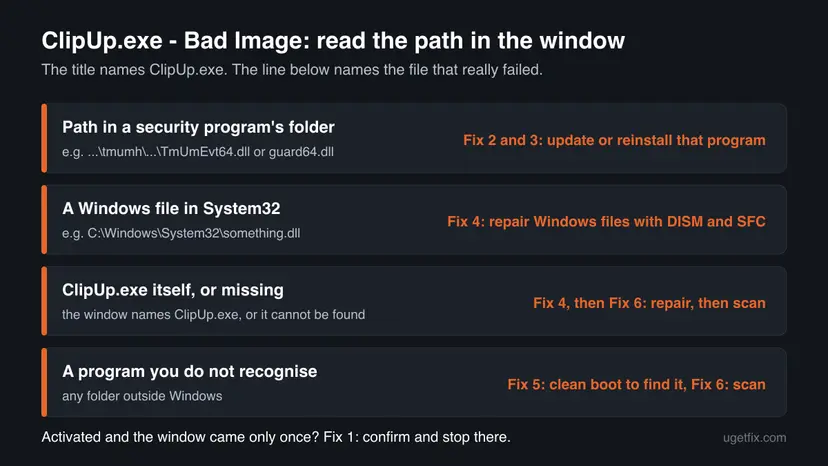
What causes the ClipUp.exe Bad Image error, from most to least common
Most often a security program loads its own DLL into every process that starts, ClipUp.exe included, and ClipUp refuses it. Less often a Windows file is damaged. Rarely the file is not the real ClipUp.exe, or an unofficial activation tool is involved.
| Cause | How often | How to tell | Fix |
|---|---|---|---|
| A third-party security program injects a hook DLL that ClipUp refuses. | Most often | The path points into an antivirus folder, such as tmumh (Trend Micro) or guard64.dll (Comodo). Status 0xc0000428. | Fix 2, then Fix 3 |
| The window is a one-time side effect of activation. | Often | Windows shows as activated, and the window did not come back. | Fix 1 |
| Another program, not a security one, injects a DLL. | Sometimes | The path points into a folder you do not recognise. | Fix 5 |
| Windows system files are damaged. | Sometimes | The path is a Windows DLL in System32, or the window names ClipUp.exe itself. | Fix 4 |
| ClipUp.exe is missing or replaced. | Rarely | Windows reports the file cannot be found, or a ClipUp.exe sits outside System32. | Fix 4, then Fix 6 |
It blamed corrupted system files first and sent readers to uninstall Windows updates and install Visual C++ packages. None of the reports we read ties this window to an update or to Visual C++. The path in the window points to a security program's DLL, so that program is where the fix starts.
How to fix ClipUp.exe - Bad Image error
Fix 1 tells you whether there is anything to fix. Fix 2 and Fix 3 deal with the security program behind most reports. Fixes 4 to 6 cover the rarer causes, and Fix 7 is a one-time test only.
| What you see or what your PC has | Start with |
|---|---|
| The window came once, during activation, and Windows says it is activated | Fix 1 |
The path points into an antivirus folder (Trend Micro tmumh, Comodo guard64.dll or similar) | Fix 2 |
| Fix 2 did not help, or the security program is old and no longer updated | Fix 3 |
| The path names a Windows DLL in System32, ClipUp.exe itself, or ClipUp.exe is missing | Fix 4 |
| The path points into a folder you do not recognise | Fix 5 |
| A ClipUp.exe outside System32 and WinSxS, or you are worried about malware | Fix 6 |
| You need to finish activation now and nothing else helped | Fix 7 |
Fix 1. Check whether Windows is activated and whether the window comes back
5 minutesNo riskEveryone, first. Especially if the window showed once while Windows activated.
On Microsoft Q&A, readers with this window report that Windows still activates and the window shows only once. If that is your case, ClipUp finished its licence work anyway and the refused DLL changed nothing.
- Write down or photograph the path and the status code from the window, then select OK.
- Windows 11: open Settings > System > Activation. Windows 10: open Settings > Update & Security > Activation.
- Read Activation state. Active with a digital licence or product key means activation worked.
- For a second check, type cmd in the search box, right-click Command Prompt and select Run as administrator.
- Run this command. A box should say the machine is permanently activated.
slmgr /xpr - Restart the PC and use it normally for a day. Note whether the ClipUp.exe window appears again.
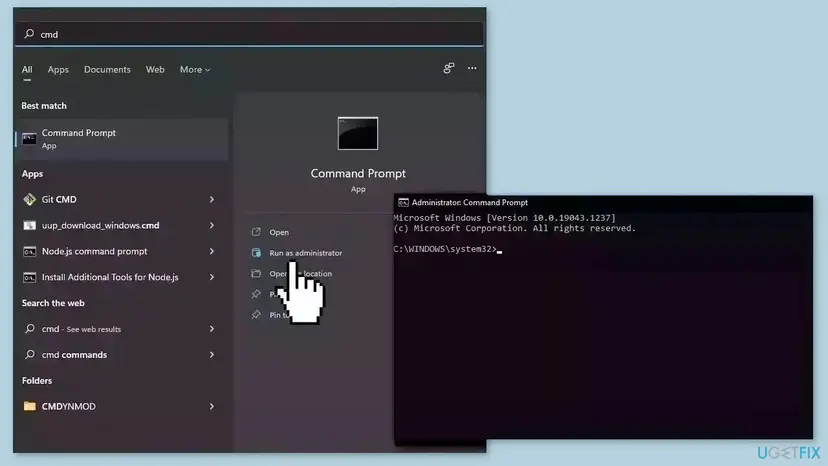
If the state is Active and the window does not return, you can stop here. The DLL that ClipUp refused stays loaded in your other programs as before, so nothing is broken. If Windows is not activated, select Troubleshoot on the same Activation page, and keep the window's path for Fix 2.
It worked if: Activation state shows Active, slmgr /xpr reports permanent activation, and the window does not come back after a restart.
If not: If Windows is not activated or the window keeps returning, go to Fix 2 when the path points to a security program, or to Fix 4 when it points to a Windows file.
Fix 2. Update the security program named in the window
10 to 20 minutesLow riskThe path in the window points into a third-party antivirus folder, such as Trend Micro's tmumh or Comodo's guard64.dll.
The refused file is the antivirus's own hook DLL, loaded into every new process. Status 0xc0000428 says Windows could not match its hash to a catalog it accepts. A newer build of that program brings a newer DLL, which is how such clashes are usually solved by the vendor.
- Find the folder name in the path.
tmumhandTmUmEvt64.dllbelong to Trend Micro.guard64.dllbelongs to Comodo. For any other name, search the folder name together with the word antivirus. - Open that security program from its icon in the notification area of the taskbar.
- Use its own update option, often called Check for updates or Update now, for both the program and its detection files.
- If the program offers a newer major version, install it. Old versions often keep old hook DLLs.
- Restart the PC from Start > Power > Restart.
- Repeat what showed the window: enter the key again, or open Settings > System > Activation.
If the newest version still shows the window, send the full path and the status code to that vendor's support. They can tell you whether a fix is known for their DLL in ClipUp.exe. The text of the window itself says to contact the software vendor.
It worked if: Activation or the key change completes without the ClipUp.exe window, and the security program shows as up to date.
If not: If the window still names the same DLL, reinstall the program cleanly with Fix 3.
Fix 3. Remove the security program, activate, then install its newest version
20 to 40 minutesLow riskFix 2 did not help, the program is no longer updated, or its update option fails.
An uninstall removes the hook DLL from every process. With it gone, ClipUp.exe can finish its licence work. A fresh install afterwards puts back a current, complete copy of the program and its DLLs.
- Note your licence key or account login for the security program before you remove it.
- Uninstall the program in Settings > Apps > Installed apps. Some vendors also offer their own removal tool, which removes leftovers.
- Restart the PC. Microsoft Defender Antivirus turns itself on when no other antivirus is installed, so the PC stays protected.
- Activate Windows or enter the key again, and check that no ClipUp.exe window appears.
- Download the newest version from the vendor's own website, install it and restart.

Every way to remove a program, including Control Panel for old installers: Uninstall a program or app in Windows
It worked if: With the program removed, activation finishes with no Bad Image window. After the reinstall, the window does not return.
If not: If the window appears even with the program removed, it names a different file now. Read the new path and use the chooser above.
Fix 4. Repair Windows system files with DISM and SFC
15 to 30 minutesLow riskThe path names a Windows DLL in System32, the window names ClipUp.exe itself, or Windows says ClipUp.exe is missing.
ClipUp.exe and its Windows DLLs are protected system files with a reference copy in WinSxS. DISM repairs that store from Windows Update, and SFC then replaces a damaged or missing ClipUp.exe or System32 DLL with a good copy.
- Open an elevated command window. Right-click Start and select Terminal (Admin), or type cmd in the search box, right-click Command Prompt and select Run as administrator. Select Yes when Windows asks for permission.

Search for cmd and choose Run as administrator. Screenshot: Windows 11 26H2. - Run DISM first. Type the command below and press Enter. DISM downloads clean copies of damaged components from Windows Update, so it can take several minutes. Wait until it says The operation completed successfully.
DISM.exe /Online /Cleanup-Image /RestoreHealth
DISM /RestoreHealth running. Screenshot: Windows 11 26H2. - Run System File Checker. In the same window, type the command below and press Enter. Do not close the window until the verification reaches 100%.
sfc /scannow
sfc /scannow at 100%. Screenshot: Windows 11 26H2. - Read the result and restart. Compare the last message with the table below this guide, then restart the PC so that repaired files are loaded.

The result line tells you what SFC did. Screenshot: Windows 11 26H2.
These steps were written for Windows 11 24H2 and 25H2. The full page with the other versions and what each result means: Run DISM and SFC to repair Windows system files
A ClipUp.exe or DLL from a download site can be the wrong version, unsigned or malware. Windows keeps its own good copy in WinSxS, and SFC puts it back. If SFC cannot, a repair install does it (see When nothing helps).
It worked if: SFC reports that it found and repaired corrupt files, or that it found no integrity violations, and the window is gone after a restart.
If not: If SFC cannot repair some files, read the log it names, then use the repair install under When nothing helps.
Fix 5. Find the program behind an unknown DLL with a clean boot
20 to 30 minutesLow riskThe path points into a folder you do not recognise, so you do not know which program loads the DLL.
A DLL that lands in ClipUp.exe is loaded by some program running in the background. A clean boot starts Windows with only Microsoft services, so if the window disappears, one of the turned off programs is the source.
- Open System Configuration. Select Search on the taskbar, type msconfig and select System Configuration from the results.
- Hide Microsoft services. On the Services tab, select the Hide all Microsoft services check box. Only services from other companies stay in the list.

With Hide all Microsoft services ticked, only third-party services stay in the list. Screenshot: Windows 11 26H2. - Disable the remaining services. Select Disable all, then select Apply.
- Open Task Manager. On the Startup tab of System Configuration, select Open Task Manager.

The Startup tab only links to Task Manager. Screenshot: Windows 11 26H2. - Disable the startup apps. On the Startup apps tab in Task Manager, select each item whose status is Enabled and select Disable. Write down or take a screenshot of the items you disable: you need the list to turn them back on.

Select an app, then Disable. Screenshot: Windows 11 26H2. - Confirm the changes. Close Task Manager. On the Startup tab of System Configuration, select OK.
- Restart and test. Restart the PC. Windows now starts in a clean boot environment: try again the thing that failed (run the app, install the update, uninstall the program).
These steps were written for Windows 11 25H2 and 26H2. The full page with the other versions and what each result means: How to perform a clean boot in Windows
In the clean boot state, activate Windows or enter the key again. If the window is gone, turn the services back on in halves until it returns. The last group you turned on holds the program. Then update or remove it as in Fix 2 and Fix 3, and switch back to a normal startup.
It worked if: In the clean boot state no ClipUp.exe window appears, and turning services back on in halves points to one program.
If not: If the window appears even in a clean boot, the DLL is loaded by a driver or a Windows part. Run Fix 4 and Fix 6.
Fix 6. Scan for malware when ClipUp.exe or the DLL looks out of place
15 minutes to 2 hoursNo riskA ClipUp.exe sits outside System32 and WinSxS, the DLL path is in a Temp or user folder, or the window appears when you did nothing with activation.
Malware sometimes uses names of Windows files to hide, and some malware injects DLLs into every process. A full scan with Microsoft Defender checks both the file and the DLL in the window.
- Open Windows Security. Select Start, type Windows Security and open the app.
- Open Virus & threat protection. Select Virus & threat protection. Under Current threats you see when the last scan ran, how long it took and how many files it checked.
- Run a quick scan. Select Quick scan. If Windows Security thinks a deeper scan is needed, it tells you when the quick scan is done.
- Open Scan options. If the quick scan finds nothing and you still suspect an infection, select Scan options under Current threats.
- Run a full scan. Select Full scan and start it. It checks every file and program on the device, so it takes much longer than a quick scan. Leave the PC on until it ends.
- Or scan one folder. To check only a download or a USB drive, select Custom scan in Scan options and choose the folder. You can also right-click a file or folder in File Explorer and select Scan with Microsoft Defender. On Windows 11 you may have to select Show more options first.
- Read Protection history. Go back to the first page of Windows Security and select Protection history. Select a card to expand it and see the details.
These steps were written for Windows 11 25H2 and 26H2, Windows 10 22H2. The full page with the other versions and what each result means: How to scan for malware with Microsoft Defender
To check the real ClipUp.exe, open C:\Windows\System32 in File Explorer, right-click ClipUp.exe and select Properties > Digital Signatures. The signer should be Microsoft Windows.
It worked if: The scan finds no threats, or it removes them and the window does not return after a restart.
If not: If threats come back after removal, run the Microsoft Defender Offline scan from the same Scan options page.
Fix 7. Pause the security program for one activation attempt
5 minutesLow riskYou must finish activation now, the window blocks it, and the security program cannot be updated or removed today.
With the program's protection paused, it may stop loading its hook DLL into new processes, so ClipUp.exe can run once. This proves the cause, but it is a test, not a fix.
- Pause the protection of the program named in the path for the shortest time it offers, for example 10 minutes.
- Activate Windows or enter the key again.
- Turn the protection back on at once, even if activation failed.
How to pause safely, and how to check protection is back on: Turn off Microsoft Defender protection for a moment. Some programs keep their hook DLL loaded while paused. In that case only Fix 3 removes it.
It worked if: Activation finishes without the window while protection is paused, and protection shows as on again afterwards.
If not: If the window still appears, the paused program is not the cause or still loads its DLL. Use Fix 3 or Fix 5.
When nothing helps: where the error is logged and what to send
Windows writes every Bad Image window into the event log, so you can read the exact path later even after you closed the window. Look in the System log for an entry from the source Application Popup.
- Right-click Start and select Event Viewer.
- Open Windows Logs > System.
- Select Filter Current Log and type
26in the event ID box. - Open the entries with ClipUp.exe - Bad Image in the text and copy the path and the status code.
- Send to the security vendor the full path, the status code, your Windows version from Settings > System > About, and the program version.
- Send to Microsoft support the same, plus the result of
slmgr /dlvif activation fails. - Repair install. If ClipUp.exe or Windows DLLs stay damaged after Fix 4, reinstall Windows over itself and keep your files and apps: Reinstall Windows without losing files
How to keep the ClipUp.exe window from coming back
- Keep the security program current. Its hook DLL is what ClipUp refused in the reported cases, and old versions keep old DLLs.
- Remove old security programs fully. Two antivirus programs, or the leftovers of an old one, mean more DLLs in every process. Use the vendor's removal tool.
- Activate with a genuine key or digital licence. Unofficial activation tools also run ClipUp.exe and change licence files, which can bring this and other licensing errors.
- Do not delete or replace Windows files by hand. If ClipUp.exe or a System32 DLL is damaged, let SFC or a repair install put the right copy back.
Frequently asked questions
What is ClipUp.exe?
ClipUp.exe is a Microsoft program in C:\Windows\System32 that handles licence and activation work for Windows. Posters on Microsoft Q&A describe it as the Client License Platform migration tool. It has no window, runs only for a moment while Windows activates, takes a new product key or changes edition, and then closes. A second copy sits in the WinSxS folder, which Windows uses to repair it. It is part of Windows 10 and Windows 11, so you cannot uninstall it, and you do not need to start it yourself.
Is ClipUp.exe a virus?
No, the real ClipUp.exe is a Windows file signed by Microsoft. It lives in C:\Windows\System32 and in a WinSxS folder. A file with the same name in Downloads, Temp, AppData or another user folder is not the Windows file, and should be scanned with Microsoft Defender (Fix 6). To check the real one, right-click it in System32, select Properties and open Digital Signatures: the signer should be Microsoft Windows. The Bad Image window itself is not a sign of malware either, because it usually names a security program's DLL.
Does the ClipUp.exe Bad Image error stop Windows from activating?
Usually not. Readers on Microsoft Q&A report that Windows still activates and that the window shows only once. ClipUp.exe does its licence work, and the DLL it refused is a helper from another program that ClipUp does not need. Check Settings > System > Activation on Windows 11, or Settings > Update & Security > Activation on Windows 10. If the state is Active and the window does not return, nothing else needs to be done. If Windows is not activated, follow Fix 2 and Fix 3.
What does it mean when the ClipUp.exe file is missing?
It means Windows could not find C:\Windows\System32\ClipUp.exe when activation or a key change tried to start it. The file can be removed by an aggressive cleaner, an antivirus that quarantined it by mistake, or damage to Windows files. Check the quarantine of your security program first and restore the file if it is listed there. Then run DISM and SFC (Fix 4), which put back the Windows copy from the component store. Do not download ClipUp.exe from a DLL or EXE download site.
Why does the window name a Trend Micro or Comodo file and not ClipUp.exe?
Because the title names the process that was starting and the text names the file that failed to load into it. Many security programs place a small DLL into every new process to watch what it does. Trend Micro's TmUmEvt64.dll in a tmumh folder and Comodo's guard64.dll have both been reported in this window. ClipUp.exe refused that DLL, and Windows showed the Bad Image message under ClipUp's name. Updating or reinstalling that security program is the fix (Fix 2 and Fix 3).
What is a Bad Image error in Windows?
A Bad Image error is Windows' message for a program file it will not load. The title shows the program that was starting, the text shows the file that failed, and the status code says why. Code 0xc000012f means the file does not begin like a program file. Code 0xc000007b means the format is wrong, and 0xc0000428 means its hash is not in the system catalogs. The same window appears for many programs, so the path in it matters more than the title. Our chooser above matches each path to a fix.
How do I fix a Bad Image error in general?
Read the path in the window and fix the file it names, not the program in the title. If the file belongs to an installed program, update or reinstall that program. If it is a Windows file in System32, run DISM and SFC to put back Microsoft's copy. If you do not recognise the folder, find the program with a clean boot and scan for malware. Avoid downloading single DLL files from websites, because the wrong version brings a new Bad Image error.
Can I delete or disable ClipUp.exe to stop the window?
No. ClipUp.exe is part of Windows activation, and Windows restores it during repairs and updates. Deleting it can leave Windows unable to change keys or activate, and the file is protected anyway. It also does not cause the window: the DLL named in the path does. Close the window with OK, check activation (Fix 1), and update or reinstall the security program the path points to.
The window appeared while I ran an activation script. What now?
Unofficial activation scripts and tools also call ClipUp.exe and change licence files, so they can cause this window and other licensing errors. uGetFix does not cover those tools. Remove the tool, run DISM and SFC (Fix 4) to restore Windows files, and activate with a genuine product key or a digital licence linked to your Microsoft account. Settings > System > Activation shows which licence Windows uses now.
Sources
- Microsoft Learn: [MS-ERREF] NTSTATUS Values (0xC0000428, 0xC000012F, 0xC000007B, 0xC0000020) (learn.microsoft.com)
- Microsoft Q&A: Clipup.exe error - Bad Image (activation still works, file in System32 and WinSxS) (learn.microsoft.com)
- Microsoft Q&A: ClipUp.exe - Bad Image naming TmUmEvt64.dll, error status 0xc0000428, during an edition upgrade (learn.microsoft.com)
Did this fix work?
One click, no account. It tells the next reader which guides are worth their time.
Questions and experiences: fix ClipUp.exe - Bad Image error in Windows
Still broken, or found a fix we did not cover? Ask here: members and our editors answer. Reading is open; writing needs a free account.
…