How to fix
Corrupt Content Files error on Steam
on Windows
Resolve the Corrupt Content Files error on Steam effortlessly with our expert-tested solutions for Windows 10 and 11. Fixed in minutes!

What causes How to fix Corrupt Content Files error on Steam?
- Server issues
- Missing admin access
- Unreliable wireless Internet connection
- Third-party security software
Repairs Windows system files, removes malware, and restores a clean OS state — without reinstalling.
Hello. I tried to update one of my games on Steam and I received a message "An error occurred while updating (corrupt content files)". I am unable to play the game without updating, does anyone have any tips on what I should do?
Steam is a video game distributor for PC, that held around 75% of the market share in 2013. Steam offers server hosting, video streaming, and social networking services. It also provides the user with installation and automatic updating of games, and community features such as friends lists and groups, cloud storage,[ref en-1] and in-game voice and chat rooms.
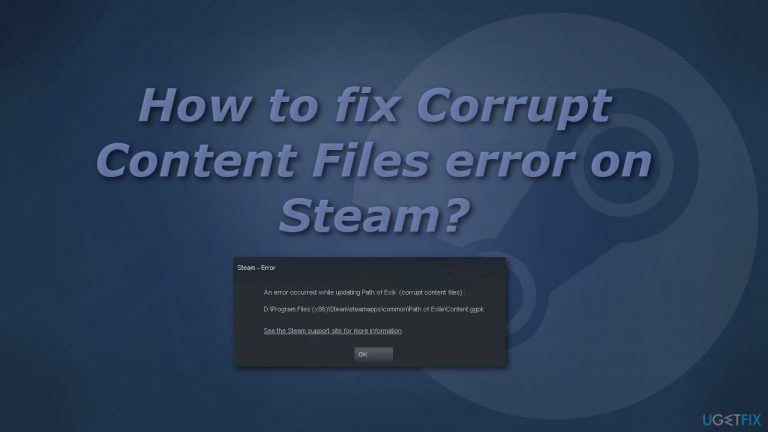
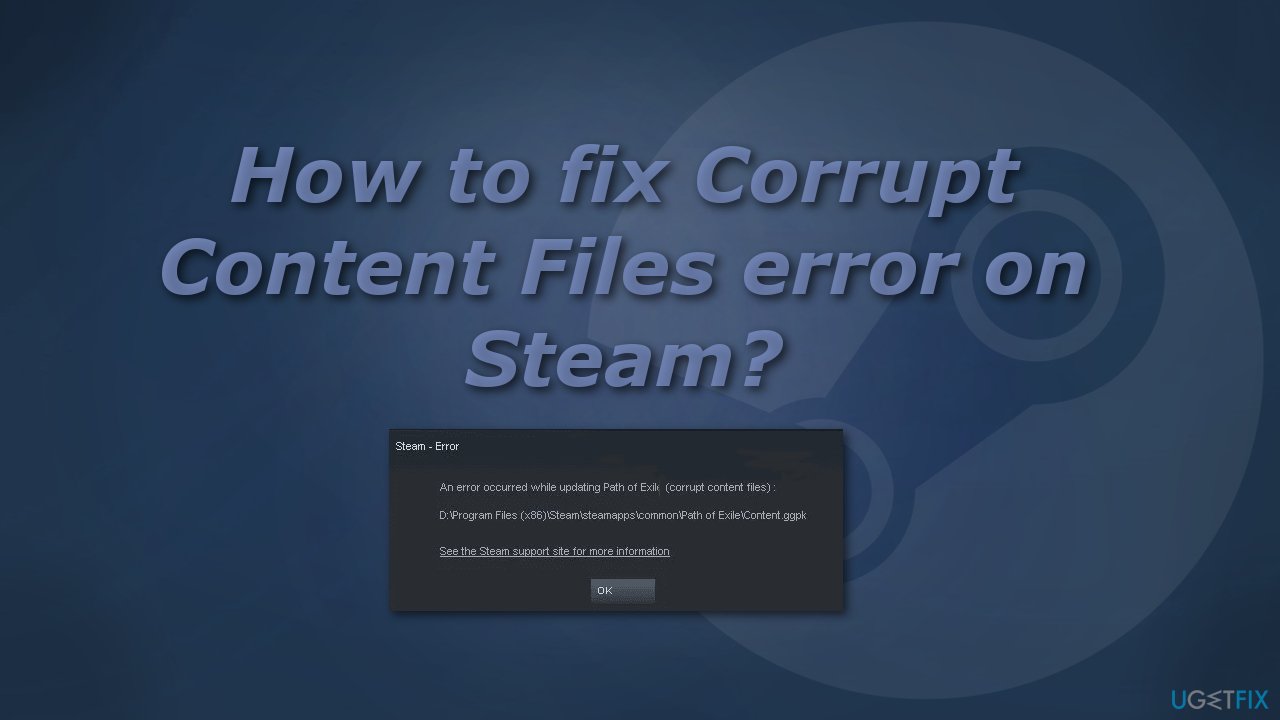
Although Steam is one of the most highly rated platforms, of course, nothing ever goes without any issues. Some Windows users reported, that they encountered an error that prevents them from updating games. The message players see states the following:
An error occurred while updating (corrupt content files)
D:\\Program Files (x86)\\Steam\\steamapps\\common\\Path of Exile\\Content.ggpk
See the Steam support site for more information
As you can see the prompt does not tell anything specific about the error and what could be causing it, so there are many possibilities why Steam users are encountering it. While some users are facing this problem with a single title, other users are seeing this error message with every game they attempt to update.
Some of the possible causes could be server issues, missing admin access,[ref en-2] unreliable wireless Internet connection, or third-party security software. If you want to avoid doing changes to your computer and Steam and going through all of the possible solutions, you can try using the [d1] optimization tool. It can find the underlying Windows issues, automatically fix BSODs,[ref en-3] missing DLL errors, registry errors, and more.
If you prefer looking for the cause of the Steam update error yourself, you can do so by trying some of our methods. Make sure to carefully follow all of the steps:
Method 1. Run Steam as Administrator
- Close Steam
- Open File Explorer and find steam.exe
- Right-click on steam.exe and then choose Properties
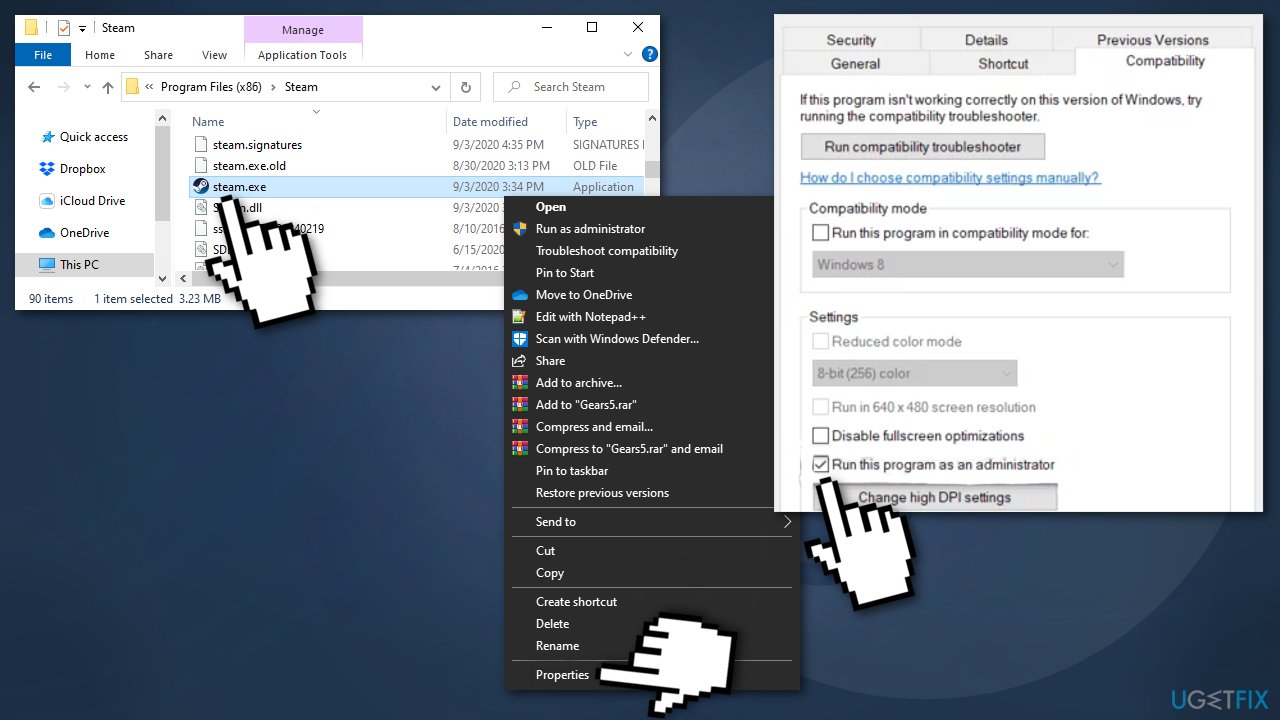
- Select Compatibility tab, then move down to the Settings and check the box Run this program as an administrator
- Click Apply to save the changes
Method 2. Delete the downloading folder
- Close Steam
- Go to This PC > Local Disk (C:) > Program Files (x86) > Steam > steamapps
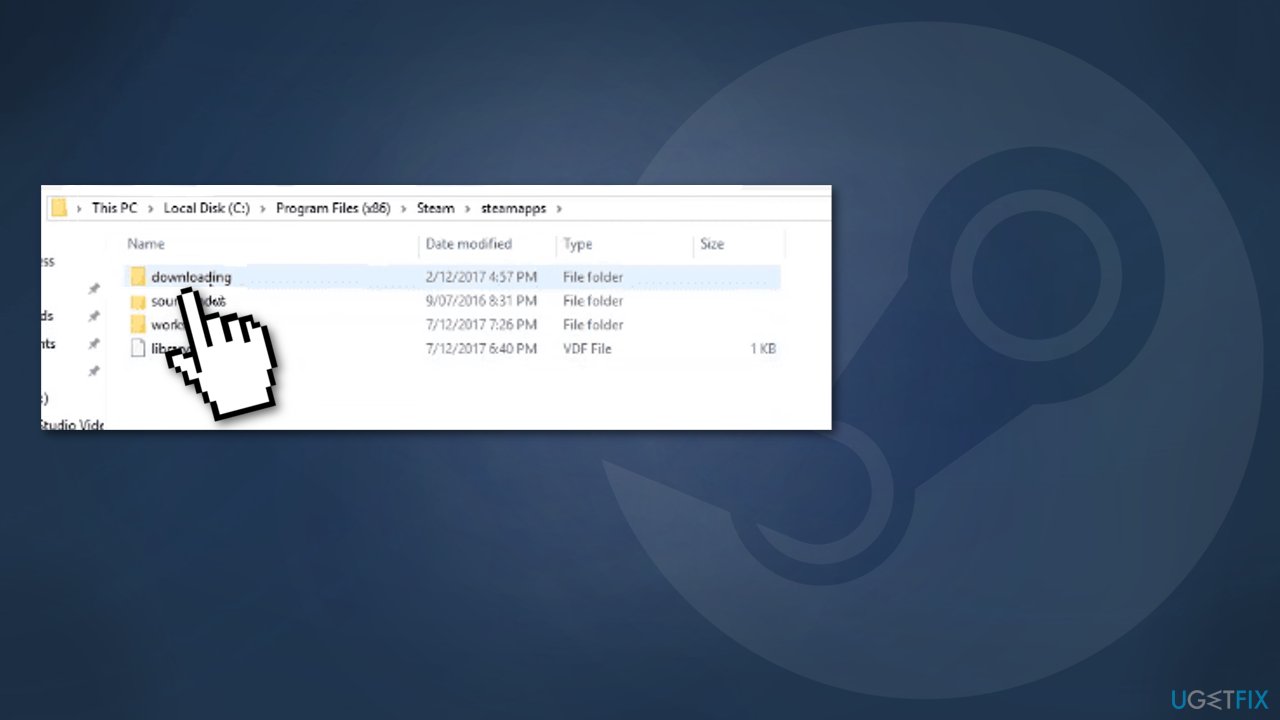
- Open downloading folder and delete everything in it
Method 3. Change the Download Region
- Open Steam client
- Go to Settings
- Access the Downloads entry
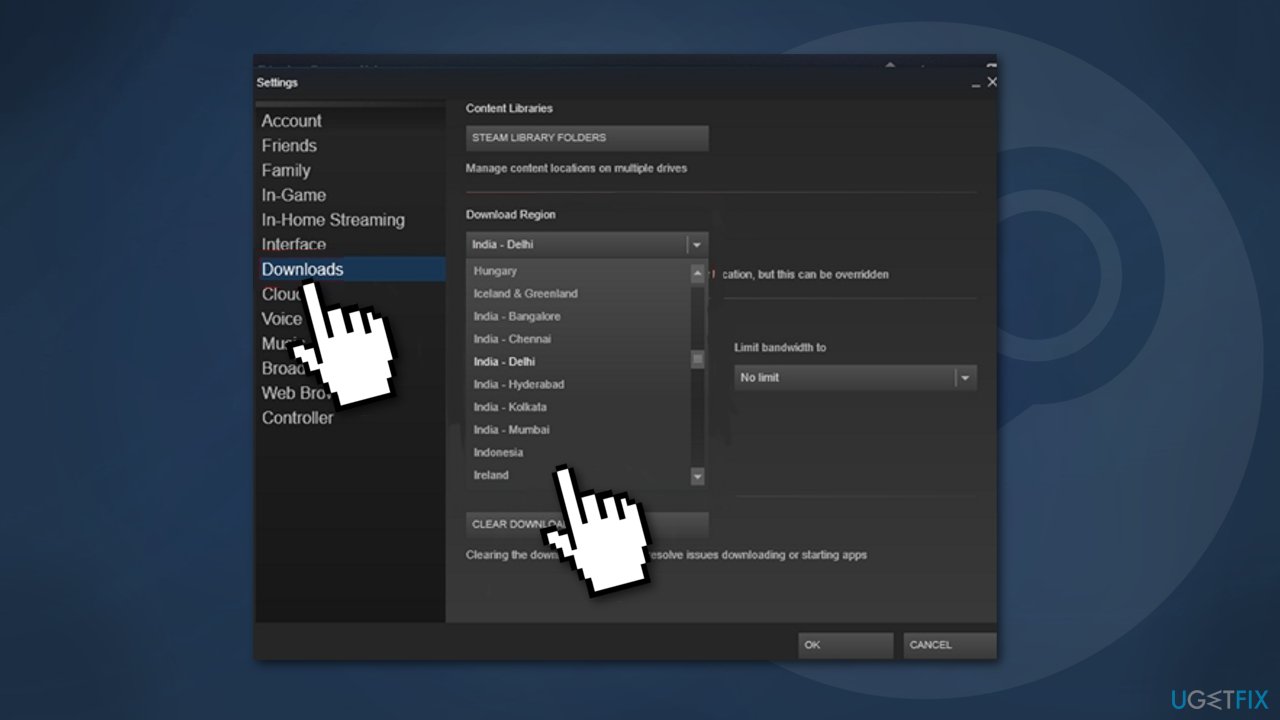
- Change the Download Region to a different country
- Save the changes
Method 4. Perform a Winsock reset
- Press Windows key + R to open Run dialog
- Type cmd and press Ctrl + Shift + Enter to open up an elevated Command Prompt
- Click Yes to grant admin access
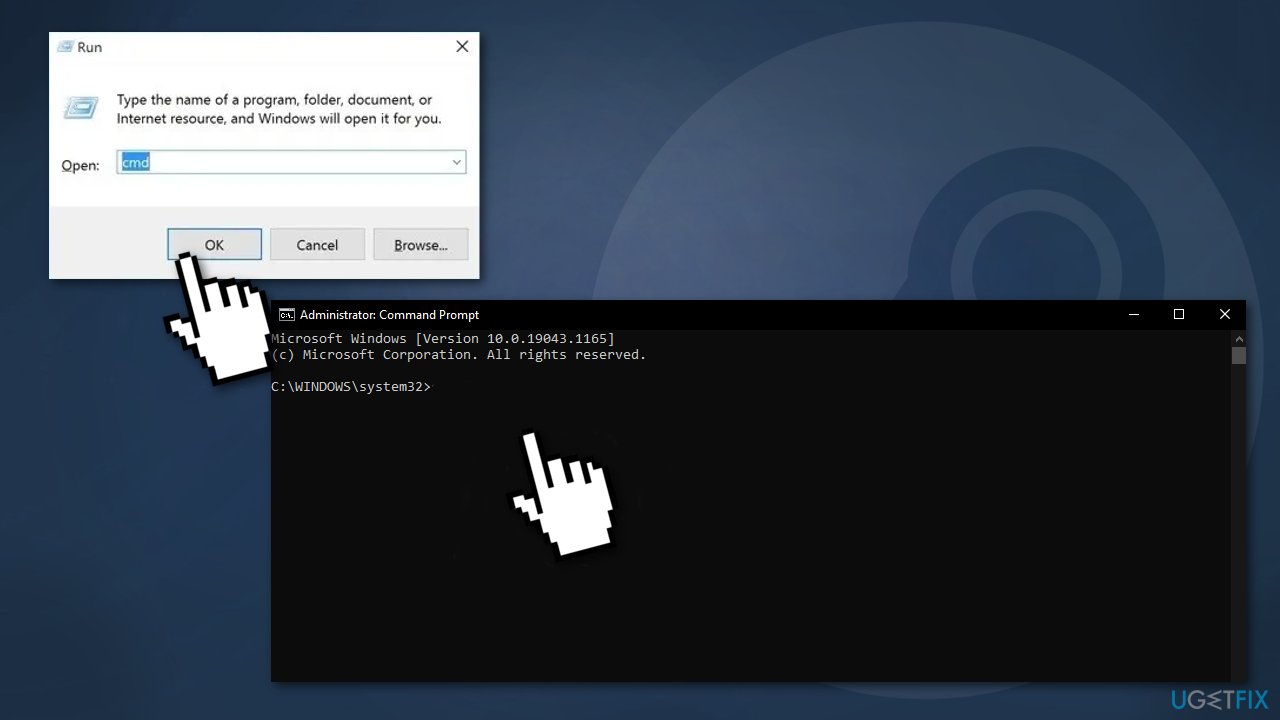
- Type the following commands individually inside the prompt in same order and press Enter after each one:
gygj
ipconfig /flushdns
nbtstat -R
nbtstat -RR
netsh int reset all
netsh int ip reset
netsh winsock reset
- close the Command Prompt window and restart your Steam client to see if the problem is now fixed
Method 5. Free up RAM space
- Press Ctrl + Shift + Enter to open the Task Manager
- Access the Processes tab
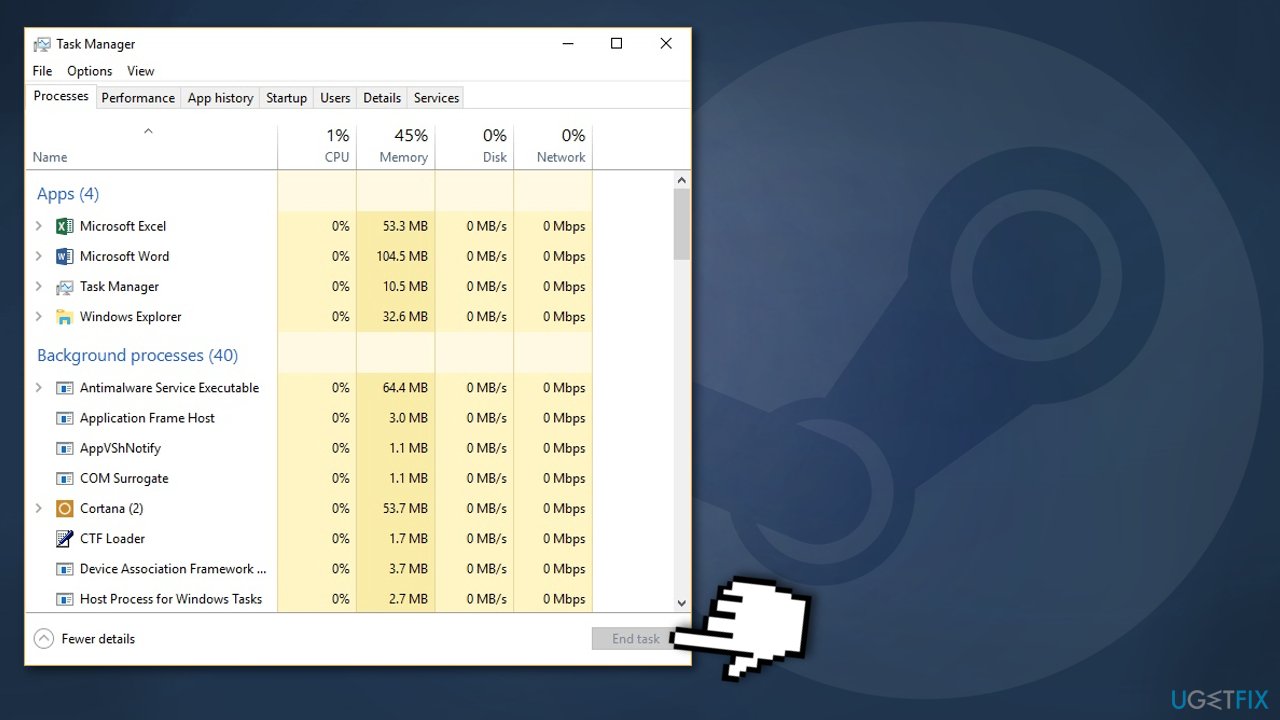
- Right-click to End every process that is taking up Memory
Method 6. Delete app cache
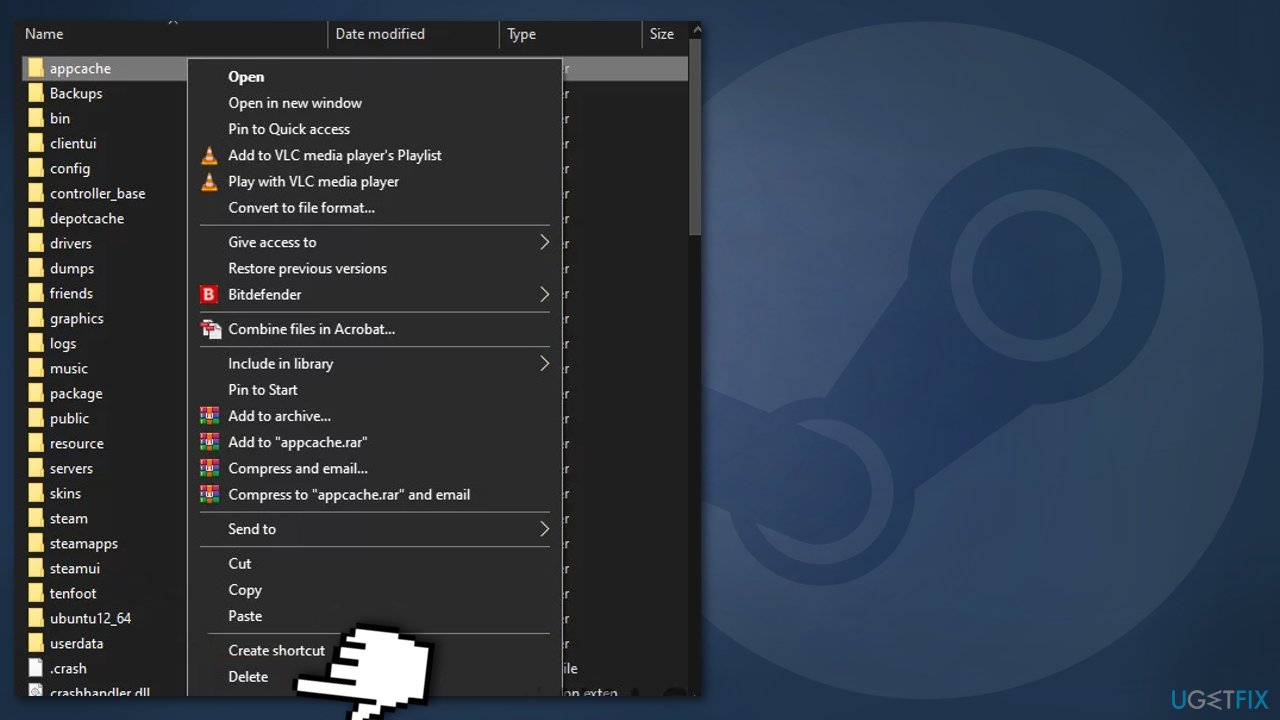
- Open File Explorer and navigate to where Steam is located (the default location is C:\\Program Files (x86)\\Steam)
- Find the appcache folder
- Right-click and choose Delete
- Restart your computer
Method 7. Whitelist Steam in Windows Firewall
- Press Windows key + R to open the Run dialog
- Type control firewall.cpl and press Enter
- In Windows Defender Firewall, click on Allow an app or feature through Windows Defender firewall
- In the Allowed Apps menu, click on Change settings button
- Click Yes to grant admin access
- Go under Allowed another app and click on Browser
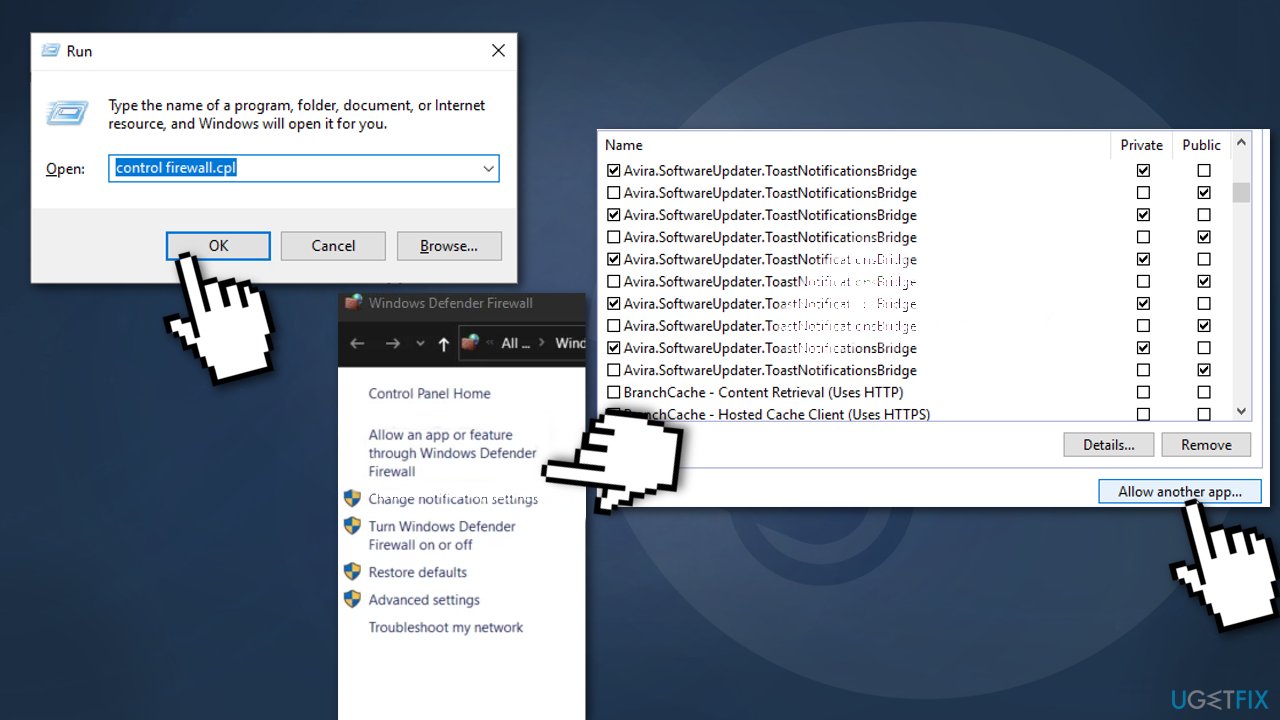
- Navigating to the location where steam is installed. By default, it is C:\\Program Files\\Steam\\bin
- Eexclude main Steam executable and the executable of the game that is failing to update
- Ensure that the Private and Public boxes associated with each entry are checked
- Close the Allowed Apps window
Other topics you might be interested in:
Bottom line
To fix the corrupt content files error on Steam, you can try running Steam as an administrator or using the optimization tool to address underlying Windows issues. If these methods do not resolve the problem, consider checking for additional solutions or consulting the Steam support site.
Frequently asked questions
Open Steam, go to your Library, right-click on the game, select Properties, then navigate to the Local Files tab and click on 'Verify Integrity of Game Files'.
Try running Steam as an administrator, then repeat the file verification process to see if it resolves the corrupt content files error.
If verification fails, consider reinstalling the game or checking your hard drive for errors using the Windows built-in Check Disk tool.




Report an issue
What's wrong with this guide? We review every report and update or remove content.
Report received — thank you. We'll review and fix it.
You need a free account to submit a report.
Be the first to comment