How to fix
DNS isn’t resolving Xbox server names
on Windows
Resolve Xbox server name issues on Windows 10 and 11 easily. Follow our expert-tested solutions and get back to gaming in minutes!

What causes How to fix DNS isn’t resolving Xbox server names?
- Slow ISP-supplied DNS servers
- Improperly configured DNS servers
- Issues with the home network
- Temporary connectivity issues with the console or router
Repairs Windows system files, removes malware, and restores a clean OS state — without reinstalling.
Hello. Whenever I try to connect to the internet on Xbox, I am able to connect to my router, but I receive the "DNS isn't resolving Xbox server names" error. Any suggestions would be appreciated.
Xbox is a video gaming brand created and owned by Microsoft.[ref en-1] The brand has released 5 video game consoles, games, streaming services, and an Xbox network. It was introduced in the United States in November 2001, with the launch of the first Xbox console.[ref en-2]
Since then, it has become much more than just a technology for gaming enthusiasts. Without the ability to purchase and download games online and have them installed automatically, on Xbox One, you can watch TV, movies, Youtube, listen to music, chat on Skype, and browse the internet.
Unfortunately, sometimes users come across problems when trying to use Xbox with a wireless connection. "DNS isn't resolving Xbox server names" error has been experienced by users at least once. But this is not an issue with the gaming console itself; your home network relies on a DNS Server supplied by your ISP[ref en-3], which has nothing to do with Xbox.
DNS (Domain Name System) is a network component that translates the website's name you want to visit into the IP address that matches that website. If the ISP-supplied DNS servers are slow or not properly configured for caching, they can slow down your connection or, as in this case - lose it completely.
It is important to note that users have faced the same error on their Windows machines as well. In this case, you could run a system repair tool [d1] - it can fix the most common Windows issues, clean junk from your system, and fix various Windows errors, BSODs,[ref en-4] registry problems much more.
DNS is an important decentralized system that must work perfectly when you are connecting to the internet. "DNS isn't resolving Xbox server names" can be resolved using relatively basic methods listed down below:
Method 1. Restart the console and router
A router reboot can fix certain Internet connectivity issues and should be one of your first troubleshooting steps:
- Press and hold the Xbox logo on your console for about 5-8 seconds and wait for it to shut down
- Plug out the power cable
- Turn off your router and plug out the power cable
- Wait for about 2-3 minutes
- Plugin and turn on both systems
- Try connecting your Xbox to the internet
Method 2. Set DNS Server as Automatic
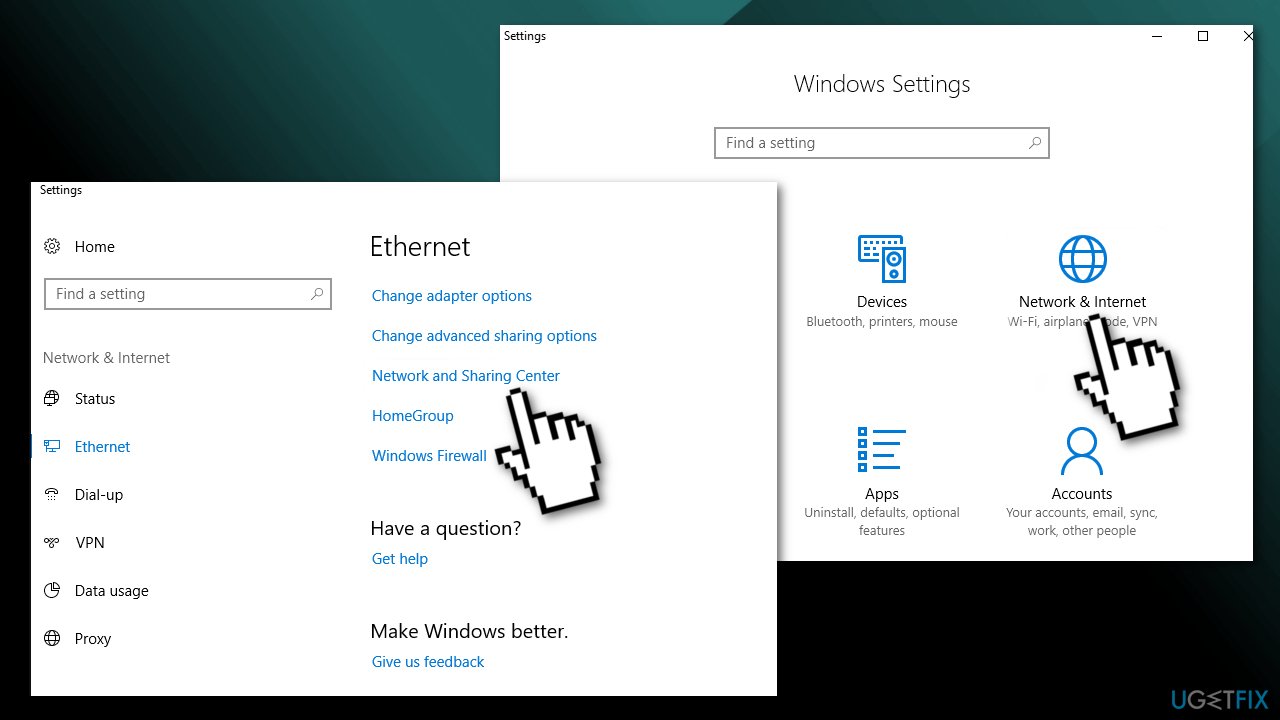
- Press Windows + I and choose Network & Internet
- Choose Network and Sharing Center
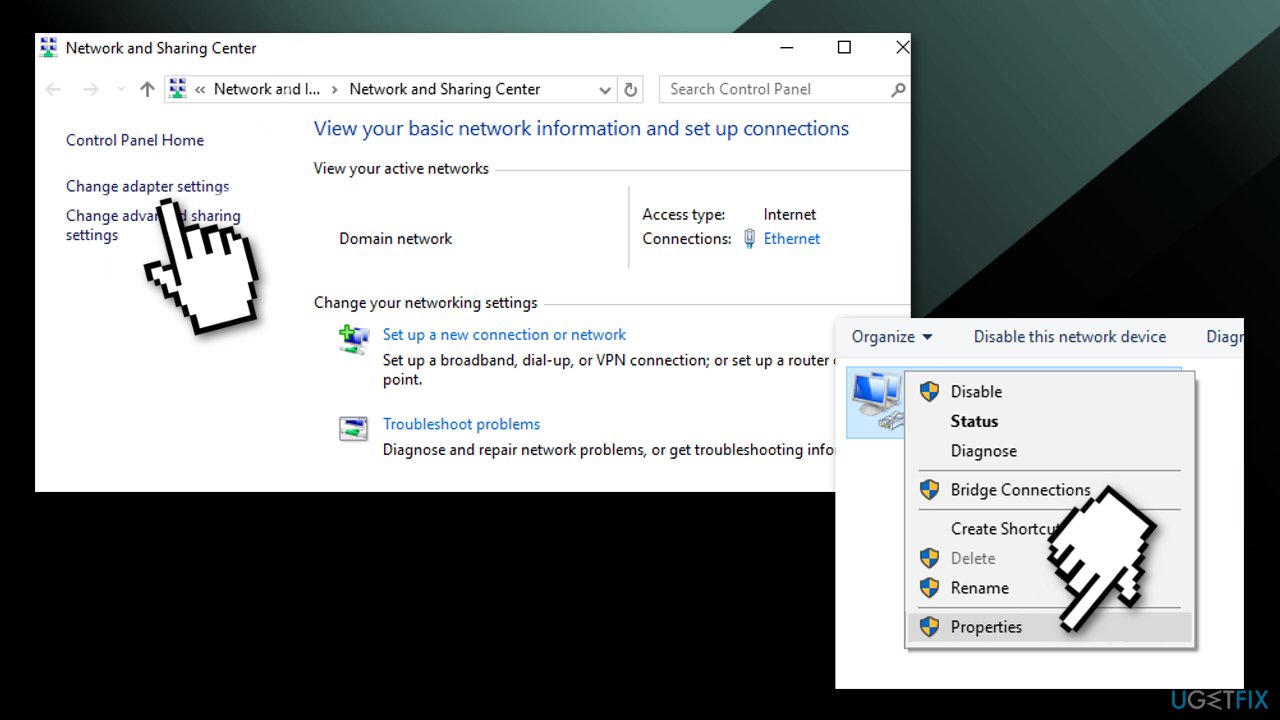
- Select Change adapter settings
- Right-click the Internet connection and choose Properties
- Select Internet Protocol Version 4 (TCP/IPv4) and click Properties
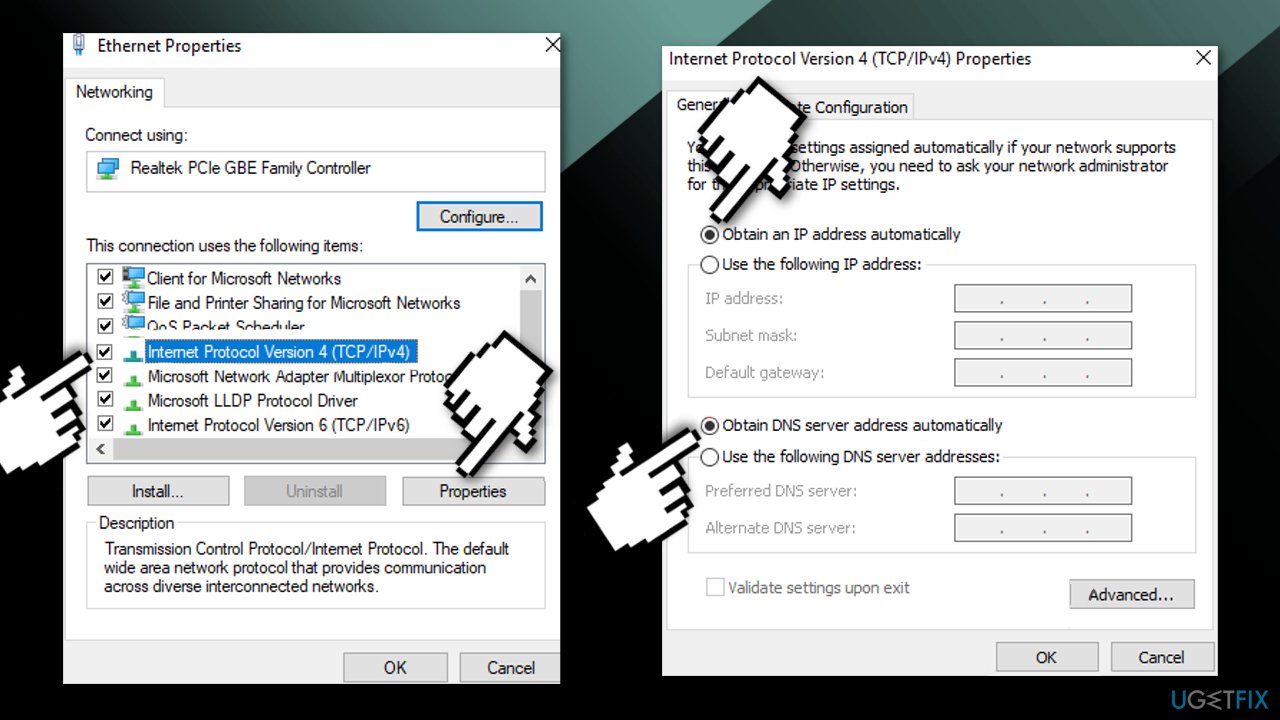
- Tick the Obtain an IP address automatically and Obtain DNS server address automatically boxes
- Click OK to save changes
Method 3. Manually set the DNS address
An alternate DNS server has multiple benefits, including faster servers compared to the ISP server, so requests get processed faster and more smoothly. Google Public DNS has been available for almost 10 years, with the easy-to-remember IP addresses of 8.8.8.8 and 8.8.4.4. Google promises a secure DNS connection, hardened against attacks, as well as speed benefits:
- Select Settings on the menu
- Select Network
- Choose Advanced settings and DNS settings
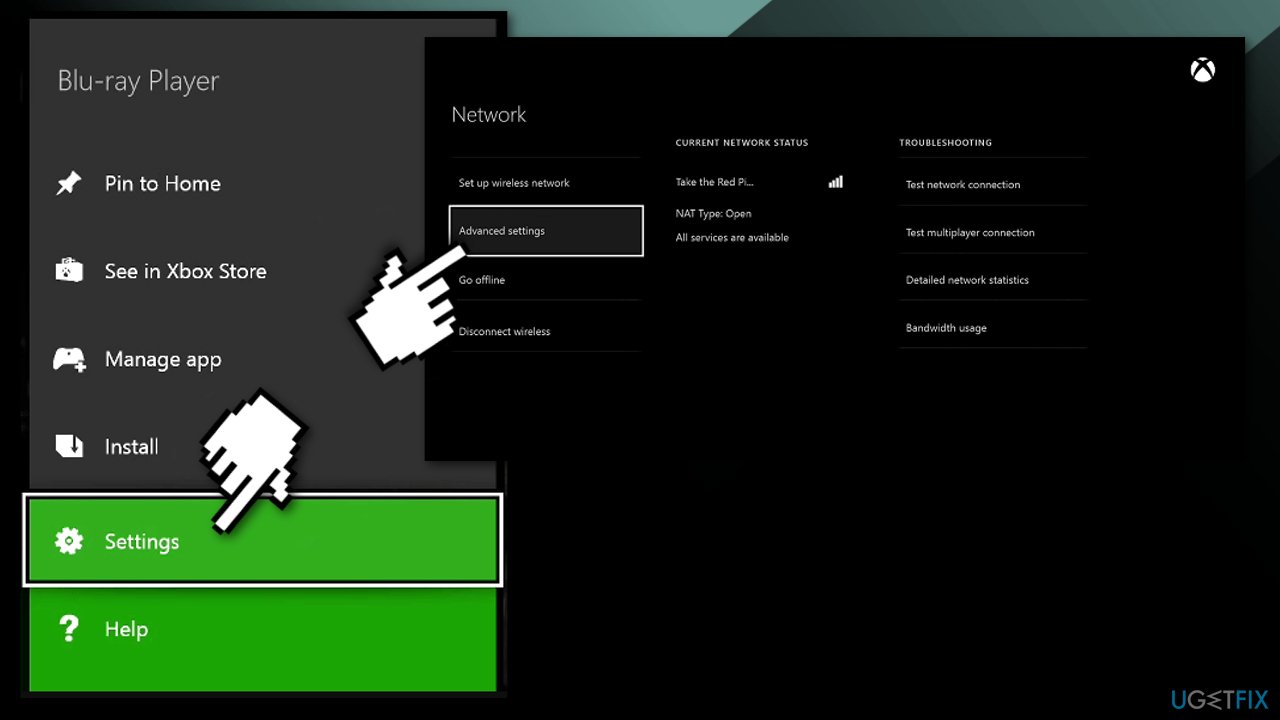
- Press Manual to open the Primary DNS boxes
- Enter 8888
- Press Enter
- For Secondary DNS, enter 8844
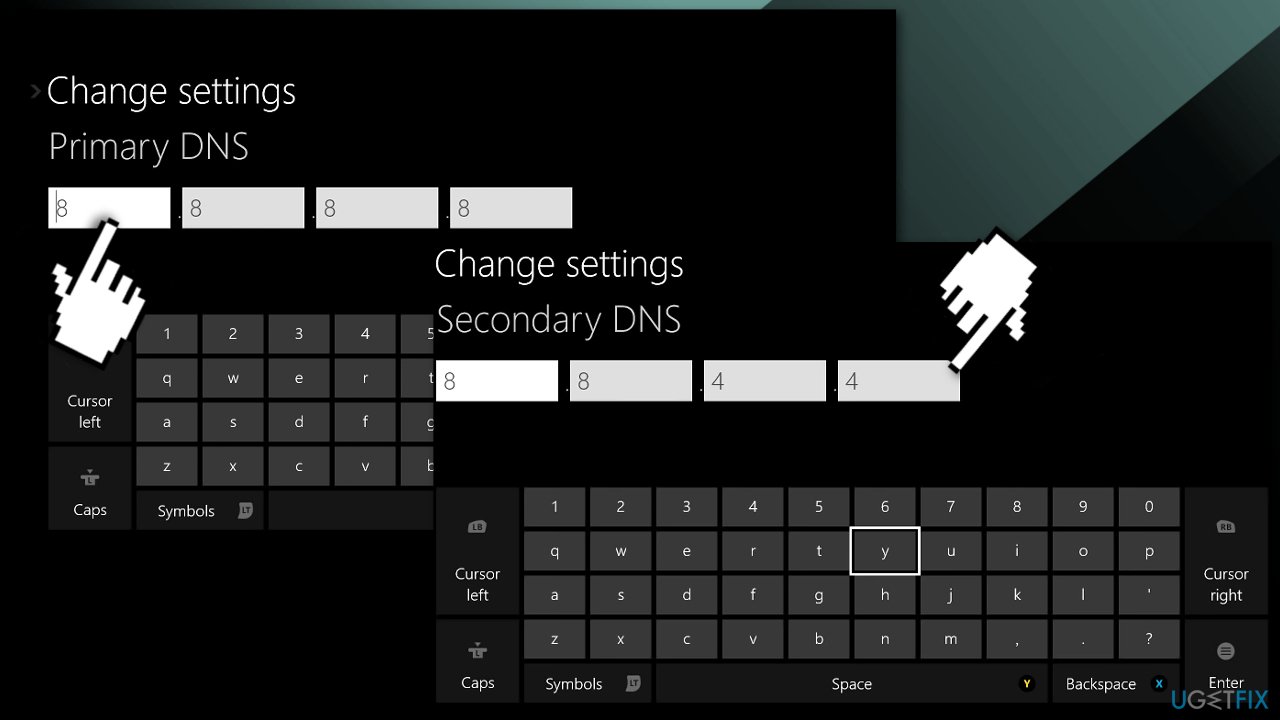
- Press B to save the changed DNS settings
Method 4. Reset router
- Look for Reset on the back
- Pick up a thin pin to press inwards towards the hole which says Reset
- Check if your Xbox console is able to connect to the internet
Method 5. Change WiFi channel width
The width of a Wifi channel dictates how much data can pass through and at what speed. Wider channels are usually associated with more data transferred at faster speeds if there are no interferences:
- Press Windows + R to open the Run box
- Type cmd and click OK
- Enter ipconfig in the Command Prompt
- Press the Return key
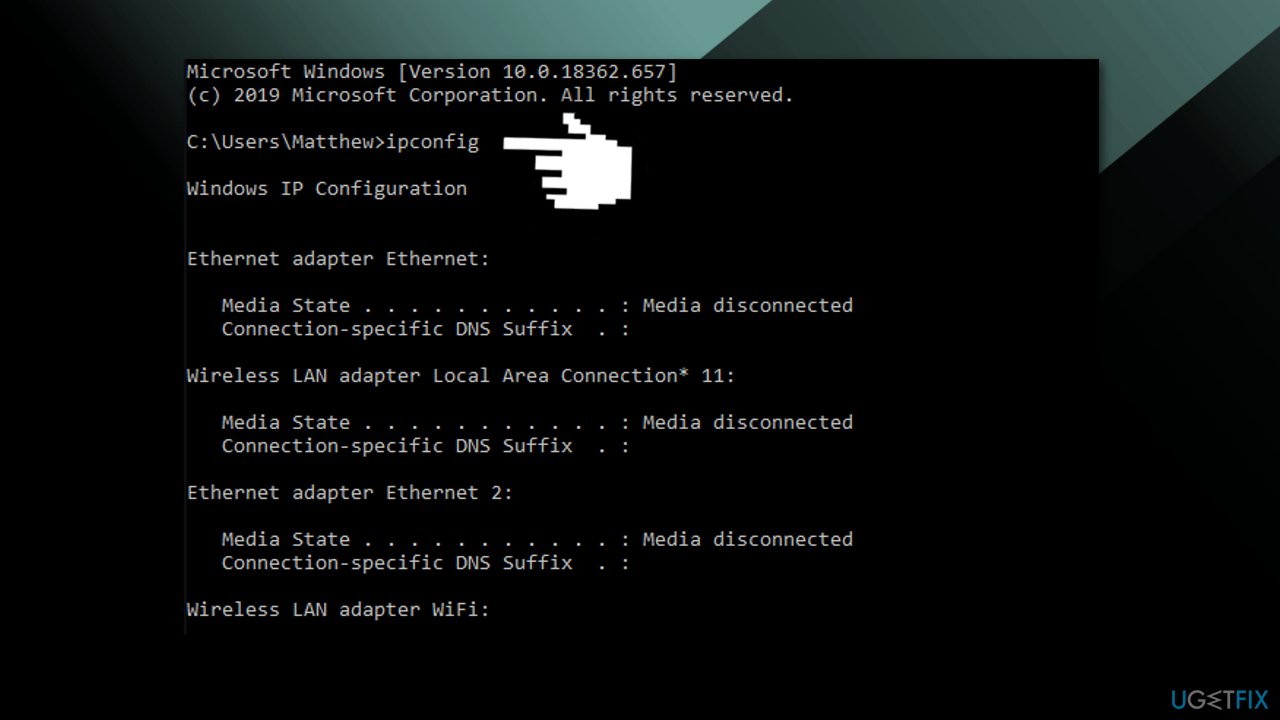
- Note down the Default Gateway number
- Open a browser
- Enter your Default Gateway number in the URL bar, and press the Return key
- Open the wireless settings within your router’s configuration page
- Select 20Mhz on the Channel Width drop-down menu
Method 6. Use wired connection
A wired network connection is always the most reliable and most secure internet connection:
- If nothing has worked so far, consider using a wired connection instead, as this issue seems to appear only for those using the wireless connection
You might also be interested in the following topics:
Bottom line
To resolve the 'DNS isn't resolving Xbox server names' error, you can try restarting both your Xbox console and router. If the issue persists, consider running a system repair tool on your Windows machine. If none of these methods work, further investigation into your network settings may be necessary.
Frequently asked questions
You can try flushing the DNS cache by running 'ipconfig /flushdns' in Command Prompt, and also consider changing your DNS settings to Google's DNS (8.8.8.8 and 8.8.4.4).
Check your network adapter settings for any misconfigured DNS settings, and ensure that your Windows firewall is not blocking Xbox Live services.
Yes, you can reset your network settings by going to Settings > Network & Internet > Status, then click on 'Network reset' to restore default settings.




Report an issue
What's wrong with this guide? We review every report and update or remove content.
Report received — thank you. We'll review and fix it.
You need a free account to submit a report.
Be the first to comment