
How to fix error 0x80070052: The directory or file cannot be created?

Prefer to fix it yourself? The manual steps follow.
- 5methods
- 2 to 30 minutes
- Easy
Applies to Windows 11 and Windows 10 copying files to a USB flash drive, an SD or microSD card, a camera card or an older external drive formatted as FAT
5 methods in this guide
Hello. I have tried to copy and paste some photos and videos to a USB flash drive, but I receive "Error 0x80070052: The directory or file cannot be created." What could be causing this and how do I fix it? Any help would be appreciated.
Error 0x80070052, "The directory or file cannot be created", means Windows could not add one more file or folder name to the target folder. On a USB stick or memory card it is almost always the root of an old FAT drive that has run out of name slots, even with free space left. Copy into a folder on the drive first.
The drive's top folder (its root) is full of names, not of data. Older FAT16 sticks and cards hold a fixed number of names in the root, and long file names use several each. Create a folder on the drive and copy into it (Fix 1). If even the folder cannot be created, move a few files off the root first. For good, back up and format the drive as exFAT or FAT32 (Fix 3).
| Error | 1 Interrupted Action: "An unexpected error is keeping you from copying the file." Below it: Error 0x80070052: The directory or file cannot be created. |
|---|---|
| Where it appears | File Explorer, while copying or moving photos, videos or music to a USB flash drive, an SD or microSD card or another removable drive. |
| Main cause | The root folder of a FAT (FAT16) drive has no free name slots left. Long file names use several slots each, so it fills up long before the drive is full. |
| Fastest fix | Create a new folder on the drive and copy the files into it, not into the root (Fix 1). |
| Also written as | 0x80070052, error 0x80070052, error code 0x80070052, 80070052, system error 82, ERROR_CANNOT_MAKE, "Cannot copy: The directory or file cannot be created". |
| Affects | Windows 11 and Windows 10, and older versions with the same Explorer dialog. The code itself has not changed. |
| Microsoft's status | Not a Windows bug. It is a standard system error, number 82, and no update changes it. The limit belongs to the drive's file system. |
| Time to fix | 2 minutes for a new folder. 15 to 30 minutes to back up and format the drive. |
| How to check the drive | File Explorer, right-click the drive, Properties, General tab: File system: FAT means FAT16, the format with the fixed root. |
Facts checked on 15 October 2026. Steps written for Windows 11 (25H2 and 26H2) and Windows 10 22H2.
What error 0x80070052 "The directory or file cannot be created" means
The window is titled 1 Interrupted Action. It says: "An unexpected error is keeping you from copying the file." Under that is the line that matters: "Error 0x80070052: The directory or file cannot be created." The buttons are Try Again, Skip and Cancel. Older versions of Windows show the same text as "Cannot copy (file name): The directory or file cannot be created."
The code decodes in one step. 0x8007 marks a plain Windows error, and 0x52 is 82 in decimal. Microsoft's list of system error codes names error 82 ERROR_CANNOT_MAKE, with exactly the text you see. It means Windows could not add a new entry to the folder. It does not mean a file with that name already exists: Windows has separate errors for that, 80 and 183.
| Code and text | System error | What it tells you |
|---|---|---|
| 0x80070052, "The directory or file cannot be created" | 82, ERROR_CANNOT_MAKE | The folder cannot take one more name. On USB drives: a full FAT root. |
| 0x80070050, "The file exists" | 80, ERROR_FILE_EXISTS | A file with that name is already there. |
| 0x80070070, "There is not enough space on the disk" | 112, ERROR_DISK_FULL | The drive is out of free space. |
| 0x8007007B, "The filename, directory name, or volume label syntax is incorrect" | 123, ERROR_INVALID_NAME | The name holds a character the drive does not accept. |
| 0x800700CE, "The filename or extension is too long" | 206, ERROR_FILENAME_EXCED_RANGE | The name or path is longer than allowed. |
The drive can show plenty of free space and still refuse new files. The limit is the number of names in one folder, not the number of bytes. That is why deleting one large video does not fix it, while moving many small files into a folder does.
Why the directory or file cannot be created: causes in order
Most often you copy straight to the root of a USB stick or memory card formatted as FAT16, which Windows shows as FAT. Its root sits in a fixed area of the drive, so it holds a fixed number of names. Less often the drive's file system is damaged after it was pulled out without ejecting. Rarely the stick or card itself is failing.
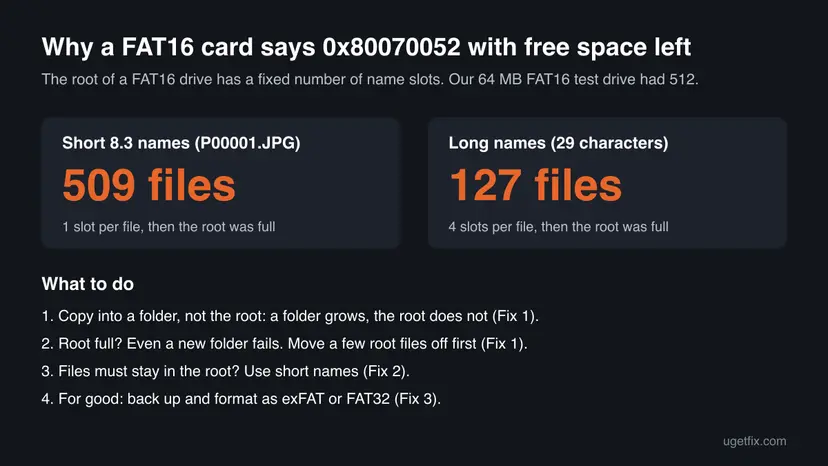
We tested this on a 64 MB drive image formatted as FAT16. The format reserved 512 entries for the root. With short names such as P00001.JPG, 509 files fit before the root was full. With 29 character names such as photo_from_holiday_number_0001.jpg, only 127 fit, because each long name took 4 entries. After that, even a new folder could not be created in the root.
| Cause | How often | How to tell | Fix |
|---|---|---|---|
| Full root folder on a FAT16 (FAT) drive | Most often | You copy to the drive's top level, Properties shows File system: FAT, free space is left. | Fix 1 |
| Many files with long names in the root | Often, with phone photos and music | The root fails after a few hundred files or fewer. | Fix 2 |
| The drive is formatted with a format that limits it | Often with old or small cards | It happens again and again on the same drive. | Fix 3 |
| File system errors on the drive | Sometimes | Windows offers to scan and fix the drive when you plug it in, or folders show odd names. | Fix 4 |
| A failing stick, card or card reader | Rarely | It fails on every PC and reader, even inside folders. | Fix 5 |
The old version of this page said the error appears when a file with the same name already exists, and it suggested restarting the Credential Manager service for encrypted files. Microsoft's error list gives a name clash its own codes, 80 and 183, and none of our sources ties error 82 to Credential Manager, so both were removed.
How to fix error 0x80070052 when copying to a USB drive or SD card
Fix 1 takes two minutes and solves it for most readers. Fix 2 is for devices that read files only from the root, such as some car stereos and players. Fix 3 removes the limit for good but needs a backup. Fixes 4 and 5 are for a damaged or failing drive.
| What you see or have | Start with |
|---|---|
| You copy files straight onto the drive's top level. | Fix 1 |
| Even New > Folder fails on the drive. | Fix 1, step 1 |
| A car stereo, speaker or player needs the files in the root. | Fix 2 |
| Properties shows File system: FAT and it keeps happening. | Fix 3 |
| Windows offers to scan and fix the drive, or the error appears inside folders too. | Fix 4 |
| It fails on every PC and every card reader. | Fix 5 |
Fix 1. Create a folder on the drive and copy the files into it
2 to 5 minutesNo riskEveryone who copies straight to the top level of a USB stick, SD card or camera card.
On a FAT16 drive only the root has a fixed number of name slots. A folder you create grows as it fills, so the same files that failed in the root copy into a folder without the error.
- Select Cancel in the error dialog. Open the drive in File Explorer.
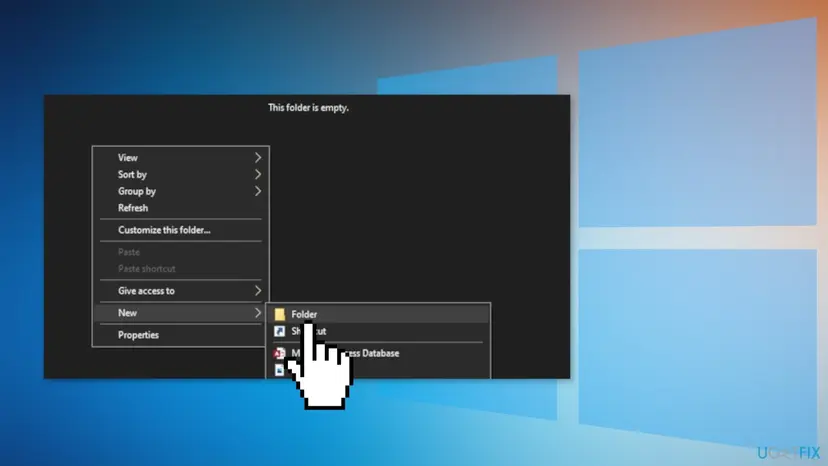
- Right-click an empty area and select New > Folder. Name it, for example
Photos. - If the folder cannot be created either, the root is completely full. Move 10 to 20 files from the root to your PC first, then create the folder.
- Select the files in the root of the drive, drag them into the new folder and confirm the move. This frees root slots.
- Copy the files that failed into the new folder.
- Copy any further files into folders too, never loose into the root.
It worked if: The files copy into the folder without the Interrupted Action dialog.
If not: If the error also appears inside the folder, the drive may be damaged. Go to Fix 4.
Fix 2. Use short file names when the files must stay in the root
10 minutesNo riskA car stereo, speaker, old MP3 player or another device reads files only from the root of the drive.
A FAT name of up to 8 characters plus a 3 character extension takes one root slot. A long name takes extra slots, 4 in our test with 29 characters. Short names let about four times more files fit in the same root.
- Copy the files to a folder on your PC first, so you rename copies, not originals.
- In File Explorer, select all files in that folder and press F2.
- Type a short name such as
Tand press Enter. Windows names themT (1).mp3,T (2).mp3and so on. - Copy the renamed files to the root of the drive.
- Delete files from the root that the device no longer needs, to keep free slots.
Names with spaces, brackets or lowercase letters still need an extra slot each. For the most files in the root, use names like T001.MP3 in capitals without spaces. Check the device's manual first: many newer devices also read files from folders, which is simpler (Fix 1).
It worked if: Many more files fit in the root before the error returns.
If not: If you need more files in the root than that, format the drive as FAT32 with Fix 3, if your device supports it.
Fix 3. Back up and format the drive as exFAT or FAT32
15 to 30 minutesRead the warningProperties shows File system: FAT, or the error keeps coming back on the same drive.
FAT16 keeps its root in a fixed area. FAT32 and exFAT do not have this small fixed root, so the root no longer runs out of slots. Microsoft lists a 4 GiB maximum file size for FAT32 and none in practice for exFAT.
Copy every file you want to keep from the drive to your PC before you start. Formatting removes them all, and Quick Format makes them hard to get back. Step by step: Back up your files (Windows Backup, File History, Time Machine).
- Copy all files from the drive to a folder on your PC and open a few of them to check they work.
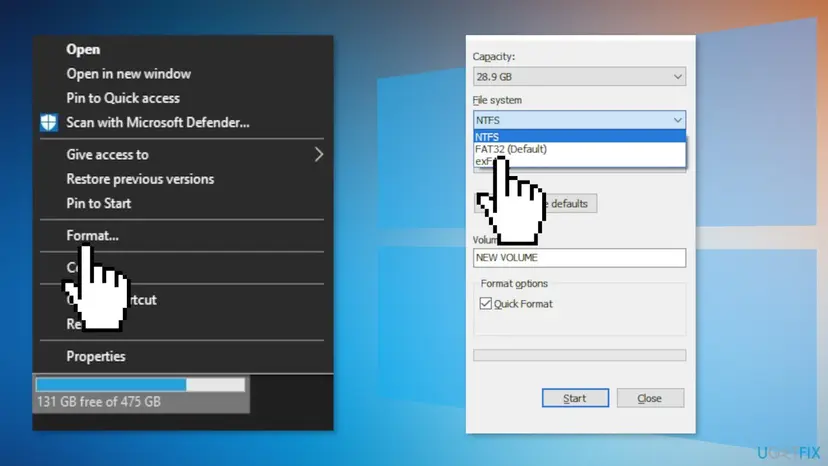
- In File Explorer, right-click the drive and select Format.
- Under File system, select exFAT for most uses. Select FAT32 only if a car stereo, TV, camera or game console needs it.
- Leave Allocation unit size at Default allocation size, type a name under Volume label and keep Quick Format ticked.
- Select Start, confirm the warning with OK and wait for Format Complete.
- Copy your files back, into folders where you can.
| Format | Root limit | Largest file | Use it for |
|---|---|---|---|
| FAT (FAT16) | Fixed root, 512 entries in our test | Small | Nothing new; it causes this error |
| FAT32 | No small fixed root | 4 GiB | Car stereos, older TVs, cameras and consoles |
| exFAT | No small fixed root | No practical limit | USB sticks and SD cards on PCs, Macs and newer devices |
| NTFS | No small fixed root | No practical limit | Drives used only with Windows PCs |
It worked if: The Properties window shows File system: exFAT or FAT32, and large numbers of files copy to the root without the error.
If not: If Windows cannot finish the format, or the error returns on the new format, check the drive with Fix 4.
Fix 4. Check the drive for file system errors
5 to 20 minutesRead the warningWindows offers to scan and fix the drive when you plug it in, the drive was pulled out without ejecting, or the error appears inside folders too.
A damaged folder table can make Windows believe a folder is full or cannot take a new entry. Check Disk repairs the file system structures on that drive only.
A repair can move damaged files into a FOUND.000 folder with names like FILE0000.CHK. Copy the files you need off the drive before you repair it.
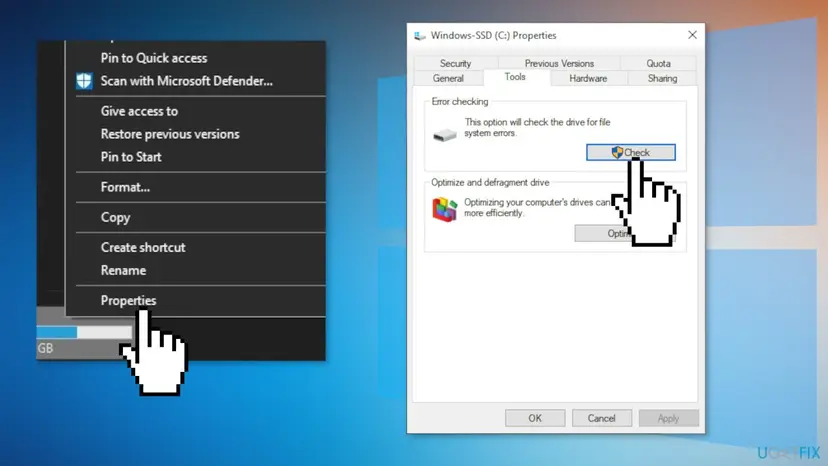
- In File Explorer, right-click the drive and select Properties, then the Tools tab.
- Under Error checking, select Check, then Yes if Windows asks for permission.
- Select Scan and repair drive and wait until it finishes.
- If you prefer the command line, use
chkdsk E: /fwith your drive letter, as shown below.
- Scan the drive without changing anything. Type the command below and press Enter. Replace C: with another drive letter to check that drive. This scan only reports; it does not fix anything.
chkdsk C: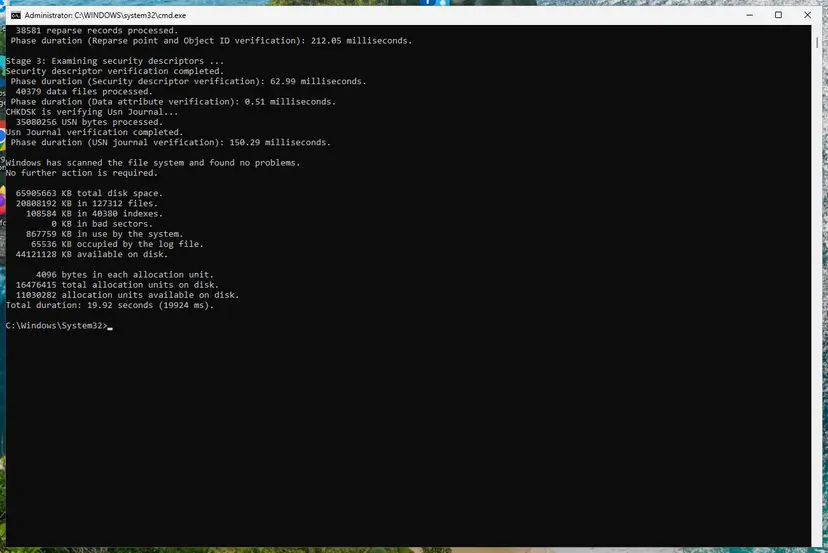
A clean result: no problems found and 0 KB in bad sectors. Screenshot: Windows 11 26H2. - If errors were found, run the repair. Run chkdsk with /f to fix file system errors. On the Windows drive (C:) chkdsk cannot lock the drive while Windows is running, so it offers to check it at the next restart.
chkdsk C: /f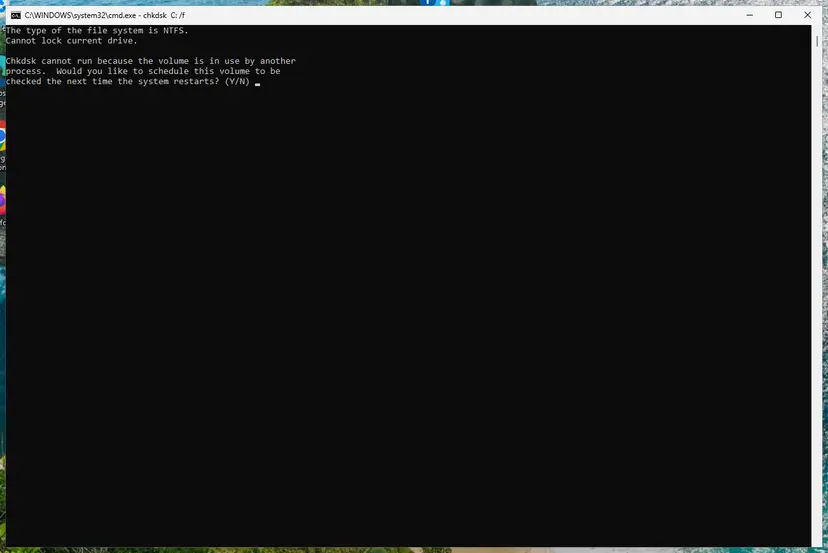
On the system drive chkdsk /f asks to run at the next restart. Screenshot: Windows 11 26H2.
These steps were written for Windows 11 and Windows 10 (the steps are the same). The full page with the other versions and what each result means: Check a disk for errors (chkdsk)
It worked if: Windows reports that the drive was repaired or that no errors were found, and the copy then works.
If not: If the check cannot finish or the error stays, test the drive on another PC with Fix 5.
Fix 5. Test another card reader or PC and replace a failing drive
10 minutesNo riskThe drive is FAT32, exFAT or NTFS and the error still appears, or it fails on every PC.
Once the root limit and file system errors are ruled out, the stick, card or reader is the remaining suspect. Cheap card readers and worn cards can fail to write new entries.
- Put an SD or microSD card in another reader, or in the PC's built-in slot.
- Copy the same files to the same drive on another computer.
- Copy the same files to another USB stick or card on this PC.
- If only this one drive fails everywhere, copy what you can off it and replace it.
| Result | What it means |
|---|---|
| Works with another reader | The old reader is at fault. |
| Works on another PC | Look at this PC's ports; see our guide on error 0x80070037. |
| Fails everywhere on this drive only | The stick or card is failing. |
It worked if: You know whether the reader, the PC or the drive is at fault.
If not: If a card with photos you need no longer reads at all, stop writing to it and use a recovery tool or service.
If error 0x80070052 is still there
Collect these facts before you ask the drive maker or a technician for help. They show whether it is the format, the drive or the PC.
- The drive's make, model and size, and its File system from Properties.
- Where you copied: the root of the drive or a folder, and how many files are already in it.
- Whether it fails on another PC and with another card reader (Fix 5).
- Your Windows version: press Win + R and type
winver. - The result of the drive check in Fix 4.
- When it is hardware: the drive fails on every PC, Windows asks to repair it every time, or files on it turn unreadable.
How to stop 0x80070052 from coming back
- Copy files into folders on USB sticks and cards, not into the root.
- Format new or reused drives as exFAT, or FAT32 when a device needs it.
- Use Eject before you unplug a drive.
- Keep a copy of photos and videos on your PC until they are safe elsewhere.
- Keep hundreds of loose files with long names in the root of a FAT drive.
- Format a drive as FAT (FAT16) unless an old device cannot read anything else.
- Pull a card out of the reader during a copy.
- Keep using a card that fails on every PC.
Frequently asked questions
What does error 0x80070052 mean?
It is Windows system error 82, ERROR_CANNOT_MAKE, with the text "The directory or file cannot be created." Windows could not add a new file or folder name to the folder you copied to. On USB sticks and memory cards that almost always means the root of a FAT16 drive is full of names, even when free space is left. Copy into a folder on the drive instead (Fix 1).
Why do I get this error when the USB drive has free space?
Because the limit is the number of names, not the number of bytes. A FAT16 drive keeps its root folder in a fixed area with a fixed number of entries, 512 in our test. Long file names use several entries each, so in our test only 127 files with long names fitted. Folders do not have this fixed limit, which is why copying into a folder works.
Does the error mean a file with the same name already exists?
No. Some pages say so, but Microsoft's error list gives a name clash its own codes: 80, "The file exists", and 183, "Cannot create a file when that file already exists". When a file with the same name is there, File Explorer asks whether to replace or skip it. Error 82 means a new entry could not be made at all.
Should I format the drive as FAT32, exFAT or NTFS?
Choose exFAT for a USB stick or SD card used with PCs, Macs and most newer devices: it has no small fixed root and no 4 GiB file limit. Choose FAT32 only when a car stereo, older TV, camera or console needs it, and remember that it cannot hold a single file over 4 GiB. Choose NTFS for a drive used only with Windows. Back up first, because formatting erases the drive (Fix 3).
How do I see which file system my drive uses?
Open File Explorer, right-click the drive and select Properties. On the General tab, the line File system shows FAT, FAT32, exFAT or NTFS. FAT on its own means FAT16 or older, the format with the fixed root that causes this error. You can also see it in Disk Management: right-click Start and select Disk Management.
Will SFC, DISM or a Windows update fix 0x80070052?
Very unlikely. Those tools repair Windows system files, while this error comes from the limit of the folder on the drive you copy to. The same drive gives the same error on any Windows PC. Run SFC and DISM only if other things on the PC are broken too. Step by step: Run DISM and SFC to repair Windows system files.
Did I lose the files that failed to copy?
No. A failed copy leaves the original files where they were. The files that were not copied are simply not on the drive yet. If you used Move instead of Copy, check both places before you delete anything: Windows removes a source file only after it was copied. Copy the rest again into a folder on the drive (Fix 1).
I see download error 0x80070052. Is it the same problem?
It is the same system error, 82: a program could not create a file or folder where it wanted to save. We could not confirm a single cause for downloads. Check that the download folder is on a drive with a normal format and free space, that you can create a new folder there yourself, and that the path is not on a nearly full USB stick. This page covers copying files in File Explorer.
I searched in Italian, Portuguese or French. Is this the same error?
Yes. "Errore 0x80070052", "erro 0x80070052" and "erreur 0x80070052" are the same code. Windows shows the message text in your own language, but the number 0x80070052 and the fixes are the same everywhere. This page is in English only, but the steps and their order are the same. Start with Fix 1: copy into a folder on the drive.
Sources
- Microsoft Learn: System Error Codes (0-499) (learn.microsoft.com)
- Microsoft Learn: File System Functionality Comparison (learn.microsoft.com)
- Microsoft Learn: Overview of FAT, HPFS, and NTFS file systems (learn.microsoft.com)
Did this fix work?
One click, no account. It tells the next reader which guides are worth their time.
Questions and experiences: fix error 0x80070052: The directory or file cannot be created
Still broken, or found a fix we did not cover? Ask here: members and our editors answer. Reading is open; writing needs a free account.
…