
How to fix error 0x80070037 when copying files in Windows?

Prefer to fix it yourself? The manual steps follow.
- 7methods
- 5 to 30 minutes
- Easy
Applies to Windows 11 and Windows 10 copying files to or from a USB flash drive, an external hard disk or SSD, a memory card, a NAS or a network share
7 methods in this guide
I was trying to transfer some files from a USB storage device to my new PC, and I kept receiving a 0x80070037 error. Can you provide me with solutions? Thanks in advance.
Error 0x80070037, "The specified network resource or device is no longer available", means the drive or share you were copying to or from disappeared in the middle of the copy. It is almost always a connection or power problem, not damaged Windows files. Plug the drive straight into a rear port with another cable first.
The drive or network share stopped answering while File Explorer was copying, so Windows lost it. Connect the drive directly to a rear USB port with a different cable, without a hub, and copy again (Fix 1). If it still drops, try a USB 2.0 port or another PC (Fix 2), then turn off USB power saving (Fix 3) and check the drive with chkdsk (Fix 4).
| Error | 1 Interrupted Action: "An unexpected error is keeping you from copying the file." Below it: Error 0x80070037: The specified network resource or device is no longer available. |
|---|---|
| Where it appears | File Explorer, while copying or moving files to or from a USB flash drive, an external HDD or SSD, a memory card, a phone, a NAS or a network folder. |
| Main cause | The device disconnected for a moment: a loose or poor cable, a weak USB port or hub, not enough power for the drive, or USB power saving. |
| Fastest fix | Plug the drive straight into a rear USB port with another cable, no hub, and copy again (Fix 1). |
| Also written as | 0x80070037, error 0x80070037, error code 0x80070037, 80070037, system error 55, ERROR_DEV_NOT_EXIST. |
| Affects | Windows 11 and Windows 10, and older versions with the same Explorer dialog. The code itself has not changed. |
| Microsoft's status | Not a Windows bug. It is a standard Windows error that reports a lost device. There is no update that fixes it. |
| Time to fix | 2 to 5 minutes for a cable or port. 15 to 30 minutes for power settings, chkdsk and drivers. |
| Where the cause is logged | Event Viewer, Windows Logs > System: event 157 ("surprise removed"), 153 (I/O retried) or 129 (reset to device) at the time of the failed copy. |
Facts checked on 15 October 2026. Steps written for Windows 11 (25H2 and 26H2) and Windows 10 22H2.
What error 0x80070037 "The specified network resource or device is no longer available" means
The window is titled 1 Interrupted Action. It says: "An unexpected error is keeping you from copying the file." The next sentence suggests searching for the error code. Under that is the line that matters: "Error 0x80070037: The specified network resource or device is no longer available." The buttons are Try Again, Skip and Cancel.
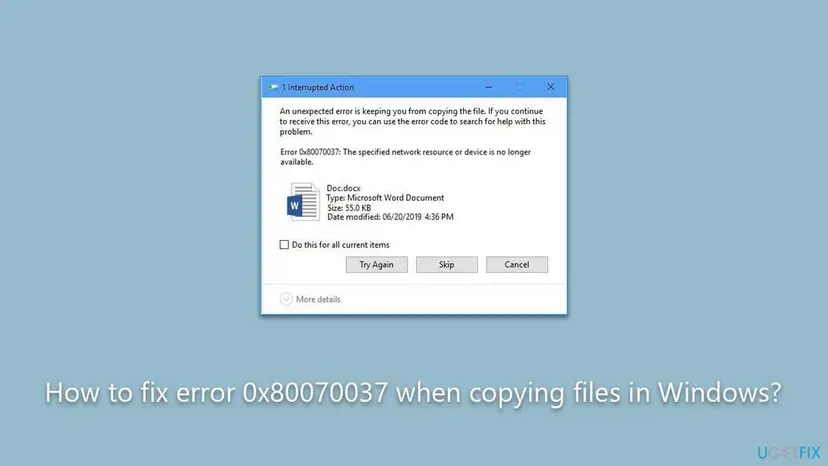
The code decodes in one step. 0x8007 marks a plain Windows error, and 0x37 is 55 in decimal. Microsoft's list of system error codes names error 55 ERROR_DEV_NOT_EXIST, with the same text you see in the dialog. In plain words: the device was there when the copy started and was gone when Windows tried to write or read the next block.
Windows uses the same message for local drives and network shares. On a USB stick or an external disk it simply means the drive dropped off the USB bus for a moment. Your Wi-Fi or router is not involved unless you were copying from a NAS or a shared folder.
| Code and text | System error | What it tells you |
|---|---|---|
| 0x80070037, "The specified network resource or device is no longer available" | 55, ERROR_DEV_NOT_EXIST | The drive or share vanished during the copy. |
| 0x80070015, "The device is not ready" | 21, ERROR_NOT_READY | Windows sees the drive, but it does not answer yet. |
| 0x80070079, "The semaphore timeout period has expired" | 121, ERROR_SEM_TIMEOUT | The drive or share answered too slowly, often the same weak link. |
| 0x80070040, "The specified network name is no longer available" | 64, ERROR_NETNAME_DELETED | A network share connection dropped. |
Why the device disappears while copying: causes in order
Most often the connection breaks for a split second: a worn cable, a loose port, a front panel port or an unpowered hub. Less often the drive does not get enough power, or Windows puts the USB port to sleep to save energy. Rarely the drive itself is failing, overheating, or its file system is damaged.
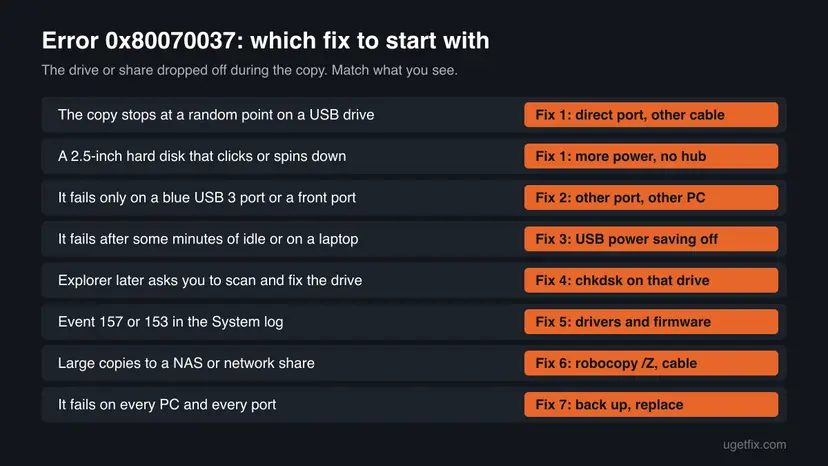
| Cause | How often | How to tell | Fix |
|---|---|---|---|
| Poor cable, loose port, hub or front panel port | Most often | The copy stops at a random point, and the drive often reconnects with a sound. | Fix 1 |
| Not enough power for a bus powered hard disk | Often with 2.5-inch disks | The disk clicks, spins down or reconnects during large copies. | Fix 1 |
| A port or controller that does not suit the drive | Sometimes | It fails on one port or one PC only. | Fix 2 |
| USB selective suspend or port power saving | Sometimes, mainly laptops | It fails after a pause or on battery. | Fix 3 |
| File system errors on the drive | Sometimes | Windows asks to scan and fix the drive after you plug it in. | Fix 4 |
| An old USB or storage driver, or old drive firmware | Rarely | Events 129, 153 or 157 in the System log. | Fix 5 |
| A NAS or share that drops during long copies | Rarely | Only network copies fail, often large ones. | Fix 6 |
| A failing or overheating drive | Rarely | It fails on every PC, port and cable. | Fix 7 |
The old version of this page recommended SFC, DISM, a BIOS update and System Restore. None of these sources ties this code to damaged Windows files, so they are no longer fixes here. A BIOS update carries risk and is not needed for a USB drive that drops off.
How to fix error 0x80070037 when copying files
Fixes 1 and 2 take a few minutes and test the connection, which is the cause for most readers. Fix 3 stops Windows from putting the port to sleep. Fixes 4 and 5 check the drive and its drivers, Fix 6 is for network copies, and Fix 7 is for a drive that is failing.
| What you see or have | Start with |
|---|---|
| A USB stick or external disk, the copy stops at a random point. | Fix 1 |
| It works on one port or PC and fails on another. | Fix 2 |
| A laptop, or it fails after a pause or on battery. | Fix 3 |
| Windows offers to scan and fix the drive when you plug it in. | Fix 4 |
| Event 129, 153 or 157 in the System log. | Fix 5 |
| You copy to or from a NAS or a shared folder. | Fix 6 |
| It fails on every PC, port and cable. | Fix 7 |
Fix 1. Connect the drive directly to a rear USB port with a different cable
5 minutesNo riskEveryone copying to or from a USB drive, external disk or memory card reader.
Error 55 means the device was lost during the copy. A worn cable, a front panel port or an unpowered hub breaks the link for a moment, and a bus powered disk can drop off when it draws too much power.
- Select Cancel in the error dialog, then right-click the drive in File Explorer and select Eject. Wait until Windows says it is safe to remove it.
- Unplug any USB hub, dock or extension cable. Connect the drive with a different cable, ideally the short one that came with it.
- On a desktop PC, use a port on the back, which sits on the motherboard. Front ports go through an internal cable and often deliver less.
- If the drive has its own power adapter, plug it in. For a 2.5-inch disk on a laptop, use a powered hub or a Y cable if the maker offers one.
- Copy a few folders at a time instead of everything at once, and do not move or bump the drive during the copy.
- A sound of a device being disconnected and connected again during the copy confirms a connection or power drop.
- A USB-C drive on a phone charger cable can fail because some cables are made for charging and are poor at data.
- SD cards in cheap card readers drop off often. Try another reader or the PC's built-in slot.
It worked if: The copy finishes without the Interrupted Action dialog, and the drive does not disconnect.
If not: If the copy still stops, go to Fix 2 to find out whether the port or the drive is at fault.
Fix 2. Try a USB 2.0 port, another port or another computer
5 to 10 minutesNo riskThe copy fails on one port, or you need to know whether the PC or the drive is at fault.
Some drives with weak or old internals do not run reliably on a fast USB 3 port, and a USB 2.0 port asks less of them. Testing on another computer tells you at once whether to look at this PC or at the drive.
- Eject the drive and plug it into a USB 2.0 port. On many PCs these ports are black inside, while USB 3 ports are blue or marked SS.
- Copy the same files again. The copy is slower, but a stable USB 2.0 copy points to the port or controller, not to the files.
- If you have no USB 2.0 port, try every other port on the PC, one at a time.
- Connect the drive to another computer and copy the same files there.
| Result | What it means | Next |
|---|---|---|
| Works on USB 2.0 or another port | That port, its controller driver or its power is the weak link. | Fix 3 and Fix 5 |
| Works on another PC only | This PC's USB setup or drivers. | Fix 3 and Fix 5 |
| Fails everywhere | The drive or its cable. | Fix 4, then Fix 7 |
It worked if: You know which side fails: one port, this PC, or the drive itself.
If not: If it fails on every port and PC, check the drive with Fix 4 and plan for Fix 7.
Fix 3. Turn off USB selective suspend and USB port power saving
5 minutesLow riskA laptop, a PC on battery, or copies that fail after the drive was idle for a few minutes.
Windows can cut power to idle USB ports to save energy. Some drives and hubs do not wake up in time, so the copy finds the device gone and reports error 55.
- Press Win + R, type
powercfg.cpland select OK. - Next to your active plan, select Change plan settings, then Change advanced power settings.
- Expand USB settings > USB selective suspend setting and set it to Disabled, for both On battery and Plugged in if both are shown. Select OK.
- Right-click Start and open Device Manager. Expand Universal Serial Bus controllers.
- Double-click each USB Root Hub entry, open the Power Management tab and clear Allow the computer to turn off this device to save power. Select OK.
- Restart the PC and copy again.
Some Windows 11 laptops hide USB settings in the power plan. In that case do only steps 4 and 5. A laptop uses a little more battery with these settings off; you can turn them back on once the copy is done.
It worked if: The drive stays connected through long copies and after pauses.
If not: If it still drops, the drive may have file system errors. Go to Fix 4.
Fix 4. Check the external drive for errors with chkdsk
5 minutes to several hoursRead the warningWindows asked to scan and fix the drive, or files on it will not open.
An interrupted copy can leave the drive's file system marked dirty, and damaged areas make Windows wait until the device times out. Chkdsk first reports, then repairs, the file system on that drive only.
Repairing with /f or /r can move damaged files into a found.000 folder, and a failing disk can get worse under a long /r scan. Copy the files you need to another disk first, with Fix 6's robocopy command if Explorer keeps stopping.
- Note the drive letter of the external drive in File Explorer, for example E:.
- Open Command Prompt as administrator and run
chkdsk E: /scanwith your letter. It reports problems without changing anything. - If it reports errors, run
chkdsk E: /fto repair the file system. Add/ronly if you also want it to look for bad sectors, which takes much longer on a hard disk. - When it finishes, eject the drive, plug it in again and copy again.
- Scan the drive without changing anything. Type the command below and press Enter. Replace C: with another drive letter to check that drive. This scan only reports; it does not fix anything.
chkdsk C: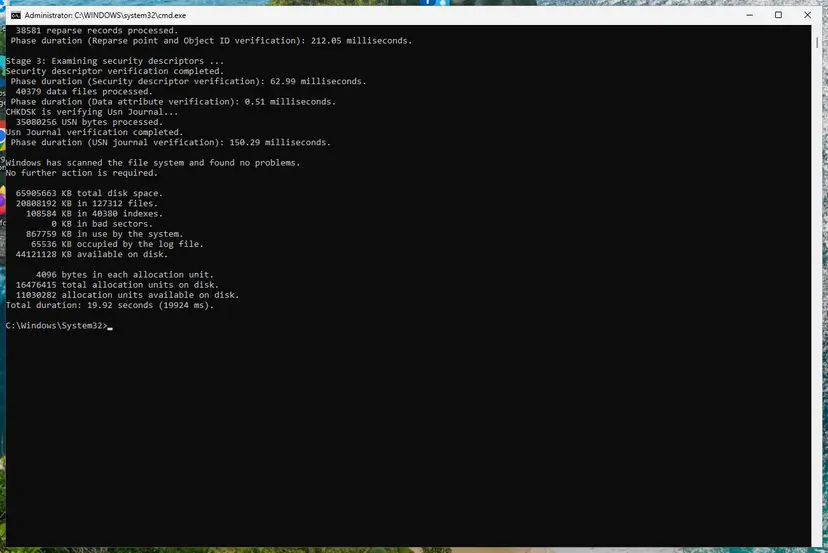
A clean result: no problems found and 0 KB in bad sectors. Screenshot: Windows 11 26H2. - If errors were found, run the repair. Run chkdsk with /f to fix file system errors. On the Windows drive (C:) chkdsk cannot lock the drive while Windows is running, so it offers to check it at the next restart.
chkdsk C: /f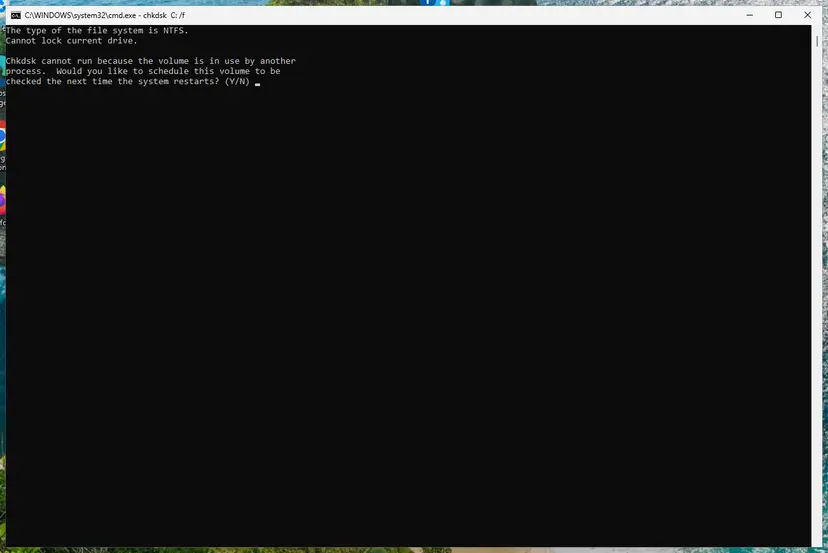
On the system drive chkdsk /f asks to run at the next restart. Screenshot: Windows 11 26H2.
These steps were written for Windows 11 and Windows 10 (the steps are the same). The full page with the other versions and what each result means: Check a disk for errors (chkdsk)
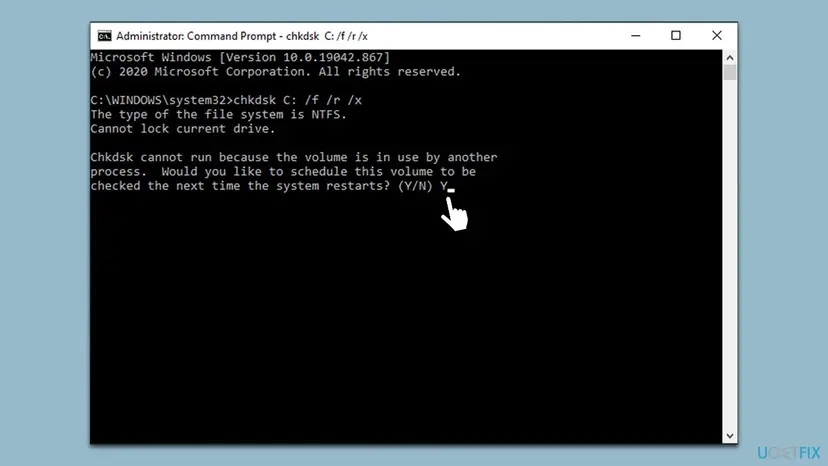
It worked if: Chkdsk ends with "Windows has scanned the file system and found no problems" or says it fixed them, and the copy then finishes.
If not: If chkdsk itself stops or reports bad sectors, the drive is failing: copy your files off it and go to Fix 7.
Fix 5. Read the System log, then update USB and storage drivers and the drive firmware
15 minutesLow riskThe copy fails on one PC only, or you want proof of what dropped.
Microsoft's storage guidance names three System log events for exactly this kind of drop, and its first advice is up to date storage drivers and firmware from the hardware vendor. The log tells you whether the disk was removed or timed out.
- Right-click Start, open Event Viewer and go to Windows Logs > System.
- Select Filter Current Log and type
129,153,157in the event ID box. - Look for events at the time of the failed copy and note which disk they name.
- Update the chipset and USB drivers from Windows Update optional updates or the PC maker's support page, as shown below.
- On the drive maker's website, look up your model and install any firmware update its tool offers.
| Event ID | Microsoft's text | What it means here |
|---|---|---|
| 157 | "Disk 2 has been surprise removed." | The drive vanished: cable, port or power (Fixes 1 to 3). |
| 153 | "The IO operation at logical block address 123456 for Disk 2 was retried." | The drive answered too slowly; failing disk or weak link. |
| 129 | "Reset to device, \Device\RaidPort1, was issued." | Windows reset the controller after a timeout; drivers or firmware. |
- Open Device Manager. Right-click Start and select Device Manager.
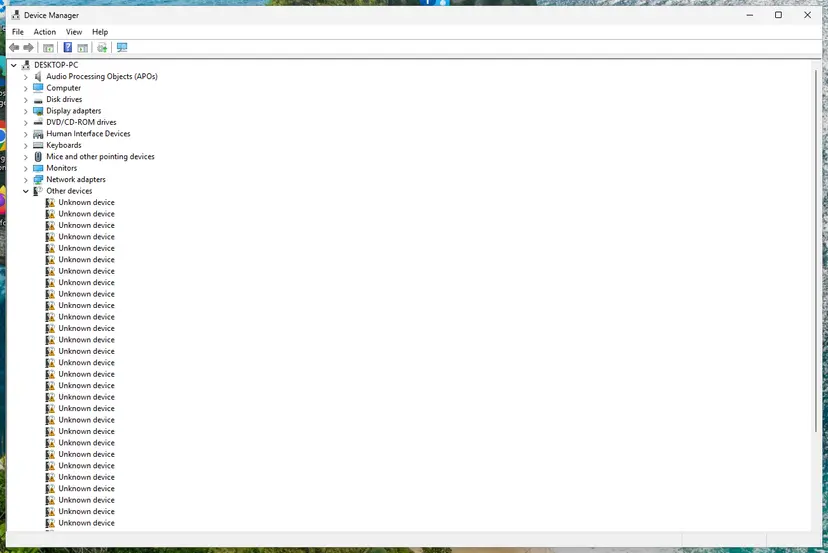
Device Manager lists devices by category; a yellow warning sign marks a device with a problem. Screenshot: Windows 11 26H2. - Open the device's Driver tab. Expand the category (for example Display adapters), right-click the device, select Properties and open the Driver tab. Driver Date and Driver Version show what is installed now.
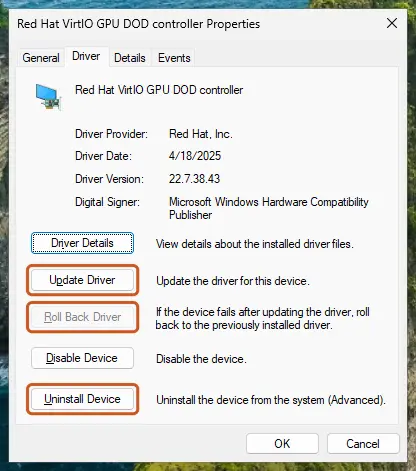
The Driver tab holds all three actions: update, roll back, uninstall. Screenshot: Windows 11 26H2.
These steps were written for Windows 11 24H2 and later. The full page with the other versions and what each result means: Update, roll back or reinstall a driver
It worked if: No new 157, 153 or 129 events during the next copy, and the copy completes.
If not: Many 153 events for the same disk after new drivers point to the drive itself. Go to Fix 7.
Fix 6. Network share or NAS: copy over a cable with robocopy restartable mode
10 minutesNo riskYou copy to or from a NAS, another PC or a shared folder, often large files.
Over the network the same error means the share stopped answering for a moment. Robocopy retries and, with /Z, continues a large file from where it stopped instead of failing the whole copy.
- Connect the PC with an Ethernet cable instead of Wi-Fi for the copy, if you can.
- Make sure the NAS or the other PC does not go to sleep or spin down its disks during the copy.
- Open Command Prompt and run the robocopy command below with your own folders.
- Read the summary at the end. FAILED must be 0; if not, run the same command again and it copies only what is missing.
Copy a folder with retries and restartable mode (Command Prompt)
robocopy "\\NAS\Photos" "D:\Photos" /E /Z /R:5 /W:10The same command works for a USB drive that keeps dropping: use its letter as the source, for example "E:\Photos". Users on Reddit report this error with Synology NAS units on Windows 10 during SMB copies. For a share that does not open at all, see our guide on error 0x80070043.
It worked if: Robocopy ends with a summary table and 0 in the FAILED column.
If not: If every network copy fails, update the NAS firmware and check its own log for disk or network errors.
Fix 7. Back up what you can and replace a failing drive
30 minutes or moreNo riskThe error appears on every PC, port and cable, or chkdsk finds bad sectors.
When the drive drops off everywhere, the fault is inside it: a worn controller, bad sectors or overheating. No Windows setting fixes that, and each new attempt puts more strain on it.
- Copy the most important files first, a few at a time, with robocopy from Fix 6.
- Let a hot drive cool down between copies, and keep a portable SSD out of direct sun or a closed bag.
- Check whether the drive is still under warranty on the maker's website, and contact its support with the event IDs from Fix 5.
- Replace the drive and copy your files to the new one.
- Sign in with a Microsoft account. Folder backup needs one. If you use a local account, select Start > Settings > Accounts > Your info and select Sign in with a Microsoft account instead.
- Open Windows Backup. Select Start, type backup and select Windows Backup.
- Choose the folders. Expand Folders and turn on the folders you want to back up: Desktop, Documents, Pictures, Videos and Music.
- Choose apps and settings. Expand Apps, Settings and Credentials and turn on what you want Windows to remember. Items that are already backed up show as backed up.
- Start the backup. Select Back up (on the first-run screen, Continue).
- Check the backup status. Select Start > Settings > Accounts > Windows backup. The top of the page shows the state of OneDrive, the app list and preferences; OneDrive folder syncing changes which folders are backed up.
These steps were written for Windows 11 (screenshots: 26H2). The full page with the other versions and what each result means: Back up your files (Windows Backup, File History, Time Machine)
It worked if: Your files are safe on another disk.
If not: If the drive no longer shows up at all, a data recovery service is the safe choice for files you cannot lose.
If error 0x80070037 is still there
Collect these facts before you ask the drive maker or a technician for help. They show whether the port, the driver or the drive failed.
- The drive's make, model and size, and whether it has its own power adapter.
- Which ports and PCs you tried, and where it worked (Fix 2).
- Your Windows version: press Win + R and type
winver. - Event Viewer, Windows Logs > System: the time and text of events 129, 153 and 157 (Fix 5).
- The output of
chkdsk E: /scanfor that drive (Fix 4). - When it is hardware: it fails on every PC, the drive clicks or gets hot, or chkdsk reports bad sectors. No Windows setting fixes those.
How to stop 0x80070037 from coming back
- Use the short cable that came with the drive and a rear port.
- Give 2.5-inch hard disks enough power: a powered hub or their own adapter.
- Eject drives with Eject before you unplug them.
- Copy large folders with robocopy, which retries instead of stopping.
- Keep an extra copy of files that live on one external drive.
- Copy through cheap unpowered hubs or long extension cables.
- Move or bump an external hard disk while it is copying.
- Leave a laptop on battery saver during a long copy.
- Keep using a drive that drops off on every PC.
Frequently asked questions
What does error 0x80070037 mean?
It is Windows system error 55, ERROR_DEV_NOT_EXIST, with the text "The specified network resource or device is no longer available." The drive or share you were copying to or from disappeared during the copy. On a USB drive that means it dropped off the USB connection for a moment, most often because of the cable, the port, a hub or a lack of power. On a NAS or a shared folder it means the connection to the share broke. Fix 1 on this page tests the connection in a few minutes.
How do I fix error code 0x80070037 on Windows 11?
The steps are the same as on Windows 10. Connect the drive directly to a rear port with another cable (Fix 1), try another port or PC (Fix 2), and then turn off USB power saving (Fix 3). On some Windows 11 laptops the USB selective suspend setting is hidden in the power plan, so clear the power saving box of each USB Root Hub in Device Manager instead. Windows 11 has no known bug that causes this code.
Is my USB drive or external hard disk broken?
Not necessarily. Most often the drive is fine and the cable, port or power drops it for a moment. Test it on another computer and with another cable first (Fix 2). If it fails on every PC and port, Windows asks to repair it every time, chkdsk reports bad sectors, or the disk clicks, then the drive itself is failing. In that case copy your files off it now (Fix 7) instead of running long repair scans first.
Will SFC, DISM or System Restore fix 0x80070037?
Very unlikely. Those tools repair Windows system files and settings, while this error reports that a device disappeared. Our sources tie it to the connection, power and the drive itself, not to damaged Windows files. Run SFC and DISM only if other things on the PC are broken too. Step by step: Run DISM and SFC to repair Windows system files. System Restore does not change cables, ports or the drive, so it does not help here.
Why does the error mention a network resource when I am copying from a USB drive?
Windows uses one message for system error 55, and that message covers both network shares and local devices. A USB stick, an SD card or an external disk is a "device" in this sense. If you copied from a USB drive, your network, Wi-Fi and router have nothing to do with it. Look at the drive's cable, port and power, as Fixes 1 to 3 describe.
Did I lose the files that failed to copy?
No, not on the source. A failed copy leaves the original files where they were. The file that was being copied when the error appeared may be incomplete on the target, so delete it there and copy it again. Be careful with a move instead of a copy: Windows deletes each source file only after it is copied, but check both sides before you delete anything yourself. With robocopy (Fix 6) you can run the same command again and it copies only what is missing.
Should I select Try Again or Skip?
Select Try Again once, after you have checked that the drive is still visible in File Explorer. If the drive dropped and came back, the copy often continues. If the same dialog returns, select Cancel, eject the drive and follow Fix 1. Skip leaves that file out and continues with the next ones, which helps you get most files across, but you must copy the skipped files later.
Does a BIOS update fix 0x80070037?
Rarely, and it is not where to start. A BIOS or UEFI update changes how the PC starts and handles hardware, and a failed update can leave the PC unable to start. Try the cable, port, power settings, drivers and the drive first. If the PC maker's release notes for a newer version mention USB or storage stability, follow the maker's own instructions for that update.
The error is in Thai or Indonesian search results. Is this the same problem?
Yes. Searches such as "คืออะไร" (what is it) or "ini kenapa ya" (why is this) next to the code point to the same message. This page is in English only, but the code 0x80070037 and the fixes are the same in every Windows language. Look for the same dialog with Try Again, Skip and Cancel, and start with Fix 1.
Sources
- Microsoft Learn: System Error Codes (0-499) (learn.microsoft.com)
- Microsoft Learn: Guidance for troubleshooting data corruption and disk errors (learn.microsoft.com)
- The Windows Club: Error 0x80070037, The specified network resource or device is no longer available (thewindowsclub.com)
Did this fix work?
One click, no account. It tells the next reader which guides are worth their time.
Questions and experiences: fix error 0x80070037 when copying files in Windows
Still broken, or found a fix we did not cover? Ask here: members and our editors answer. Reading is open; writing needs a free account.
…