
How to fix error 0x800710FE "This file is currently not available for use on this computer"?

Prefer to fix it yourself? The manual steps follow.
- 5methods
- 5 to 20 minutes
- Intermediate
Applies to Windows 11 and Windows 10 when you delete, move or rename a file or folder that Offline Files (Client Side Caching) has cached
5 methods in this guide
Hello. I have tried to delete a specific file on my Windows computer multiple times, but every time I receive this message: "Error 0x800710FE: This file is currently not available for use on this computer." What could this all mean?
Error 0x800710FE, "This file is currently not available for use on this computer", is Windows error 4350. It almost always comes from Offline Files, the feature that keeps local copies of network files in the CSC cache. Turn off Offline Files in Sync Center, restart, and delete the file again.
The file is held by Offline Files, the Windows cache of network files in C:\Windows\CSC. Open Control Panel > Sync Center > Manage offline files, select Disable offline files, restart and delete the file (Fix 1). If it stays, sync anything you need and reset the cache with the FormatDatabase registry value that Microsoft documents (Fix 2).
| Error | "Error 0x800710FE: This file is currently not available for use on this computer." |
|---|---|
| Where it appears | File Explorer, when you delete, move or rename a file or folder, most often one that once came from a network share, a mapped drive or a redirected folder. |
| Main cause | Offline Files (Client Side Caching, CSC) keeps a cached copy that it marks as not available, so Windows refuses the change. |
| Fastest fix | Sync Center > Manage offline files > Disable offline files, restart, delete again (Fix 1). |
| Also written as | 0x800710FE, 800710FE, error code 0x800710fe, system error 4350, ERROR_FILE_OFFLINE, "This file is not currently available for use on this computer", "The file is currently unavailable for use on this computer". |
| Affects | Windows 11 and Windows 10. The feature and its cache folder have been the same since Windows Vista and Windows 7. |
| Microsoft's status | Not a bug. It is a standard Windows error. Microsoft documents the cache reset (KB 942974) as the way to clear a stuck Offline Files cache. |
| Time to fix | 5 minutes with Fix 1, about 15 minutes when the cache has to be reset. |
| Where the cache lives | C:\Windows\CSC, with the cached shares under C:\Windows\CSC\v2.0.6\namespace. It belongs to SYSTEM, so you cannot clean it by hand. |
Facts checked on 15 October 2026. Steps written for Windows 11 (25H2 and 26H2) and Windows 10 22H2.
What error 0x800710FE "This file is currently not available for use on this computer" means
You see it in File Explorer when you try to delete, move or rename something. The window names the item and gives the code with its text: "Error 0x800710FE: This file is currently not available for use on this computer." Trying again gives the same result, because the cause does not go away on its own.
The code decodes cleanly. 0x8007 marks a plain Windows error, and 0x10FE is 4350 in decimal. Microsoft's list of system error codes gives 4350 (0x10FE) exactly this text. Its name in the Windows headers is ERROR_FILE_OFFLINE, and its neighbours 4351 and 4352 belong to the remote storage service. In short: Windows thinks the file is offline.
"Not available" here does not mean the file is broken or in use by an app. It means the Offline Files cache holds a copy that it has marked as offline, so Windows will not let you change it until the cache lets go.
| Code or text | System error | What it tells you |
|---|---|---|
| 0x800710FE, "This file is currently not available for use on this computer" | 4350, ERROR_FILE_OFFLINE | An offline (cached or remote storage) copy blocks the change. |
| "The action can't be completed because the file is open" | 32, file in use | A running app holds the file. Close the app; this is a different problem. |
| 0x80070005, "Access is denied" | 5, access denied | Your account lacks permission. Ownership and permissions matter, not the cache. |
Why the file is not available for use on this computer: causes in order
Most often Offline Files is turned on and holds a copy of the folder, usually because it once lived on a network share, a mapped drive or a redirected Documents folder. Less often the CSC cache itself is stuck or damaged, so it keeps the old copy even with the feature off. Rarely, the file sits on a server you no longer reach, or the disk has errors.
| Cause | How often | How to tell | Fix |
|---|---|---|---|
| Offline Files is on and caches the folder | Most often | Sync Center shows offline files, or the folder was ever made Always available offline. | Fix 1 |
| The CSC cache is stuck or damaged | Often after Fix 1 fails | Offline Files is off, but the item still cannot be deleted after a restart. | Fix 2 |
| The Offline Files service and its sync tasks start again | Sometimes | The error returns weeks later on a home PC that never uses network files. | Fix 3 |
| The real file is on a server or a redirected folder | Sometimes, on work PCs | The path starts with \\server\ or Documents points to a network location. | Fix 4 |
| File system errors on the disk | Rarely | Other files on the same drive also fail, or Windows reports disk errors. | Fix 5 |
Some pages blame system-protected files or security software for this code. We found no Microsoft source that ties error 4350 to either, so this guide does not send you to change them.
How to fix error 0x800710FE "This file is currently not available for use on this computer"
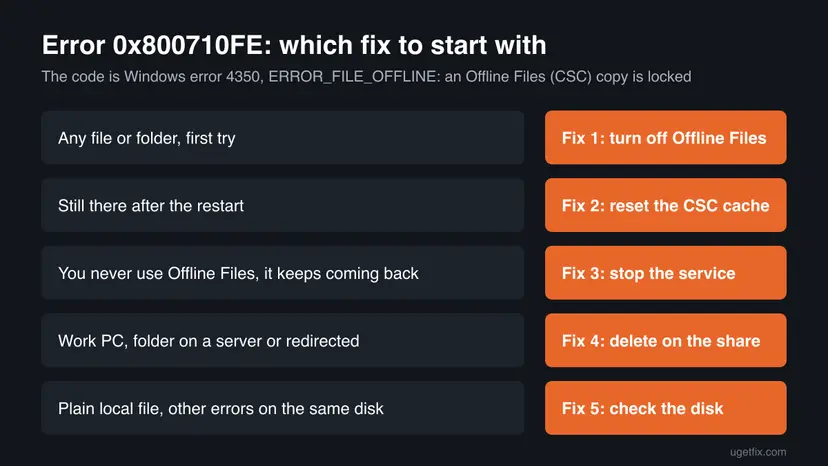
Fix 1 takes five minutes and solves most cases. Fix 2 resets the cache when Fix 1 is not enough, and Fix 3 keeps Offline Files from coming back. Fix 4 is for work PCs with server folders, and Fix 5 checks the disk.
| What you see or have | Start with |
|---|---|
| Any file or folder gives 0x800710FE, first try. | Fix 1 |
| Offline Files is already off, and the error stays after a restart. | Fix 2 |
| A home PC that never uses network files, and the error returns. | Fix 3 |
| A work PC, a mapped drive or a redirected Documents folder. | Fix 4 |
| A plain local file, and other files on the same disk fail too. | Fix 5 |
Fix 1. Turn off Offline Files in Sync Center and restart
5 minutesLow riskEveryone with this error. Start here.
Error 4350 means the Offline Files cache marks the item as offline. With the feature off and the PC restarted, Windows stops serving the cached copy, and the delete usually goes through.
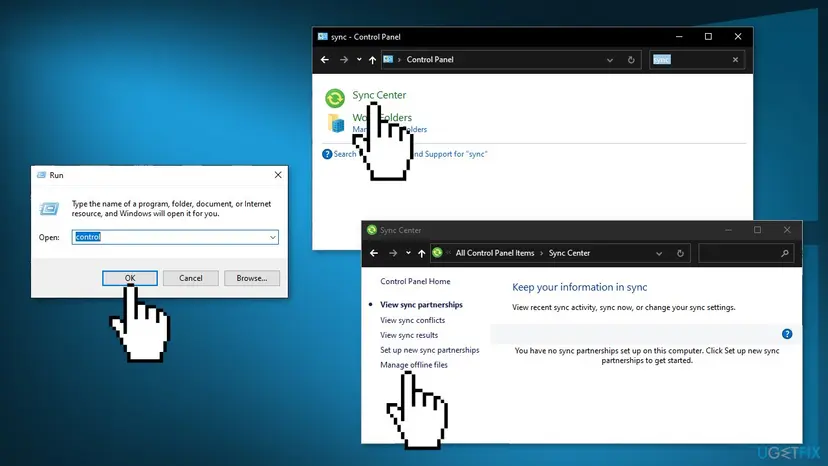
- Press Win + R, type
controland press Enter. - Type
syncin the Control Panel search box and open Sync Center. - Select Manage offline files on the left.
- On the General tab, select Disable offline files. If the button says Enable offline files, the feature is already off: go to Fix 2.
- Approve the User Account Control prompt with Yes.
- Restart the PC when Windows asks, then delete the file or folder again.
Before you turn it off on a laptop that you take away from the office, select Sync All in Sync Center first. Changes made offline then reach the server before the cache goes quiet.
It worked if: After the restart Manage offline files shows Enable offline files, and the file or folder deletes without a message.
If not: If the same error appears, the cache still holds the item. Go to Fix 2.
Fix 2. Reset the Offline Files (CSC) cache with the FormatDatabase value
10 minutesRead the warningFix 1 did not help, or Offline Files was already off and the item still cannot be deleted.
Microsoft's fix for a stuck Offline Files cache is to reinitialize it. A FormatDatabase value under the CSC service makes Windows wipe and rebuild the cache at the next start, which releases the item that error 4350 blocks.
Microsoft warns that changes not synchronized before the reset will be lost. Run Sync All in Sync Center first, or copy any files you edited offline to a local folder such as Desktop. Then back up the registry: Back up the registry before editing it
- Press Win + R, type
regeditand press Enter. Approve the prompt with Yes. - Go to
HKEY_LOCAL_MACHINE\System\CurrentControlSet\Services\CSC. - If there is no Parameters key under CSC, right-click CSC, select New > Key and name it
Parameters. - Right-click Parameters, select New > DWORD (32-bit) Value and name it
FormatDatabase. - Double-click FormatDatabase, type
1in Value data and select OK. - Close Registry Editor and restart the PC. Then delete the file again.
The same change in one command (Command Prompt as administrator)
REG ADD "HKLM\System\CurrentControlSet\Services\CSC\Parameters" /v FormatDatabase /t REG_DWORD /d 1 /f- The value goes under CSC\Parameters, not directly under CSC. Some older guides put it in the wrong key, where it does nothing.
- Microsoft notes that the value itself is ignored and that Windows removes the entry after it resets the cache, so you do not need to delete it.
- The reset needs one restart. A shutdown with Fast Startup on may not count, so choose Restart.
It worked if: Windows starts a little slower once, the FormatDatabase entry is gone afterwards, and the item deletes normally.
If not: If the error comes back later, Offline Files is being turned on again. Go to Fix 3.
Fix 3. Stop the Offline Files service and its sync tasks
5 minutesLow riskA PC that never needs offline copies of network files, where the error keeps returning.
Offline Files runs as the Offline Files service (CscService) with the CSC driver, plus two scheduled sync tasks. Setting them to disabled keeps the cache from filling again and blocking new files.
- Open Command Prompt as administrator. Step by step: How to run a program as administrator or in compatibility mode
- Run the first command below. It sets both the
CSCdriver and theCscServiceservice to disabled. - Run the two
schtaskscommands to switch off the Background Synchronization and Logon Synchronization tasks. - Run
sc query cscserviceto check. After a restart, the state should read STOPPED. - Restart the PC.
Disable Offline Files and its sync tasks (Command Prompt as administrator)
for %G in ("CSC","CscService") do sc config "%~G" start= disabled
schtasks /change /tn "\Microsoft\Windows\Offline Files\Background Synchronization" /disable
schtasks /change /tn "\Microsoft\Windows\Offline Files\Logon Synchronization" /disable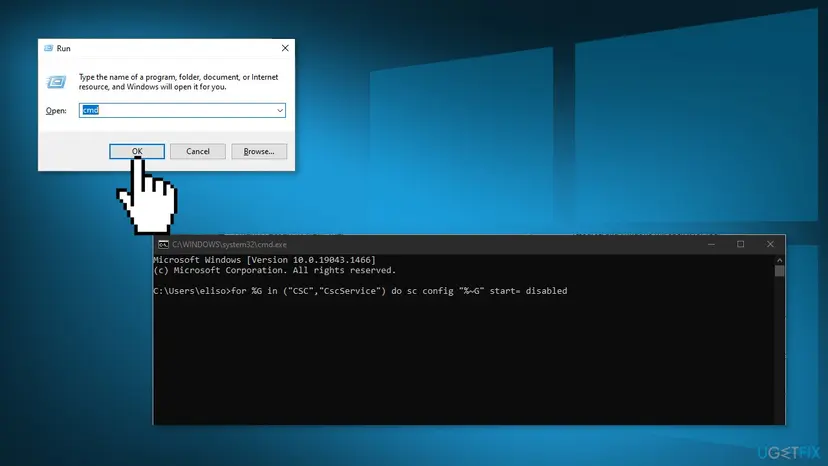
To undo it, set the start type back with sc config CscService start= demand and sc config CSC start= system, enable the two tasks with /enable, restart, and turn Offline Files on again in Sync Center. We could not confirm Microsoft's default start values for every Windows 11 build, so note what sc qc cscservice shows before you change it.
It worked if: sc query cscservice shows STOPPED after the restart, and Sync Center no longer lists offline files.
If not: If the PC belongs to a company, a policy may turn the service back on. Go to Fix 4.
Fix 4. Work PC: delete the item on the share, not the cached copy
5 minutesLow riskThe folder is on a server, a mapped drive or a redirected Documents or Desktop folder, usually on a company PC.
With a redirected or mapped folder, the copy you see may be the cache while the real file sits on the server. Deleting it at the source, while you are connected, lets Offline Files drop the cached copy at the next sync.
- Connect to the company network or VPN, so the server is reachable.
- Right-click the folder and select Properties. On the Location tab, or in the address bar, note whether the path starts with
\\server\. - Press Win + R, type that full
\\server\share\folderpath and press Enter. - Delete the file or folder there.
- Open Sync Center and select Sync All, then check the local view again.
On a managed PC, Offline Files and folder redirection are often set by Group Policy, and Fix 1 to Fix 3 may be reversed at the next sign-in. Ask the administrator before you turn them off, because they protect your files when the network is down.
It worked if: The item disappears on the server, and after Sync All it is gone from your PC too.
If not: If you get "Access is denied" on the server, your account lacks the right there: the administrator has to delete it or give you permission.
Fix 5. Check the disk for file system errors
10 minutes to over an hourLow riskThe item never came from a network folder, Offline Files is off, and other files on the same disk also fail.
This is not the usual cause of error 4350, but a damaged file system entry can also make an item impossible to change. CHKDSK repairs those entries, and Windows schedules the scan for the next restart on the system drive.
- Open Command Prompt as administrator. Type cmd in the search box on the taskbar, right-click Command Prompt and select Run as administrator. Select Yes when Windows asks for permission.
- Scan the drive without changing anything. Type the command below and press Enter. Replace C: with another drive letter to check that drive. This scan only reports; it does not fix anything.
chkdsk C: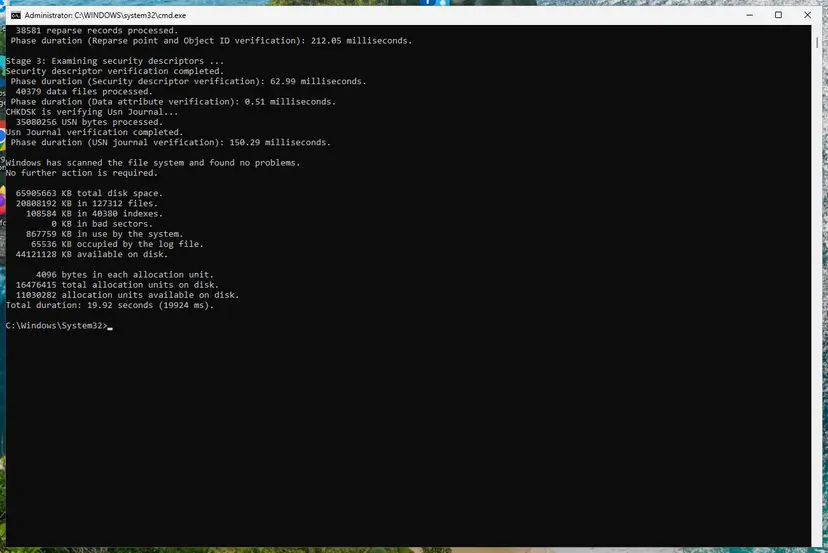
A clean result: no problems found and 0 KB in bad sectors. Screenshot: Windows 11 26H2. - If errors were found, run the repair. Run chkdsk with /f to fix file system errors. On the Windows drive (C:) chkdsk cannot lock the drive while Windows is running, so it offers to check it at the next restart.
chkdsk C: /f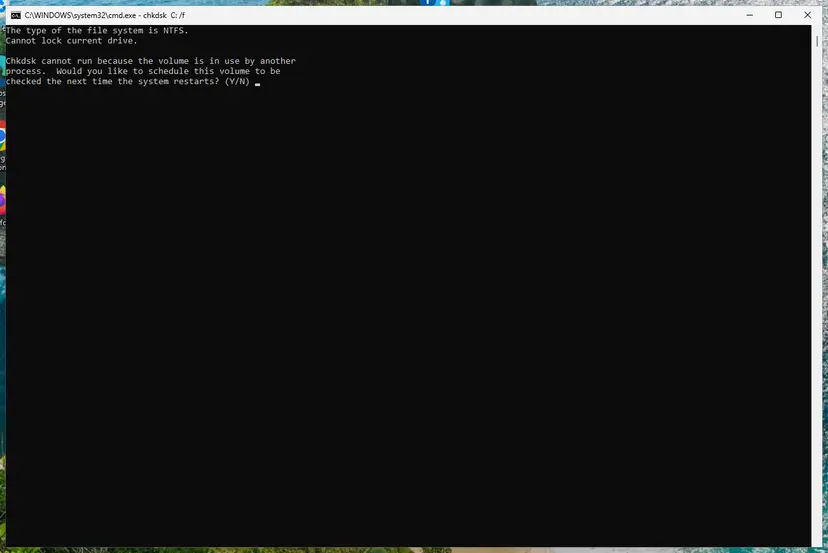
On the system drive chkdsk /f asks to run at the next restart. Screenshot: Windows 11 26H2. - Schedule the check and restart. Type Y and press Enter, then restart the PC. chkdsk runs before Windows starts. Do not turn the PC off while it runs.
- Read the result after the restart. The report of a check made at startup is not shown on the desktop. Open PowerShell and run the command below to see it, or open Event Viewer (eventvwr.msc) > Windows Logs > Application and filter by the sources Chkdsk and Wininit.
Get-WinEvent -FilterHashtable @{LogName='Application'} | Where-Object { $_.ProviderName -match 'wininit' } | Select-Object -First 1 | Format-List TimeCreated, Message
These steps were written for Windows 11 and Windows 10 (the steps are the same). The full page with the other versions and what each result means: Check a disk for errors (chkdsk)
Back up the files you care about first if the disk is old or makes noise: Back up your files (Windows Backup, File History, Time Machine). A scan of a large hard disk can take more than an hour, so plug a laptop in.
It worked if: CHKDSK reports that it found and fixed problems, or that there are none, and the item deletes after the restart.
If not: Collect the facts listed under "Still not working" below before you go further.
If "This file is currently not available for use on this computer" is still there
Collect these facts before you ask your administrator or Microsoft support for help. They show whether the cache, the server or the disk holds the item.
- The full path of the item, and whether it starts with
\\server\or a mapped drive letter. - The output of
sc query cscserviceand the state of Manage offline files (enabled or disabled). - Event Viewer, Applications and Services Logs > Microsoft > Windows > OfflineFiles: the Operational log lists cache and sync errors when the feature is on.
- Your Windows version: press Win + R and type
winver. - When it is hardware: CHKDSK reports bad sectors, the disk vanishes from File Explorer, or the drive clicks. No setting fixes those; copy your files off the disk.
How to stop 0x800710FE from coming back
- Run Sync All before you leave the office network with a laptop.
- Delete or rename network folders on the server while you are connected.
- Keep Offline Files off on home PCs that never use network shares.
- Restart, not shut down, after a cache reset or a service change.
- Take ownership of
C:\Windows\CSCor delete files in it by hand. - Reset the cache before your offline changes are synced.
- Turn off Offline Files on a company PC without asking the administrator.
- Make whole drives Always available offline when you need one folder.
Frequently asked questions
What does error 0x800710FE mean?
It is Windows system error 4350, ERROR_FILE_OFFLINE. Its text is "This file is currently not available for use on this computer." Windows treats the file or folder as offline, almost always because Offline Files (Client Side Caching) keeps a cached copy of it. The file itself is usually fine. Turning off Offline Files in Sync Center and restarting solves most cases (Fix 1). If it does not, resetting the cache with the FormatDatabase value does (Fix 2).
How do I fix error code 0x800710FE on Windows 11 and Windows 10?
The steps are the same on both. Open Control Panel > Sync Center > Manage offline files, select Disable offline files, restart and delete the item again. If that fails, add the FormatDatabase value under HKEY_LOCAL_MACHINE\System\CurrentControlSet\Services\CSC\Parameters and restart. Windows 10 left support on 14 October 2025, so the fixes still work there but the PC no longer gets security updates.
Is it safe to delete the C:\Windows\CSC folder?
Do not delete it by hand. The folder belongs to the SYSTEM account and holds the Offline Files database, so taking ownership and deleting files can leave the feature broken and lose offline changes. Microsoft's supported way to empty it is the FormatDatabase value in Fix 2, which wipes and rebuilds the cache at the next restart. Turning off Offline Files in Fix 1 stops Windows from adding new files to it.
Will I lose files if I turn off Offline Files or reset the cache?
Turning it off does not delete anything on the server. Resetting the cache does delete the local copies, and Microsoft warns that changes not synchronized before the reset are lost. So open Sync Center and select Sync All first, or copy files you edited while offline to a local folder such as Desktop. Files that only ever lived on your own disk are not in the cache and are not affected.
What is the difference between 0x800710FE and "the file is open in another program"?
"The action can't be completed because the file is open" means a running app holds the file, and closing that app or restarting fixes it. Error 0x800710FE means the Offline Files cache marks the item as offline, so closing apps does not help. If a restart alone does not remove 0x800710FE, the cause is the cache and you need Fix 1 or Fix 2.
Does Offline Files exist on my PC if I never used network folders?
The feature is part of Windows and its folder C:\Windows\CSC can exist even when you never used it. A folder becomes cached when it is marked Always available offline, or when an old setup, a work account or folder redirection did that for you. Check Sync Center > Manage offline files: if the button reads Enable offline files, the feature is off.
Is this page about "erro 0x800710fe", "erreur 0x800710fe" or "fehler 0x800710fe"?
Yes. Erro, erreur and fehler mean "error", and the Japanese query 削除できません means "cannot delete". The code 0x800710FE and system error 4350 are the same on every language version of Windows, so every fix here applies. Only the message and the menu names are translated, so look for Sync Center and Manage offline files in your language. Short queries such as "what is this" in other languages are answered by the first section of this page.
Should I turn off my antivirus to delete the file?
No. We found no Microsoft source that ties error 4350 to antivirus software, and turning protection off leaves the PC exposed while it does not touch the Offline Files cache. If a security app reports that it blocked the file, read its own message and history instead. For 0x800710FE, the cache fixes on this page are the ones that work.
Sources
- Microsoft Learn: System Error Codes (4000-5999) (learn.microsoft.com)
- Microsoft Learn: You can still access offline files even though the file server is removed from the network (KB 942974) (learn.microsoft.com)
- Microsoft Q&A: delete "windows csc v2 0.6 namespace"? (learn.microsoft.com)
Did this fix work?
One click, no account. It tells the next reader which guides are worth their time.
Questions and experiences: fix error 0x800710FE "This file is currently not available for use on this computer"
Still broken, or found a fix we did not cover? Ask here: members and our editors answer. Reading is open; writing needs a free account.
…