
Windows cannot load the extensible counter DLL "C:\Windows\system32\sysmain.dll": how to fix it

Prefer to fix it yourself? The manual steps follow.
6 methods in this guide
Hello. I get the Blue Screen of Death error, and the message indicates that Windows cannot load the extensible counter DLL "C:\Windows\system32\sysmain.dll". I have no idea what that means and how to solve the issue. I can run the machine normally, but sometimes I get the same error with ntdsperf.dll or rdyboost instead. I guess there are many files that trigger the issue. Can you help me stop this for good?
"Windows cannot load the extensible counter DLL sysmain.dll" is Perflib event 1023 in Event Viewer. A program asked Windows for performance data, and the counter set of the SysMain service could not be loaded. It is not a blue screen and usually not a damaged PC; rebuild the performance counters with lodctr /r first.
The sysmain.dll error is Perflib event 1023: a program wanted performance counter data and Windows could not load the SysMain counter set. It does not crash Windows by itself. Check the event and the file first (Fix 1), then rebuild the counter settings with lodctr /r in an administrator window (Fix 2). If it keeps coming, run SFC and DISM (Fix 3). For real blue screens, read the crash events instead.
| Error | Source Perflib, Event ID 1023, level Error: Windows cannot load the extensible counter DLL "C:\Windows\system32\sysmain.dll" (Win32 error code The specified module could not be found.). |
|---|---|
| Where it appears | Event Viewer, usually at startup or when a program that reads performance data starts. Users report it on launching Amazon WorkSpaces. It is a log entry, not a pop-up and not a blue screen. |
| Main cause | The performance counter settings point to the SysMain counter set, and the program that asked for the data could not load it, even though sysmain.dll is in C:\Windows\System32. |
| Fastest fix | Back up and rebuild the counter settings: lodctr /s: then lodctr /r in an administrator Command Prompt (Fix 2). |
| Also written as | Windows cannot load the extensible counter DLL sysmain.dll, sysmain.dll error, sysmain.dll not found, Perflib 1023, and the same message with ntdsperf.dll or rdyboost in it. |
| Affects | Windows 10 (users report it after the 21H1 update) and Windows 11, sysmain dll error windows 11 included. Windows 10 left support on 14 October 2025. |
| Microsoft's status | No Microsoft article for this event and file. On Microsoft Q&A a Windows MVP points to SFC with DISM and a repair install; one user still saw it after clean scans. |
| Time to fix | 5 minutes for Fix 1 and Fix 2. 20 to 40 minutes for SFC and DISM. |
Facts checked on 15 October 2026. Steps written for Windows 11 (25H2 and 26H2) and Windows 10 22H2.
What "Windows cannot load the extensible counter DLL sysmain.dll" means
Windows keeps performance counters: numbers such as processor time, disk reads or memory use that tools like Task Manager, Performance Monitor and monitoring programs read. Some of these counters come from extra DLLs that services register. Windows calls them extensible counter DLLs, and the part of Windows that loads them is Perflib, the performance library.
sysmain.dll is the file of the SysMain service, the Windows service that preloads often used programs into memory. When a program asks for all counters, Perflib tries to load the SysMain counter set from that file. If the load fails, Perflib writes event 1023 and the program simply gets no SysMain numbers. Nothing else stops.
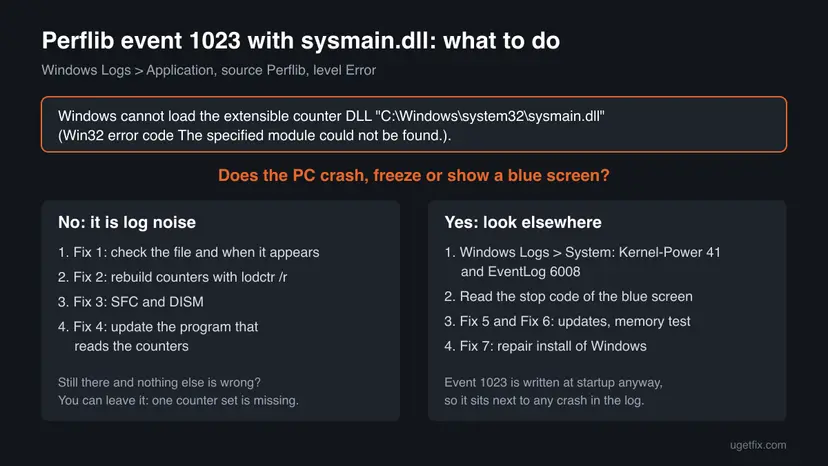
The full message as Event Viewer shows it
Windows cannot load the extensible counter DLL "C:\Windows\system32\sysmain.dll" (Win32 error code The specified module could not be found.).- Extensible counter DLL means a DLL that adds counters to Windows performance data. It does not mean a program is missing.
- The specified module could not be found is what Windows returned when Perflib tried to load the file. Users on Tom's Hardware and Microsoft Q&A report it while
sysmain.dllis right there in System32. - ntdsperf.dll and rdyboost in the same message are other counter sets; rdyboost is the ReadyBoost counter set. Same event, same fixes.
- c:\windows\system32\sysmain.dll is the normal place of the file. Do not download a sysmain.dll from a DLL site to replace it.
| Windows language | How the message starts |
|---|---|
| Polish | System Windows nie może załadować biblioteki DLL rozszerzalnego licznika |
| Spanish | Windows no puede cargar el archivo DLL del contador extensible |
| Italian | Impossibile caricare la DLL dei contatori flessibili |
| Portuguese | O Windows não pode carregar a DLL de contador extensível |
| German | Windows kann die erweiterbare Leistungsindikator-DLL nicht laden |
| Russian | Windows не удалось загрузить библиотеку DLL расширяемого счетчика |
| Korean | Windows에서 확장 가능 카운터 DLL을(를) 로드할 수 없습니다 |
| French | Windows ne peut pas charger la DLL de compteur extensible |
Why Windows cannot load sysmain.dll as a counter, most common cause first
The file is almost never really gone. What fails is the link between the counter settings in the registry and the program that reads them. Which cause you have shows in when the event appears.
| Cause | How it looks | Fix |
|---|---|---|
| The performance counter settings are out of step after a Windows feature update. Most common. | Event 1023 at almost every startup, began after an update (users name 21H1), the PC works. | Fix 2 |
| A program that collects performance data cannot load the SysMain counters. | Event 1023 only when one program starts, for example a remote desktop client such as Amazon WorkSpaces or a monitoring tool. | Fix 1, then Fix 4 |
| Damaged Windows system files or component store. | Event 1023 plus other errors, and SFC reports files it could or could not repair. | Fix 3 |
| An old Windows build with known bugs. | Windows Update shows pending updates, or Windows 10 is no longer updated. | Fix 5 |
| Wider damage to the Windows installation. | Fixes 2 to 5 did not help and other parts of Windows misbehave too. | Fix 6 |
A likely reason, which we could not confirm in a Microsoft document: sysmain.dll is a 64-bit file, and a 32-bit program that reads all counters is sent to the 32-bit system folder, where no such file exists. That would explain why users see the event only when one program starts. Fix 1 shows whether this fits your PC.
Is the sysmain.dll error the reason for a blue screen?
- The PC starts, runs and shuts down normally.
- The event comes at startup or when one program opens.
- Task Manager and your programs work.
- The PC shows a blue screen, freezes or restarts on its own.
- Event Viewer shows Kernel-Power 41 or EventLog 6008 in Windows Logs > System.
- Programs crash with their own errors.
On Microsoft Q&A the first thing a Windows MVP asked a user with this event was whether the PC was crashing at all, and the Tom's Hardware user had no blue screen. The event is written at every startup, so it sits next to any crash in the log. A blue screen has its own stop code; read that first.
How to fix "Windows cannot load the extensible counter DLL sysmain.dll"
Fix 1 and Fix 2 take five minutes and stop the event for most readers. Fix 3 repairs system files. Fix 4 is for when one program triggers the event. Fix 5 and Fix 6 are the larger repairs, for when the event comes with other problems.
| What you see | Start with |
|---|---|
| Event 1023 at every startup since an update, PC works | Fix 1, then Fix 2 |
| Event 1023 only when one program starts | Fix 1, then Fix 4 |
lodctr /r reports an error, or SFC finds damaged files | Fix 3 |
| Windows Update has pending updates | Fix 5 |
| Nothing helped and Windows has other faults | Fix 6 |
| Blue screens or restarts | The section on blue screens, then the crash events |
Fix 1. Read event 1023 and check that sysmain.dll is in System32
5 minutesNo riskAnyone who found Perflib event 1023 in Event Viewer, before changing anything.
The event shows which counter DLL failed and at what moment. If the file is in place and the event lines up with one program, nothing in Windows is missing and the fix is the counter settings or that program, not a new DLL.
- Press Win + R, type
eventvwr.mscand press Enter. - Open Windows Logs > Application, then select Filter Current Log in the right pane.
- In the <All Event IDs> box type
1023and select OK. - Open the newest Perflib event and read which DLL the text names:
sysmain.dll,ntdsperf.dllor another one. - Note the time, then look at what you started at that time. If it is always the same program, remember its name for Fix 4.
- Right-click Start, select Terminal (Admin) (Windows 10: Windows PowerShell (Admin)) and run the command below.
PowerShell: does the file exist, and how often was event 1023 written
Test-Path C:\Windows\System32\sysmain.dll
Get-WinEvent -FilterHashtable @{LogName='Application'; ProviderName='Microsoft-Windows-Perflib'; Id=1023} -MaxEvents 20 |
Format-Table TimeCreated, Message -AutoSize -Wrap| What you find | Next |
|---|---|
True, events at every startup | Fix 2 |
True, events only when one program opens | Fix 2, then Fix 4 |
False: the file is really missing | Fix 3, it puts system files back |
It worked if: You know the DLL name, how often the event comes and whether sysmain.dll is in System32.
If not: If the command finds no events, the provider name on your PC may differ: use the Event Viewer filter from steps 2 and 3 instead. If there are no 1023 events at all, the error is gone and nothing needs fixing.
Fix 2. Rebuild the performance counter settings with lodctr /r
5 minutesLow riskEvent 1023 comes at startup or with one program, and the file is in System32.
Microsoft documents lodctr /r as restoring the counter registry settings and explanatory text from the current registry and Windows' cached performance files. That rewrites the list Perflib reads, which is where the SysMain entry goes out of step.
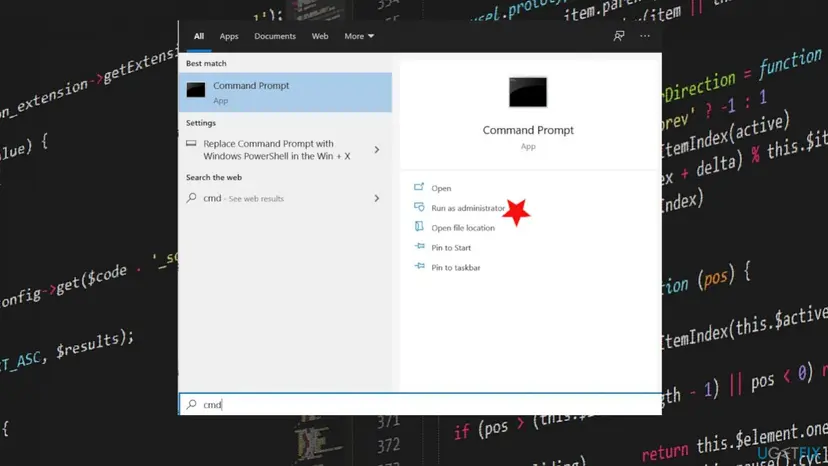
- Type
cmdin the search box on the taskbar, right-click Command Prompt and select Run as administrator, then Yes. - Save the current counter settings first with the first command below. The file goes to the folder shown in the prompt.
- Run
lodctr /rand read the output. An exit code of 0 only means the command was typed right, so read the text for an error. - Restart the PC.
- Open Event Viewer again as in Fix 1 and check for new 1023 events after the restart.
Command Prompt (Admin): back up, then rebuild the counter settings
cd /d %USERPROFILE%\Documents
lodctr /s:"perf backup1.txt"
lodctr /r
The file perf backup1.txt holds the settings as they were. lodctr /r:"perf backup1.txt" puts them back. Microsoft warns that this overwrites all counter settings with the ones in the file, so use it only to undo this fix.
It worked if: lodctr /r ends without an error message, and after the restart no new Perflib 1023 event names sysmain.dll.
If not: If lodctr /r reports an error or the event comes back, repair the system files with Fix 3 and run Fix 2 once more afterwards.
Fix 3. Repair Windows system files with DISM and SFC
20 to 40 minutesLow riskFix 2 did not help, lodctr /r reported an error, or Fix 1 showed the file is missing.
On Microsoft Q&A a Windows MVP reports that the identical sysmain.dll event was solved with System File Checker and DISM, and the accepted answer on Tom's Hardware is the same pair. They put back damaged or missing Windows files, including the counter files Perflib reads.
DISM repairs the store Windows takes clean files from; SFC then replaces damaged files from it. Step by step: Run DISM and SFC to repair Windows system files
- Open an elevated command window. Right-click Start and select Terminal (Admin), or type cmd in the search box, right-click Command Prompt and select Run as administrator. Select Yes when Windows asks for permission.

Search for cmd and choose Run as administrator. Screenshot: Windows 11 26H2. - Run DISM first. Type the command below and press Enter. DISM downloads clean copies of damaged components from Windows Update, so it can take several minutes. Wait until it says The operation completed successfully.
DISM.exe /Online /Cleanup-Image /RestoreHealth
DISM /RestoreHealth running. Screenshot: Windows 11 26H2. - Run System File Checker. In the same window, type the command below and press Enter. Do not close the window until the verification reaches 100%.
sfc /scannow
sfc /scannow at 100%. Screenshot: Windows 11 26H2. - Read the result and restart. Compare the last message with the table below this guide, then restart the PC so that repaired files are loaded.

The result line tells you what SFC did. Screenshot: Windows 11 26H2.
These steps were written for Windows 11 24H2 and 25H2. The full page with the other versions and what each result means: Run DISM and SFC to repair Windows system files
One Windows 11 user on Microsoft Q&A ran all the DISM and SFC commands, found no corruption, and still got the event. In that case the counter settings or the program that reads them are the cause: run Fix 2 again after the scans, then Fix 4.
It worked if: SFC ends with "did not find any integrity violations" or says it repaired files, and the event stops after a restart.
If not: Run Fix 2 again now that the files are repaired. If the event still comes only with one program, go to Fix 4.
Fix 4. Update or repair the program that triggers the event
10 minutesLow riskFix 1 showed that event 1023 comes only when one program starts, such as a remote desktop client or a monitoring tool.
Perflib loads counter DLLs inside the process that asks for the data. When only one program triggers the event, that program reads every counter set and fails on SysMain. A newer or repaired copy of it may read the counters differently.
- Close the program fully, also from the notification area next to the clock.
- Check the maker's site or the program's own update option for a newer version, and install it.
- If it is already current, repair or reset it in Settings > Apps > Installed apps (Windows 10: Settings > Apps > Apps & features): How to repair or reset an app in Windows
- Start the program, then check Event Viewer as in Fix 1.
- If the event still comes with the program and the program works, it is safe to leave: the program simply gets no SysMain numbers.
Do not copy sysmain.dll into another folder or download it from a DLL site. A copy from the internet can be the wrong version or carry malware, and it does not change how the program reads counters.
It worked if: The program starts and no new Perflib 1023 event appears at that time.
If not: Tell the program's support the full event text and your Windows version (winver). The program keeps working while you wait.
Fix 5. Install the latest Windows updates
15 to 60 minutesLow riskWindows Update shows pending updates, or the PC has not been updated in a while.
Users first saw the event after a feature update. Cumulative updates replace system files and their counter settings as a set, which can put the SysMain entry back in step.
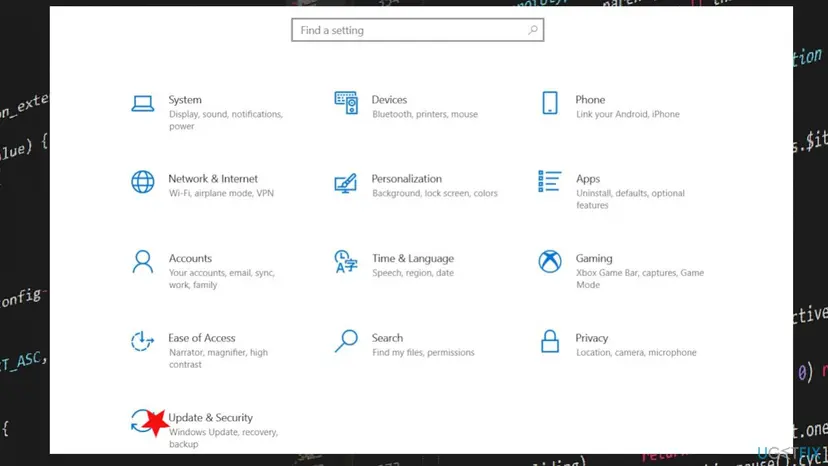
- Open Settings > Windows Update (Windows 10: Settings > Update & Security > Windows Update).
- Select Check for updates and install everything offered, optional quality updates included.
- Restart, then check again until nothing more is offered.
- If an update fails, install it by hand: Install an update from the Microsoft Update Catalog
Windows 10 left support on 14 October 2025, so a Windows 10 PC without Extended Security Updates gets no new fixes for this event.
It worked if: Windows Update says you are up to date and the event is gone after the last restart.
If not: Run Fix 2 once more after the updates. If the event and other faults remain, go to Fix 6.
Fix 6. Repair Windows with an in-place reinstall that keeps your files
About 1 hourRead the warningFixes 2 to 5 did not help and Windows has other faults besides this event.
The Microsoft Q&A answer names a repair install as the next step when SFC and DISM do not end it. It puts a fresh copy of your Windows version in place, counter files and settings included, and keeps your files and apps.
A repair install keeps files and apps, but a power cut or a failed install can cost data. Copy your documents and photos to another drive or to OneDrive before you start: Back up your files (Windows Backup, File History, Time Machine)
- Open Recovery in Settings. Open Settings > System > Recovery. Next to Fix problems using Windows Update, select Reinstall now. This keeps your apps, files and settings.

Fix problems using Windows Update reinstalls the current version and keeps apps, files and settings. Screenshot: Windows 11 26H2. - Start the reinstall. Choose whether the PC may restart on its own 15 minutes after the installation, then select OK.
- Wait and restart. Windows Update downloads and installs a repair copy of your current Windows version. Keep the PC plugged in and online, and restart it when asked.
These steps were written for Windows 11 22H2 and later. The full page with the other versions and what each result means: Reinstall Windows without losing files
It worked if: Windows starts with your files and apps in place, and Event Viewer shows no new Perflib 1023 event after a day of use.
If not: If the event still comes with one program, it is that program's way of reading counters (Fix 4). It is safe to leave.
If the sysmain.dll error is still there: what to check and what to send
Old 1023 events stay in the log after the fix; only new ones count. If new ones keep coming but the PC works, the cost is one missing set of numbers in a monitoring tool.
- The full event. Open a 1023 event, select Details > XML View and copy the text. It holds the time and the DLL.
- The trigger. Write down which program you start at the time of the event.
- Your build. Press Win + R, type
winverand note the version and build. - The lodctr output. Copy what
lodctr /rprinted in Fix 2. - Blue screens. Read Windows Logs > System for Kernel-Power 41 and EventLog 6008 and the errors just before them. Those, not event 1023, point to the cause.
| Sign | What to check instead |
|---|---|
| Blue screen with a stop code | The stop code and Kernel-Power 41 in the System log |
| Random restarts or freezes | Memory: How to test your RAM with Windows Memory Diagnostic |
| Disk errors in the System log | The drive: Check a disk for errors (chkdsk) |
| Many different DLL errors at once | Fix 3, then malware: How to scan for malware with Microsoft Defender |
How to keep the extensible counter error from coming back
- Check after big updates. A feature update rewrites counter settings. If event 1023 returns after one, repeat Fix 2.
- Keep the monitoring programs current. Remote desktop clients and system monitors are the programs that read all counters.
- Leave SysMain alone. Turning off the SysMain service is not a fix for this event and changes how Windows preloads programs.
- Never take DLLs from download sites. System files come from Windows itself, through SFC, DISM or Windows Update.
- Back up the counter settings with
lodctr /s:beforelodctr /r. - Read the crash events when the PC really crashes.
- Keep Windows 11 updated; move off Windows 10 if it gets no updates.
- Download sysmain.dll from a DLL site.
- Delete counter keys in the registry by hand.
- Reinstall Windows because of this one event.
Frequently asked questions
What does "Windows cannot load the extensible counter DLL sysmain.dll" mean?
It means a program asked Windows for performance data and Perflib could not load the counter set of the SysMain service from sysmain.dll. Windows writes this as Perflib event 1023 in the Application log. The program just gets no SysMain numbers; Windows and the SysMain service keep running. It is a log entry, not a crash, and in most cases the file itself is in place in C:\Windows\System32.
What is sysmain.dll, and is it safe?
sysmain.dll is a Windows system file in C:\Windows\System32. It belongs to SysMain, the service that preloads programs you use often so they start faster. It is part of Windows, not malware. A file with the same name in another folder, such as your Downloads or AppData, is not the Windows file; scan it with Microsoft Defender. Never replace the System32 copy with one from a DLL download site.
Can the sysmain.dll error cause a blue screen?
Nothing we read ties event 1023 to a blue screen. The Tom's Hardware user had no crash at all, and on Microsoft Q&A the first question back to a user with this event was whether the PC was crashing. Because the event is written at startup, it sits next to any crash in Event Viewer. For a real blue screen, read the stop code and Kernel-Power 41 in Windows Logs > System.
Why does Windows say sysmain.dll is not found when the file is there?
Users on Tom's Hardware and Microsoft Q&A report exactly this: the file exists in System32 and the event still says the module could not be found. The likely reason is the program that asks for the counters, not the file. A 32-bit program is sent to the 32-bit system folder, where there is no sysmain.dll; we could not confirm this in a Microsoft document. Rebuilding the counters with lodctr /r (Fix 2) is the first fix.
The same error names ntdsperf.dll or rdyboost. Is it the same problem?
Yes. The message is the same Perflib event, only with another counter set in it. rdyboost is the ReadyBoost counter set. The fixes on this page work the same way for them: check the event (Fix 1), rebuild the counter settings with lodctr /r (Fix 2), then run SFC and DISM (Fix 3). If several different DLLs show up at once, Fix 3 is the better first step.
My Windows is not in English. Is "System Windows nie może załadować biblioteki DLL rozszerzalnego licznika" the same error?
Yes. Windows writes event 1023 in the language of the system. The Polish "nie może załadować biblioteki DLL rozszerzalnego licznika", the Spanish "no puede cargar el archivo DLL del contador extensible", the Italian "impossibile caricare la DLL dei contatori flessibili", the Portuguese, Korean, Russian, German and French texts all mean the same thing. The commands in Fix 1 to Fix 3 are typed the same in every language; only the menu names are translated.
Will SFC and DISM fix the sysmain.dll error?
Sometimes. A Windows MVP on Microsoft Q&A reports the identical issue solved by System File Checker with DISM, and that is the accepted answer on Tom's Hardware. Another Windows 11 user ran all the scans, found no corruption, and still got the event. That is why this page starts with lodctr /r, which rebuilds the counter settings themselves, and keeps SFC and DISM as Fix 3.
Should I turn off the SysMain service to stop the error?
No. The event is about loading SysMain's performance counters, not about the service failing. Turning SysMain off changes how Windows preloads programs and is not shown by any source we read to stop event 1023. Rebuild the counter settings with Fix 2 instead. If one program keeps triggering the event and everything works, the event is safe to leave.
Is it safe to ignore Perflib event 1023?
If the PC works, yes. The event only says that a program did not get the SysMain counter numbers. Your files, Windows and the SysMain service are not affected by it. Try Fix 1 and Fix 2 once, because they take five minutes. If the event keeps coming only with one program and that program works, you can leave it.
Sources
- Microsoft Learn: lodctr command reference (/s and /r switches, the overwrite warning, exit code 0) (learn.microsoft.com)
- Microsoft Q&A: Windows cannot load the extensible counter DLL, Event 1023, Perflib (MVP answer with SFC, DISM and repair install; user with clean scans) (learn.microsoft.com)
- Tom's Hardware Forum: Windows cannot load sysmain.dll (event after 21H1, file present, only with one program, SFC and DISM answer) (forums.tomshardware.com)
Did this fix work?
One click, no account. It tells the next reader which guides are worth their time.
Questions and experiences: Windows cannot load the extensible counter DLL "C:\Windows\system32\sysmain.dll": how to fix it
Still broken, or found a fix we did not cover? Ask here: members and our editors answer. Reading is open; writing needs a free account.
…