
How to fix "Friend request failed" error in Discord?

Prefer to fix it yourself? The manual steps follow.
- 6methods
- 5 minutes, plus the time the other person needs to answer
- Easy
Applies to Discord on Windows 11 and Windows 10 (desktop app and browser), macOS, Linux, iPhone and Android; sending a friend request by username, from a profile or from a server member list
6 methods in this guide
I was recently chatting to a person on Discord and then they left the conversation at some point. I had a few other questions so I sent a friend request but I got a "Friend request failed" error when I did so. Why is that?
Friend Request Failed is Discord telling you that the person you tried to add is not accepting friend requests, so the request did not go out. Your account, your PC and the app are usually fine. Ask them to send you a request instead, or ask them to change their Friend Requests setting.
Discord's help says the warning appears because the user is not accepting friend requests, which means their Friend Requests setting is disabled. You cannot change it from your side, so ask them to add you instead (Fix 1) or to open their setting (Fix 2). If the message is "Hm, didn't work", check the username (Fix 4). A restart is only a quick test (Fix 6).
| Error | Friend Request Failed, a warning that Discord shows when you send a friend request. A different message, "Hm, didn't work. Double check that the username is correct.", has another cause. |
|---|---|
| Where it appears | After you select Send Friend Request under Friends > Add Friend on desktop or in a browser, or after you tap Send Friend Request under Add by Username on mobile. |
| Main cause | The person you tried to add has their Friend Requests setting disabled, so Discord does not deliver your request to them. |
| Fastest fix | Ask the person to send you a friend request instead (Fix 1). Discord's help gives exactly this advice. |
| Also written as | Friend request failed on Discord, Discord friend request failed, Friend Request Failed notification. |
| Affects | Every system that runs Discord. The decision is made by the other person's account settings, not by Windows or by your app. |
| Discord's status | Not a bug. Discord's help describes the message as a result of the other user's setting and says its Support team is not able to manually add a friend for a user. |
| Time to fix | About 5 minutes on your side. The rest depends on the other person. |
| Where the cause is written | On their side only, under User Settings > Content & Social > Friend Requests. You cannot see another user's setting. |
Facts checked on 16 October 2026. Steps written for Discord's help articles on adding friends and on privacy settings, read on 16 October 2026; the steps are the same in the desktop app on Windows 11 and Windows 10 and in a browser.
What "Friend Request Failed" means on Discord
Discord's help article on adding friends lists this message under common errors. It says that when you try to add a friend and get the warning Friend Request Failed, the user is not accepting friend requests, and that they will need to add you as a friend instead. It adds that this means their Friend Requests setting is disabled.
Two different messages are easy to mix up, and each has its own cause. Readers also meet a third situation, where nothing is shown at all because the request was sent and now waits for an answer.
| What you see | What Discord says | Where to go |
|---|---|---|
| Friend Request Failed | The user is not accepting friend requests. They have the Friend Requests setting disabled and must add you instead. | Fix 1, Fix 2, Fix 3 |
| Hm, didn't work. Double check that the username is correct. | The username was not typed or pasted correctly. It needs to be exact, or the request will not go through. | Fix 4 |
| No error, and the person shows under Pending | The request went through. Discord says you can tell by seeing it in the Pending tab. | Wait for an answer, or cancel it with the X button |
Discord's help page does not list every reason a request can fail. It names the setting for this message. It does not say what a person who blocked you sees, and we found no statement that ties the message to a Discord outage, to your connection or to a damaged app.
Why a friend request fails on Discord, from most to least likely
Most often the other person has chosen who may send them requests, and you are not in the group they allow. Discord's help names that setting as the cause of this message and names no other. A wrongly typed username produces a different message. A block, a glitch or an outage are possible but not documented for this message.
Your own account is rarely the cause, because the setting that decides is on the receiving side. Settings on your account control who may send requests to you, not whether yours leaves.
| Cause | How to tell | Who can change it | Fix |
|---|---|---|---|
| Their Friend Requests setting is fully off, or limited to groups you do not belong to | The message is exactly Friend Request Failed, and other people can add you without trouble | Only them | Fix 1, 2, 3 |
| The username is not exact | The message is Hm, didn't work. Double check that the username is correct. | You | Fix 4 |
| They blocked you | Discord does not say. You usually cannot tell from the message alone | Only them | Fix 5 |
| A stale Discord client or a Discord outage | The same message returns for people who are known to accept requests | You, or Discord | Fix 6 |
The old version of this page told you to enable every option in your own Friend Requests settings, to run the Windows network troubleshooter and to reinstall Discord. Discord's help ties the message to the other person's setting. Those steps do not change what the other account allows, so they are no longer treated as fixes.
How to fix "Friend request failed" on Discord
Fixes 1 to 3 deal with the real cause, the other person's setting, and need that person to act or need you to reach them by a route they allow. Fix 4 is for the separate username message. Fix 5 says what you can and cannot do if you were blocked. Fix 6 is a short test of your own side.
| What you see or have | Start with |
|---|---|
| The warning is exactly Friend Request Failed, and you can reach the person by another route. | Fix 1 |
| You can talk to the person and they are willing to change their setting. | Fix 2 |
| You share a server, a group chat or a friend with them, but the request still fails. | Fix 3 |
| The message says Hm, didn't work. Double check that the username is correct. | Fix 4 |
| The person stopped answering after the chat, and every route fails. | Fix 5 |
| The same warning appears for people you know accept requests. | Fix 6 |
Fix 1. Ask the other person to send you a friend request
5 minutesNo riskThe warning is exactly Friend Request Failed and you can reach the person through a server channel, a group chat or another app.
Discord's help tells you to do this: the user is not accepting requests, so they will need to add you as a friend instead. A request they send to you is checked against your settings, so you do not depend on their setting.
- Contact the person by a route that still works: a message in the shared server channel, a group chat, or another app.
- Send your exact Discord username and ask them to copy it, not to retype it.
- Ask them to open the Discord logo in the top-left corner, stay on the Friends tab, select Add Friend, paste your username and select Send Friend Request.
- Open Friends and then Pending on your side. The incoming request appears there, and you can accept it.
- Read the alert Discord shows before you accept a request from an unfamiliar user. Discord counts someone as unfamiliar when you have no mutual friends and no shared small server (fewer than 200 members).
Then your own Content & Social > Friend Requests options may keep them out. The options are described in Fix 2. Allow the group they belong to, for example Server Members, and ask them to try once more.
It worked if: Their request appears under Pending on your side, and after you accept it the person is in your Friends list.
If not: If they will not or cannot send one, ask them to change their setting (Fix 2) or reach them by a route they allow (Fix 3).
Fix 2. Ask the person to open their Friend Requests setting
5 minutesNo riskThe person is willing to hear from you and has simply never changed the privacy setting, or set it years ago.
The message exists because this setting is disabled. Discord lets each user decide who may send them requests, and the choice is stored on their account. Nobody else can change it, and Discord Support cannot add a friend for a user.
- Ask them to open User Settings with the cogwheel in the bottom left corner (on mobile: their profile icon, then the cogwheel in the upper right corner).
- Ask them to select Content & Social, then Friend Requests.
- Ask them to switch on the group you belong to. Table below shows what each option allows.
- Send your request again once they confirm. Check the Pending tab to see that it arrived.
| Option | Who may send them a request |
|---|---|
| Everyone | Anyone who knows their username or shares a server with them. It includes both of the other two options. |
| Friends of Friends | People who have at least one mutual friend with them. You can check this in a profile, on the Mutual Friends tab. |
| Server Members | People who share a server with them. When it is off, only mutual friends can add them. |
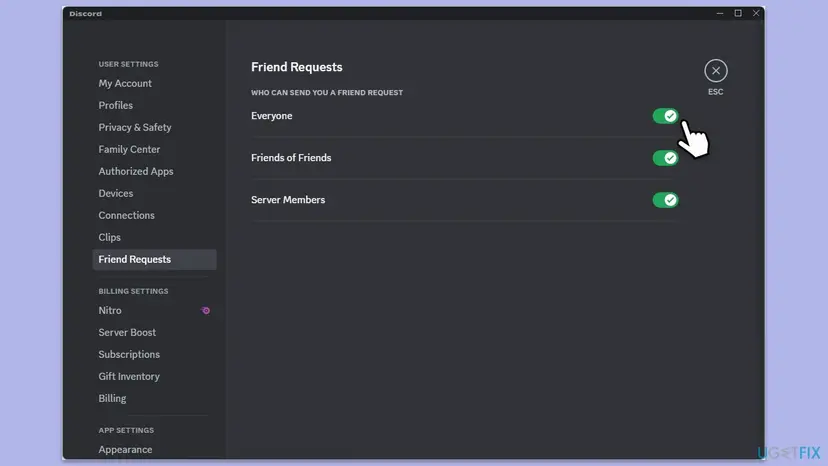
Discord's help says a user who does not want any requests can deselect all three. That is a clear answer: the person decided that nobody may add them, and you have to respect it.
It worked if: The request goes out without a warning and shows under Pending, then in Friends after they accept.
If not: If the person says all options are on and it still fails, check how you reach them with Fix 3, then the username with Fix 4.
Fix 3. Send the request by a route that matches their setting
5 minutesNo riskYou share a server or a group chat with the person, or you have a friend in common, and the username route fails.
Friends of Friends needs a mutual friend, and Server Members needs a shared server. If the person limited their setting to those groups, a request can only succeed from someone inside them. This also explains the case in the reader's question: after the person left the chat, nothing may connect you any more.
- Go to the server or the group chat that you share with the person.
- Select their profile, then View Profile, and look at the Mutual Friends tab to see whether you have friends in common.
- Select Send Friend Request in the profile. On desktop you can also right-click their profile or one of their messages and select Add Friend. Discord shows no confirmation for that route.
- Open the Friends tab and then Pending to see whether the request is waiting.
- If you share nothing with them any more, ask a mutual friend to pass your message on, or ask the person to add you (Fix 1).
On mobile you cannot use the right-click route in a server member list. Open the member's profile and select Add Friend there.
It worked if: The request appears under Pending without the Friend Request Failed warning.
If not: If the warning stays in a shared server, the person has Server Members and Friends of Friends switched off. Only Fix 1 or Fix 2 can help.
Fix 4. Check that the username is exact, if the message is a different one
3 minutesNo riskThe message says Hm, didn't work. Double check that the username is correct, or you are not sure you typed the name exactly.
This is a separate message with a separate cause. Discord's help says it means the username was not typed or pasted correctly, and that the request will not go through unless the username is exact.
- Ask the person to open their profile and read their username to you, or to send it as text.
- Copy and paste it instead of typing it. Check each number, letter, underscore and period.
- Open Friends, select Add Friend and paste the username into the field.
- Select Send Friend Request and look at the Pending tab.
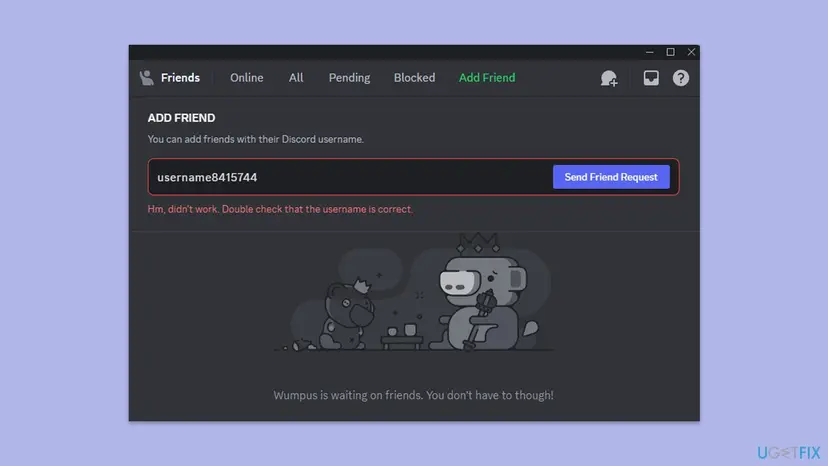
Older guides ask for a four digit number after the name. Discord's help today speaks only of the username and says it must be exact, so copy what the profile shows. We could not confirm from this page how Discord treats the old number now.
It worked if: The message disappears and the person shows under Pending.
If not: If a pasted, exact username still fails, Discord's help says to ask the person to send the request to you (Fix 1).
Fix 5. Accept what a block means and do not work around it
2 minutesNo riskEvery route has failed, the person no longer answers, or you have reason to think they ended contact.
Blocking is a separate Discord tool that one user uses to limit contact with another. Discord's help gives no way for the blocked side to override it. The honest answer here is to stop, because no setting on your side changes it.
- Send one polite message through a place where you can still reach them, such as a shared server channel, and ask whether they want to be added.
- If they say no, or do not answer, stop sending requests.
- Do not create a second account to add them. It would go around a choice the person made.
- If you need an answer for a real reason, such as a shared project, ask a mutual friend to pass on a message.

Discord's help attributes Friend Request Failed to the Friend Requests setting. It does not say what a person who blocked you sees. Do not conclude a block from this warning alone.
It worked if: You know whether the person wants contact, and you stop retrying a request that cannot succeed.
If not: If you doubt that the person decided this, test your own side with Fix 6.
Fix 6. Rule out your side: restart Discord, check Discord's status and your connection
10 minutesNo riskThe same warning appears for several people you know accept requests, or the request never reaches Pending for anyone.
Discord's help does not name a restart or an outage as a cause of this message, so this is a short test, not a known cure. It is cheap, and a client that has run for days or a Discord incident can stop requests for everyone, not only for one person.
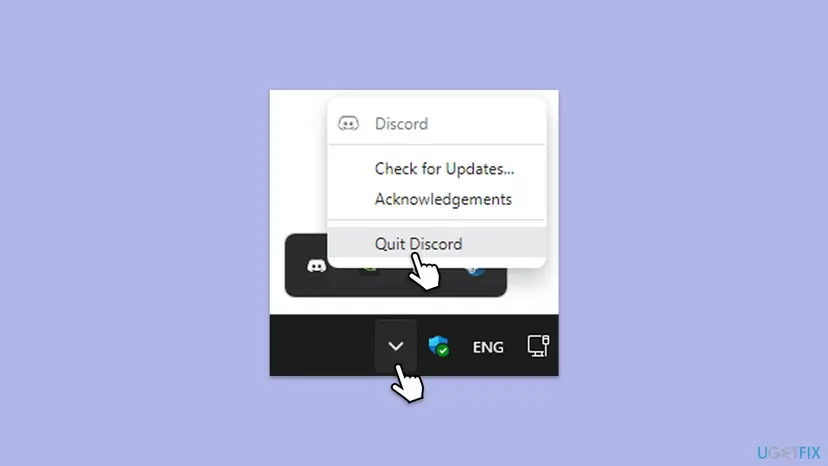
- Right-click the Discord icon in the system tray and select Quit Discord.
- Press Ctrl + Shift + Esc, find any Discord process still listed, and end it.
- Open Discord again and send one request to a person you know accepts them.
- Open
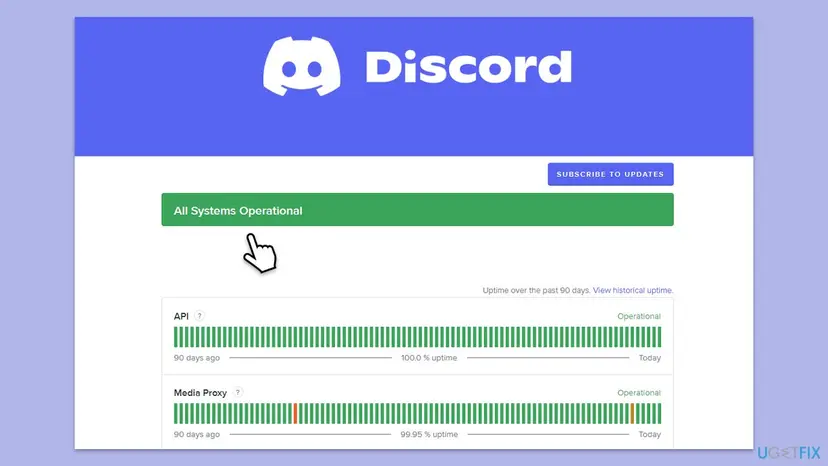
https://discordstatus.comand check whether Discord reports a problem. If it does, wait until it is resolved. - If requests to everyone fail and Discord reports no problem, check your connection with How to check your internet connection in Windows.
On a phone, remove Discord from the list of recent apps before you open it again.
It worked if: Requests to people who accept them go out and show under Pending. Then the failing person is the cause.
If not: If requests to others also fail after a restart and Discord reports no problem, send Discord Support the details listed in the section after the fixes.
If the friend request still fails: what each result tells you
When the fixes do not help, stop retrying and compare the result with this table. A request that fails for one person and works for others points to the person's choice, not to your account.
| What you find | What it tells you | What to do |
|---|---|---|
| Requests to other people work, one person always fails | The cause is that person's setting or a block | Ask them (Fix 1, Fix 2), or accept it (Fix 5) |
| Every request fails and Discord's status page is clear | Possibly your client or account, which Discord's help does not describe for this message | Restart (Fix 6), then write to Discord Support |
| The request shows under Pending and nothing happens | The request was delivered and the person has not answered | Wait. Cancel it with the X button if you changed your mind |
| The message names the username | The name is not exact | Fix 4 |
- Limits. Discord's help states that an account can have up to 1,000 friends, up to 1,500 pending incoming requests and up to 1,000 pending outgoing requests. It does not say that reaching a limit shows this message, so we could not confirm a link. Cancel old requests you no longer need under Pending.
- What to tell Discord Support. Write the exact message, the platform, the time of your last try and whether other requests work. Support cannot add a friend for you, so ask what is wrong with your account, not for an addition.
- When it is not a software problem. Most of the time nothing is broken: a person chose not to receive requests. No Windows repair, reinstall or driver update changes another person's account.
How to avoid failed friend requests in the future
- Send the request while you still share a server or a group chat with the person, as the reader's case shows, so Friends of Friends and Server Members can let you in.
- Copy and paste usernames from the person's profile instead of typing them.
- Ask for the other person's consent in the chat before you add them, and give them your username in case they prefer to add you.
- Keep your own Friend Requests setting as you want it, and tell people who need to reach you which option you use.
- Do not send the same request again and again. It cannot succeed while the setting stays the same.
- Do not reinstall Discord or repair Windows for this message. The refusal happens on the other account.
- Do not create a new account to get around a person's choice.
Discord's help adds that you will be alerted before you accept a request from an unfamiliar user, and that these alerts cannot be turned off. If a request you send is accepted, the other person may have seen that alert about you, so a short message beforehand helps.
Frequently asked questions
What does Friend Request Failed mean on Discord?
It means the person you tried to add is not accepting friend requests. Discord's help says they have the Friend Requests setting disabled and will need to add you as a friend instead. It is not an error in your app, your account or your Windows installation. The only things you can do are to ask the person to send you a request, ask them to change their setting, or reach them by a route their setting allows.
Does Friend Request Failed mean someone blocked me?
Not by itself. Discord's help attributes the message to the other user's Friend Requests setting and does not say what a person who blocked you sees. A block is a separate privacy tool. If every route fails and the person stopped answering, a block is possible, but you cannot confirm it from this message. Do not try to bypass it with a second account.
Why does Discord say "Hm, didn't work. Double check that the username is correct"?
That is a different message with a different cause. Discord's help says the username was not typed or pasted correctly, and that it must be exact, so every number, letter, underscore and period has to match. Copy the name from the person's profile or ask them to send it as text, paste it into the Add Friend field and try again. If it still fails, ask the person to send the request to you.
Can Discord Support add the friend for me or turn on their setting?
No. Discord's help states that its Support team is not able to manually add a friend for a user. The Friend Requests setting belongs to the other person's account, and nobody else can change it for them. Support can only look into problems with your own account, for example if requests fail for every person you try and Discord's status page shows no problem.
How can I change who may send friend requests to me?
On desktop or in a browser, open User Settings, then Content & Social, then Friend Requests. On mobile, open Settings, then Content & Social, then Friend Requests. Choose Everyone, Friends of Friends or Server Members. Everyone includes the other two. If you deselect all three, nobody can send you a request. Friends of Friends needs a mutual friend, and Server Members needs a shared server.
Can I send a friend request to someone I share a server with?
You can try, and it works only if their Friend Requests setting allows it. Open their profile from the server and select Send Friend Request, or right-click their profile on desktop and select Add Friend. If they have Server Members and Friends of Friends switched off, or all three options off, the request still fails with Friend Request Failed.
Is there a limit to how many friend requests I can have?
Yes. Discord's help says an account can have up to 1,000 friends, counting accepted friends only. It can have up to 1,500 pending incoming requests and up to 1,000 pending outgoing requests. If the incoming limit is exceeded, the oldest pending requests are removed until the count is back to 1,000. The page does not say that a limit causes Friend Request Failed.
How do I cancel a pending friend request?
On desktop or in a browser, press the Discord logo in the top-left corner, stay on the Friends tab, open Pending, and select the X next to the request. On mobile, tap You in the bottom-right corner, then Your Friends, then Friend Requests, and tap the X next to the sent request. If the person has already accepted it, you can no longer remove the pending request.
Is Friend Request Failed caused by my internet connection or Windows?
Discord's help does not describe it that way. The message is tied to the other person's setting. A weak connection or an outdated app can stop requests, but then they usually fail for everyone, not for one person. Reinstalling Discord or running the Windows network troubleshooter will not change another user's choice. Test with someone who accepts requests before you change anything on your PC.
Sources
- Discord Support: How do I add friends on Discord? (support.discord.com)
- Discord Support: Blocking & Privacy Settings (support.discord.com)
Did this fix work?
One click, no account. It tells the next reader which guides are worth their time.
Questions and experiences: fix "Friend request failed" error in Discord
Still broken, or found a fix we did not cover? Ask here: members and our editors answer. Reading is open; writing needs a free account.
…