How to fix
High RAM usage when Windows 11 is idle
on Windows
Struggling with high RAM usage on idle Windows 11? Discover effective solutions to reclaim your system's performance. Expert-tested tips await!


What causes How to fix high RAM usage when Windows 11 is idle?
- High RAM usage after upgrading to Windows 11
- High RAM usage after installing the newest Windows updates
- Background tasks enabled by users
- Memory usage not falling below 50% recently
- Universal memory usage by random processes
Repairs Windows system files, removes malware, and restores a clean OS state — without reinstalling.
Hi. My Windows PC has 16GB of RAM, and around 60% is in use at all times, even when the computer is idle. Restarting it does not change anything, and random processes continue to use the Memory resource (none of them spike, though - it's more of a universal thing), which makes it rather laggy when I'm trying to use the computer more heavily. Please advise.
RAM, otherwise known as Random access memory or simply Memory, is one of the main hardware components that allow a computer to store working data and machine code. Data is being read and written at great speeds, which allows the computer to run apps or games effortlessly.
Just like other resources such as GPU, computer memory is not limitless and is measured in Gigabytes - it is determined by the installed RAM stick(s) size. Currently, the most common sizes are 16 or 32GB, which provides plenty of space for most regular computer users to allow their computers to operate easily.
When users load a memory-heavy task, the usage of RAM spikes, and it is a very normal behavior on Windows. This limits the number of apps that can be opened at the same time, for example, as they each require some memory to run. While there are some background tasks that users have enabled to be run, high RAM usage when Windows is idle is not a normal phenomenon, and many users have noticed that it's precisely the case.
Many people said that high RAM usage while the computer is idle is a phenomenon they started to encounter after they upgraded to Windows 11 or after they installed the newest Windows updates. Some said that they haven't really changed anything in a while, and the Memory usage never falls down below 50% as of recently.
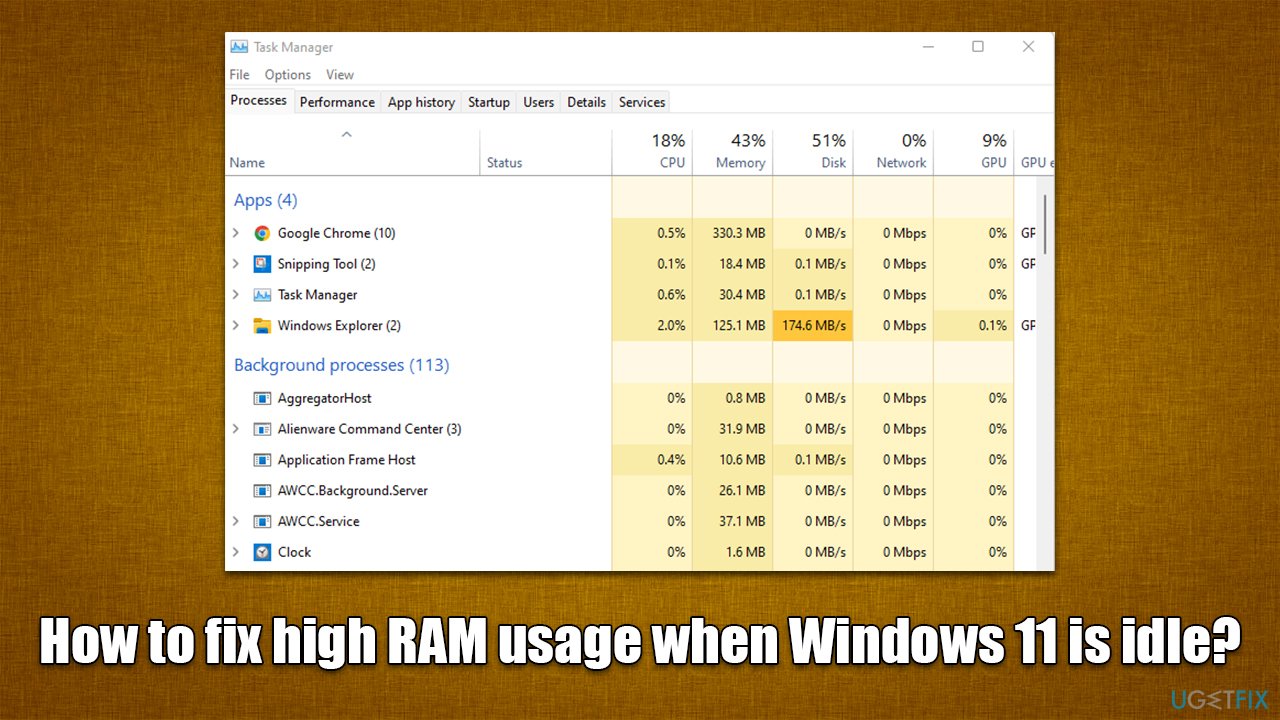
While it may seem like not a big deal since the usage is not 100%, it is not an ideal environment in which an operating system should operate. The resource load should generally spike when more resource-intensive tasks are being used and not when a PC is idling.
To ensure there are no underlying issues on Windows, we first recommend running a system scan with [d1] PC repair tool - it can find corrupted system files and clean outdated registries to improve performance.
1. Disable some Startup items
While this solution might not be ideal, there are users who enable way too many startup programs that don't really need to be running at all times. Therefore, disabling some of the startup items can drastically reduce the amount of RAM idling Windows machine uses. Follow these steps:
- Pres Ctrl + Shift + Esc to open Task Manager
- Click More details if needed to expand the window
- Go to the Startup tab
- Here, you will find a list of apps that run on startup
- Disable apps you don't need to be running at all times, for example, Steam or Microsoft Edge. To do so, right-click on the relevant entry and click Disable (or simply click the Disable button at the bottom-right corner of the window).
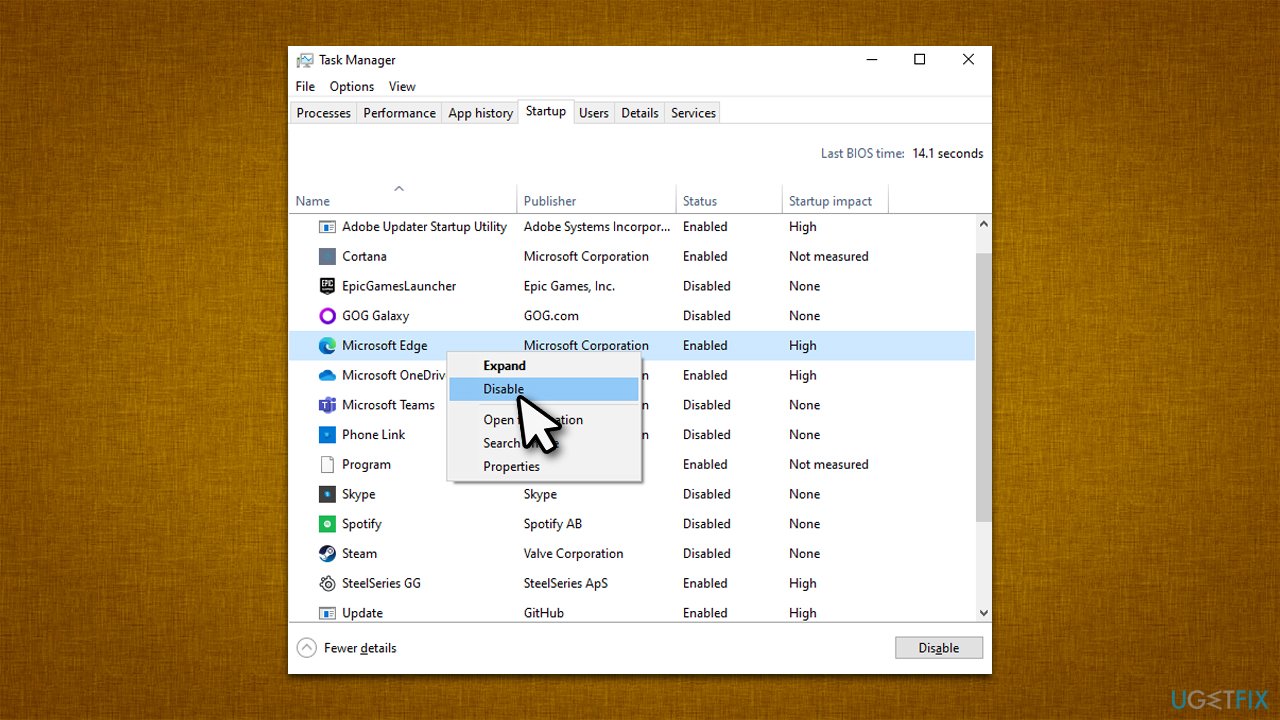
Note that browsers can use a lot of memory, especially if many tabs are open.
2. Check for Memory problems
You can use the built-in diagnostics that could help you to determine whether there's something wrong with your RAM.
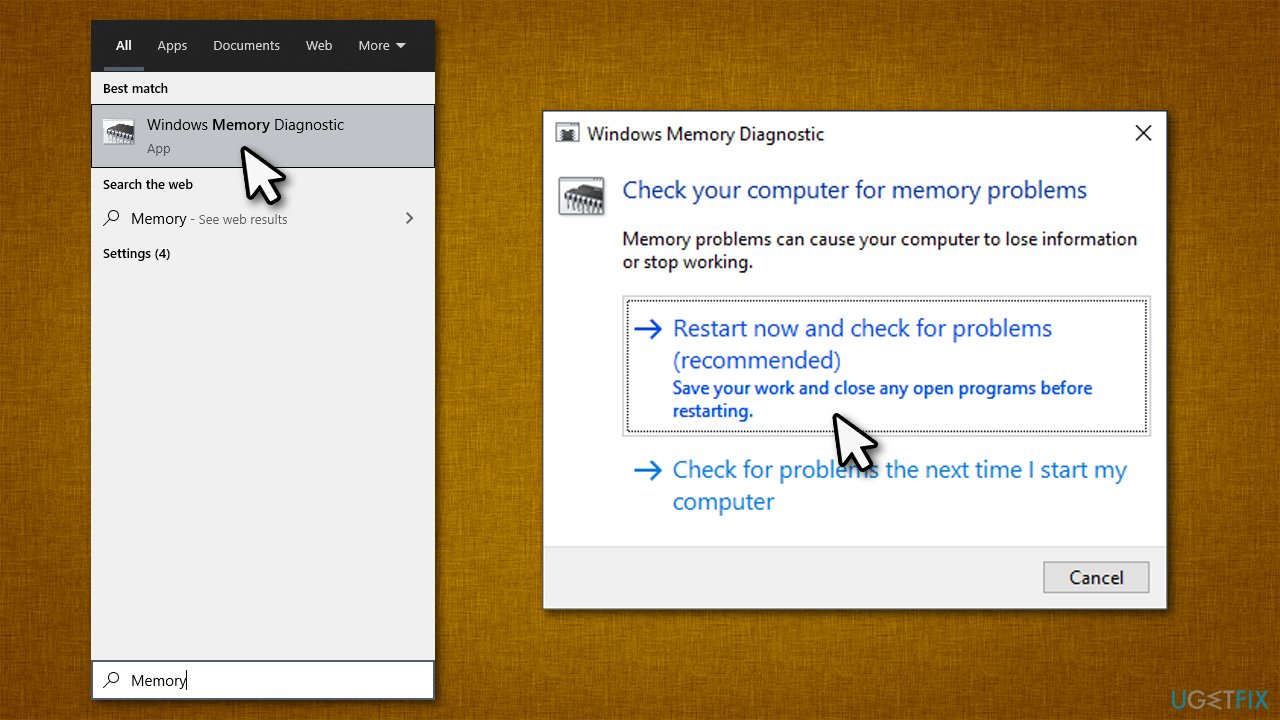
- Type Memory in Windows search and press Enter
- Pick Windows Memory Diagnostics result
- Select Restart now and check for problems (recommended)
- Your computer will restart, and checks will begin
- Results will be displayed after Windows loads.
3. Check for system file corruption
SFC and DISM are basic checks that could help you fix system file integrity violations and corruption.
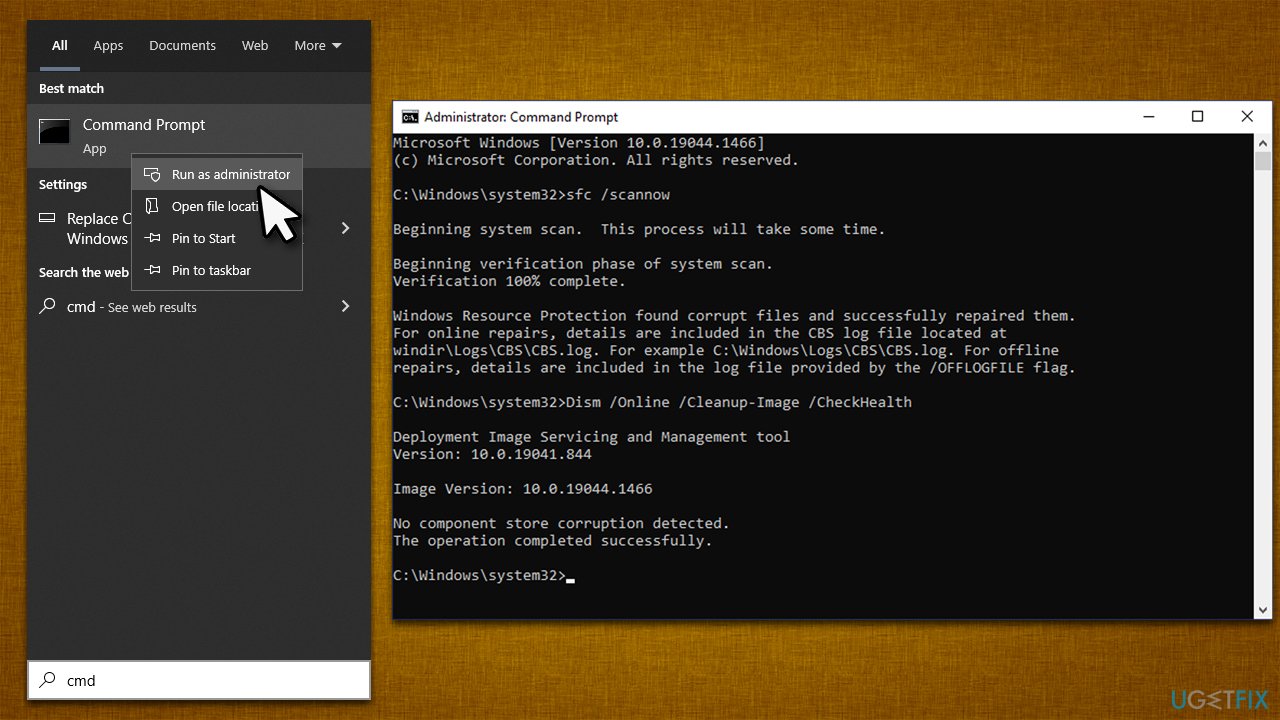
- Type cmd in Windows search, right-click on Command Prompt and select Run as administrator
- When User Account Control shows up, click Yes
- Use the following command and press Enter:
sfc /scannow - Once the scan is complete, you should also run the following commands to repair Windows image files (don't forget to press Enter after each):
DISM /Online /Cleanup-Image /CheckHealth
DISM /Online /Cleanup-Image /ScanHealth
DISM /Online /Cleanup-Image /RestoreHealth - Restart your device.
4. Install all the available Windows updates
Windows updates are designed to fix various issues and bugs, so make sure that all the available updates are installed. If you are already sure your Windows has all its available updates installed, proceed with the next solution.
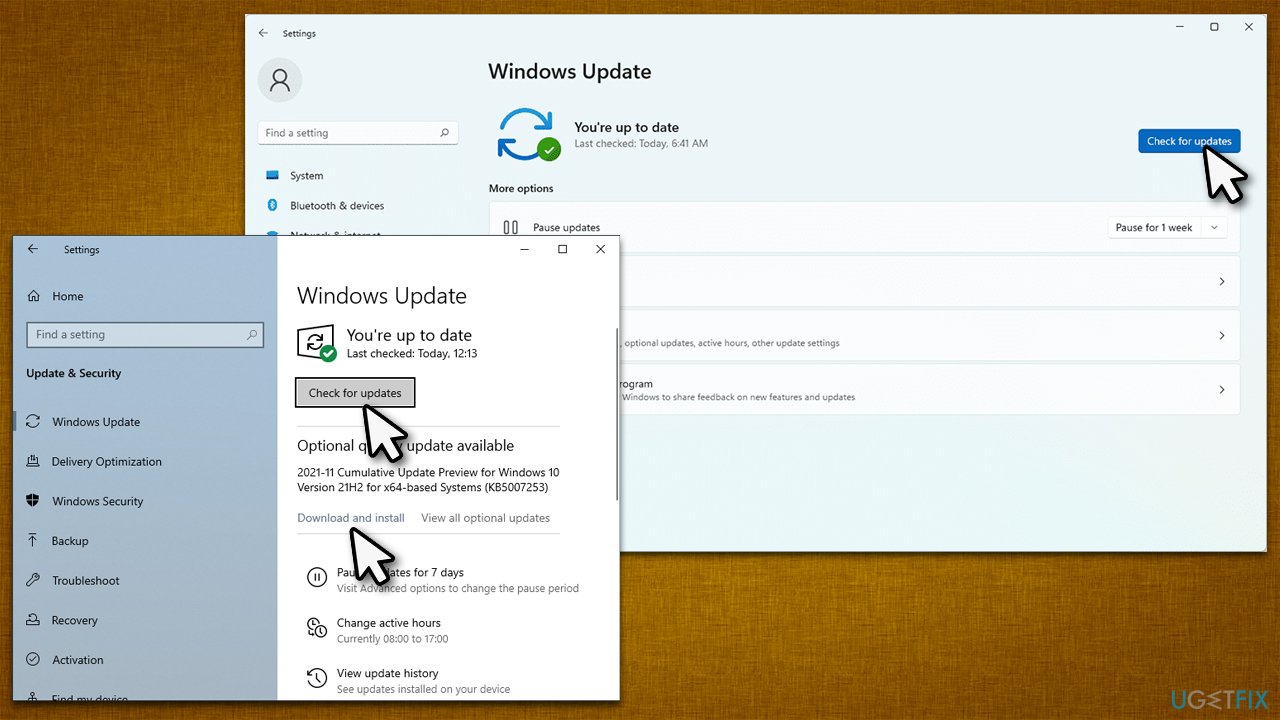
- Type Updates in Windows search and press Enter
- Here, click Check for updates option
- Install all the available updates, including the optional ones
- Restart your system.
5. Uninstall the latest update
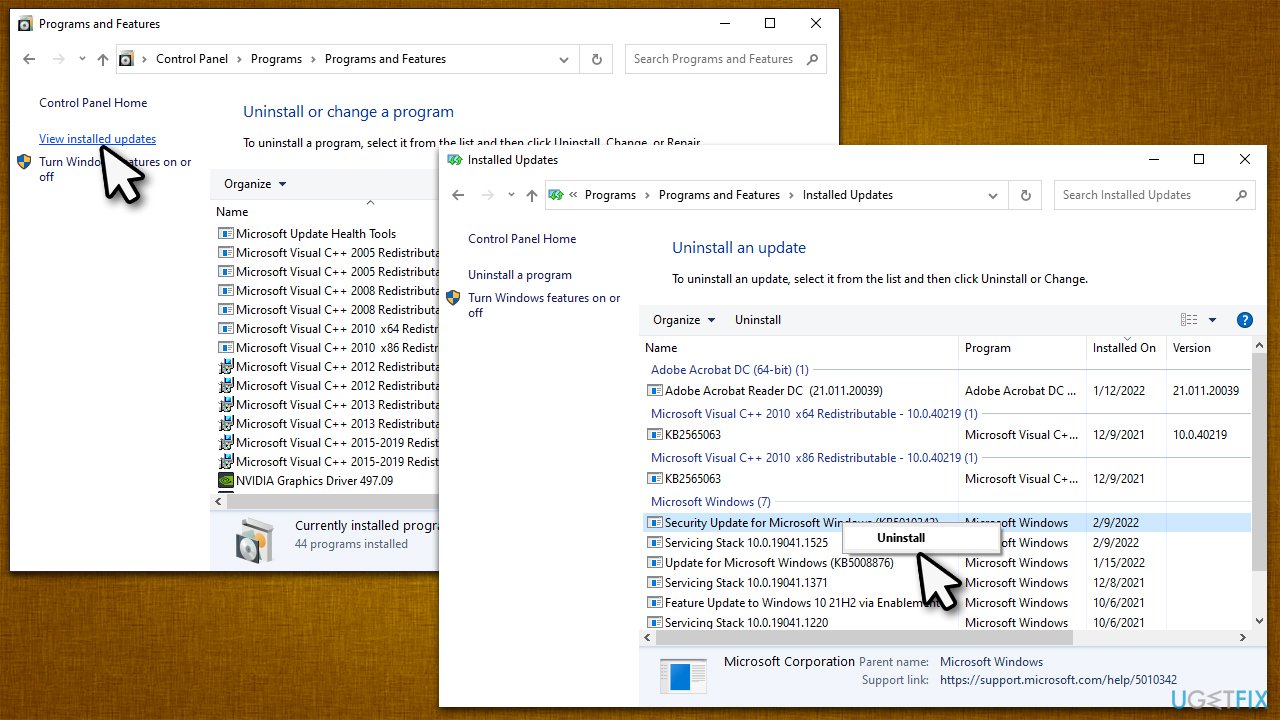
If your problems started after installing a Windows update, you could uninstall it as follows:
- Type Control Panel in Windows search and hit Enter
- Go to Programs > Uninstall a program
- Select View installed updates
- From the list, uninstall the most recent Windows update (right-click > Uninstall)
- Restart your PC and see if that helps.
6. Downgrade to Windows 10
While many users are looking forward to the new features and improvements of the next Windows version, not everyone finds it to be working as intended. Some users simply had enough technical issues with Windows 11 and decided to roll back to Windows 10. If you are one of such people and you can't get rid of Windows 11 consuming too much RAM while idling, you can also try downgrading to the previous version of the operating system. If a downgrade is not available, you can always reinstall Windows.
Similar articles that could be useful:
Bottom line
To address high RAM usage when Windows 11 is idle, consider disabling unnecessary background tasks, checking for updates, or optimizing startup programs. If these solutions do not resolve the issue, further investigation into specific applications or system settings may be necessary.
Frequently asked questions
Common causes include background applications running unnecessarily, memory leaks from software, and Windows system processes consuming excess RAM.
You can use the Task Manager by right-clicking the Start button and selecting 'Task Manager', then checking the 'Processes' tab to see RAM usage by each application.
You can close unnecessary applications, disable startup programs, and update your drivers, which often helps in managing RAM more efficiently.




Report an issue
What's wrong with this guide? We review every report and update or remove content.
Report received — thank you. We'll review and fix it.
You need a free account to submit a report.
Be the first to comment