How to fix
Installation has failed error
on Windows
Resolve the Installation has failed error on Windows 10 and 11 effortlessly. Quick solutions that get your system running smoothly, expert-tested.

What causes How to fix Installation has failed error on Windows?
- Files copied multiple times during installation
- Incorrect file extensions or formats
- Issues related to Boot Manager
- Temporary data causing conflicts
- Conflicting applications during installation
Repairs Windows system files, removes malware, and restores a clean OS state — without reinstalling.
I get this Installation has failed error on Windows 10 problem, but there is no particular error code that I could base the solution on. Can you explain what can I do with my computer to fix the issue? I try to install the latest update and I have no clue how to achieve it.
The installation has failed error on Windows is the failed OS update or full reinstallation error that has a few reasons and causes. Especially when it is not showing a certain error or code that indicates a problem. This problem frustrates because the pop-up appears information about a fail, but no details get revealed.
People complain about the failed installation or update issue[ref en-1] because the Installation has failed error appears in the middle of the installation and there is no answer why does it occur. In most cases, the issue is triggered by some files that can get copied a few times instead of once during the installation. Windows 10 update errors are common.[ref en-2]
Such data issue can be triggered by a big in particular Windows Media Creator, so removing some folders with temporary data can fix the Installation has failed error on Windows. An additional cause of the problem is incorrect file extensions or formats. You might change them to resolve the error.
If the reason behind the problem is related to Boot Manager[ref en-3] or service or a particular program, you might need to perform a clean boot and run the installation again to fix the Installation has failed error on Windows.
Various applications can trigger problems with Windows OS installation and cause additional errors like these known update issues:
How to fix Installation has failed error on Windows
Windows errors, especially OS update issues are pretty common. Many users of Windows devices encounter problems. The update to the latest version is sometimes the best idea when trying to fix any bugs but upgrading to Windows 10 sometimes gets difficult due to particular OS update bugs. However, errors during the upgrade are frustrating, but still fixable, including Installation has failed error on Windows.
Since the particular issue can be caused by double copying of files, boot manager issues, and improper file extensions, solutions vary from one cause to another. Quick fixes can be applied and it ads like a troubleshooter for this issue. However, we recommend running a tool like [d1] that can quickly assess data corruption alteration problems and help you fix Installation has failed error on Windows quickly.
Other quick fixes might include checking if the space on the machine is enough for the OS update and uninstalling the language pack, unplugging particular devices. You need to meet the requirements for the transition to Windows 10:
- 1GB for 32 bit and 2GB for 64 bit RAM.
- 16 GB for 32 bit and 20 GB for 64 bit space.
- CPU: 1GHz or faster.
- Screen resolution: 800 x 600.
- Graphics: Microsoft DirectX 9 or later with WDDM 1.0 driver.
Other methods listed below are more in-depth, so you should follow the steps carefully and try a few solutions to make sure.
Fix #1: Run a Clean Boot installation
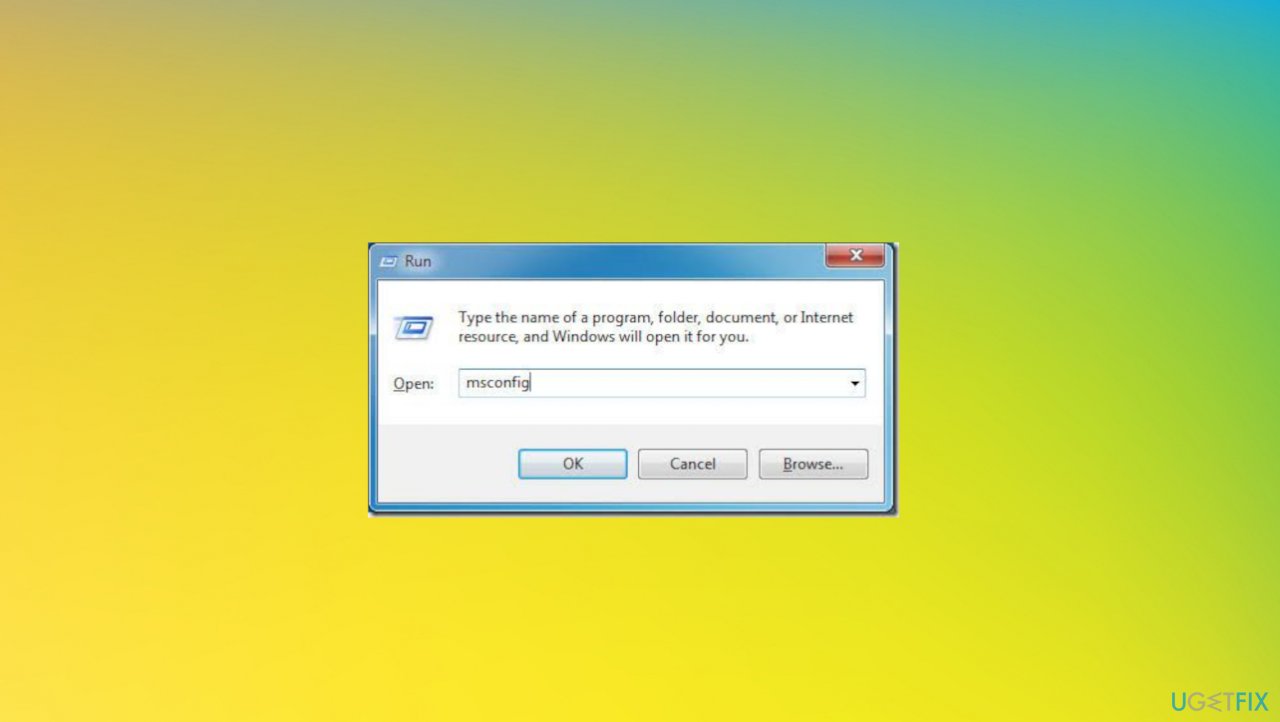
- Click Win and R to open Run box.
- Then type msconfig and press OK.
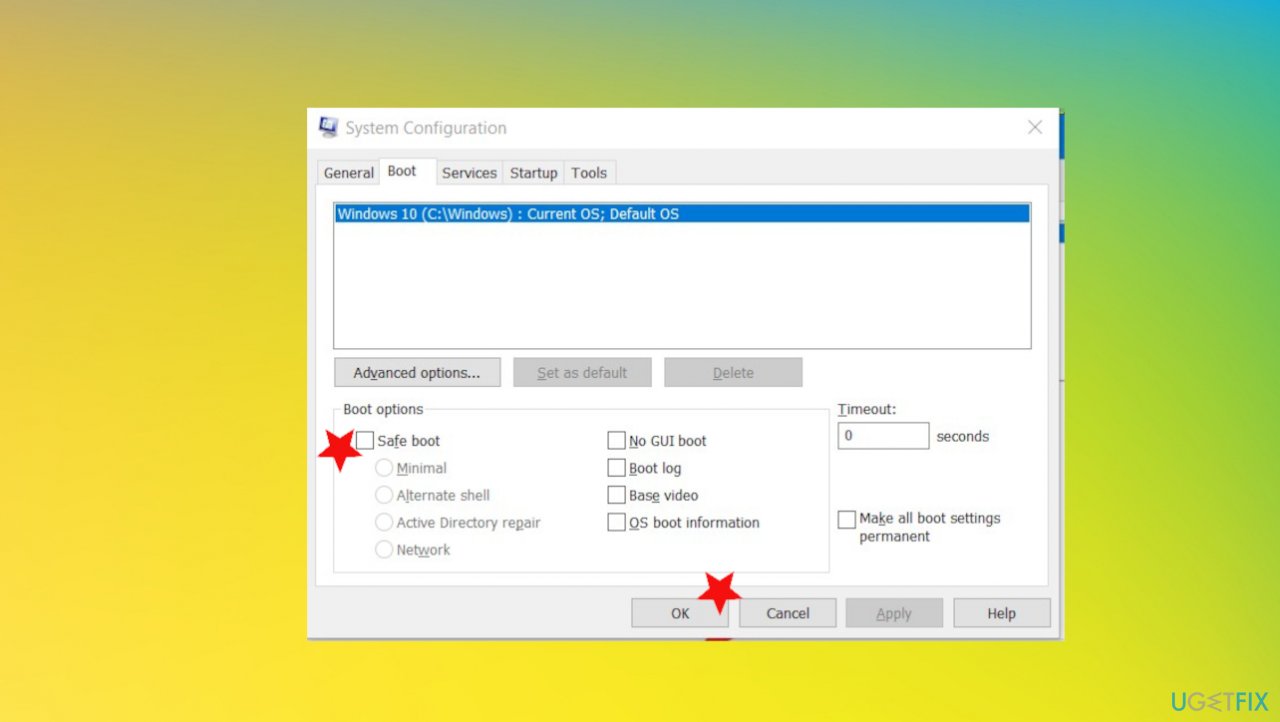
How to fix installation has failed error on windows msconfig - Click on the Boot option.
- Uncheck Safe Boot button.
How to fix installation has failed error on windows system configuration - Click General tab and choose Selective startup option.
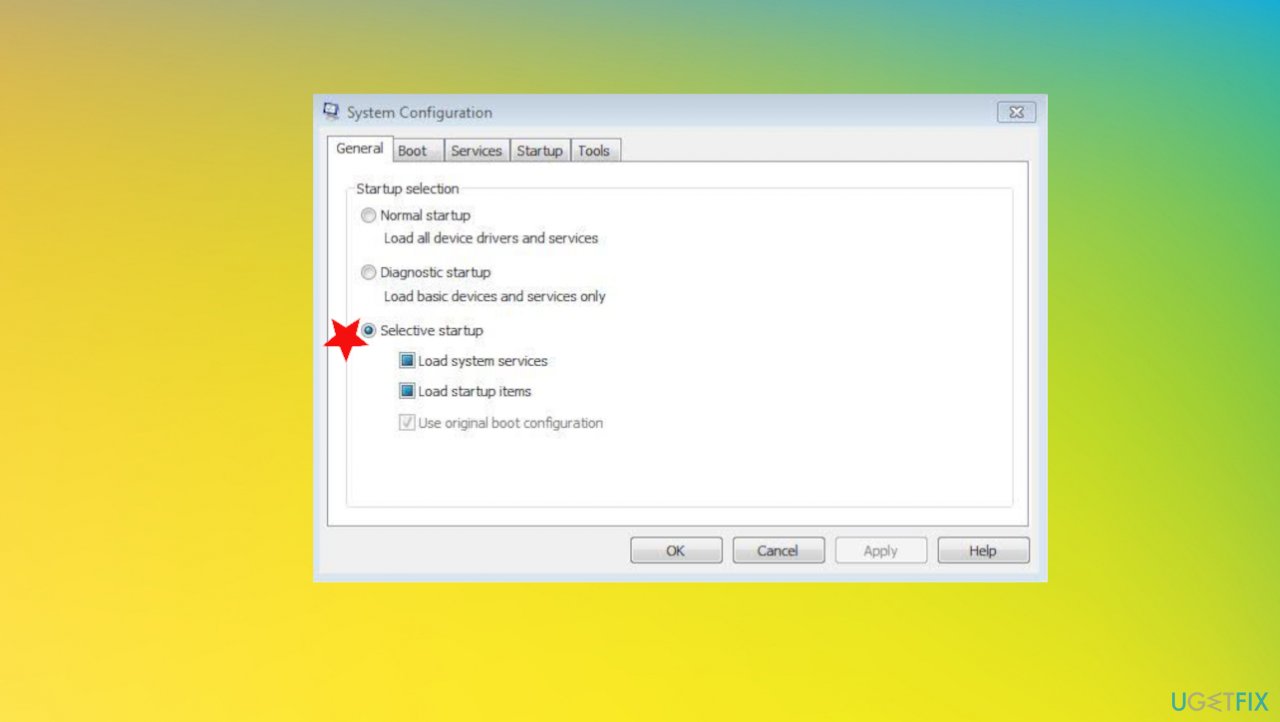
How to fix installation has failed error on windowsselective startup - Ensure the Load startup items is unchecked.
- Go to Services.
- Choose Disable all and uncheck Hide all Microsoft services.
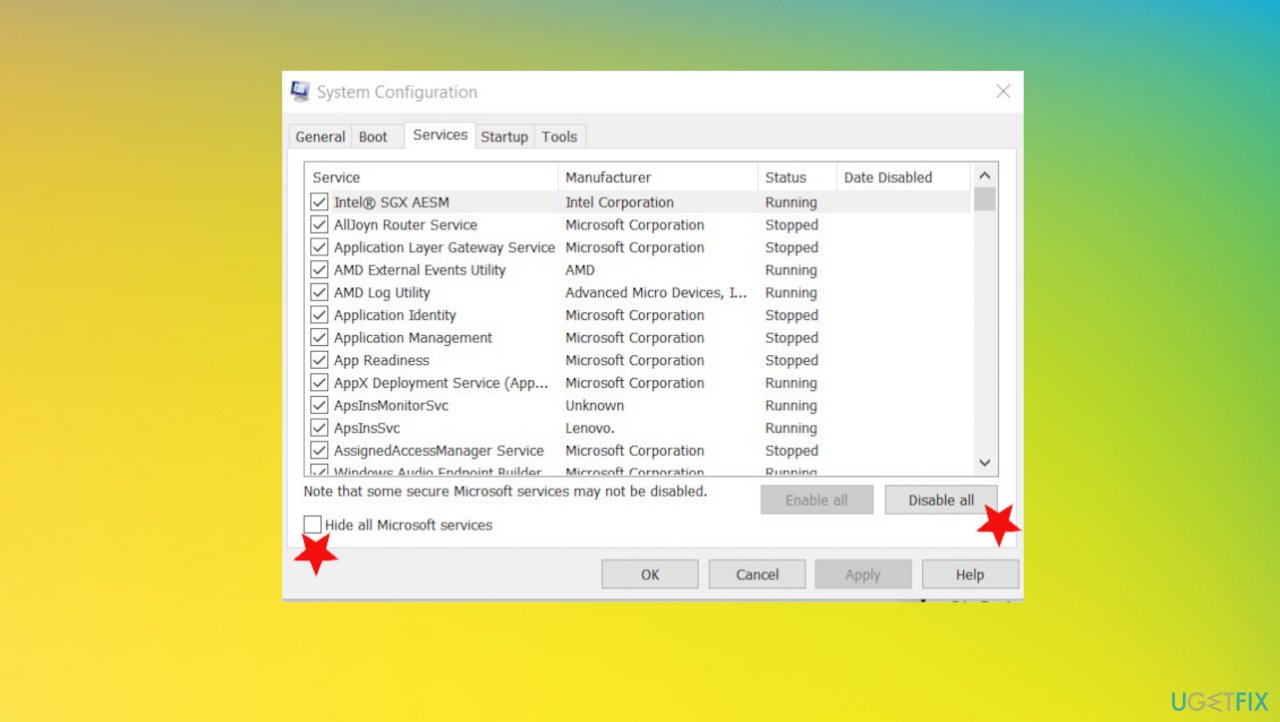
How to fix installation has failed error on windows ms services - Move to Startup on the menu tab and choose Open task manager.
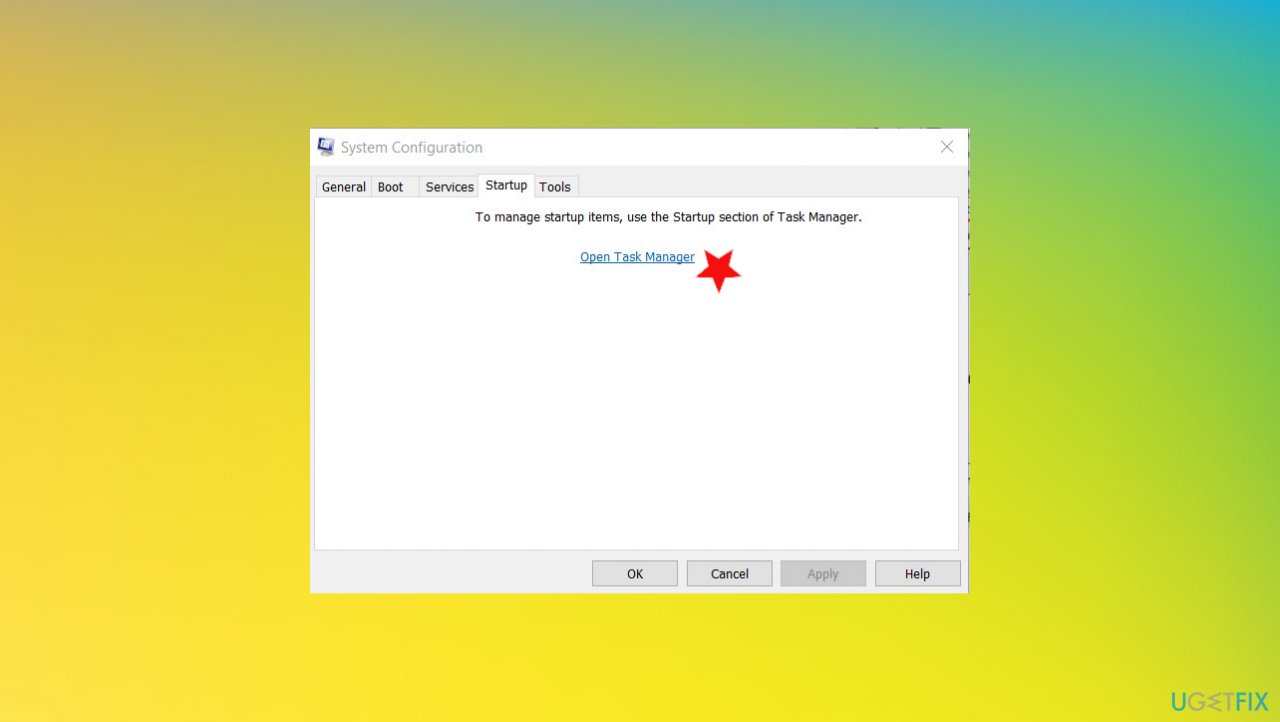
How to fix installation has failed error on windows open task manager - Right-click on all items and choose Disable.
- Enable the startup items one by one and reboot the PC.
Fix #2: Uninstall the language pack to fix Installation has failed error on Windows
- Type change display language in Windows Search and open Change display language.
- Choose English and apply changes.
- Type Uninstall display language in search.
- Open install or uninstall display languages.
- Choose Uninstall display language.
- Delete alternative language.
- Restart the PC.
Fix #3: Run Windows Update troubleshooter
- Right-click on Start and select Settings.
- Select Update & Security.
- On the left side, pick Troubleshoot.
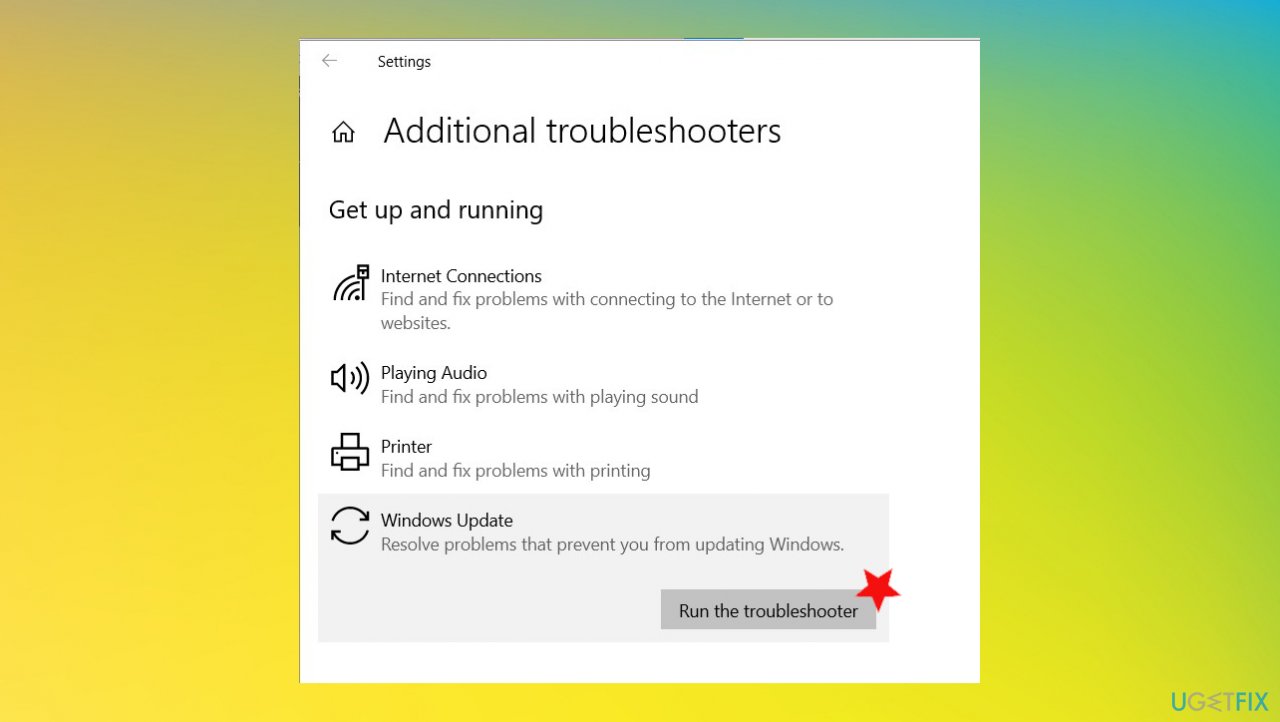
How to fix installation has failed error on windows troubleshoot - Click Windows Update on the right, and select Run the troubleshooter.
- Wait till Windows runs the troubleshooter fully.
Fix #4: Rebuild BCD
- Insert the Windows 10 bootable media.
- Set the device as a primary boot device.
- Choose language, time, format, keyboard input, and choose Next button.
- Select Repair your computer.
- Open Troubleshoot option.
- Choose Advanced Options.
- Open the Command Prompt with administrative rights and enter the following commands:
bootrec /FixMbr
bootrec /FixBoot
bootrec /ScanOs
bootrec /RebuildBcd - Press Enter after each. This should help rebuild booth configuration data files and eventually fix the error by restoring and fixing the default settings.
Fix #5: Upgrade using the installation media
- Download Media Creation Tool.
- Plugin the USB drive with at least 4 GB space.
- Run the tool and accept all terms.
- Choose Create installation media option.
- Pick the preferred language, architecture, and edition.
- Choose USB drive and click Next.
- The tool should download the setup and co[py installation files.
- Restart the PC.
Fix #6: Update drivers to fix Installation has failed error
- Press the Win and R keys to open the Run window.
- Enter devmgmt.msc.
- Hit Enter and open Device Manager.
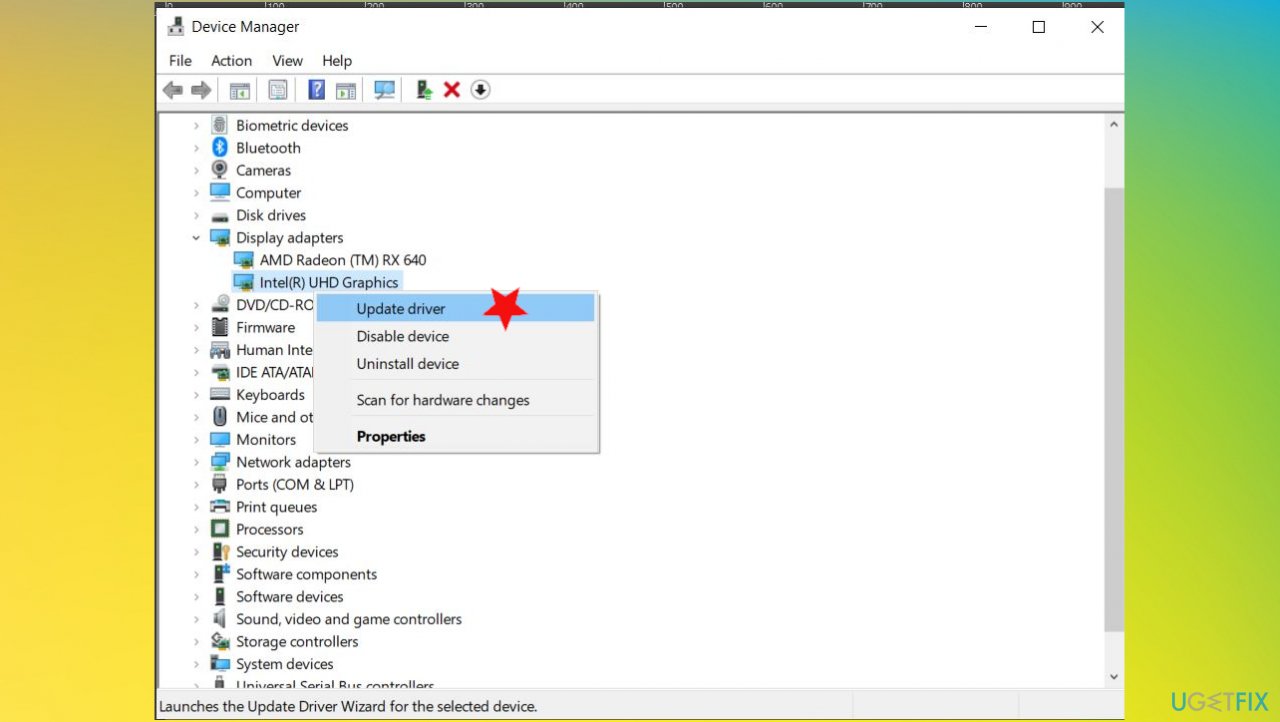
How to fix installation has failed error on windows driver update - Double-click Display adapters and right-click the display adapter.
- Choose to Update driver.
- Select browse my computer for driver software and choose the location you downloaded the piece.
- Or choose to search automatically for drivers.
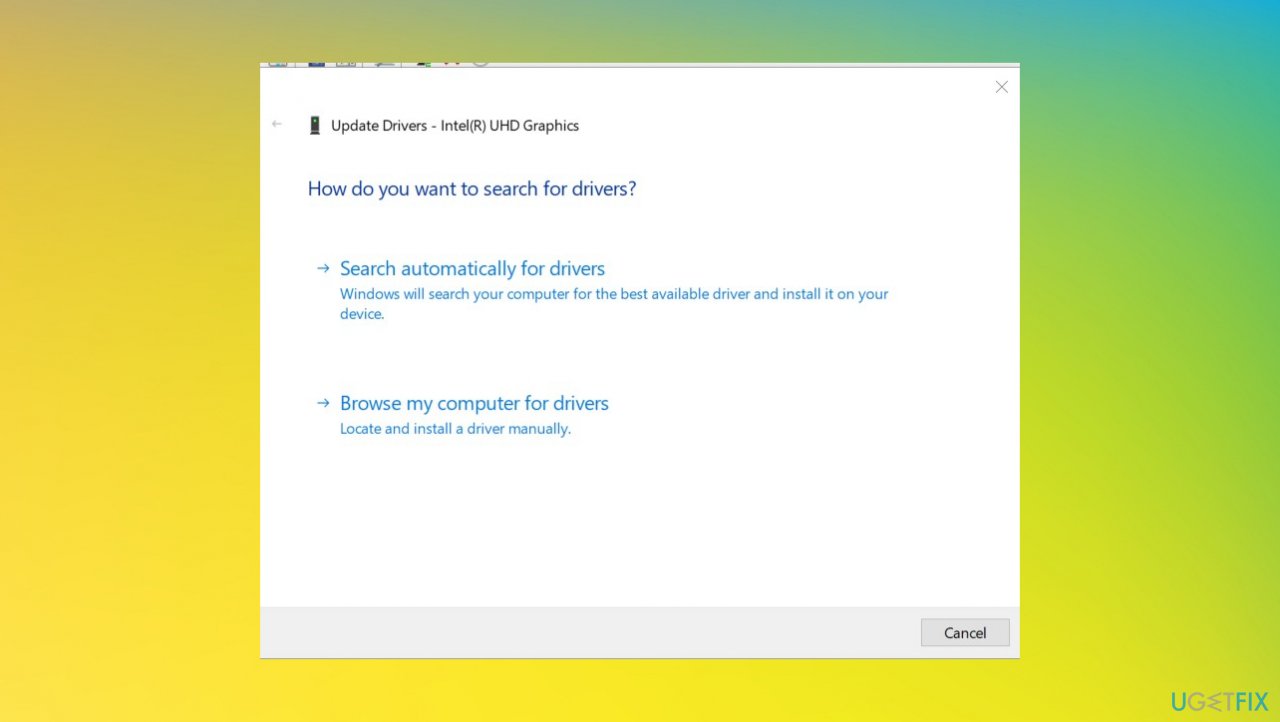
How to fix installation has failed error on windows driver update options - Repeat with other driver software if applications, in particular, trigger the problem with Windows installation.
Bottom line
To fix the Installation has failed error on Windows, you can try removing temporary data folders, changing incorrect file extensions, or performing a clean boot before attempting the installation again. If these solutions do not resolve the issue, consider checking for specific error codes or seeking further assistance.
Frequently asked questions
Try running the Windows Update Troubleshooter, which can help identify and fix issues preventing the update from completing. If that doesn't work, consider resetting the Windows Update components manually.
Ensure that your Windows 11 is up to date and check if the app's installation files are not corrupted. Additionally, running the app installer as an administrator may help resolve permission issues.
You can use the DISM tool to repair the Windows image and then attempt to install the features again. To do this, open Command Prompt as an administrator and run 'DISM /Online /Cleanup-Image /RestoreHealth'.




Report an issue
What's wrong with this guide? We review every report and update or remove content.
Report received — thank you. We'll review and fix it.
You need a free account to submit a report.
Be the first to comment