
How to fix integrated GPU is being used instead of dedicated GPU in Windows?

Prefer to fix it yourself? The manual steps follow.
- 6methods
- 2 to 20 minutes
- Easy
Applies to Laptops and desktops with integrated Intel or AMD graphics and a dedicated NVIDIA, AMD or Intel Arc card, on Windows 11 and Windows 10
6 methods in this guide
I have recently purchased a new PC with pre-installed Windows 11. It has a dedicated and an integrated GPU, but after noticing my games lagging, I realized that Windows is using the integrated GPU instead of the dedicated one. I am not sure why; I haven't changed any settings. How do I make my computer use the dedicated GPU?
Windows picks a graphics processor for every app, and on a laptop it often picks the integrated chip to save power. Check in Task Manager which GPU the game really uses, then set it to High performance in Windows graphics settings. On a desktop, plug the monitor into the graphics card first.
Open Settings > System > Display > Graphics, select the game, choose Options, pick High performance and select Save, then restart the game (Fix 1). Windows settings override the NVIDIA Control Panel since Windows 10 version 2004. On a desktop, the monitor cable must be in the graphics card, not the motherboard (Fix 2). Confirm the result in Task Manager's GPU engine column.
| Error | No message. Games lag, and Task Manager shows the app on the integrated GPU (often GPU 0) while the dedicated card (often GPU 1) sits near 0 %. |
|---|---|
| Where it appears | Task Manager, Processes tab, GPU engine column; or the game's own settings list the Intel or AMD integrated chip as the adapter. |
| Main cause | The app is on Let Windows decide or Power saving in Windows graphics settings, so a laptop keeps it on the integrated chip. On desktops: the monitor cable is in the motherboard port. |
| Fastest fix | Set the app to High performance under Settings > System > Display > Graphics and restart it (Fix 1). |
| Also written as | PC not using GPU; Windows not using GPU; NVIDIA GPU not being used; GPU 1 not being used; GPU 0 and GPU 1 switched; computer using wrong GPU. |
| GPU 0 and GPU 1 | Numbers Windows gives in driver enumeration order. GPU 0 is not always the integrated chip: read the name under each number on the Performance tab. |
| Affects | Laptops with NVIDIA Optimus or AMD switchable graphics, and desktops whose processor has its own graphics. Windows 11 and Windows 10. |
| Vendor status | Not a bug. NVIDIA states that since Windows 10 20H1 the Windows setting overrides Preferred graphics processor in the NVIDIA Control Panel. |
| Time to fix | 2 minutes for the Windows setting, 5 minutes for a cable, 15 minutes for a driver, longer for a BIOS change. |
Facts checked on 16 October 2026. Steps written for Windows 11 (25H2 and 26H2) and Windows 10 22H2.
What it means when Windows uses the integrated GPU instead of the dedicated GPU
A PC with two graphics processors has an integrated one, built into the Intel or AMD processor, and a dedicated (discrete) card from NVIDIA, AMD or Intel Arc. The integrated chip uses little power. The dedicated card is much faster for games, video editing and 3D work.
On laptops, NVIDIA Optimus or AMD switchable graphics moves each app to one of the two. Windows decides by default, and it can keep a game on the integrated chip, especially on battery. On a desktop there is no switching per app: the port your monitor is plugged into decides which GPU draws the screen.
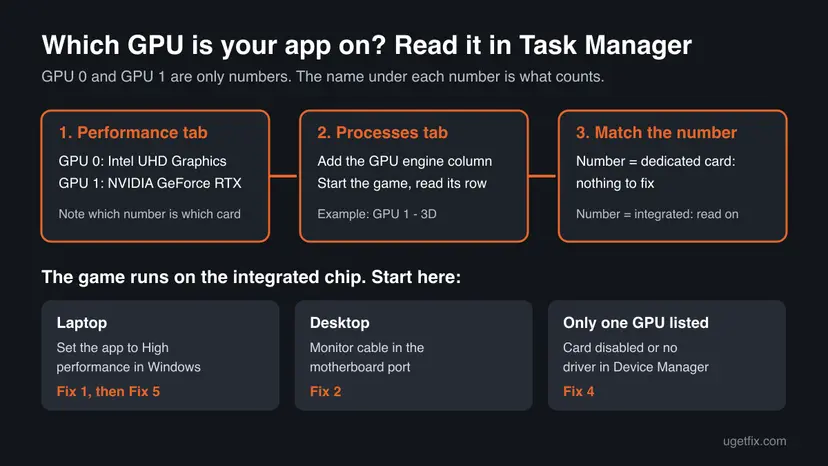
Dell explains that on most laptops the built-in screen is wired to the integrated GPU. The dedicated card renders the game and hands the finished frames to the integrated chip, which sends them to the screen. So both GPUs show activity. What counts is the GPU engine of the game's own row.
Why your PC is using integrated graphics instead of the GPU, most common cause first
The table ranks the causes we see in reader reports and vendor articles, each tied to the fix that removes it.
| How often | Cause | How to spot it | Fix |
|---|---|---|---|
| Most often | The game is on Let Windows decide or Power saving in Windows graphics settings | A laptop; Task Manager shows the integrated GPU number in the game's row | Fix 1 |
| Most often on desktops | The monitor cable is in the motherboard's video port | The cable goes into the ports near USB and audio, not the horizontal row lower down | Fix 2 |
| Often | A setting in the NVIDIA Control Panel or AMD Software is ignored or wrong | The NVIDIA panel says Windows now manages the graphics processor choice | Fix 3 |
| Sometimes | The dedicated card is disabled or has no proper driver | Only one GPU on the Task Manager Performance tab, or a down arrow in Device Manager | Fix 4 |
| Sometimes | The laptop is on battery or in a power saving mode | The game is fast when plugged in and slow on battery | Fix 5 |
| Rarely | The BIOS hybrid graphics or MUX setting, or an old BIOS after a repair | A BIOS graphics option is missing or set to integrated only | Fix 6 |
One cause is not a fault at all: light apps such as the browser and the desktop are meant to run on the integrated chip. Only move demanding apps to the dedicated card.
How to check which GPU is being used: GPU 0 and GPU 1 in Task Manager
Before you change anything, find out which GPU the game is really on. Windows numbers the GPUs in the order their drivers load, so GPU 0 can be the integrated chip on one PC and the dedicated card on another.
- Start the game or app you want to check.
- Press Ctrl + Shift + Esc to open Task Manager.
- Open the Performance tab. Each GPU has its own tile: GPU 0, GPU 1, with the card's name under the number. Note which number is which card.
- Open the Processes tab, right-click any column header and tick GPU and GPU engine.
- Find the game's row. GPU engine shows the number and engine it uses, for example
GPU 1 - 3D. - Match that number to the name you noted. If it is the integrated chip, go to the fixes below.
An empty GPU engine cell only means the app is not drawing anything at that moment. Check again while the game is running in the foreground.
How to make Windows use the dedicated GPU instead of integrated graphics
Laptops start with Fix 1, desktops with Fix 2. If Task Manager lists only one GPU, start with Fix 4. After each fix, close the app completely and open it again: the GPU choice is applied only when the app starts.
| What you see or what your PC has | Start with |
|---|---|
| A laptop with Intel or AMD graphics plus an NVIDIA or AMD card | Fix 1 |
| A desktop, and the game runs on the processor's graphics | Fix 2 |
| You set the NVIDIA Control Panel, but the game ignores it | Fix 1, then Fix 3 |
| Task Manager shows only one GPU, or Device Manager shows a down arrow | Fix 4 |
| Fast when plugged in, slow on battery | Fix 5 |
| Nothing above helps, or a BIOS graphics option is set to integrated | Fix 6 |
Fix 1. Set the app to High performance in Windows graphics settings
2 minutesNo riskEvery PC with two GPUs, and first on laptops with NVIDIA Optimus or AMD switchable graphics.
Windows keeps a GPU choice for each app, and the default is Let Windows decide. NVIDIA and Dell both state that this Windows setting takes priority over the graphics driver's panel since Windows 10 version 2004 (20H1).
- Press Win + R, type
ms-settings:display-advancedgraphicsand press Enter. Or open Settings > System > Display > Graphics (on Windows 10: Settings > System > Display > Graphics settings). - Under Custom options for apps, look for the game in the list.
- If it is missing, choose Desktop app (or Microsoft Store app), select Browse and pick the game's .exe file.
- Select the game and then Options.
- Choose High performance. The name of your dedicated card shows under it.
- Select Save, close the game completely and start it again.
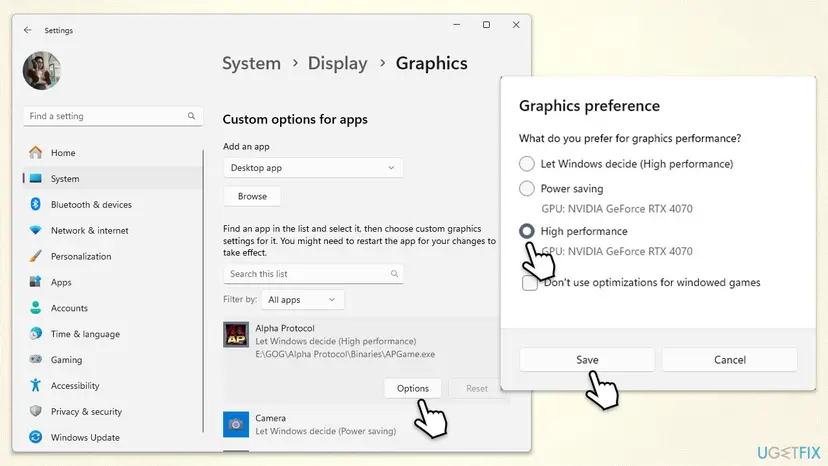
Many games start a launcher first and the real game from a subfolder such as Binaries\Win64. If the setting does not stick, add that second .exe as well.
It worked if: Task Manager's GPU engine column shows the game on the dedicated card's number, and the frame rate goes up.
If not: If High performance lists the integrated chip, Windows does not see the dedicated card: go to Fix 4. On a desktop, check Fix 2 first.
Fix 2. Plug the monitor into the graphics card, not the motherboard
5 minutesNo riskDesktop PCs whose processor has its own graphics, such as most Intel Core and many AMD Ryzen chips.
Intel's support article puts this first: the video cable must go into the dedicated card's port. Dell adds that on a desktop, the port the monitor uses decides which GPU draws the screen, so a cable in the motherboard keeps everything on the integrated chip.
- Shut down the PC and look at the back of the case.
- Find the monitor cable. The motherboard ports sit in the upper block next to the USB and audio ports.
- The graphics card's ports sit lower down, in a horizontal row on a metal bracket.
- Move the HDMI or DisplayPort cable from the motherboard to a port on the card.
- Start the PC and check Task Manager as described above.
If the screen stays black on the card's port, the card may be disabled or lack power. Move the cable back, then go through Fix 4 and check that the card's power cables are connected.
It worked if: The picture comes from the dedicated card, and Task Manager shows games running on it.
If not: If the PC has no ports on a separate card, it has no dedicated GPU to switch to. Otherwise go to Fix 4.
Fix 3. Choose the GPU in the NVIDIA Control Panel or AMD Software
5 minutesNo riskPCs with an NVIDIA or AMD card where the Windows setting is on Let Windows decide, or you want one rule for all games.
NVIDIA's help says that when Windows has no GPU preference for an app, the panel's Preferred graphics processor applies. It is also the only place to set one default for every program at once.
- Right-click the desktop and select NVIDIA Control Panel.
- Open Manage 3D settings under 3D Settings.
- On the Program Settings tab, choose the game or select Add to browse for it.
- Under Select the preferred graphics processor for this program, choose High-performance NVIDIA processor.
- For all programs, use the Global Settings tab and its Preferred graphics processor list instead.
- Select Apply and restart the game.
With an AMD card, right-click the desktop, open AMD Software, then System (or Gaming) and Switchable Graphics, and set the game to High Performance. Dell notes that some system apps show a lock icon there and always stay on the integrated chip.
Newer NVIDIA panels show a note to this effect with a link to Windows graphics settings. It means Fix 1 wins over this panel. Keep both settings the same so they do not fight.
It worked if: The game appears on the NVIDIA or AMD card's number in Task Manager.
If not: If Manage 3D settings has no Preferred graphics processor option, the driver may not see the integrated chip or the card at all. Go to Fix 4.
Fix 4. Enable the dedicated card and install the correct driver
15 minutesLow riskTask Manager lists only one GPU, Device Manager shows a down arrow or warning sign, or the card shows as Microsoft Basic Display Adapter.
Windows can only send an app to a card that is enabled and running on its own driver. Intel's article says to check Device Manager first, and Dell recommends the laptop maker's driver package on laptops with switchable graphics.
- Right-click Start and select Device Manager.
- Expand Display adapters. A PC with switchable graphics lists two entries, for example Intel(R) UHD Graphics and an NVIDIA card.
- If the dedicated card has a down arrow, right-click it and select Enable device.
- Right-click the card, select Update driver and then Search automatically for drivers.
- On a laptop, install the graphics driver from the laptop maker's support page. On a desktop, use the card maker's driver from NVIDIA, AMD or Intel.
- Restart the PC and check Task Manager again.
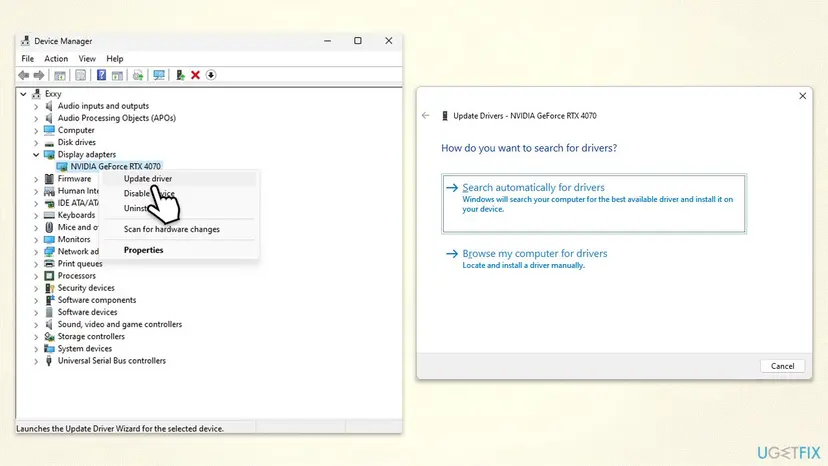
If the driver is damaged, remove it and install it again. Step by step: Update, roll back or reinstall a driver.
- Open Device Manager. Right-click Start and select Device Manager.
- Open the device's Driver tab. Expand the category (for example Display adapters), right-click the device, select Properties and open the Driver tab. Driver Date and Driver Version show what is installed now.
These steps were written for Windows 11 24H2 and later. The full page with the other versions and what each result means: Update, roll back or reinstall a driver
It worked if: Both GPUs show on the Task Manager Performance tab with their real names, and High performance in Fix 1 names the dedicated card.
If not: If the card is missing from Device Manager entirely, select Action > Scan for hardware changes. If it still does not appear, read the still-broken section.
Fix 5. Plug in the laptop and set the best performance power mode
2 minutesNo riskLaptops where games run well on the charger and fall back to the integrated chip on battery.
Dell notes that on battery Windows may prefer power saving and keep even a game on the integrated GPU. Plugging in and choosing Best performance removes that reason.
- Connect the laptop's charger.
- On Windows 11, open Settings > System > Power & battery (on a desktop: Power).
- Under Power mode, choose Best performance. On a laptop you can set it for Plugged in separately.
- If Power mode is missing, open Control Panel > Hardware and Sound > Power Options, select Show additional plans and choose High performance.
- Restart the game.
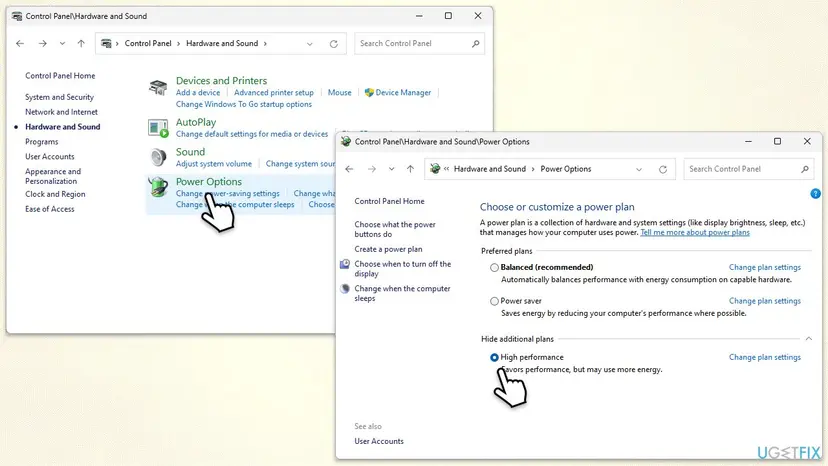
Windows 10 uses the slider on the battery icon or the same Control Panel plans. Step by step for both: Change the power mode.
It worked if: The game stays on the dedicated card when you start it on the charger.
If not: If it only fails on battery, that is expected behaviour for power saving. If it fails on the charger too, go to Fix 6.
Fix 6. Check the BIOS graphics mode and update the BIOS
10 to 30 minutesRead the warningLaptops and desktops where Fixes 1 to 5 did not help, or a BIOS graphics option is set to integrated only.
Some laptops let the BIOS or the maker's app switch between hybrid mode and a discrete-only mode through a MUX switch. Dell also says a missing BIOS graphics option after a repair is fixed by a BIOS update.
Back up your files first, keep the laptop on its charger and never turn the PC off during the update. Use only the BIOS file from your PC or motherboard maker for your exact model. Changing the graphics mode itself loses no data.
- Type System Information in Windows search and open it. Note System Model, BaseBoard Product and BIOS Version/Date.
- Restart and press the key shown at start to open BIOS setup (on Dell laptops F2).
- In the video or graphics section, look for Hybrid Graphics, Advanced Optimus or a similar option. Turning hybrid mode off makes the dedicated card drive everything.
- Save and exit. On laptops with a MUX switch, the maker's app (for example Alienware Command Center, Performance tab) can do the same.
- If the option is missing or the BIOS is old, download the update from the maker's support page and follow its instructions.
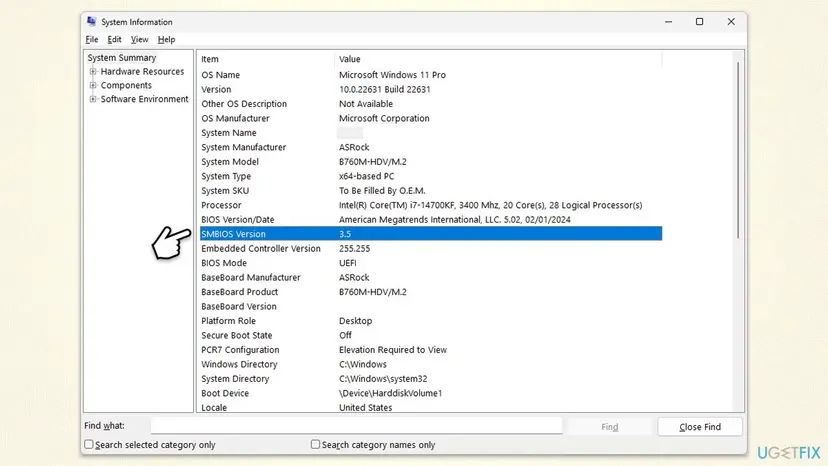
It worked if: After the restart the dedicated card is listed and games run on it. In discrete-only mode the integrated chip disappears from Task Manager.
If not: Turn hybrid mode back on if battery life drops too much, and read the still-broken section.
Still using integrated graphics: when the cause is the hardware
If the dedicated card never shows on the Task Manager Performance tab, even after Fix 4 and a BIOS update, Windows cannot see it. That is no longer a setting.
- Desktop: check that the card sits firmly in its slot and that its power cables from the power supply are connected. A card without power is not detected.
- Laptop: if Device Manager shows the card with a warning sign and a driver reinstall does not clear it, contact the laptop maker. The card is soldered to the board.
- Some laptops have no dedicated card. If Display adapters lists one entry, the PC has a single GPU and nothing can be switched.
- Remote Desktop and virtual machines give apps a virtual adapter, not your card. Test at the PC itself.
For support, note both GPU names from Device Manager, the driver version, your Windows version from winver, and a screenshot of the Task Manager Performance tab. If a driver install is refused, the driver installer's message helps the maker more than a description of slow games.
How to keep games on the dedicated GPU after updates
The setting is per app, so a new game starts on Let Windows decide again. A few habits keep demanding apps on the right card.
- Set each new game or editor to High performance in Windows graphics settings the day you install it.
- Keep the monitor cable in the graphics card on a desktop.
- Install the laptop maker's graphics driver after every Windows reinstall.
- Play plugged in when you want full speed.
- Do not disable the integrated GPU in Device Manager on a laptop: the built-in screen is wired to it.
- Do not set every app to High performance: it costs battery and adds heat and fan noise.
- Do not install driver updaters from third-party sites.
Frequently asked questions
How do I change which graphics card is being used?
Open Settings > System > Display > Graphics, select the app (or add it with Browse), choose Options, select High performance and Save. The name under High performance is the card Windows will use. Restart the app, because the choice applies only when it starts. With an NVIDIA card you can also use Manage 3D settings in the NVIDIA Control Panel, but the Windows setting takes priority on Windows 10 2004 and newer and on Windows 11. On a desktop, the monitor cable decides too.
What is GPU 0 and GPU 1, and why do I have both?
They are the numbers Task Manager gives to the graphics processors in your PC. A PC with integrated graphics in the processor and a separate graphics card has two, so it shows GPU 0 and GPU 1. The numbers follow the order in which the drivers load. Dell points out that this order is not the same on every PC, so GPU 0 is not always the integrated chip. Open the Performance tab and read the name under each number before you change anything.
How do I use GPU 1 instead of GPU 0?
You do not switch the numbers themselves. You tell Windows which card an app should use. First read on the Task Manager Performance tab which card is GPU 1. If it is the dedicated card, set the app to High performance in Settings > System > Display > Graphics and restart it (Fix 1). If GPU 1 is the integrated chip and GPU 0 the card, the same setting still picks the card, because High performance always means the faster one.
Can GPU 0 and GPU 1 be switched?
The numbers can change after a driver reinstall, a BIOS change or a new card, because Windows assigns them in the order the drivers load. That is why guides that say GPU 0 is always integrated can be wrong for your PC. You cannot pick the numbers yourself, and you do not need to. What matters is the name under each number on the Performance tab and the GPU engine of the app's row on the Processes tab.
Why is my NVIDIA GPU not being used?
Most often the game is on Let Windows decide or Power saving in Windows graphics settings, and on a laptop Windows keeps it on the integrated chip (Fix 1). On a desktop the monitor may be plugged into the motherboard (Fix 2). A setting made only in the NVIDIA Control Panel can be overridden by Windows, as NVIDIA's own help says. If the card is missing from Task Manager, it is disabled or has no driver (Fix 4).
How do I force Windows 11 to use the dedicated GPU for everything?
Windows has no single switch for all apps. You can set each demanding app to High performance, or use the Global Settings tab in the NVIDIA Control Panel to prefer the NVIDIA card for all programs. On some laptops the BIOS or the maker's app can turn off hybrid graphics so the dedicated card drives the screen (Fix 6). Dell says this is safe but costs battery life and adds heat. On a desktop, the monitor cable in the card already does it.
Should I disable the integrated GPU in Device Manager?
No, not on a laptop. Dell explains that the built-in screen of most laptops is wired to the integrated GPU, and the dedicated card sends its frames through it. Disabling the integrated chip cuts the path the picture takes to the screen, and we could not confirm a laptop where that helps. If you want the dedicated card only, use the BIOS hybrid graphics or MUX setting where the laptop has one. On a desktop with the monitor in the card, disabling it is not needed either.
Why is the game slow even though Task Manager shows the dedicated GPU?
Then the GPU choice is right and the cause is elsewhere. Check that the laptop is plugged in and in Best performance mode (Fix 5), that the card's driver is current (Fix 4), and that the game's own settings are not too high for the card. On a laptop, the integrated chip showing some activity at the same time is normal, because it passes the frames to the screen.
Does using the dedicated GPU drain the battery faster?
Yes. The dedicated card uses much more power than the integrated chip, which is why Windows keeps light apps on the integrated one. Dell's advice is to set only demanding apps such as games, video editors and 3D tools to the dedicated card and leave the rest on Let Windows decide. Turning hybrid graphics off in the BIOS keeps the dedicated card on all the time, so use that only when you mostly work on the charger.
Sources
Did this fix work?
One click, no account. It tells the next reader which guides are worth their time.
Questions and experiences: fix integrated GPU is being used instead of dedicated GPU in Windows
Still broken, or found a fix we did not cover? Ask here: members and our editors answer. Reading is open; writing needs a free account.
…