How to fix
INVALID FLOATING POINT STATE BSOD
on Windows
Resolve the INVALID FLOATING POINT STATE BSOD in Windows 10 with our expert-tested solutions. Get back to a stable PC quickly, fixed in minutes!

What causes How to fix INVALID FLOATING POINT STATE BSOD in Windows 10?
- Software conflict
- Outdated drivers
- Corrupt drivers
- Insufficient Windows updates
Repairs Windows system files, removes malware, and restores a clean OS state — without reinstalling.
Hello. For the past week, I have kept getting INVALID_FLOATING_POINT_STATE error at random times, and my PC crashes. I am not sure what is causing it, but it is definitely affecting my work. Please help me.
Nobody expects a Blue Screen of Death[ref en-2] error - it always comes as a surprise, as there are no warnings provided by the operating system. This can commonly result in loss of data, which can be very damaging and frustrating to users experiencing it. However, each BSOD is there for a reason, and the INVALID FLOATING POINT STATE error is not an exception.
Blue Screen is something that most people using Windows have experienced in their lives - be it in earlier versions (XP, 7), or the most recent Windows 11. While many believe that it is a negative thing (which most certainly is), it is not exactly true. A BSOD occurs when Windows can no longer operate safely and might cause damage to the system. In order to prevent it, it shuts itself down. Its a system implemented by Microsoft since the early days of OS existence.
Most of Blue Screens go away automatically as soon as the PC is restarted. However, persistent and repeated computer shutdowns indicate that something is definitely wrong. Luckily, in most cases, it is easy to address the issue and fix INVALID FLOATING POINT STATE BSOD.
The error has a bug check[ref en-3] value of 0x000000E7, which you can also see listed on the error message itself - especially on older Windows systems. It can occur at any time while the computer is operational, although some people reported that it happens at particular times - such as system startup or the launch/shut down of particular software.
In other words, the error can be a sign of different problems, varying from computer to computer (each of Windows machines is somewhat unique due to different configurations, hardware, installed programs, etc.).
For example, software conflict, outdated or corrupt drivers, insufficient Windows updates could all be the causes for INVALID FLOATING POINT STATE error. Below we compiled a comprehensive solution list that should help you fix the crashes. Start from the beginning and try all the methods.
Method 1. Run an automatic PC repair tool
BSODs can be a minor inconvenience and also something that would prevent you from using your computer. Regardless of which scenario you are in, Blue Screen errors can spoil your day at any time. The unfortunate thing is that there could be thousands of different reasons for these problems to occur, hence troubleshooting might take dozens of hours and still to no avail.
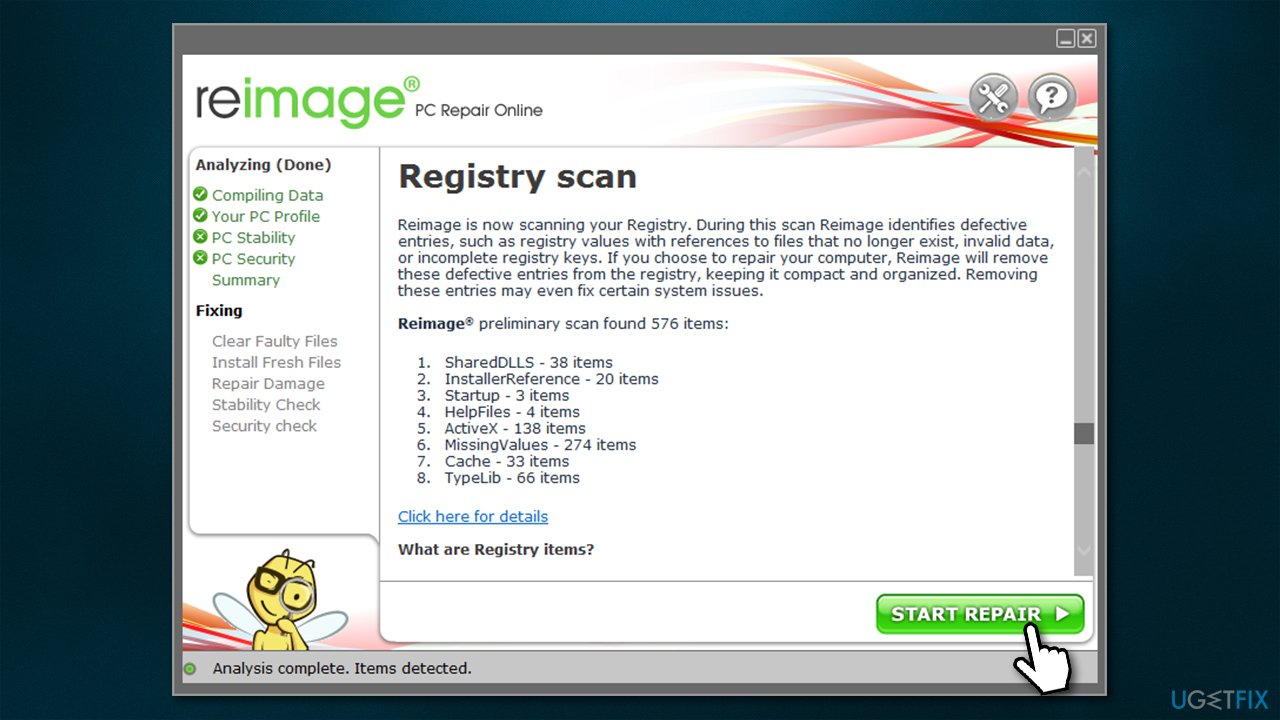
This is why, if you are dealing with INVALID_FLOATING_POINT_STATE error (or another BSOD, e.g., PAGE_FAULT_IN_NONPAGED_AREA, BAD_POOL_HEADER, SYSTEM_SERVICE_EXCEPTION), you should first try running an automatic repair tool such as [d1]. It can find broken system components and replace them with brand new ones. Besides, it can serve you as a malware[ref en-1] removal tool, remove junk, and clean your web browsers for you.
Method 2. Update Windows to the latest version
Windows updates are somewhat problematic. Not only do users face errors when trying to update their systems but also have to deal with errors and crashes that are caused by it. Outdated Windows systems can be the main cause of multiple BSODs, so you should make sure that all the updates are installed:
- Type Update in Windows search box and press Enter
- Click Check for Updates
- Wait till all the required files are installed
- Install all the optional updates as well
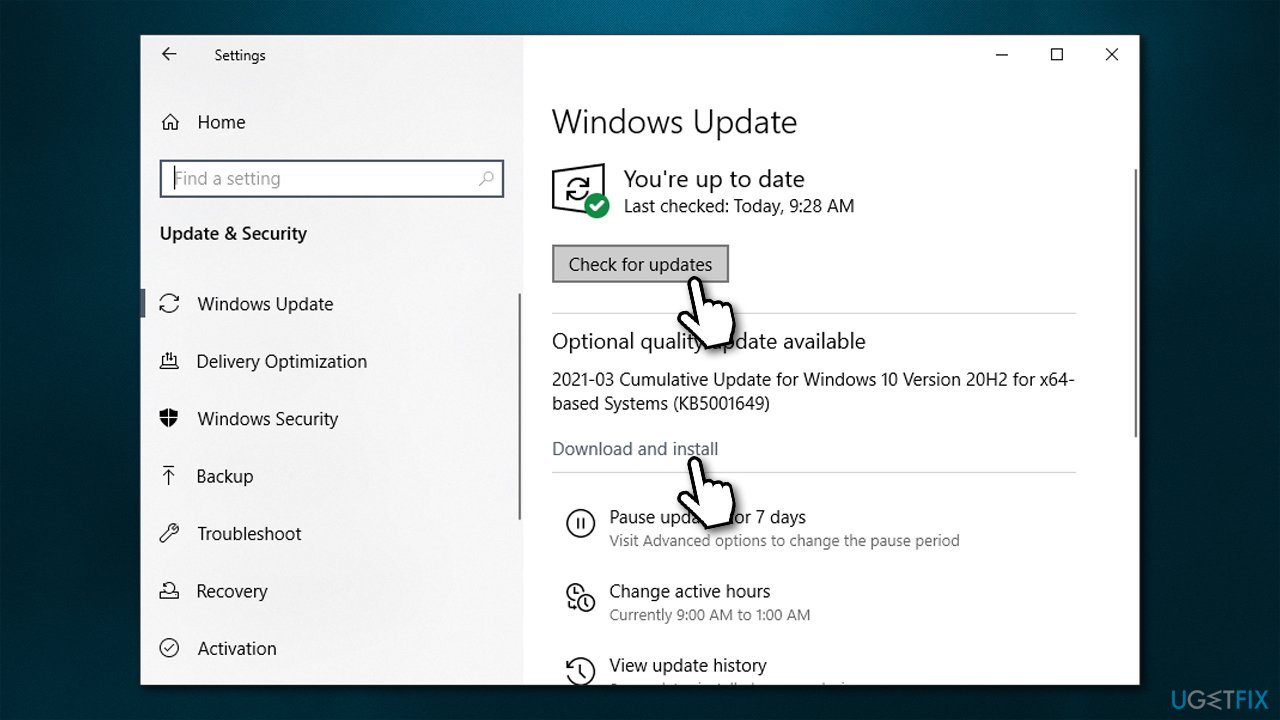
- Restart your computer.
Method 3. Run SFC and DISM
Corrupted system files are one of the main causes of blue screen errors. Run SFC and DISM as explained below to address this:
- Type in cmd into Windows search
- Right-click Command Prompt result and select Run as administrator
- In the new window, type in the following command and press Enter:
sfc /scannow
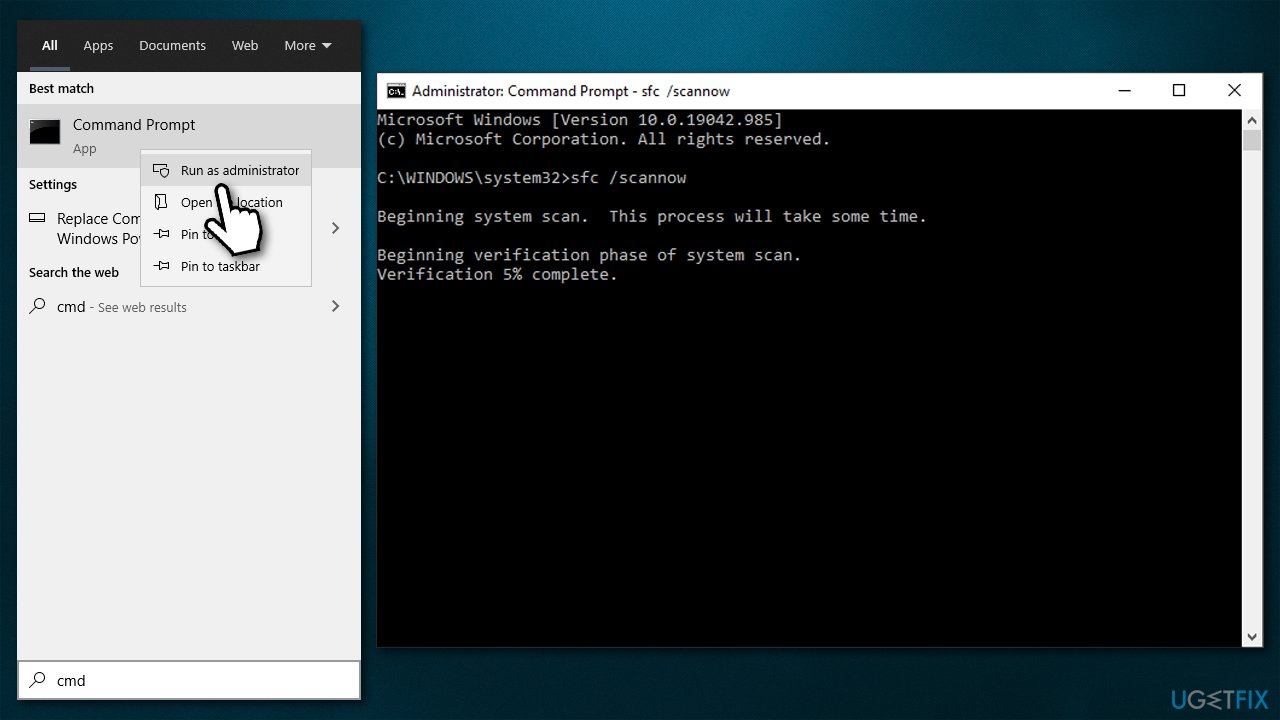
- After the scan is done, run the following command:
DISM /Online /Cleanup-Image /RestoreHealth - Wait for the scan to finish and reboot your device.
Method 4. Disable Fast Startup
Disabling a Fast Startup can solve many problems. Try this option and see if it works for you.
- Type Control Panel in Windows search and hit Enter
- Select Small icons view and pick Power options
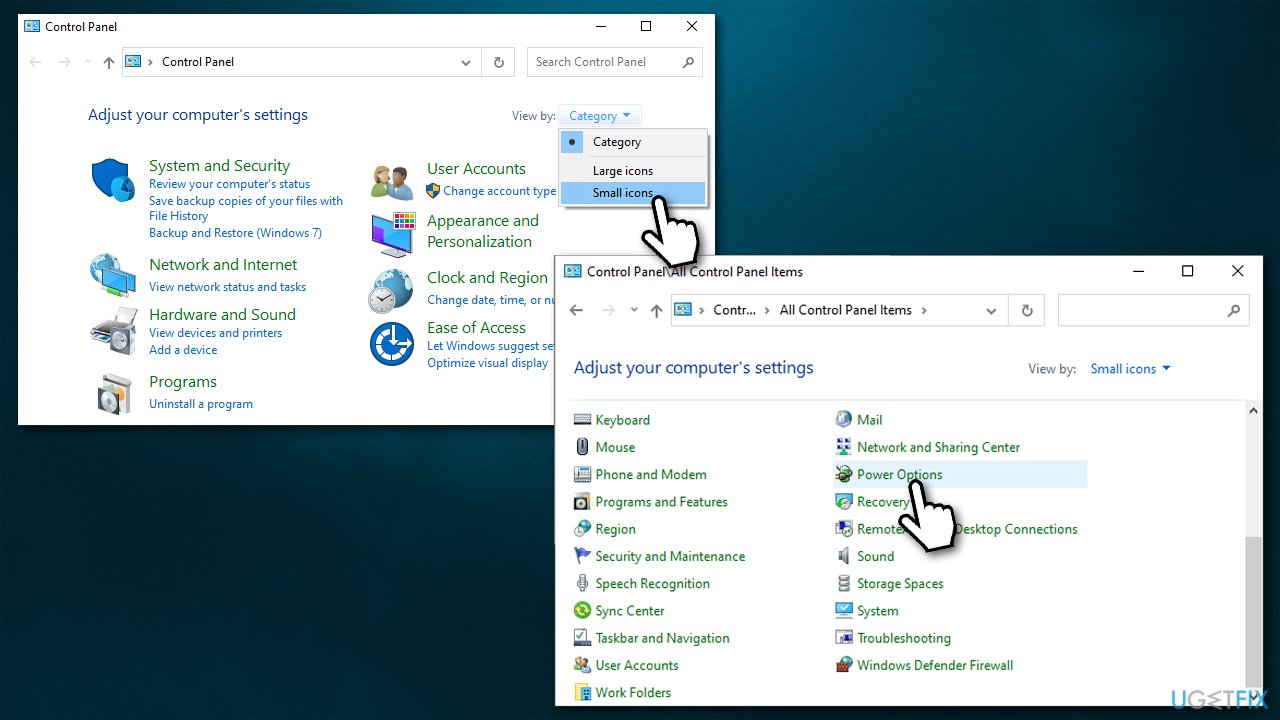
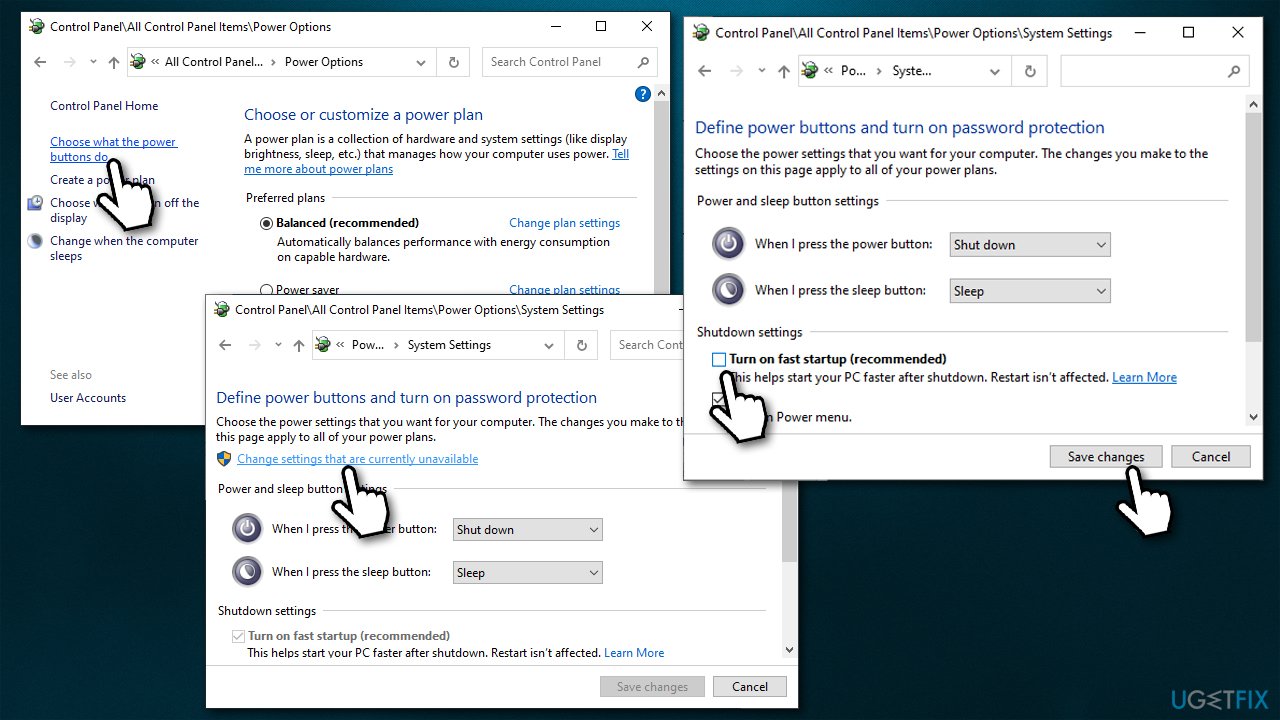
- On the left side of the window, select Choose what the power buttons do
- Pick the Change settings that are currently unavailable option at the top
- Remove the tick from the Turn on fast startup (recommended) option and select Save changes.
Method 5. Reinstall problematic drivers
- Right-click on the Start button and select Device Manager
- Expand the drivers and check if any of the drivers are marked with a yellow exclamation mark
- Right-click on the driver and select Uninstall
- In the prompt, mark the Delete driver software for this device option and click Uninstall
- Reboot your system.
While many of the drivers can be installed automatically or with the help of Windows updates, you should not rely on the Device Manager when dealing with PC problems. Instead, you should download drivers directly from the device manufacturer's website or use an automatic driver updater such as [rev id="DriverFix"].
Method 6. Resolve software conflicts with Clean boot
- Type in msconfig in Windows search and select the System Configuration result
- Go to the Services tab, tick the Hide all Microsoft services checkbox, and pick Disable all
- Go to the Startup tab and select Open Task Manager
- Disable all the startup items that don't belong to Windows
- Go back to System Configuration and choose the Boot tab
- Tick the Safe Boot option, click Apply, and OK.
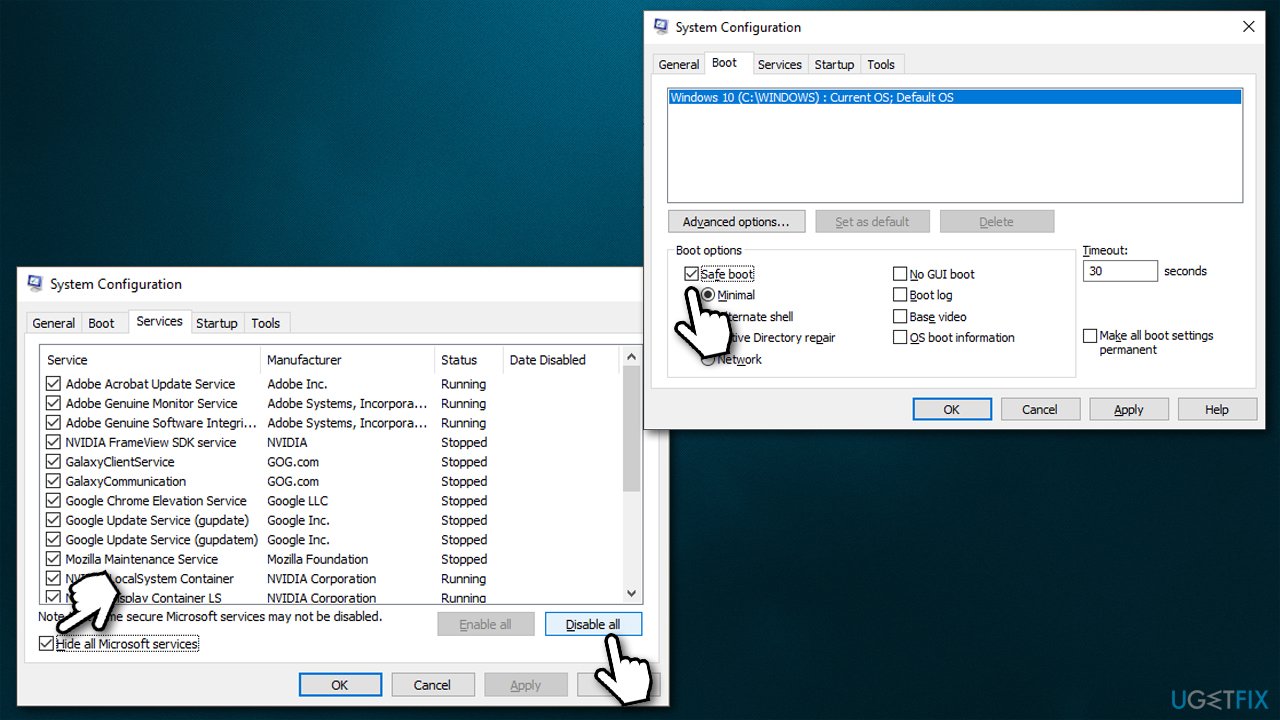
If the problem goes away in this environment, it means that software conflict is causing it. You can either uninstall all the most recently installed applications or enable each of the non-Microsoft services one by one.
Method 7. Reset Windows
In some cases, BSODs can be only fixed with the help of Windows reinstallation. It is now very easy to do - all you have to do is follow the instructions. Before you proceed, make sure you backup all your personal files (although you will have an option to keep your files), and all external devices are disconnected apart from your keyboard and mouse.
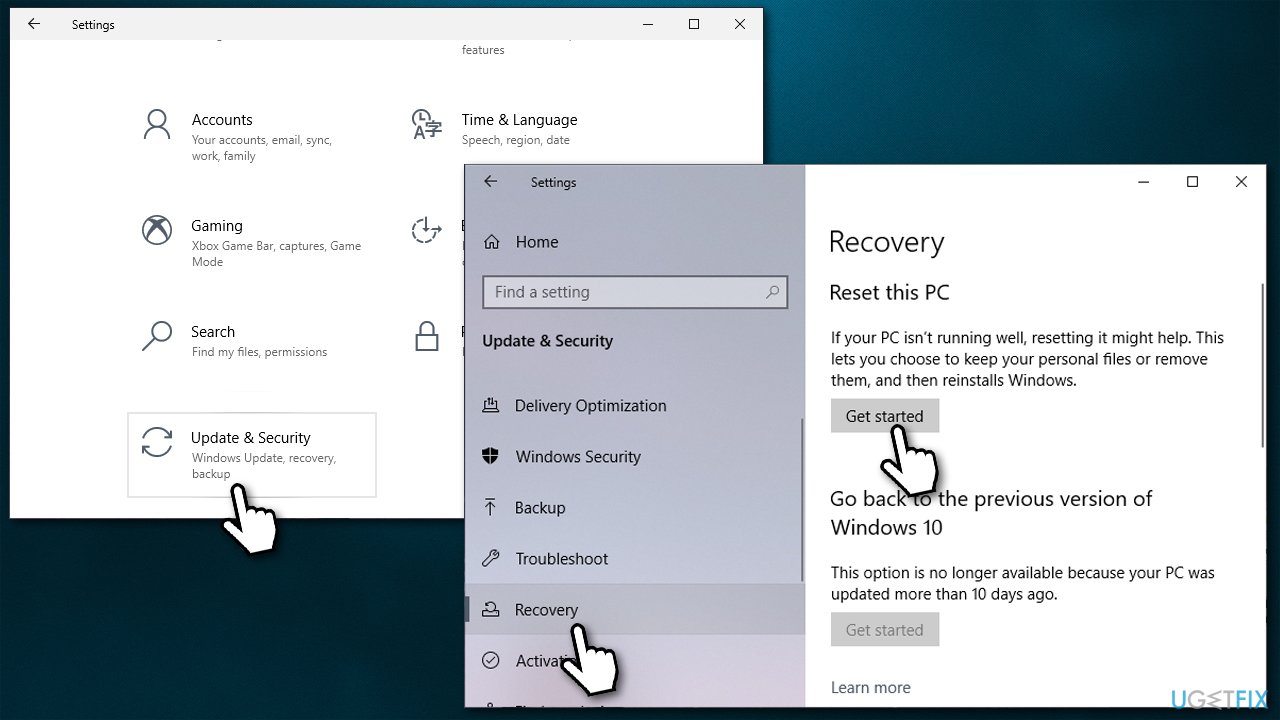
- Right-click on Start and pick Settings
- Go to Update & Security and pick Recovery
- Find Reset this PC section and click Get Started
- Select Keep my files and pick Cloud download
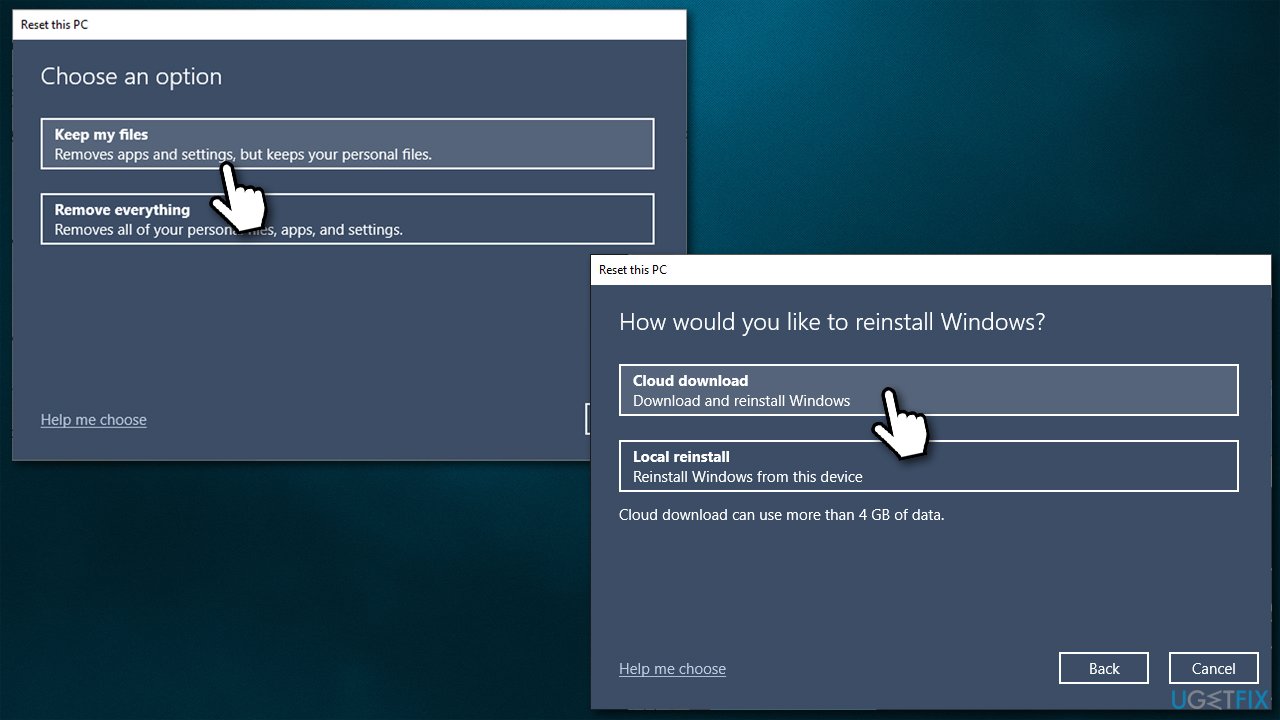
- Proceed with on-screen instructions - your PC will restart several times.
There are other ways to reinstall/reset Windows - we explain it in more detail in our 4 Methods to Restore Windows 10 article.
Bottom line
To fix the INVALID FLOATING POINT STATE BSOD, you can update your drivers, ensure Windows is up to date, and check for software conflicts. If these solutions do not resolve the issue, further investigation into hardware problems may be necessary.
Frequently asked questions
This BSOD error is often triggered by hardware issues, outdated drivers, or corrupted system files in Windows 10.
You can run the Windows Memory Diagnostic tool by typing 'Windows Memory Diagnostic' in the Start menu search and following the prompts to check for memory issues that may lead to the INVALID FLOATING POINT STATE BSOD.
Yes, keeping your drivers updated can resolve compatibility issues and bugs that may cause the INVALID FLOATING POINT STATE BSOD in Windows 11.




Report an issue
What's wrong with this guide? We review every report and update or remove content.
Report received — thank you. We'll review and fix it.
You need a free account to submit a report.
Be the first to comment