
How to fix KB5007651 fails to install on Windows?

Prefer to fix it yourself? The manual steps follow.
- 7methods
- 5 to 45 minutes
- Intermediate
Applies to Windows 11 (build 22000 or later): Update for Windows Security platform KB5007651, versions 10.0.27703.1006 to 10.0.29628.1000
7 methods in this guide
Hello. I've been trying to install KB5007651 for the past few days, but it keeps failing. I tried restarting my PC, but the issue persists. Is there anything that can be done to fix this?
KB5007651 is not a Windows patch but the update for the Windows Security app and its service, and Microsoft offers it to Windows 11 only. It reuses one KB number for every new version. Restart, check which version you already have, and if it still fails, install the newest package by hand from the Microsoft Update Catalog.
KB5007651 updates the Windows Security app, not Windows itself, so a failure does not leave your PC unpatched. Restart, then check the installed version with Get-AppPackage Microsoft.SecHealthUI (Fix 1): often the update is already in place and only the listing is stale. If it is not, download the newest KB5007651 package from the Microsoft Update Catalog and run it as administrator (Fix 2).
| Error | Update for Windows Security platform - KB5007651 (Version 10.0.29628.1000) with Install error and a code, most often 0x80070643, or the same update offered again after it installed. |
|---|---|
| Where it appears | Settings > Windows Update, next to the update, and in Update history under Definition updates. |
| Main cause | A failed or interrupted run of the Windows Security setup package, or a Windows Update cache that keeps offering a version the PC already has. |
| Fastest fix | Restart and compare the installed version with the offered one (Fix 1), then install the package by hand (Fix 2). |
| Also written as | KB 5007651, KB007651, Windows Security platform update, Windows Security app update, securityhealthsetup.exe. |
| Affects | Windows 11 only, build 22000 or later, x64 and ARM64. Microsoft does not offer it to Windows 10. |
| Microsoft's status | No known issues listed on Microsoft's KB5007651 page. The newest version in the Update Catalog is 10.0.29628.1000 of 30 July 2026. |
| What it updates | The Windows Security app (Microsoft.SecHealthUI) and its underlying service. It is classed as a Definition Update, not a security or cumulative update. |
| Time to fix | 5 to 15 minutes for Fix 1 to Fix 3. Up to 45 minutes when you reset Windows Update or repair system files. |
Facts checked on 15 October 2026. Steps written for Windows 11 (24H2, 25H2 and 26H2).
What Windows update KB5007651 is
Microsoft's page calls KB5007651 the Windows Security app update. It installs the latest Windows Security app and the service under it, and it applies only to Windows 11 devices, build 22000 or later. Windows Update lists it as Update for Windows Security platform with the version in brackets.
| What you see | Where | What it tells you |
|---|---|---|
| Update for Windows Security platform - KB5007651 (Version 10.0.29628.1000) | Settings > Windows Update | The newest version of the update, offered to Windows 11 PCs. |
| Install error - 0x80070643 | Next to the update, with a Retry button | The setup package ran and stopped. 0x80070643 is the general code for a fatal error during installation, so it names no single cause. |
| Install error with another code | Next to the update | Windows Update could not download or start the package. Fix 4 resets the parts that do that. |
| The same update offered again after it installed | Settings > Windows Update | Windows Update does not see the new version as installed. Fix 1 tells you whether it really is. |
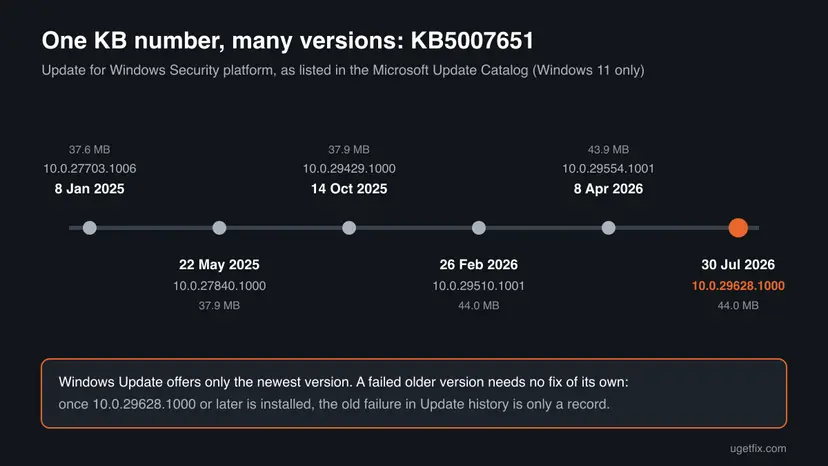
Each new release keeps the name KB5007651 and changes only the version. A failure you see in Update history may belong to an older version that a newer one has since replaced.
Why KB5007651 fails to install or keeps reinstalling
Microsoft lists no known issue for this update, so the causes below come from how the package installs and from what users report. They are ordered from the most likely to the rarest.
| Cause | How often | How to tell | Fix |
|---|---|---|---|
| The update is already installed, but Windows Update has not caught up | Often | The version from Get-AppPackage Microsoft.SecHealthUI matches the offered one. | Fix 1 |
| The setup package failed once and Windows Update keeps the failed copy | Often | Install error - 0x80070643 on every Retry. | Fix 2 |
| The Windows Security app itself is damaged | Sometimes | Windows Security opens blank, closes at once or will not open. | Fix 3 |
| Damaged Windows Update cache or services | Sometimes | Other updates fail too, or downloads stop at 0 %. | Fix 4 |
| A security setting or third-party antivirus blocks the platform update | Sometimes, reported by users | The update installs, then comes back after a restart or after the antivirus updates itself. | Fix 5 |
| Damaged system files | Rarely | SFC or DISM reports and repairs damage. | Fix 6, Fix 7 |
KB5007651 known issues and problems
Microsoft's KB5007651 page has no known issues section. The problems people search for are install problems, and they fall into two groups.
- It fails to install. The usual code is 0x80070643. Fix 1 and Fix 2 solve most cases.
- It keeps installing again (a loop). Users on Microsoft's community forum report that the same version shows as ready to download again and again, and that it is missing from the list of updates you can uninstall. Fix 1 and Fix 5 cover it.
- Microsoft's page lags. On 15 October 2026 Microsoft's article still named version 10.0.27840.1000, while the Update Catalog already listed 10.0.29628.1000. Trust the catalog for the newest version.
How to check which KB5007651 version is installed
Microsoft gives one PowerShell command for this. Run it before any repair, because it shows whether there is anything to fix.
- Right-click Start and select Terminal.
- Type
Get-AppPackage Microsoft.SecHealthUIand press Enter. - Read the Version line. Microsoft's example: app version 1000.27840.0.1000 belongs to platform version 10.0.27840.1000.
- Open Settings > Windows Update and compare it with the version in brackets after KB5007651.
- Open Settings > Windows Update > Update history, expand Definition updates and note the date and code of the failed try.
PowerShell
Get-AppPackage Microsoft.SecHealthUI | Select-Object Name, Version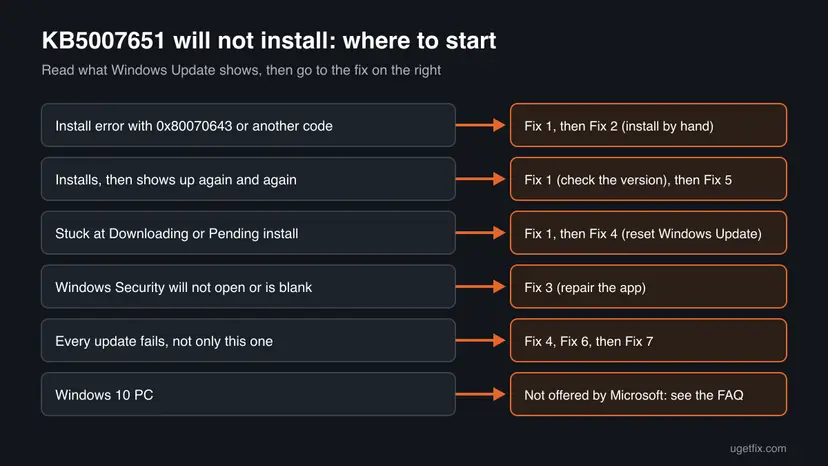
How to fix KB5007651 not installing
Fix 1 and Fix 2 are specific to this update and solve most cases. Fix 3 repairs the app the update installs. Fix 4 to Fix 7 repair Windows Update and Windows itself and are worth the time only when other updates fail too.
| What you see or have | Start with |
|---|---|
| Install error - 0x80070643 or another code next to KB5007651 | Fix 1, then Fix 2 |
| KB5007651 installs and is offered again after a restart | Fix 1, then Fix 5 |
| The update stays at Downloading or Pending install | Fix 1, then Fix 4 |
| Windows Security opens blank or not at all | Fix 3 |
| Every update fails, not only this one | Fix 4, Fix 6, then Fix 7 |
| The PC runs Windows 10 | Not offered by Microsoft: read the FAQ |
Fix 1. Restart and check whether KB5007651 is already installed
5 minutesNo riskEveryone, first. Above all when KB5007651 won't install, or comes back after it installed.
The Windows Security platform update replaces files of a running service, and some of them change only after a restart. Windows Update can then list a version as missing that is already in place.
- Save your work and select Start > Power > Restart. Use Restart, not Shut down.
- Right-click Start, select Terminal, type
Get-AppPackage Microsoft.SecHealthUIand press Enter. - Note the middle number of the Version line, for example 29628.
- Open Settings > Windows Update and select Check for updates.
- If the offered KB5007651 has the same number in brackets, it is installed: select Retry once, then leave it.
- If the offered version is newer, select Retry or Download & install and restart when asked.
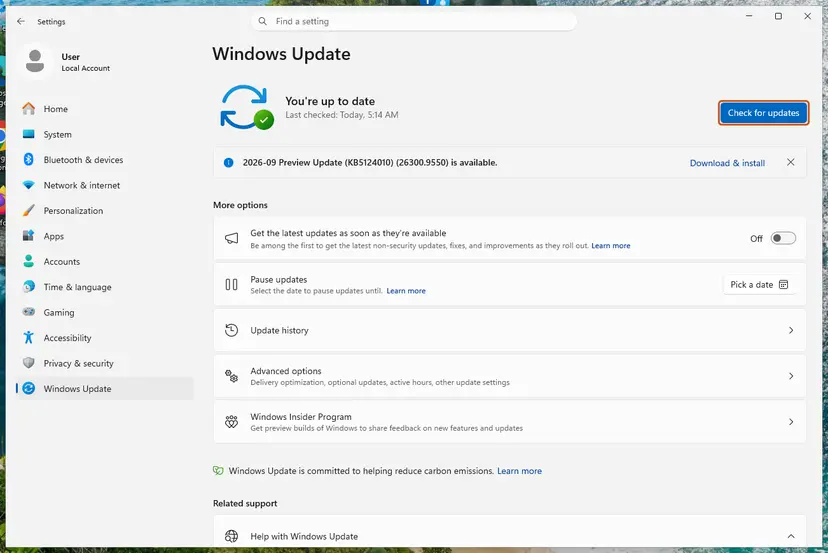
It worked if: Update history lists KB5007651 as successfully installed, or the PowerShell version already matches the offered one and nothing else is offered.
If not: If the update still fails with an install error, go to Fix 2. If it keeps coming back with the same version, go to Fix 5.
Fix 2. Install the newest KB5007651 package by hand from the Microsoft Update Catalog
10 minutesLow riskKB5007651 keeps failing with 0x80070643 or another code in Windows Update.
Microsoft offers the same package as a separate download and asks you to run it as administrator. Running it yourself skips the copy that Windows Update keeps failing on.
- Open the Microsoft Update Catalog and search for
KB5007651. - Select the Last Updated column so the newest version is on top. On 15 October 2026 that was version 10.0.29628.1000, 44.0 MB.
- Select Download on that row and download the
securityhealthsetupfile it lists. - If two files are listed, take the one for your processor. Settings > System > About > System type says x64-based or ARM-based.
- Right-click the downloaded file and select Run as administrator, then Yes in User Account Control.
- Wait until the setup closes, then restart the PC.
- Run
Get-AppPackage Microsoft.SecHealthUIagain and check that the version changed.
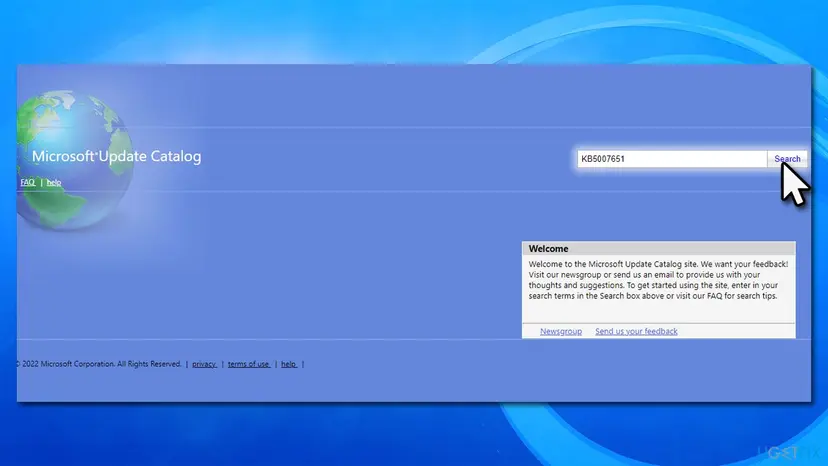
Download the package only from catalog.update.microsoft.com or from the links on Microsoft's KB5007651 page. A file with the same name from another site can be anything.
It worked if: The setup closes without an error, the version from PowerShell matches the catalog, and Windows Update no longer offers KB5007651.
If not: If the setup itself fails or Windows Security will not open afterwards, go to Fix 3.
Fix 3. Repair or reset the Windows Security app
5 minutesLow riskWindows Security opens blank, closes at once, or the manual setup in Fix 2 fails.
KB5007651 updates an app package. When that package is damaged, the update has nothing sound to install over, so it fails every time.
Windows Security is listed under Installed apps like other apps. Repair keeps its settings; Reset returns it to its first state.
- Open Installed apps. Select Start > Settings > Apps > Installed apps.
- Open the app's advanced options. Find the app in the list, select the three dots next to it and select Advanced options. Some apps do not have this option: for those, see the section about desktop programs below.
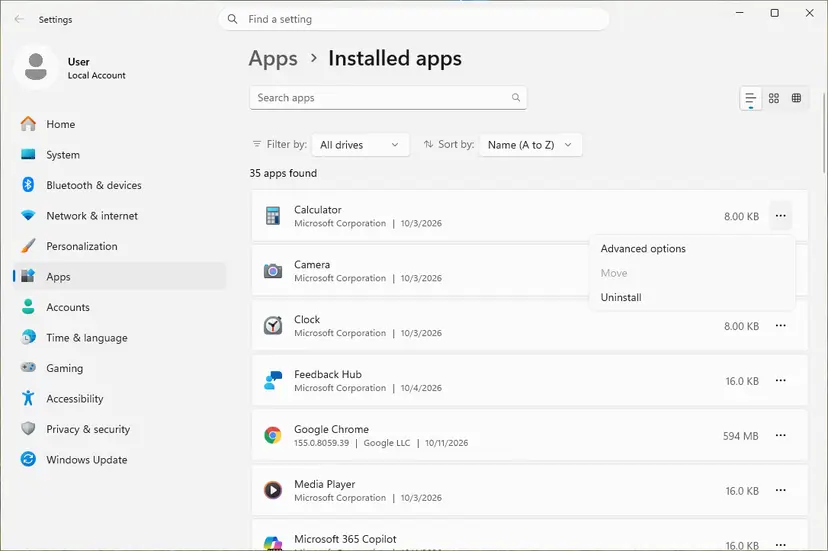
The three dots next to an app open Advanced options. Screenshot: Windows 11 26H2. - Repair first. On the page that opens, select Repair if it is there. The app's data stays. Open the app and check whether it works.
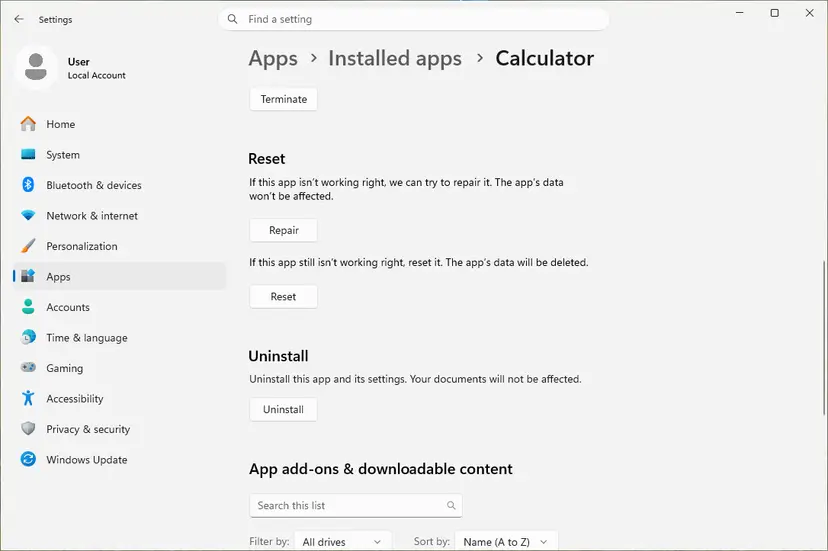
Repair keeps the app data. Reset deletes it. Screenshot: Windows 11 26H2. - Reset if Repair did not help. Select Reset. This deletes the app's data on this PC, including sign-in details and settings. Open the app and set it up again.
These steps were written for Windows 11 25H2 and 26H2. The full page with the other versions and what each result means: How to repair or reset an app in Windows
If Windows Security does not show Advanced options, reset it from PowerShell. Right-click Start, select Terminal (Admin) and run:
Terminal (Admin)
Get-AppxPackage Microsoft.SecHealthUI -AllUsers | Reset-AppxPackageIt worked if: Windows Security opens and shows its home page with green checks, and Fix 1 or Fix 2 now completes.
If not: If the reset reports an error, repair Windows Update in Fix 4 and the system files in Fix 6.
Fix 4. Reset Windows Update components
10 minutesLow riskKB5007651 stays at Downloading or Pending install, or other updates fail too.
A damaged download in the update cache makes every Retry use the same broken copy. The reset stops the update services and gives Windows Update an empty cache.
- Open Command Prompt as administrator. Type cmd in the search box, right-click Command Prompt and select Run as administrator. Select Yes when Windows asks for permission.
- Stop the update services. Type the commands below and press Enter after each one. If Windows says that other services depend on Cryptographic Services, it stops them too. A message that a service is not started is fine.
net stop wuauserv
net stop bits
net stop cryptsvc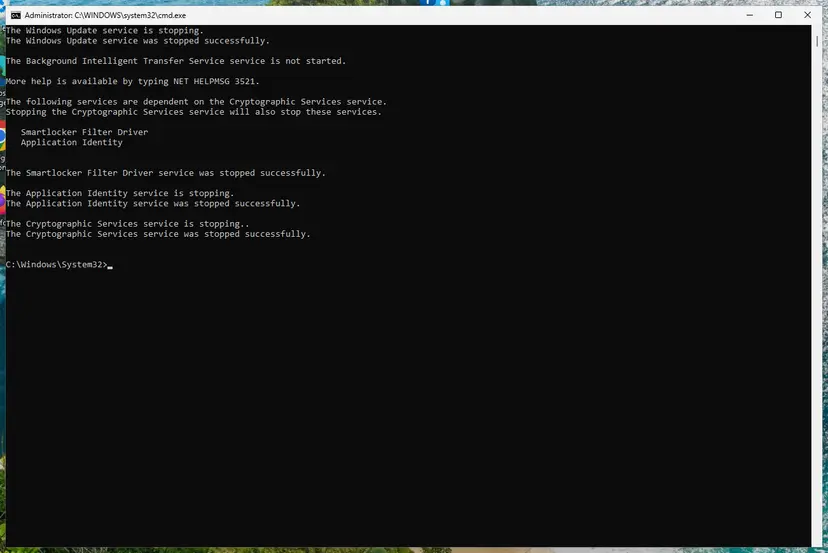
The update services are stopped. Screenshot: Windows 11 26H2. - Delete the download queue files. This clears the list of downloads that the Background Intelligent Transfer Service keeps. If Windows says it cannot find the files, continue.
del "%ALLUSERSPROFILE%\Application Data\Microsoft\Network\Downloader\qmgr*.dat" - Rename the update cache folders. Renaming keeps a copy in case you need it; Windows creates new, empty folders when the services start again. If you get Access is denied, a service is still running: repeat the previous step.
ren %systemroot%\SoftwareDistribution SoftwareDistribution.old
ren %systemroot%\System32\catroot2 catroot2.old
Both folders now end in .old. Screenshot: Windows 11 26H2. - Start the services again. Type the commands below and press Enter after each one. The requested service has already been started is fine: Windows started it on its own.
net start cryptsvc
net start bits
net start wuauserv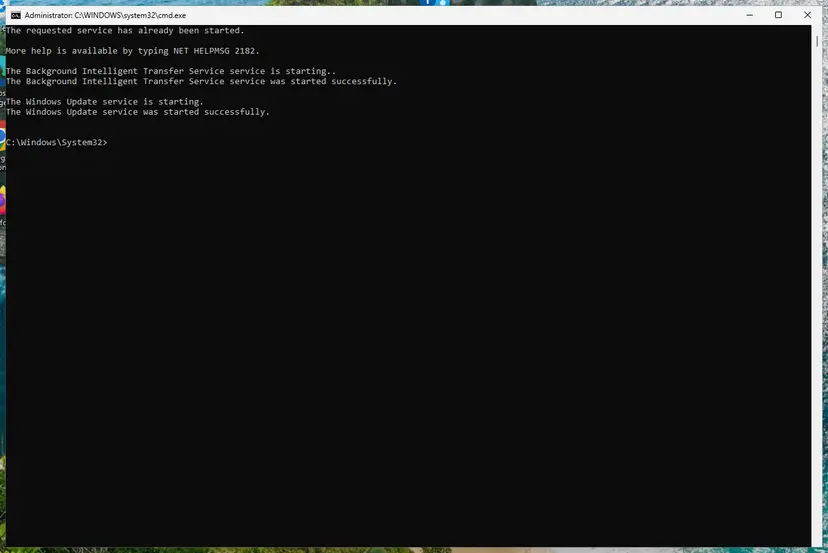
BITS and Windows Update are running again. Screenshot: Windows 11 26H2. - Restart and check for updates. Restart the PC. Then select Start > Settings > Windows Update > Check for updates. The first check can take longer than usual because everything is downloaded again.
These steps were written for Windows 11 and Windows 10 (the steps are the same). The full page with the other versions and what each result means: Reset Windows Update components
It worked if: After the restart, Check for updates downloads KB5007651 from the start and it installs.
If not: If it fails with the same code again, install it by hand with Fix 2, then go to Fix 6.
Fix 5. Stop the KB5007651 reinstall loop
10 minutesRead the warningKB5007651 installs successfully and is offered again after a restart, with the same version.
Microsoft has not explained the loop. Users on Microsoft's community forum report that it follows a third-party antivirus update and ends after a fresh Defender update with the vulnerable driver blocklist briefly off. We could not confirm this with Microsoft.
The Microsoft Vulnerable Driver Blocklist stops known bad drivers from loading. While it is off, your PC is less protected. Turn it off only for this one check and turn it back on in the same session. Nothing else is lost.
- If you use a third-party antivirus, restart the PC once after it has updated itself.
- Open Windows Security > Device security and select Core isolation details.
- Turn Microsoft Vulnerable Driver Blocklist off and select Yes.
- Open Settings > Windows Update, select Check for updates and install the Defender updates offered.
- Go back to Core isolation details and turn Microsoft Vulnerable Driver Blocklist on again.
- Restart the PC and check for updates once more.
It worked if: Windows Update says you are up to date, and KB5007651 is not offered again after the next restart.
If not: If the loop continues and Fix 1 shows that the version is installed, pause updates for a week as described under If KB5007651 still fails. Microsoft's next release usually ends it.
Fix 6. Repair system files with DISM and SFC
15 to 30 minutesLow riskSeveral updates fail, or Fix 3 reported an error.
The Windows Security service is part of Windows. If its system files are damaged, no package can update it until DISM and SFC replace them.
- Open an elevated command window. Right-click Start and select Terminal (Admin), or type cmd in the search box, right-click Command Prompt and select Run as administrator. Select Yes when Windows asks for permission.

Search for cmd and choose Run as administrator. Screenshot: Windows 11 26H2. - Run DISM first. Type the command below and press Enter. DISM downloads clean copies of damaged components from Windows Update, so it can take several minutes. Wait until it says The operation completed successfully.
DISM.exe /Online /Cleanup-Image /RestoreHealth
DISM /RestoreHealth running. Screenshot: Windows 11 26H2. - Run System File Checker. In the same window, type the command below and press Enter. Do not close the window until the verification reaches 100%.
sfc /scannow
sfc /scannow at 100%. Screenshot: Windows 11 26H2. - Read the result and restart. Compare the last message with the table below this guide, then restart the PC so that repaired files are loaded.

The result line tells you what SFC did. Screenshot: Windows 11 26H2.
These steps were written for Windows 11 24H2 and 25H2. The full page with the other versions and what each result means: Run DISM and SFC to repair Windows system files
It worked if: SFC reports that it found and repaired files, or found no integrity violations, and KB5007651 installs after a restart.
If not: If DISM cannot repair the component store, go to Fix 7.
Fix 7. Reinstall Windows 11 over itself and keep your files
1 to 2 hoursRead the warningEvery fix above failed and other updates fail as well.
A repair reinstall replaces every Windows file, the Windows Security platform included, and keeps your files and apps. A user on Microsoft's forum reports that Microsoft Support used it for a KB5007651 loop.
A repair reinstall keeps files and apps when you choose to keep them, but a power cut or a full disk can stop it halfway. Copy your important files to an external drive or OneDrive before you start.
- Open Recovery in Settings. Open Settings > System > Recovery. Next to Fix problems using Windows Update, select Reinstall now. This keeps your apps, files and settings.

Fix problems using Windows Update reinstalls the current version and keeps apps, files and settings. Screenshot: Windows 11 26H2. - Start the reinstall. Choose whether the PC may restart on its own 15 minutes after the installation, then select OK.
- Wait and restart. Windows Update downloads and installs a repair copy of your current Windows version. Keep the PC plugged in and online, and restart it when asked.
- If that did not help: Reset PC. Back in Settings > System > Recovery, next to Reset this PC, select Reset PC. This keeps your personal files but removes installed apps and settings.
- Choose Keep my files. Select Keep my files. Do not select Remove everything.
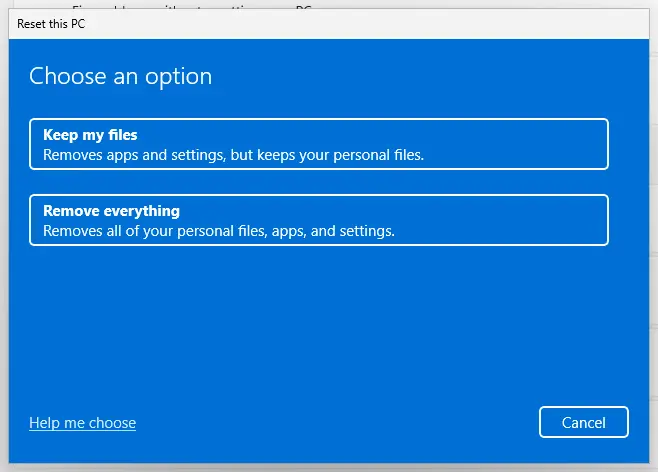
Keep my files removes apps and settings but keeps personal files. Screenshot: Windows 11 26H2. - Choose where Windows comes from. Select Cloud download to download a fresh copy of Windows, or Local reinstall to use the files already on the PC (faster, but may not include the latest updates).
- Reset. Review the summary and select Reset. The PC restarts several times.
These steps were written for Windows 11 22H2 and later. The full page with the other versions and what each result means: Reinstall Windows without losing files
It worked if: Windows starts with your files and apps in place, and Windows Update installs the newest KB5007651.
If not: Read If KB5007651 still fails below and contact Microsoft Support with the details listed there.
If KB5007651 still fails
Your PC is not left without protection. KB5007651 updates the Windows Security app; Microsoft Defender Antivirus gets its own engine and definition updates separately, and Windows security patches come in the monthly cumulative update.
| Situation | What to do |
|---|---|
| The version is installed but the offer keeps coming back | Pause updates for one week in Settings > Windows Update > Pause updates, then check again after the next KB5007651 release. |
| Work PC that gets updates from WSUS | Microsoft says the update is available to WSUS. Ask the administrator to approve the newest version and decline older ones. |
| Little free space on drive C: | Free several gigabytes and retry: Free up disk space and delete temporary files |
| Third-party antivirus manages protection | Restart after it updates. If the loop returns each time, report it to the antivirus maker. |
- What to send to support: the offered version, the installed version from
Get-AppPackage Microsoft.SecHealthUI, the code and date from Update history and the fixes you already ran. - Say which antivirus is installed and whether Memory integrity and Microsoft Vulnerable Driver Blocklist are on.
How to keep KB5007651 from failing again
- Restart when Windows Update asks, so the Windows Security service can finish its update.
- Keep Microsoft Vulnerable Driver Blocklist and Memory integrity on.
- Keep a few gigabytes free on drive C:.
- Install KB5007651 by hand only from the Microsoft Update Catalog.
- Do not download
securityhealthsetupfiles from other sites. - Do not keep updates paused for months. Pause for a week at most while you wait for a new release.
- Do not turn off Windows Security or your antivirus to make the update install.
Frequently asked questions
What is KB5007651?
KB5007651 is Microsoft's Windows Security app update. It installs the newest Windows Security app and the service under it on Windows 11. Windows Update lists it as Update for Windows Security platform with a version in brackets, for example 10.0.29628.1000. Microsoft classes it as a Definition Update in the Microsoft Security platform category. It is not a monthly security patch and not a cumulative update, and the same KB number is reused for every new version.
Is KB5007651 safe to install?
Yes. It comes from Microsoft through Windows Update or the Microsoft Update Catalog, and it only updates the Windows Security app and its service. Microsoft's page lists no known issues. The problems people report are install failures and a loop where it is offered again, not damage after it installed. Download it by hand only from Microsoft's own sites.
What does error 0x80070643 mean for KB5007651?
0x80070643 is the general Windows code for a fatal error during installation. It says the setup package started and stopped, not why. For KB5007651 it most often means a failed copy in Windows Update or a damaged Windows Security app. Install the package by hand from the Microsoft Update Catalog (Fix 2), and if that fails, repair the app (Fix 3).
Why does KB5007651 keep installing over and over?
Microsoft has not explained the KB5007651 loop. Users report that the same version is offered again after it installed, sometimes after a third-party antivirus updated itself. First check the installed version with Get-AppPackage Microsoft.SecHealthUI (Fix 1). If it already matches, the offer is stale: try Fix 5, or pause updates for a week until the next release replaces it.
Can I uninstall KB5007651?
Usually not from Installed updates. Users report that KB5007651 does not appear in the list of updates you can uninstall, because it updates an app package, not Windows itself. To start over, repair or reset the Windows Security app (Fix 3) and then install the newest package by hand (Fix 2). Do not remove Windows Security itself.
Where can I download KB5007651?
Download it from the Microsoft Update Catalog: search for KB5007651, sort by Last Updated and take the newest version. Microsoft's KB5007651 page also links 64-bit and ARM64 setup files, but on 15 October 2026 those links still pointed to the older version 10.0.27840.1000. Run the file as administrator, as Microsoft asks.
Does KB5007651 apply to Windows 10?
No. Microsoft's page says the update applies only to Windows 11 devices, build 22000 or later. If Windows 10 shows an install failure with a similar name, it is a different update, so search for its own KB number. Windows 10 left support on 14 October 2025, and it now gets security updates only through the Extended Security Updates program.
Is my PC unprotected if KB5007651 fails?
No. Microsoft Defender Antivirus keeps working and gets its engine and definition updates separately. Windows security patches come in the monthly cumulative update, which is a different download. A failed KB5007651 means the Windows Security app stays at its older version until the update installs. Fix it when you can, but it is not an emergency.
Which KB5007651 version is the newest?
On 15 October 2026 the Microsoft Update Catalog listed version 10.0.29628.1000 of 30 July 2026 as the newest, 44.0 MB. Earlier versions were 10.0.29554.1001, 10.0.29510.1001, 10.0.29429.1000, 10.0.27840.1000 and 10.0.27703.1006. Windows Update offers only the newest one, so an older failure in Update history needs no fix once a newer version is installed.
Sources
- Microsoft Support: Windows Security app update (KB5007651) (support.microsoft.com)
- Microsoft Update Catalog: KB5007651, Update for Windows Security platform, all versions (catalog.update.microsoft.com)
- Microsoft Q&A: Update for Windows Security platform KB5007651 keeps reinstalling (user reports) (learn.microsoft.com)
Did this fix work?
One click, no account. It tells the next reader which guides are worth their time.
Questions and experiences: fix KB5007651 fails to install on Windows
Still broken, or found a fix we did not cover? Ask here: members and our editors answer. Reading is open; writing needs a free account.
…