
How to fix KB5015885 fails to install on Windows 11?

Prefer to fix it yourself? The manual steps follow.
On this page
Hello, I have been trying to install KB5015885, but it always fails with an error. When I reboot the PC, it attempts to install the update as well but also fails. There is enough space on my hard drive, and I tried restarting the computer several times, and nothing worked. Could you please provide some solutions?
Since the release of Windows 10, people have gotten used to receiving constant updates correlating with new versions of the operating system. With every iteration, users receive a more secure system packed with new features and improvements - these are usually delivered every second Tuesday of every month.
Unfortunately, not everything always goes as planned, and updates might sometimes even break already existing features or create new issues for others. For some users, the update process might not always go as planned, and Windows updates might simply fail to install, usually with an error code provided.
KB5015885 is one of the latest Windows 11 updates that fail to install for users. Many claimed that the process is initiated but stops at some point (for example, at 25%) and then returns an error - 0x8000ffff, 0x80070246, 0x800f0922, and other codes were reported by those affected.
KB5015885 was released for Windows 11 22H2 versions and is particularly important to certain aspects of the operating system. For example, it is meant to fix issues where users were unable to launch troubleshooters or when V-Sync was causing high latency in games. All that said, these and many other fixes were highly anticipated by users.
In case KB5015885 fails to install for you, there are a few things you could try to resolve the situation - checking the system for corrupted files, disabling the third-party security software, or resetting Windows Update components might help.
1. Run the troubleshooter
We recommend starting with running the built-in troubleshooter, which can point at issues that cause the update to fail.
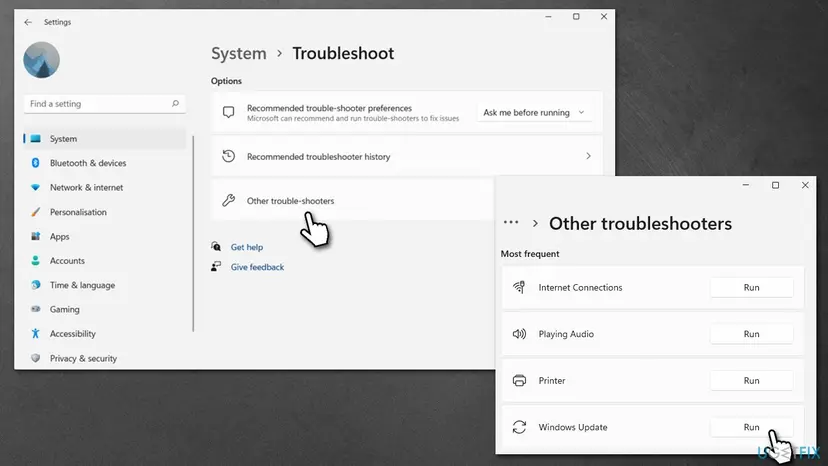
- In Windows search, type in troubleshoot and press Enter (you can also go to Start > Settings > System > Troubleshoot)
- Pick Other trouble-shooters
- Scroll down to locate the Windows Update option and click Run
- Wait till the scan is finished, apply the changes, and try running the update process once again.
2. Make sure that all the optional updates are installed
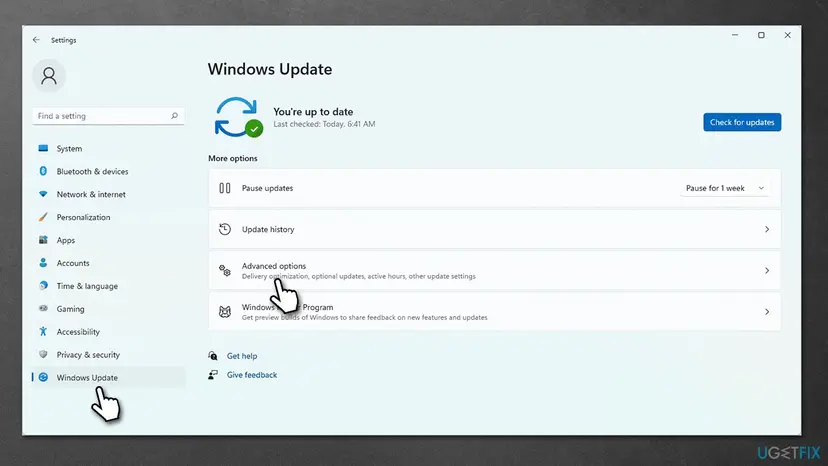
- Click Start and pick Settings
- Select the Windows Update section
- Pick Advanced options and install optional updates
- Reboot your system.
3. Check your system for corrupted files
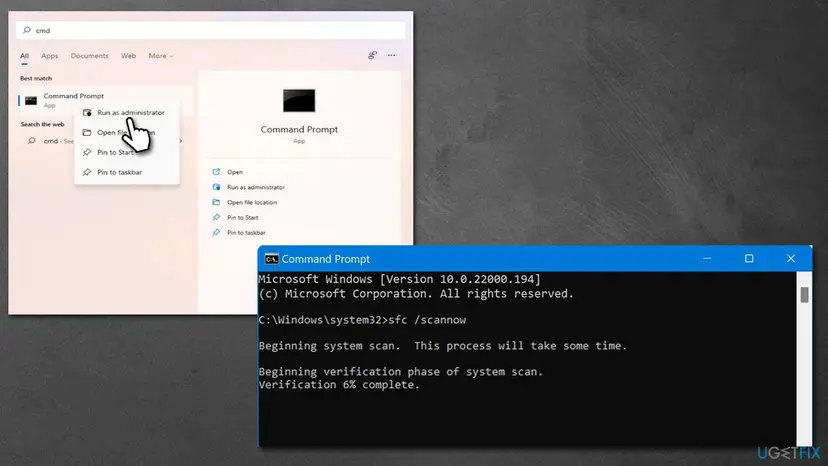
System file corruption is among the most common reasons why users face update errors. To remediate this aspect of your operating system, open Command Prompt:
- Type cmd in Windows search
- Right-click on Command Prompt and pick Run as administrator
- When User Account Control shows up, click Yes
- Use the following command lines, pressing Enter after each:
sfc /scannow
DISM /Online /Cleanup-Image /CheckHealth
DISM /Online /Cleanup-Image /ScanHealth
DISM /Online /Cleanup-Image /RestoreHealth - Restart your machine and try running the update again.
4. Reset Windows Update Components
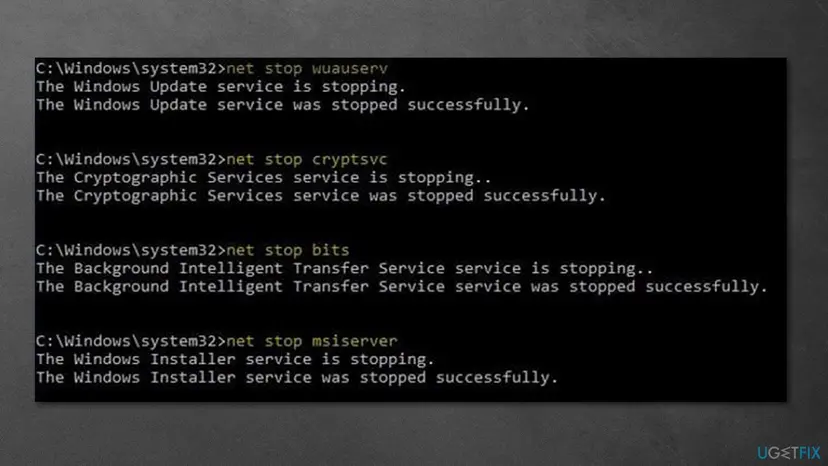
If Windows update caches are bugged, the new KB5015885 update might fail to install. Resetting them via Command Prompt might help:
- Open Command Prompt as administrator, as we already explained in the previous step
- In the new window, copy and paste the following commands, pressing Enter each time:
net stop bits
net stop wuauserv
net stop appidsvc
net stop cryptsvc
Del “%ALLUSERSPROFILE%\Application Data\Microsoft\Network\Downloader\*.*”
rmdir %systemroot%\SoftwareDistribution /S /Q
rmdir %systemroot%\system32\catroot2 /S /Q
regsvr32.exe /s atl.dll
regsvr32.exe /s urlmon.dll
regsvr32.exe /s mshtml.dll
netsh winsock reset
netsh winsock reset proxy
net start bits
net start wuauserv
net start appidsvc
net start cryptsvc - Restart your system.
5. Disable third-party security software
Once a third-party security software is installed, it changes the operating system in a way where certain processes run through the application, checking their security. There were numerous cases observed when users were unable to update their operating systems due to software such as Malwarebytes or Norton.
Therefore, temporarily disable the operation of the third-party security application and then attempt to download and install the update once again. As soon as the update is installed, you can re-enable your security software.
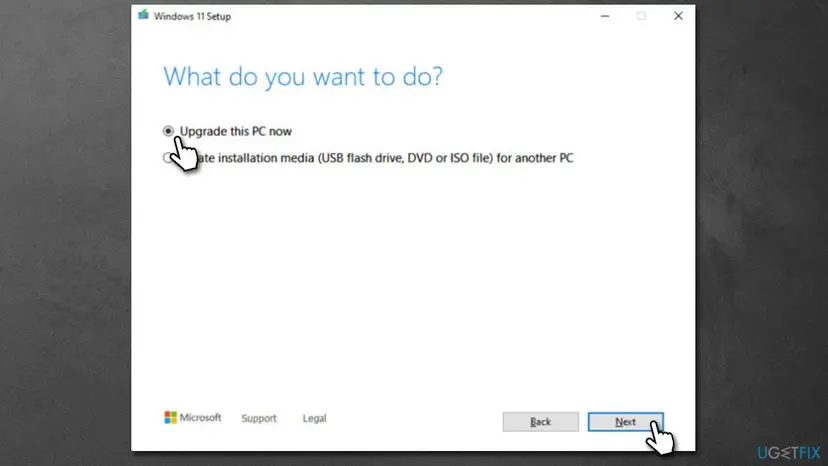
6. Use the Media Creation tool
You can attempt upgrading Windows using the official tool from Microsoft.
- Visit the official Microsoft website and download Windows installation media
- Double-click the installer and select Yes when UAC shows up
- Agree to terms and click Next
- Select Upgrade this PC now and select Next
- Windows will now download all the necessary files – it might take awhile
- Agree to terms once again and click Next
- Before installing, make sure that you are happy with your choices (otherwise, you can click Change what to keep option)
- Finally, click Install to begin the upgrade process.
Did this fix work?
One click, no account. It tells the next reader which guides are worth their time.
Questions and experiences: fix KB5015885 fails to install on Windows 11
Still broken, or found a fix we did not cover? Ask here: members and our editors answer. Reading is open; writing needs a free account.
…