
How to fix KB890830 fails to install in Windows?

Prefer to fix it yourself? The manual steps follow.
- 7methods
- 5 to 40 minutes
- Easy
Applies to Windows Malicious Software Removal Tool (MSRT), KB890830, version 5.146 of 13 October 2026 and earlier monthly versions, on Windows 11 and Windows 10
7 methods in this guide
Hello, several updates, including KB890830, failed to install for me. Is there anything I can do to fix it?
KB890830 is not a normal Windows update: it is the Windows Malicious Software Removal Tool, which Microsoft sends again every month under the same number. When it fails, nothing is installed wrong. Restart, sign in as an administrator and check for updates, or run the standalone tool once.
KB890830 is the Malicious Software Removal Tool. It does not install anything: it runs one malware scan and quits. Restart the PC, sign in with an administrator account and select Check for updates again (Fix 1). If it still fails or sits at Installing, download the standalone tool from Microsoft and run it once (Fix 2). After that, Windows Update stops offering this month's version.
| Error | Windows Malicious Software Removal Tool x64 - v5.146 (KB890830) with Install error and a code, or the entry stays at Installing for a long time. |
|---|---|
| Where it appears | Settings > Windows Update with the other monthly updates, and in Update history with the date of the failed attempt. |
| Main cause | The tool could not run: a pending restart, an account that is not an administrator, a damaged download or a stopped update service. |
| Fastest fix | Restart, sign in as an administrator and check for updates (Fix 1). Second: run the standalone tool from Microsoft (Fix 2). |
| Also written as | KB 890830, MSRT, Windows Malicious Software Removal Tool, Windows-KB890830-x64-V5.146.exe, mrt.exe. |
| What it is | A post-infection scanner that removes a short list of prevalent malware families. Microsoft says it does not replace an antivirus. |
| Affects | Windows 11, Windows 10 and supported Windows Server versions. Not Windows Embedded. Not Windows Server 2008 or 2008 R2 since May 2025. |
| Microsoft's status | Released on the second Tuesday of most months. Current version 5.146, released 13 October 2026. No install bug is listed for home PCs. |
| Where the cause is written | %windir%\debug\mrt.log (the return code) and the registry value HKLM\SOFTWARE\Microsoft\RemovalTools\MRT\Version. |
| Time to fix | 5 to 15 minutes for Fix 1 to Fix 4. Up to 40 minutes for the system file repair in Fix 6. |
Facts checked on 15 October 2026. Steps written for Windows 11 (24H2, 25H2 and 26H2) and Windows 10 22H2.
What KB890830 is and why it shows up every month
KB890830 is the knowledge base number of the Windows Malicious Software Removal Tool, MSRT for short. Microsoft releases a new version on the second Tuesday of most months, together with the security updates, and keeps the same KB number. Only the version changes: October 2026 is version 5.146.
The old version of this page called KB890830 a rollup update. That was wrong. The tool installs nothing and leaves no program behind. Windows Update downloads it, runs a quiet scan for a list of active malware families, and removes the tool again. If it finds nothing, you see nothing.
| What you see | Where | What it tells you |
|---|---|---|
| Windows Malicious Software Removal Tool x64 - v5.146 (KB890830) | Settings > Windows Update | This month's tool is offered. The version number changes every month. |
| Install error | Next to the entry, with a Retry button and a code | The scan could not start or did not finish. The log says why. |
| Installing, with no progress for a long time | Settings > Windows Update | The scan is running. On a PC with many files it can take a while. |
| The same KB number again next month | Settings > Windows Update | Normal. Every new version uses KB890830. |
- Released
- Second Tuesday of the month. Microsoft skipped December 2023, December 2024, March, April, July and September 2025, January and March 2026.
- Runs as
mrt.exe, from a randomly named temporary folder on drive C: withMrtstub.exe- Needs
- An administrator account, and acceptance of the license terms the first time
- Signed with
- SHA-2 only, since November 2019
Why KB890830 fails to install or gets stuck
Because the tool is a single program that runs once, it fails for fewer reasons than a cumulative update. Microsoft names the conditions in its deployment article: the PC must run a supported Windows, and the tool must run under an account in the Administrators group. The rest are the usual Windows Update faults.
| Cause | How often | How to tell | Fix |
|---|---|---|---|
| A restart is pending, or the attempt failed once | Often | Other updates also wait for a restart. No clear code. | Fix 1 |
| The signed-in account is not an administrator | Often on family and work PCs | mrt.log ends with Return code: 2. | Fix 1, Fix 2 |
| The download is damaged | Sometimes | mrt.log ends with Return code: 4, or the install fails at once every time. | Fix 2, Fix 5 |
| The scan is still running | Sometimes | Installing for a long time, mrt.exe is busy in Task Manager. | Fix 3 |
| A Windows Update service is disabled | Sometimes | A message that the service cannot be started because it is disabled. | Fix 4 |
| Damaged system files | Rarely | All updates fail, not only KB890830. | Fix 6 |
| The tool found malware it could not remove | Rarely | Return code 7, 9 or 11, or a message that an infection was partly removed. | Fix 7 |
Microsoft says you do not have to disable or remove your antivirus to run the tool, and that the tool alone should not trigger it. The old advice to turn the antivirus off is dropped from this guide.
How to check whether KB890830 ran and why it failed
Update history can show a failed KB890830 even when a later attempt worked. Two places on the PC tell the truth: the registry value that the tool writes every time it runs, and its own log file.
- Select Start, type
cmd, right-click Command Prompt and select Run as administrator. - Run
reg query "HKLM\SOFTWARE\Microsoft\RemovalTools\MRT" /v Version. It only reads the value and changes nothing. - Compare the GUID with Microsoft's list: the October 2026 version writes
18D5B118-3628-4DBA-B3C3-8DD42F787260. If it matches, this month's tool has already run. - Press Win + R, type
%windir%\debugand press Enter. Openmrt.login Notepad. - Press Ctrl + End to jump to the newest run and read the line Return code: at its end.
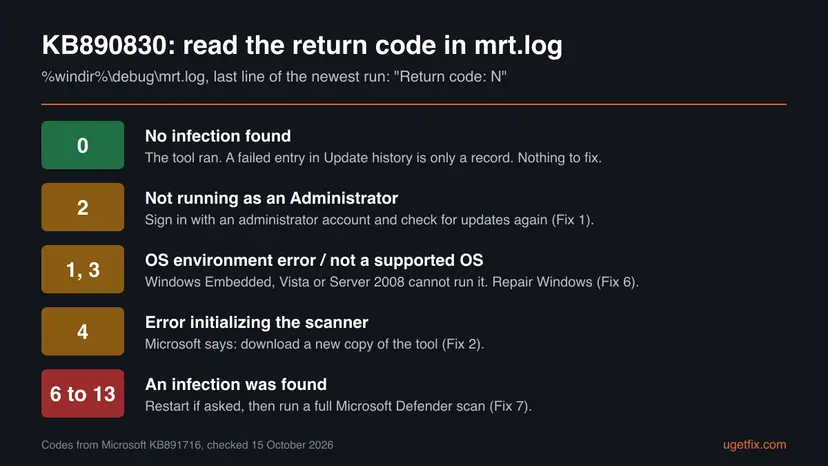
The log is written in English only, and each new run is added to the end of the same file. A line such as MemScanGetImagePathFromPid ... Access is denied is a known, harmless message: Microsoft says it only means one process that was starting or stopping was not scanned.
How to fix KB890830 failing to install
Fix 1 and Fix 2 solve most cases, because the tool only needs one clean run. Fix 3 is for a scan that seems stuck. Fix 4 to Fix 6 repair Windows Update itself when every update fails. Fix 7 is for the rare case where the tool did run and found malware it could not fully remove.
| What you see or have | Start with |
|---|---|
| KB890830 failed once and the PC has not been restarted for days | Fix 1 |
mrt.log says Return code: 2, or you use a standard account | Fix 1 |
| It fails again and again, or the log says Return code: 4 | Fix 2 |
| Installing for a long time with no change | Fix 3 |
| A message that a service cannot be started because it is disabled | Fix 4 |
| Every update fails, not only KB890830 | Fix 5, then Fix 6 |
| The log names a threat with partially removed or a return code from 7 to 12 | Fix 7 |
| The registry GUID matches this month's version | Nothing to fix: it ran |
Fix 1. Restart, sign in as an administrator and check for updates again
5 to 15 minutesNo riskEveryone, first. Above all when other updates also wait for a restart, or when you use a standard account.
Microsoft says the tool exits when the account is not in the Administrators group, and that the license terms must be accepted by an administrator the first time. A restart also finishes the updates that were installed with it, so the next attempt starts clean.
- Save your work and select Start > Power > Restart. Use Restart, not Shut down.
- Sign in with an account that is an administrator. On Windows 11 you see it in Settings > Accounts > Other users, or under your own name in Settings > Accounts.
- Open Settings > Windows Update and select Check for updates. On Windows 10 the path is Settings > Update & Security > Windows Update.
- Let the tool finish. The entry leaves the list when the scan is done.
- Open Update history and look for the newest KB890830 entry.
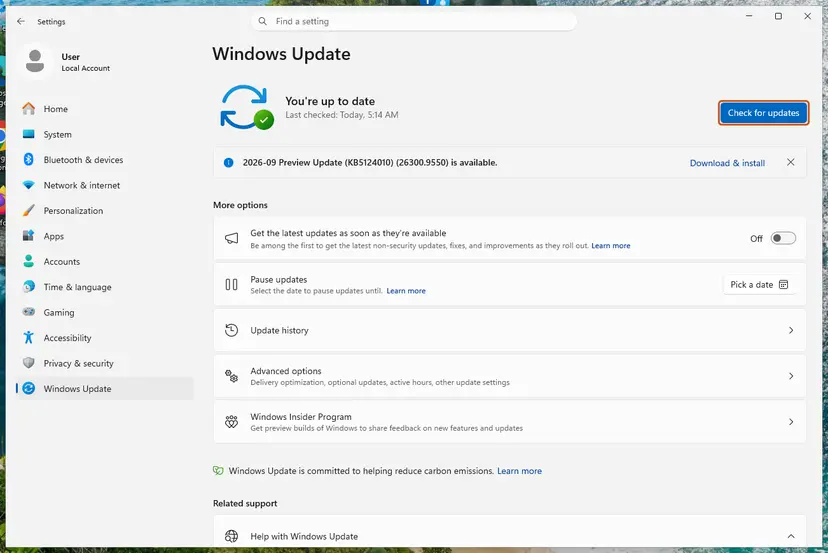
It worked if: Update history shows the new KB890830 version as successfully installed, and the registry check above shows this month's GUID.
If not: Run the tool by hand with Fix 2. If the entry sits at Installing, read Fix 3 first.
Fix 2. Download and run the standalone Malicious Software Removal Tool
10 to 20 minutesNo riskWindows Update keeps failing on KB890830, or mrt.log ends with Return code: 4.
Microsoft's own advice for return code 4 is to download a new copy of the tool. The standalone file from the Microsoft Download Center is the same tool, and Microsoft says that once the current version has run by any route, Windows Update does not offer it again.
- Open the Microsoft Download Center page for the tool: x64 version, or x86 version for a 32-bit Windows 10.
- Download the file. Its name carries the version, for example
Windows-KB890830-x64-V5.146.exe. - Right-click the file and select Run as administrator. Select Yes in User Account Control.
- Accept the license terms and select Next.
- Choose Quick scan and select Next. A quick scan is what Windows Update runs.
- Wait for the results page, then select Finish.
- The old version of this page sent readers to the Microsoft Update Catalog. Microsoft's deployment article says the current tool does not support the Update Catalog as a way to deploy it, so use the Download Center.
- Microsoft's command line switches also work:
/Qruns quietly,/Nonly detects,/Fforces an extended scan and/F:Ycleans what it finds.
It worked if: The tool ends on a results page that says no infection was found or lists what it removed, and Windows Update no longer offers KB890830 until next month.
If not: If the tool itself will not start, repair the system files with Fix 6. If it found something, go to Fix 7.
Fix 3. If KB890830 is stuck at Installing, let the scan finish or end it
5 to 30 minutesLow riskThe entry shows Installing for a long time and nothing else changes.
For KB890830, Installing means scanning. Microsoft says the tool scans memory and active malware, and that a full scan, which it may ask for after a find, can take several hours. A scan that has used no processor time for a long time is hung, and ending it is safe because the tool changes nothing until it removes a threat.
- Press Ctrl + Shift + Esc to open Task Manager and select the Details tab.
- Look for
mrt.exeorMrtstub.exe. If its CPU column changes, the scan is working: wait. - If it stays at 0 for 30 minutes or more, right-click it and select End task.
- Restart the PC.
- Run the standalone tool with Fix 2, which shows its progress on screen.
After the tool runs, it can leave a randomly named folder on drive C: with Mrtstub.exe inside. Microsoft says the folder is normally removed at the next start, and that deleting it by hand does no harm.
It worked if: After the restart, Update history shows the tool as installed, or the standalone tool finishes with a result page.
If not: If it hangs again at the same point, reset the update components with Fix 5.
Fix 4. Check that the Windows Update services run
5 minutesNo riskWindows Update cannot check for updates, downloads stay at 0 %, or you see a message that a service cannot be started because it is disabled.
Windows Update needs the Windows Update, Background Intelligent Transfer Service and Cryptographic Services services. Tuning tools sometimes disable one of them, and then KB890830 fails together with every other update.
- Open Services. Press Windows+R, type the command below and press Enter. You can also type Services in the search box on the taskbar and open the app.
services.msc - Find the service. The list is sorted by Name. Click any row and type the first letter of the service to jump to it. Check the Status column (Running or empty) and the Startup Type column.
- Restart the service. Right-click the service and select Restart. If the service is not running, select Start instead. Wait until the progress window closes.
- Open its properties to change the startup type. Only if your guide says so: double-click the service. The General tab shows the Service name (used in commands), the Startup type and the Service status.
- Set the startup type and apply. Choose the type from the Startup type list (Automatic, Automatic (Delayed Start), Manual or Disabled), select Apply, then Start if the service should run now, and OK.
These steps were written for Windows 11 and Windows 10 (the steps are the same). The full page with the other versions and what each result means: Check and restart Windows services
- Do it for Windows Update, Background Intelligent Transfer Service and Cryptographic Services.
- A disabled service needs the startup type Manual for Windows Update and BITS, and Automatic for Cryptographic Services, before Start works.

It worked if: All three services show Running after you check for updates, and the download of KB890830 starts.
If not: Reset the update components with Fix 5.
Fix 5. Reset the Windows Update components
10 minutesLow riskKB890830 and other updates fail again and again at the same point.
A damaged download in the SoftwareDistribution folder is used again at every retry. Renaming it, and the catroot2 folder with it, makes Windows fetch a fresh copy of the tool and its signature data.
- Open Command Prompt as administrator. Type cmd in the search box, right-click Command Prompt and select Run as administrator. Select Yes when Windows asks for permission.
- Stop the update services. Type the commands below and press Enter after each one. If Windows says that other services depend on Cryptographic Services, it stops them too. A message that a service is not started is fine.
net stop wuauserv net stop bits net stop cryptsvc - Delete the download queue files. This clears the list of downloads that the Background Intelligent Transfer Service keeps. If Windows says it cannot find the files, continue.
del "%ALLUSERSPROFILE%\Application Data\Microsoft\Network\Downloader\qmgr*.dat" - Rename the update cache folders. Renaming keeps a copy in case you need it; Windows creates new, empty folders when the services start again. If you get Access is denied, a service is still running: repeat the previous step.
ren %systemroot%\SoftwareDistribution SoftwareDistribution.old ren %systemroot%\System32\catroot2 catroot2.old - Start the services again. Type the commands below and press Enter after each one. The requested service has already been started is fine: Windows started it on its own.
net start cryptsvc net start bits net start wuauserv - Restart and check for updates. Restart the PC. Then select Start > Settings > Windows Update > Check for updates. The first check can take longer than usual because everything is downloaded again.
These steps were written for Windows 11 and Windows 10 (the steps are the same). The full page with the other versions and what each result means: Reset Windows Update components
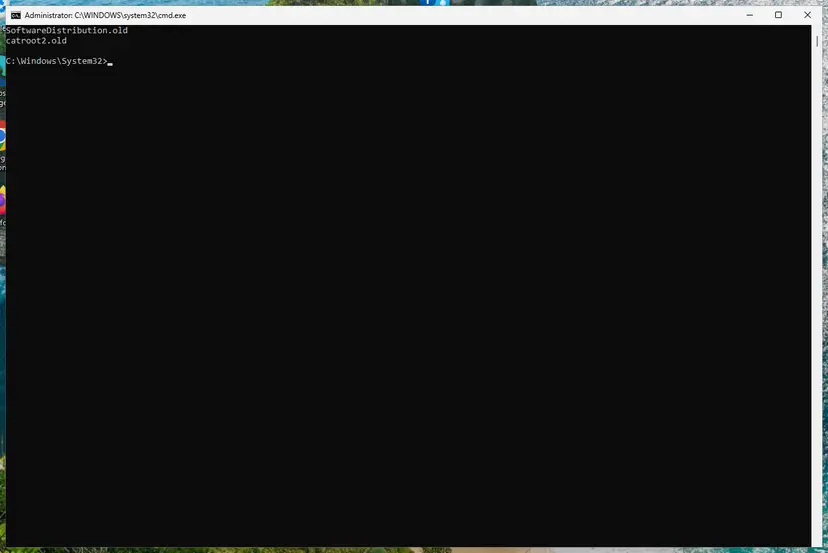
It worked if: Windows Update downloads KB890830 again from zero and it runs.
If not: Repair the system files with Fix 6.
Fix 6. Repair the system files with DISM and SFC
15 to 40 minutesNo riskEvery update fails, the standalone tool will not start, or mrt.log ends with Return code: 1.
Return code 1 is an operating system environment error. DISM repairs the component store that Windows Update relies on, and SFC then repairs the system files in use.
- Open an elevated command window. Right-click Start and select Terminal (Admin), or type cmd in the search box, right-click Command Prompt and select Run as administrator. Select Yes when Windows asks for permission.

Search for cmd and choose Run as administrator. Screenshot: Windows 11 26H2. - Run DISM first. Type the command below and press Enter. DISM downloads clean copies of damaged components from Windows Update, so it can take several minutes. Wait until it says The operation completed successfully.
DISM.exe /Online /Cleanup-Image /RestoreHealth
DISM /RestoreHealth running. Screenshot: Windows 11 26H2. - Run System File Checker. In the same window, type the command below and press Enter. Do not close the window until the verification reaches 100%.
sfc /scannow
sfc /scannow at 100%. Screenshot: Windows 11 26H2. - Read the result and restart. Compare the last message with the table below this guide, then restart the PC so that repaired files are loaded.

The result line tells you what SFC did. Screenshot: Windows 11 26H2.
These steps were written for Windows 11 24H2 and 25H2. The full page with the other versions and what each result means: Run DISM and SFC to repair Windows system files
It worked if: DISM ends with The operation completed successfully., SFC finds or repairs the damage, and KB890830 runs after a restart.
If not: Read the section "If KB890830 still fails" below.
Fix 7. If the tool found malware it could not remove, run a full Microsoft Defender scan
1 to several hoursLow riskThe tool or mrt.log reports an infection that was found but not removed, partly removed, or needs manual steps (return codes 7, 8, 9, 11 and 12).
Microsoft says the tool removes only specific prevalent malware that is active, and that a partial removal must be finished with an up-to-date antivirus product. Microsoft Defender is built into Windows and does that job.
- Restart the PC first if the tool asked for it (return codes 10 to 13).
- Open
%windir%\debug\mrt.logand note the threat name after Threat Detected:. - Run a full scan with Microsoft Defender, as below.
- Run the standalone tool from Fix 2 again. It should now end with Return code: 0.
- Open Scan options. If the quick scan finds nothing and you still suspect an infection, select Scan options under Current threats.
- Run a full scan. Select Full scan and start it. It checks every file and program on the device, so it takes much longer than a quick scan. Leave the PC on until it ends.
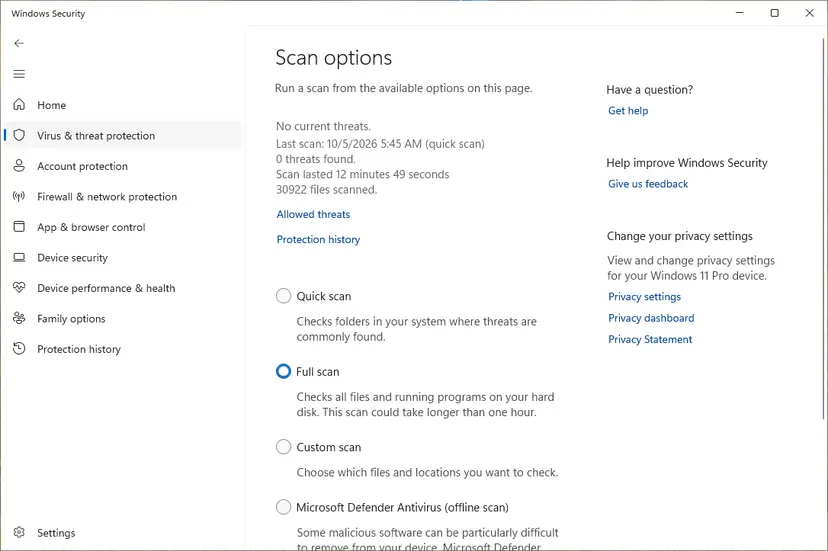
Scan options: Quick scan, Full scan, Custom scan and the offline scan. Screenshot: Windows 11 26H2. - Or scan one folder. To check only a download or a USB drive, select Custom scan in Scan options and choose the folder. You can also right-click a file or folder in File Explorer and select Scan with Microsoft Defender. On Windows 11 you may have to select Show more options first.
- Read Protection history. Go back to the first page of Windows Security and select Protection history. Select a card to expand it and see the details.
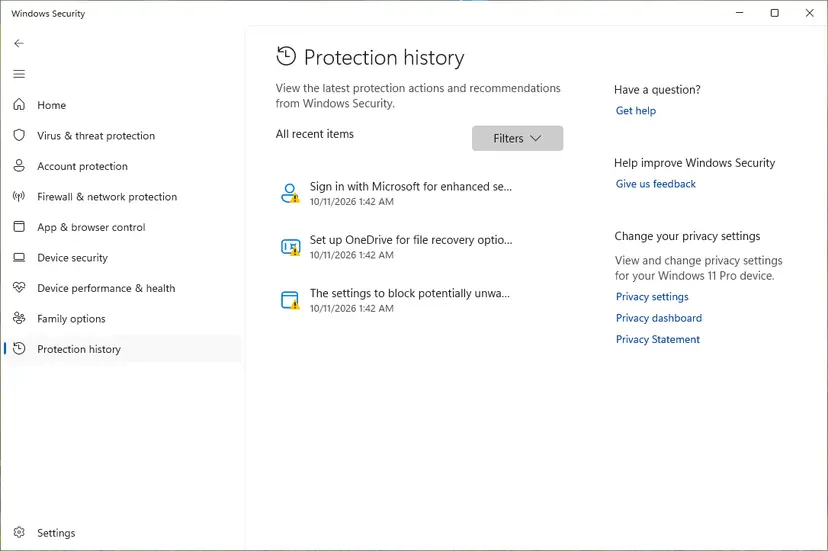
Protection history lists what Defender found and did. Screenshot: Windows 11 26H2.
These steps were written for Windows 11 25H2 and 26H2, Windows 10 22H2. The full page with the other versions and what each result means: How to scan for malware with Microsoft Defender
It worked if: Defender's Protection history shows the threat removed or quarantined, and the next MSRT run reports no infection.
If not: If the same threat comes back, run Microsoft Defender Offline from Windows Security, which scans before Windows starts.
If KB890830 still fails
If the standalone tool runs but Windows Update still lists KB890830 as failed, you have lost nothing: this month's scan has been done. Microsoft says the tool does not replace an antivirus, so your protection comes from Microsoft Defender or your own antivirus either way.
| Situation | What to do |
|---|---|
| Return code 3 or a message that the system is not supported | The PC runs Windows Embedded, Vista or Windows Server 2008. Microsoft does not support the tool there. Use the antivirus instead. |
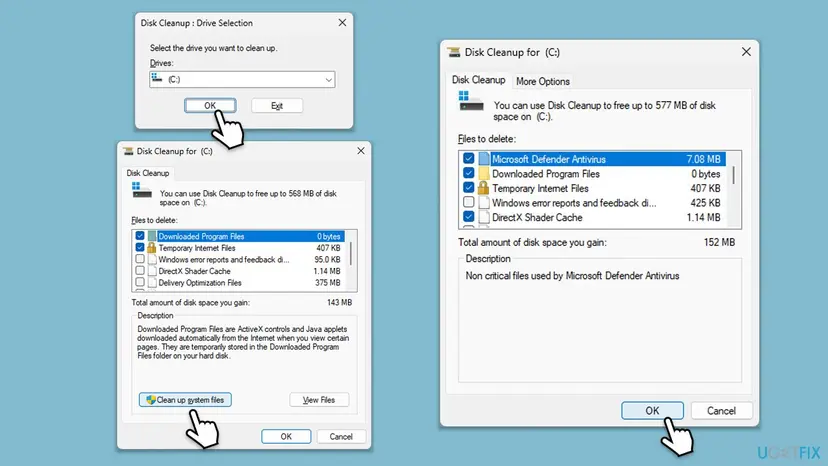
| Little free space on drive C: | Free several gigabytes and retry: Free up disk space and delete temporary files |
| Work PC that gets updates from WSUS or Configuration Manager | The administrator approves KB890830 each month. Send them the code, the version and mrt.log. |
| Every update fails and DISM cannot repair it | Reinstall Windows over itself and keep files: Reinstall Windows without losing files |
- What to send to support: the KB890830 version, the code from Update history, the last run in
mrt.logand the GUID from the registry check. - Say whether the PC gets updates from Windows Update or from a company server, and which fixes you already ran.
How to keep KB890830 from failing again
- Restart when Windows Update asks, before the next Patch Tuesday.
- Use an administrator account when you install updates, or let an administrator sign in once a month.
- Keep Microsoft Defender or another current antivirus running. The tool is a monthly check, not protection.
- Move a Windows 10 PC to Windows 11 if it can run it.
- Do not end
mrt.exewhile its CPU use is still changing. - Do not turn off your antivirus to make KB890830 install. Microsoft says it is not needed.
- Do not keep updates paused for months: the tool then stays out of date.
- Do not download the tool from anywhere but Microsoft.
Windows 10 left support on 14 October 2025. Microsoft still lists Windows 10 among the systems the tool supports, but the PC itself gets security fixes only through Extended Security Updates.
Frequently asked questions
What is KB890830?
KB890830 is the Windows Malicious Software Removal Tool. Microsoft uses this one knowledge base number for every monthly version and changes only the version, for example 5.146 in October 2026. The tool looks for a list of prevalent, active malware families, removes what it finds and reverses their changes. It runs quietly from Windows Update and shows a message only when it finds something. It is not a security patch and not a cumulative update.
What are the known KB890830 issues and problems?
Microsoft's page lists no install bug for home PCs. Its deployment article names two known issues: an Access is denied line in mrt.log that only means one process was not scanned, and rare rootkit cases where a quiet run cannot finish the cleaning. Users report sound or network problems after KB890830 appeared, but the tool changes nothing unless it removes malware. Check which other updates installed the same day in Update history.
Why is KB890830 stuck?
Because for this entry, installing means scanning. While Windows Update shows Installing, mrt.exe checks memory and running programs for the malware families it knows. If it finds something, it may ask for a full scan, which Microsoft says can take several hours. Open Task Manager, Details tab: if mrt.exe still uses the processor, wait. If it shows no activity for half an hour, end it, restart and run the standalone tool (Fix 3).
Why does KB890830 keep coming back every month?
Because Microsoft releases a new version on the second Tuesday of most months and keeps the KB number. Microsoft says the number will stay 890830 for future versions, and only the file name changes. So the same entry in Settings is a different tool each month. It is offered only to PCs that have not run the current version yet. Microsoft skipped some months, for example January and March 2026.
Do I need KB890830 if I have an antivirus?
It is not required, and Microsoft says it does not replace an antivirus. It is a post-infection cleaner for a small set of prevalent threats, and it cannot remove malware that is not running. With Microsoft Defender or another current antivirus active, a failed KB890830 leaves you no less protected. Still, a monthly failure often points to a Windows Update fault that will also block real security updates, so fix the cause.
How do I check whether KB890830 already ran?
Read the registry value Version under HKLM\SOFTWARE\Microsoft\RemovalTools\MRT. The tool writes a GUID there every time it runs, whatever the result. Microsoft publishes the list: October 2026 is 18D5B118-3628-4DBA-B3C3-8DD42F787260. You can also open %windir%\debug\mrt.log, where each run adds its start time, its results and its return code at the end of the file.
Can I stop Windows Update from offering KB890830?
Microsoft says you can decline the license terms the first time the tool is offered, for this version or for future versions too. If you already accepted them, Microsoft says to clear the tool's checkbox in Windows Update. Windows 11 Settings has no such checkbox for single updates, so on home PCs the honest answer is to let it run once a month. On a clean PC it finds nothing and shows nothing.
Does KB890830 work on Windows 10?
Yes. Microsoft still lists Windows 10 among the supported systems, and the October 2026 version 5.146 is offered to Windows 10 PCs. Windows 10 itself left support on 14 October 2025, so it gets security fixes only through Extended Security Updates. The steps in this guide are the same on Windows 10 22H2. Only the Settings path differs: Settings > Update & Security > Windows Update.
Can I run the Malicious Software Removal Tool without Windows Update?
Yes. Download it from the Microsoft Download Center and run it as an administrator (Fix 2). The standalone tool shows a window where you pick a quick or a full scan, while the Windows Update version runs only once a month and quietly. If the tool has run before, Microsoft says you can also start it from %windir%\system32\mrt.exe, even in Safe mode.
This page is in English. Is there help in my language?
Searches such as не устанавливается, non si installa or 설치안됨 all mean that KB890830 does not install, and the fixes above apply in every language. Microsoft says the tool itself is available in 24 languages, so the version you download from the Microsoft Download Center can match your Windows. Only mrt.log is always written in English, which is why this guide quotes its exact wording.
Sources
- Microsoft Support: Remove specific prevalent malware with Windows Malicious Software Removal Tool (KB890830) (support.microsoft.com)
- Microsoft Support: Deploy Windows Malicious Software Removal Tool in an enterprise environment (KB891716), return codes, mrt.log and registry GUIDs (support.microsoft.com)
Did this fix work?
One click, no account. It tells the next reader which guides are worth their time.
Questions and experiences: fix KB890830 fails to install in Windows
Still broken, or found a fix we did not cover? Ask here: members and our editors answer. Reading is open; writing needs a free account.
…