How to fix
Left click not working
on Windows
Resolve left click issues on Windows 10/11 effortlessly. Follow our expert-tested solutions to get your mouse working again in minutes.

What causes How to fix left click not working in Windows 10/11?
- Corrupted system files
- Third-party antivirus software
- Changes in the settings
- Outdated mouse drivers
Repairs Windows system files, removes malware, and restores a clean OS state — without reinstalling.
Hello. I often need to click an element multiple times in order to activate it. I have not experienced the issue with the right-click. My mouse does not seem to be the issue so what could be the problem?
Hundreds of users have flooded the Microsoft community forum complaining about the left mouse click not responding on Windows 10 and 11 devices. For some reason, users have to click on buttons multiple times before Windows reacts. Microsoft has not responded to complaints and has not addressed the issue so far, so it is unknown what could have caused it and how users could fix it.
We prepared a step-by-step guide consisting of 6 steps that seem to have helped some people deal with the left click not working in Windows. Some users guess that the big could have been caused by corrupted system files, third-party antivirus software, changes in the settings, or outdated mouse drivers. The first thing you should do before proceeding with the troubleshooting is to check if the mouse you are using works fine connected to another device to rule it out as the cause.
If you have done that, and the left click works without issues on another PC, there might be an issue with your Windows machine. The manual troubleshooting process could take a while, so you can use a repair tool like [d1] that can fix various system errors, corrupted files, registry[ref en-1] issues, etc. This powerful software can also automatically clear cookies[ref en-2] and cache,[ref en-3] which many users forget to do regularly.
Otherwise, if you are ready to begin the guide, follow the steps below carefully and in an orderly manner. We also previously wrote a guide on how to fix mouse right-click so if none of the steps in this article will help, you can look for additional ideas there.
Method 1. Fix Corrupted System Files
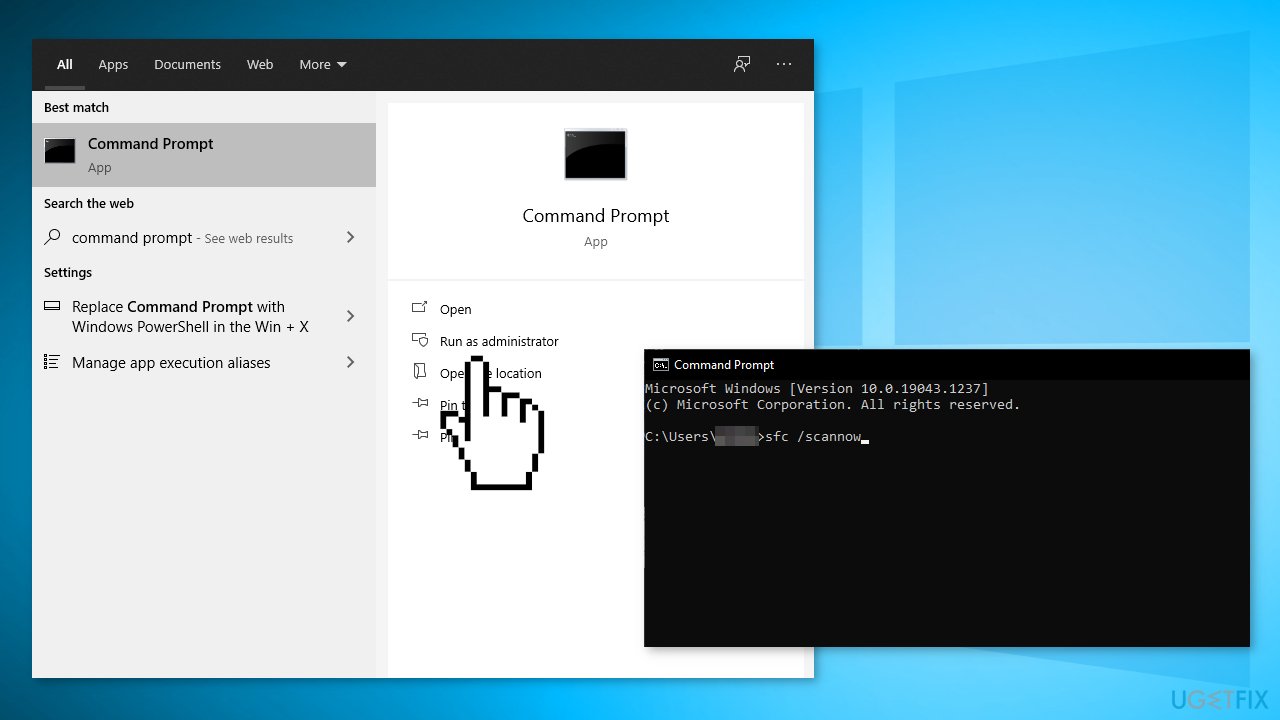
Use Command Prompt commands to repair system file corruption:
- Open Command Prompt as administrator
- Use the following command and press Enter:
sfc /scannow
- Reboot your system
- If SFC returned an error, then use the following command lines, pressing Enter after each:
DISM /Online /Cleanup-Image /CheckHealth
DISM /Online /Cleanup-Image /ScanHealth
DISM /Online /Cleanup-Image /RestoreHealth
Method 2. Select Left-Click as the Primary Button
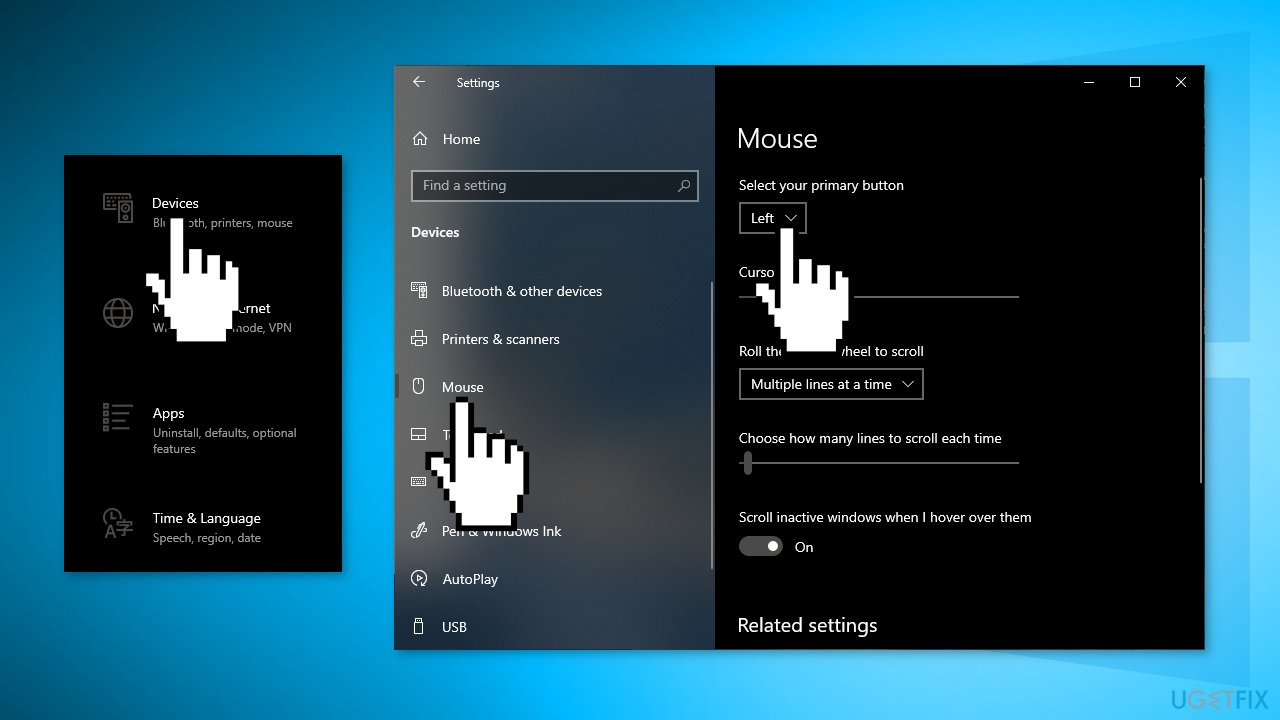
- Open Windows Settings and go to Devices
- Click on the Mouse option
- Select Left from the drop-down menu where it says Select your primary button
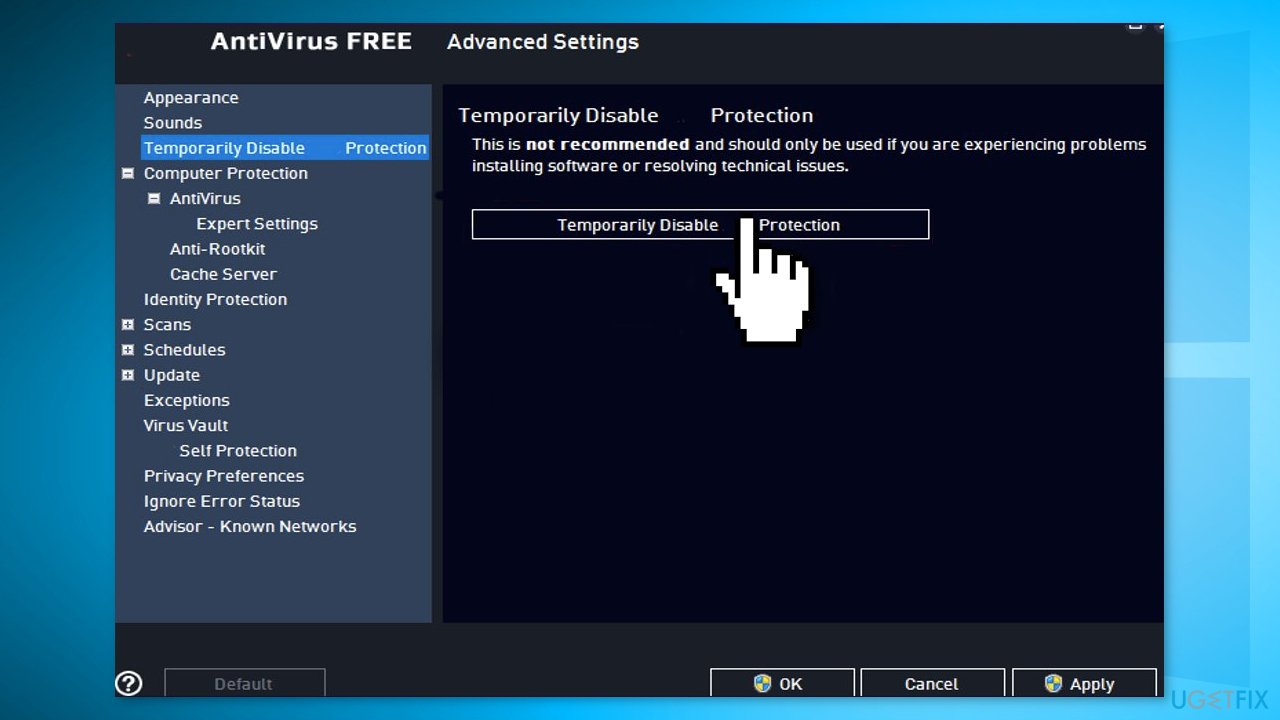
Method 3. Disable Third-Party Antivirus Software
Some security programs might be conflicting with your hardware Thus, it is known that removing AV software helped some users when trying to remove this mouse bug.
- Right-click the antivirus icon and select Disable
- You can also double-click the antivirus icon and look for a Disable option there
Method 4. Use the Command Prompt
- Open Command Prompt as administrator
- Use the following command and press Enter:
taskkill -im explorer.exe
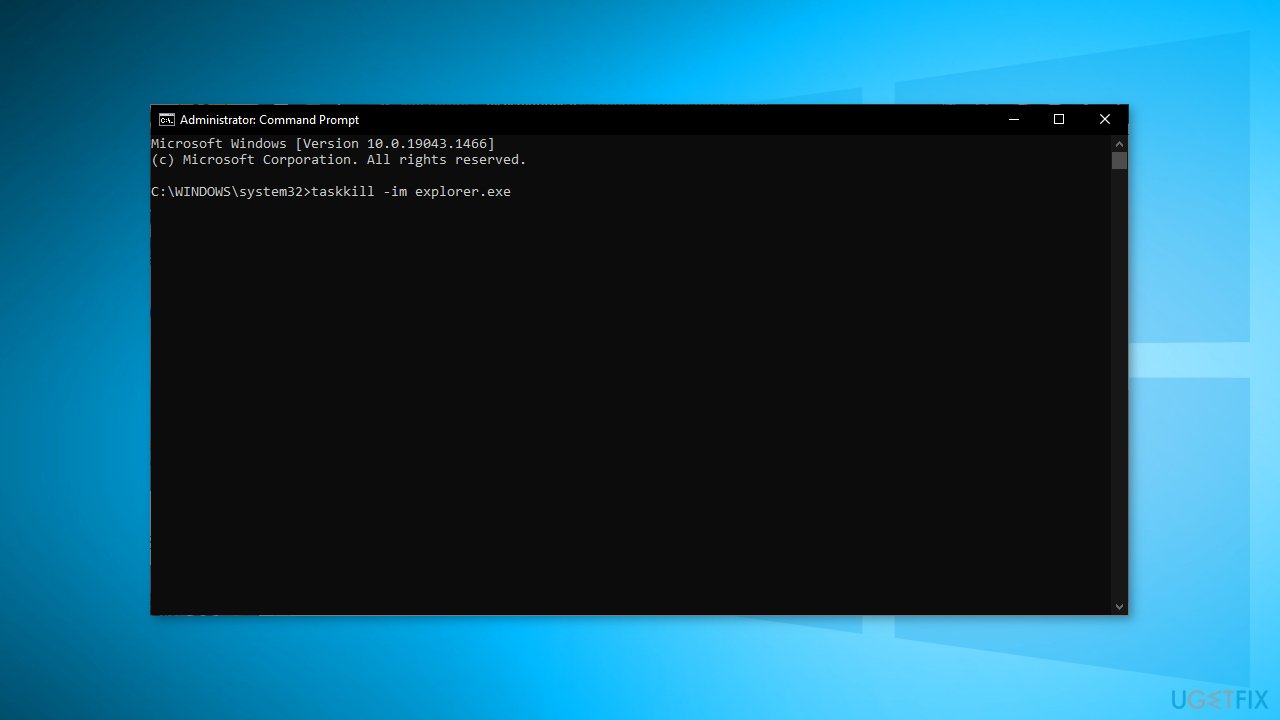
- Close the window and see if it fixed the issue
Method 5. Enable ClickLock
- Open Settings and go to Devices
- Choose Mouse, then Additional mouse options
- Click on the Buttons tab and check the Turn on the Click Lock option and press Apply.
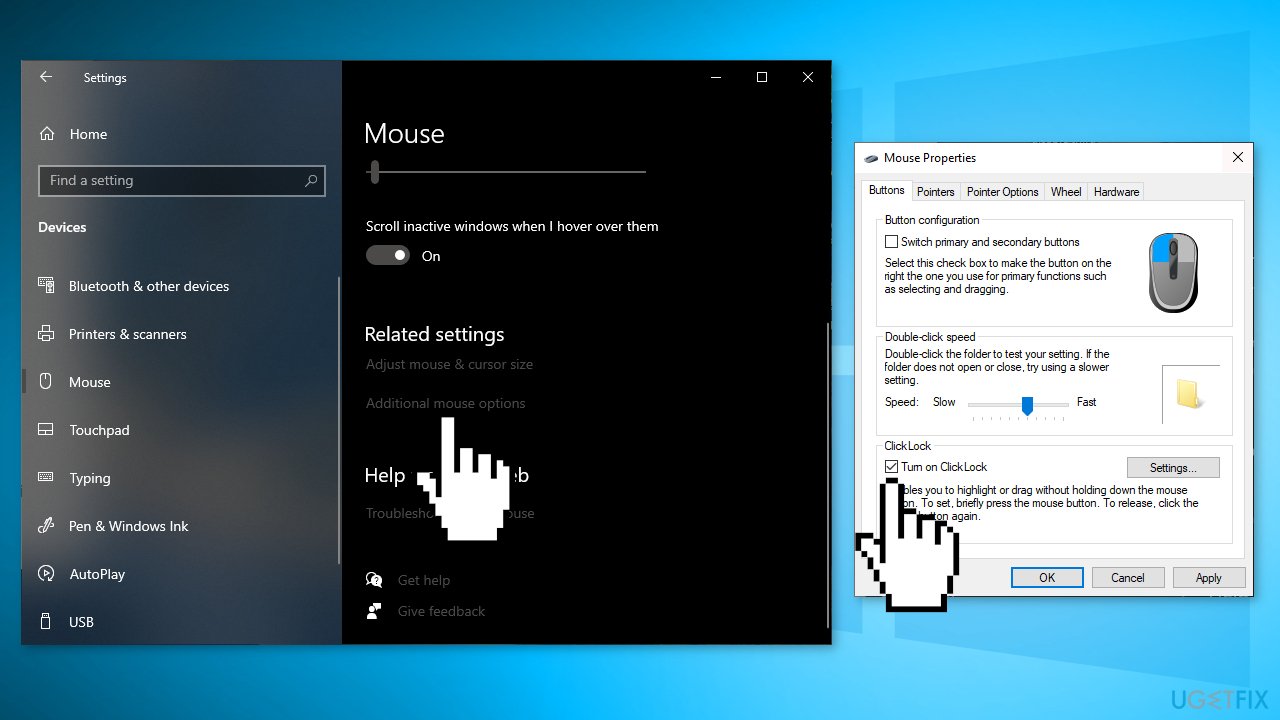
- Now uncheck this option and click Apply again
Method 6. Reinstall the Mouse Driver
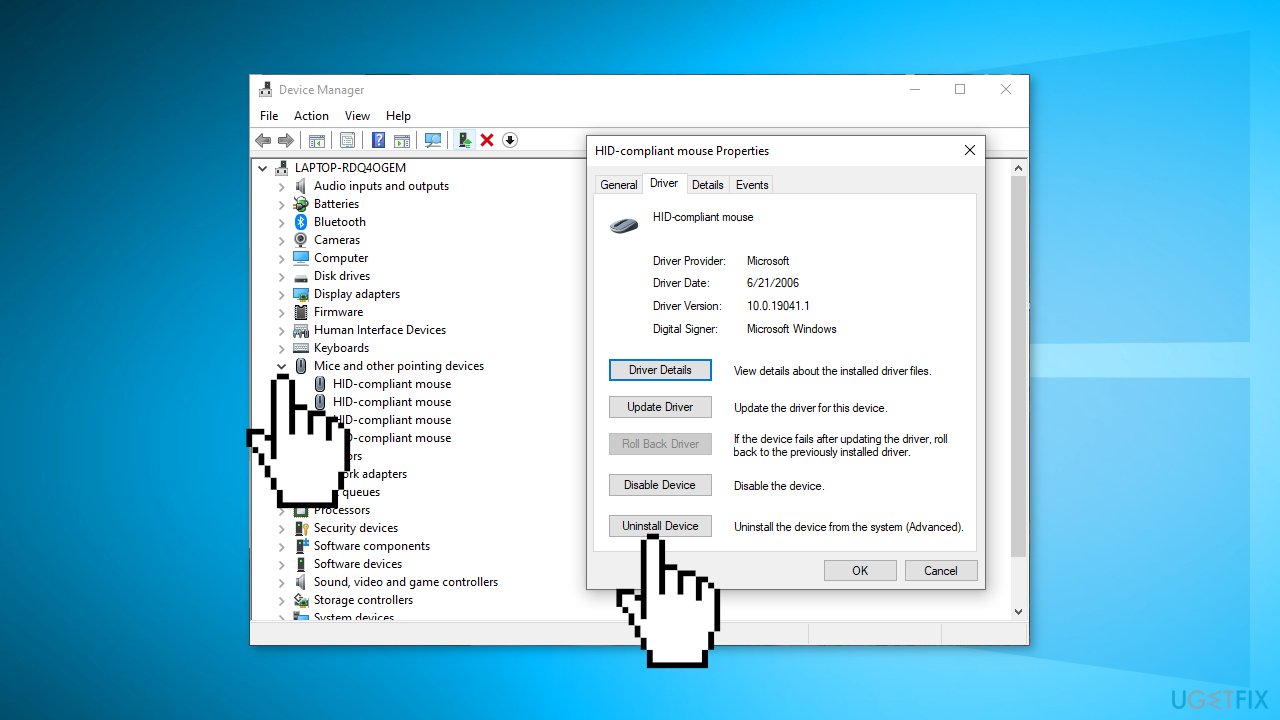
- Open the Device Manager
- Locate Mice and other pointing devices and then right-click on your mouse driver to open its Properties
- Switch to the Driver tab and click the Uninstall Device button
- Disconnect the mouse and then plug it in again to reinstall the mouse driver
You might also be interested in these topics:
Bottom line
To address the left click not working issue, users can repair corrupted system files using Command Prompt, check their mouse on another device, or consider using a repair tool to fix system errors. If these steps do not resolve the problem, users may want to explore additional guides, such as fixing the right-click issue.
Frequently asked questions
Try restarting your computer first, as updates can sometimes cause temporary glitches. If the issue persists, check your mouse settings in the Control Panel or Settings app for any changes.
You can test your mouse on another computer to see if the left click works there. If it doesn't, the mouse may be faulty; otherwise, the issue lies within your Windows settings.
Yes, you can try updating your mouse drivers through Device Manager or reinstalling the driver if necessary. Additionally, running the built-in Windows Troubleshooter for hardware and devices can help identify and fix the issue.




Report an issue
What's wrong with this guide? We review every report and update or remove content.
Report received — thank you. We'll review and fix it.
You need a free account to submit a report.
Be the first to comment